While AI can help you build services quickly, creating services manually gives you complete control from the start. This guide walks you through building a service plan from scratch, filling in every detail yourself.
Manual creation is perfect when you have specific content ready or want full control over every element.
When to Create Manually
Choose manual creation when:
You have content prepared:
Service descriptions already written
Exact pricing calculated
Specific terms and policies defined
You want complete control:
Precise wording matters
Brand voice is very specific
Unique service structure
AI doesn't fit:
Highly specialized services
Complex pricing models
Non-standard service offerings
✍️ TIP: Even if starting manually, you can always use AI for future services. Each service can be created differently.
Starting Manual Creation
From Guided Setup
Navigate to your Guided Setup page
Click Build your first service plan
Select Create manually
From Services Page
Click Services in the main navigation
Click Create Service
Begin to fill in the field manually (ignoring the AI Assisted modal)
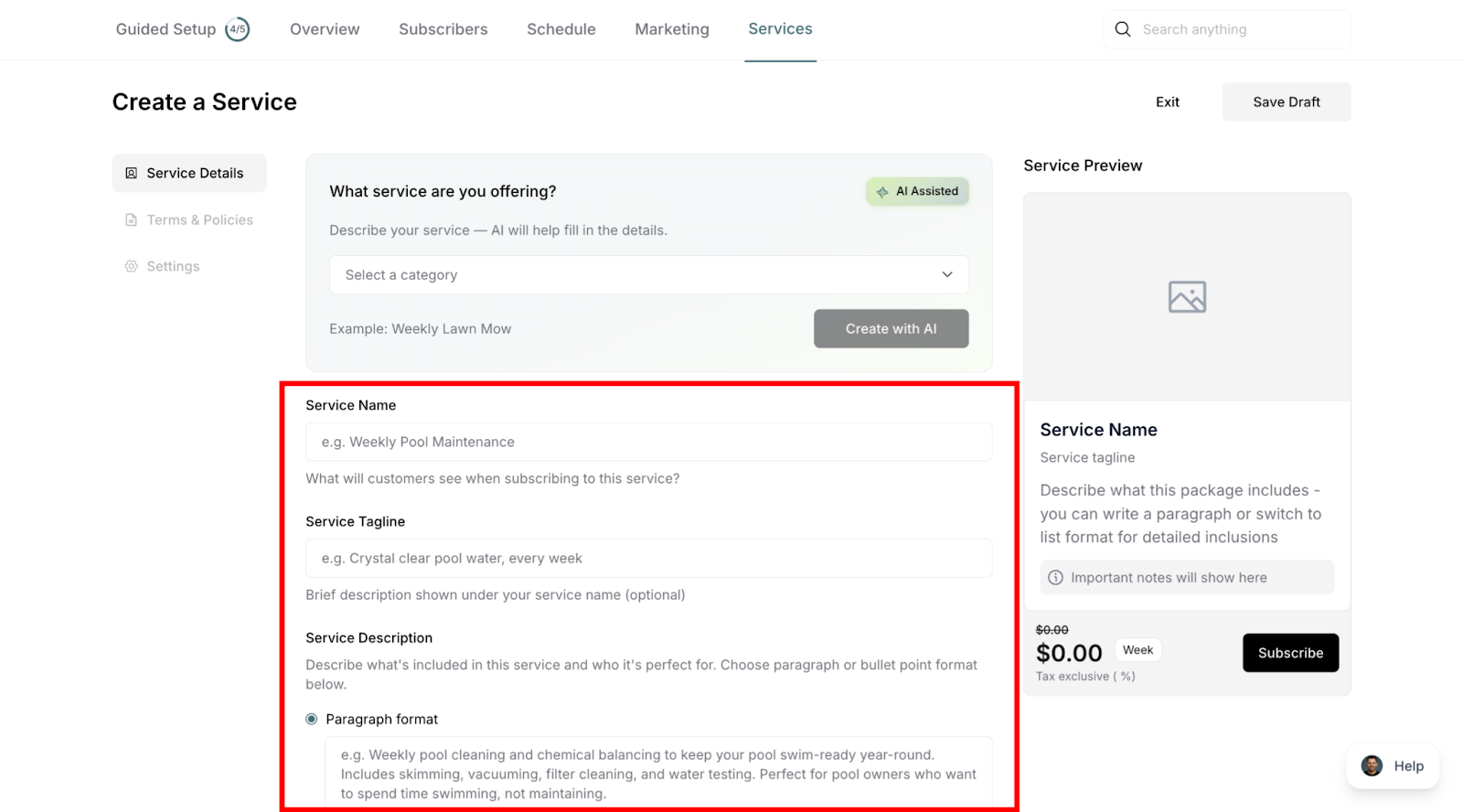
The Details Tab
This is where you define what your service is and what it costs.
Service Name
Enter a clear, descriptive name for your service:
Good examples:
"Professional Window Cleaning"
"Weekly Lawn Care Service"
"Monthly House Deep Clean"
"Quarterly Pest Control"
Avoid:
Vague names ("Service #1")
All caps ("WINDOW CLEANING")
Too long (keep under 50 characters)
Service name field with example text
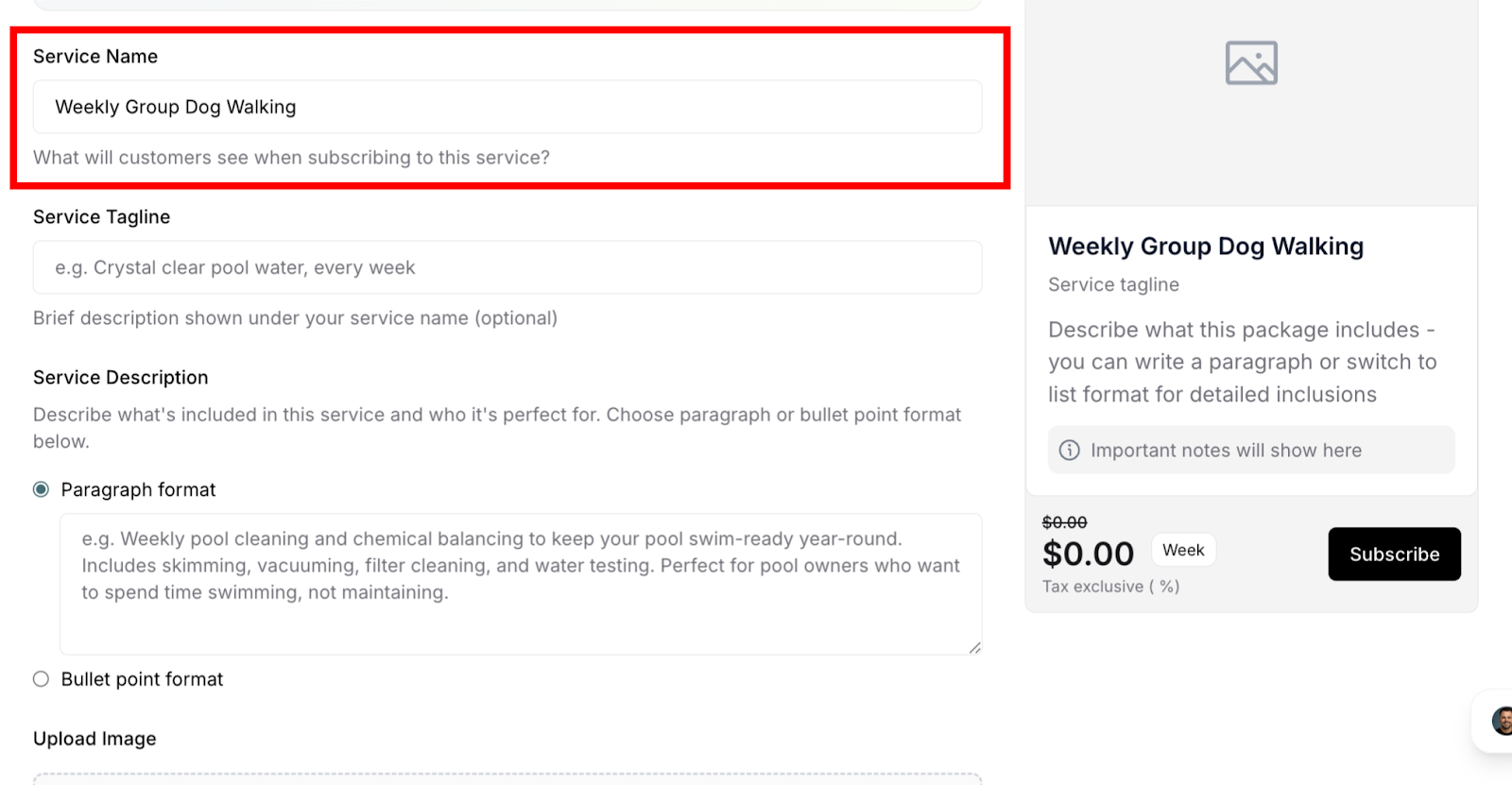
✅ BEST PRACTICE: Use what customers would search for. "Professional Window Cleaning" beats "Crystal Clear Vision Services."
Service Tagline
Write a brief, compelling subtitle (optional but recommended):
Good examples:
"Keep your home sparkling year-round"
"Perfectly manicured lawns, every week"
"Your car's spa day, every month"
Tips:
One sentence maximum
Focus on the benefit
Make it memorable
Service Description
Explain what customers get with this service:
What to include:
Detailed service overview
What's included
Key benefits
Process or approach
Any unique features
Format options:
Paragraph format: Flowing text for narrative descriptions
Bullet points: Easy-to-scan lists of what's included

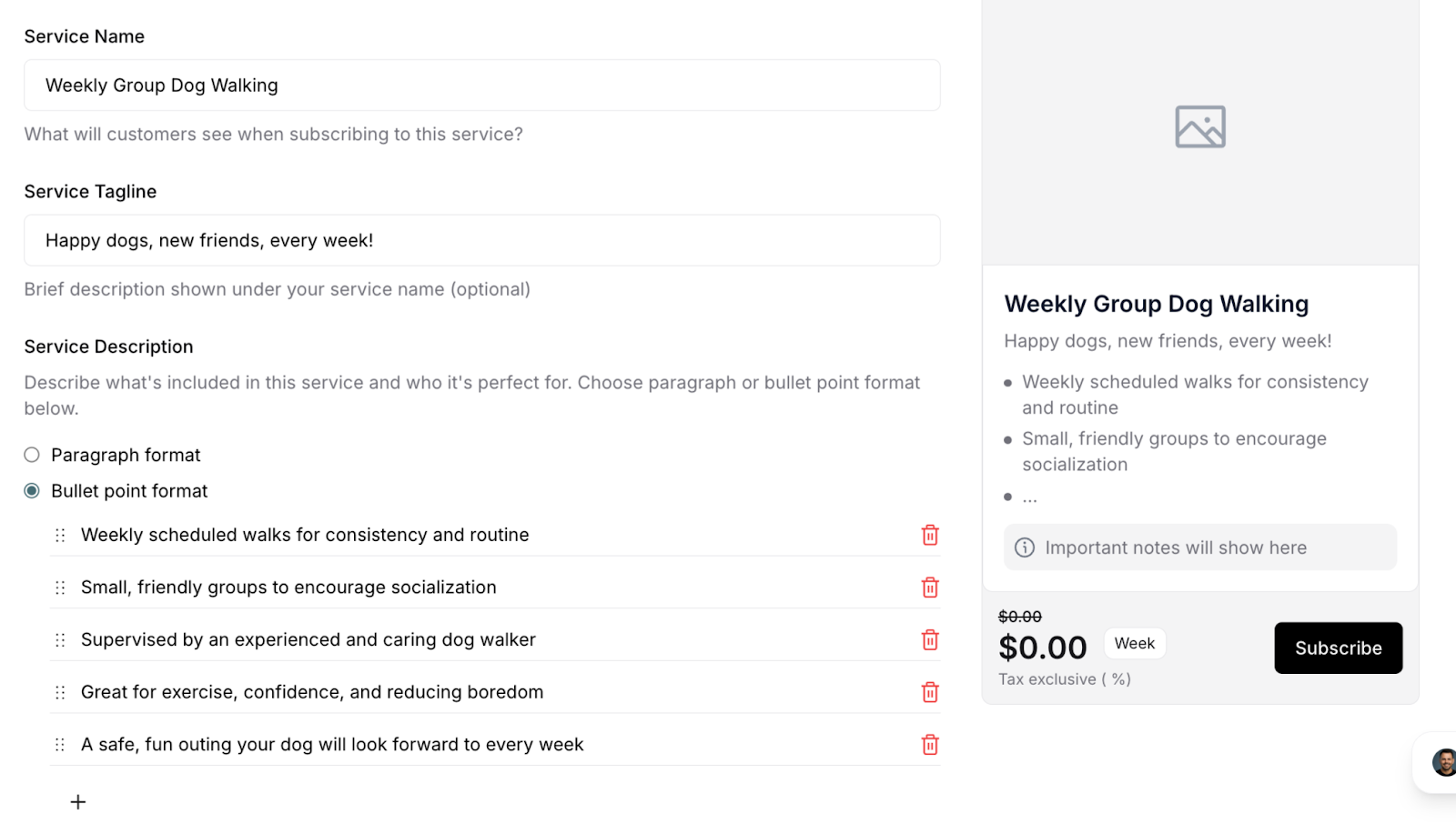
✍️ TIP: Keep paragraphs to 3-4 sentences max. For services with many components, bullet points scan better.
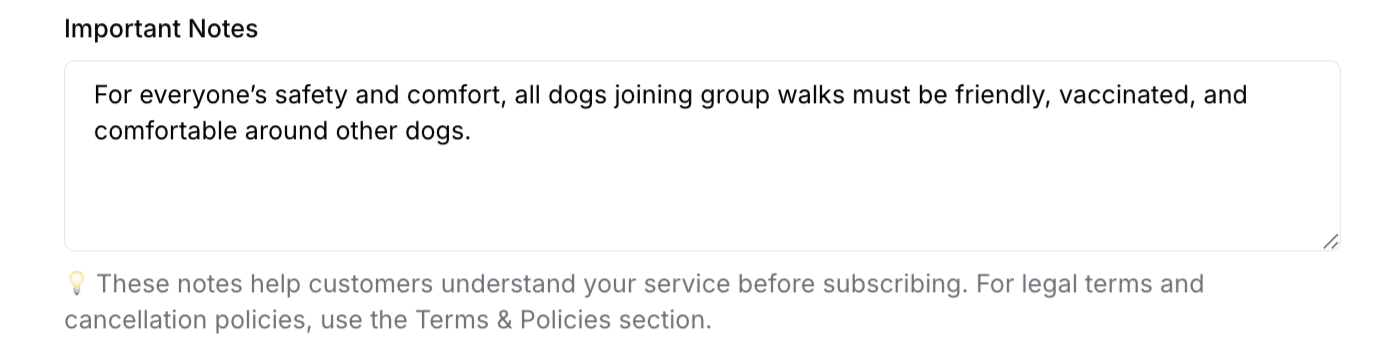
Important Notes
Add critical information customers should know:
Common notes:
Service requirements
What customers need to provide
Exclusions or limitations
Scheduling details
Special instructions
Pricing
Set your subscription and regular pricing (both required):
Subscription Price:
The recurring price for subscribers
What customers pay per billing cycle
Enter numbers only (no $ or currency symbols)
Regular Price:
Standard price for one-time service purchases
Typically 20-30% higher than subscription price
Shows subscription value and savings
Subscription and regular price input fields
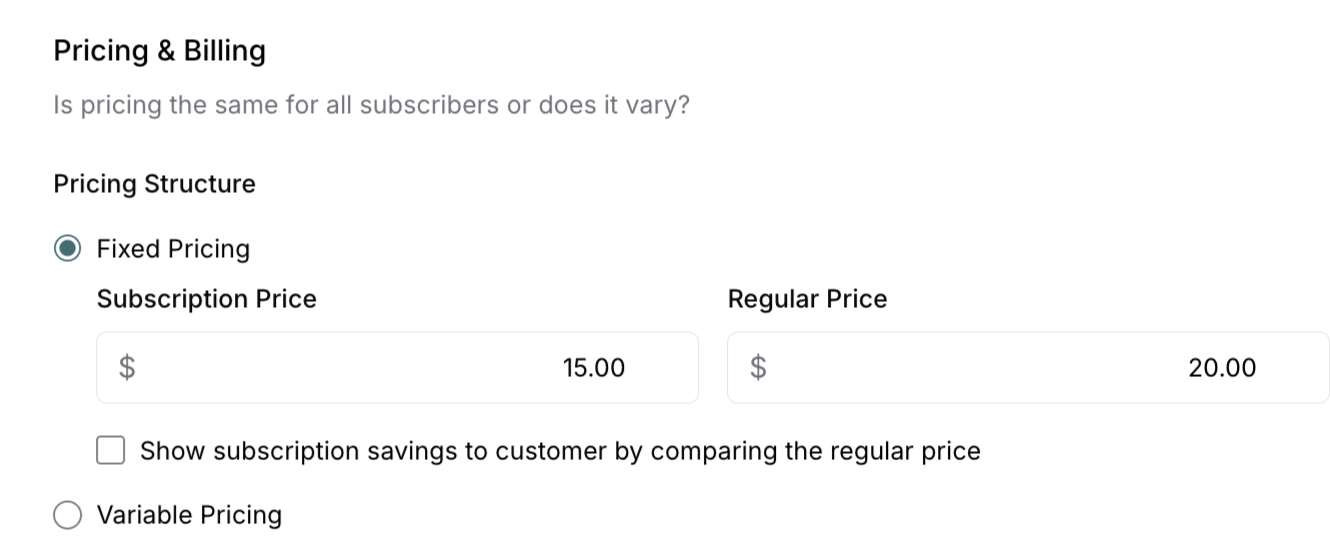
⚠️ IMPORTANT: Calculate your costs first. Ensure subscription price covers time, supplies, travel, overhead, and desired profit margin.
Purchase Options
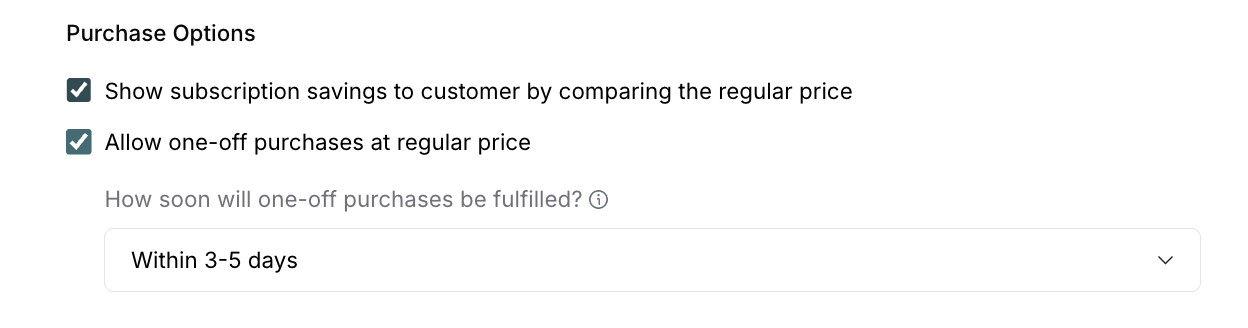
Control how customers can buy your service and how pricing is displayed:
Show subscription savings to customer by comparing the regular price:
Displays price difference and savings amount
Example: "Save $25 per visit by subscribing!"
Allow one-off purchases at regular price (checked by default):
Lets customers purchase once without subscribing
They pay the regular price for single service delivery
Fulfillment timeline (when one-off purchases enabled):
Set how soon one-off purchases will be fulfilled
Options: Within 24-48 hours, 3-5 days, 5-7 days, 1-2 weeks, 2-4 weeks
Service & Billing Frequency
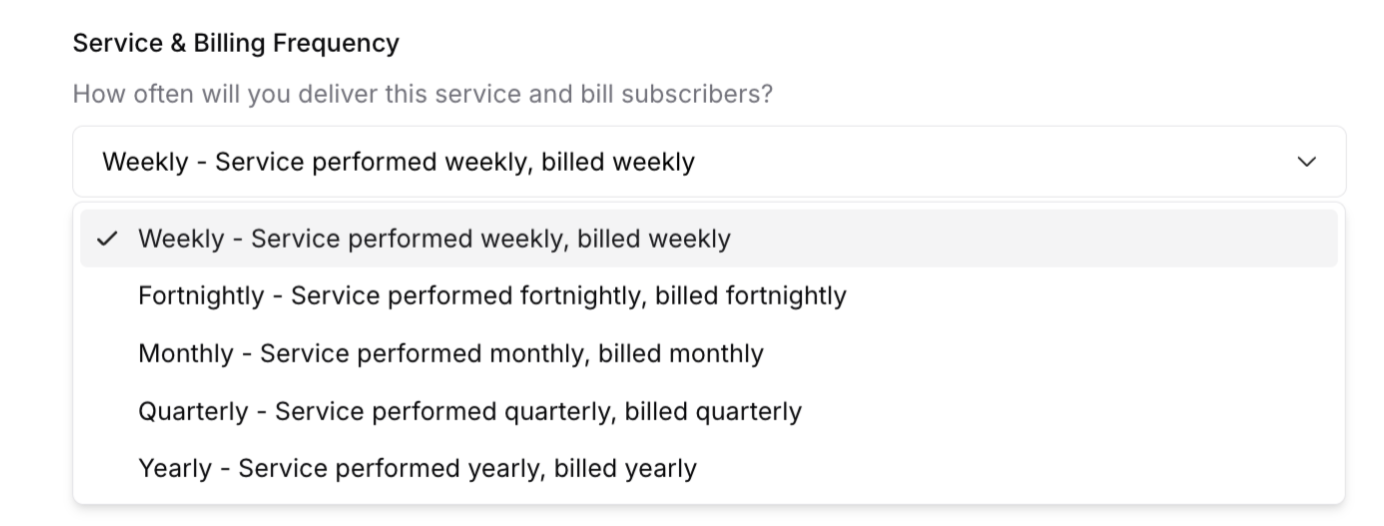
Choose how often service is delivered and billed:
Weekly: Service every 7 days with weekly billing. Best for lawn care, regular cleaning, and pet care requiring consistent attention.
Fortnightly: Service every 14 days with bi-weekly billing. Ideal for bi-weekly cleaning and regular maintenance tasks.
Monthly: Service once per month with monthly billing. Suits deep cleaning, inspections, and preventive maintenance.
Quarterly: Service every 3 months with quarterly billing. Works well for seasonal maintenance, pest control, and HVAC servicing.
Yearly: Service once per year with annual billing. Best for annual maintenance, winterization, yearly inspections, or once-annual services
Tax Treatment
Configure how tax applies to your pricing:
Apply default tax settings:
Tax is calculated and added at checkout
Uses your account's default tax rate (e.g., GST 10%)
Customer pays base price plus tax
Example: $100 service + $10 tax = $110 charged
This service is tax-free:
No tax is calculated or added
Customer pays exactly the displayed price
Example: $100 shown = $100 charged

✅ BEST PRACTICE: Use "Apply default tax settings" for standard taxable services. Use "tax-free" only if your service is exempt from tax or you're not registered for GST/VAT.
Adding Service Images
Visual content builds trust and showcases your work:
Uploading Images
Click Add Images or the upload area
Select up to 6 images from your device
Images upload and display as thumbnails
Drag to reorder (first image is primary)
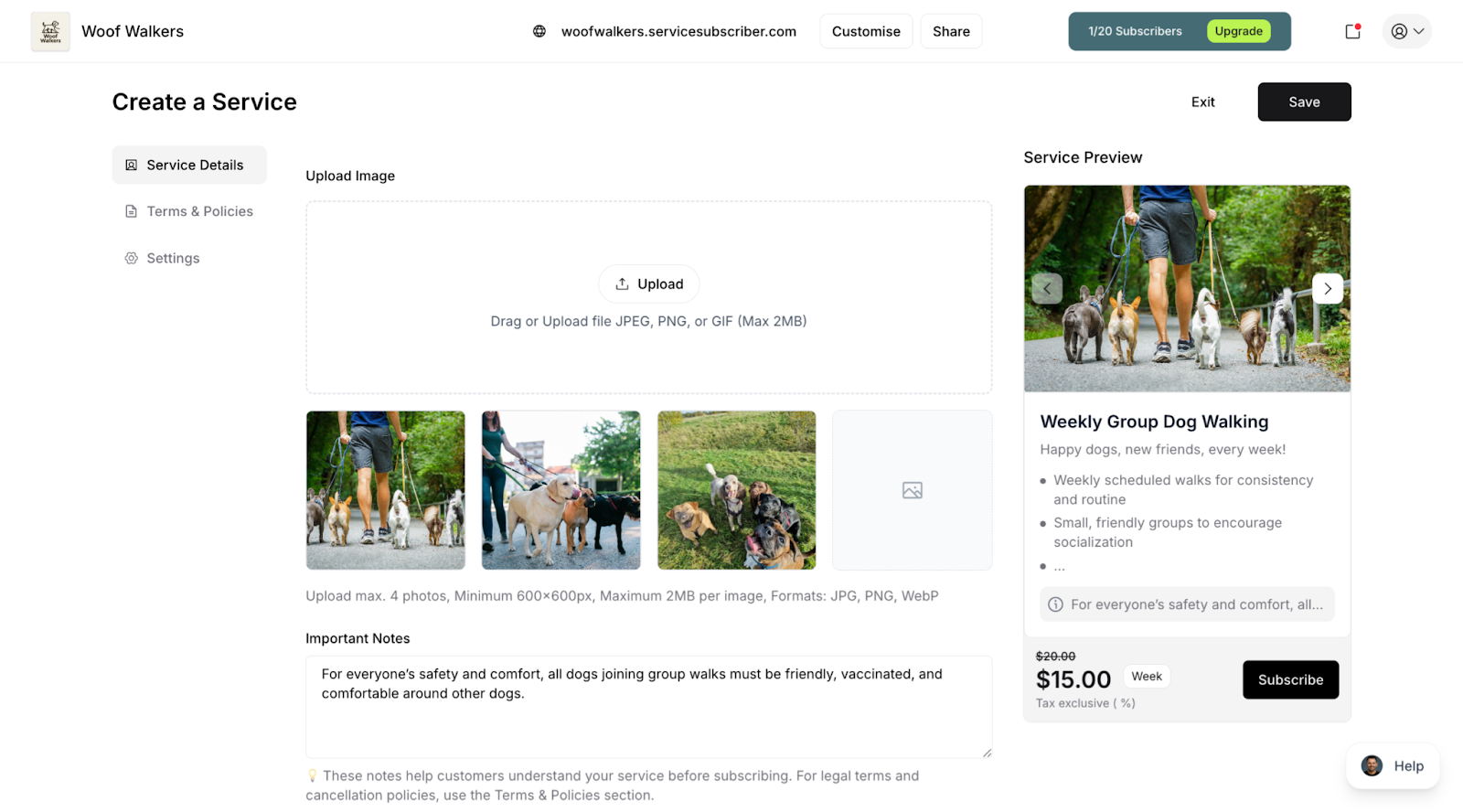
Image Guidelines
Best images to use:
Before/after comparisons
Completed work examples
Your team in action
Professional equipment
Happy customers (with permission)
Managing Images
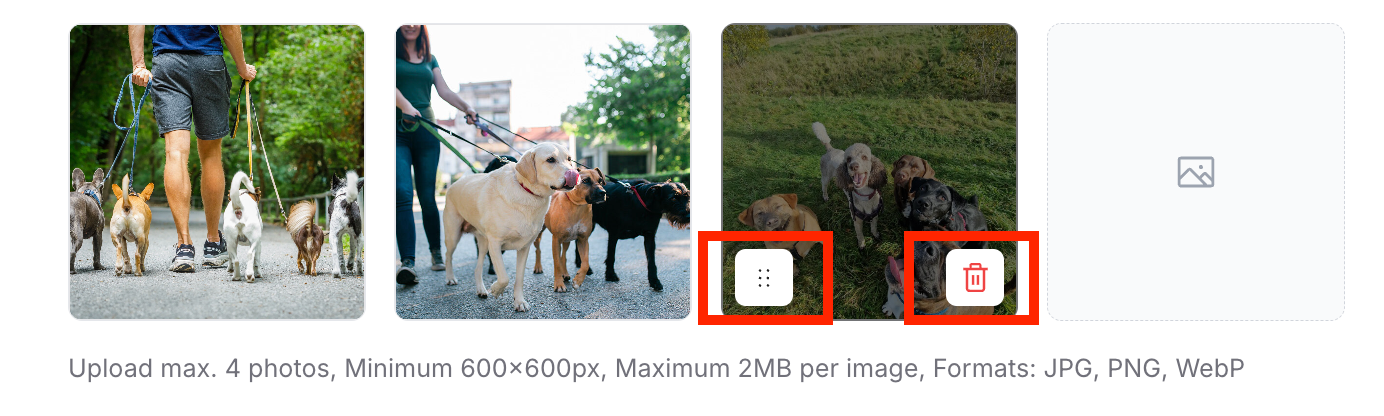
To remove an image:
Click the trash bin icon on the thumbnail
To reorder images:
Drag thumbnails to new positions
First image displays as primary on your site
✍️ TIP: Start with 3-4 quality images. You can always add more later as you photograph your work.
The Terms & Policies Tab
Set subscription terms and service policies:
Minimum Subscription Term
How long must customers stay subscribed?
Options:
No minimum (cancel anytime) - Most common
1 month minimum
3 months minimum
6 months minimum
Use minimums when:
Setup costs require commitment
Seasonal services need duration
Service only viable with minimum commitment
Minimum subscription term dropdown with options
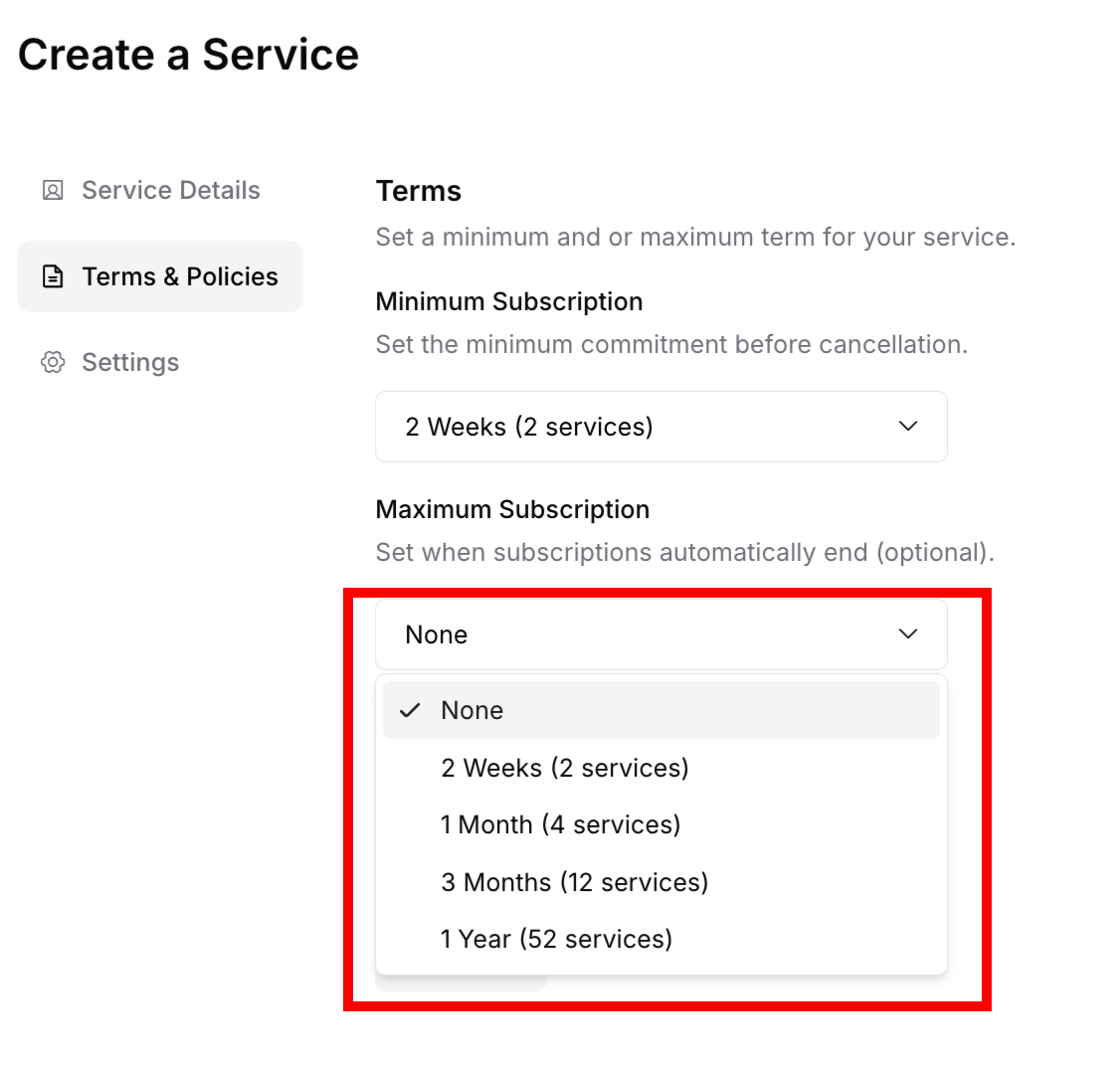
Maximum Subscription Term
When does the subscription need renewal?
Options:
No maximum (runs indefinitely) - Most common
12 months maximum
24 months maximum
Use maximums when:
Services are seasonal
Pricing may need adjustment
Want periodic customer reconnection
Auto-Renewal
If you set a maximum term, should it renew automatically?
Enable auto-renewal:
Subscription continues after maximum term
Customer doesn't need to resubscribe
Seamless ongoing service
Disable auto-renewal:
Subscription ends at maximum term
Customer must actively renew
Good for seasonal services
✍️? TIP: Most subscription businesses use "no minimum, no maximum" to reduce friction and build trust.
Service Policies
Create policies customers should agree to:
To add a policy:
Click Add Policy or Create New Policy
Enter a Policy Title (e.g., "Cancellation Policy")
Write your Policy Content in the text area
Click Save
Common policies:
Terms of Service
Cancellation Policy
Refund Policy
Service Requirements
Liability Limitations
Policy editor showing title and content fields
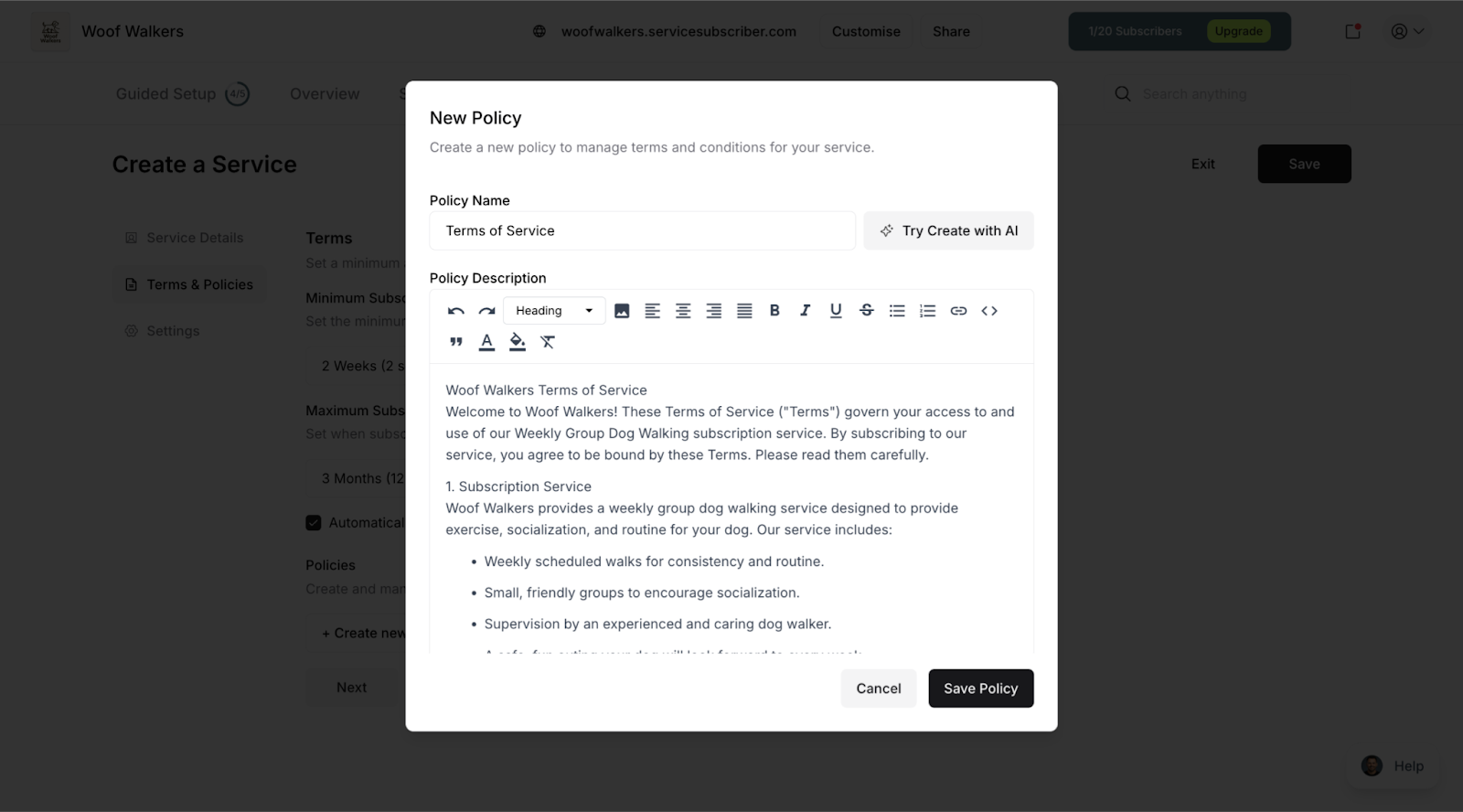
Example Cancellation Policy: "Subscriptions can be cancelled at any time with 7 days notice. Services scheduled within the notice period will be completed and billed. No refunds for partial months."
✅ BEST PRACTICE: Keep policies simple, fair, and easy to understand. Complicated policies reduce conversions.
The Settings Tab
Configure how your service operates:
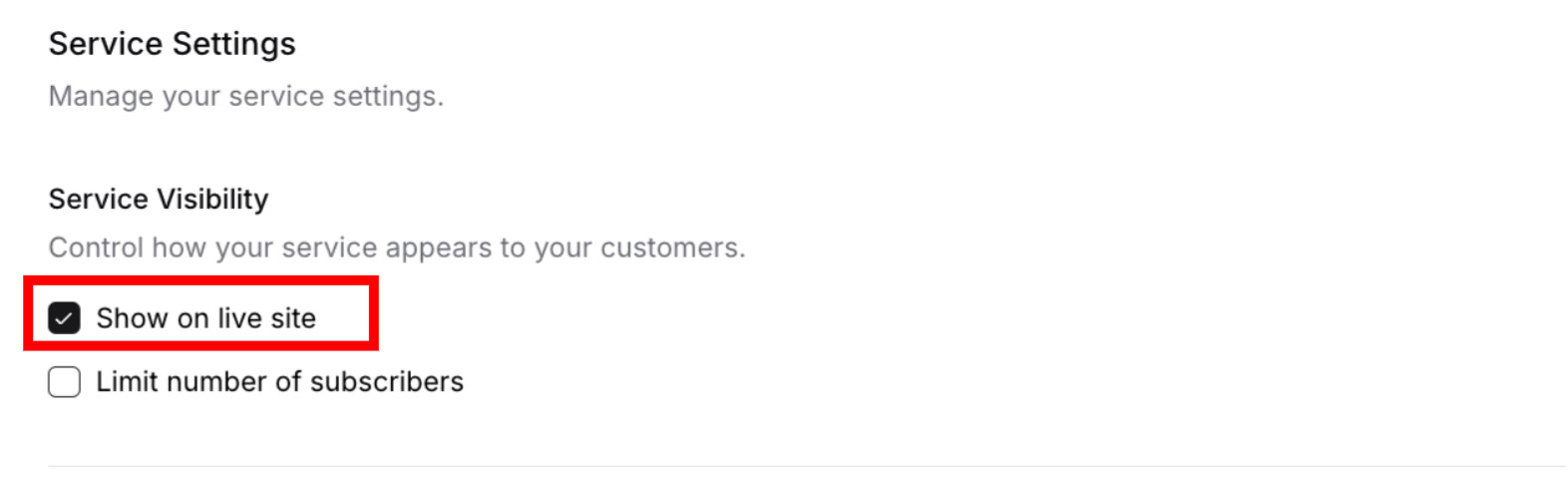
Service Visibility
Show on live site (checked by default):
Checked: Service appears on your public subscription page
Unchecked: Service hidden from customers
Subscriber Limits
Limit number of subscribers:
Check the box to enable
Enter maximum number for subscription capacity
Subscription signups unavailable once limit reached
One-off purchases remain available (limit only applies to subscriptions)
Use limits when:
Capacity constraints exist for recurring commitments
Can only serve set number of ongoing customers
Creating exclusivity for subscribers
Testing new service with pilot group
Example:
"Limited to 25 subscribers"
Protects service quality for committed customers
Prevents overcommitment on recurring schedule
One-off customers can still purchase if enabled
? TIP: Subscriber limits help manage recurring workload while still accepting occasional one-off requests.
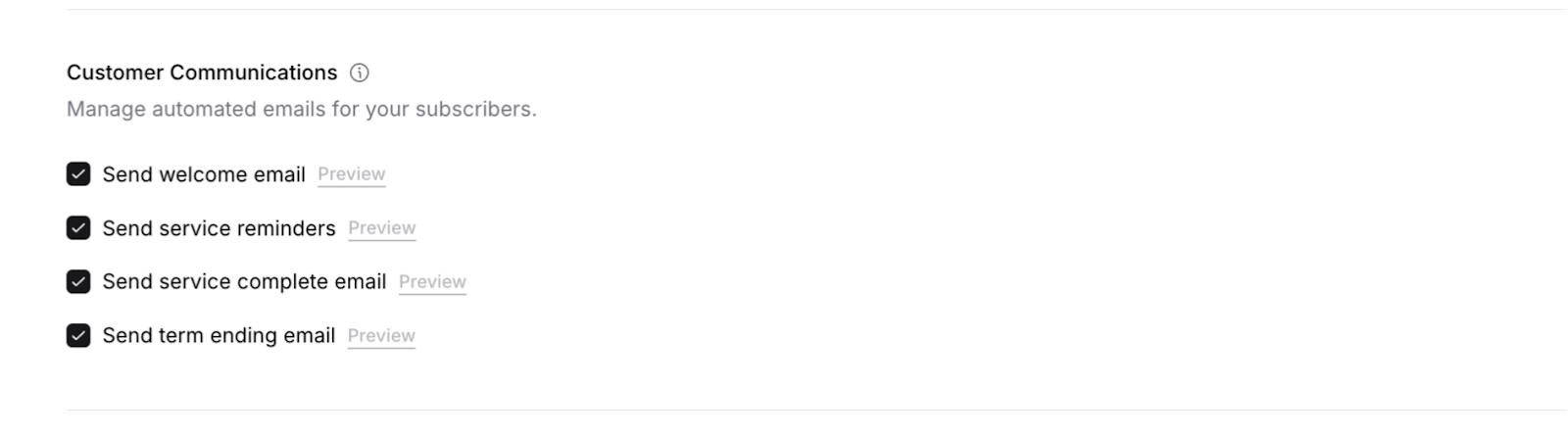
Customer Communications
Choose which automated emails to send:
Welcome Email:
Sent when customer subscribes or makes one-off purchase
Introduces your business
Sets expectations
Recommended: ON
Service Reminders:
Sent before service is due
Applies to both subscriptions and one-off purchases
Helps with scheduling
Reduces no-shows
Recommended: ON
Service Complete Email:
Confirms service was delivered
Applies to both subscriptions and one-off purchases
Professional touch
Encourages feedback
Recommended: ON
Term Ending Email:
Notifies when subscription term ending
Only applies to subscriptions (not one-off purchases)
Only relevant if maximum term set
Recommended: ON if applicable
Subscription Controls
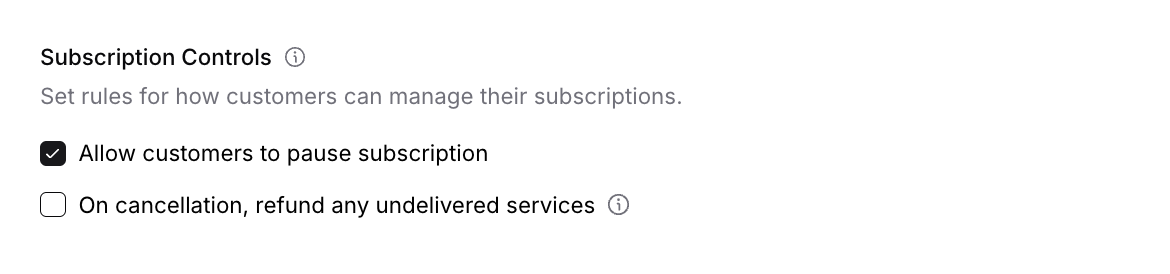
Important: These controls only apply to subscription purchases. One-off purchase customers cannot pause or cancel on their end—only you can manually cancel one-off purchases through your dashboard (refund required).
Allow customers to pause subscription (checked by default):
Customers can temporarily suspend service and billing
Can pause anytime, even during minimum term
Good for vacations or seasonal breaks
Recommended: ON for flexibility and retention
Only applies to subscriptions (one-off purchases are single transactions that cannot be paused)
On cancellation, refund any undelivered services (unchecked by default):
Automatically refund for services paid but not yet delivered
Customers can only cancel after meeting minimum term
Builds trust and goodwill
Consider based on your service delivery model
Only applies to subscriptions (one-off customers cannot self-cancel)
✍️ TIP: Most successful service businesses allow pausing to prevent permanent subscription cancellations. For one-off purchases, handle cancellations and refunds manually on a case-by-case basis.
Preview Your Service
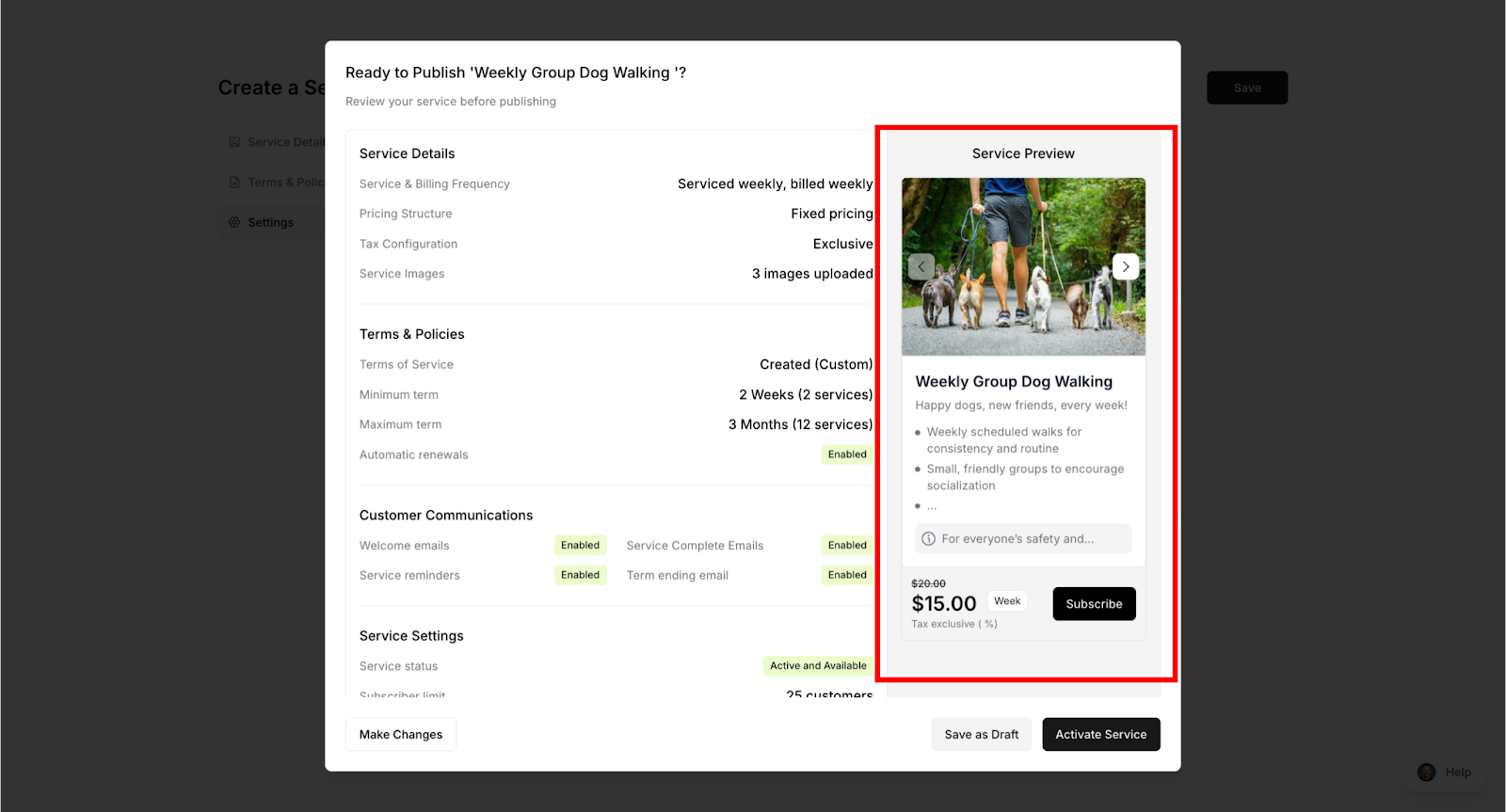
As you build, the preview panel shows how customers see your service:
Preview updates in real-time:
Changes reflect immediately
See exactly what customers see
Test different descriptions
Verify images display correctly
Check the preview for:
Service name clarity
Description readability
Pricing display
Image quality
Professional appearance
✅ BEST PRACTICE: Read your service as if you're a customer. Does it answer: What do I get? How often? How much? Why should I subscribe?
Publishing Your Service
Ready to make your service live?
Save Options
Save as Draft:
Saves without publishing
Service not visible to customers
Continue editing later
Good for work in progress
Activate Service:
Makes service live immediately
Appears on your public site, if the Show on live site option is checked
Customers can subscribe
Opens publishing modal
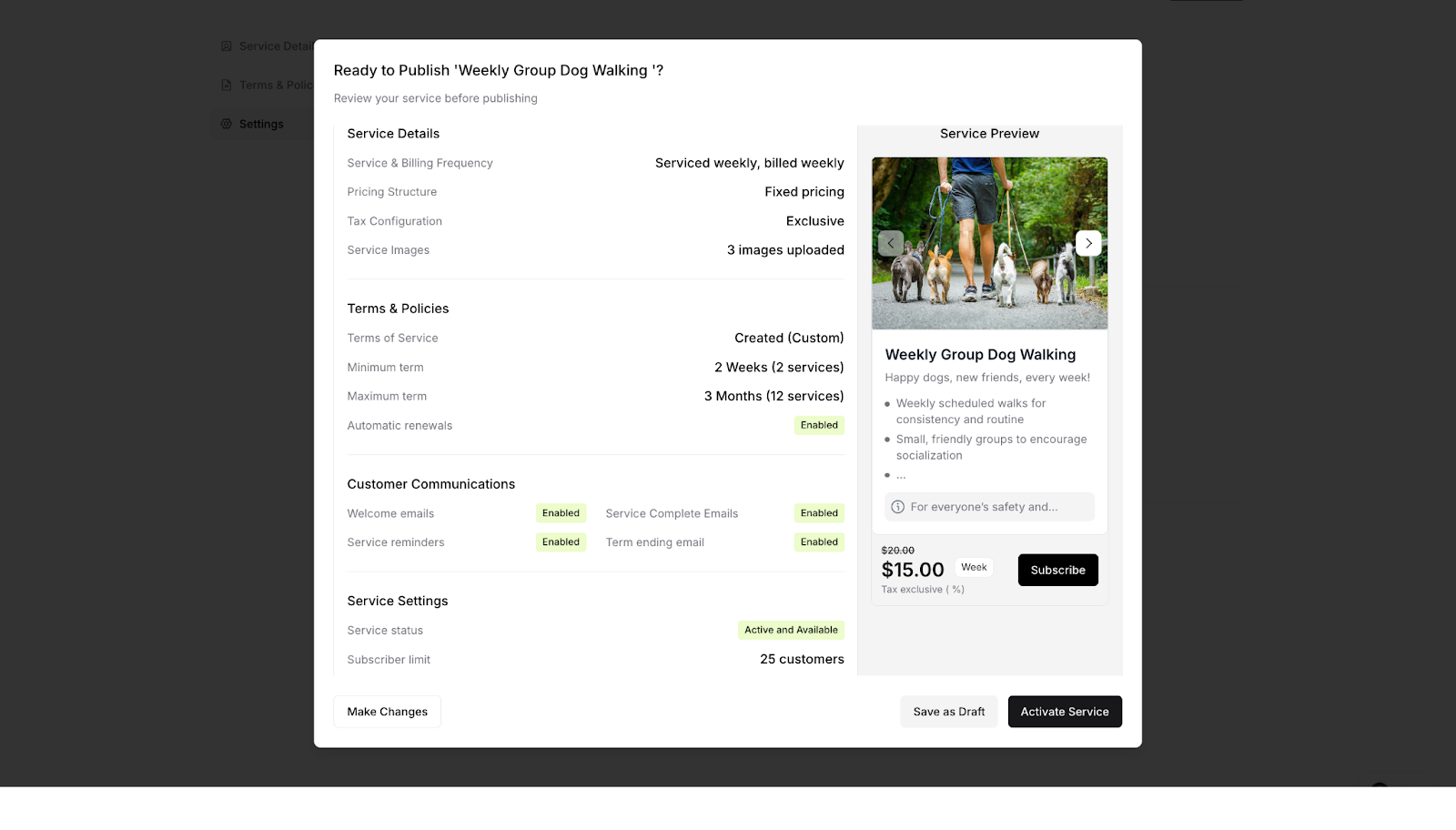
Publishing Modal
When you click Activate Service, review the summary:
Modal shows:
Service & billing frequency
Pricing structure
Tax configuration
Service images status
Terms & policies summary
Customer communications enabled
Service settings
Subscriber limits
Verify and Confirm
Check carefully:
All details are correct
Pricing is accurate
Terms make sense
Communications set as intended
If Stripe connected: Service goes "Active"
If Stripe not connected: Service stays "Pending"
Click Activate Service to finalize.
Success!
After publishing:
Success message appears
Service listed in Services page
Visible on your live site (if Stripe connected)
Confirmation email sent
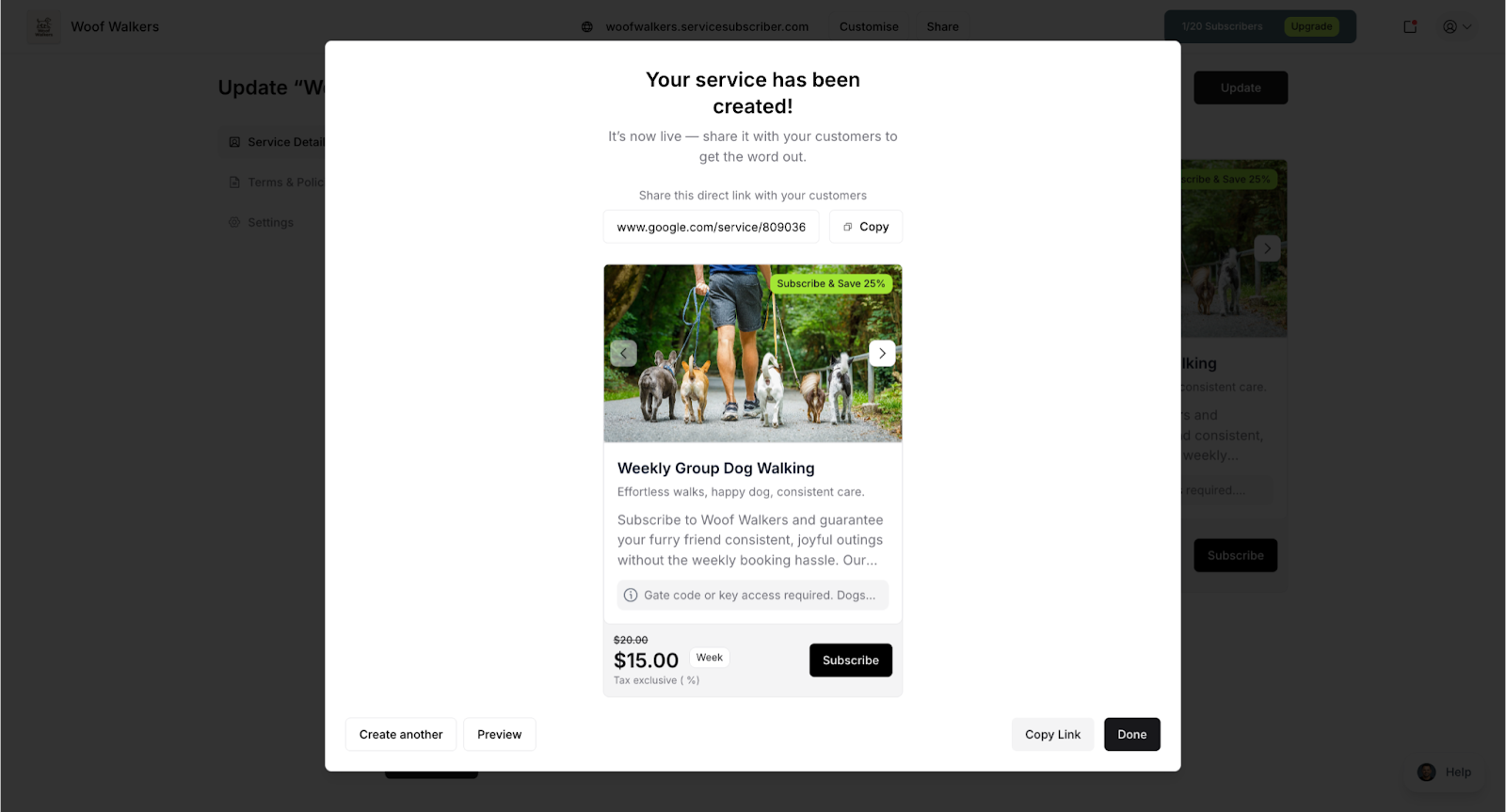
✨ Congratulations! Your manually created service is now live!
Was this article helpful?
That’s Great!
Thank you for your feedback
Sorry! We couldn't be helpful
Thank you for your feedback
Feedback sent
We appreciate your effort and will try to fix the article