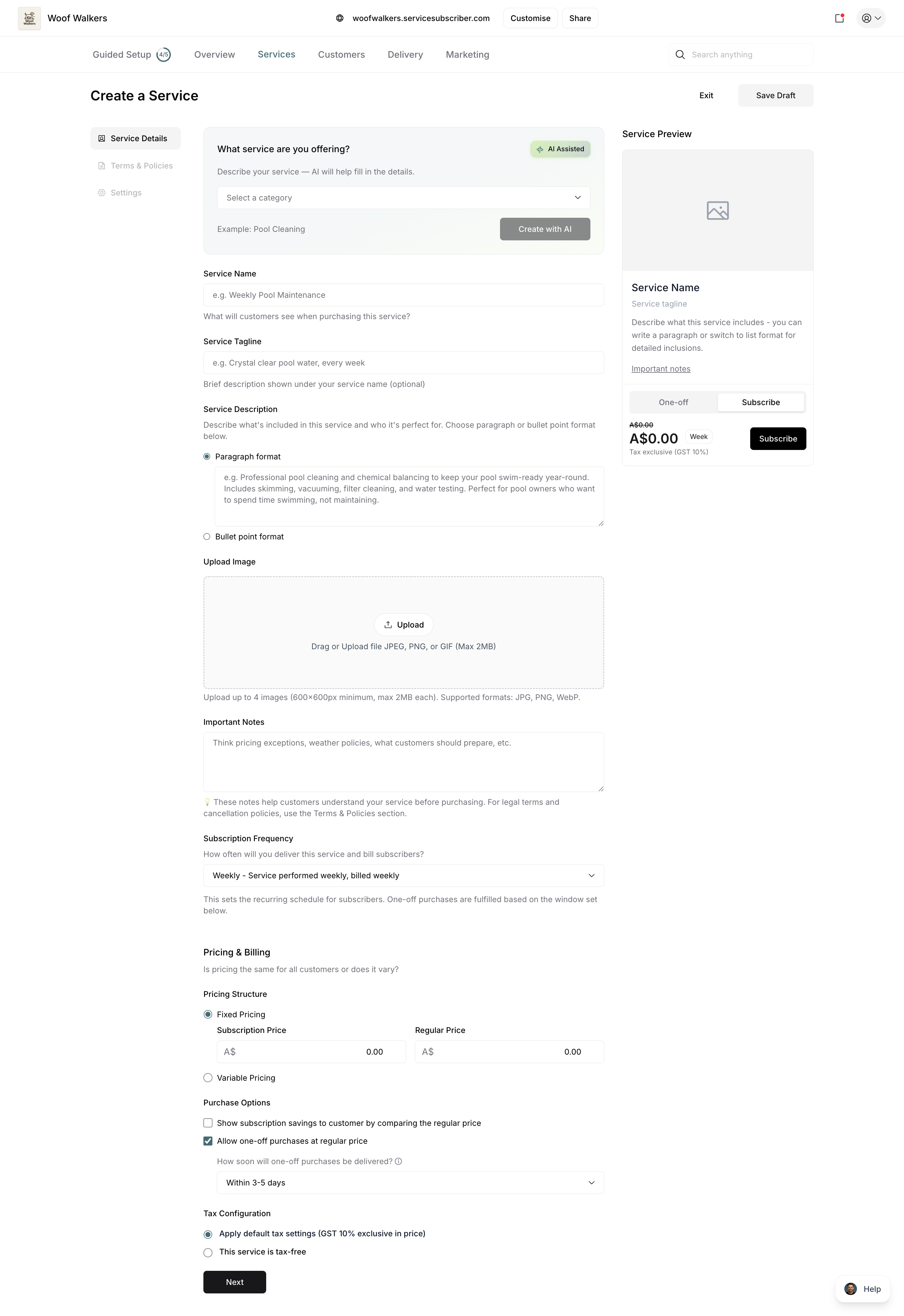
Service plans are the service offerings you create for customers to purchase. Each plan represents a specific service you provide at set prices and frequency—like weekly lawn care for $50/week subscription or $65 one-time, or monthly house cleaning for $120/month subscription or $150 one-time.
What Is a Service Plan?
A service plan is a complete service package that includes:
Service details:
What you're providing (e.g., "Professional Window Cleaning")
Description of what's included
Any important notes or terms
Pricing structure:
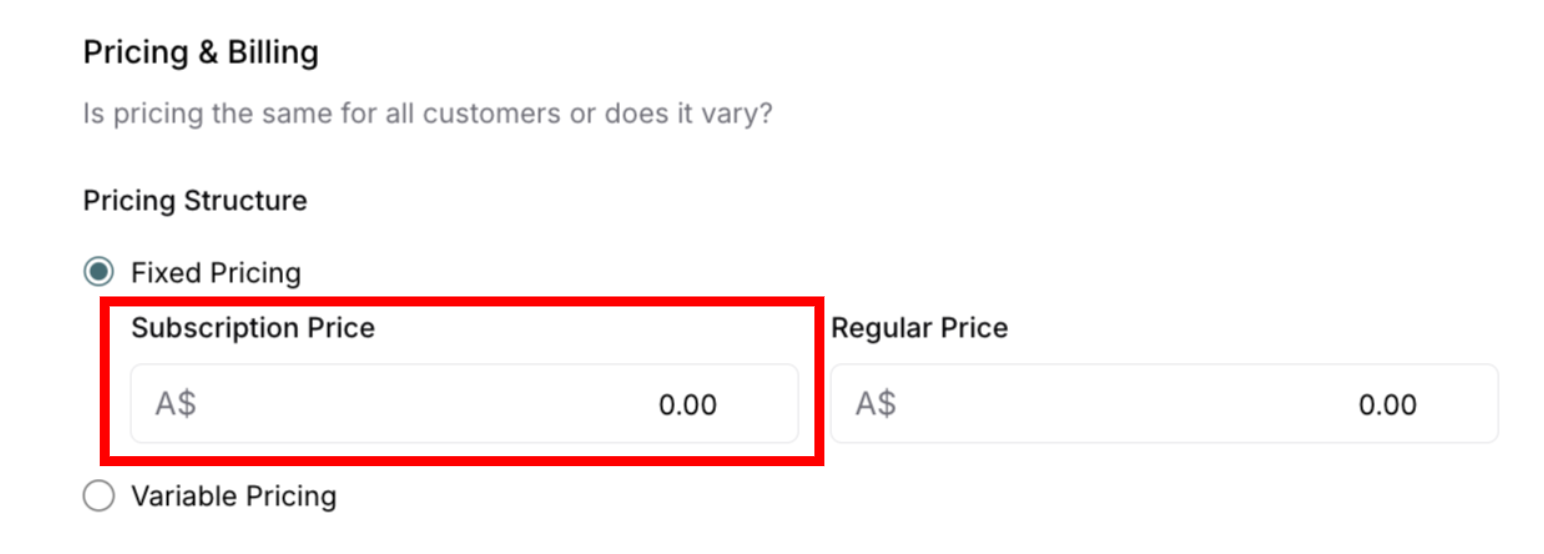
Subscription Price - The recurring price for subscribers who commit to ongoing service
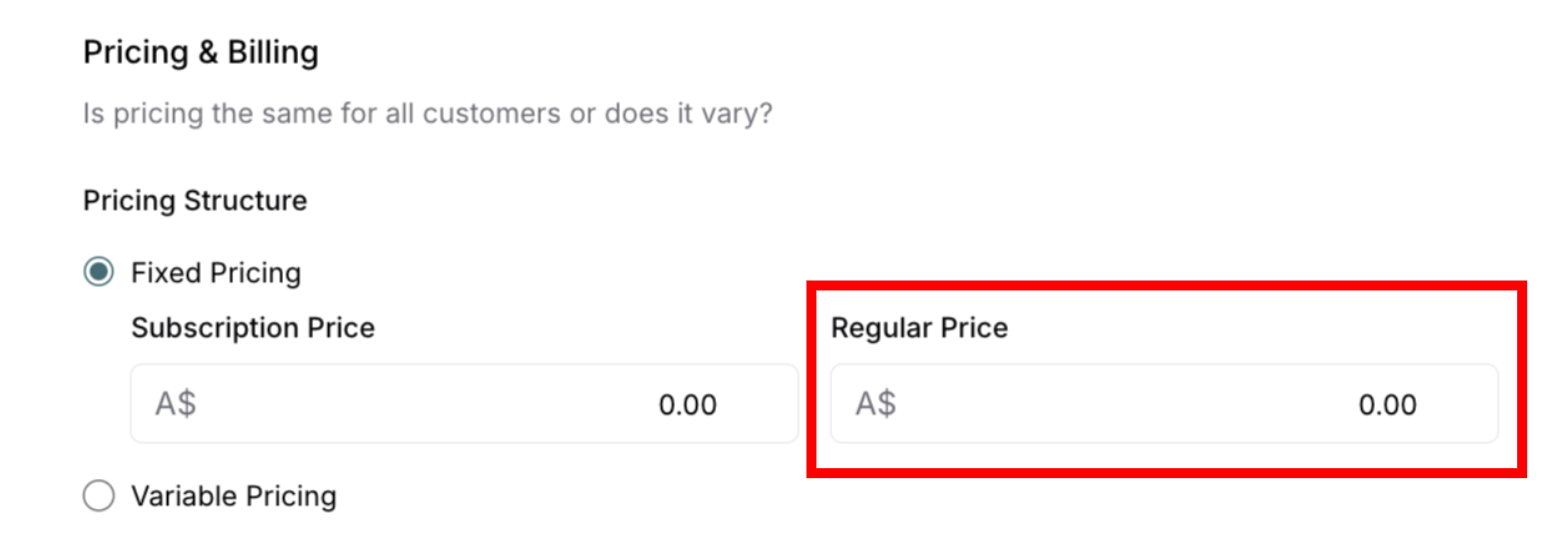
Regular Price - The standard price for one-time purchases of this service
Tax treatment
Purchase Options:
Subscription purchases - Customers subscribe at the subscription price and receive recurring service with automatic billing
One-off purchases - Customers can purchase this service once at the regular price without subscribing
Allow one-off purchases at regular price - Enable this option to let customers buy your service without committing to a subscription (enabled by default)
Frequency (for subscriptions):
How often service is delivered (weekly, fortnightly, monthly, quarterly, yearly)
How often customer is billed automatically
Applies to subscription purchases only (one-off purchases are single delivery)
Terms and policies:
Minimum subscription term (applies to subscriptions only)
Maximum subscription term (applies to subscriptions only)
Service policies and conditions
How Service Plans Work
For your business:
Create service plans with pricing for both subscriptions and one-off purchases
Share your subscription page (link in bio, text to customers, QR code)
Customers choose to subscribe or purchase once
Payments clear instantly through Stripe
You deliver the service and mark it complete
For your customers:
Visit your subscription page
See your services with both pricing options
Choose subscription (recurring) or one-time purchase
Pay with card (automatic billing for subscriptions)
Manage their subscription or view purchase from their account
✍️ TIP: Set your subscription price lower than the regular price to show the savings customers get by subscribing. This encourages customers to choose recurring subscriptions over one-time purchases.
✅ BEST PRACTICE: Enable both purchase options (default setting) when starting out. This lowers barriers to entry—customers can try your service once before committing to a subscription, increasing your total customer base.
Types of Service Plans
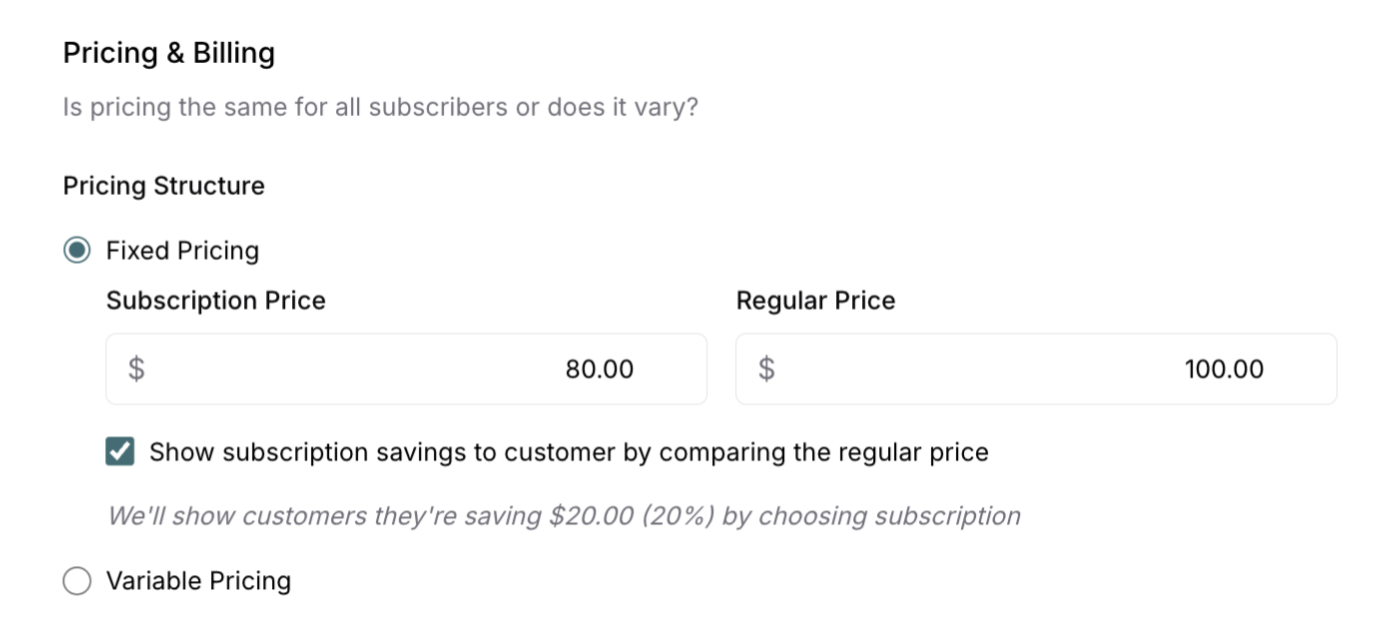
Fixed-Price Plans (Most Common)
Single tier pricing:
One price for everyone
Same service for all customers
Example:
"Monthly Pool Maintenance"
$80/month
Same service regardless of pool size
✅ BEST PRACTICE: Start with fixed-price plans. They're easy for customers to understand and simple for you to manage.
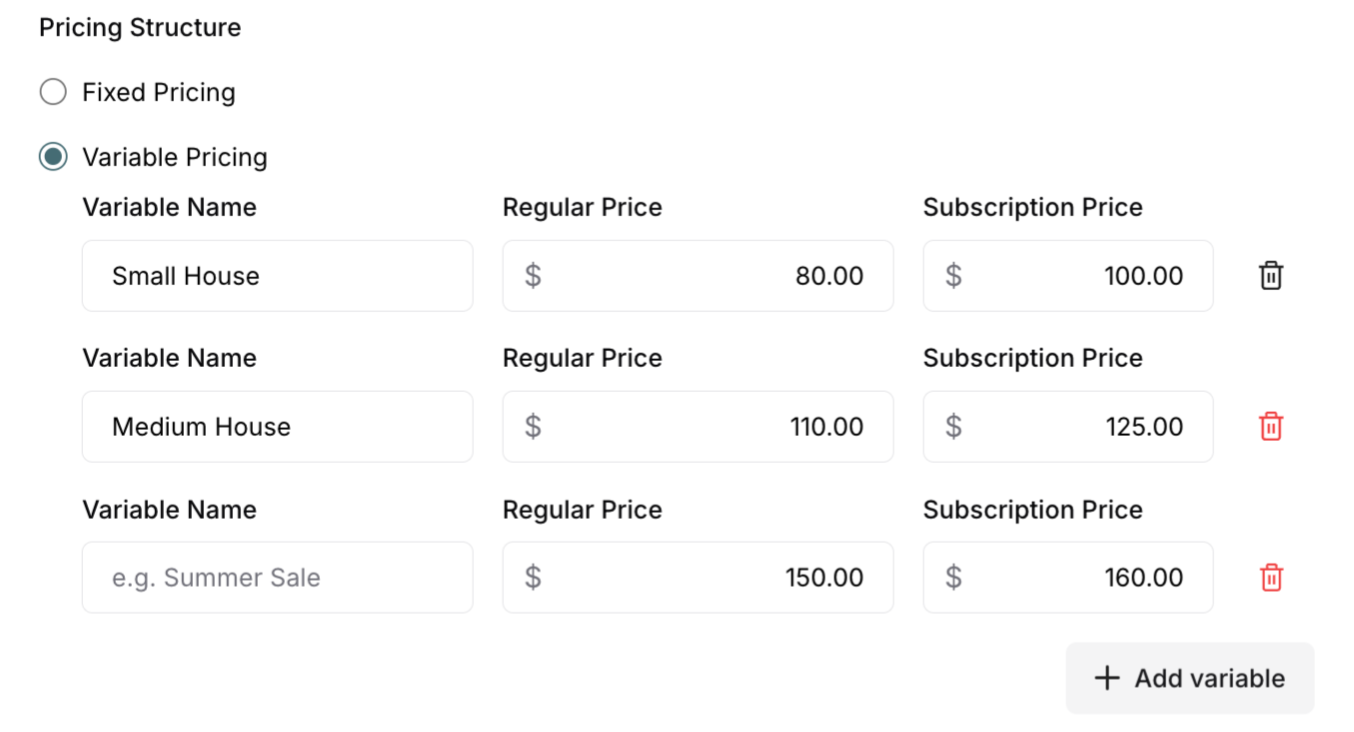
Variable-Price Plans
Multiple tier pricing:
Different prices for different service levels
Customers choose their tier when subscribing
Based on size, complexity, or add-ons
Example:
"House Cleaning Service"
Small home: $80/month
Medium home: $110/month
Large home: $150/month
✍️ TIP: Variable pricing works well when service requirements vary significantly between customers (home size, property size, service complexity).
Service Frequency Options
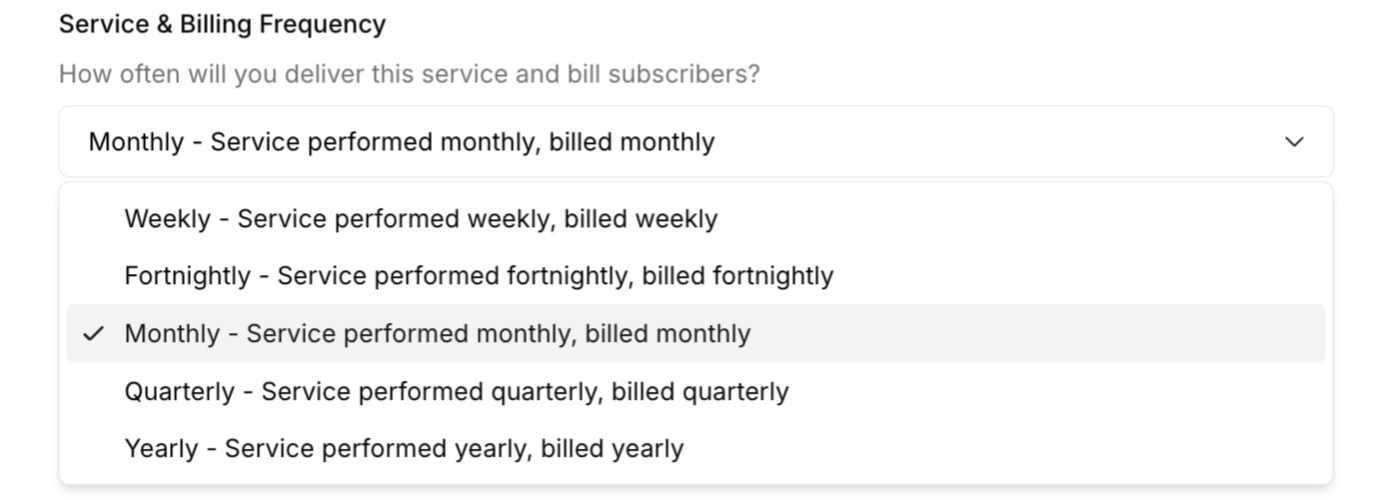
Select the frequency that best matches your service delivery model:
Weekly
Service delivered every 7 days
Customer billed weekly
Best for: Lawn care, regular house cleaning, dog walking, pool maintenance, weekly meal prep
Fortnightly
Service delivered every 14 days (every 2 weeks)
Customer billed every 2 weeks
Best for: Bi-weekly cleaning, maintenance checks, pet grooming
Monthly
Service delivered once per month
Customer billed monthly
Best for: Deep cleaning, detailed inspections, monthly lawn treatments, beauty services
Quarterly
Service delivered every 3 months
Customer billed quarterly
Best for: Seasonal maintenance, pest control, HVAC servicing, gutter cleaning
Yearly
Service delivered once per year
Customer billed annually
Best for: Annual inspections, yearly deep maintenance, seasonal opening/closing services, annual certifications
Subscription vs Regular Pricing
ServiceSubscriber requires you to set two price points for every service, giving customers flexibility in how they purchase from you.
Subscription Price
What it is: The recurring price customers pay when they subscribe to ongoing service.
When customers pay this price:
They commit to a subscription at your chosen frequency (weekly, fortnightly, monthly, quarterly, yearly)
They receive automatic, recurring service delivery
They're billed automatically on the schedule
Why offer subscription pricing:
Rewards loyal, committed customers with better rates
Provides you with predictable, recurring revenue
Builds long-term customer relationships
Creates stable income for your business
Example: $50/visit when customer subscribes to weekly service
Regular Price
What it is: The standard price customers pay for one-time service purchases without subscribing.
When customers pay this price:
They want the service once without ongoing commitment
They're trying your service before subscribing
They only need occasional service, not recurring delivery
You've enabled "Allow one-off purchases at regular price" option
Why offer regular pricing:
Gives customers a low-commitment way to try your service
Shows the savings they get by subscribing (price comparison)
Serves as price anchoring to demonstrate subscription value
Generates revenue from customers who aren't ready to subscribe yet
Example: $65/visit for a one-time service purchase
Purchase Options
Purchase Options give you control over how customers can buy your service and how pricing information is displayed. All services support subscriptions by default, and you can additionally offer one-off purchases to give customers more flexibility.
Understanding Purchase Options
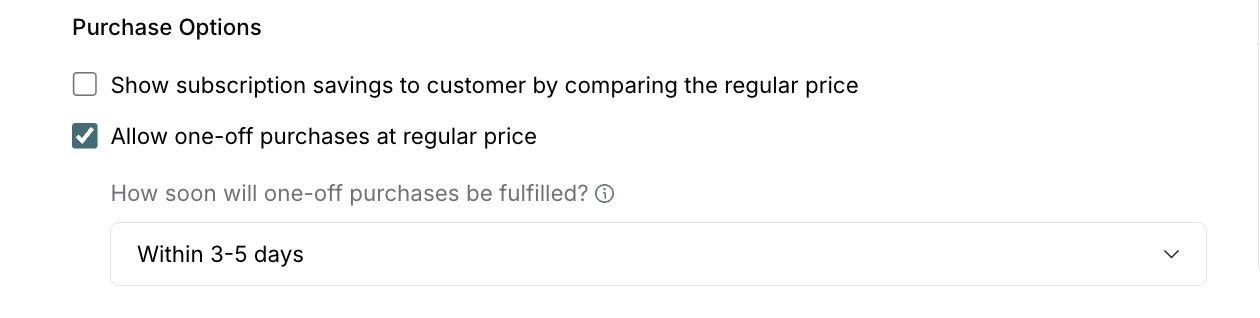
ServiceSubscriber provides two independent checkboxes that control purchase types and pricing display:
Show subscription savings to customer by comparing the regular price
Displays the price difference between subscription and regular price
Shows customers how much they save by subscribing
Works regardless of whether one-off purchases are enabled
Since both prices are required, you can always show this comparison
Allow one-off purchases at regular price (enabled by default)
Lets customers purchase your service once without subscribing
They pay the regular price for a single service delivery
No recurring billing or ongoing commitment required
You specify fulfillment timeline for one-off purchases
Important: Subscriptions are always available—you cannot create a service that offers only one-off purchases. These two options work independently of each other.
Show Subscription Savings
What it does: Displays a price comparison on your service page showing customers how much they save by subscribing instead of paying the regular price.
How it works: Since you must set both a subscription price and a regular price for every service, this option lets you highlight the difference to customers. The savings display appears on your service page regardless of whether you allow one-off purchases.
When to enable this:
You want to emphasize the value of subscribing
Your subscription price is significantly lower than regular price (20-30% difference)
You're trying to encourage more subscription sign-ups
You want transparency in pricing
You want customers to see the financial benefit of committing to a subscription
When to disable this:
You prefer not to show price comparisons publicly
Your pricing strategy focuses on subscription benefits other than cost savings
You don't want to display the regular price prominently on your service page
You have a different value proposition beyond price
Example of what customers see when enabled:
Subscription: $50/visit
Regular price: $65/visit
"Save $15 per visit by subscribing!" or "Save 23% with a subscription"
✍️ TIP: Even if you disable one-off purchases, showing subscription savings can still be valuable. It demonstrates the value customers receive by being subscribers, even if they can't actually make one-off purchases.
Allow One-Off Purchases
What it does: Enables customers to purchase your service once at the regular price without committing to a subscription.
Default setting: This option is checked by default when you create a new service, giving customers maximum flexibility.
How it relates to "Show subscription savings": These two options are independent. You can show subscription savings without allowing one-off purchases, or allow one-off purchases without showing the savings comparison.
When to keep this enabled (recommended):
You want to let customers try your service before subscribing
Your service works well for both recurring and occasional needs
You're comfortable fulfilling one-time service requests
You want to attract customers who aren't ready for subscriptions yet
You want to maximize your potential customer base
When to disable this:
You only want subscription-based customers
One-time services aren't economically viable for your business
Your service requires ongoing commitment to be effective
You want to focus exclusively on recurring revenue
Managing one-off fulfillment creates too much administrative work
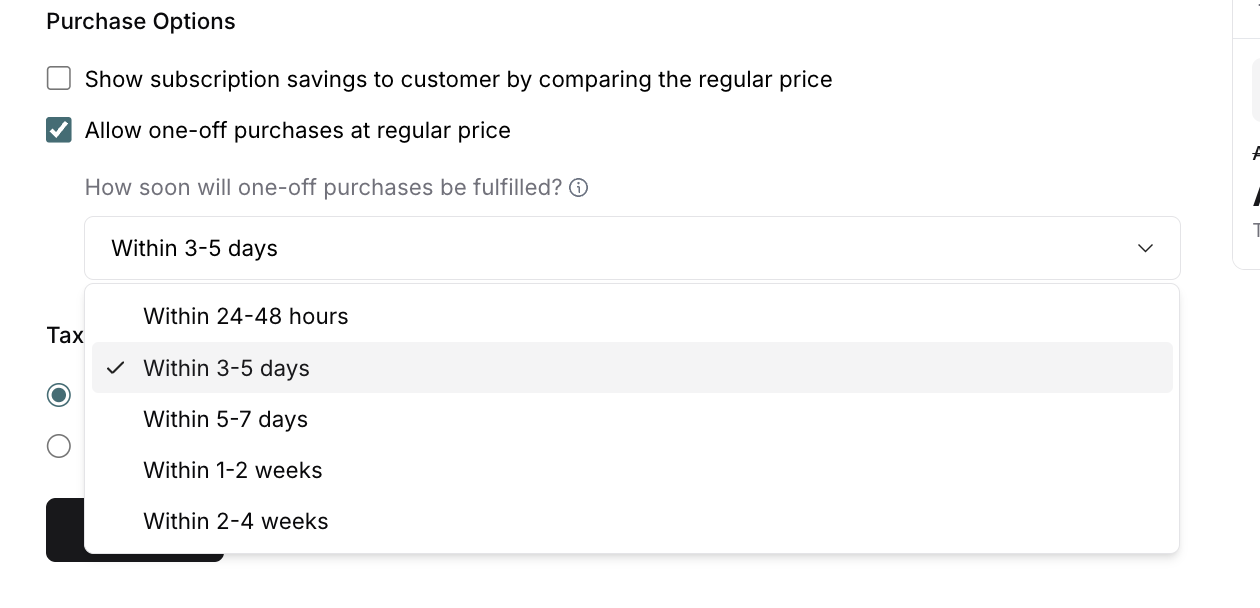
Fulfillment timeline setting: When one-off purchases are enabled, you must specify how soon they'll be fulfilled. This sets customer expectations for service delivery.
Available options:
Within 24-48 hours
Within 3-5 days
Within 5-7 days
Within 1-2 weeks
Within 2-4 weeks
Subscription Terms
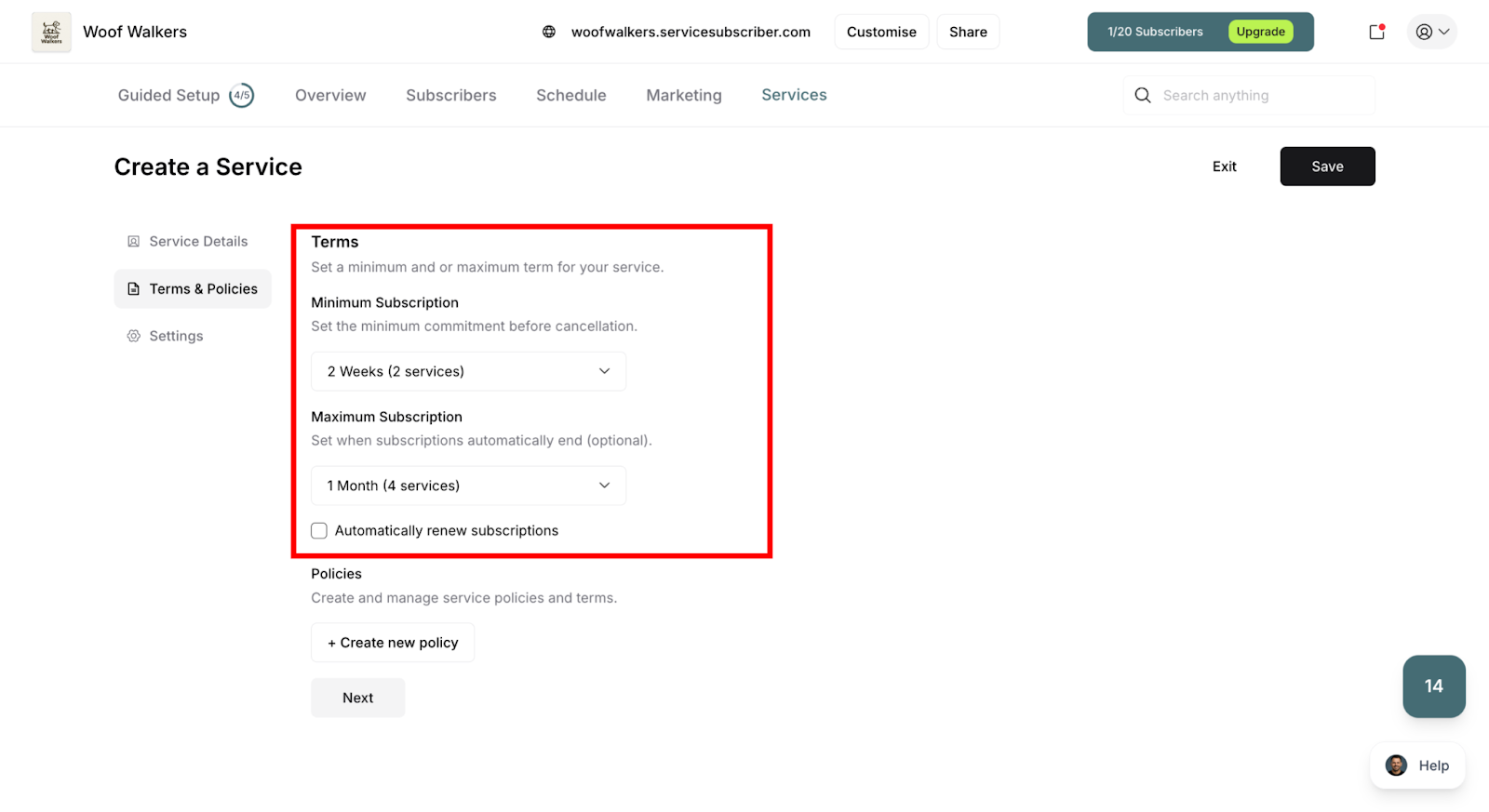
Subscription terms define the commitment level you require from your subscribers. These settings control how long customers must stay subscribed (minimum term), how long subscriptions can run (maximum term), and whether subscriptions automatically renew.
Minimum Term
What it is: The shortest period a customer must remain subscribed before they can cancel without penalty.
Available minimum term options:
No minimum - Customers can cancel anytime after their first billing cycle
1 month - Customers must stay for at least 1 month (1 billing cycle)
3 months - Customers commit to at least 3 months of service
6 months - Customers commit to at least 6 months of service
12 months - Customers commit to a full year of service
When to use minimum terms:
✅ Use a minimum term when:
You have upfront setup costs (equipment, initial consultations, first-visit preparation)
Your service requires initial investment that needs multiple billing cycles to recover
You need commitment to make the service economically viable
Seasonal services require duration guarantees to be worthwhile
Your business model depends on customer retention for profitability
✅ Use no minimum term when:
You want to lower barriers to entry for new customers
Your service has no setup costs or initial investment
You're confident in your retention without contractual obligations
You want to attract customers who are hesitant about commitment
Your competitive advantage is flexibility
How minimum terms work:
Customers see the minimum term clearly during signup
They cannot cancel before the minimum period ends
After the minimum term, customers can cancel anytime
Maximum Term
What it is: The longest period a subscription can run before it must be renewed or ends automatically.
When to use maximum terms:
✅ Use a maximum term when:
Your service is seasonal and only needed part of the year (e.g., pool maintenance in summer)
Pricing may need adjustment based on market conditions or costs
You want to reconnect with customers periodically to discuss their needs
Services are project-based with a defined end date
You offer fixed-duration programs or packages
✅ Use no maximum term when:
Your service is year-round and indefinite (e.g., weekly lawn care)
You want true "set it and forget it" subscriptions for customers
You prefer subscriptions that run until actively cancelled
Your pricing is stable and unlikely to change
Continuous service is the norm for your industry
How maximum terms work:
When a subscription reaches its maximum term, one of two things happens:
If auto-renewal is enabled: Subscription automatically renews for another term
If auto-renewal is disabled: Subscription ends and customer must manually resubscribe
Auto-Renewal
What it is: A setting that determines whether subscriptions automatically continue for another term when they reach the maximum term limit.
Available options:
Auto-Renewal Enabled ✅
Subscription automatically renews when maximum term is reached
Customer continues receiving service without interruption
Customer is billed for the new term automatically
Customer can cancel anytime before the next renewal
Best for: Services you want to continue indefinitely with periodic renewal points
Auto-Renewal Disabled ❌
Subscription ends when maximum term is reached
Service delivery stops at term end
No further billing occurs
Customer must manually resubscribe to continue
Best for: Seasonal services, fixed-duration programs, or services requiring active renewal decisions
How auto-renewal works with maximum terms:
✍️ TIP: Most subscription businesses use "no minimum, no maximum" to reduce friction. Add minimums only if your business model requires them.
Service Visibility Settings
Control how and when services appear to customers:
Show on Live Site
Show on live site (checked by default):
Service displays on your public subscription page
Customers can find and subscribe to it
Appears in your service listings
Available for new subscriptions
Show on live site (unchecked):
Hidden from public view on your live site
Not visible to customers browsing your services
Cannot be subscribed to by new customers
Existing customers remain unaffected and continue their subscriptions
Important: A service can be active (accepting payments, generating schedules) but hidden from your live site. Unchecking "Show on live site" only controls visibility—it doesn't deactivate the service or affect existing customers.
Featured Services
What it means: Highlighted or promoted on your service page to draw customer attention.
Use for:
Your most popular offering
Seasonal promotions
New service launches
Services you want to emphasize
Your highest-value or best-margin services
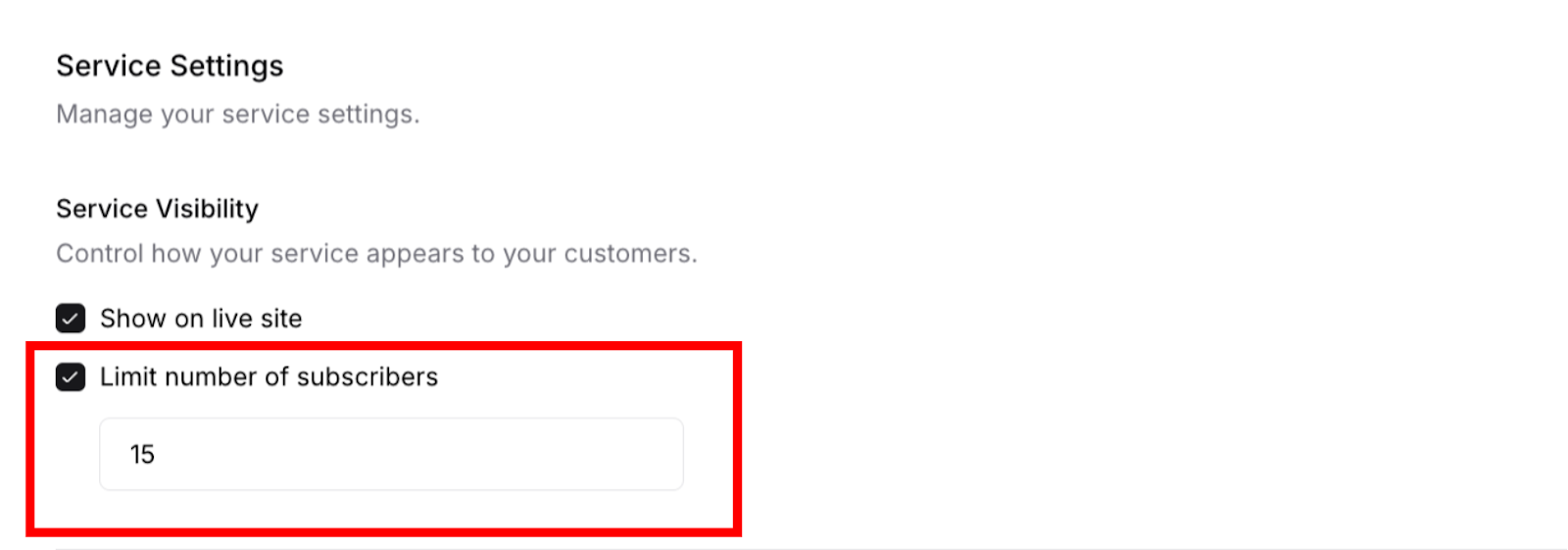
Limit Number of Subscribers
What it does: Sets a maximum capacity for how many customers can subscribe to this service.
Limit number of subscribers (unchecked by default):
No subscriber limit—unlimited capacity
Service remains available for new subscriptions indefinitely
Good for scalable services with no capacity constraints
Limit number of subscribers (checked):
You set a specific maximum number of subscribers
Service automatically becomes unavailable when limit is reached
Prevents overbooking and capacity issues
Existing subscribers unaffected if you later reduce the limit
How it works:
Enable "Limit number of subscribers"
Enter your maximum subscriber count
Service shows as available until limit is reached
Once limit is hit, service shows as "sold out" or unavailable to new customers
Send Service Reminders
What it is: Automated reminder emails sent to customers before their scheduled service delivery.
When it's sent:
Typically 24-48 hours before service is due
Based on your service frequency and schedule
Sent for each upcoming service appointment
What it includes:
Reminder of upcoming service date
Service details and what will be performed
Any preparation customers should do
Your contact information for rescheduling
Link to customer portal
Why enable this (checked by default):
Reduces no-shows and access issues
Reminds customers to prepare (unlock gates, move cars, etc.)
Gives customers time to reschedule if needed
Improves service delivery success rate
Keeps customers engaged with your service
When to disable:
Your service doesn't require customer preparation
You send your own custom reminders
Reminder emails aren't relevant to your service type
You communicate schedules through other channels
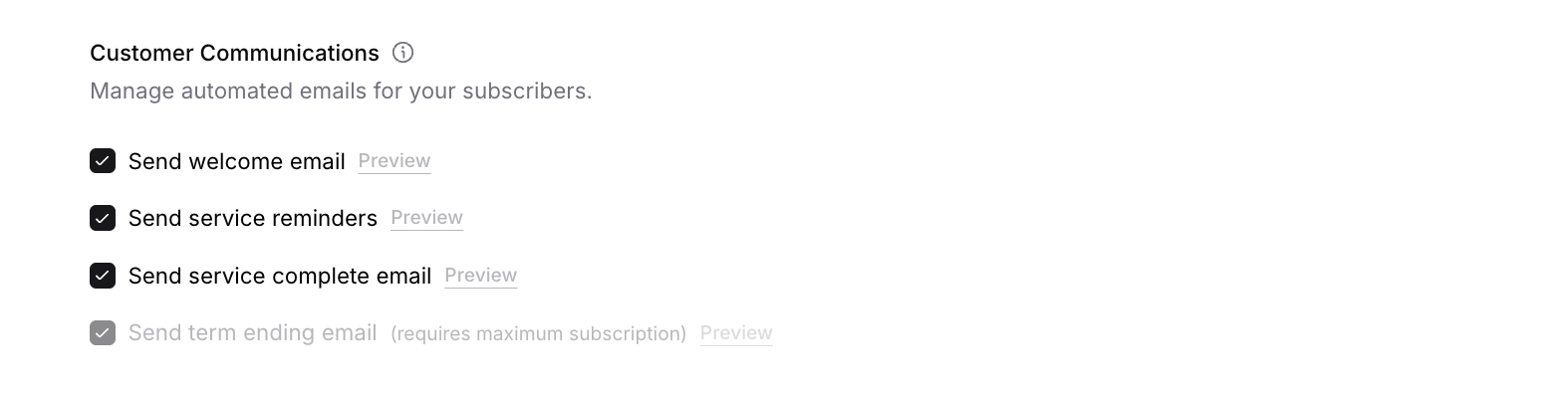
Send Welcome Email
Sent immediately after a customer successfully subscribes to your service or completes a one-off purchase. This email welcomes new customers, confirms their purchase or subscription details, and provides next steps including a link to their customer portal. Enabled by default to create a positive first impression and set clear expectations from the start.
Send Service Reminders
Sent 24-48 hours before each scheduled service delivery (for both subscriptions and one-off purchases). Reminds customers of their upcoming service, gives them time to prepare (unlock gates, move vehicles), and provides opportunity to reschedule if needed. Enabled by default to reduce no-shows and improve service delivery success rates.
Send Service Complete Email
Sent automatically when you mark a service as complete in your Delivery dashboard. Confirms to customers that their service has been delivered and provides a record of completed work. Enabled by default to maintain transparency and create a professional follow-up touchpoint. Applies to both subscription deliveries and one-off purchases.
Send Term Ending Email
Sent 7-14 days before a subscription term expires (only available if you've set a maximum subscription term). Notifies subscribers their term is ending soon and explains what happens next—whether the subscription auto-renews or expires. This option appears grayed out with "(requires maximum subscription)" if no maximum term is configured. Only applies to subscriptions, not one-off purchases.
All emails include a "Preview" link so you can see exactly what customers will receive before enabling them.
Subscription Controls
Set rules for how customers can manage their own subscriptions. These controls give you flexibility in balancing customer convenience with your business needs.
Important: Subscription Controls only apply to subscription purchases. One-off purchase customers cannot pause or cancel on their end—only you can manually cancel one-off purchases through your dashboard (refund required).
Understanding Subscription Control Settings
Subscription controls determine what actions subscription customers can take with their subscriptions through the customer portal. These settings help you manage customer expectations while protecting your business interests.
Why these settings are subscription-specific:
Subscription customers have ongoing, recurring relationships requiring management options
One-off purchase customers complete a single transaction with one delivery
One-off purchases cannot be paused (they're already one-time)
One-off purchases cannot be self-cancelled by customers (you must cancel manually and issue refund)
✍️ TIP: These controls give subscription customers flexibility to manage their own accounts, reducing administrative work for you while maintaining customer satisfaction.
Allow Customers to Pause Subscription
What it does: Enables subscription customers to temporarily pause their subscription through the customer portal without fully canceling.
Note: This setting only applies to subscriptions. One-off purchases cannot be paused as they are single, one-time transactions with one delivery.

When enabled (checked by default):
Customers see a "Pause Subscription" option in their portal
They can pause service delivery and billing temporarily
They resume subscription when they're ready
No need to resubscribe or re-enter payment details
How pausing works:
Customer selects pause duration (1 month, 2 months, custom period)
Service delivery and billing stop during pause
Customer resumes the subscription manually when ready
Subscription remains paused until customer chooses to resume
Why enable this (recommended):
Reduces cancellations from temporary situations (vacation, seasonal needs)
Customers return more easily than if they fully cancel
Maintains customer relationship during breaks
Better retention than losing them to cancellation
When to disable:
Your service requires continuous commitment
Pausing creates operational difficulties
You prefer customers contact you to discuss pauses
Important: Customers can pause their subscription at any time, even during the minimum term period. Minimum term requirements only apply to cancellation, not pausing.
✍️ TIP: Most successful service businesses allow pausing. It's a customer-friendly option that prevents permanent cancellations during temporary situations.
On Cancellation, Refund Any Undelivered Services
What it does: Automatically refunds subscription customers for services that have been paid for but not yet delivered when they cancel their subscription.
Note: This setting only applies to subscriptions. One-off purchase customers cannot cancel on their end. If you need to cancel a one-off purchase, you must do so manually through the dashboard and issue a refund.
When enabled (unchecked by default):

System automatically calculates undelivered services
Refund is processed automatically upon cancellation
Customer receives refund for unused portion
Creates goodwill and fairness in cancellation process
When disabled (default):
No automatic refunds when customers cancel
You can manually refund using "Refund Last Payment" option
Gives you control over refund decisions case-by-case
Why enable this:
Creates fair cancellation policy
Builds customer trust and satisfaction
Prevents disputes about undelivered services
Customers feel confident they won't lose money on unused services
Why keep disabled:
You want control over refund decisions
Your service model prepays for periods rather than individual services
You assess refund eligibility based on circumstances
Important interaction with minimum terms:
Customers can only cancel after meeting the minimum term requirement. The automatic refund only applies to the cancellation itself—it doesn't override minimum term rules.
What happens:
If minimum term not met: Cancel button grayed out in customer portal with message "Minimum term has not been met"
Once minimum term met: Cancel button becomes active
If this setting enabled: Automatic refund processes for undelivered services upon cancellation
Example: Monthly lawn care, $100/month, 3-month minimum term
Customer subscribes January 1
Cancels March 15 (before minimum): Cannot cancel, button grayed out
Cancels April 5 (after minimum): Can cancel
Auto-refund enabled: Refunded for any undelivered April service
Auto-refund disabled: You decide manually
✅ BEST PRACTICE: For services delivered throughout a billing period, automatic refunds are fair and appreciated. For services with upfront costs or commitment requirements, manual refund decisions may be more appropriate.
For one-off purchases: Since one-off customers cannot self-cancel, this automatic refund setting doesn't apply. If you need to cancel a one-off purchase on behalf of a customer, you must manually cancel through the dashboard and issue a refund.
Was this article helpful?
That’s Great!
Thank you for your feedback
Sorry! We couldn't be helpful
Thank you for your feedback
Feedback sent
We appreciate your effort and will try to fix the article