Sometimes you need to refund a customer—whether for a service issue, billing error, cancellation, or goodwill gesture. Processing refunds correctly maintains customer trust and keeps your financial records accurate.
Important: Refunds can be issued for both subscription payments and one-off purchases. The process is the same regardless of purchase type.
This guide explains how to issue refunds and handle refund-related situations.
When to Issue Refunds
Understanding when refunds are appropriate helps you handle customer concerns fairly and maintain trust.
Service Issues
Issue refunds when:
Service wasn't delivered as promised
Quality problems occurred that weren't resolved
You missed scheduled service dates
Work was left incomplete
Service couldn't be provided due to circumstances
Billing Errors
Refund when:
Customer was double-charged for the same service
Incorrect amount was charged
Customer was charged after canceling subscription
System errors caused incorrect billing
Payment processed in error
Customer Satisfaction
Use refunds for:
Resolving customer dissatisfaction with service quality
Making goodwill gestures to retain customers
Addressing complaints professionally
Building long-term trust in your business
De-escalating disputes
Cancellations
Process refunds for:
Mid-cycle cancellations when your policy includes prorating
Customers charged after canceling
Early termination situations where refunds are warranted
Subscription canceled but services not yet delivered
Policy-Based Refunds
Honor refunds when:
Prorated refund policy is enabled in your settings
Customers make legitimate guarantee or warranty claims
Trial periods allow refund requests within specified timeframes
Your terms and conditions promise refunds in specific situations
✍️ TIP: Clear refund policies prevent disputes. Define your refund terms upfront so customers and you know what to expect in different situations.
Types of Refunds
Full Refund
What it is: Returns 100% of the payment amount to the customer.
When to use full refunds:
Complete service failures where nothing was delivered
Billing errors where wrong amount was charged
Services that were never performed
Cancellations made before any service was provided
Duplicate charges
Clear error requiring complete refund
✍️ TIP: Document the reason for partial refund amounts clearly in your records and explain the calculation to customers to prevent confusion or disputes.
✅ BEST PRACTICE: Default to full refunds for clear failures, partial refunds when some service was delivered. Fair refunds build lasting trust.
Partial Refund
What it is: Returns only a portion of the payment amount.
When to use partial refunds:
Service was partially completed but not finished
Mid-cycle cancellations requiring prorating for unused time
Minor service issues warrant a goodwill discount
Partial service delivery occurred
Customer satisfied with some but not all of service
✍️ TIP: Document the reason for partial refund amounts clearly in your records and explain the calculation to customers to prevent confusion or disputes.
✅ BEST PRACTICE: Default to full refunds for clear failures, partial refunds when some service was delivered. Fair refunds build lasting trust.
How to Process a Refund
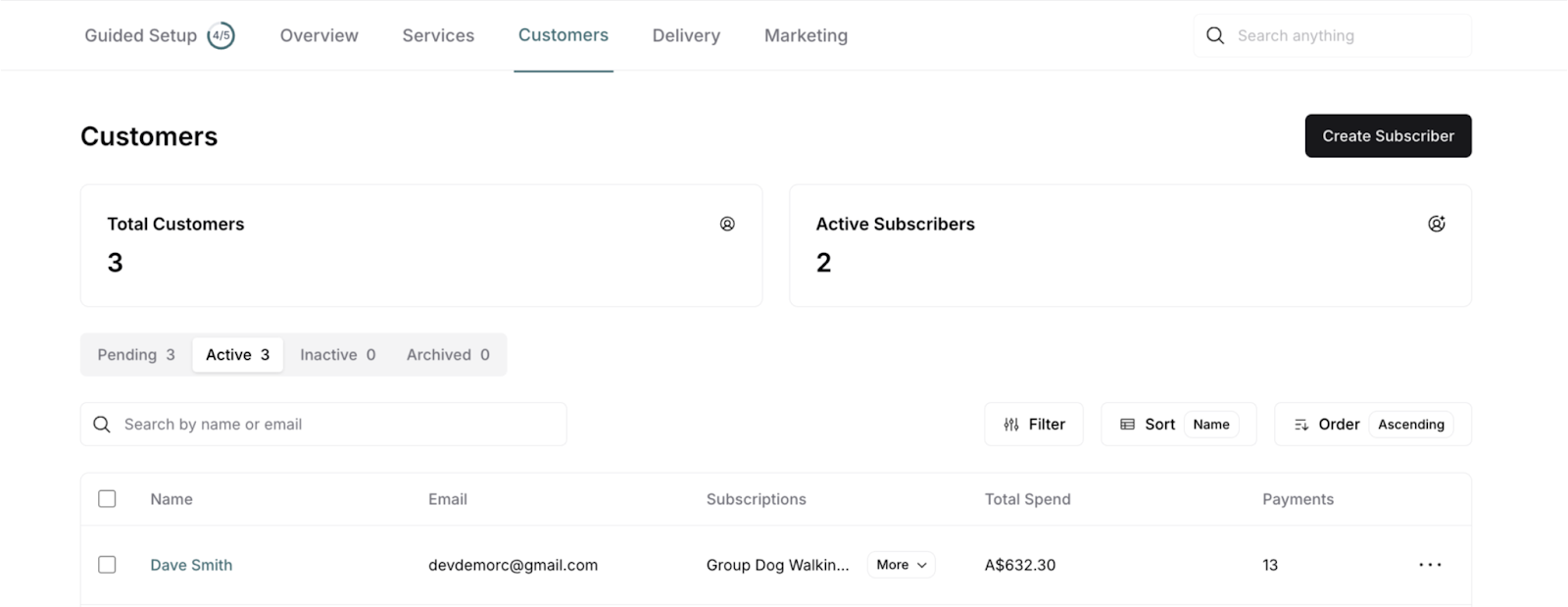
Step 1: Navigate to Customer
Go to Customers in main navigation
Find the customer (search or scroll)
Click on the customer's name
Customer detail page opens
Step 2: Locate the Payment to Refund
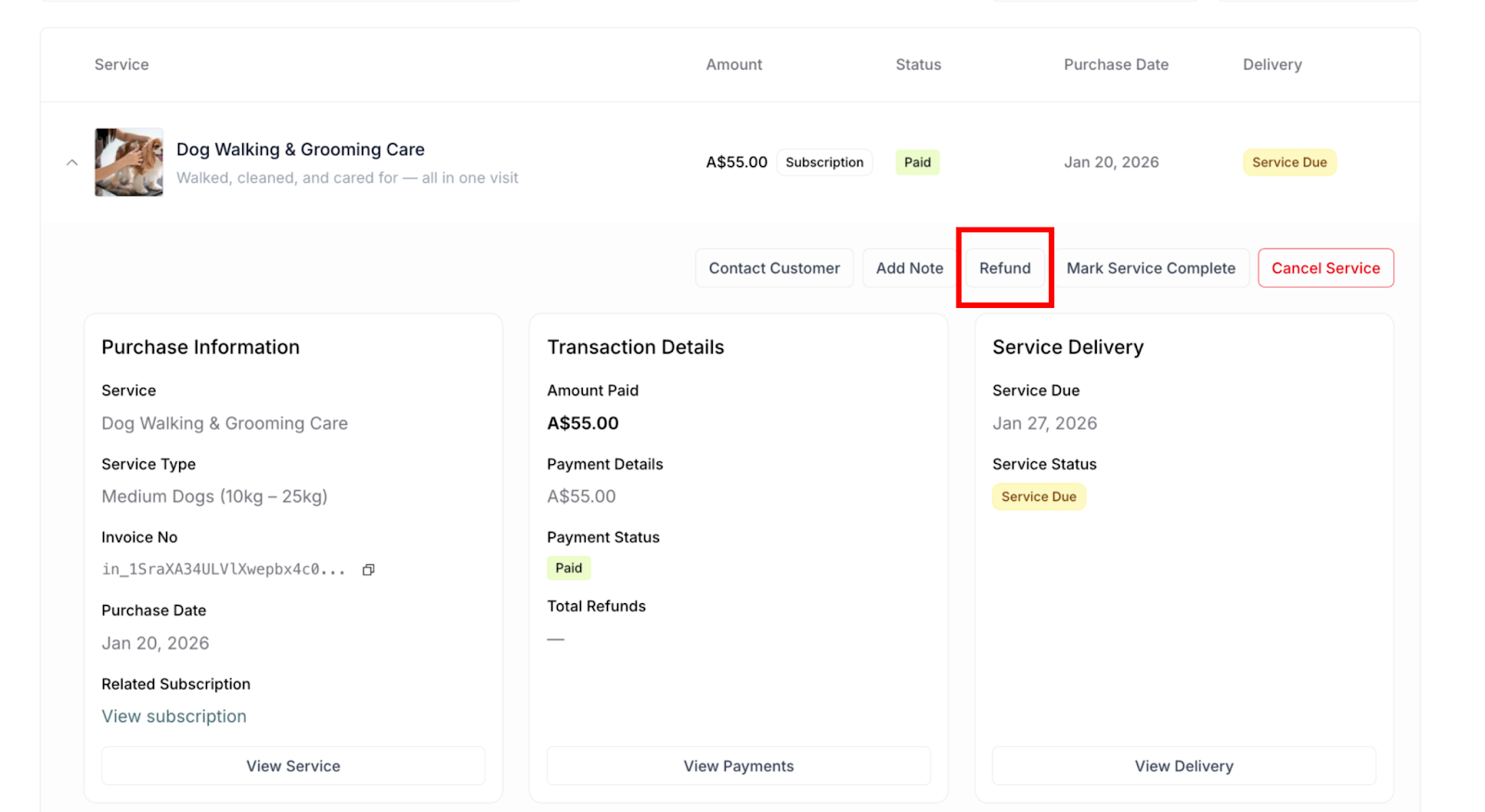
This is to refund one-off purchases or individual subscription payments
Click Purchases tab
Find the specific purchase to refund
Click to expand the purchase details
Refund button visible in action buttons
Step 3: Initiate Refund
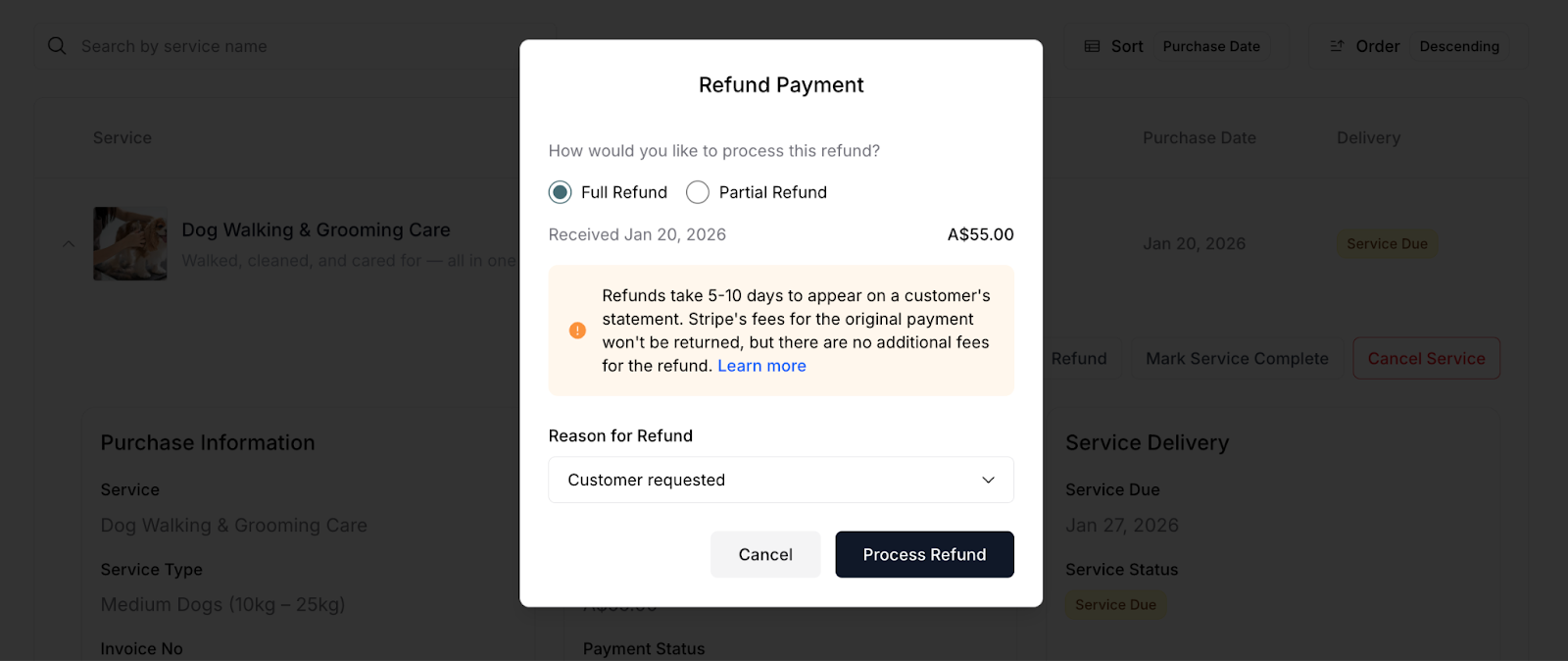
From the purchase or subscription detail view:
Locate the Refund button in action buttons
Click Refund
Refund modal opens
Step 4: Choose Refund Type
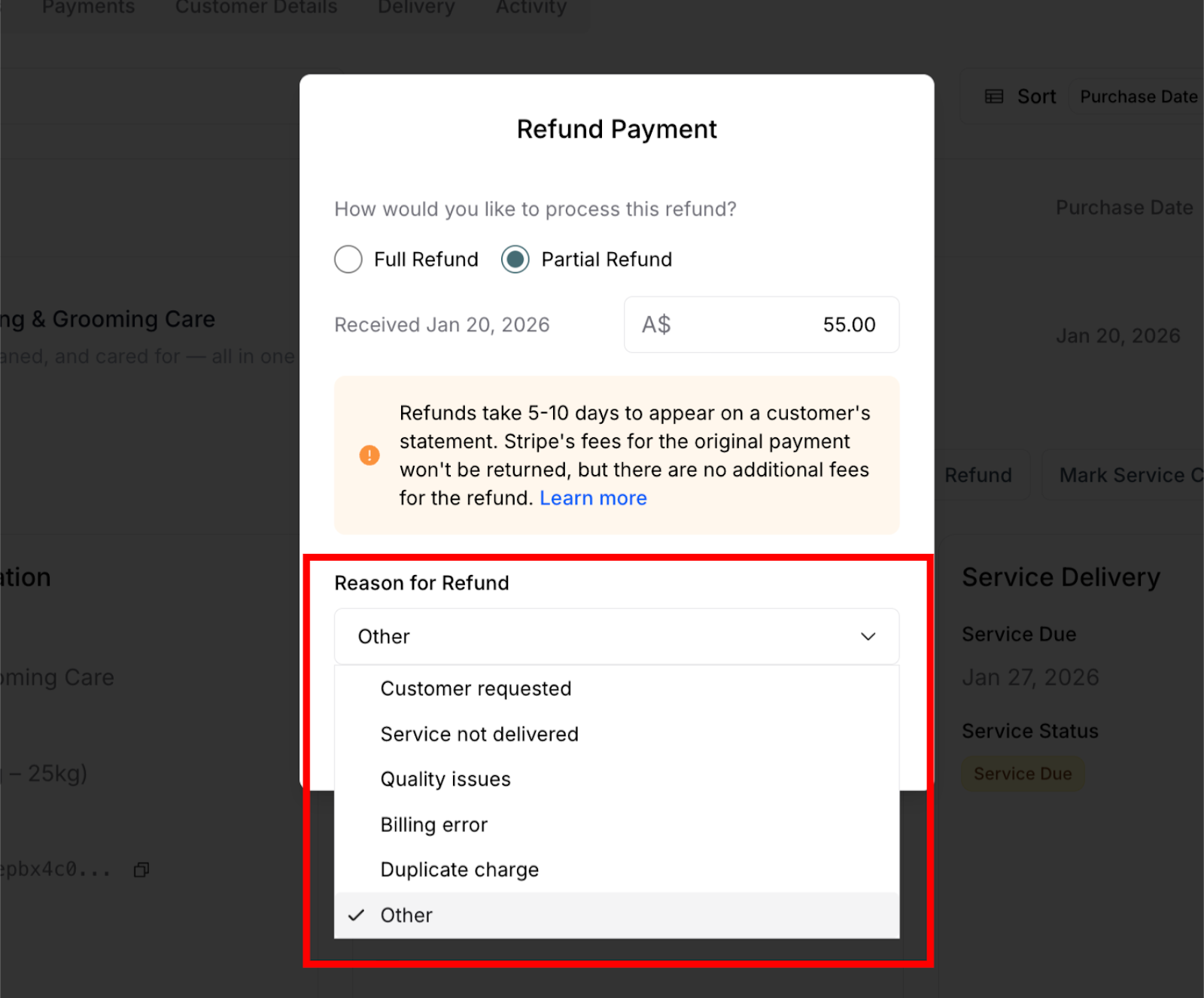
In the refund modal you'll see options:
Full Refund:
Select "Full Refund" option
Entire payment amount shown
No additional input needed
One click to proceed
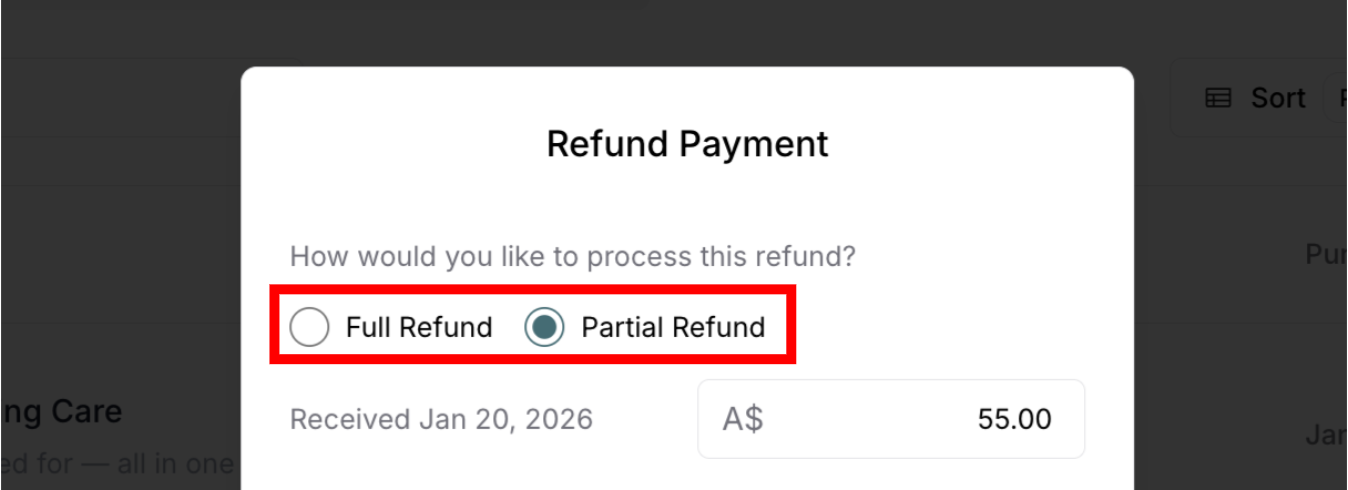
Partial Refund:
Select "Partial Refund" option
Enter specific amount to refund
Must be less than original payment amount
System validates amount entered
Step 6: Select Refund Reason
Reason for Refund (dropdown field):
The modal includes a "Reason for Refund" dropdown with predefined options.
Available reasons:
Customer requested
Service not delivered
Quality issues
Billing error
Duplicate charge
Other
To select:
Click the "Reason for Refund" dropdown
Select the most appropriate reason from list
Selected reason shows checkmark (✓)
Reason is recorded with the refund
Choosing the right reason:
Customer requested - Customer asked for refund (general)
Service not delivered - Service was scheduled but not performed
Quality issues - Service quality didn't meet expectations
Billing error - Wrong amount charged or processing mistake
Duplicate charge - Customer charged multiple times by error
Other - Any reason not covered by above options
Step 7: Confirm Refund
Final review before processing:
Verify refund type - Full or Partial selected correctly
Verify amount - Check the A$ amount is correct
Verify reason - Appropriate reason selected from dropdown
Review information box - Understand 5-10 day timeline and fee structure
Action buttons at bottom:
Cancel (gray/white button, left) - Closes modal without processing refund
Process Refund (black button, right) - Processes the refund immediately
To complete:
Review all details one final time
Click Process Refund button
Refund processes immediately
Modal closes automatically
⚠️ IMPORTANT: Clicking "Process Refund" is immediate and cannot be undone. There is no confirmation dialog after clicking—the refund processes instantly. Verify all details are correct before clicking.
What Happens After Refund
Automatic System Updates
Once you process the refund, the system automatically updates multiple areas. What you see depends on which tab you're viewing—individual purchase view vs. parent subscription view.
In Purchases Tab (Individual Purchase View)
When viewing the refunded purchase in the Purchases tab:
Status badge changes:
Previously: "Subscription" + "Paid" badges
After refund: "Subscription" + "Refunded" badge (gray)
Clearly indicates this specific purchase was refunded
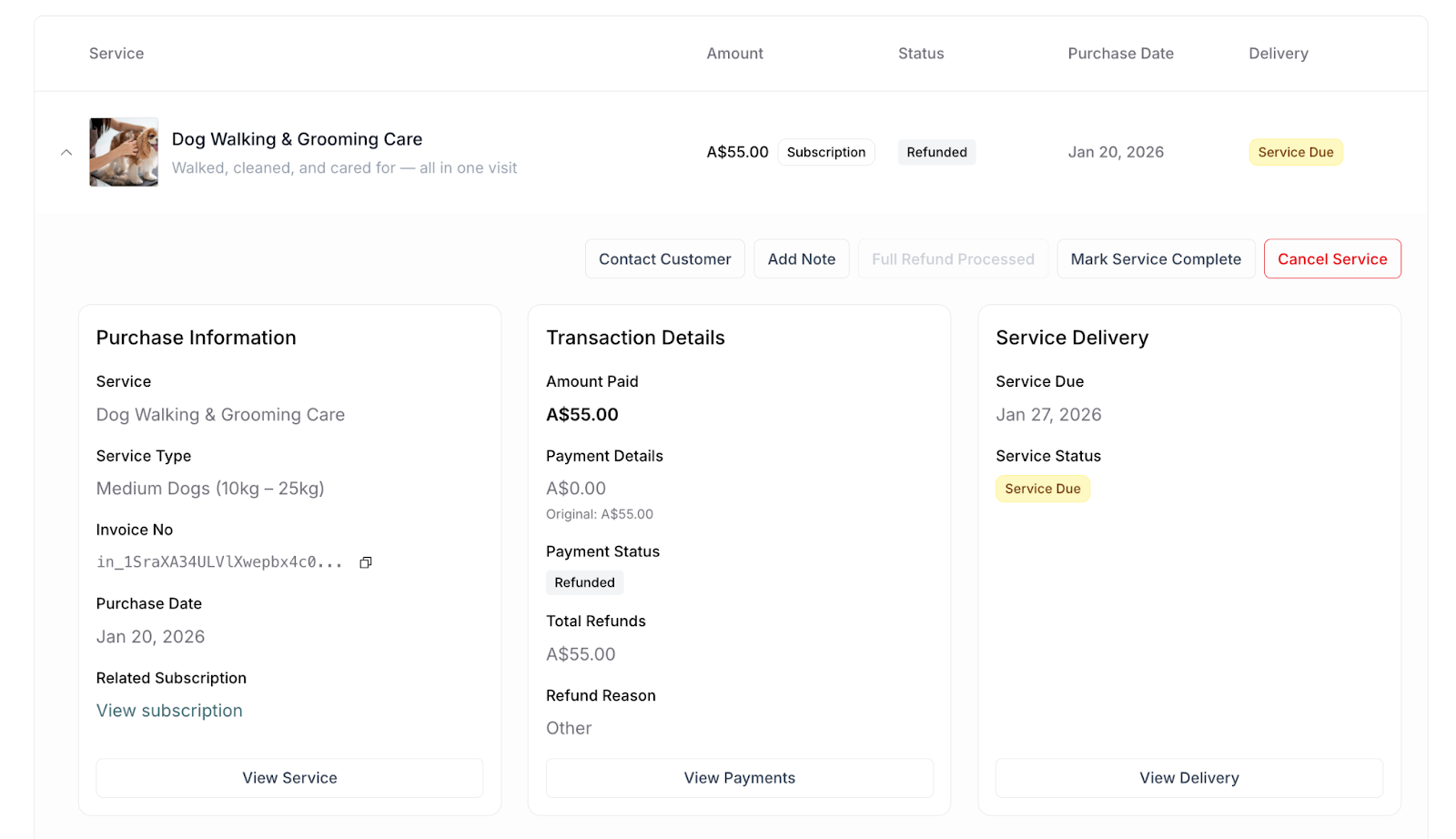
Action button updates:
Refund button disappears (can't refund twice)
Replaced with "Full Refund Processed" button (grayed out/disabled)
Shows that refund has already been completed
Cannot be clicked (informational only)
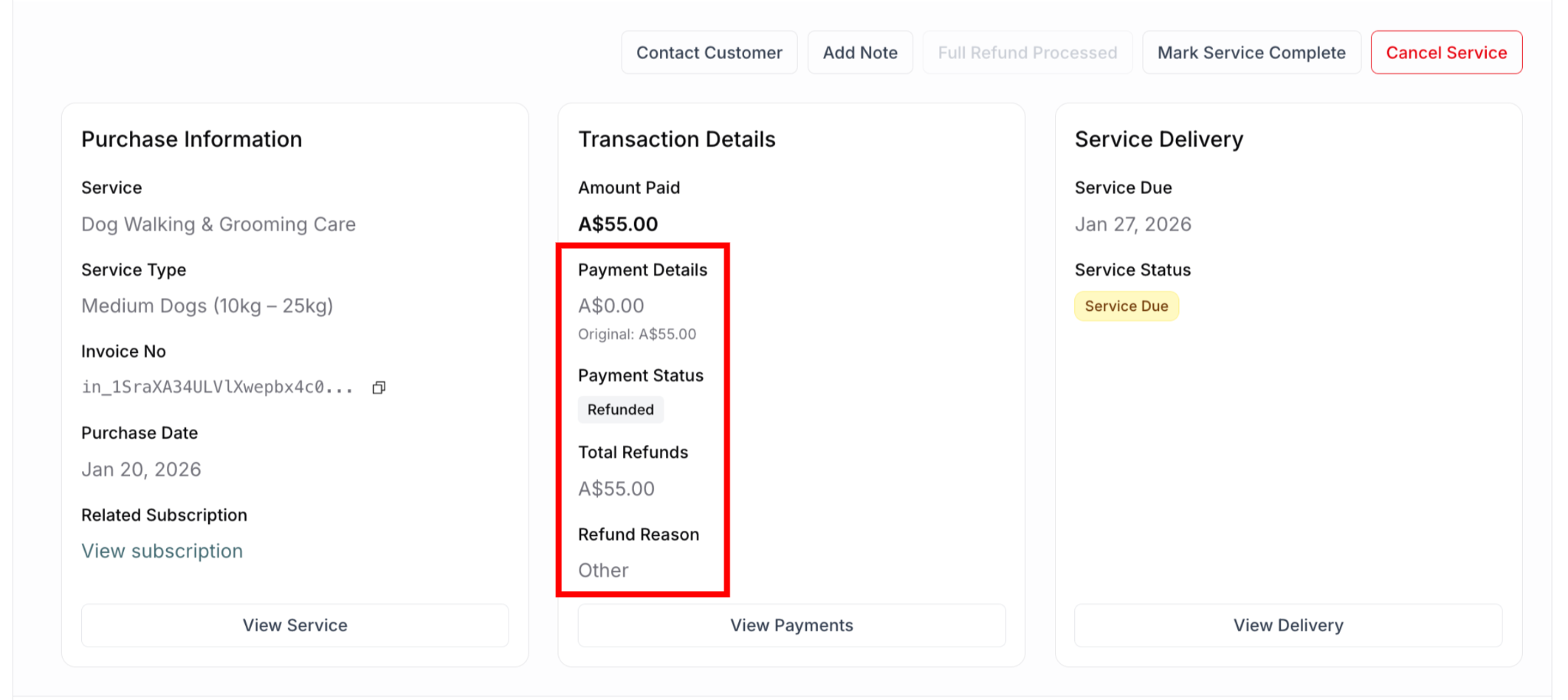
Transaction Details panel updates:
Payment Details: Changes to A$0, and shows the original payment
Payment Status: Changes to "Refunded" badge (gray)
Total Refunds: Shows "A$55.00"
Refund Reason: Displays selected reason (e.g., "Other")
In Subscriptions Tab (Parent Subscription View)
When viewing the parent subscription in the Subscriptions tab:
Subscription remains Active:
Status badge: Still shows "Active" (green badge)
Subscription continues normally
Not canceled just because one payment was refunded
Future billing continues as scheduled
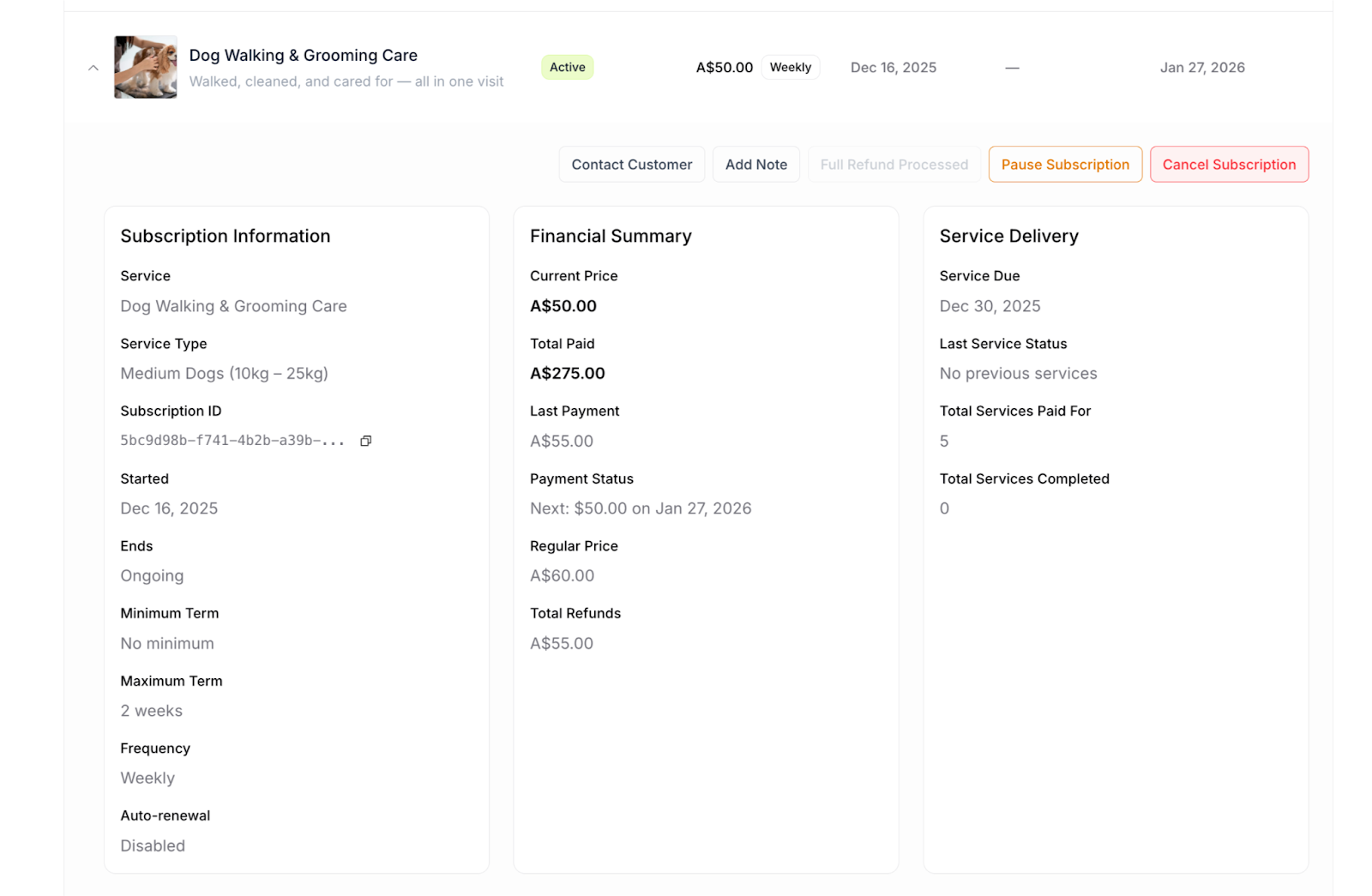
Action buttons available:
Contact Customer - Available
Add Note - Available
Pause Subscription - Available (if enabled)
Cancel Subscription - Available
In Customer Header Metrics
Total Revenue decreases:
Adjusted to reflect net revenue after refund
Example: Was A$632.30, after $55 refund becomes A$577.30
Updates across all views instantly
Reflects actual money received (payments minus refunds)
Active Subscriptions count:
Remains unchanged
Customer still has active subscription
Refunding one payment doesn't affect subscription count
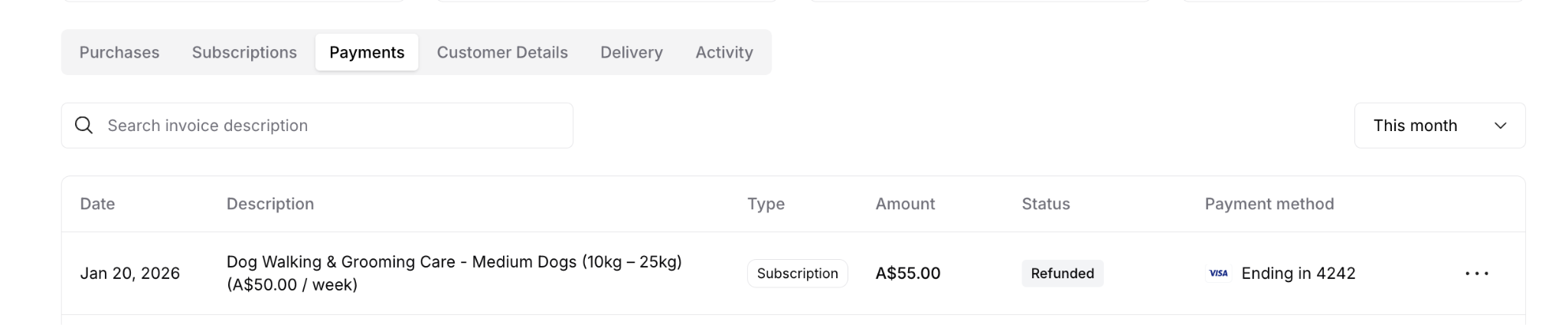
In Payments Tab
Refund appears in payment history:
When you navigate to the Payments tab, you'll see the refunded payment in the list with updated status.
Refund Timeline and Process
Processing timeline:
Immediately (when you click Process Refund):
Refund initiates instantly
Sent to Stripe for processing
System records update in real-time
Customer email triggers
Activity log entry created
Within 1-2 business days:
Stripe processes refund
Refund approved and queued
Sent to customer's bank/card issuer
5-10 business days (typical):
Credit appears on customer's card statement
Actual timing depends on customer's bank
May show as "Pending" first before completing
Could be faster (3-5 days) with some banks
What customer sees on statement:
Credit matching refund amount
Your business name as merchant
Posted to same card originally charged
May say "Refund" or "Credit" on statement
⚠️ IMPORTANT: Always inform customers about the 5-10 business day timeline when issuing refunds. This prevents confusion and repeated inquiries about when they'll receive their money.
If customer doesn't see refund after 10 days:
Verify refund processed in your Stripe dashboard
Provide customer with transaction/reference number
Direct customer to contact their bank
Most delays are bank processing, not system issues
✍️ TIP: Save a copy of the Activity tab entry showing the refund timestamp. This serves as proof if customers question timing.
Understanding Refund Costs
What Gets Refunded vs. What You Pay
What the customer receives:
Full refund amount you specify
Returned to original payment method
Same card or account initially charged
Complete amount as shown in modal
What you pay:
Refund amount back to customer
PLUS original payment processing fees (not refunded to you)
Stripe's processing fee is lost forever
Platform transaction fees typically not refunded
Net cost is higher than refund amount
Example of Refund Costs
Original transaction:
Customer charged: $55.00
Stripe processing fee: ~$1.90 (2.9% + $0.30)
Platform fee: ~$1.10 (2% on some plans)
You actually received: ~$52.00
After full refund:
Customer gets back: $55.00
Stripe fee lost: $1.90 (not refunded to you)
Platform fee lost: ~$1.10 (not refunded to you)
Your net loss: $58.00 total ($55 refund + $3 in fees)
For partial refund of $30:
Customer gets back: $30.00
You keep: $25.00 from original payment
Original fees lost: $3.00 (not refunded)
Your net received: $22.00 ($25 kept - $3 in fees)
Why fees aren't refunded:
Payment processors charge for transaction processing
Work was done to process original payment
Refunding doesn't undo that work
Industry standard across all payment systems
⚠️ IMPORTANT: As shown in the refund modal information box: "Stripe's fees for the original payment won't be returned, but there are no additional fees for the refund."
This means:
✅ No extra fees charged for processing refund
❌ Original processing fees not recovered
✍️ TIP: This fee structure makes preventing refunds through excellent service delivery more financially beneficial than issuing frequent refunds to resolve issues. Focus on quality and communication to minimize refunds.
Refunds for Different Purchase Types
Your platform handles two types of purchases: subscription payments and one-off purchases. While the refund process is the same, understanding the context and implications for each type helps you manage them appropriately.
Refunding Subscription Payments
What you're refunding:
One individual payment within a recurring series
Part of an ongoing subscription relationship
Single billing cycle payment
Common scenarios:
Missed one specific service delivery
Quality issue on particular service date
Prorated refund for mid-cycle cancellation
Billing error for one billing period
Customer dispute about specific service
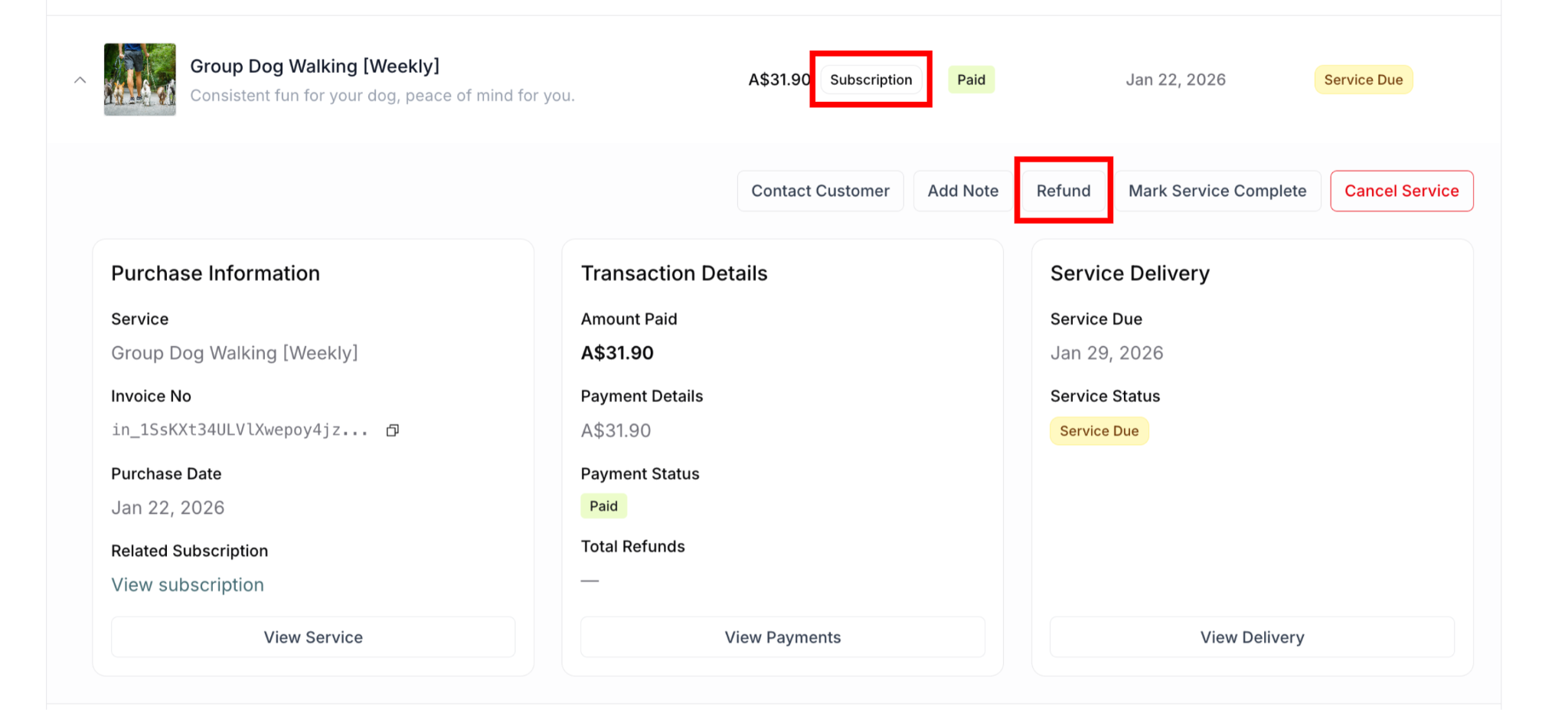
How to Process Subscription Payment Refund
Navigate to customer detail page
Click Subscriptions tab
Find the subscription
Click to expand subscription details
Locate specific payment period to refund
Click Refund button
Follow refund steps (choose type, amount, reason)
Click Process Refund
What Happens to the Subscription
⚠️ IMPORTANT: Refunding an individual payment does NOT automatically cancel the parent subscription.
After refunding one payment:
✅ That specific payment is refunded
✅ Parent subscription continues (remains Active)
✅ Future payments still scheduled
✅ Next service still created on schedule
✅ Subscription billing cycle continues
If you also want to cancel the subscription:
After processing refund (or before)
Click Cancel Subscription button
Confirm cancellation
Then subscription ends permanently
✍️ TIP: If refunding due to cancellation, remember to also cancel the subscription. Refunding a payment alone doesn't stop future billing—you must cancel the subscription separately.
Multiple Payments on Same Subscription
If customer needs refunds for multiple payments from the same subscription:
You must process each refund separately:
Navigate to Subscriptions or Purchases tab
Find first payment to refund
Process that refund
Find second payment to refund
Process that refund separately
Repeat for each payment requiring refund
Refunding One-off Purchases
What you're refunding:
Single, standalone transaction
One-time service purchase
No recurring element
Complete transaction
Common scenarios:
Service not delivered as promised
Quality issue with one-time service
Customer canceled before service delivered
Billing error on one-off purchase
Wrong service booked by mistake
Customer changed their mind
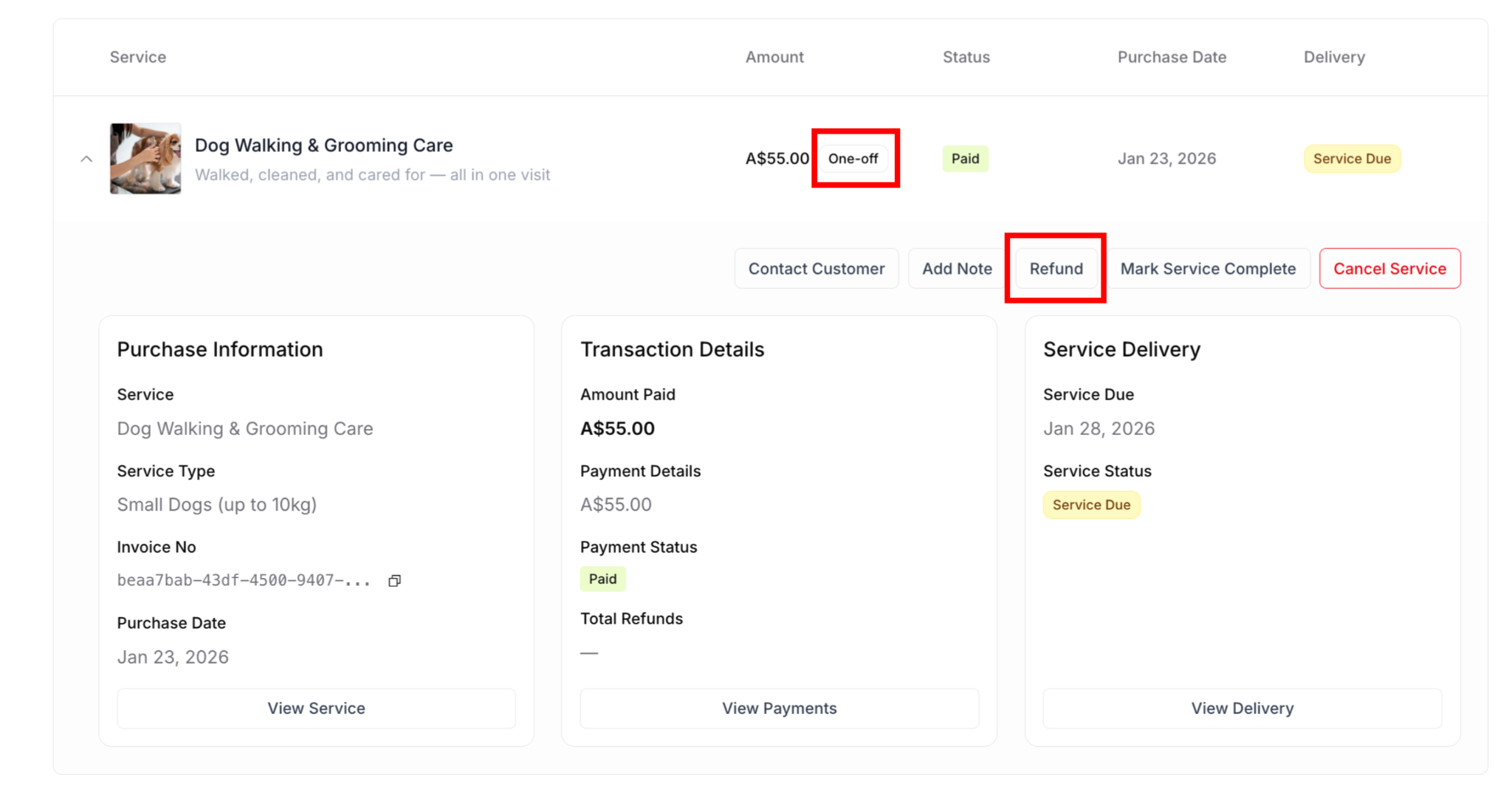
How to Process One-off Purchase Refund
Navigate to customer detail page
Click Purchases tab
Find the one-off purchase
Click to expand purchase details
Click Refund button
Follow refund steps (choose type, amount, reason)
Click Process Refund
Refund AND Cancel Service
⚠️ CRITICAL: Processing a refund does NOT automatically cancel the service delivery.
You must handle both actions separately:
Recommended workflow - Cancel first, then refund:
Click Cancel Service button
Confirm cancellation in modal
Service removed from delivery schedule
Then click Refund button
Process refund
Money returned to customer
Alternative workflow - Refund first, then cancel:
Click Refund button
Process refund
Then click Cancel Service button
Confirm cancellation
✅ BEST PRACTICE:
ALWAYS do BOTH actions when customer shouldn't receive service
Cancel Service → Removes from schedule
Refund → Returns money
Order doesn't matter as long as you do both
Exception: Service already delivered but customer wasn't satisfied
Refund: YES (return money for poor quality)
Cancel: NO (service already completed, nothing to cancel)
After Completing Both Actions
System updates:
Delivery tab: Service shows "Canceled" status with note "Canceled on [date]"
Purchases tab: Purchase shows "Refunded" status
Payments tab: Payment shows "Refunded" status badge
Activity tab: Shows both "Service Canceled" and "Refund Processed" events
✍️ TIP: One-off purchase refunds are simpler since there's no recurring element to manage. Once refunded and canceled, the transaction is complete. However, this is an opportunity—reach out to customers who needed refunds, address their concerns, and invite them to try again with a discount or subscribe at a future time when they're ready.
Refund Policies and Settings
Automatic Refund Setting
What it controls: Whether refunds are automatically processed when customers cancel subscriptions through their customer portal.
Location: Service settings for each subscription service
Setting name: "On cancellation, refund any undelivered services"
Applies to: Subscription cancellations only (not one-off purchases)
When Enabled (ON)
What happens automatically:
Customer cancels subscription via their customer portal
System automatically processes full refund for undelivered services
Refund processes instantly without your manual intervention
Customer receives refund confirmation email
You're notified of cancellation and automatic refund
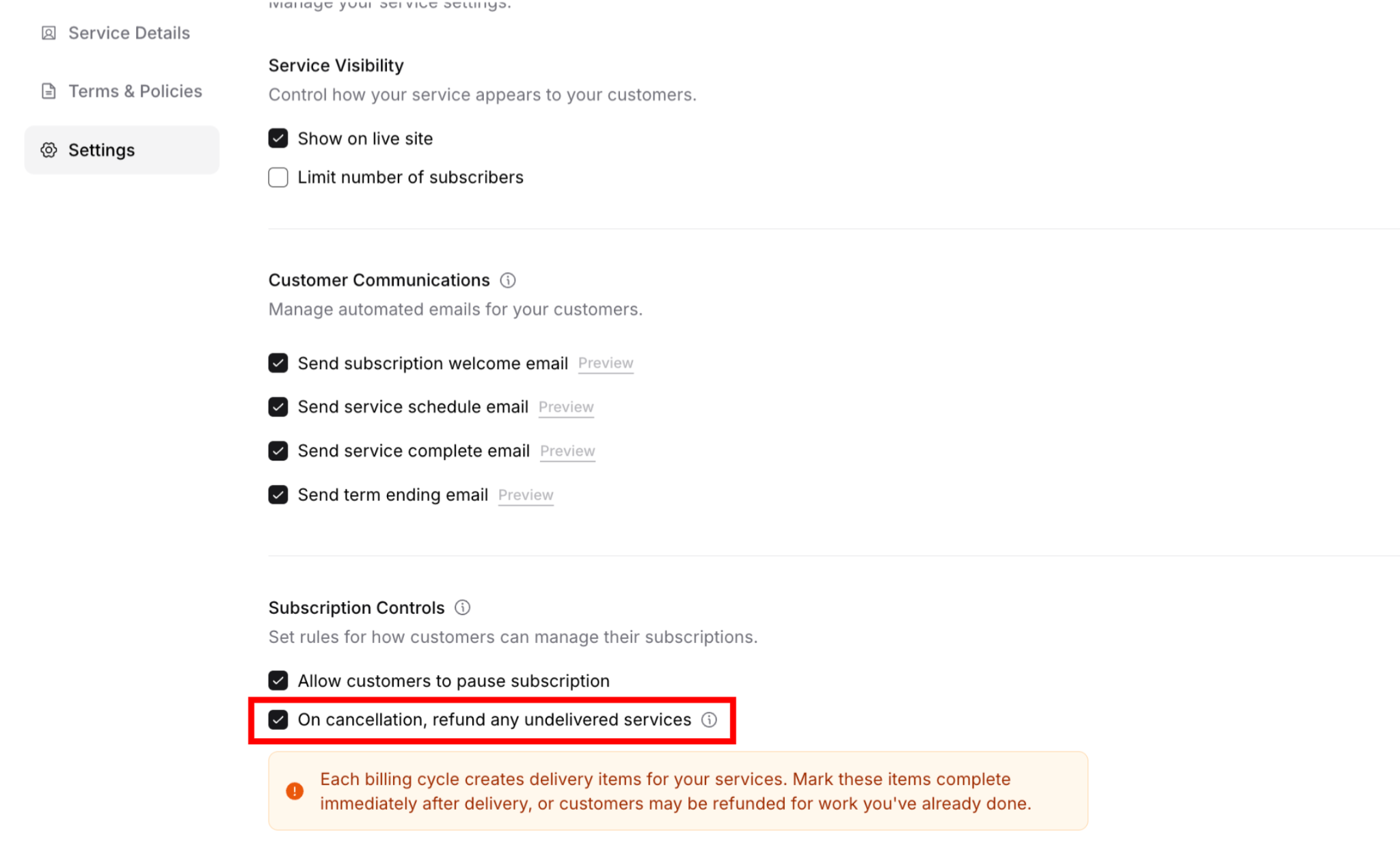
Important: This only applies when customers cancel through their portal. If you cancel the subscription from your dashboard, you must manually process any refund.
When Disabled (OFF)
What happens:
Customer cancels subscription via their customer portal
Cancellation processes but NO automatic refund
Customer sees refund option available in their portal
Refund is NOT automatically processed
You must manually review and process refund from your dashboard
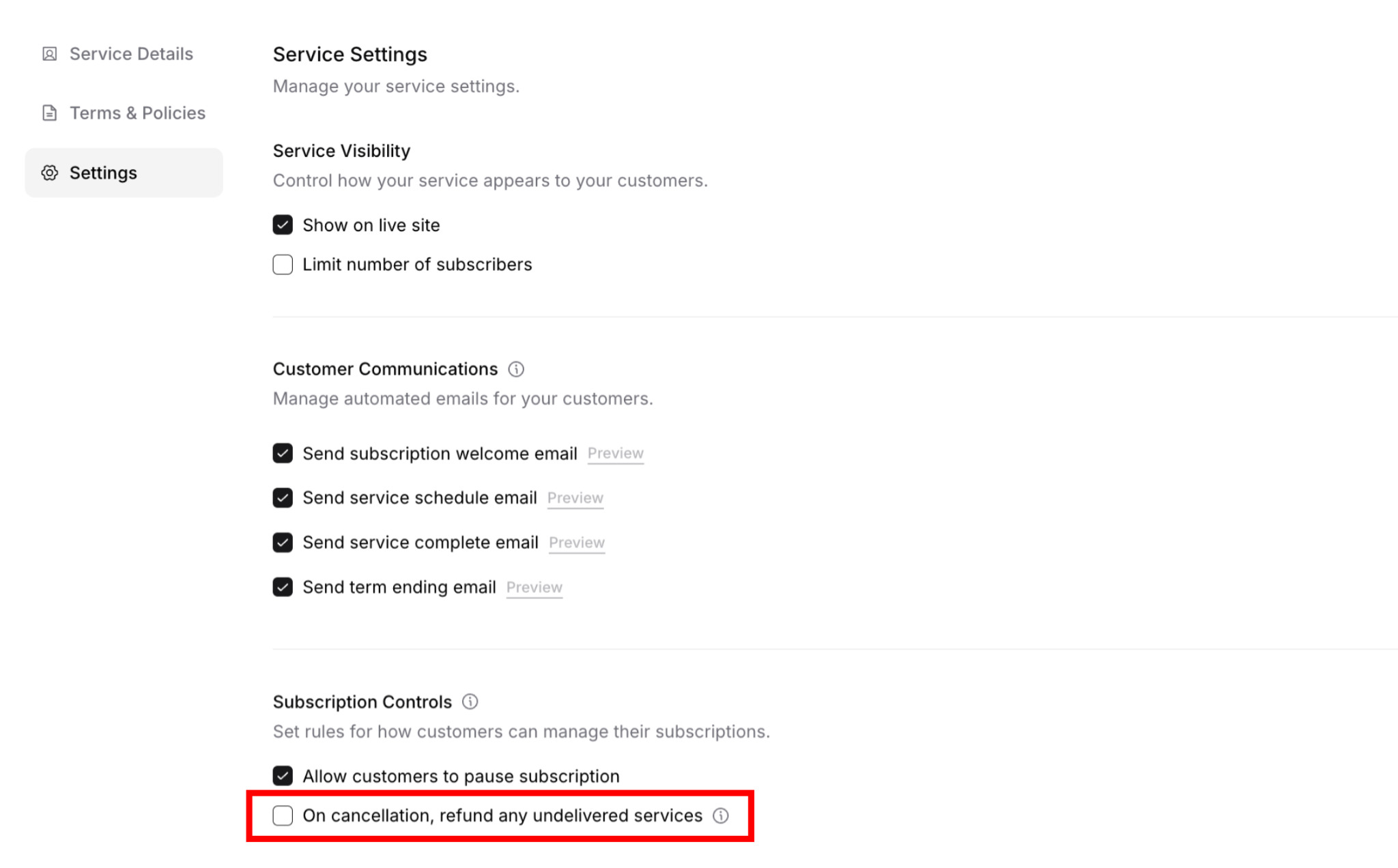
Important: Even though refund option appears in customer portal, the actual refund must be manually processed by you.
Was this article helpful?
That’s Great!
Thank you for your feedback
Sorry! We couldn't be helpful
Thank you for your feedback
Feedback sent
We appreciate your effort and will try to fix the article