The Subscriptions tab provides a comprehensive view of all subscription contracts for a customer. This is where you manage the parent subscription relationships—the ongoing agreements that create recurring revenue for your business.
Important: The Subscriptions tab shows subscription-level management (the parent contracts). For managing individual payments and deliveries, see the Purchases tab. For processing refunds, always use the Purchases tab.
This guide explains how to view, manage, and take actions on customer subscriptions.
Understanding the Subscriptions Tab
What the Subscriptions Tab Shows
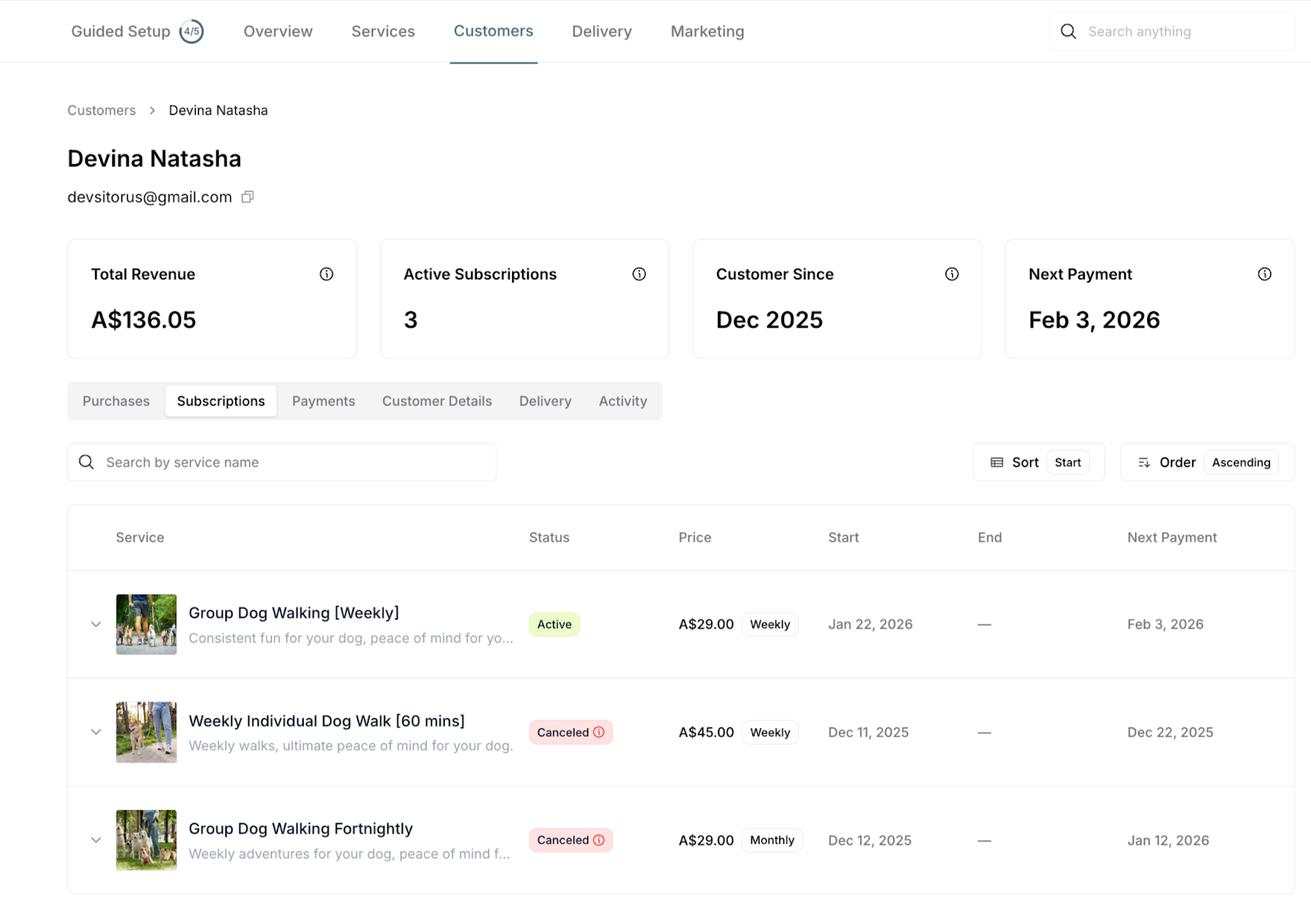
The Subscriptions tab displays all subscription contracts for this customer, regardless of status.
Each subscription entry shows:
Service name and description
Service image thumbnail
Status badge (Active, Pending, Paused, Canceled)
Price per billing cycle
Billing frequency (Weekly, Monthly, etc.)
Start date when subscription began
End date (if maximum term set, otherwise "—")
Next Payment date
Subscriptions Tab Features
Search: "Search by service name"
Type service name to filter
Real-time filtering as you type
Sort: Sort by different criteria
Start (date subscription began)
Price (subscription amount)
Status (Active, Pending, Paused, Canceled)
Other sorting options
Order: Ascending or Descending
Control sort direction
Default: Typically by Start date
Expandable rows: Click arrow (▼) to expand
See detailed subscription information
Access subscription management actions
View three-panel detailed view
Subscription Status Types
Active
Subscription running normally
Payments processing automatically
Services being delivered on schedule
Revenue generating
Pending
Invitation sent but not accepted
Customer hasn't completed signup
No payments processed yet
No services scheduled
Paused
Subscription temporarily suspended
No billing occurring
No services scheduled
Can be resumed anytime
Canceled
Subscription permanently ended
No future billing
No future services
Historical record preserved
Expanded Subscription View
Click the arrow (▼) next to any subscription to expand and see detailed information in three panels.
Left Panel: Subscription Information
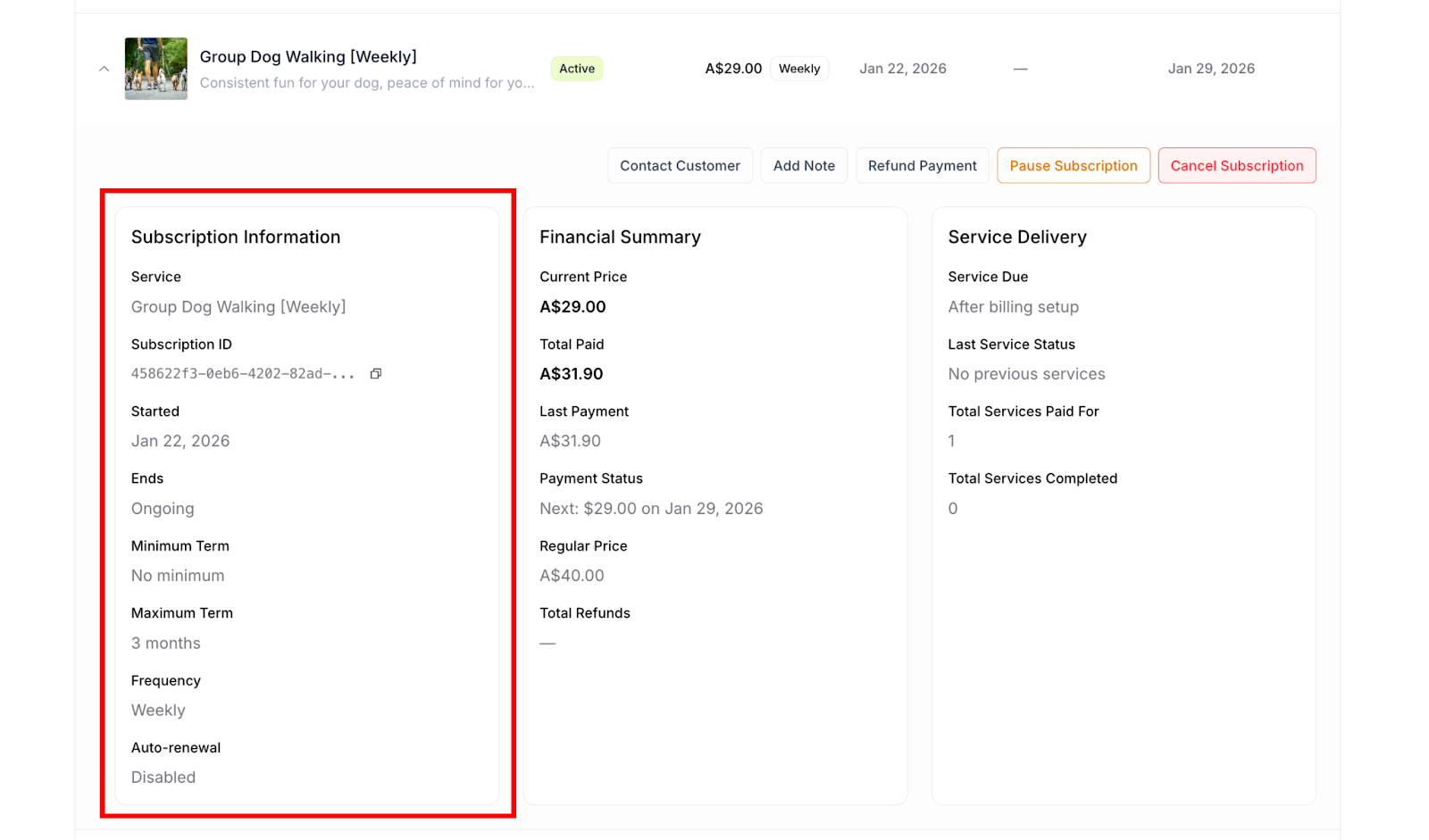
Service: Service name (e.g., "Group Dog Walking [Weekly]")
Subscription ID: Unique identifier with copy button (?)
Use for reference
Helpful for support inquiries
Started: Date subscription began (e.g., "Jan 22, 2026")
Ends:
Shows end date if maximum term is set
Shows "Ongoing" if no maximum term
Minimum Term: Required commitment period
"No minimum" if not set
Shows duration (e.g., "3 months")
Maximum Term: Subscription duration limit
Shows duration (e.g., "3 months", "2 weeks")
"—" if no maximum set
Frequency: Billing cycle
Weekly, Fortnightly, Monthly, etc.
Auto-renewal: Whether subscription renews
"Enabled" - Subscription continues beyond maximum term
"Disabled" - Subscription ends at maximum term
Center Panel: Financial Summary
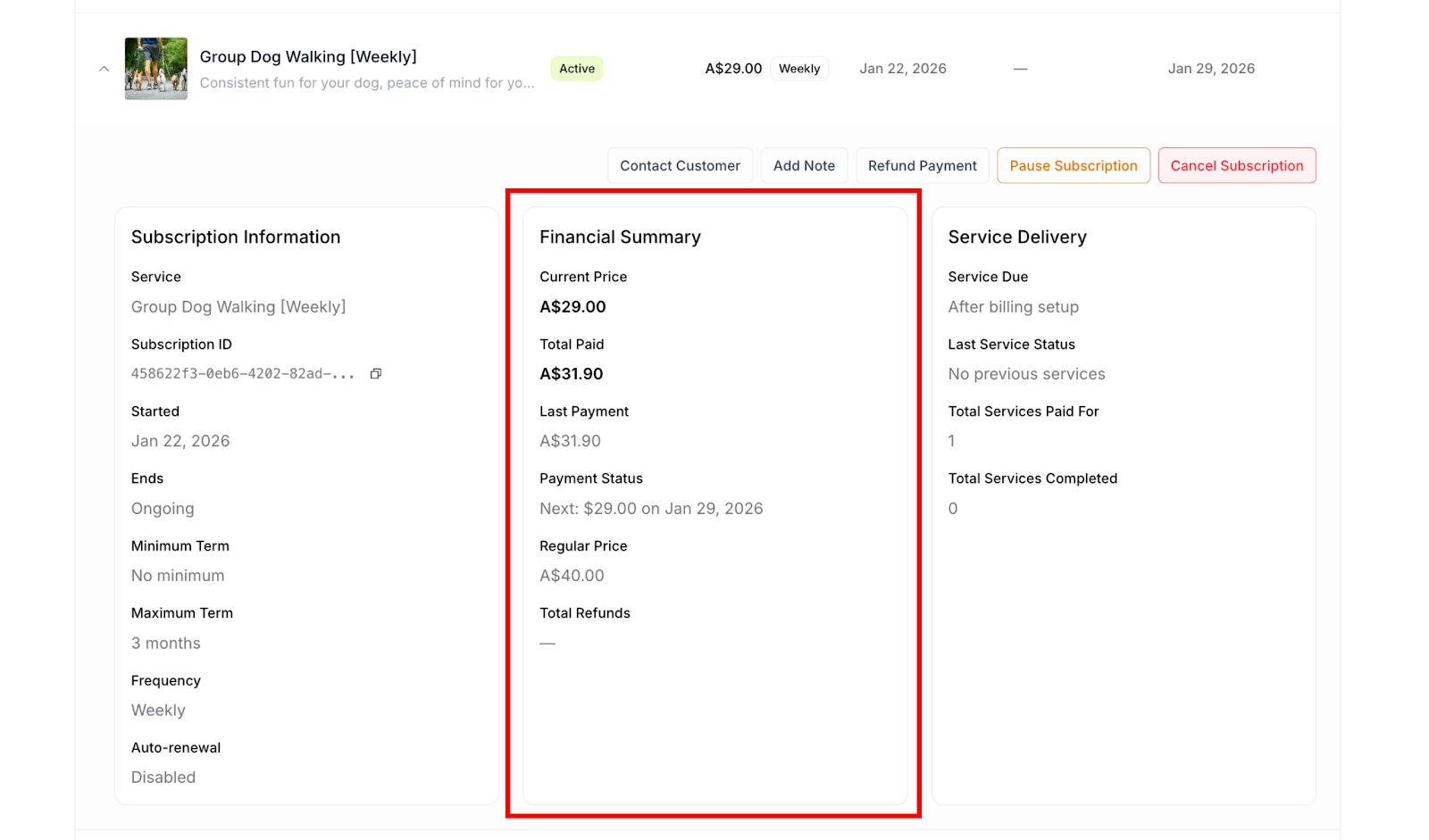
Current Price: Subscription price per billing cycle
Active rate customer is paying
Example: A$29.00 (per week/month)
Total Paid: Cumulative amount paid across all payments
Lifetime revenue from this subscription
Sum of all successful payments
Example: A$31.90
Last Payment: Most recent payment amount
May differ from Current Price if price changed
Example: A$31.90
Payment Status: Current billing status
"Next: $29.00 on Jan 29, 2026" - Shows next scheduled payment
"No payments due" - All current
"Payment failed" - Requires attention
Regular Price: One-off purchase price
For comparison purposes
Shows savings from subscription
Example: A$40.00
Total Refunds: Cumulative refunds for this subscription
Shows "—" if no refunds issued
Accumulates across multiple refunds
Example: A$55.00
✍️ TIP: Total Refunds shows aggregate refunds processed through the Purchases tab for individual payments within this subscription.
Right Panel: Service Delivery
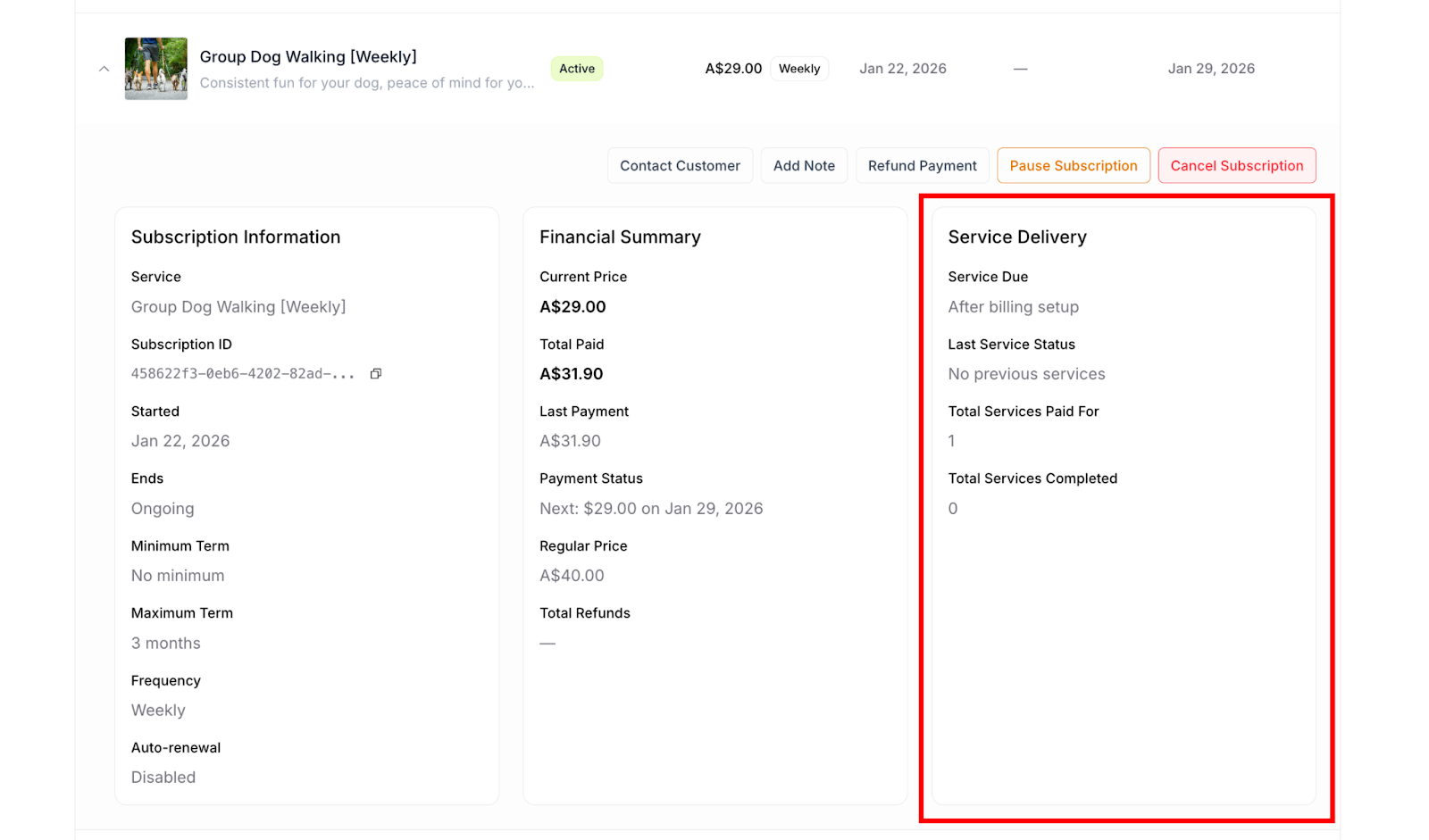
Service Due: Next scheduled service date
When next service will be delivered
Updates automatically
Shows "After billing setup" initially
Last Service Status: Status of most recent delivery
"No previous services" - New subscription
"Completed on [date]" - Last service delivered
"Overdue" - Past due date
Other statuses as applicable
Total Services Paid For: Number of services paid
Count of successful payments
Each payment = one service
Example: 1, 5, 12, etc.
Total Services Completed: Services successfully delivered
Track completion rate
Compare to Total Services Paid For
Should closely match paid services
Service delivery health indicator:
Services Completed should equal or be close to Services Paid For
Large gap indicates delivery issues
Monitor this closely for customer satisfaction
Subscription Action Buttons
When you expand a subscription, action buttons appear at the top of the detail view. Available buttons depend on subscription status and state.
For Active Subscriptions
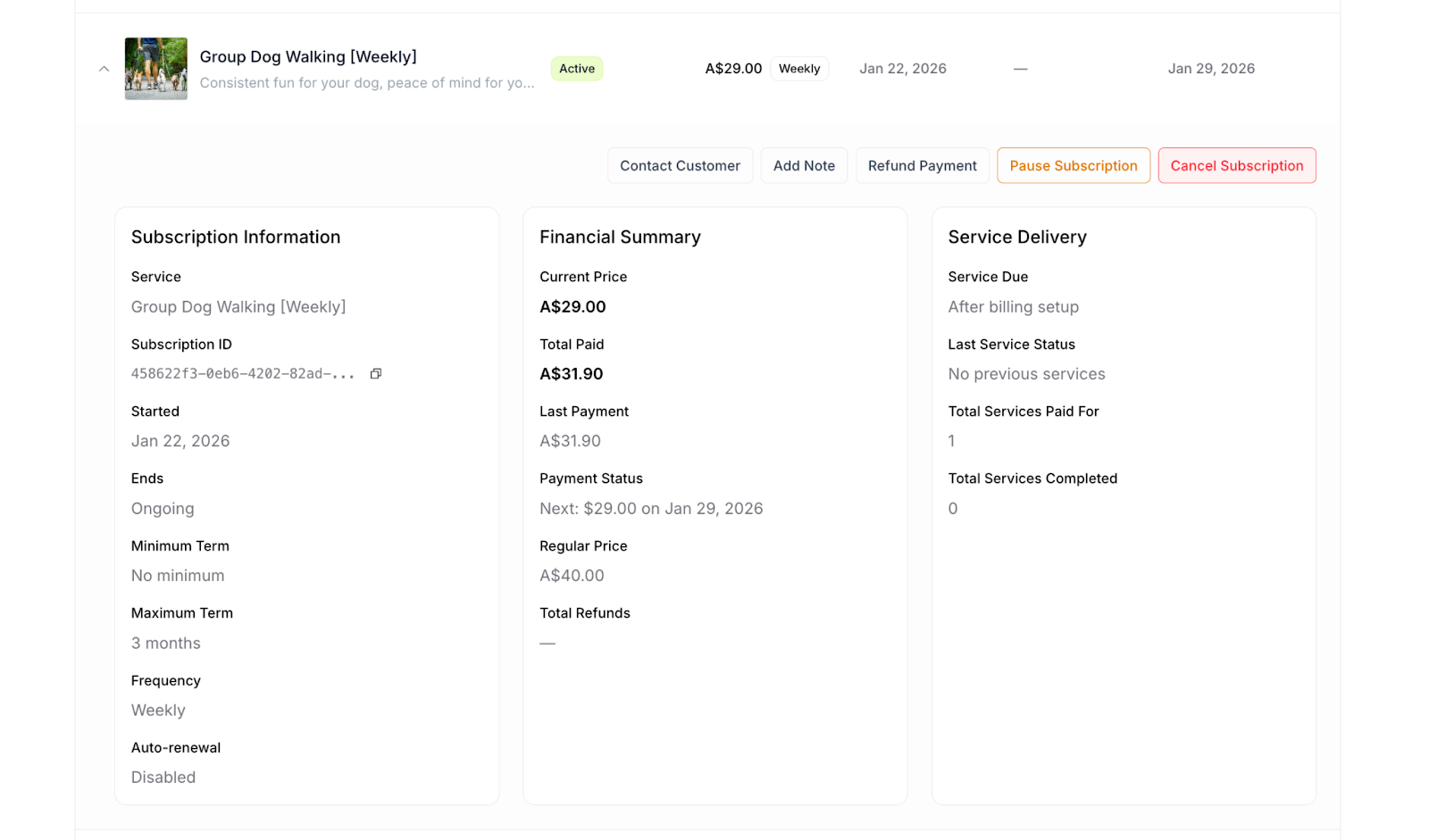
Contact Customer:
Opens communication with customer
Pre-populated with email and phone
Quick access to reach out
Add Note:
Add internal notes about subscription
Document conversations or issues
Notes visible only to you
Pause Subscription:
Temporarily suspend subscription
Stops billing and service delivery
Can be resumed anytime
See Pausing Subscriptions section below
Cancel Subscription:
Permanently end subscription
Stops all future billing and services
Cannot be undone
See Canceling Subscriptions section below
⚠️ IMPORTANT: The Refund Payment button is NOT available in the Subscriptions tab. All refunds must be processed through the Purchases tab where individual payments are managed.
For Subscriptions Scheduled for Cancellation
When a customer cancels a subscription, it doesn't end immediately. The subscription remains active until the next scheduled billing date, allowing the customer to receive services they've already paid for.
During scheduled cancellation period:
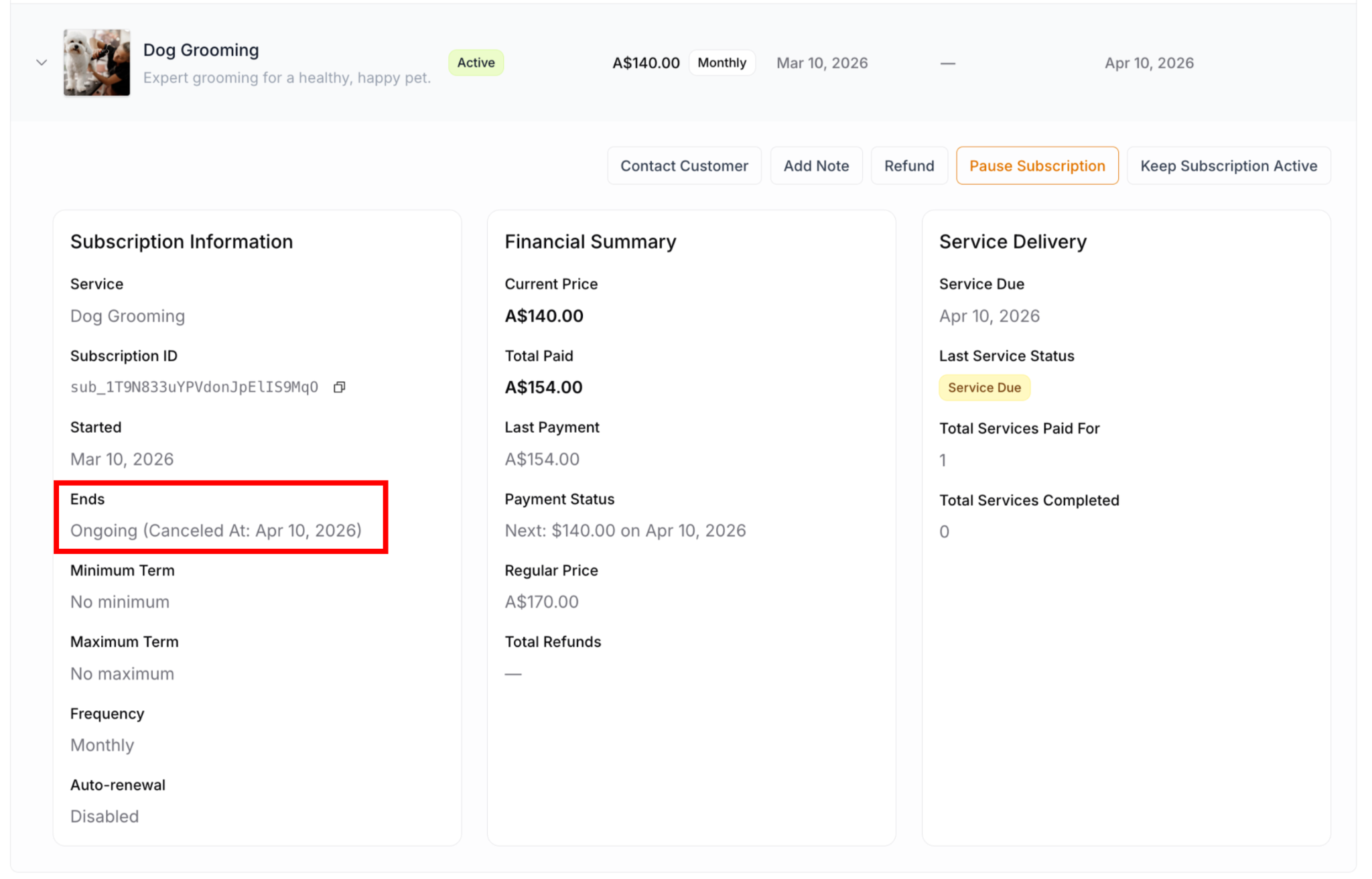
The subscription shows Active status with special "Ends" field indicator:
Ends: Ongoing (Canceled At: Apr 10, 2026)
This means:
Subscription is still active
Customer retains access until cancellation date
Services continue until that date
Billing stops after cancellation date arrives
Status changes to "Cancelled" on that date
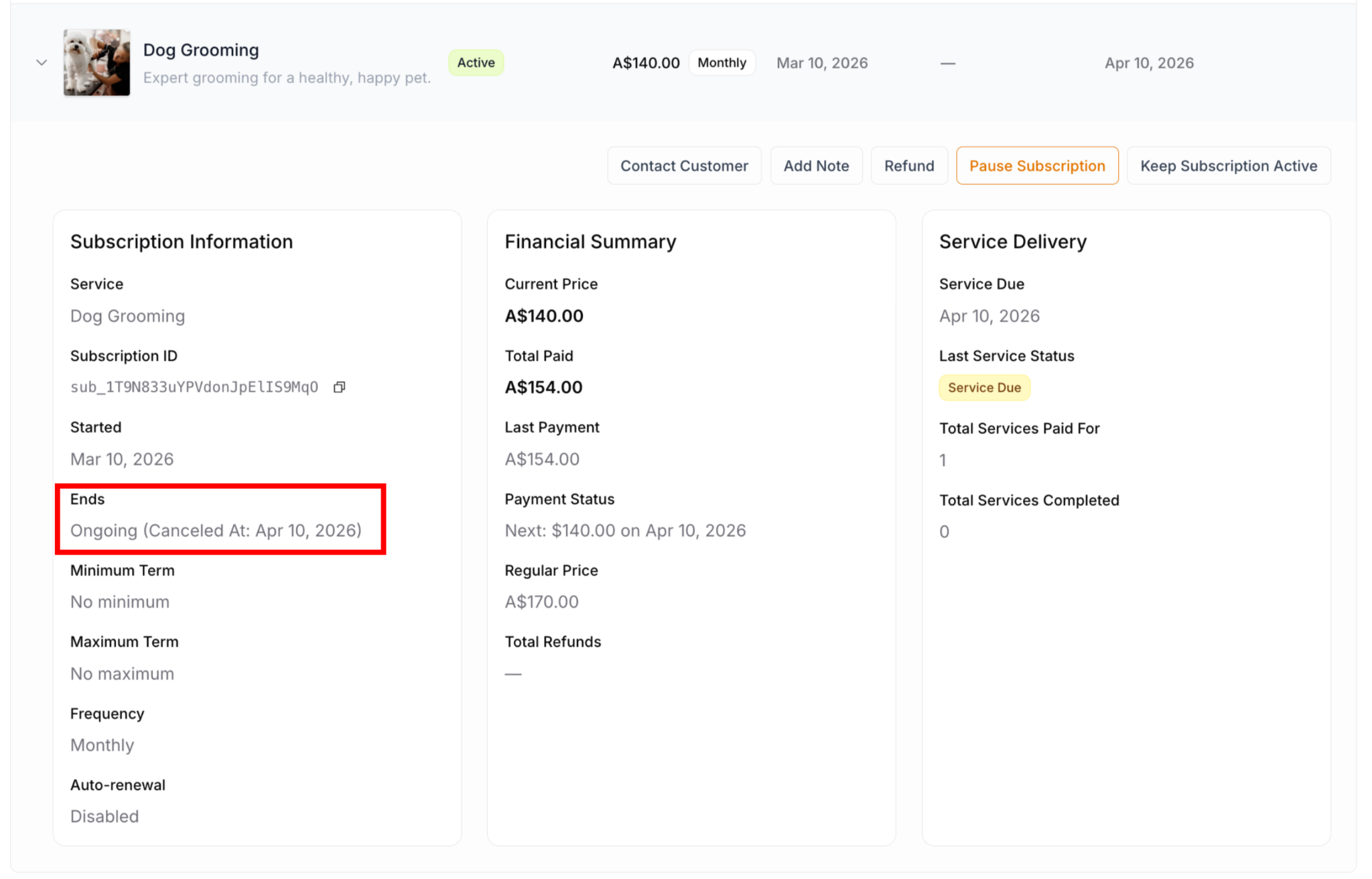
Action buttons available:
Contact Customer:
Available for win-back attempts
Discuss reasons for cancellation
Offer solutions or alternatives
Add Note:
Document cancellation conversation
Record win-back attempts
Note reasons for cancellation
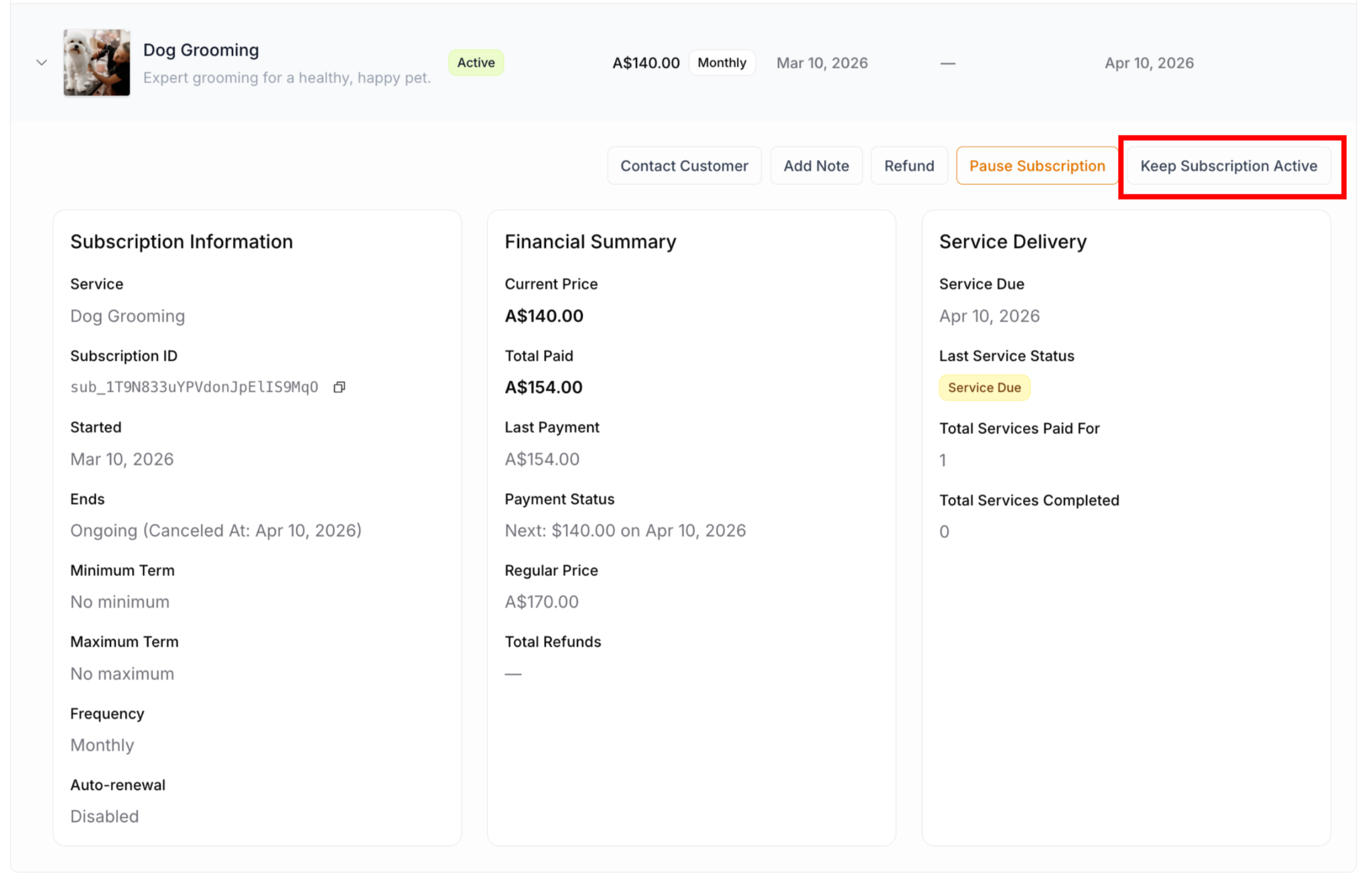
Keep Subscription Active:
Appears after cancellation scheduled
Undoes the scheduled cancellation
Restores subscription to ongoing status
See Undoing Scheduled Cancellation below
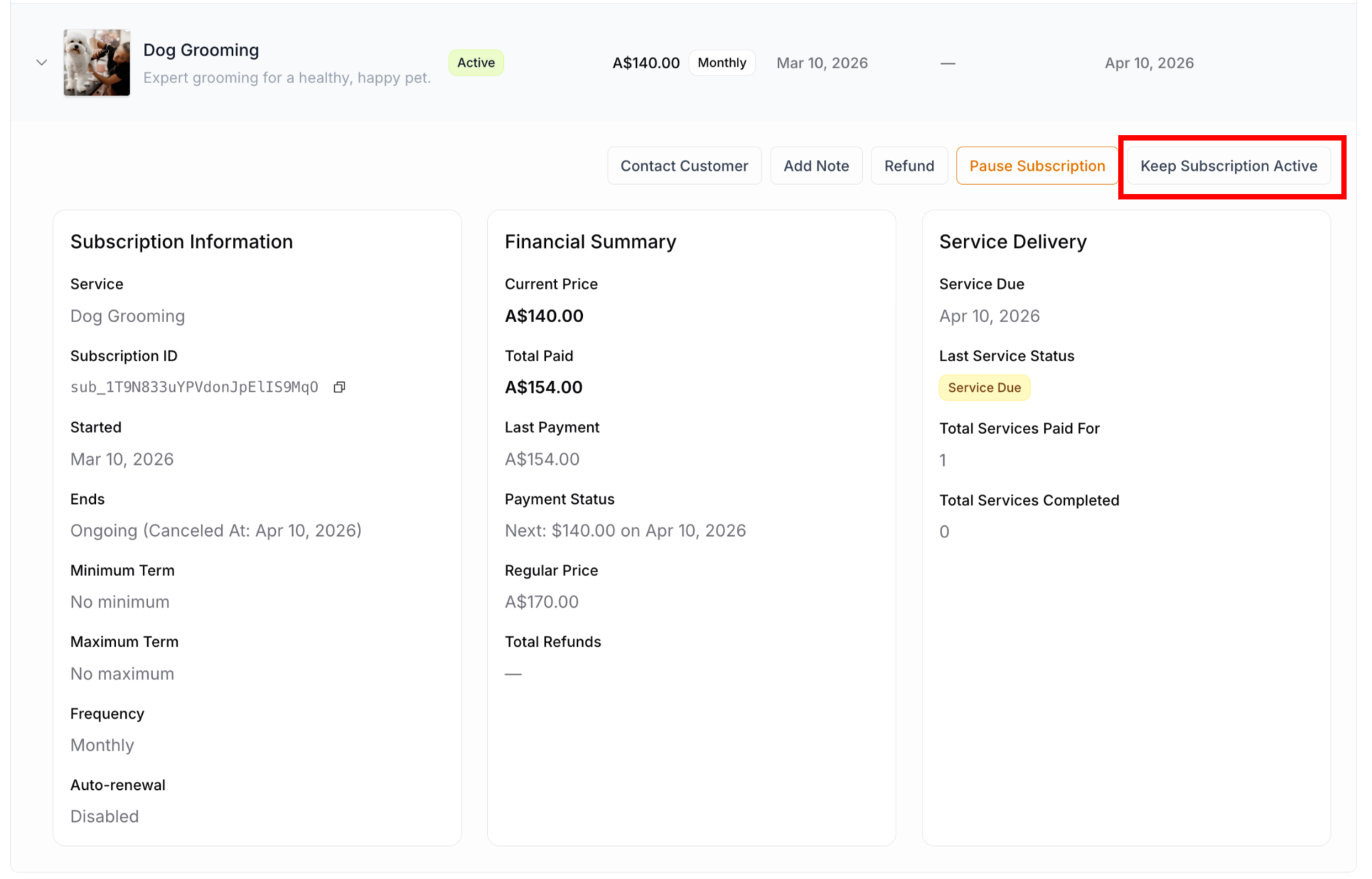
How "Keep Subscription Active" works:
Click "Keep Subscription Active" button
Modal appears: "Undo Scheduled Cancellation"
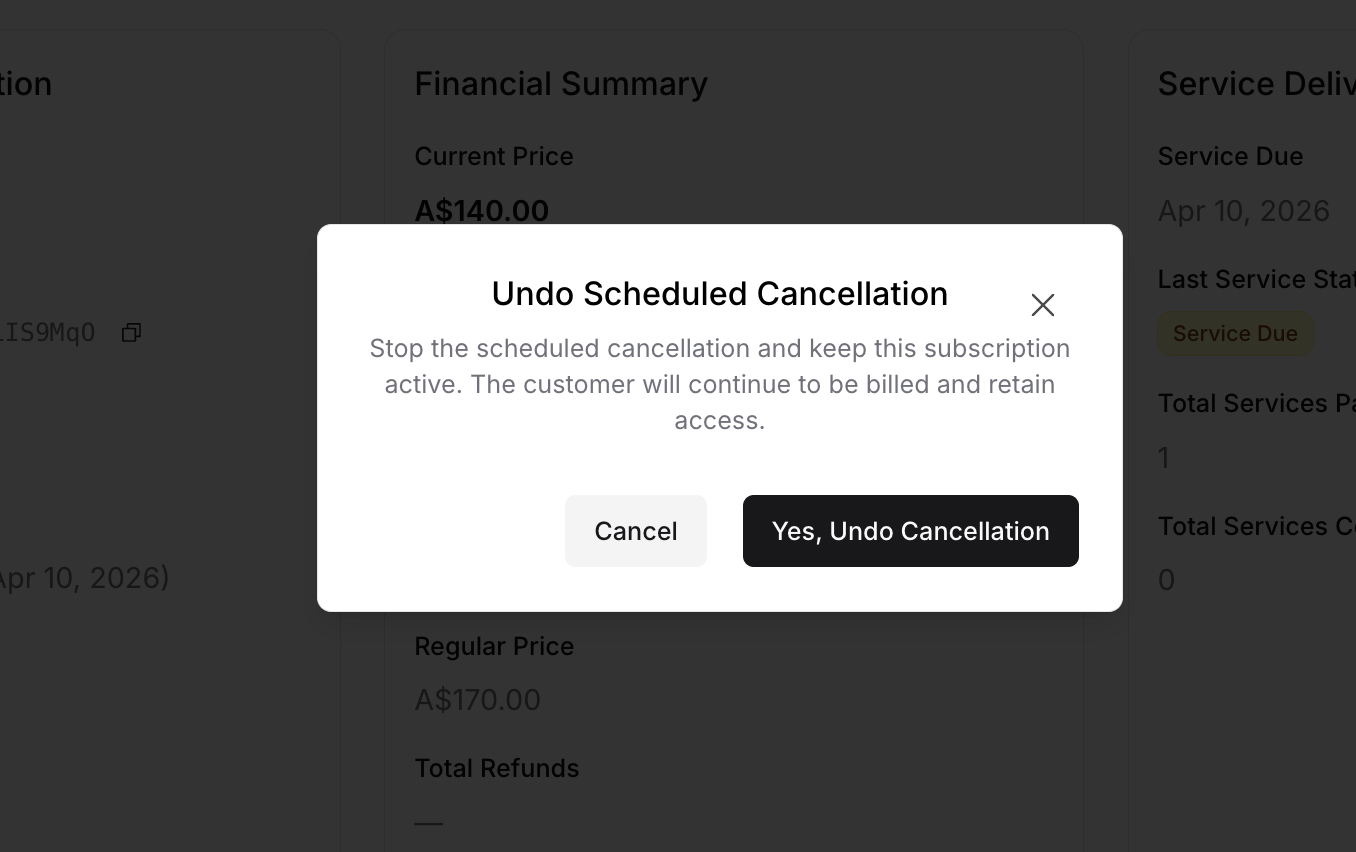
Message explains: "Stop the scheduled cancellation and keep this subscription active. The customer will continue to be billed and retain access."
Click "Yes, Undo Cancellation" to confirm
Or click "Cancel" to keep cancellation scheduled
✍️ TIP: The "Keep Subscription Active" feature is valuable for win-back conversations. If you successfully address a customer's concerns, you can immediately restore their subscription without requiring them to re-subscribe.
After Cancellation Date Passes
Once the scheduled cancellation date arrives:
Subscription status changes from "Active" to "Cancelled"
"Ends" field shows the actual cancellation date
No more billing occurs
No more services scheduled
"Keep Subscription Active" button no longer available
Important notes:
Previous delivery items still need completion or separate cancellation
Past billings can be refunded if necessary through Purchases tab
All actions on completed deliveries and past payments handled in Purchases tab
For Paused Subscriptions
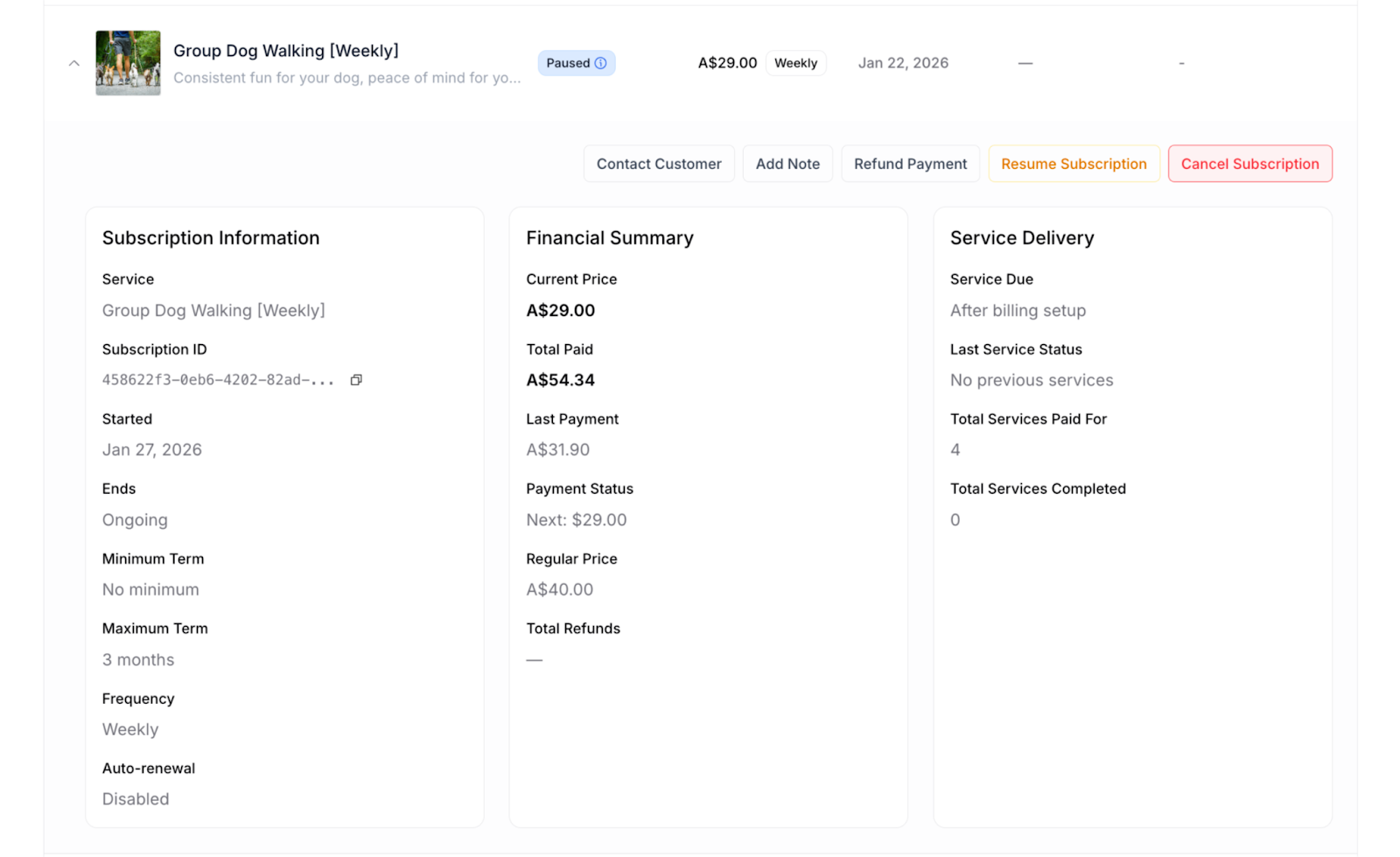
When subscription is paused, action buttons change:
Contact Customer: Still available
Add Note: Still available
Resume Subscription:
Replaces "Pause Subscription" button
Reactivates subscription immediately
Billing and services resume
See Resuming Subscriptions section below
Cancel Subscription:
Can still cancel while paused
Ends subscription permanently
For Pending Subscriptions
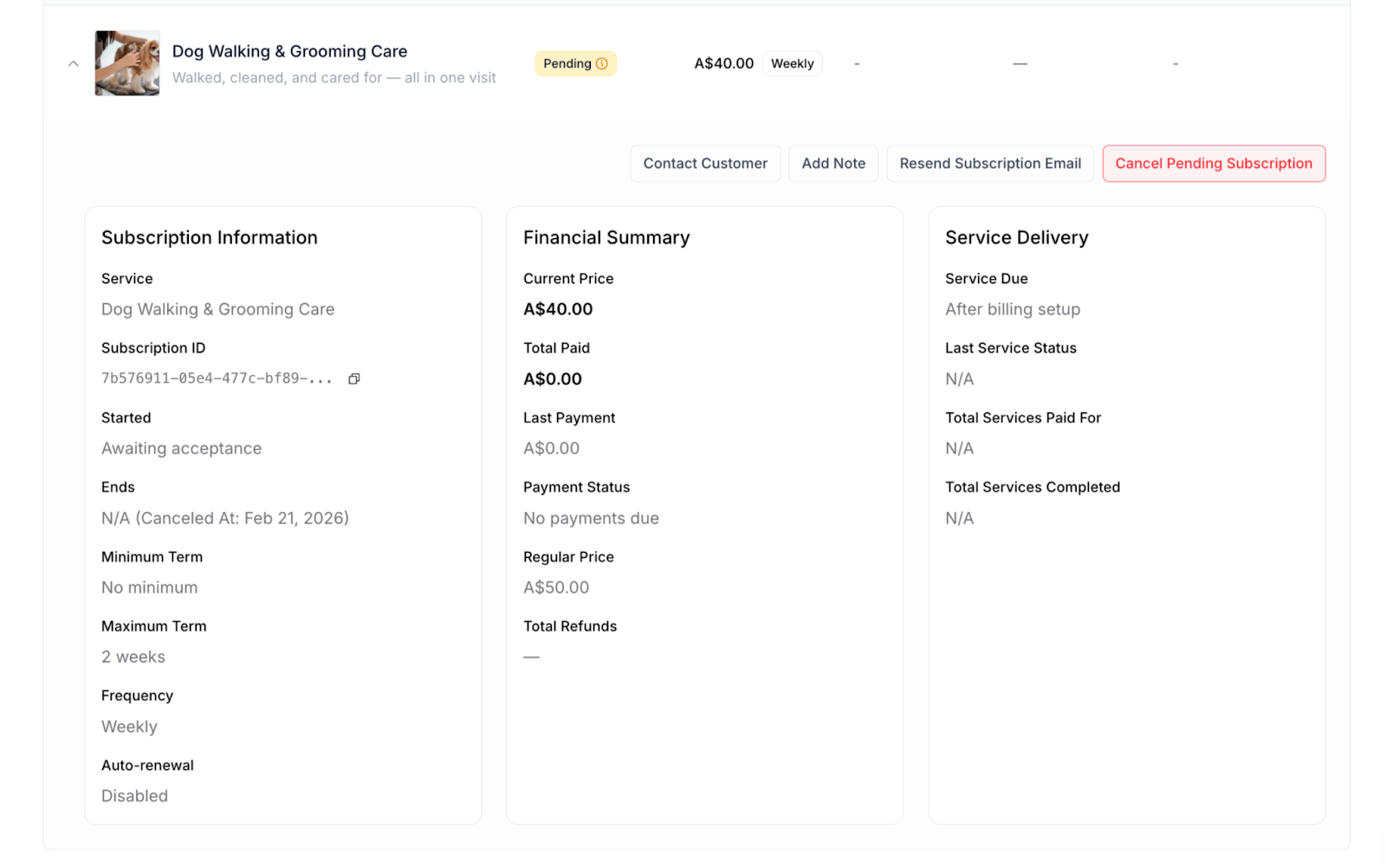
Contact Customer: Follow up on invitation
Add Note: Document outreach attempts
Resend Subscription Email: Send invitation email again
Cancel Pending Subscription: Cancel invitation if no longer relevant
For Canceled Subscriptions
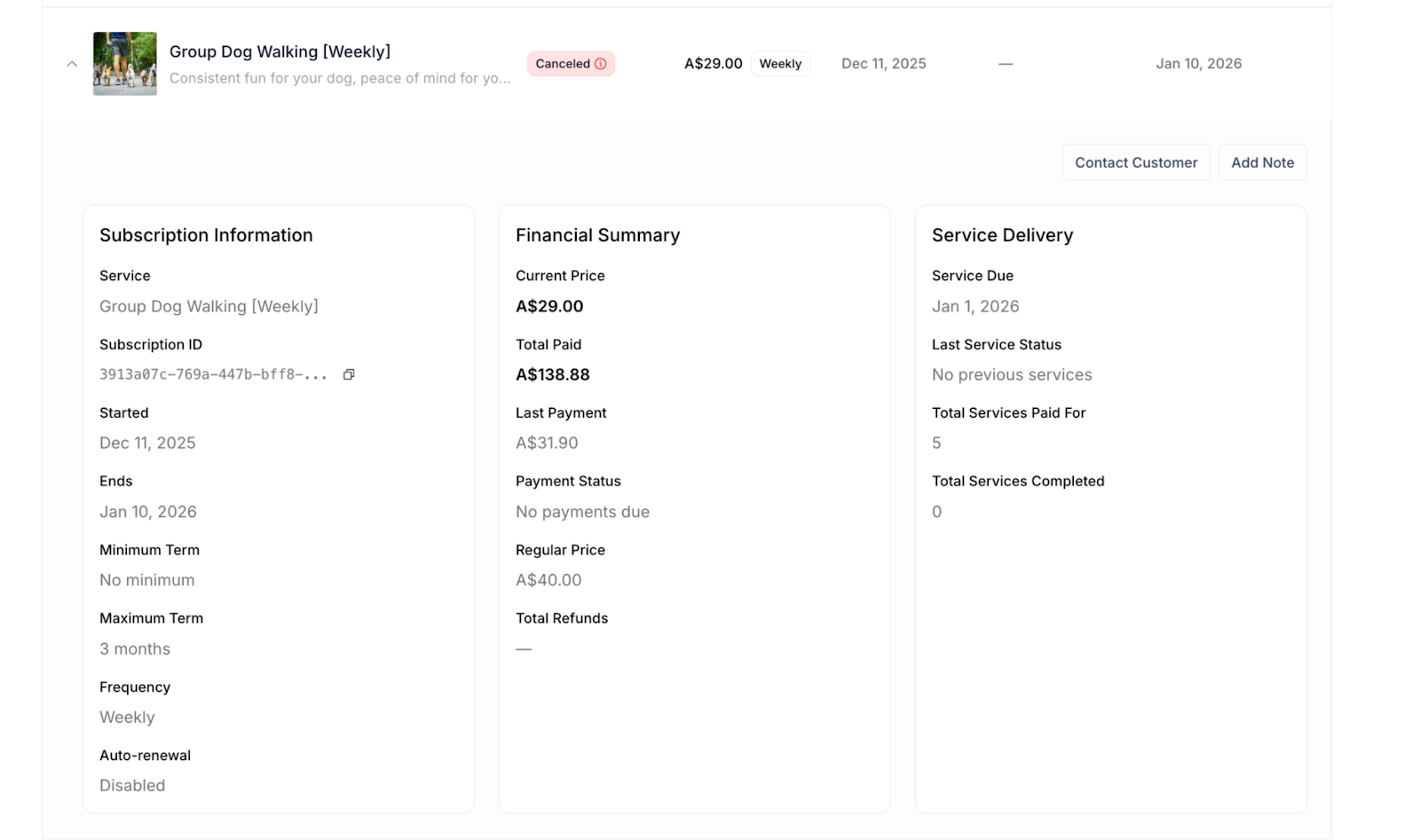
Contact Customer: Available for win-back attempts
Add Note: Document cancellation details
Limited actions available since subscription has ended.
Pausing Subscriptions
Pausing temporarily suspends a subscription without ending it permanently.
When to Pause
Customer requests:
Vacation or extended travel
Seasonal breaks
Temporary financial situation
Personal circumstances requiring break
Business reasons:
Payment method issues being resolved
Access problems temporarily
Give customer time to decide about continuing
How to Pause a Subscription
Navigate to customer's Subscriptions tab
Find the active subscription
Click to expand subscription details
Click Pause Subscription button
Confirmation modal appears
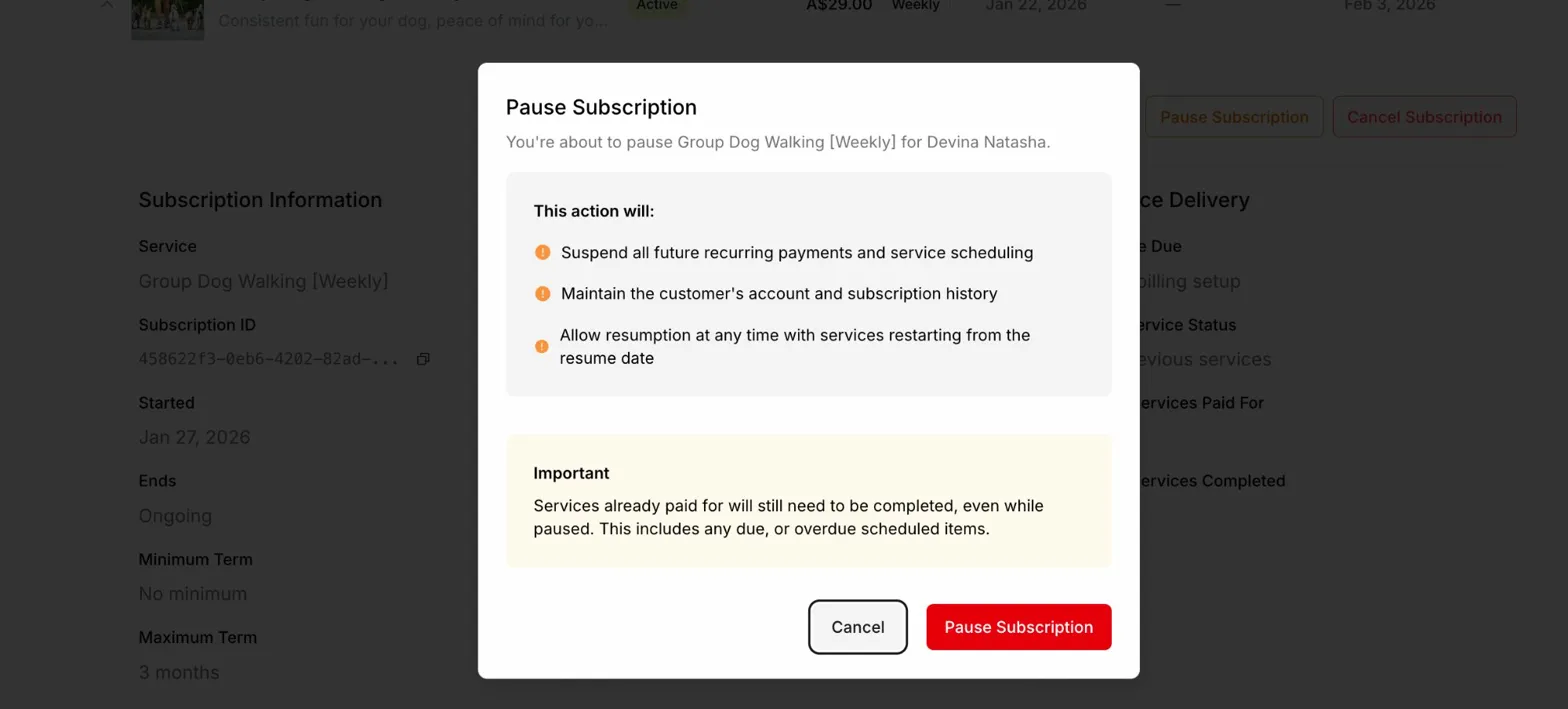
Click Pause Subscription to confirm
Subscription immediately pauses
What Happens When Paused
Immediate effects:
Status changes to "Paused" (blue/gray badge with info icon)
All future billing stops
No new services scheduled
Pause Subscription button changes to Resume Subscription
Services already paid for:
Must still be completed
Even while subscription is paused
Check Delivery tab for outstanding services
Complete before subscription ends
✍️ TIP: Pausing is better than canceling when customer needs temporary break. Much easier to resume than to win back a canceled customer.
Resuming Subscriptions
Resuming reactivates a paused subscription immediately.
How to Resume a Subscription
Navigate to customer's Subscriptions tab
Find the paused subscription (blue/gray "Paused" badge)
Click to expand subscription details
Click Resume Subscription button (orange outlined)
Confirmation modal appears
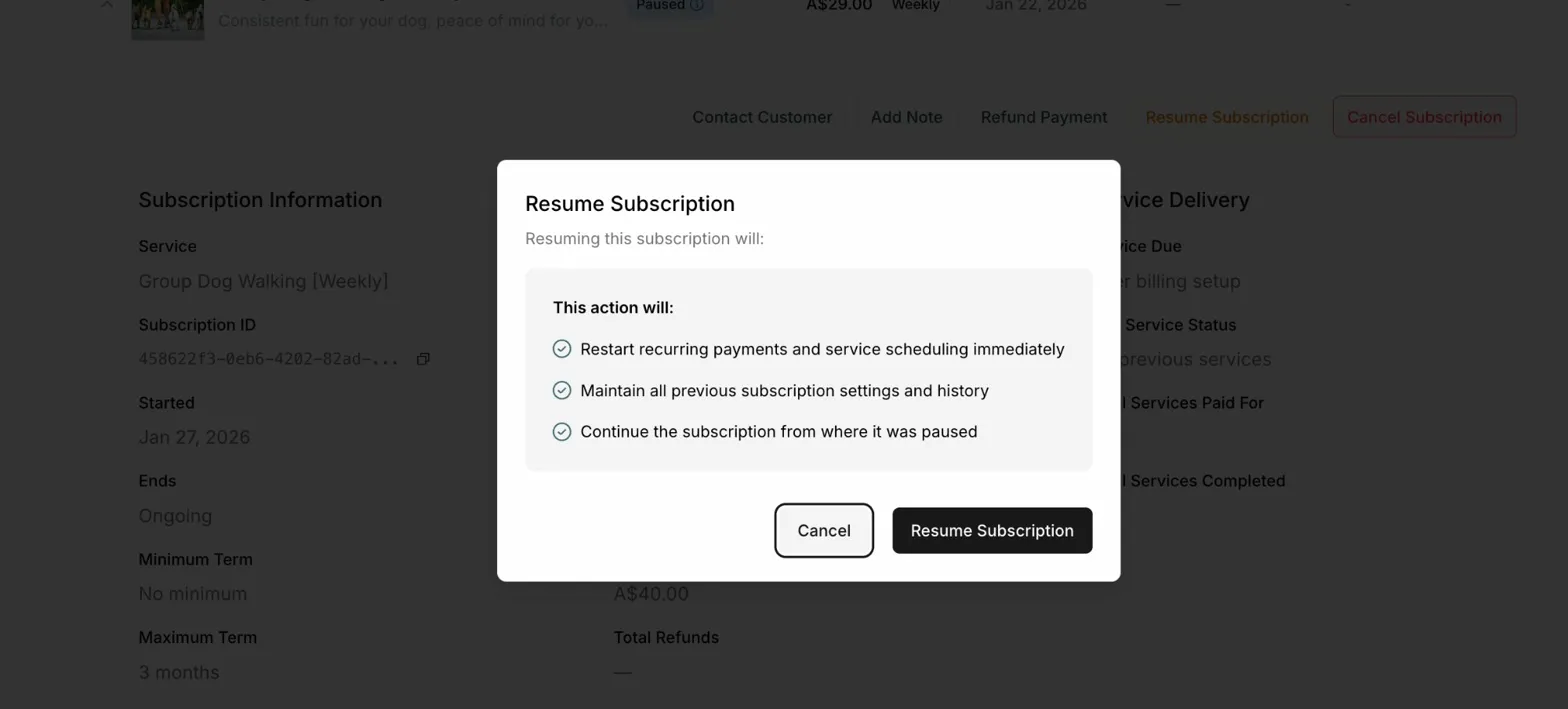
Click Resume Subscription to confirm
Subscription immediately resumes
What Happens When Resumed
Immediate effects:
Status changes back to "Active" (green badge)
Billing resumes automatically
Next payment schedules immediately
Service scheduling resumes
Resume Subscription button changes back to Pause Subscription
Payment and billing:
Next payment processes on next scheduled date
Billing cycle continues from where it left off
No backcharges for paused period
Fresh start from resume date
Service delivery:
New services schedule based on resume date
Services restart from resumption
Previous service history maintained
Delivery continues on normal schedule
✅ BEST PRACTICE: Communicate with customer before resuming. Confirm they're ready, verify payment method is current, and ensure they understand billing will resume.
Canceling Subscriptions
Canceling a subscription schedules it to end and stops all future billing and services after the current paid period.
⚠️ CRITICAL: Canceling subscription is different from canceling individual services.
Cancel Subscription (in Subscriptions tab) = Ends entire subscription, stops all future billing and services
Cancel Service (in Purchases tab) = Cancels one specific service delivery, but subscription continues and next services still schedule
When to Cancel Subscriptions
Customer-initiated:
Customer requests cancellation
No longer needs service
Moving outside service area
Switching to different provider
Unhappy with service quality
Business-initiated:
Multiple failed payment attempts
Customer unresponsive to communication
Terms of service violations
Service area changes
Business decision
How to Cancel a Subscription
Navigate to customer's Subscriptions tab
Find the subscription to cancel
Click to expand subscription details
Click Cancel Subscription button
Confirmation modal appears
Review what will happen
Click to confirm cancellation
Subscription cancellation scheduled
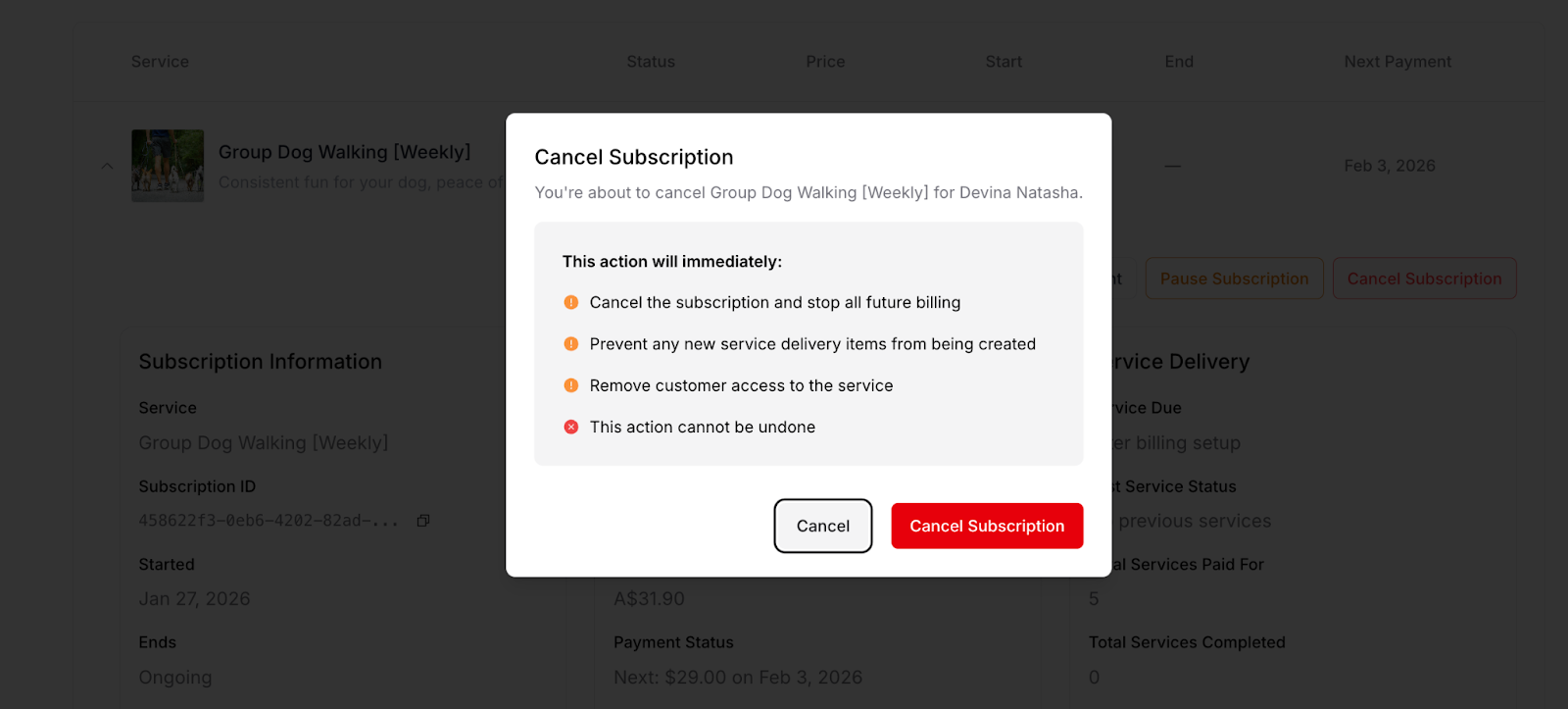
What Happens When Cancellation is Scheduled
Immediately after cancellation:
Subscription status remains Active
"Ends" field updates to show: "Ongoing (Canceled At: [date])"
Cancellation scheduled for next billing date
Customer retains access until that date
Services continue until cancellation date
No new billing after cancellation date
During scheduled cancellation period:
Subscription still appears in Active subscriptions
Customer continues receiving service
You can undo cancellation using "Keep Subscription Active" button
Normal service delivery continues
Payment status shows upcoming cancellation
On the cancellation date:
Status automatically changes to "Cancelled"
Subscription moves to Cancelled tab
No more billing occurs
No more services scheduled
Subscription officially ended
? TIP: Scheduled cancellation gives you time for win-back conversations. If you resolve the customer's concerns before the cancellation date, use "Keep Subscription Active" to restore the subscription without requiring re-signup.
Important: Cancellation Does NOT Auto-Refund
⚠️ CRITICAL: Canceling a subscription does NOT automatically process a refund.
Refunds are separate:
Cancellation stops future billing
Refund returns money already paid
These are two separate actions
Both may be needed, but handled separately
If refund is appropriate:
First, cancel the subscription (stops future billing)
Then, navigate to Purchases tab
Find the payment(s) to refund
Process refund(s) manually
See MC-003 Processing Refunds for detailed steps
Why refunds are separate:
Gives you flexibility for different scenarios
Not all cancellations warrant refunds
Different refund reasons require different amounts
You evaluate each situation individually
Manual process ensures appropriate refunds
✍️ TIP: Evaluate refund separately from cancellation. Customer may be entitled to refund even if canceling, or may not need refund if service was delivered.
After Cancellation
Once the scheduled cancellation date arrives and subscription ends:
What's preserved:
Complete subscription history
All payment records
All service completion records
Activity timeline
Customer relationship continues for other services
What stops:
Future billing completely
Future service scheduling
Automatic payment processing
Service delivery for this subscription
Customer portal:
Customer can still log in
View historical subscription records
Download past invoices
See cancellation date
Can subscribe again if they choose
Cancelled subscription appears in Cancelled tab
Your dashboard:
Subscription shows "Cancelled" status
Subscription moves to Cancelled tab
All history accessible
Can contact for win-back attempts
Cannot undo cancellation after date passes
Difference Between Scheduled and Completed Cancellation
Scheduled cancellation (before date):
Status: Active
Ends: Ongoing (Canceled At: [date])
Action available: Keep Subscription Active
Can be reversed
Services continue
Completed cancellation (after date):
Status: Cancelled
Ends: [actual end date]
Action available: Contact Customer only
Cannot be reversed
Services stopped
Customer must re-subscribe to resume
Re-activating Cancelled Subscriptions
If cancellation hasn't occurred yet: Use "Keep Subscription Active" button to undo scheduled cancellation. See Subscription Action Buttons section above.
If cancellation is already completed: Cannot reactivate. Customer must:
Create new subscription
Go through signup process again
New subscription ID created
Previous subscription remains in history
For win-back after completed cancellation:
Contact customer to discuss re-subscription
Offer incentives if appropriate
Guide through new signup process
Consider creating special pricing service if needed
Use Add Note to document win-back attempts
Understanding Subscription vs. Purchase Management
Use Subscriptions tab for:
✅ Viewing subscription-level contracts
✅ Pausing subscriptions
✅ Resuming subscriptions
✅ Canceling subscriptions
✅ Viewing aggregate financial data
✅ Understanding subscription terms
Use Purchases tab for:
✅ Managing individual payments
✅ Processing refunds
✅ Viewing individual service deliveries
✅ Canceling specific services
✅ Marking individual services complete
The relationship:
One subscription = Multiple purchases
Subscription = Parent contract
Purchases = Child transactions
Manage at appropriate level for task
✍️ TIP: Think of Subscriptions tab as "big picture contract management" and Purchases tab as "transaction-level operations." Both are essential for complete subscription management.
Was this article helpful?
That’s Great!
Thank you for your feedback
Sorry! We couldn't be helpful
Thank you for your feedback
Feedback sent
We appreciate your effort and will try to fix the article