Service delivery tracking helps you manage when and how services are delivered to your customers. Whether you run a dog walking business, lawn care service, or any subscription-based operation, delivery tracking ensures every paid service gets completed on schedule.
This guide explains how service delivery tracking works and how to access and use it effectively.
What Is Service Delivery Tracking?
Service delivery tracking monitors the lifecycle of each individual service from scheduled to completed (or canceled).
Every service delivery represents:
One service that needs to be delivered to one customer
A specific due date when service should be completed
Current status (Service Due, Overdue, Completed, Canceled)
Each of these deliveries appears in your delivery tracking system and needs to be marked complete after you deliver the service.
Two Ways to Access Deliveries
Your platform provides two different views for managing service deliveries, each serving a different purpose.
1. Delivery Menu (Global View)
What it shows: All service deliveries across ALL customers
Where to find it: Main navigation menu → Delivery
Use this when:
✅ Planning your day or week
✅ Seeing all services due today
✅ Reviewing overdue services across all customers
✅ Route planning and scheduling
✅ Getting overview of workload
✅ Managing deliveries in bulk
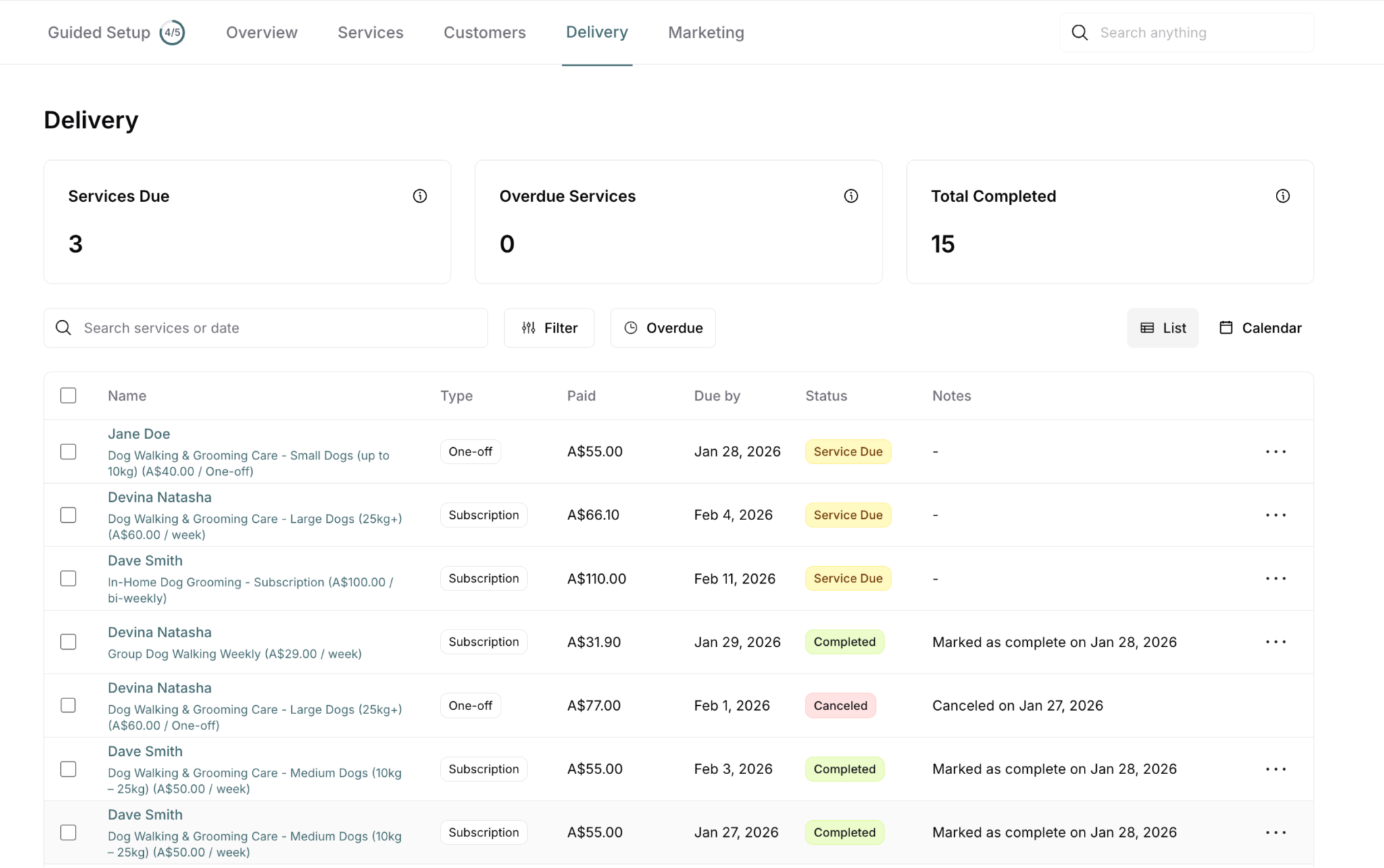
Key features:
Top metrics (Services Due, Overdue Services, Total Completed)
Search by service name, customer, or date
Filter by various criteria
Toggle between List and Calendar views
Bulk actions via checkboxes (select multiple deliveries)
Individual actions via three-dot menu (⋯)
Bulk actions available:
Select multiple deliveries using checkboxes
Mark as Complete - Complete multiple services at once
Export - Export selected deliveries
Unselect - Clear selections
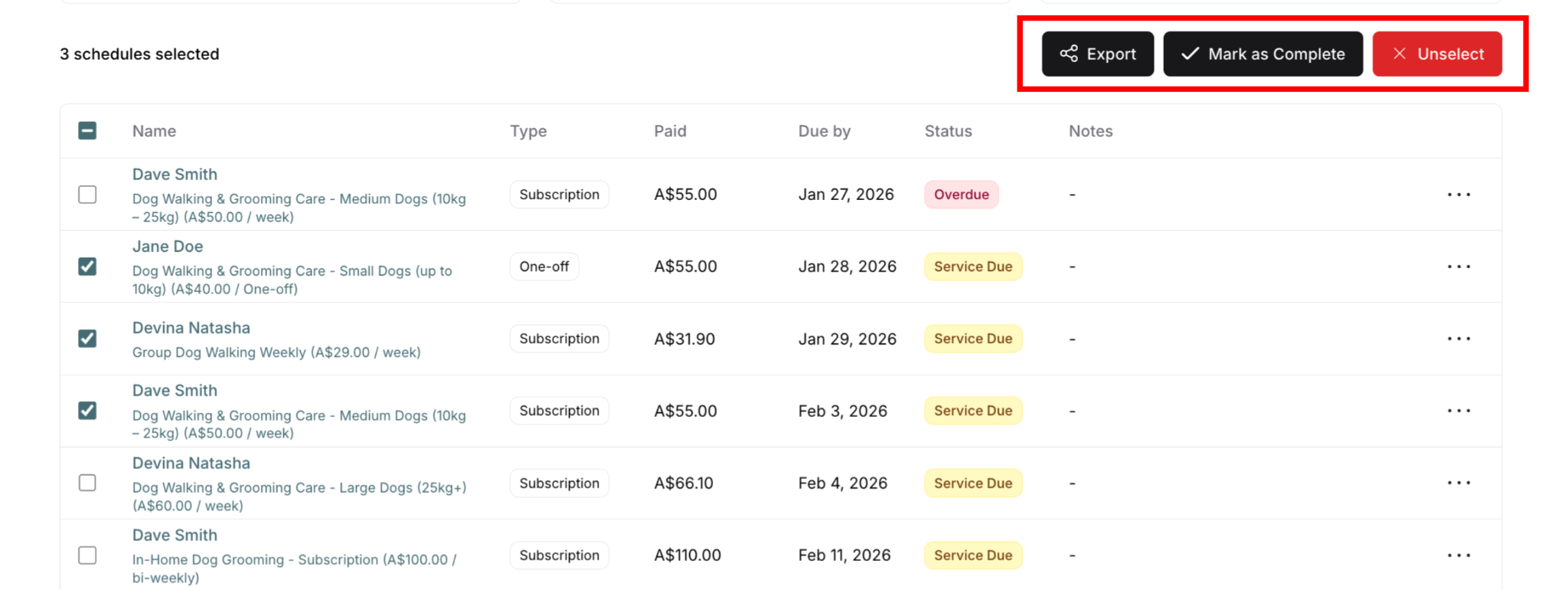
✍️ TIP: Use bulk completion when you've completed multiple services in one route. Select all completed services and mark them complete together - saves time!
2. Delivery Tab (Customer-Specific View)
What it shows: Service deliveries for ONE specific customer only
Where to find it: Customers menu → Select customer → Delivery tab
Use this when:
✅ Viewing one customer's delivery history
✅ Managing deliveries while on customer's page
✅ Reviewing customer's service completion record
✅ Investigating customer delivery issues
✅ Context: You're already working with specific customer
What appears in customer's Delivery tab:
All deliveries from ALL their subscriptions
All deliveries from ALL their one-off purchases
Complete delivery history for that customer
Same action options as global view
✍️ TIP: Use this view when you're already on a customer's page and want to see their specific delivery schedule.
When to Use Each View
Use Delivery Menu (Global) When:
Daily operations:
Planning today's routes and schedule
Seeing all services due this week
Prioritizing overdue services
Getting workload overview
Efficiency:
Managing multiple customers at once
Batch completing services
Calendar view for route planning
Quick filtering across all customers
Examples:
"What services do I have today?"
"Show me all overdue services"
"Which customers need service this week?"
"Plan my Wednesday route"
Use Delivery Tab (Customer-Level) When:
Customer focus:
Already viewing customer's details
Investigating customer's service history
Managing one customer's deliveries
Customer service inquiries
Context:
Reviewing customer's purchases
Checking payment and delivery together
Following up on missed services
Troubleshooting delivery issues
Examples:
"Did we complete Jane's services last month?"
"When is this customer's next service due?"
"Show me all deliveries for this subscription"
"Customer calling about missed service"
How Deliveries Are Created
Service deliveries are created automatically when customers pay for services.
From subscriptions:
Each recurring payment creates a new delivery
Deliveries scheduled based on subscription frequency
Continues for life of subscription
From one-off purchases:
Single payment creates one delivery
Scheduled based on service delivery timeframe
No future deliveries (one-time)
Due dates:
Subscriptions: Based on billing frequency
One-offs: Based on configured delivery timeframe
For complete details on how deliveries are created and scheduled, see How Service Deliveries Are Created.
Understanding the Delivery List
Key Information Displayed
When viewing delivery list (either global or customer-level), you see:
Customer and Service:
Customer name
Service name and description
Service type/tier (if applicable)
Pricing information in parentheses
Type:
"Subscription" - Part of recurring subscription
"One-off" - Standalone one-time purchase
Paid:
Amount customer paid for this service
Corresponds to the purchase/payment
Due by:
Date when service should be completed
Your target completion date
Status:
Current delivery status (explained below)
Visual badge for quick identification
Notes:
Additional information or completion notes
Shows "–" if no notes
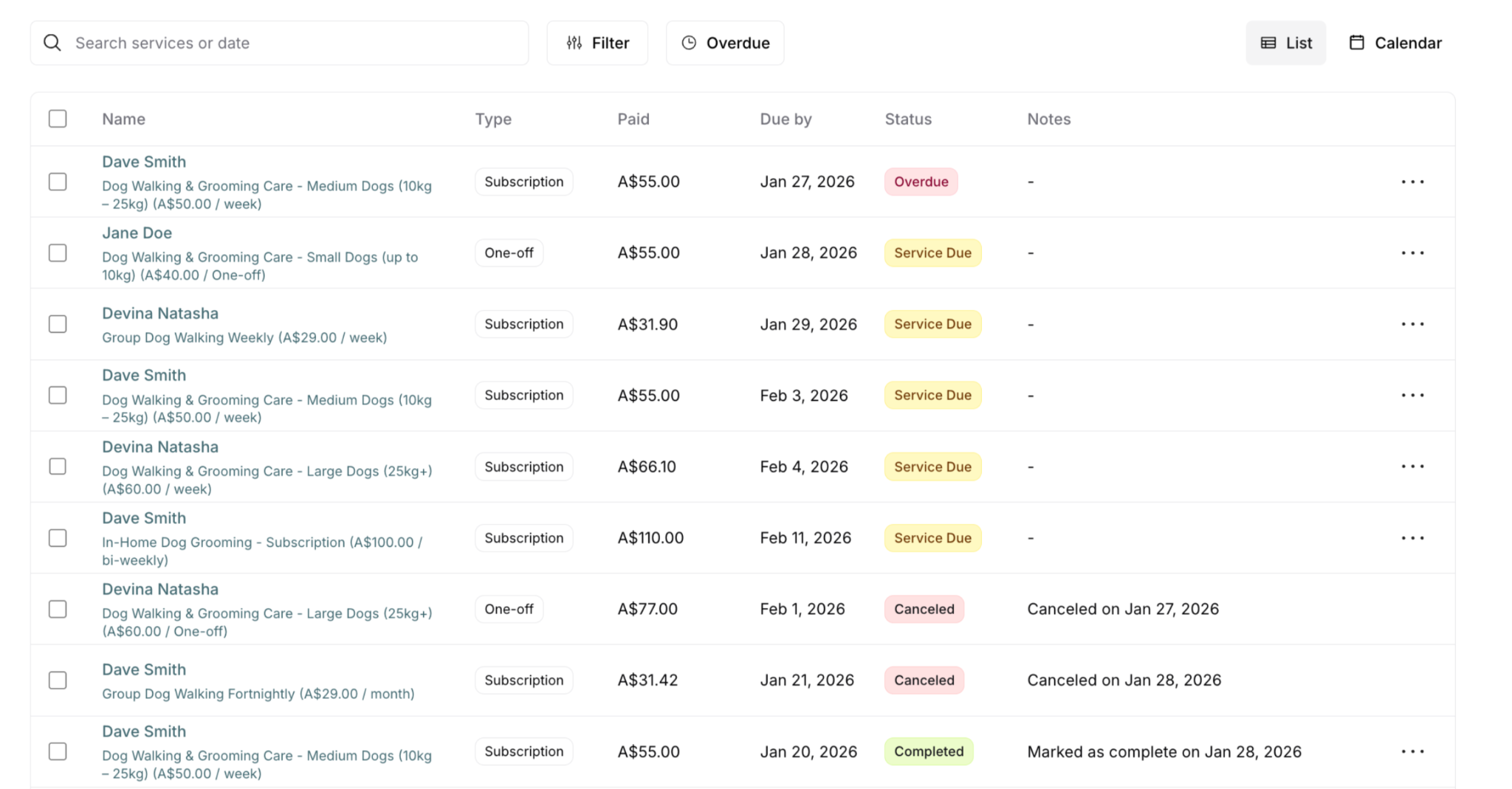
Service Delivery Statuses
Each delivery has a status showing its current state in the lifecycle.
Four main statuses:
Service Due - Scheduled for upcoming date
Overdue - Past due date, needs immediate attention
Completed - Service delivered and marked complete
Canceled - Service canceled, won't be delivered

✍️ TIP: Status color tells you priority - red (overdue) needs immediate action, yellow (service due) is upcoming, green (completed) is done.
For complete details on each status, when they appear, and what actions to take, see Service Delivery Statuses.
Delivery Metrics
At the top of the Delivery menu, you see three key metrics:
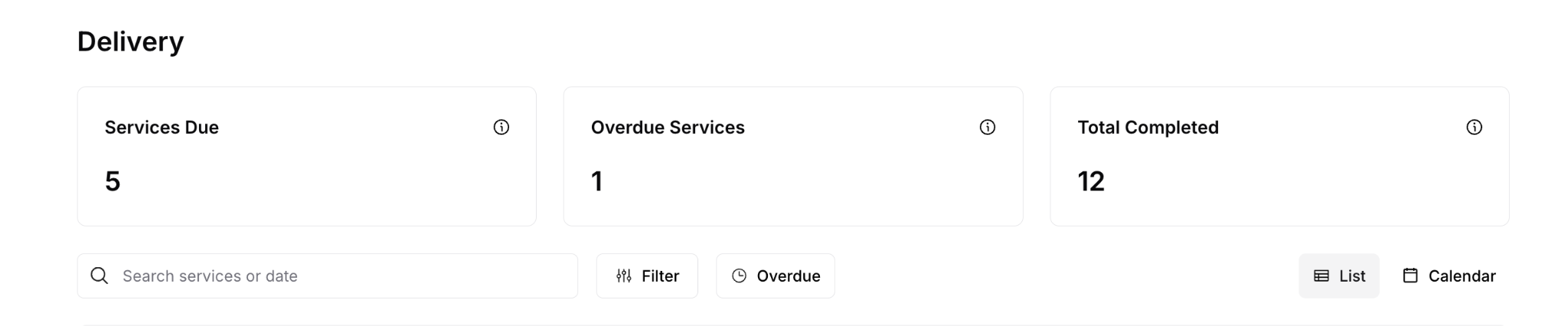
Services Due
Shows: Number of services scheduled but not yet due
What it means: Upcoming services you need to deliver
Example: "3" = You have 3 services scheduled for upcoming dates
Use: Plan ahead, prepare for upcoming work
Overdue Services
Shows: Number of services past due date not yet completed
What it means: Services requiring immediate attention
Example: "9" = You have 9 services that should have been completed already
Use: Prioritize these immediately
⚠️ High overdue count = customer service problem
Total Completed
Shows: Number of services marked complete (typically within a time period)
What it means: Services successfully delivered
Example: "8" = You've completed 8 services recently
Use: Track productivity, confirm deliveries happening
Key Terminology
Service Delivery: Individual service that needs to be completed for a customer
Delivery Item: Single entry in delivery list representing one service to complete
Due Date: Target date by which service should be completed
Delivery Status: Current state (Service Due, Overdue, Completed, Canceled)
Delivery Menu: Global view showing all deliveries across all customers
Delivery Tab: Customer-specific view showing deliveries for one customer
Mark Complete: Action to record that service was delivered
Roll Over: Reschedule service to next billing period
Roll Back: Undo a rollover action
One-off Delivery: Service from one-time purchase (no recurring)
Subscription Delivery: Service from recurring subscription payment
Best Practices
Daily Workflow
✅ Start day in Delivery menu:
Check Services Due for today
Review Overdue Services (address first)
Plan your route using Calendar view
✅ Mark complete immediately:
After each service, mark complete right away
Don't wait until end of day
Keeps records accurate and customers informed
✅ Monitor overdue count:
Keep Overdue Services as close to zero as possible
Overdue = customer satisfaction risk
Address proactively
Organization
✅ Use filters effectively:
Filter by service type to group similar work
Filter by status to focus on overdue
Use date search for specific timeframes
✅ Leverage both views:
Global view: Daily planning and route management
Customer view: Individual customer service and troubleshooting
✅ Check metrics regularly:
Services Due: Plan capacity
Overdue Services: Immediate priority
Total Completed: Track productivity
Communication
✅ Proactive updates:
If service will be late, contact customer before due date
Explain delays professionally
Reschedule or cancel with clear communication
✅ Keep notes updated:
Add notes for unusual situations
Document customer requests
Record delivery issues or special instructions
Was this article helpful?
That’s Great!
Thank you for your feedback
Sorry! We couldn't be helpful
Thank you for your feedback
Feedback sent
We appreciate your effort and will try to fix the article