The Customer Detail View is where you manage everything about an individual customer—their purchases (subscriptions and one-off), payment history, service delivery, contact information, and complete activity timeline. This is your command center for each customer relationship.
Important: Customer details include both subscription and one-off purchase information in a unified view, giving you complete visibility into every customer interaction.
This guide explains what's available in the detail view and how to use it effectively.
Accessing Subscriber Details
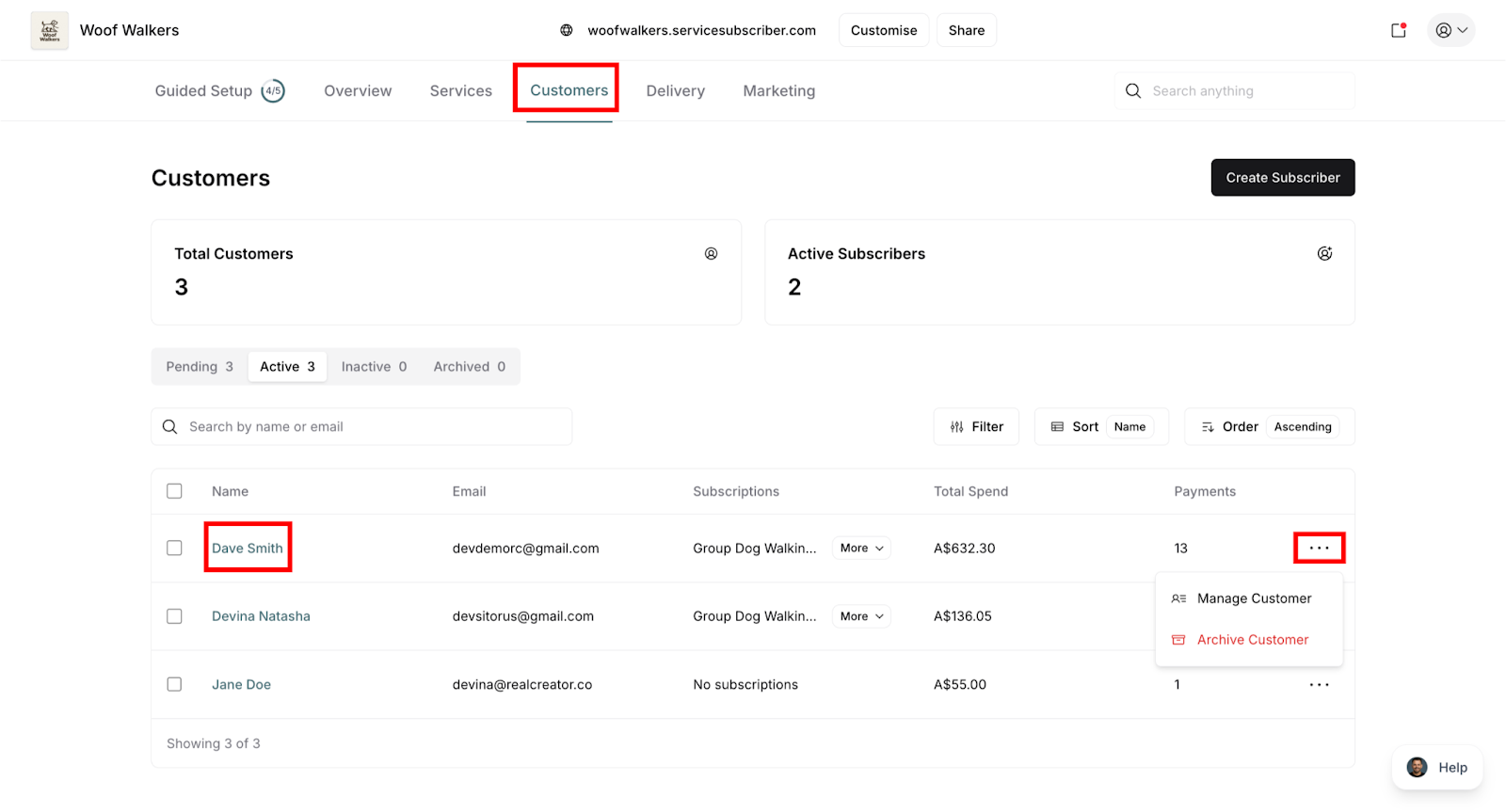
To view a customer's details:
Navigate to Customers page
Click on the customer's name
Detailed customer page opens
Alternative access:
Click the action menu (⋯) next to any customer
Select Manage Customer
Page Header
Customer Information
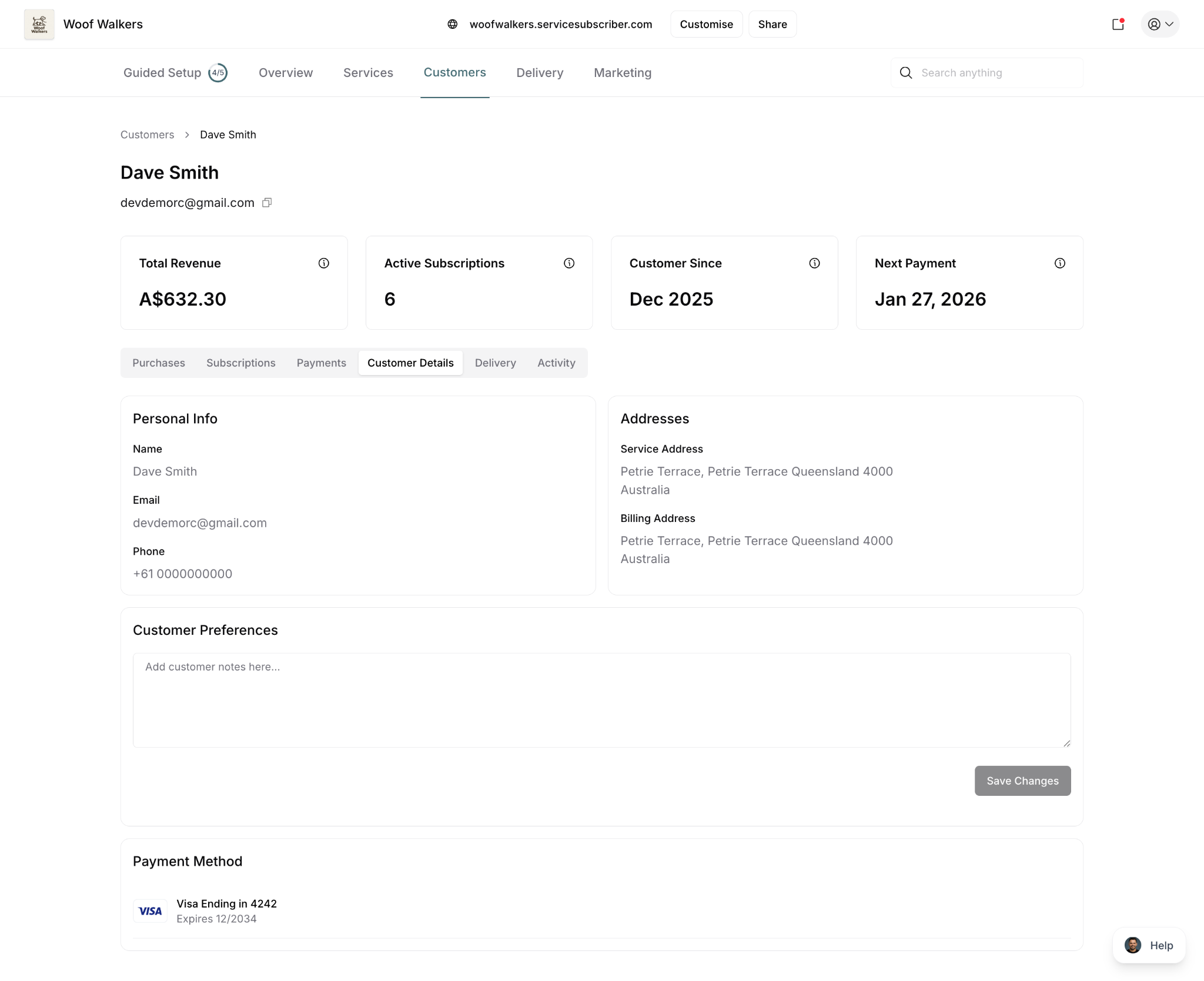
At the top of the customer detail page, you'll see key information about the customer at a glance.
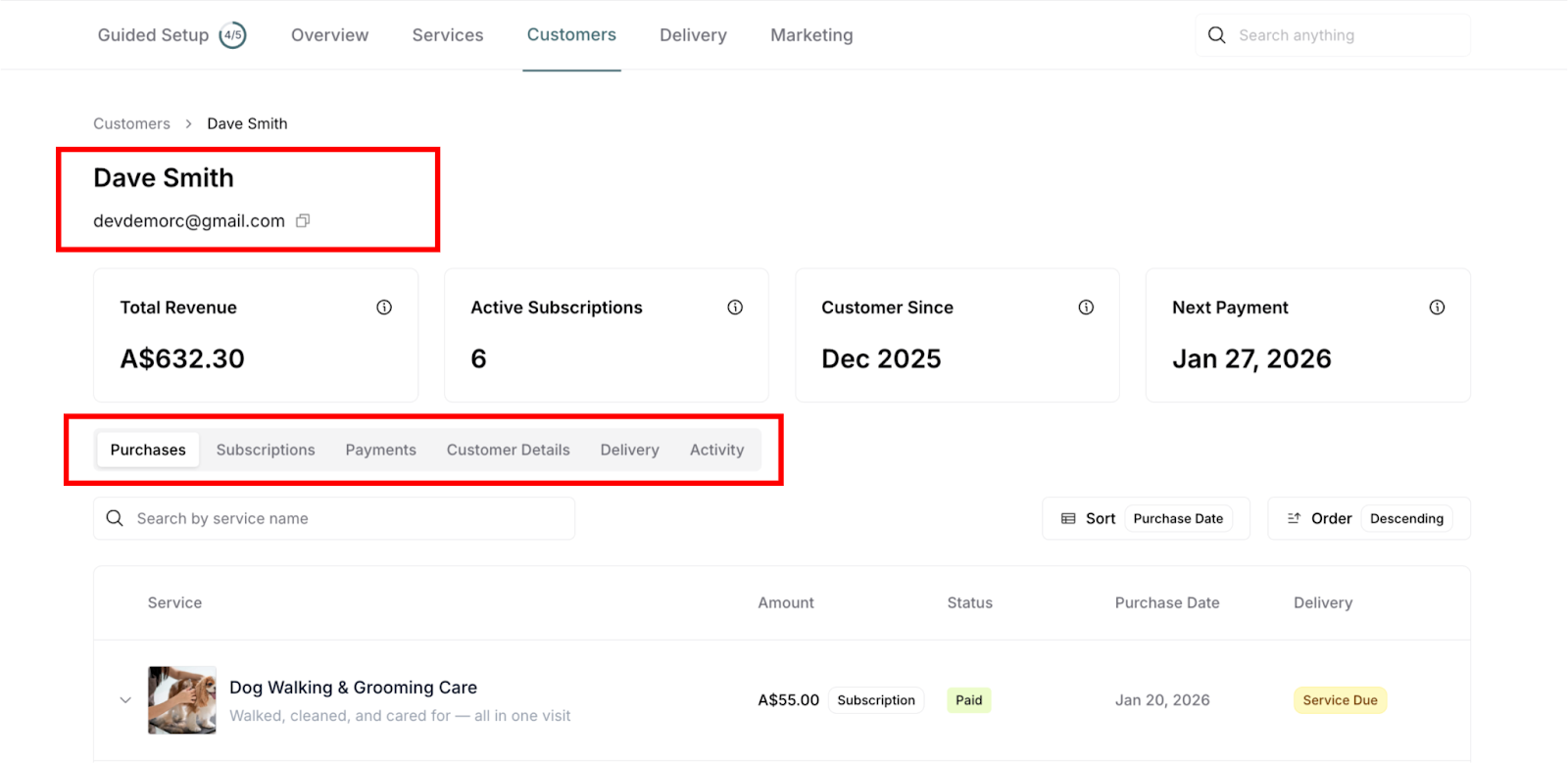
Customer identification:
Customer's full name displayed prominently as page header
Email address directly below with copy icon for easy copying
Breadcrumb navigation: Customers > Customer Name
Navigation tabs: Access different sections of subscriber information through tabs: Subscriptions, Payments, Customer Details, Service Schedule, and Activity.
Four Key Metrics
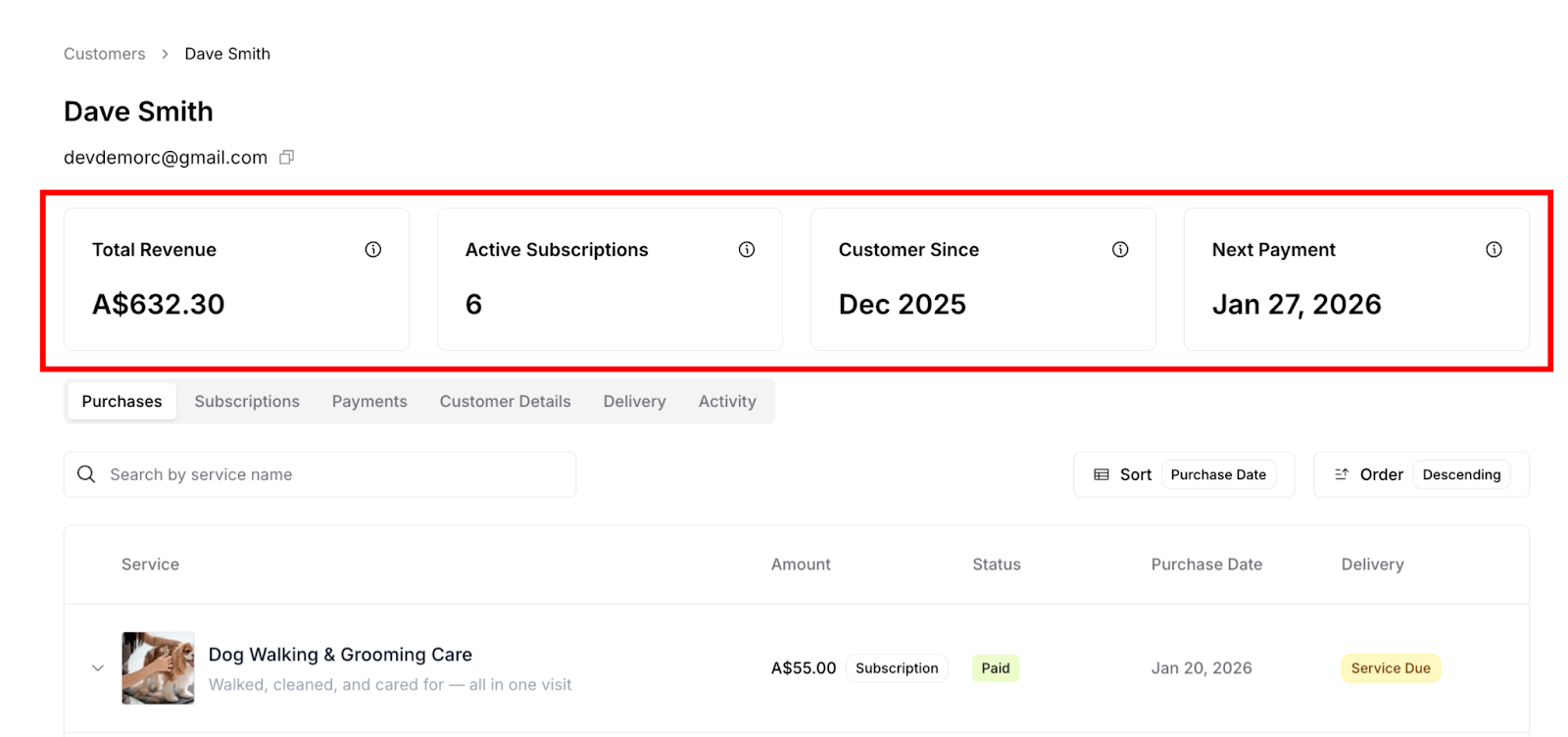
Metric cards displayed:
1. Total Revenue
Lifetime revenue generated from this customer
Includes both subscription payments and one-off purchases
Cumulative total since customer creation
Example: A$632.30
2. Active Subscriptions
Number of currently active subscriptions
Shows "0" if customer has only made one-off purchases
Only counts active subscriptions (excludes paused, canceled, pending)
Example: 6
3. Customer Since
Date when customer first purchased (any type)
Shows month and year
Example: Dec 2025
4. Next Payment
Date of next scheduled subscription payment
Shows "—" if no active subscriptions
Only applies to subscription payments
Example: Jan 27, 2026
✍️ TIP: If "Active Subscriptions" shows 0 but "Total Revenue" has a value, this customer has made only one-off purchases and is a prime candidate for subscription conversion
Customer Detail Tabs
The customer detail page contains six tabs providing comprehensive customer information.
Tab Overview
Six tabs available:
Purchases: One-off purchases only
Subscriptions: Subscription purchases and details
Payments: Complete payment history (all purchase types)
Customer Details: Contact information and addresses
Delivery: Scheduled services and delivery status
Activity: Complete activity timeline
Each tab provides specific functionality for managing different aspects of the customer relationship.
Tab 1: Purchases
Shows all individual purchases made by this customer, including both standalone one-off purchases and individual payments from subscriptions.
Understanding the Purchases Tab
⚠️ IMPORTANT: The Purchases tab shows individual purchase transactions, not subscription contracts.
What appears here:
Individual subscription payments: Each payment from a subscription appears as a separate purchase
One-off purchases: Standalone one-time purchases
Example: If a customer has a 12-month subscription billed monthly:
Subscriptions tab: Shows 1 subscription (the parent contract)
Purchases tab: Shows 12 individual purchases (one for each month's payment)
What You See
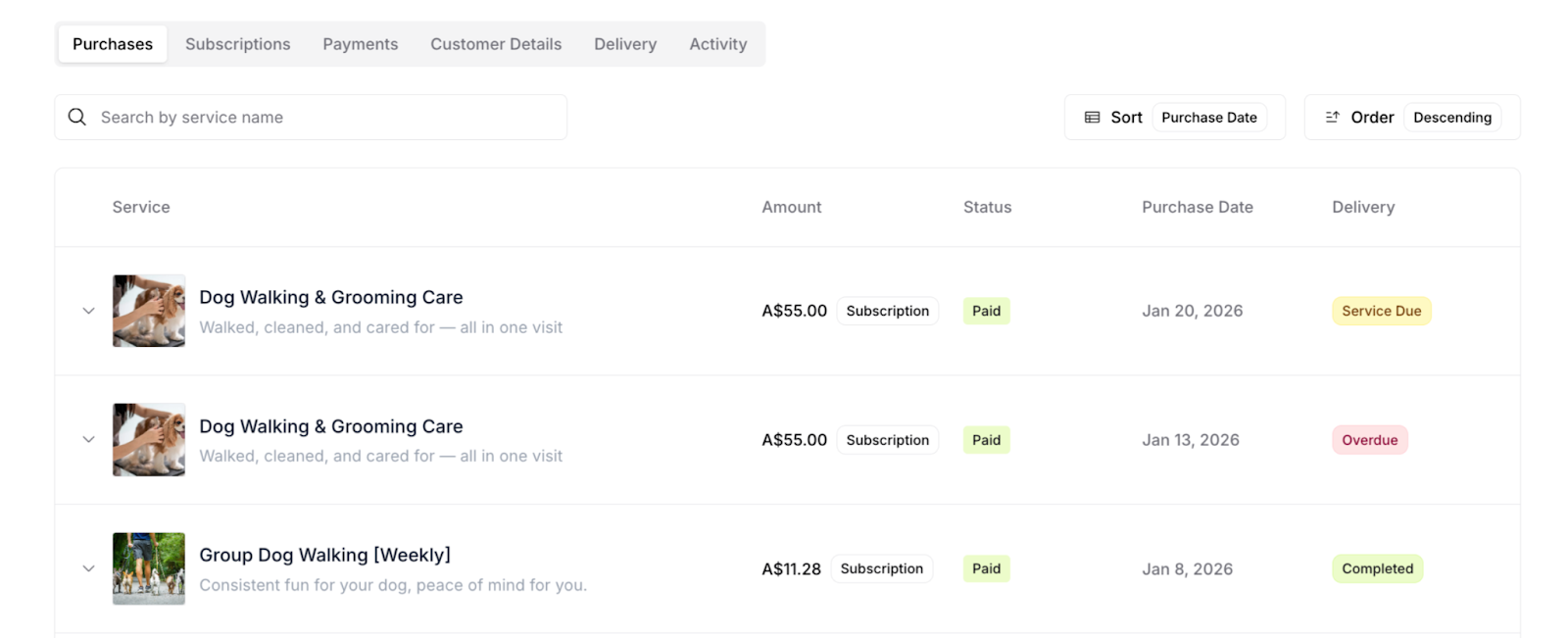
List displays:
Service name and full description
Service image thumbnail
Amount: Amount paid for this specific purchase/payment
Status: "Subscription" or "One-off" badge, plus payment status (Paid)
Purchase Date: Date this specific payment was made
Delivery: Service delivery status (Service Due, Overdue, Completed)
Expanded Purchase Details
When you expand a purchase row, you see comprehensive information about that specific purchase displayed in three panels.
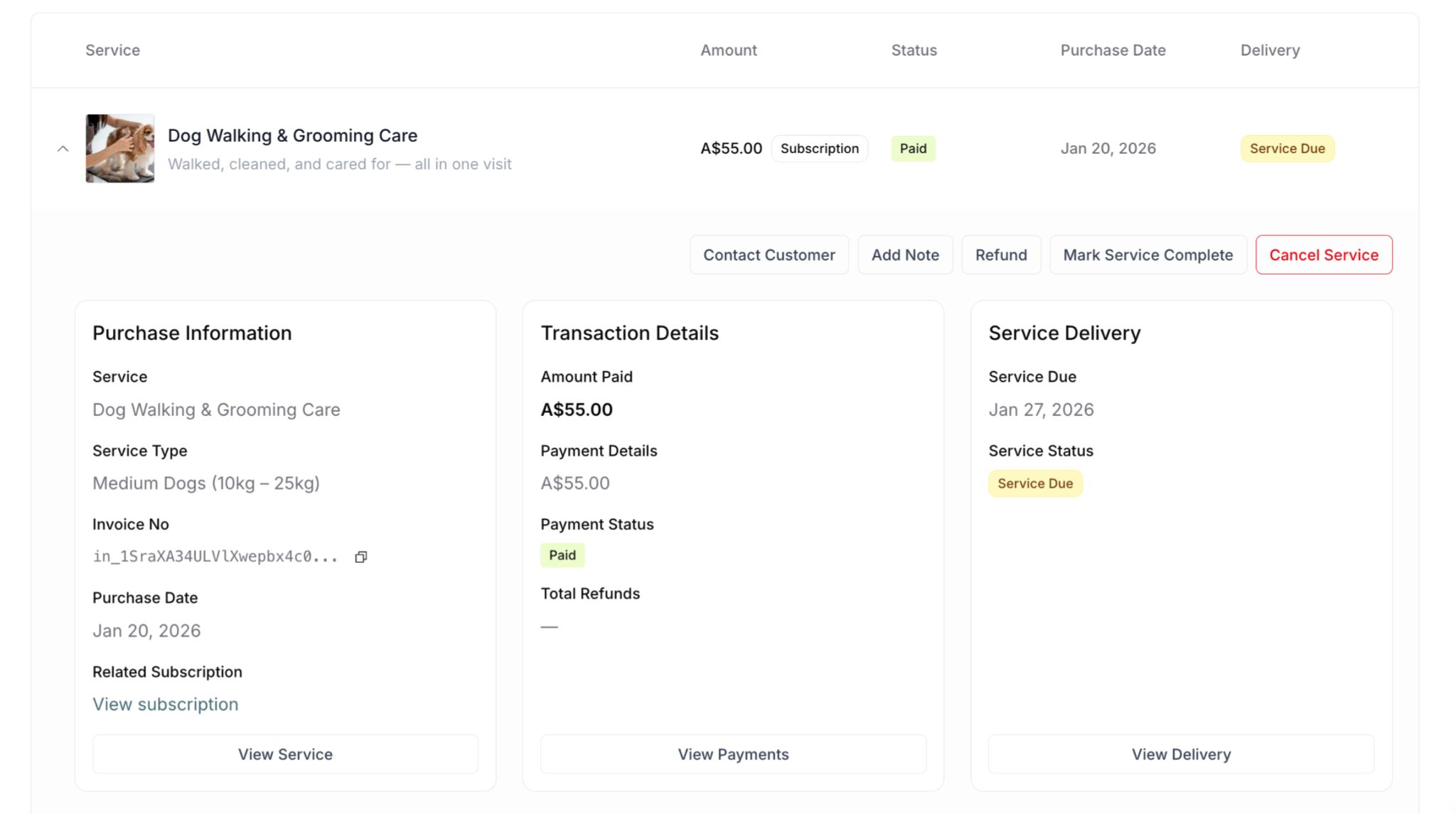
Left Panel: Purchase Information
Displays:
Service: Service name (e.g., "Dog Walking & Grooming Care")
Service Type: Specific tier or variant (e.g., "Medium Dogs (10kg – 25kg)")
Invoice No: Unique invoice identifier with copy button (?)
Purchase Date: Date of this specific purchase (e.g., "Jan 20, 2026")
Related Subscription: Link to parent subscription (if this purchase is part of a subscription)
"Related Subscription" field:
Shows "View subscription" link if this purchase is part of a subscription
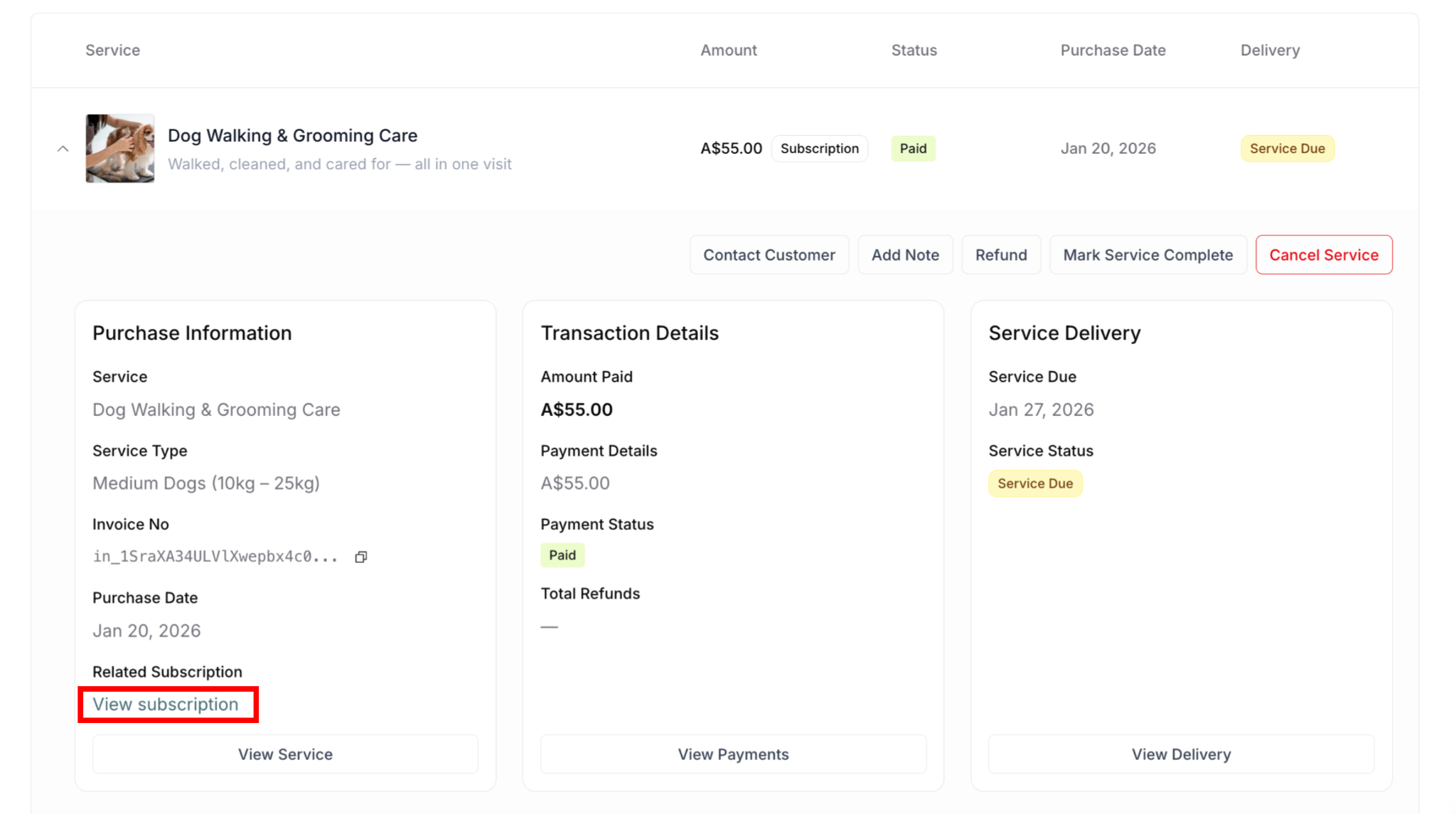
Clicking takes you to the parent subscription in Subscriptions tab
Does not appear for one-off purchases (they have no parent subscription)
Center Panel: Transaction Details
Displays:
Amount Paid: Total amount paid for this purchase (e.g., "A$55.00")
Payment Details: Itemized amount (e.g., "A$55.00")
Payment Status: Current payment status (e.g., "Paid" with green badge)
Total Refunds: Amount refunded for this specific purchase (shows "—" if none)
Right Panel: Service Delivery
Displays:
Service Due: When this specific service is scheduled (e.g., "Jan 27, 2026")
Service Status: Current delivery status (e.g., "Service Due" badge)
Service Status values:
Service Due (yellow badge) - Scheduled, not yet delivered
Overdue (red badge) - Past due date, not completed
Completed (green badge) - Service delivered successfully
Canceled (gray badge) - Service canceled
Action Buttons Available
When you expand a purchase, action buttons appear based on the purchase status and type:
Available actions:
Contact Customer - Communicate with customer about this purchase
Add Note - Add internal notes about this specific purchase/delivery
Refund - Process refund for this purchase (see MS-006 Processing Refunds)
Mark Service Complete - Mark this delivery as completed
Cancel Service - Cancel this specific delivery
What This Tab Shows
✅ Shows:
All individual purchases/payments (subscription and one-off)
Each subscription payment as a separate entry
Standalone one-off purchases
❌ Does NOT show:
Subscription-level contracts (see Subscriptions tab for parent subscriptions)
Example scenario:
Customer subscribes for 6 months, monthly billing
Customer also makes 2 one-off purchases
Purchases tab shows: 8 entries total (6 subscription payments + 2 one-off purchases)
Subscriptions tab shows: 1 subscription (the parent contract)
✍️ TIP: Use the "Related Subscription" link to quickly navigate from an individual purchase to its parent subscription contract. This helps you understand the full subscription context when investigating individual payment issues.
Tab 2: Subscriptions
Shows subscription-level contracts for this customer. Each subscription is the "parent" that contains multiple individual purchases.
Understanding the Subscriptions Tab
⚠️ IMPORTANT: The Subscriptions tab shows subscription contracts (the parent), not individual payments.
What appears here:
Subscription agreements/contracts
Subscription-level details (terms, frequency, pricing)
Subscription status and settings
Example: If a customer has a 12-month subscription billed monthly:
Subscriptions tab: Shows 1 subscription (the parent contract containing all terms and settings)
Purchases tab: Shows 12 purchases (each monthly payment appears as individual entry)
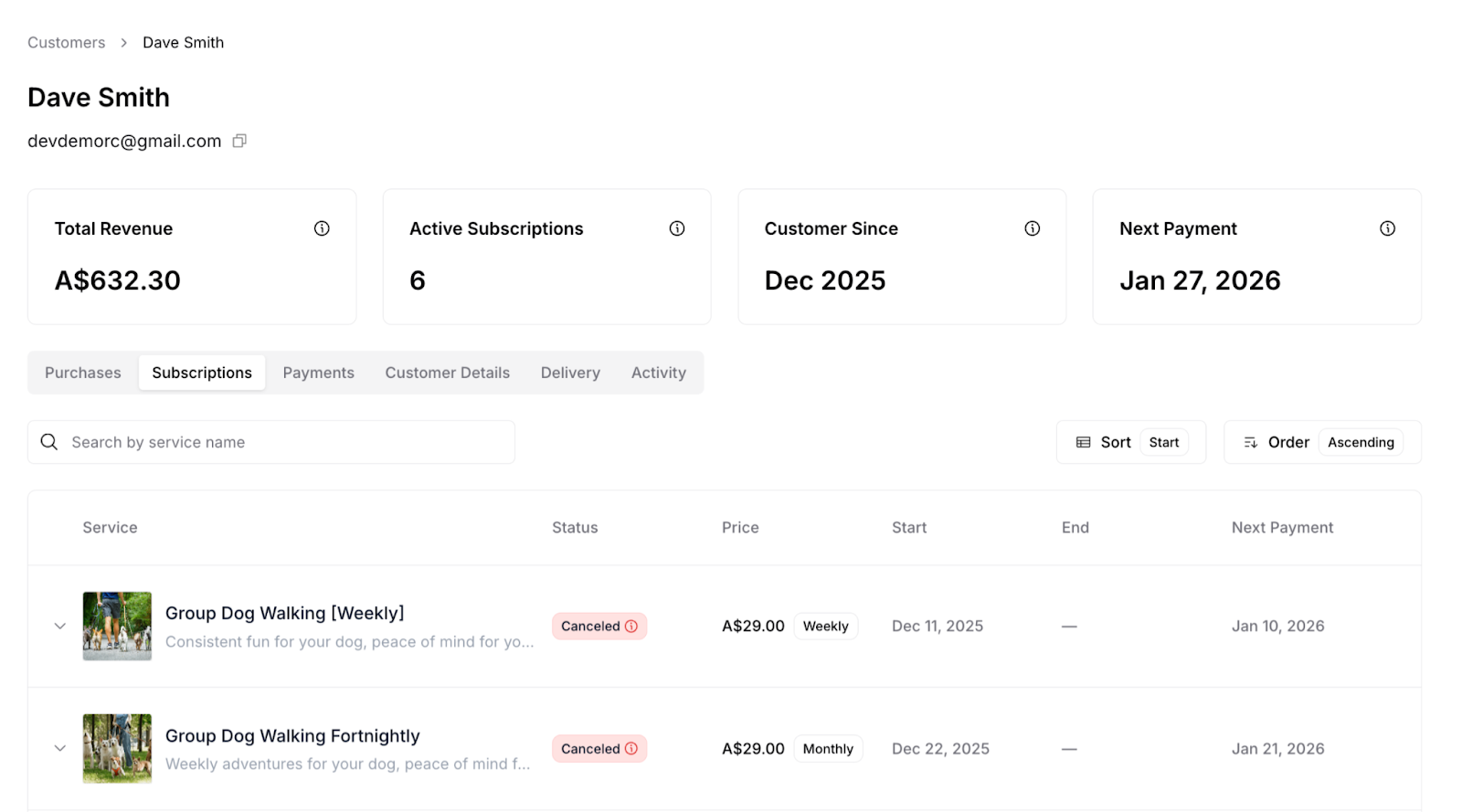
What You See
List displays:
Service name and full description
Service image thumbnail
Amount: Subscription price per billing cycle
Status: "Subscription" badge with payment status (Paid)
Purchase Date: Date subscription started
Delivery: Next service delivery status
Expanded Subscription Details
When you expand a subscription row, you see comprehensive subscription-level information in three panels.
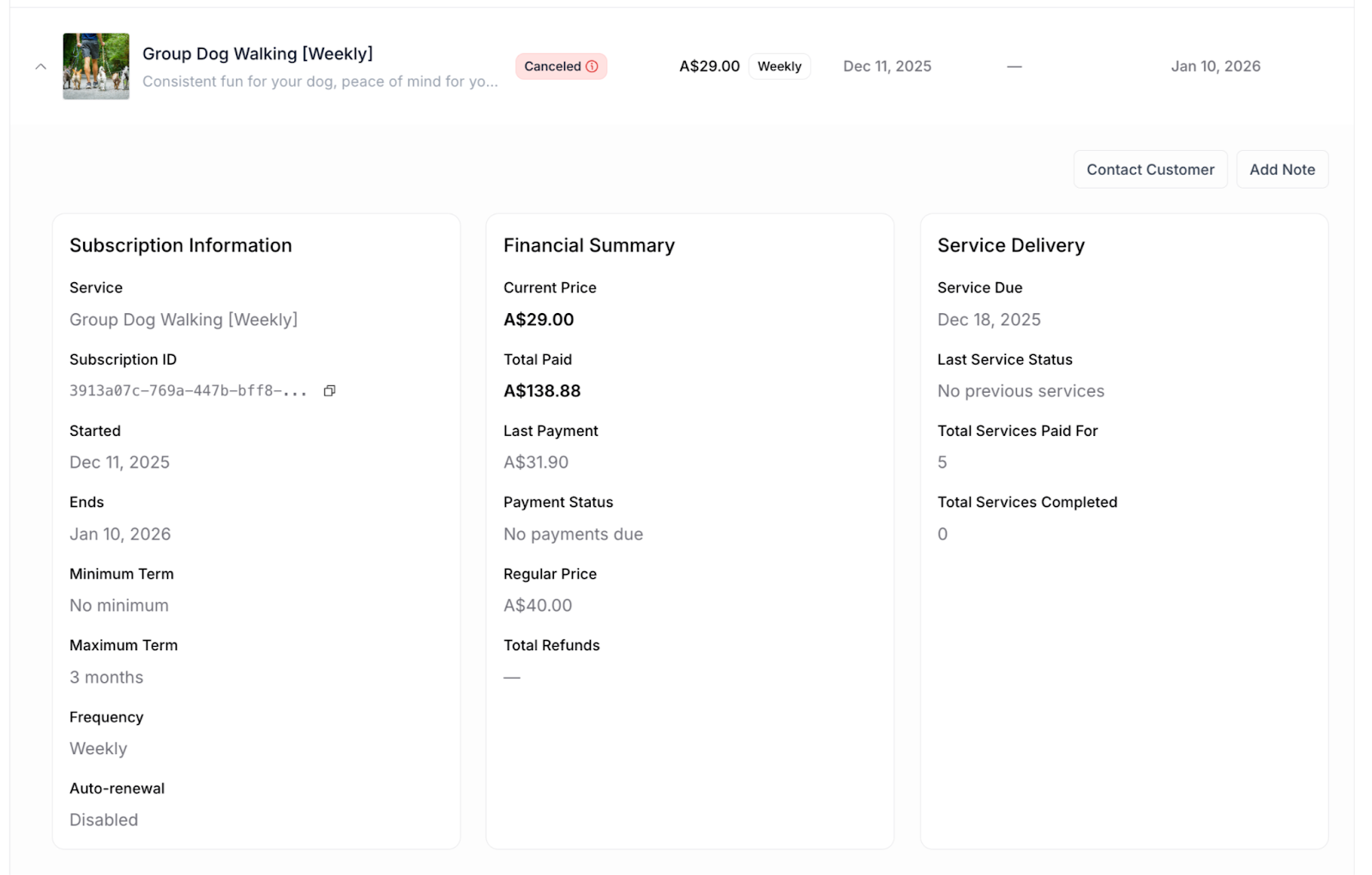
Left Panel: Subscription Information
Displays:
Service: Service name (e.g., "Group Dog Walking [Weekly]")
Subscription ID: Unique subscription identifier with copy button (?)
Started: Date subscription began
Ends: Date subscription ends (if maximum term set)
Minimum Term: Required commitment period
Maximum Term: Subscription duration limit
Frequency: Billing cycle (Weekly, Monthly, etc.)
Auto-renewal: Whether subscription renews automatically
This is the parent subscription contract that governs all individual purchases under it.
Center Panel: Financial Summary
Displays:
Current Price: Subscription price per billing cycle
Total Paid: Cumulative amount paid across ALL purchases in this subscription
Last Payment: Most recent payment amount
Payment Status: Current billing status
Regular Price: One-off purchase price for comparison
Total Refunds: Total refunded across all purchases in this subscription
Financial data is aggregated from all individual purchases under this subscription.
Right Panel: Service Delivery
Displays:
Service Due: Next scheduled service date
Last Service Status: Status of most recent delivery
Total Services Paid For: Number of services paid for (number of purchases in Purchases tab)
Total Services Completed: Number of services delivered successfully
Delivery data is aggregated from all individual purchases/deliveries under this subscription.
Relationship Between Subscriptions and Purchases
How they connect:
Subscription (parent) = One contract in Subscriptions tab
Purchases (children) = Multiple entries in Purchases tab
Each purchase in Purchases tab links back to parent subscription via "Related Subscription" field
What This Tab Shows
✅ Shows:
Subscription contracts (parent agreements)
Subscription-level terms and settings
Aggregated financial and delivery data
❌ Does NOT show:
Individual payment transactions (see Purchases tab for those)
One-off purchases (they have no parent subscription)
✍️ TIP: Use the Subscriptions tab to manage the overall subscription contract (pause, cancel, change terms). Use the Purchases tab to manage individual payments and deliveries within that subscription.
Tab 3: Payments
Shows complete payment history for this customer across all purchase types (subscriptions and one-off purchases).
Understanding the Payments Tab
The Payments tab provides a comprehensive financial record of every transaction with this customer, regardless of purchase type.
What appears here:
All successful payments
Both subscription payments and one-off purchase payments
Payment method information
Refund records
Complete payment timeline
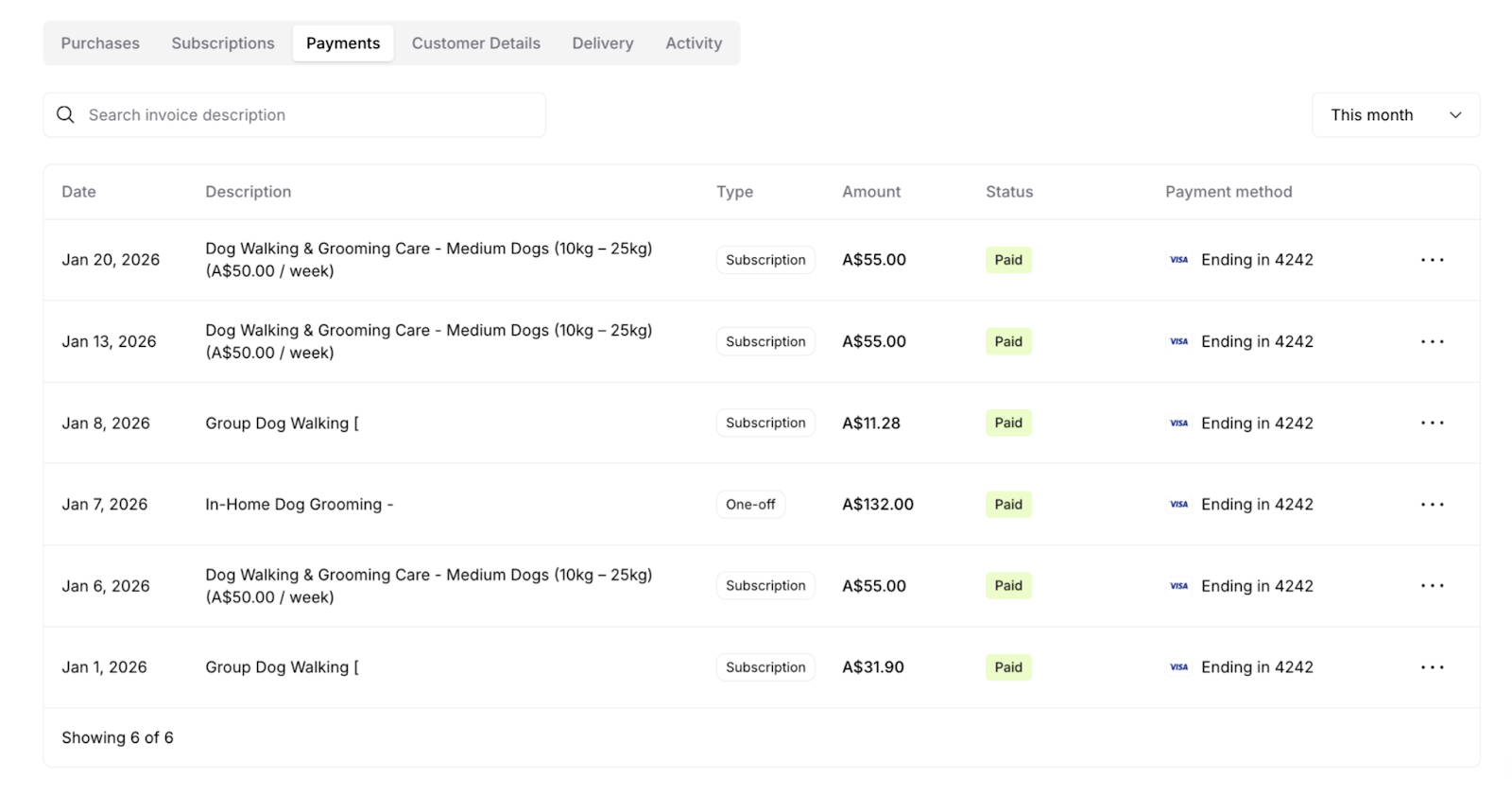
What You See
Payment list displays:
Date: When payment was processed (e.g., "Jan 20, 2026")
Description: Service name with full pricing details (e.g., "Dog Walking & Grooming Care - Medium Dogs (10kg – 25kg) (A$50.00 / week)")
Type: "Subscription" or "One-off" (critical identifier)
Amount: Payment amount (e.g., "A$55.00")
Status: Payment status badge (e.g., "Paid" in green)
Payment method: Card brand logo (Visa, Mastercard, etc.) and last 4 digits (e.g., "Ending in 4242")
Action menu (⋯)
Invoice Link: Opens the Stripe invoice in a new window
Download PDF: Downloads the invoice/receipt as a PDF file
Understanding the Type Column
Critical feature: The Type column clearly identifies payment source.
"Subscription":
Payment for recurring subscription
Part of automatic billing cycle
Scheduled and predictable
"One-off":
Payment for one-time purchase
Single transaction
Not recurring
✍️ TIP: Use the Type column to analyze revenue sources. If most payments are "One-off," this customer prefers flexibility over commitment—they might need better subscription value messaging. If all payments are "Subscription," they're committed long-term customers.
Using Payment History Effectively
Before contacting customer about billing:
Review payment history in this tab
Verify what they were charged and when
Check payment status (Paid, Failed, Refunded)
Note payment method used
Review Type to confirm subscription vs. one-off
Cross-reference with Purchases or Subscriptions tab for service details
Best Practices for Payment Management
✅ Monitor payment failures immediately: Set up regular checks for failed payment status—these need quick resolution to prevent service interruption
✅ Review Type distribution regularly: If most payments are "One-off," this customer may need better subscription value messaging
✅ Use date filters strategically: Review "This month" to track current revenue, "Last month" for billing reconciliation, "All time" for lifetime value analysis
✅ Cross-reference with other tabs: Payments tab shows financial transactions—use Purchases or Subscriptions tabs to understand the service context
✅ Track refund patterns: Multiple refunds may indicate service quality issues or mismatched expectations
✍️ TIP: Export payment history monthly for accounting purposes. Use the date filter to isolate specific periods, then work with your payment processor (Stripe) to reconcile transactions.
⚠️ IMPORTANT: The Payments tab shows your records—always verify against your Stripe dashboard for final reconciliation, as Stripe is the source of truth for all financial transactions.
Tab 4: Customer Details
View and edit customer contact information, addresses, payment methods, and internal notes.
Understanding the Customer Details Tab
This tab is your central location for managing all customer information—both what customers see (contact details, addresses) and what only you see (internal notes).
What you can do here:
Update contact information
Edit service and billing addresses
Add and edit internal notes about customer
View (but not edit) payment method
Manage customer preferences
What You See
Four main sections displayed:
Personal Info (editable)
Addresses (editable)
Customer Preferences (editable - internal only)
Payment Method (view only)
✍️ TIP: When customers ask "Can you just update my card number?", explain that for security reasons they must update it themselves through their customer portal. Send them the portal link from their welcome email or help them access it.
Customer Details Best Practices
✅ Keep information current: Update immediately when customer notifies you of changes
✅ Verify addresses carefully: Wrong service address means showing up at wrong location
✅ Use Customer Preferences extensively: Well-documented preferences improve service quality and reduce errors
✅ Check before every service: Review notes before deliveries to catch important instructions
✅ Document systematically: Use consistent format for notes (e.g., "Gate Code: XXXX | Parking: Street only | Dog: Friendly golden retriever named Max")
✅ Update after every interaction: Add relevant information from calls, texts, or service visits
Tab 5: Delivery
View all scheduled services for this customer across all their active subscriptions.
Understanding the Delivery Tab
The Delivery tab shows your service delivery schedule for this customer—what services are due, when they're scheduled, and their completion status.
Important: This tab shows subscription services only. One-off purchases have single deliveries that are managed through the Purchases tab.
What appears here:
Upcoming scheduled services from subscriptions
Overdue services requiring attention
Completed service history
Service delivery status and notes
What You See
Service list displays:
Name: Service name with pricing information (e.g., "Group Dog Walking [Weekly] (A$29.00 / week)")
Type: "Subscription" badge (only subscription services appear)
Paid: Amount paid for this specific delivery
Due by: Service scheduled date
Status: Service delivery status (Service Due, Overdue, Completed)
Notes: Delivery notes or instructions (shows "–" if none)
Action menu (⋯): Quick actions for this service
Understanding Service Status
Service Due (yellow badge):
Service is scheduled
Not yet delivered
Within normal timeframe
No action required yet
Overdue (red badge):
Service past scheduled due date
Not yet completed
Requires immediate attention
Customer may be wondering about service
Completed (green badge):
Service successfully delivered
Marked complete in system
Customer has been notified
Historical record
Service Actions Available
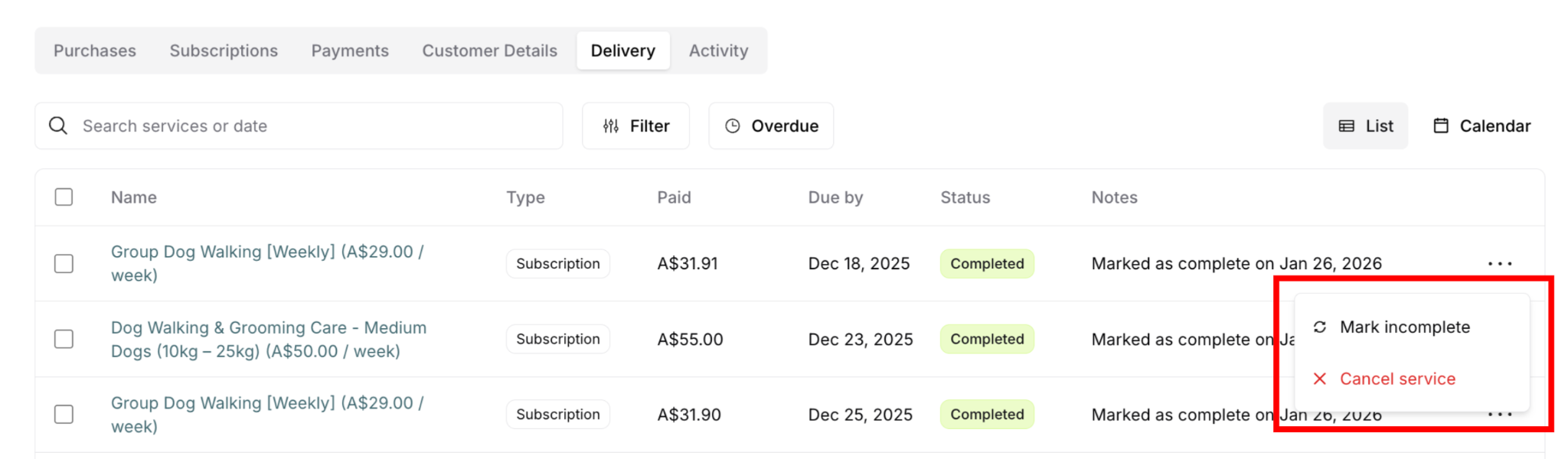
Click the action menu (⋯) next to any service to access quick actions. Available actions depend on the service status.
For Completed services:
Mark incomplete: Change status back to incomplete if marked complete by mistake
Cancel service: Cancel this completed delivery
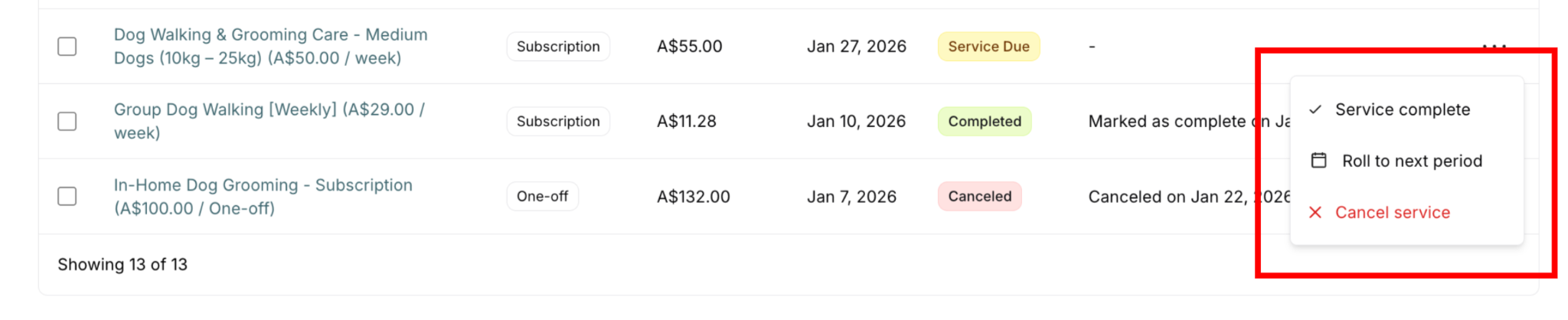
For Service Due or Overdue services:
Service complete: Mark this delivery as completed
Roll to next period: Reschedule to next billing period
Cancel service: Cancel this specific delivery
What This Tab Shows vs. Doesn't Show
✅ Shows:
Scheduled services from active subscriptions
Upcoming subscription deliveries
Service completion history from subscriptions
Recurring service schedule
❌ Does NOT show:
One-off purchase deliveries (see Purchases tab for those)
Services from canceled subscriptions (unless recently completed)
Service deliveries before subscription started
Why subscriptions only?
Subscriptions have ongoing, recurring deliveries that need scheduling
System creates future services automatically when payments succeed
One-off purchases are single deliveries—no ongoing schedule to manage
Delivery Tab Best Practices
✅ Check Overdue filter daily: Don't let services slip through the cracks
✅ Mark complete promptly: Same-day completion keeps records accurate
✅ Add meaningful notes: Document anything unusual or important
✅ Use Calendar view for planning: Visual representation helps optimize routes and workload
✅ Review before service day: Check Delivery tab morning of service to confirm schedule
✅ Monitor completion rate: Track Services Completed vs. Services Due to ensure quality
✍️ TIP: Create a daily routine: Start each day by checking the Overdue filter across all customers, plan your route using Calendar view, mark services complete as you finish them, and end the day with a final check that everything due today is completed.
Tab 6: Activity
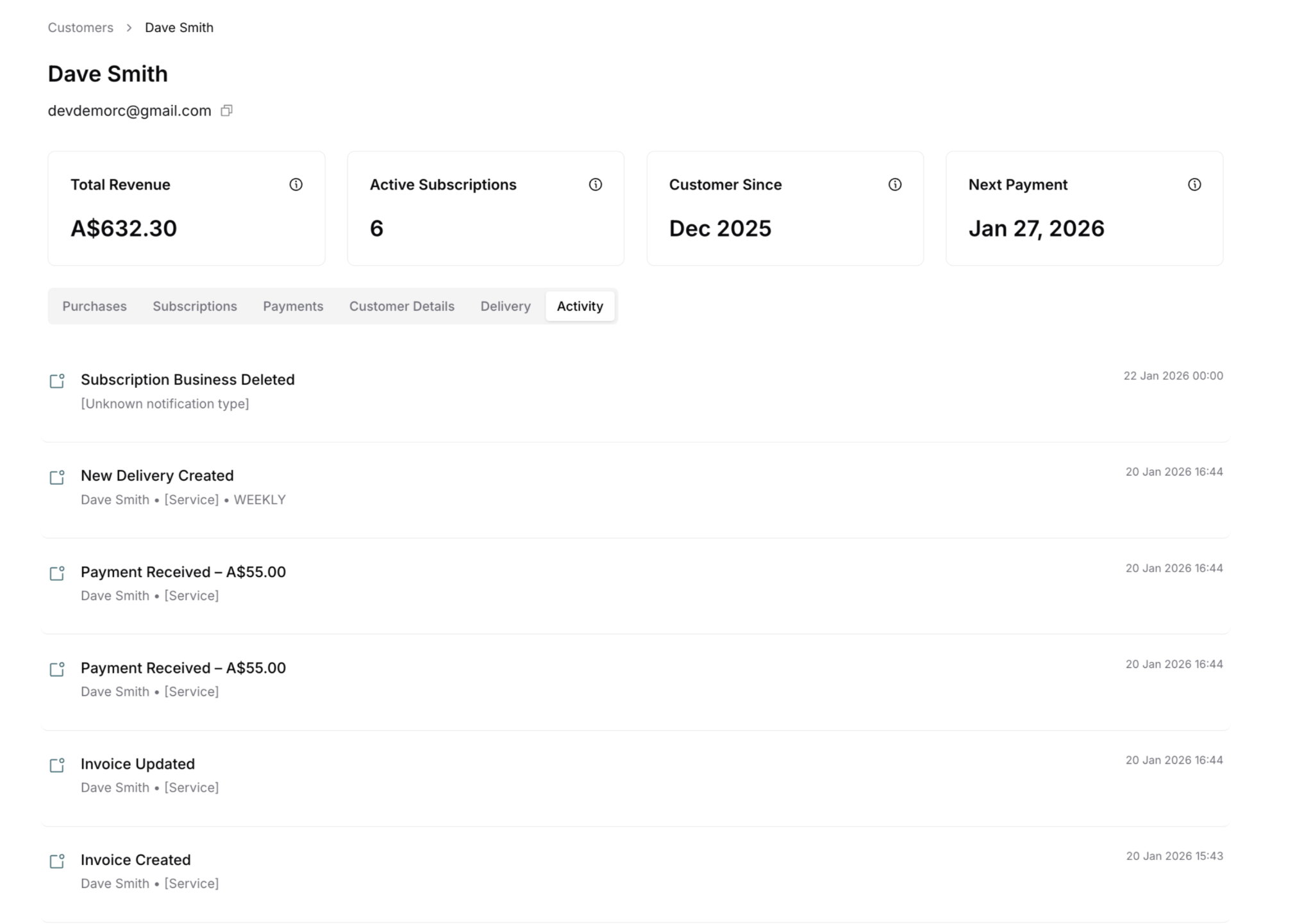
Complete chronological timeline of all customer interactions and system events.
Understanding the Activity Tab
The Activity tab is your complete audit trail—every action, event, and change related to this customer is logged here with timestamps.
What appears here:
All subscription events (created, paused, canceled, etc.)
All payment transactions (successful, failed, refunded)
All delivery events (created, completed, rescheduled)
All system changes (information updates, status changes)
All communications sent
Complete interaction history
Listed newest first: Most recent events appear at the top
What You See
Activity feed displays:
Event title: Clear description of what happened
Event details: Additional context (customer name, service name, amounts, etc.)
Timestamp: Exact date and time (e.g., "20 Jan 2026 16:44" or "Yesterday 00:00")
Using the Activity Timeline
Investigation and troubleshooting:
Activity tab is your first stop when investigating any customer issue.
Customer says "I never received my invoice":
Open Activity tab
Search for "Invoice" events
Check timestamp of "Invoice Sent"
Verify email address in Customer Details
Resend if necessary
Customer claims "My payment failed":
Open Activity tab
Look for "Payment Failed" event
Check timestamp to confirm when
Review payment events after failure (did they update card?)
Take appropriate action
Customer asks "When did my subscription start?":
Open Activity tab
Scroll to find "Subscription Created" event
Note exact date and time
Provide accurate information
Activity Tab Best Practices
✅ Start here for troubleshooting: Activity timeline shows exactly what happened and when
✅ Use timestamps for accuracy: Don't guess dates—reference exact timestamps from Activity tab
✅ Review before customer contact: Understanding recent activity helps you have informed conversations
✅ Look for patterns: Regular events = healthy relationship, irregular events = investigate
✅ Cross-reference with other tabs: Activity shows what happened, other tabs show details (e.g., Activity shows "Payment Received," Payments tab shows amount and card used)
✅ Track changes: Activity logs all modifications—use it to verify changes were applied correctly
✍️ TIP: When a customer disputes something ("I never got that email" or "I didn't authorize that charge"), the Activity timeline is your source of truth. It shows exactly what happened with timestamps, providing clear evidence for resolution.
⚠️ IMPORTANT: Activity tab is append-only—you cannot edit or delete entries. This creates an immutable audit trail, which is valuable for dispute resolution and record-keeping.
Was this article helpful?
That’s Great!
Thank you for your feedback
Sorry! We couldn't be helpful
Thank you for your feedback
Feedback sent
We appreciate your effort and will try to fix the article