The Delivery menu is your central command center for managing service deliveries across all customers. This global view helps you plan routes, track progress, and ensure every service gets completed on time.
This guide explains how to navigate and use the Delivery menu effectively for daily operations.
What Is the Delivery Menu?
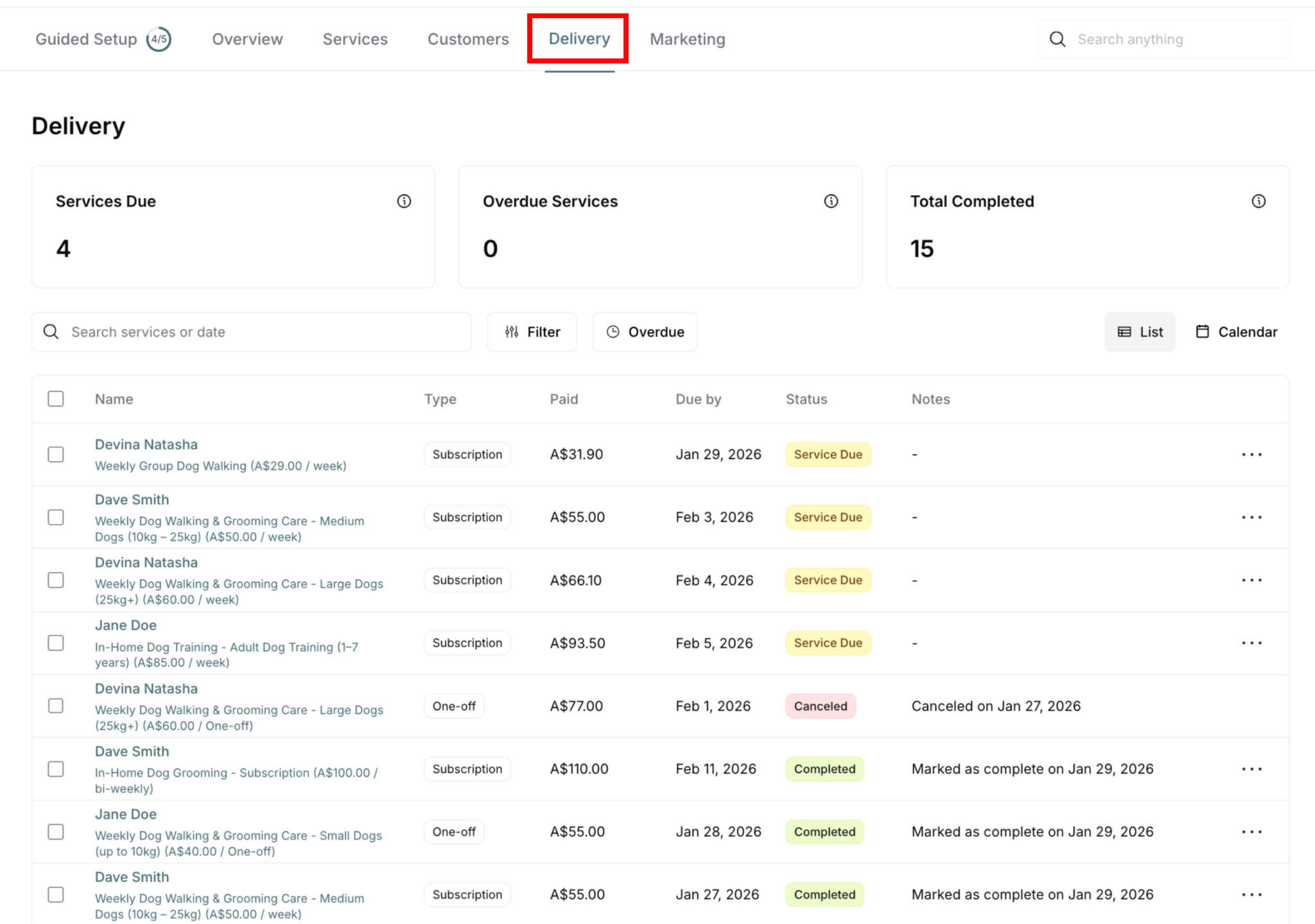
The Delivery menu is a global view showing all service deliveries across all customers in one place.
Where to find it: Main navigation menu → Delivery
What it shows:
All deliveries from all customers
Both subscription and one-off deliveries
Current status of each delivery
Due dates and completion tracking
Summary metrics at top
Primary use: Daily planning, route management, and cross-customer delivery tracking
Delivery Menu vs Customer Delivery Tab
Understanding the difference helps you choose the right view:
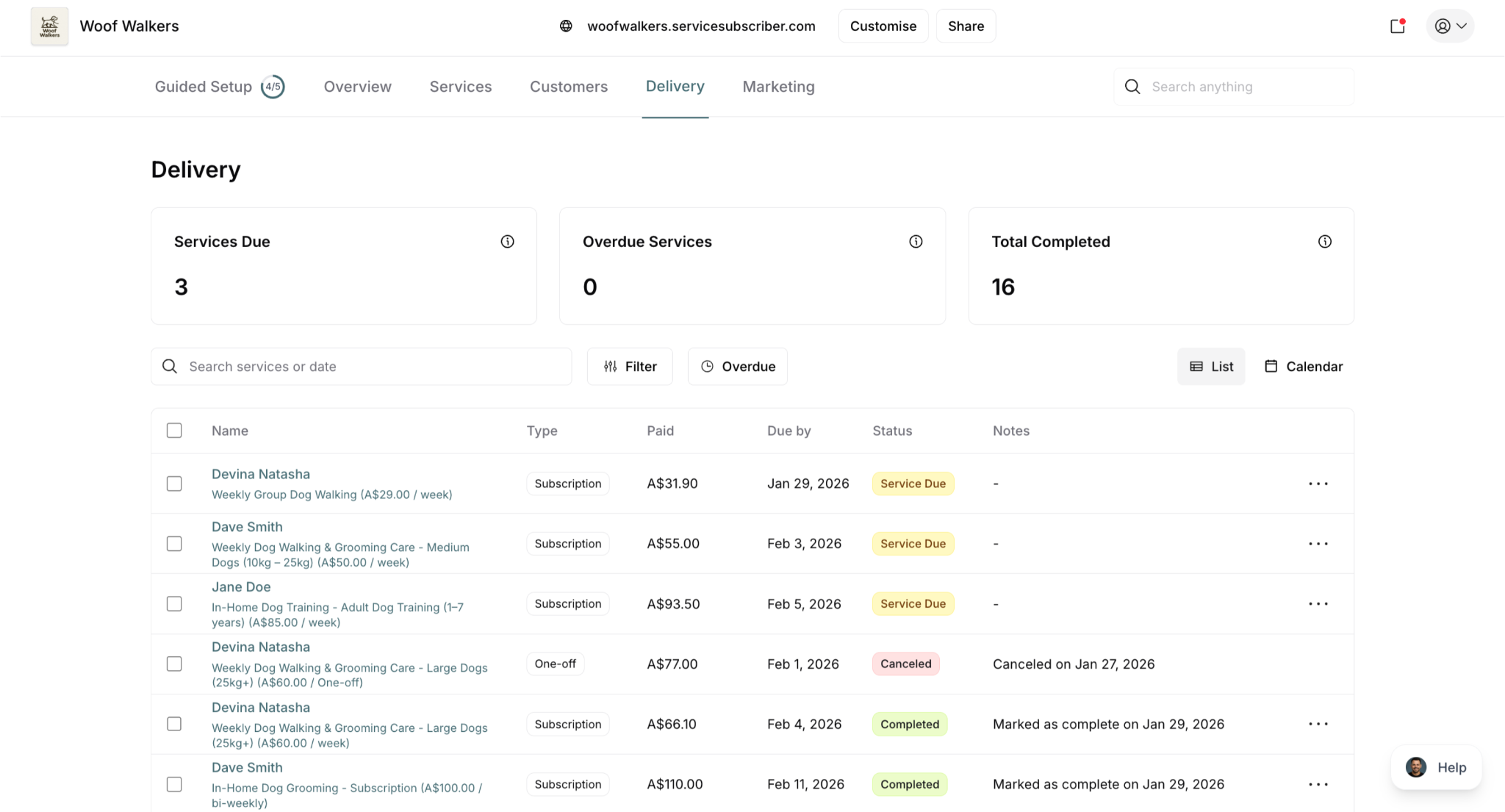
Delivery Menu (Global)
Shows: All deliveries across ALL customers
Best for:
Daily route planning
Seeing today's workload
Managing overdue services across customers
Bulk operations
Getting overview of business
Example use: "What services do I have today?"
Customer Delivery Tab
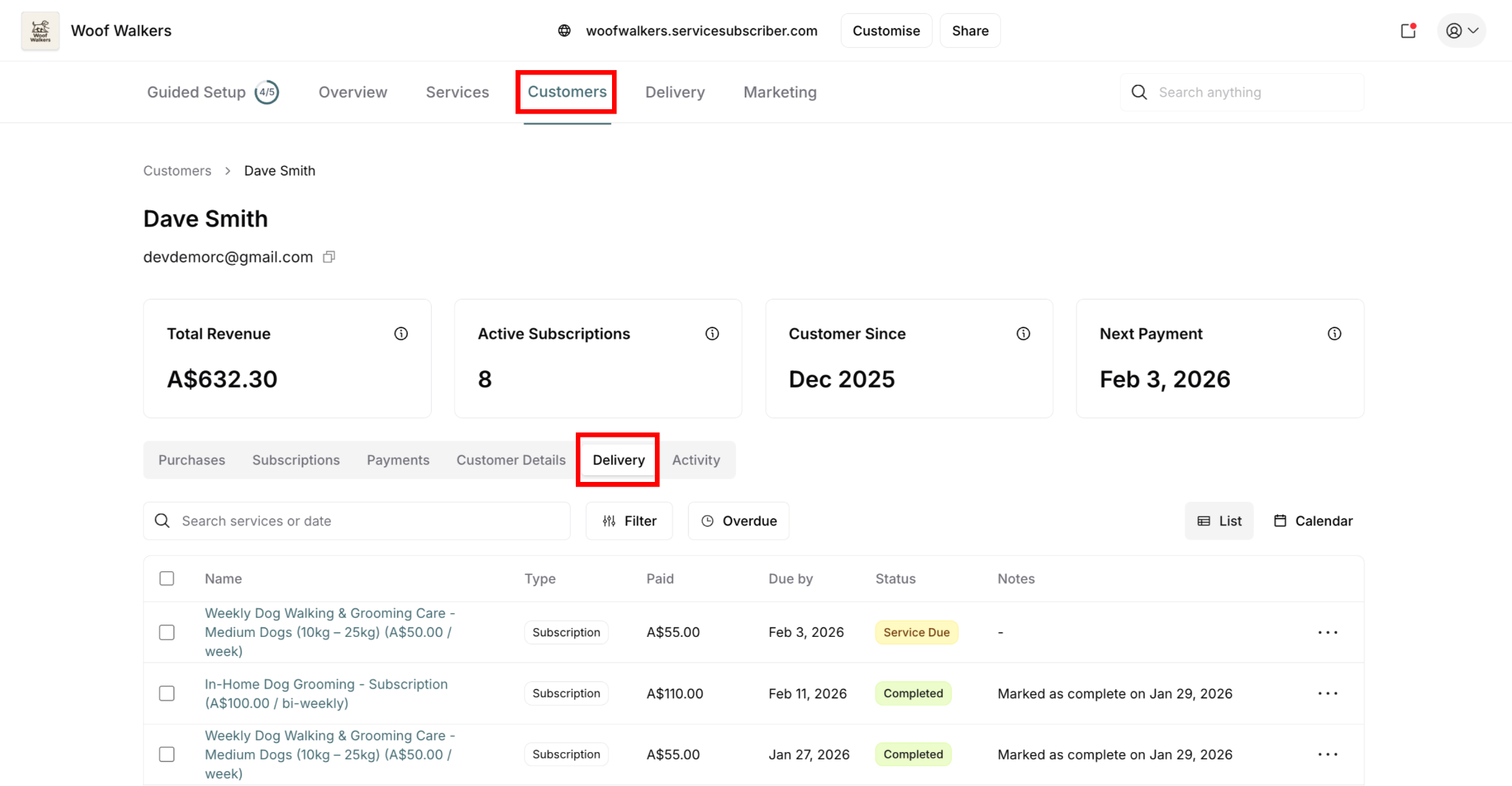
Shows: Deliveries for ONE specific customer only
Best for:
Customer-specific service history
Investigating individual customer issues
Context when already on customer page
Reviewing one customer's delivery record
Example use: "Show me Jane Smith's delivery history"
✍️ TIP: Use Delivery menu for daily operations and planning. Use customer Delivery tab when you're already working with a specific customer.
For customer Delivery tab details, see Managing Customer Purchases
Delivery Menu Interface
Top Metrics
At the top of the Delivery menu, three key metrics provide instant visibility:
Services Due:
Count of services scheduled but not yet due
Yellow status items
Upcoming work to plan
Overdue Services:
Count of services past due date not completed
Red status items
Immediate attention required
Total Completed:
Count of recently completed services
Green status items
Productivity tracking
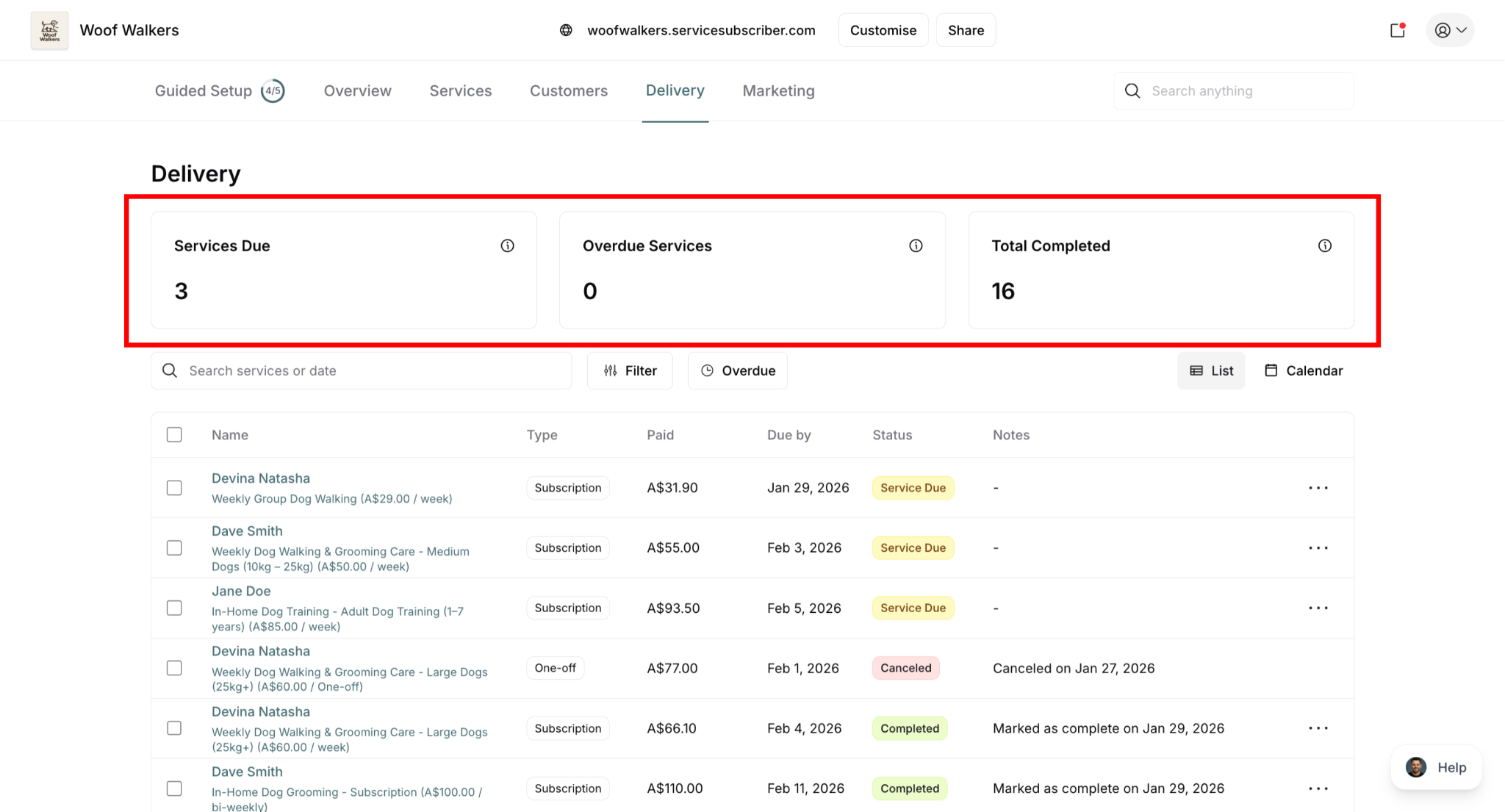
⚠️ Focus on Overdue Services: This number should stay as close to zero as possible. High overdue count = customer satisfaction risk.
Search and Filter Bar
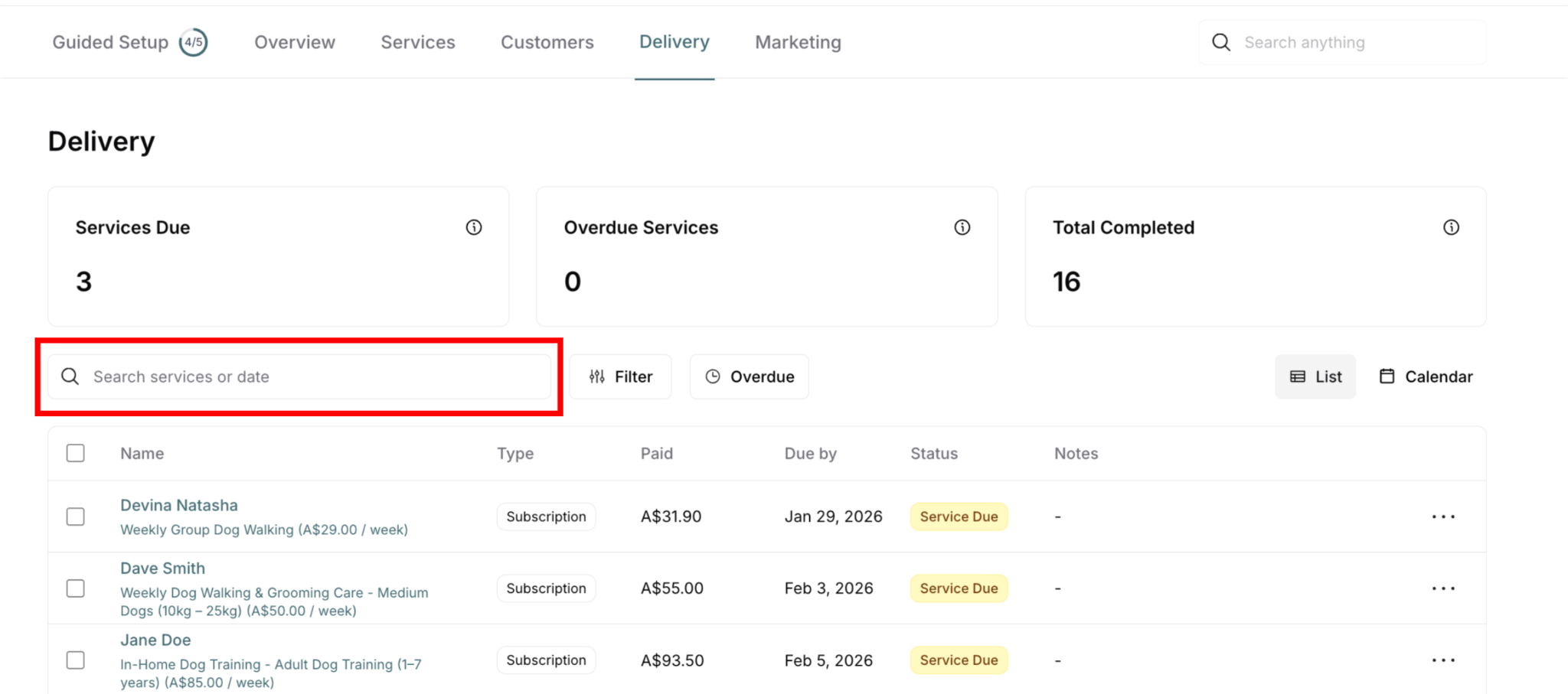
Below the metrics, you'll find tools to find and organize deliveries:
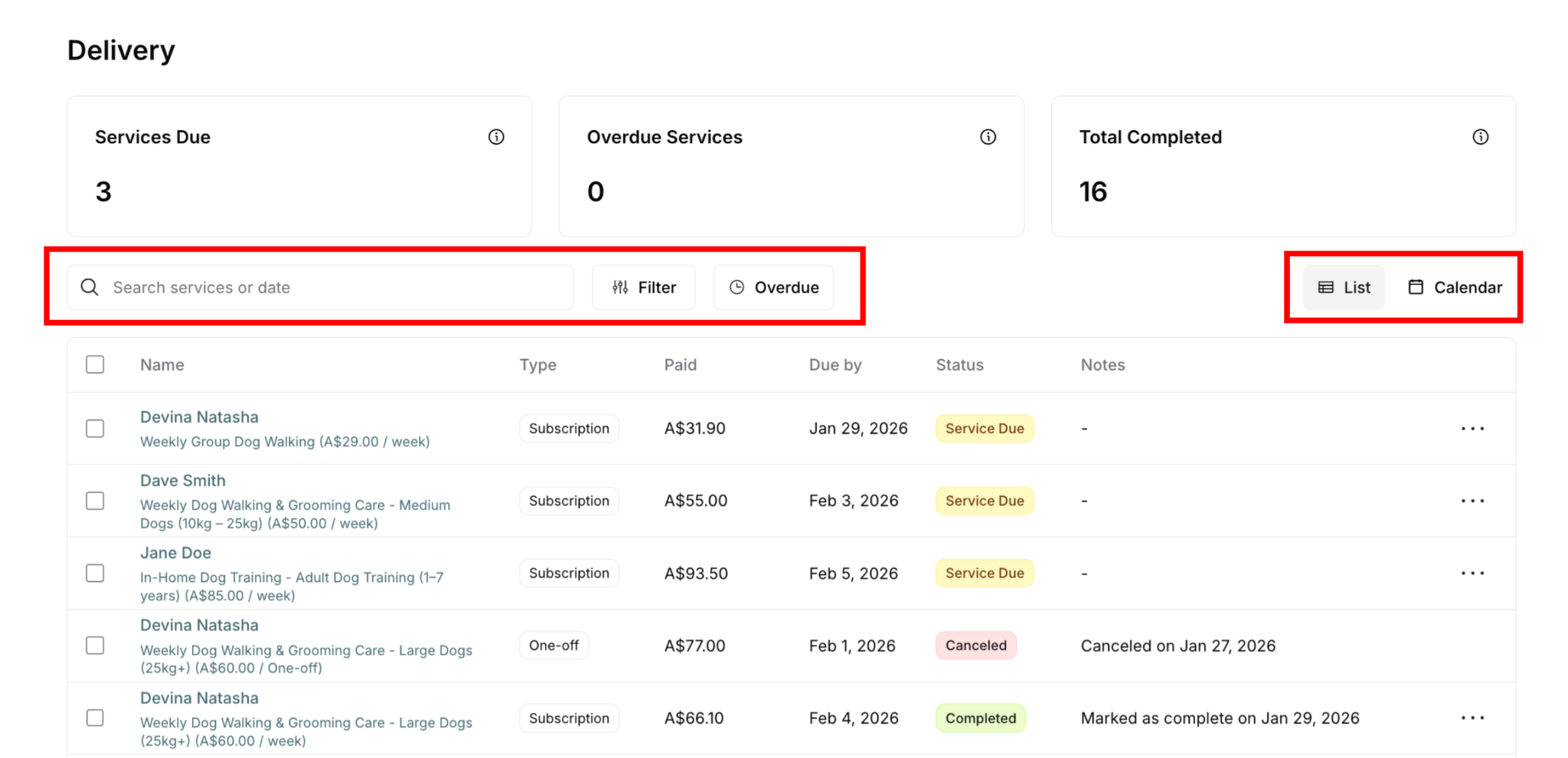
Search (left side):
Search icon with text field
Placeholder: "Search services or date"
Real-time filtering as you type
Filter button (right side):
Three-slider icon
Opens filter options modal
Multiple filter criteria available
View toggle (far right):
List view icon (default) - Table format
Calendar view icon - Calendar format
Toggle between two display formats
Overdue button (center):
Quick filter for overdue items only
Clock icon
One-click to see overdue deliveries
✍️ TIP: List and Calendar are different ways to view the same deliveries, not sorting options. Choose the format that works best for your current task.
Delivery List Columns
The list view shows deliveries in table format with these columns:
Checkbox :
Select individual deliveries
Use for bulk actions
Select multiple at once
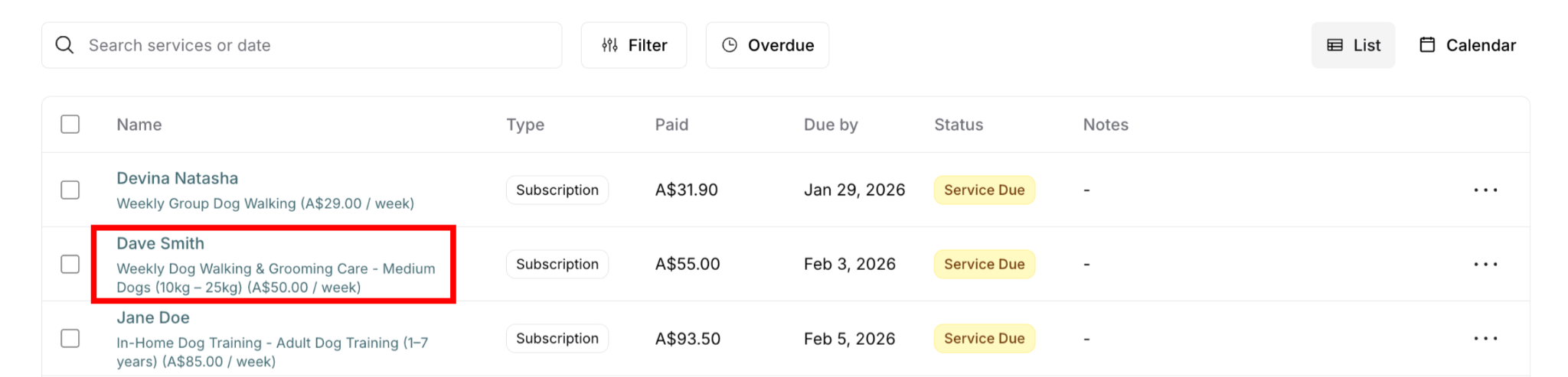
Name:
Customer name (bold)
Service name and description
Service details in smaller text
Pricing in parentheses
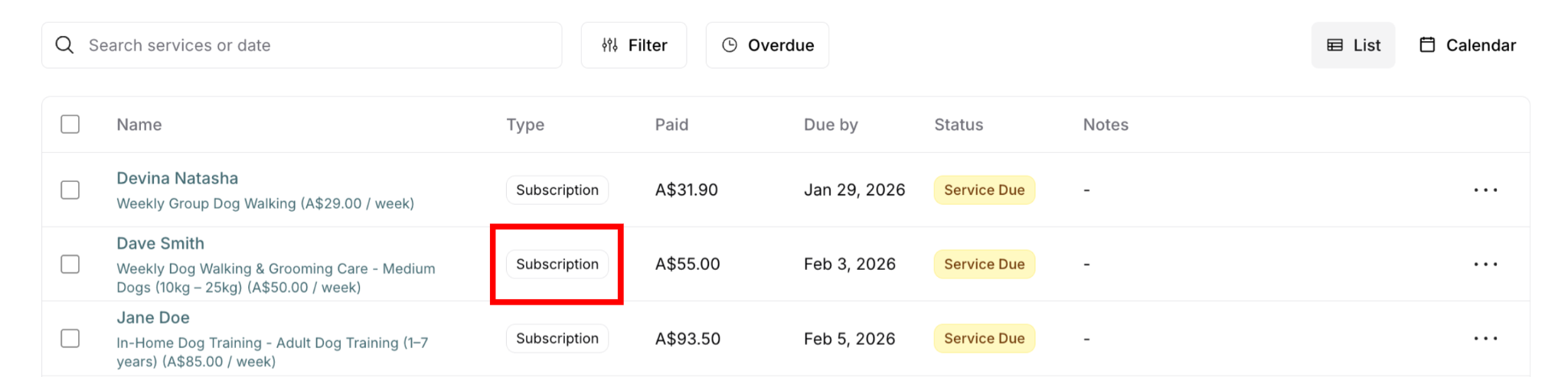
Type:
"Subscription" badge - Recurring subscription delivery
"One-off" badge - One-time purchase delivery
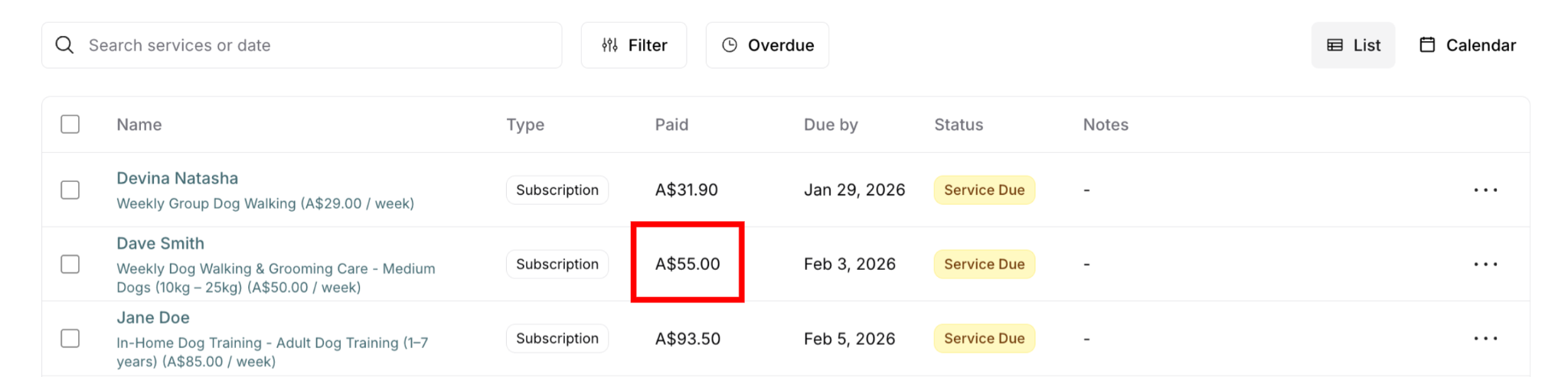
Paid:
Amount customer paid for this service
Links to purchase/payment amount
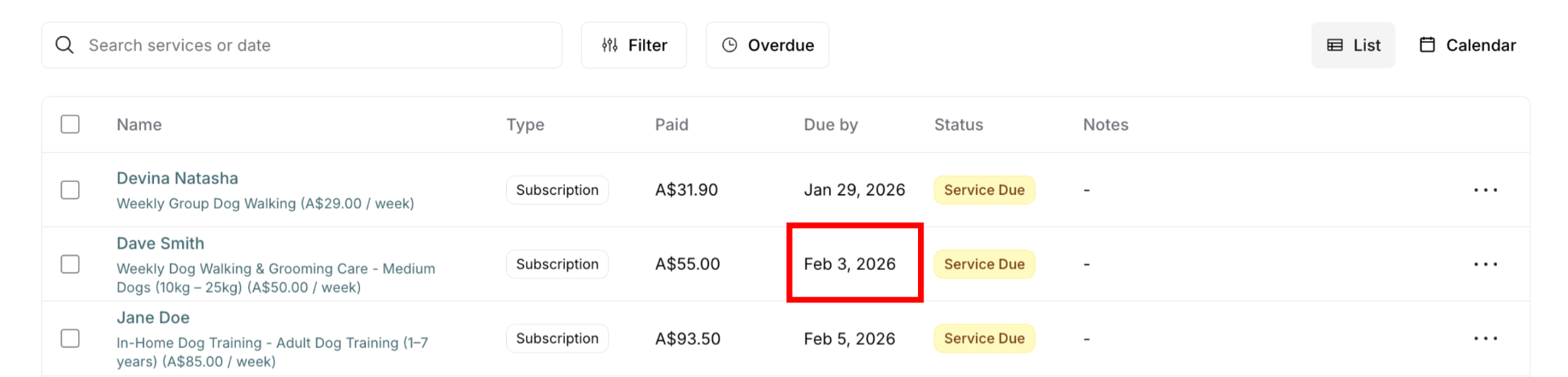
Due by:
Target completion date
When service should be done
Format: Month Day, Year (e.g., "Jan 28, 2026")
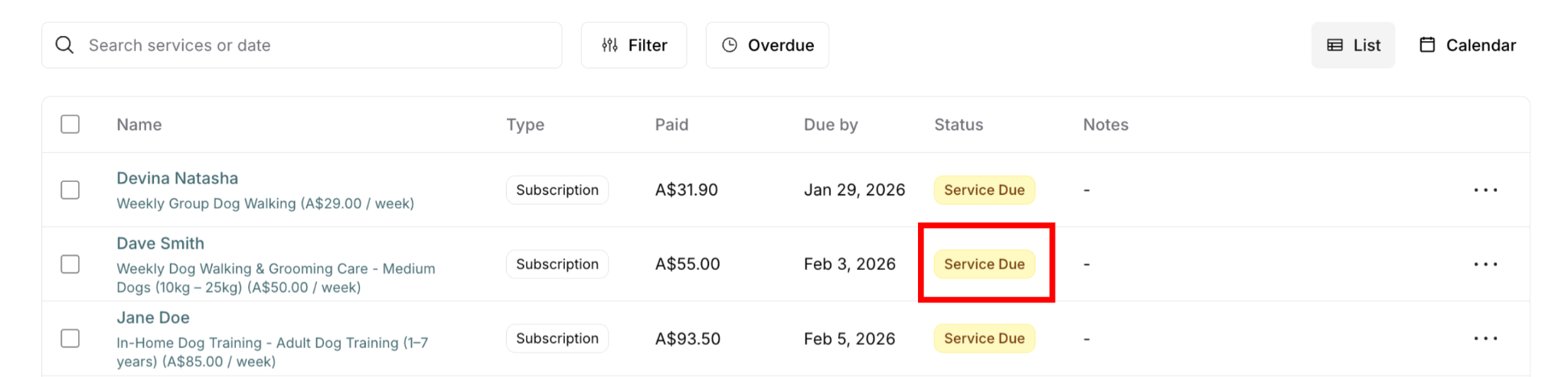
Status:
Visual status badge
Service Due (yellow)
Overdue (red)
Completed (green)
Canceled (pink)
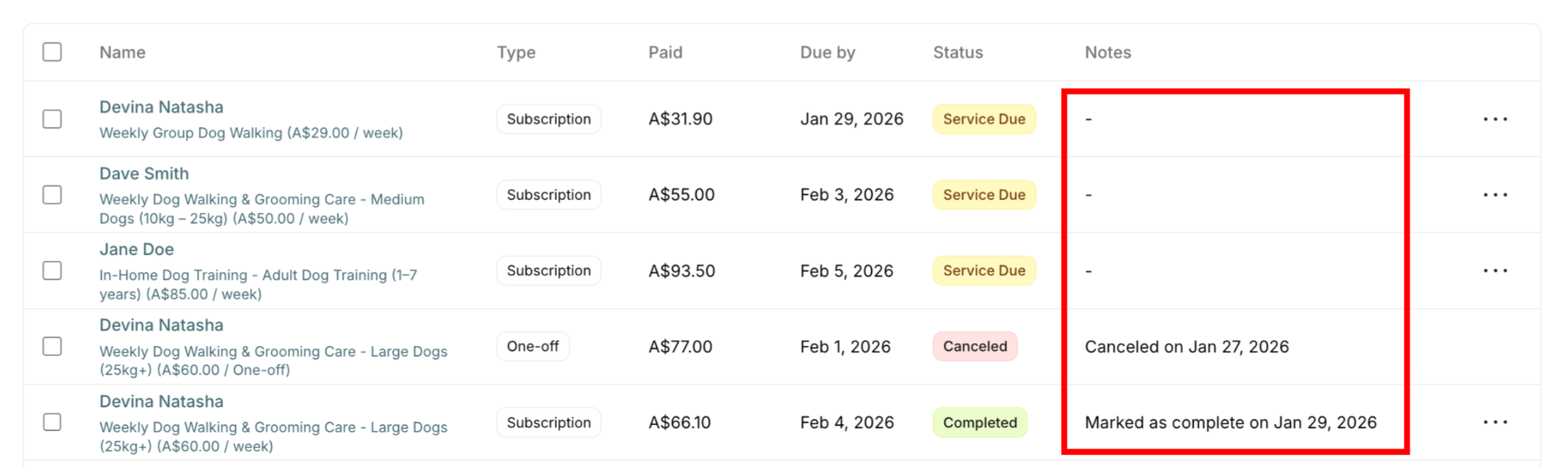
Notes:
Additional information
Completion notes: "Marked as complete on [date]"
Cancellation notes: "Canceled on [date]"
Shows "–" if no notes
Actions :
Three-dot menu (⋯)
Click for action options
Options vary by status
Using Search
What you can search:
Customer names
Service names
Dates
Service descriptions
How to search:
Click in search field (or just start typing)
Type search terms
Results filter in real-time
Clear search to see all deliveries again
Using Filters
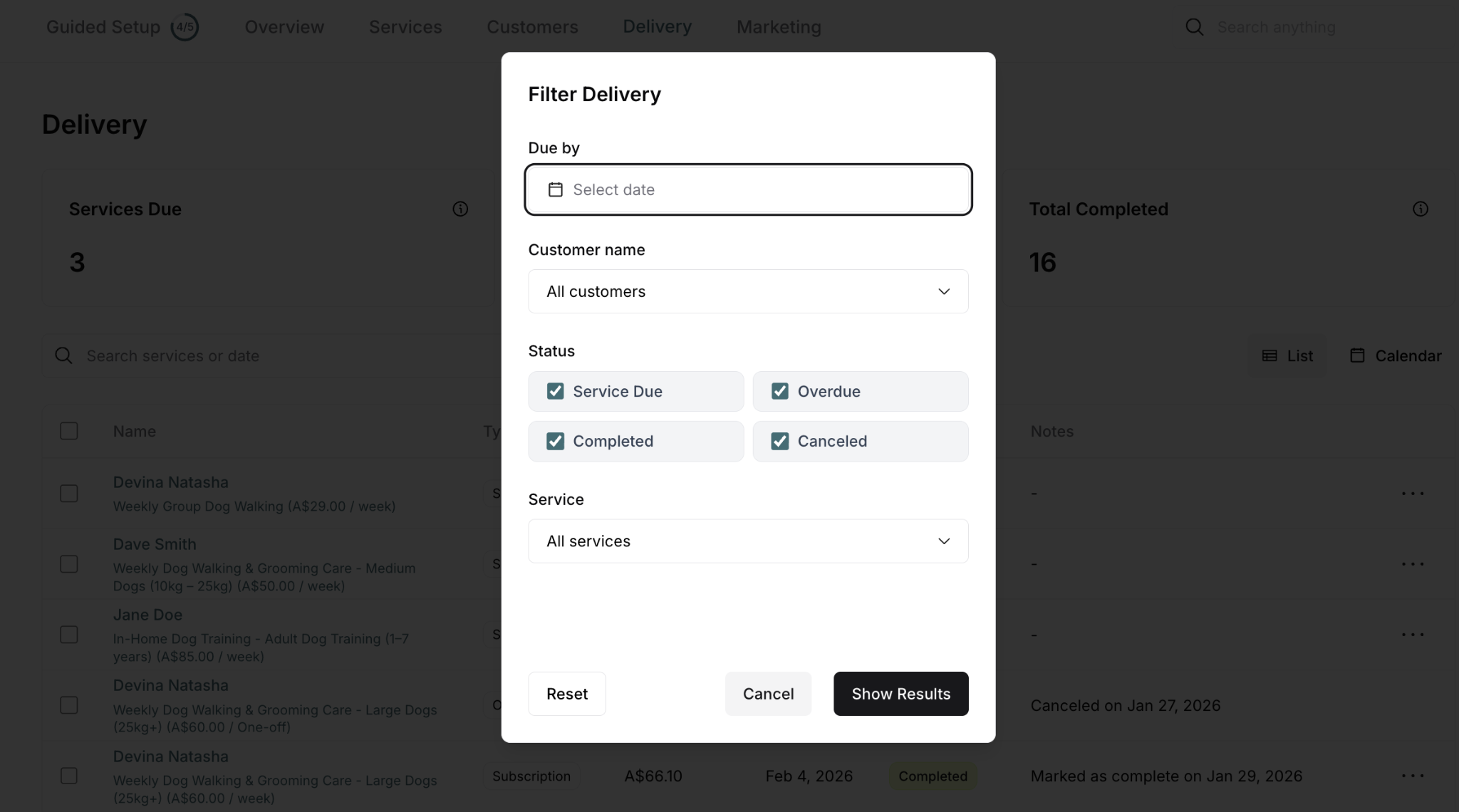
Access filters: Click the Filter button (funnel icon)
Filters help you narrow down the delivery list to specific criteria.
Filter Options Available
Due by:
Date picker for specific date
Click calendar icon to select
Filter deliveries by due date
Clear to show all dates
Customer name:
Dropdown menu
Default: "All customers"
Select specific customer to see only their deliveries
Similar to customer Delivery tab but within global view
Status (multiple selections via checkboxes):
Service Due - Scheduled upcoming services
Overdue - Past due date services
Completed - Finished services
Canceled - Canceled services
Check/uncheck any combination
All checked by default = show all statuses
Service:
Dropdown menu
Default: "All services"
Filter to specific service type
See all deliveries for one service across all customers
Example: Show only "Dog Walking & Grooming Care" deliveries
Applying Filters
How to filter:
Click Filter button (funnel icon)
Filter Delivery modal opens
Adjust filter options:
Select date if filtering by due date
Choose customer if filtering to one customer
Check/uncheck status options
Select service if filtering to one service
Click Show Results (black button)
List updates to show filtered results
Modal closes
Buttons in modal:
Reset - Clear all filters, return to defaults
Cancel - Close modal without applying changes
Show Results - Apply filters and close modal
List View Features
List view (default) shows deliveries in tabular format.
Clickable Navigation
Customer names are clickable links:
Click customer name (bold text in Name column):
Redirects to that customer's detail page
Opens in Purchases tab
Shows all purchases for that customer
Quick navigation to customer context
Example: Click "Dave Smith" → Opens Dave Smith's customer detail page → Purchases tab with all his purchases visible
Service titles are clickable links:
Click service name (below customer name):
Redirects to that customer's detail page
Opens in Purchases tab
Automatically expands that specific purchase
Shows three-panel detail view for that service
Example: Click "Dog Walking & Grooming Care - Medium Dogs" → Opens Dave Smith's customer detail → Purchases tab → That specific purchase expanded showing Purchase Information, Transaction Details, and Service Delivery panels
Calendar View Features
Switch to calendar: Click Calendar button (calendar icon)
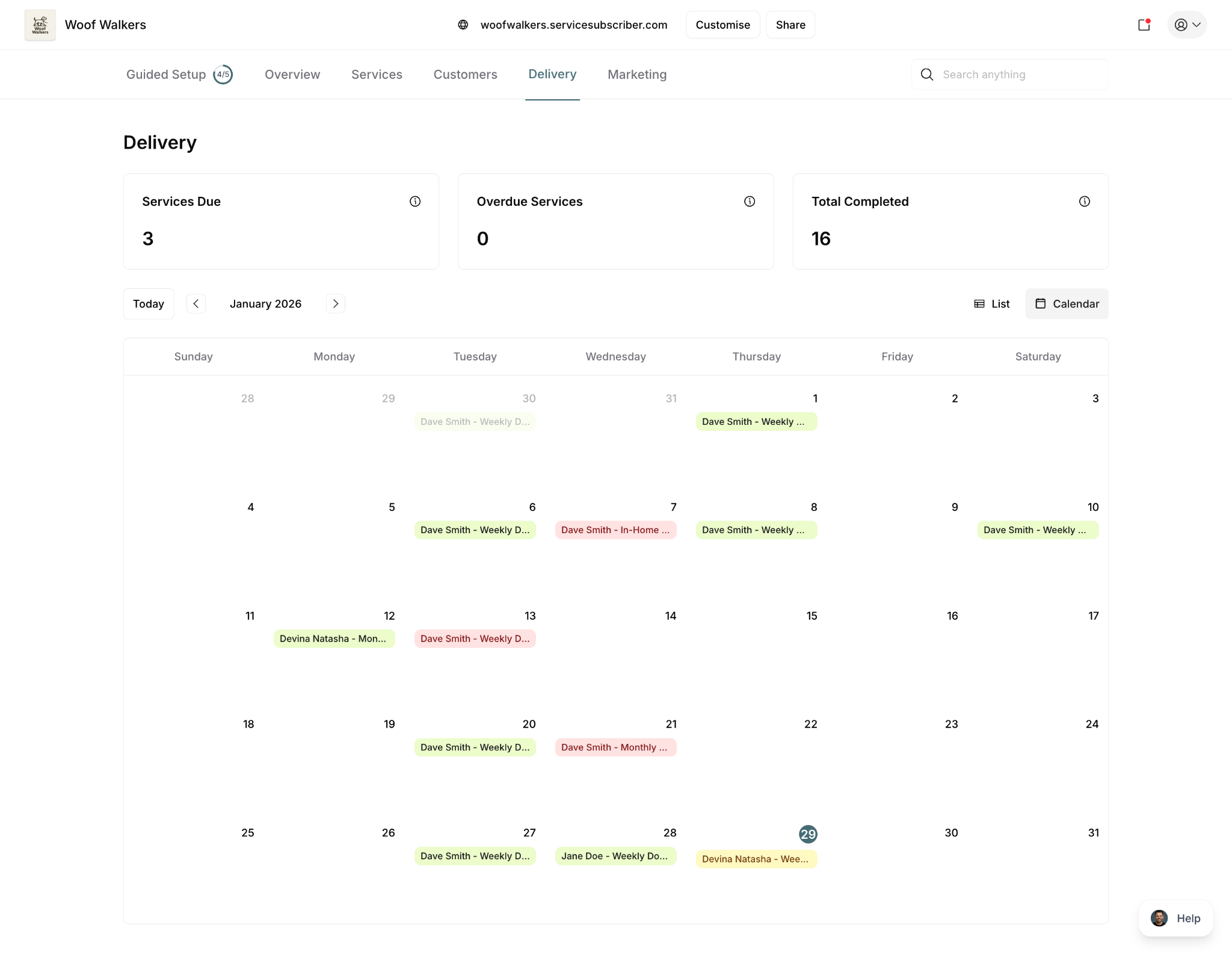
Calendar view displays deliveries in calendar format for visual route planning.
Calendar Benefits
Visual schedule:
See deliveries by date
Spot busy days at glance
Plan weekly route
Balance workload
Date-based planning:
Click dates to see that day's deliveries
Drag and drop (if supported)
Week/month view options
Route optimization:
Group deliveries by day
Plan efficient routes
Minimize travel time
✍️ TIP: Use calendar view for weekly planning, list view for daily execution.
Taking Actions on Deliveries
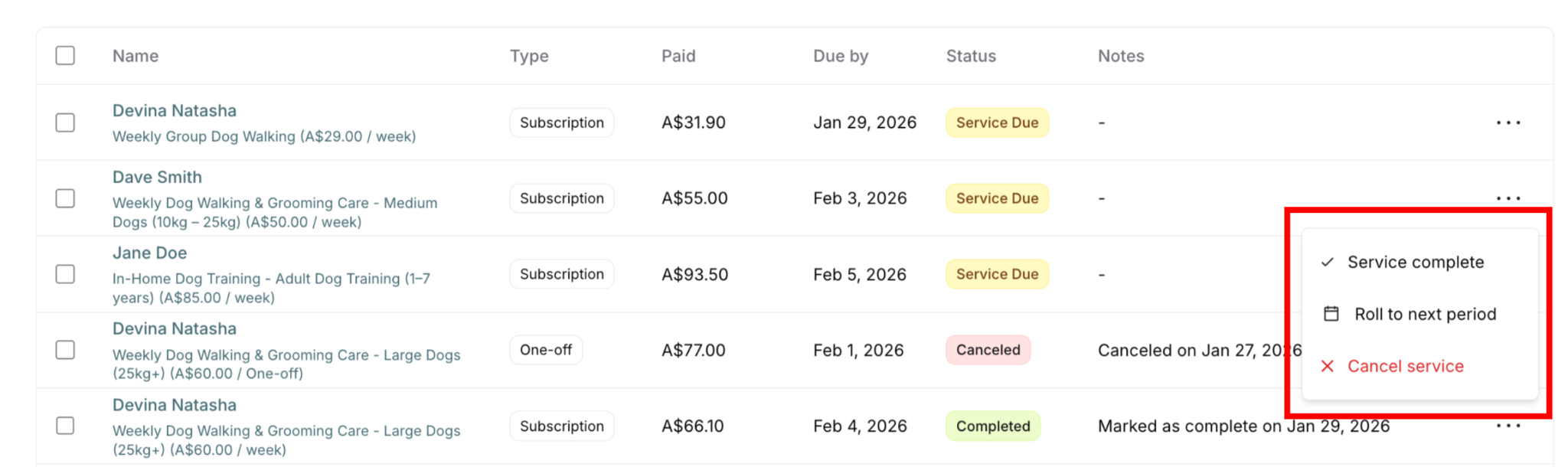
Each delivery has available actions accessed via the three-dot menu (⋯).
Individual Actions Menu
To access actions:
Find delivery in list
Click three-dot menu (⋯) on right
Action menu appears
Click desired action
Available Actions by Status
For Service Due or Overdue deliveries:
✓ Service complete - Mark as delivered
? Roll to next period - Reschedule to next cycle
✕ Cancel service - Cancel this delivery
For Completed deliveries:
↩️ Mark incomplete - Reverse completion
✕ Cancel service - Cancel completed delivery (rare)
For Canceled deliveries:
No action available
✍️ TIP: Actions available depend on current status. You can't mark an already completed service complete again.
Action Details
Service complete:
Marks delivery as done
Updates status to "Completed" (green)
Adds note: "Marked as complete on [date]"
Notifies customer
See DEL-005 for details
Roll to next period:
Reschedules to next billing cycle
Updates due date
Keeps service in system
See DEL-007 for details
Cancel service:
Cancels this delivery
Updates status to "Canceled" (gray)
Removes from active schedule
See DEL-006 for details
Mark incomplete:
Reverses completion
Returns to Service Due/Overdue
Removes completion note
See DEL-005 for details
Bulk Actions
Select multiple deliveries to take actions on many at once.
How to Use Bulk Actions
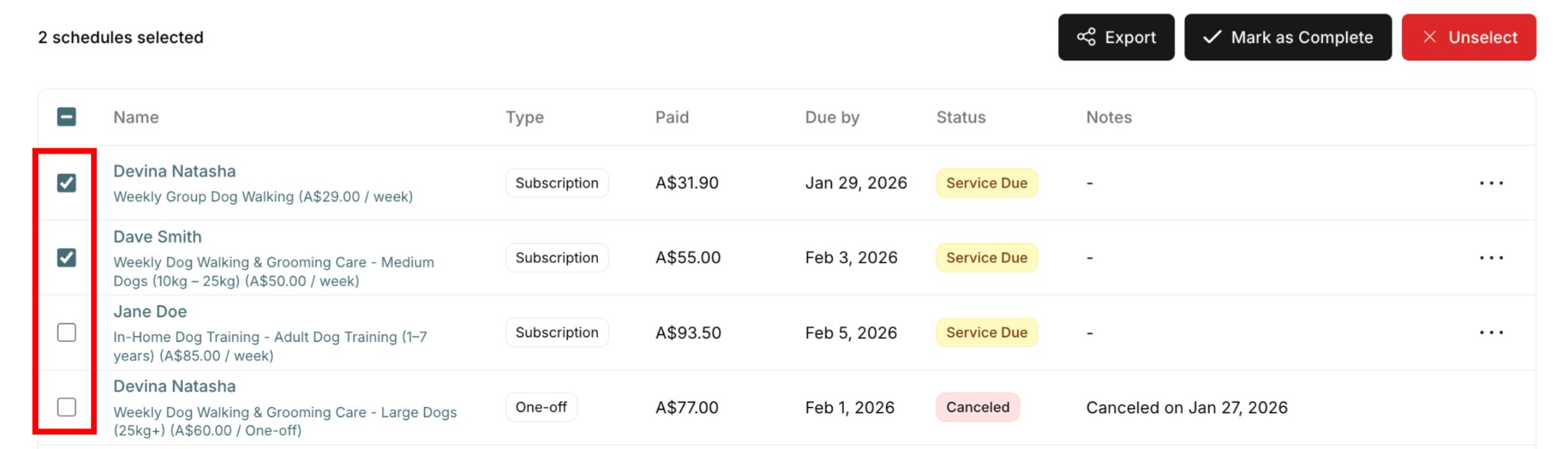
Step 1: Select deliveries:
Click checkboxes next to deliveries
Select as many as needed
Can select across different customers
Can mix subscription and one-off
Can mix different statuses
Counter shows: "X schedules selected"
Step 2: Action buttons appear (vary by selection):
Buttons that appear depend on what you've selected:
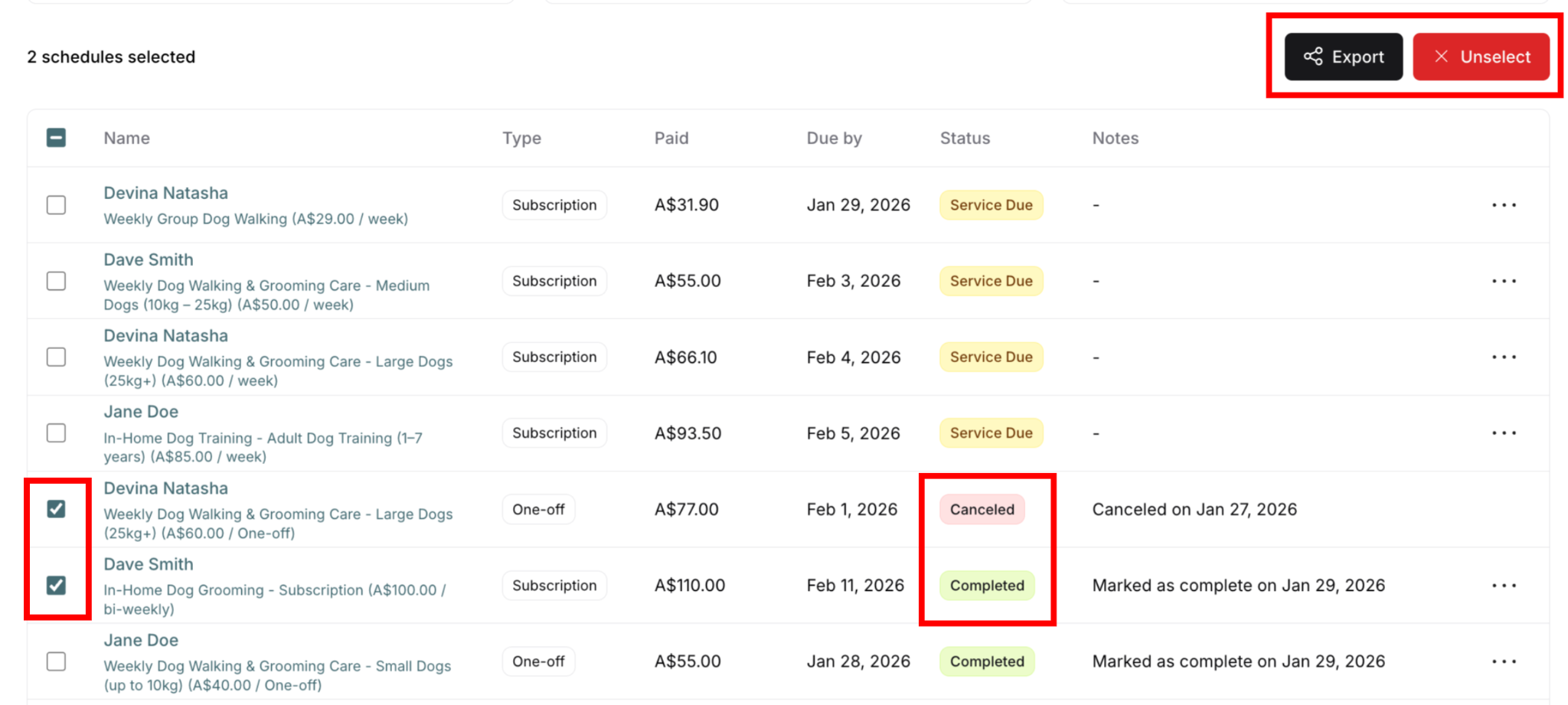
If selecting only Canceled or Completed items:
Export - Export selected deliveries
Unselect - Clear all selections
NO Mark as Complete button (items already finished)
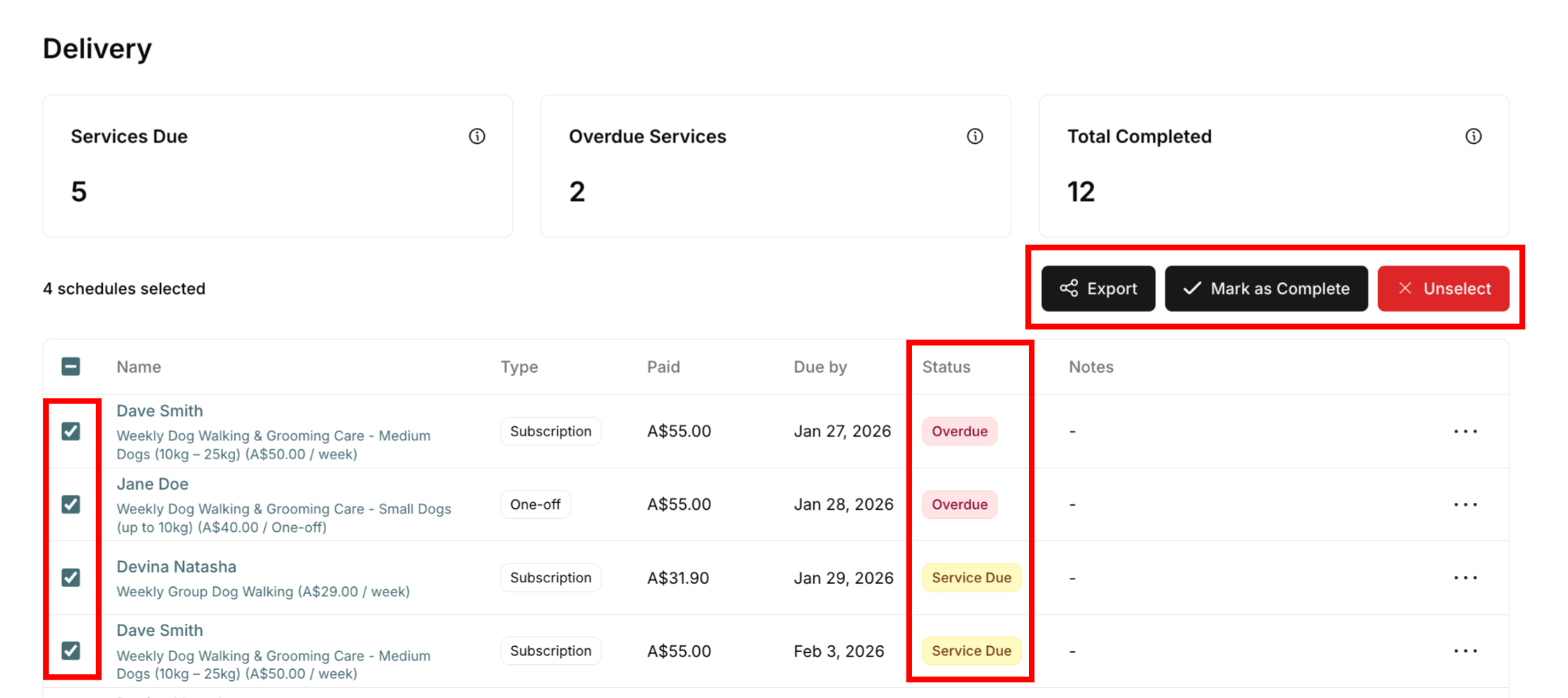
If selecting Service Due or Overdue items:
Export - Export selected deliveries
Mark as Complete - Complete all selected
Unselect - Clear all selections
If selecting mixed statuses (Service Due, Overdue, Canceled, Completed):
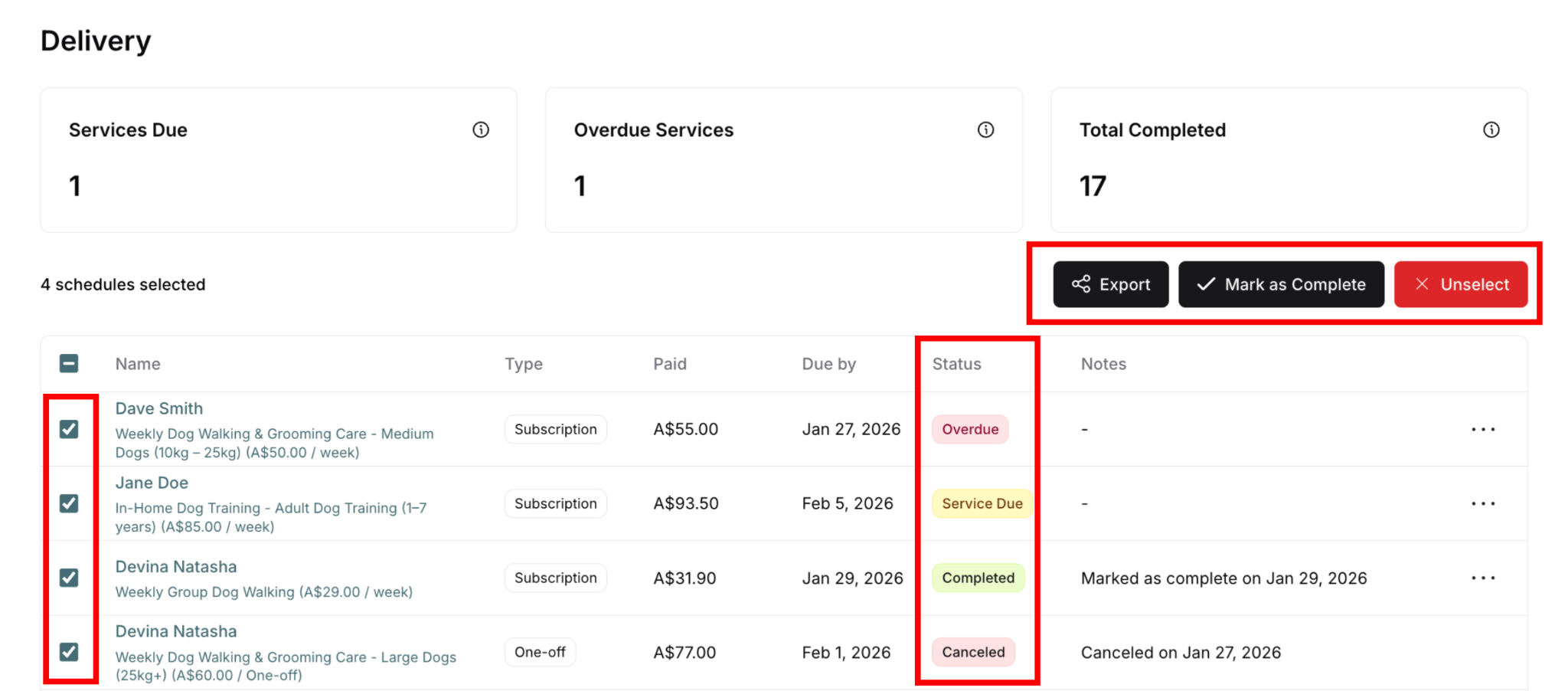
Export - Export selected deliveries
Mark as Complete - Complete only the completable items
Unselect - Clear all selections
System intelligently handles mixed selections
Step 3: Click desired action:
Applies to appropriate items
Confirmation modal appears for Mark as Complete
Success message confirms action
Bulk Mark as Complete
Most useful bulk action: Completing multiple services at once
When to use:
End of route - completed several services
End of day - mark all done services
Batch processing for efficiency
How Bulk Complete Works
For completable items only (Service Due or Overdue):
Select deliveries (checkboxes)
Can select only Service Due/Overdue
Or mix with Canceled/Completed (system filters automatically)
Click Mark as Complete button
Black button in top-right area
Only appears when at least one completable item selected
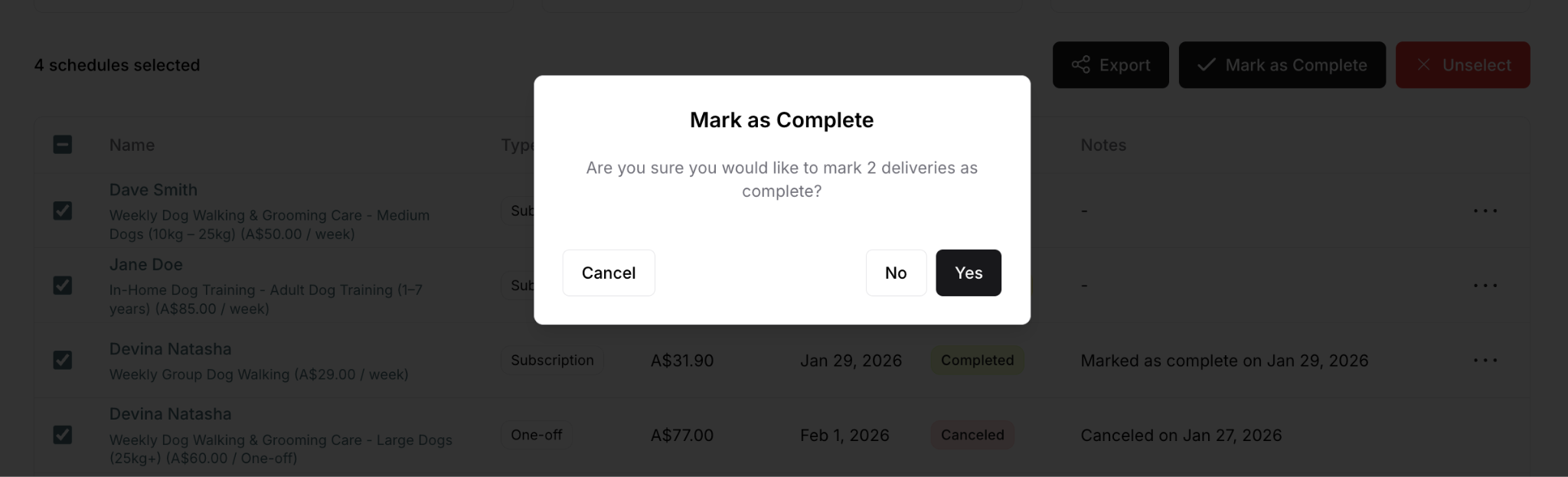
Confirmation modal appears:
Shows: "Are you sure you would like to mark X deliveries as complete?"
X = only the completable items (Service Due + Overdue)
Does NOT count Canceled or Completed items in the number
Buttons: Cancel, No, Yes
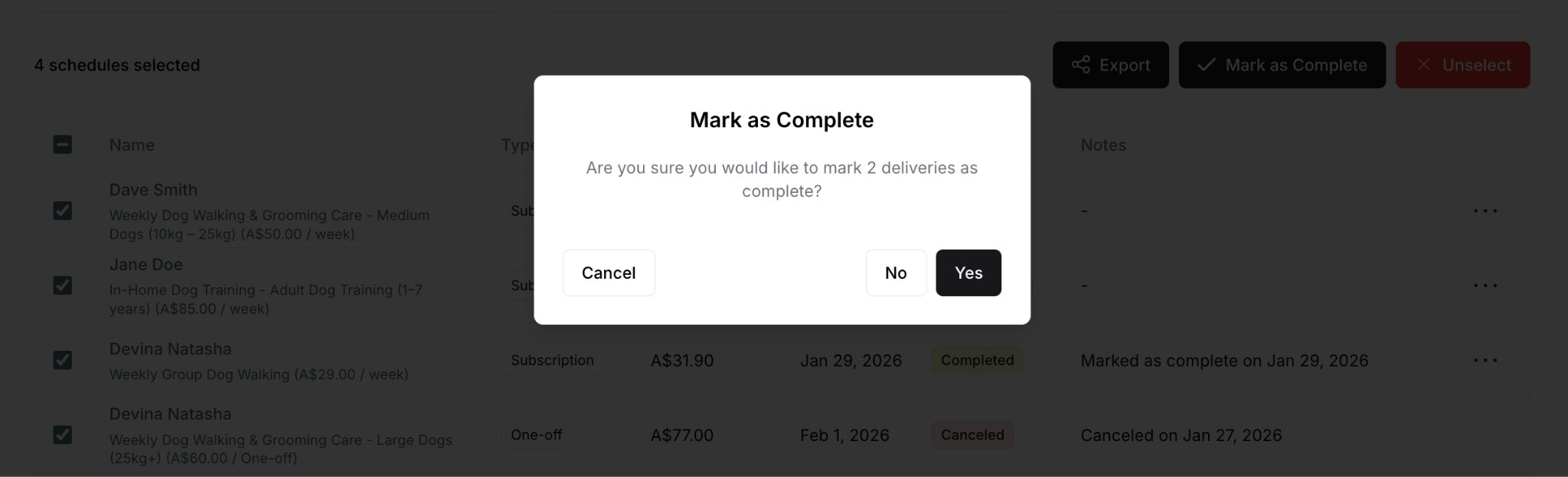
Click Yes to confirm
All completable selected services marked complete simultaneously
Canceled and Completed items ignored (unchanged)
Success message confirms
✍️ TIP: When bulk completing, you can select everything from your route including already-completed or canceled items. The system will only mark complete the items that need it.
Export Functionality
Export selected deliveries: Creates downloadable file
Always available: Export button appears regardless of selection status
Use cases:
Reporting and record keeping
External analysis
Backup documentation
Sharing with team or accountant
How to export:
Select deliveries to export (checkboxes)
Can select any status
Can mix statuses freely
Click Export button
File downloads (format may vary - CSV, Excel, PDF)
Open in spreadsheet or document software
Unselect
Clear selections: Click Unselect button (red button)
Always available: Appears whenever items are selected
When to use:
Selected wrong items
Changed your mind
Want to start over with selection
Clearing for new bulk action
Result: All checkboxes cleared, counter resets to zero, ready to select again
Summary
Delivery menu is your central hub:
Global view of all deliveries
All customers in one place
Primary operational tool
Key features:
Top metrics (Services Due, Overdue, Completed)
Search and filter functionality
List and Calendar views
Individual and bulk actions
Real-time status updates
Daily workflow:
Morning: Check overdue, plan route
During day: Complete services
Evening: Mark completions, review metrics
Weekly: Use calendar for planning
Essential actions:
Mark as Complete (individual or bulk)
Roll to next period
Cancel service
Export and reporting
Best practices:
Keep overdue at zero
Mark complete same day
Use filters to focus
Plan in calendar view
Execute in list view
Compare to customer view:
Delivery menu = All customers (planning)
Customer Delivery tab = One customer (investigating)
Use appropriate view for task
Was this article helpful?
That’s Great!
Thank you for your feedback
Sorry! We couldn't be helpful
Thank you for your feedback
Feedback sent
We appreciate your effort and will try to fix the article