Rolling services over reschedules a delivery to the next billing period without canceling or losing the service. Rolling back reverses a rollover, moving the service back to an earlier period. These actions help you manage scheduling flexibility while maintaining subscriptions.
This guide explains when and how to roll services over and back.
Overview: What Rolling Over Means
Rolling over a service:
Reschedules delivery to next billing period
Updates due date automatically
Keeps service in system (doesn't cancel)
Maintains payment and subscription
Can be done multiple times
Reversible with "Roll back"
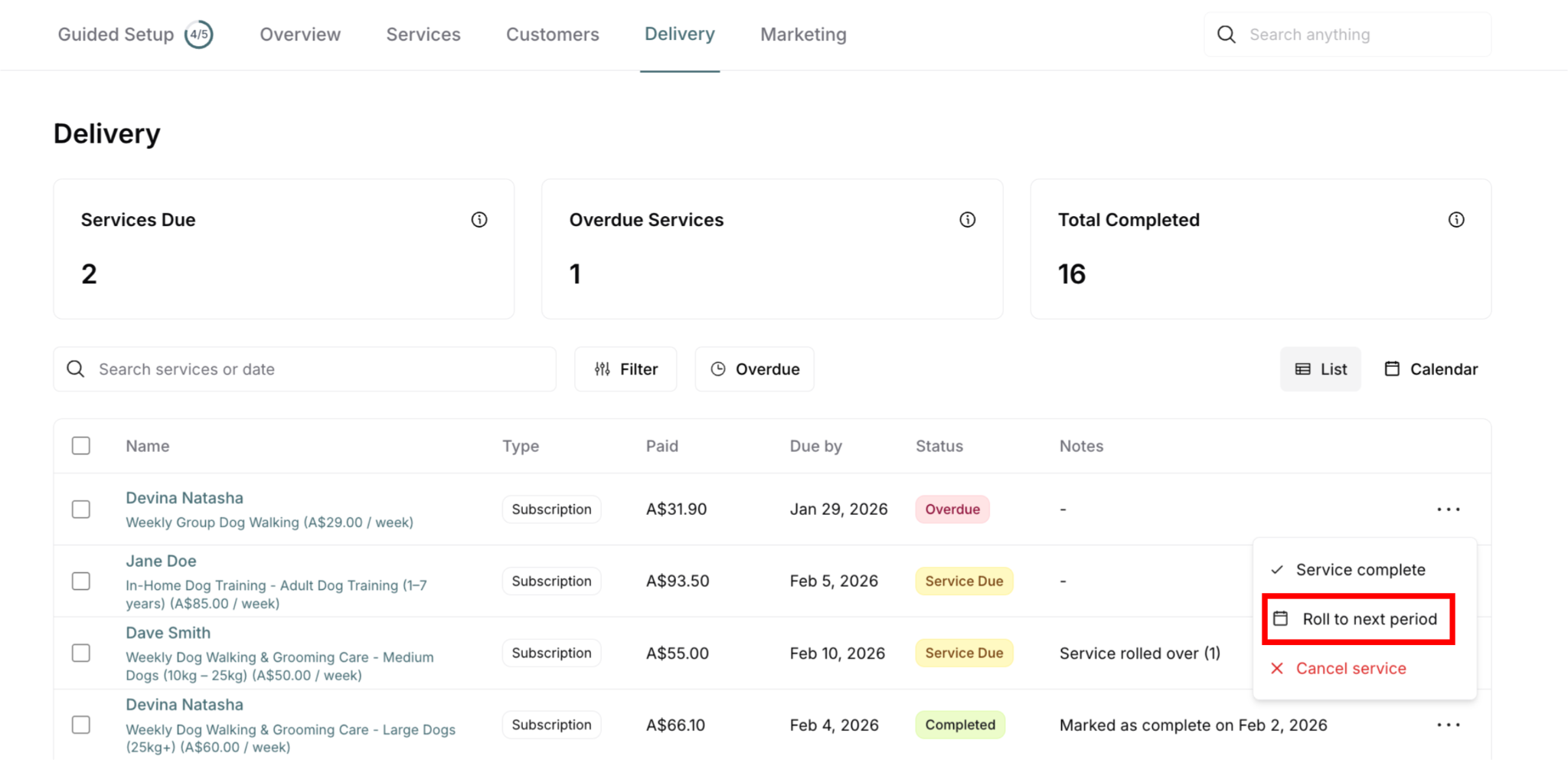
Use when: Can't deliver service this period but want to deliver next period
Roll Over vs Other Actions
Roll Over (This Article)
What it does: Reschedules to next billing period
Service status: Stays Service Due or Overdue (doesn't cancel, doesn't complete)
Payment: Unchanged (customer already paid)
Subscription: Continues normally
Use when: Temporary delay, will deliver next period
Cancel Service
What it does: Cancels delivery, won't be delivered
Service status: Changes to Canceled
Payment: Should process refund separately
Subscription: Continues (other services still schedule)
Use when: Service won't be delivered at all
See: Canceling Services
Mark Complete
What it does: Records service as delivered
Service status: Changes to Completed
Payment: Unchanged (customer paid, service delivered)
Subscription: Continues normally
Use when: Service actually delivered
See: Marking Services Complete and Incomplete
When to Roll Services Over
Common scenarios for rolling over:
✅ Weather prevents service:
Rain prevents lawn mowing
Snow prevents outdoor work
Too hot/cold for safe work
Temporary weather issue
✅ Customer not home / access issue:
Customer traveling
Gate code doesn't work
Temporary access problem
Will resolve next period
✅ Scheduling conflict:
Too many services this period
Staffing shortage
Equipment breakdown
Need to spread workload
✅ Customer requests delay:
Customer asks to skip this period
Wants service next period instead
Temporary situation
Prefers different timing
✅ Service not ready:
Prep work not complete
Materials not arrived
Dependencies not met
Will be ready next period
✅ Capacity management:
Overbooked this period
Balancing workload
Resource constraints
Better timing next period
Which Statuses Can Be Rolled Over
⚠️ IMPORTANT: Only certain delivery statuses can be rolled over.
Service Due ✅ Can Roll Over
Most common scenario:
Service scheduled but not yet delivered
Standard rollover situation
Normal use case
Action available: Three-dot menu (⋯) → Roll to next period

Overdue ✅ Can Roll Over
Common scenario:
Service past due but not completed
Rolling forward instead of completing late
Acceptable use
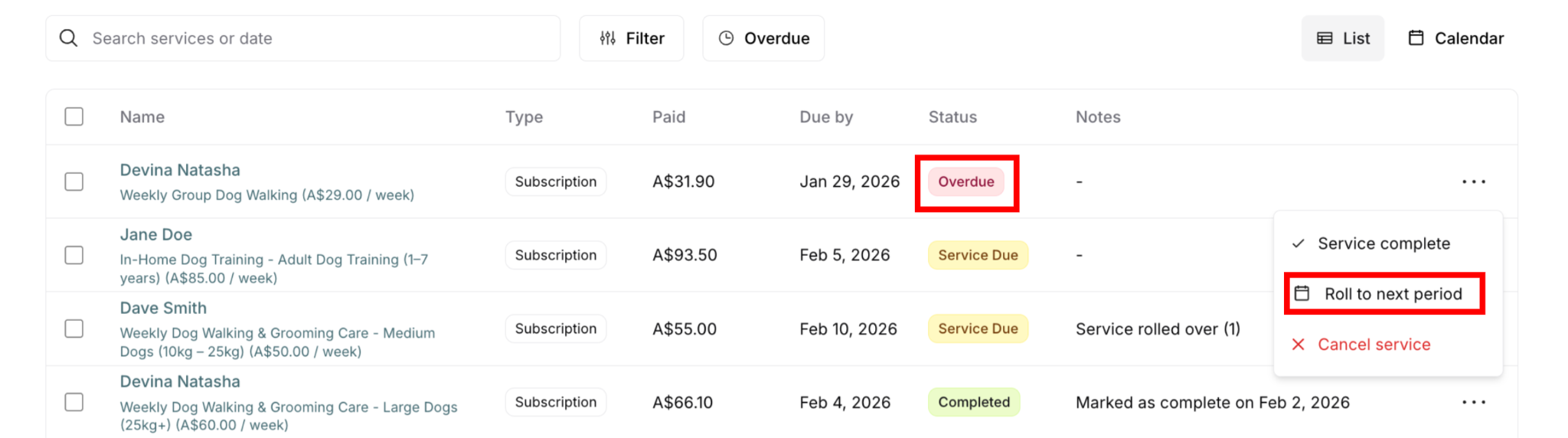
Action available: Three-dot menu (⋯) → Roll to next period
Note: This moves overdue service to next period, removes from overdue list
Completed ❌ Cannot Roll Over
Not available: Service already delivered
Available actions: Mark incomplete only
If you need to:
Can't roll completed services
If marked complete by mistake, mark incomplete first
Then roll if appropriate
Canceled ❌ Cannot Roll Over
Not available: Service already canceled
Why: Canceled services are final state
Two Ways to Roll Services Over
You can roll services over from two locations:
1. From Delivery Menu (Global View)
Best for:
Managing deliveries across customers
Daily operations
Route planning adjustments
Cross-customer scheduling
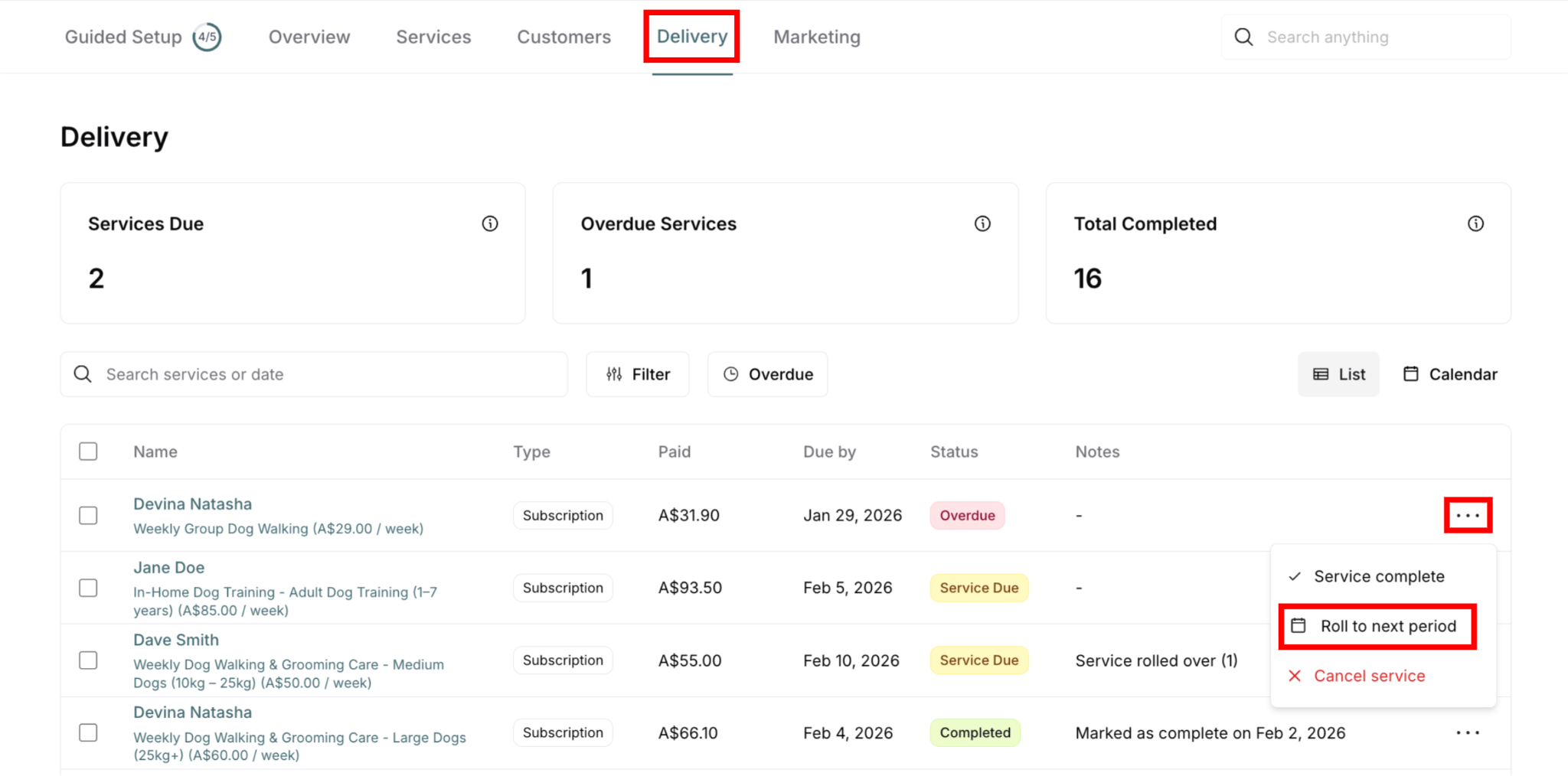
Access: Main navigation → Delivery
How: Find service → Three-dot menu (⋯) → Roll to next period
2. From Customer Delivery Tab
Best for:
Managing one customer's deliveries
Customer-specific context
When already on customer page
Individual customer scheduling
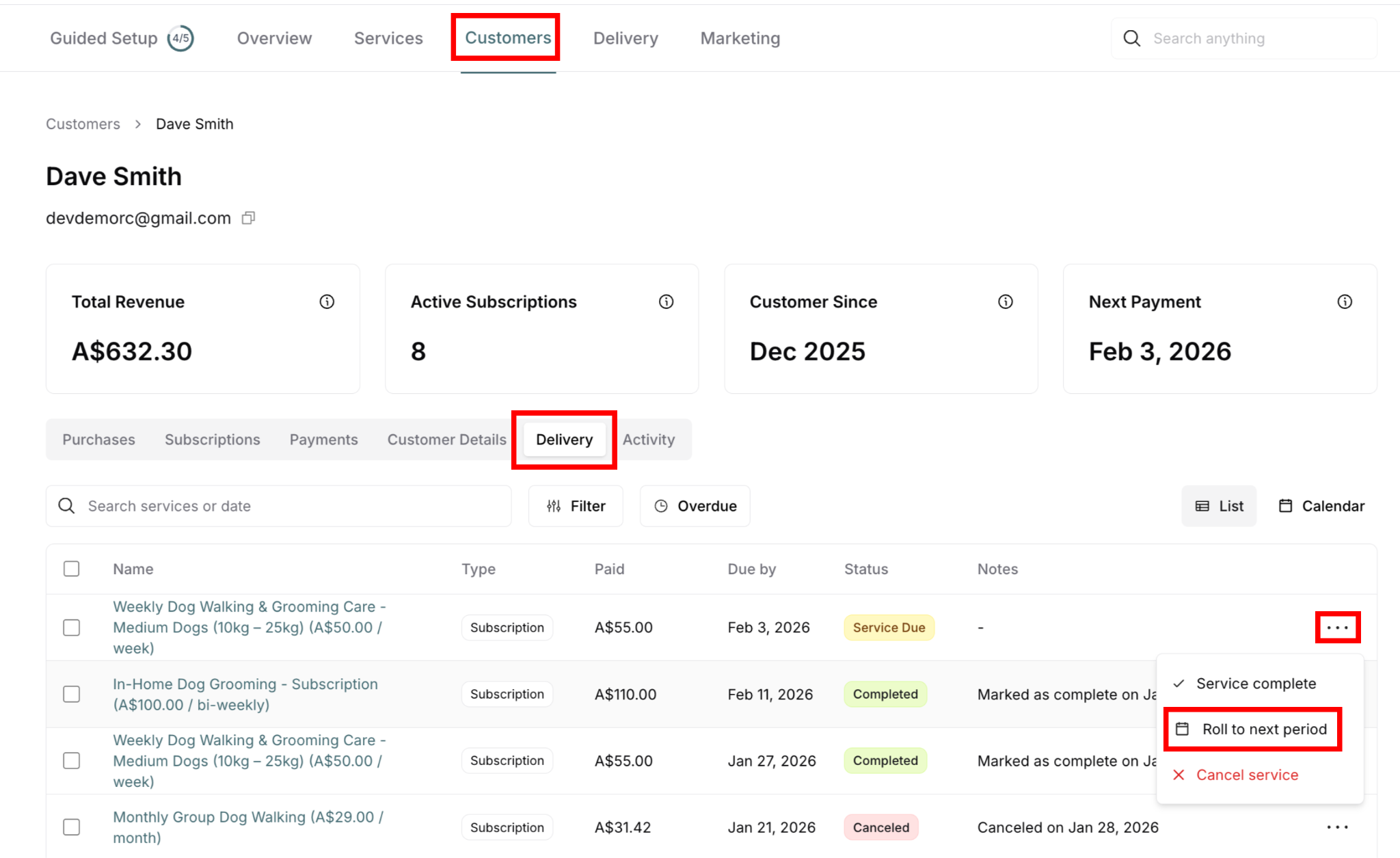
Access: Customers → Select customer → Delivery tab
How: Find service → Three-dot menu (⋯) → Roll to next period
✍️ TIP: Functionality identical in both locations. Choose based on your current workflow context.
How to Roll a Service Over
Step-by-Step Process
Available for: Service Due or Overdue deliveries only
NOT available for: Completed or Canceled deliveries
From Delivery menu or customer Delivery tab:
Find the service to roll over
Search by customer name or service
Filter by date or status
Locate in list
Verify status is rollable
Check badge: Service Due (yellow) or Overdue (red)
If Completed or Canceled, cannot roll over
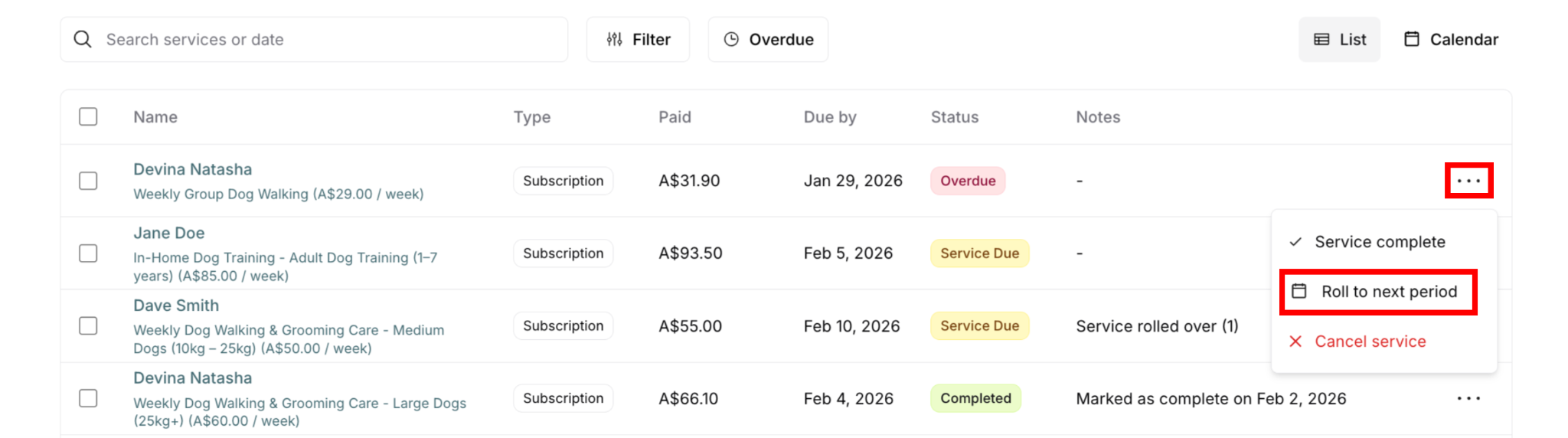
Click three-dot menu (⋯)
Located on far right of delivery row
Action menu appears
Select "Roll to next period" (with calendar icon)
Second option in menu
Click the option
Confirmation modal appears
Modal header: "Are you sure you want to rollover the delivery of this service?"
Message: "This will be automatically shifted into the next period affecting the due-by date"
Buttons: Cancel, Rollover
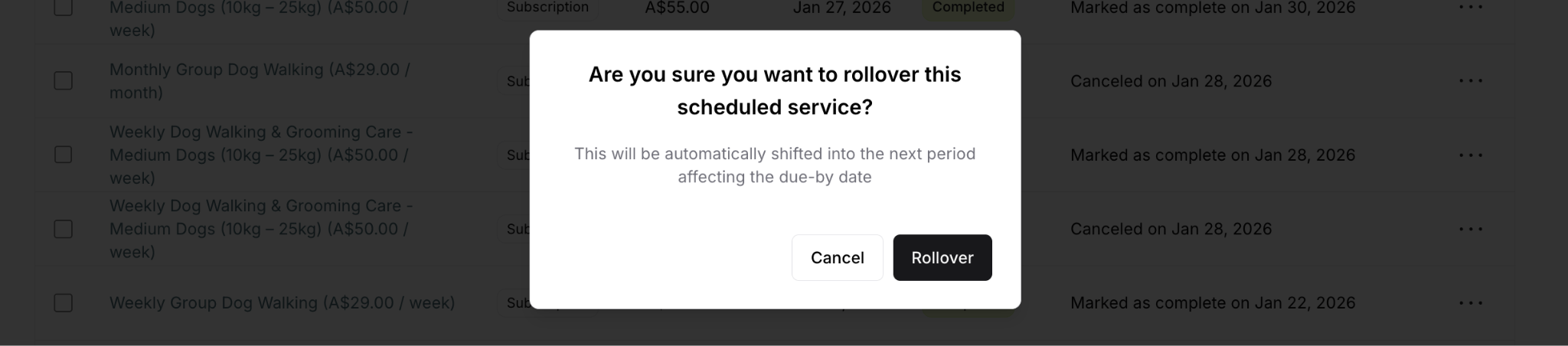
Click Rollover to confirm
Or click Cancel to abort
Action processes immediately
Verify rollover
Due date updates to next period
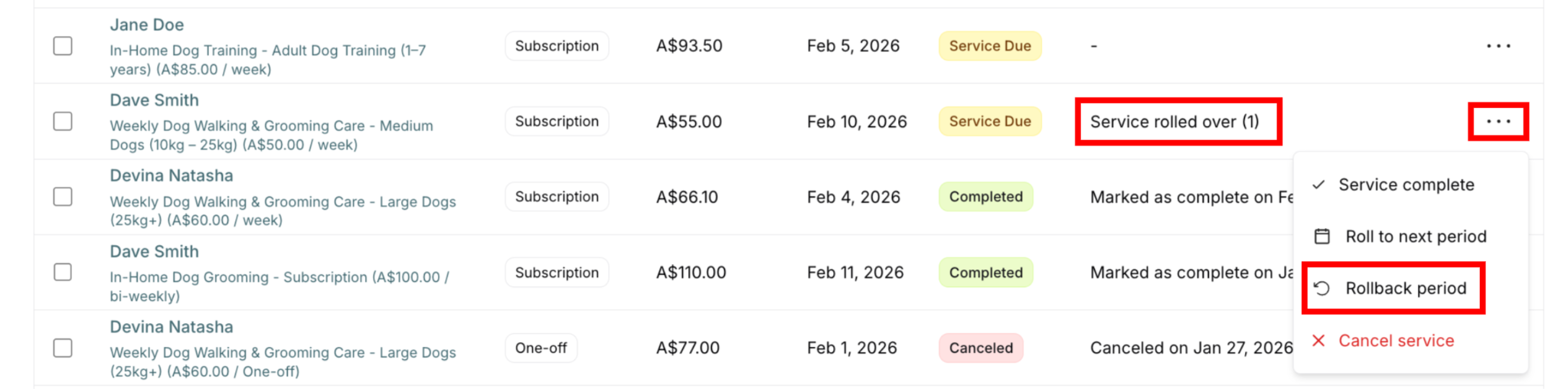
Notes update: "Service rolled over (1)"
Status remains Service Due (yellow)
Service moved to new date

What Happens When You Roll Over
Immediate effects:
Due date changes: Moves to next billing period
Weekly subscription: Moves to next week
Monthly subscription: Moves to next month
Fortnightly: Moves to next fortnight
Based on subscription frequency

Before the roll over

After rolled over
Status remains same:
Was Service Due → Still Service Due
Was Overdue → Now Service Due (no longer overdue)
Notes update: Shows rollover count
"Service rolled over (1)" - first rollover
"Service rolled over (2)" - second rollover
Counter increments with each rollover

Removed from current period:
No longer on this period's schedule
Appears in next period's schedule
Prevents accidental completion in wrong period
Metrics update:
May decrease current period's Services Due count
Increases next period's Services Due count
New action available: Rollback period
Three-dot menu now shows "Rollback period"
Can undo the rollover
Option appears after first rollover
Rolling Over Multiple Times
You can roll services over more than once:
Roll to next period
Still can't deliver?
Roll to the period after that
Can continue multiple times
How Multiple Rollovers Work
Each rollover:
Moves service one more period forward
Updates due date again
Increments counter in notes
"Service rolled over (2)", "(3)", etc.

First roll over

Second roll over
No limit: Can roll as many times as needed
Customer impact: Customer already paid, just waiting longer for service
Notes Display for Multiple Rollovers
In delivery list:
Notes column shows: "Service rolled over (1)" or "(2)" etc.
Counter indicates how many times rolled
Easy to see at a glance

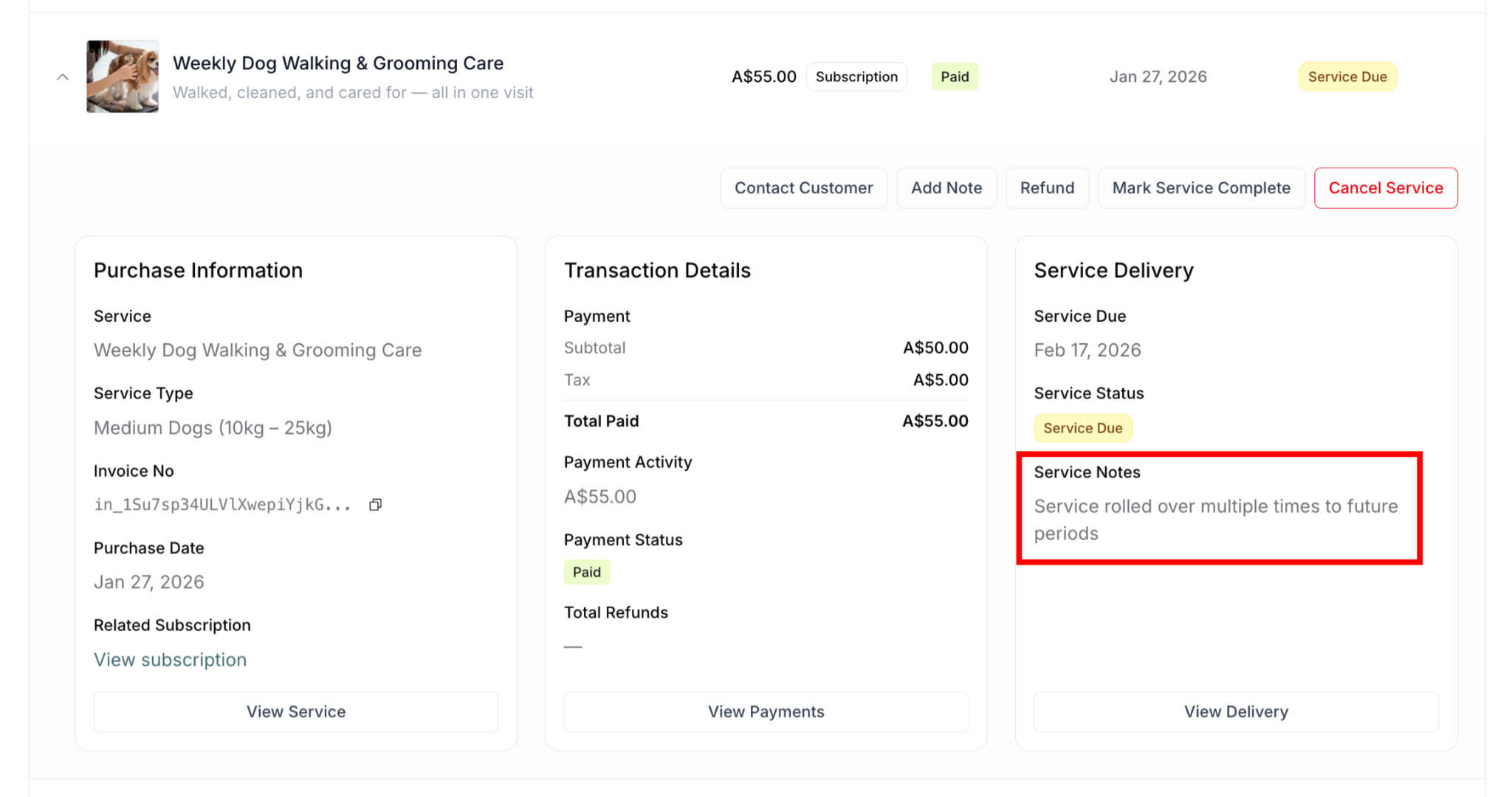
In expanded purchase view:
Service Notes shows: "Service rolled over multiple times to future periods"
More descriptive text
Indicates multiple rollovers
Understanding Rollback
Rollback reverses a rollover, moving the service back to an earlier period.

When rollback appears:
Only after service has been rolled over
Three-dot menu shows "Rollback period" option
Available for rolled-over services only
What rollback does:
Moves service back to previous period
Reverts the most recent rollover
Updates due date backwards
Decrements rollover counter
Use when:
Can deliver sooner than expected
Weather cleared up
Access issue resolved
Want to un-do the rollover
How to Roll a Service Back
Step-by-Step Process
Available for: Services that have been rolled over (have rollover note)
NOT available for: Services never rolled over
From Delivery menu or customer Delivery tab:
Find the rolled-over service
Look for "Service rolled over (X)" in Notes
Status: Service Due with future date
Click three-dot menu (⋯)
Action menu appears
Select "Rollback period" (with curved arrow icon)
Option appears after "Roll to next period"
Only visible for rolled services

Confirmation modal appears
Header: "Are you sure you want to rollback delivery of this service?"
Message: "This will move the service back to the current period, reverting the previous rollover"
Buttons: Cancel, Rollback
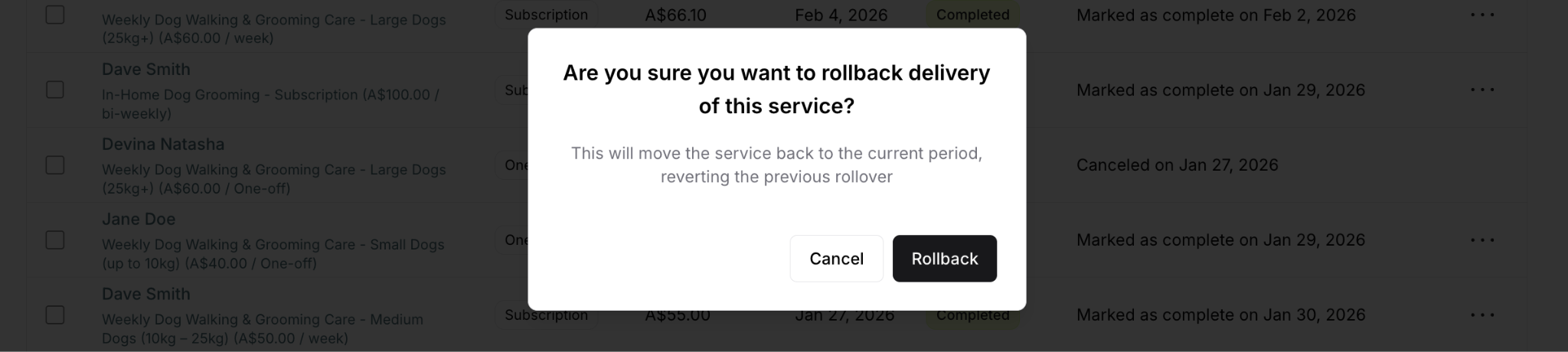
Click Rollback to confirm
Or click Cancel to abort
Action processes immediately

Before roll back

After roll back
Verify rollback
Due date moves back to earlier period
Rollover counter decrements
Service returned to previous schedule
What Happens When You Roll Back
Immediate effects:
Due date changes: Moves back to previous period
Forward one period → Back one period
Returns to earlier due date
Status will match the current date: Service Due, or Overdue
Notes update: Counter decrements or removes
"Service rolled over (2)" → "Service rolled over (1)"
"Service rolled over (1)" → "–" (note removed)

Before roll back
After roll back

Returns to previous period:
Back on earlier schedule
Shows in that period's deliveries
Rollback option:
If still rolled (count > 0): Rollback still available
If fully rolled back (count = 0): Rollback option disappears
Roll Over vs Cancel + Refund
Important decision: Should you roll over or cancel?
Use Roll Over When:
✅ Service will be delivered:
Just not this period
Will deliver next period
Customer wants service
✅ Temporary situation:
Weather delay
Access issue resolves soon
Short-term problem
✅ Customer keeps subscription:
Subscription continues
Customer wants ongoing service
Just delaying this one
✅ Customer already paid:
Keep their payment
Deliver service later
No refund needed
Use Cancel + Refund When:
✅ Service won't be delivered at all:
Not this period or next
Customer doesn't want it
Permanent issue
✅ Customer requests cancellation:
Wants money back
Doesn't want service anymore
Not interested in delay
✅ Issue can't be resolved:
Can't access property ever
Service discontinued
Permanent problem
✅ Customer deserves refund:
Your fault
Unreasonable delay
Poor service
Rolling services over provides scheduling flexibility while maintaining your commitment to deliver services. Use it appropriately for temporary delays, communicate clearly with customers, and always follow through on the rescheduled service!
Was this article helpful?
That’s Great!
Thank you for your feedback
Sorry! We couldn't be helpful
Thank you for your feedback
Feedback sent
We appreciate your effort and will try to fix the article