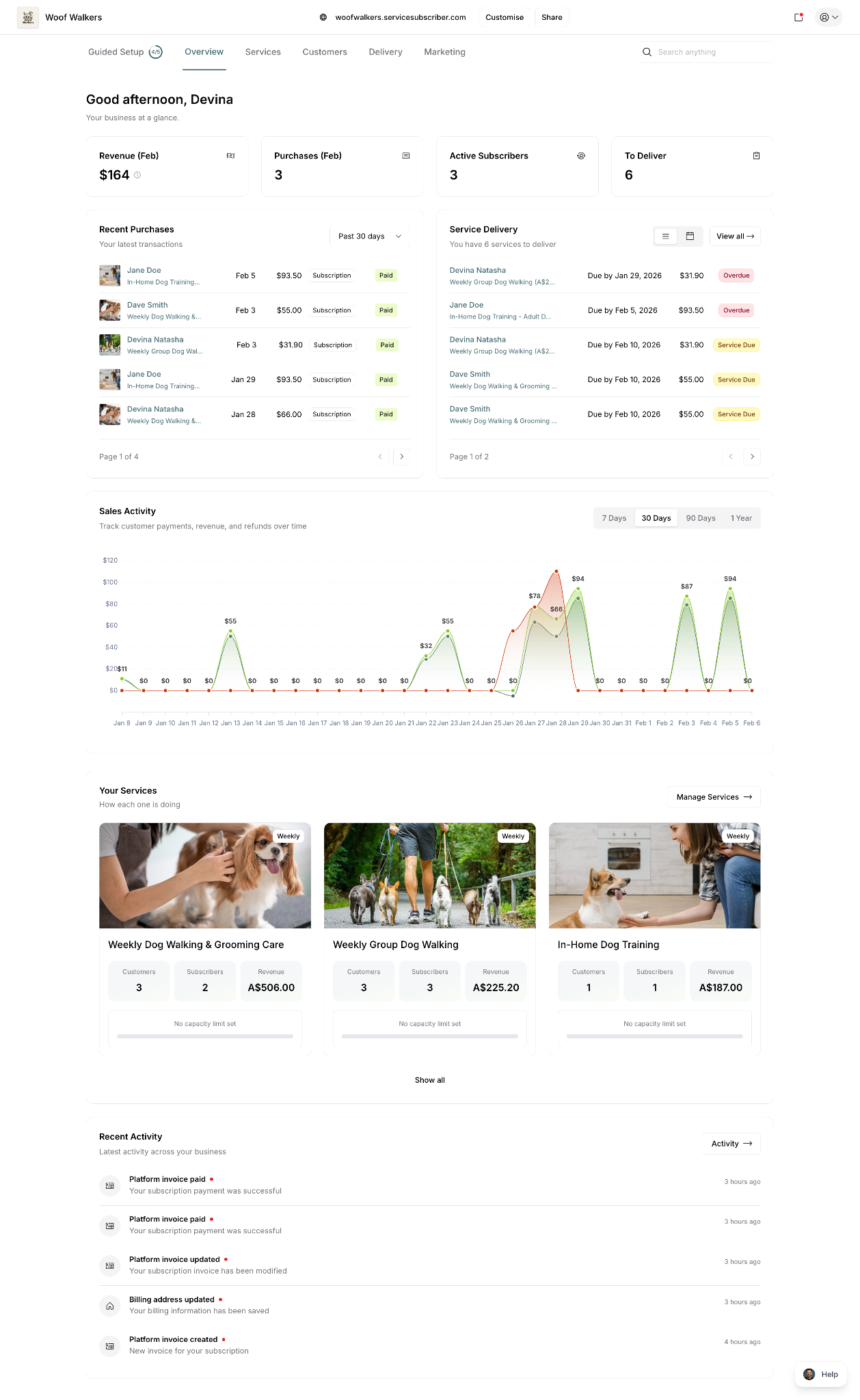
Your dashboard gives you a complete overview of your subscription business at a glance. From revenue and subscribers to upcoming deliveries and service performance, everything you need to monitor and manage your business is centralized in one place.
This guide explains what each section of your dashboard shows and how to use it effectively.
Why the Dashboard Matters
Your dashboard helps you:
Monitor business performance quickly
Track revenue and subscriber growth
See upcoming deliveries at a glance
Identify overdue services immediately
Understand which services perform best
Stay on top of recent business activity
✍️ TIP: Check your dashboard daily to stay informed about your business health, upcoming deliveries, and any issues needing attention.
Accessing Your Dashboard
From anywhere in the platform:
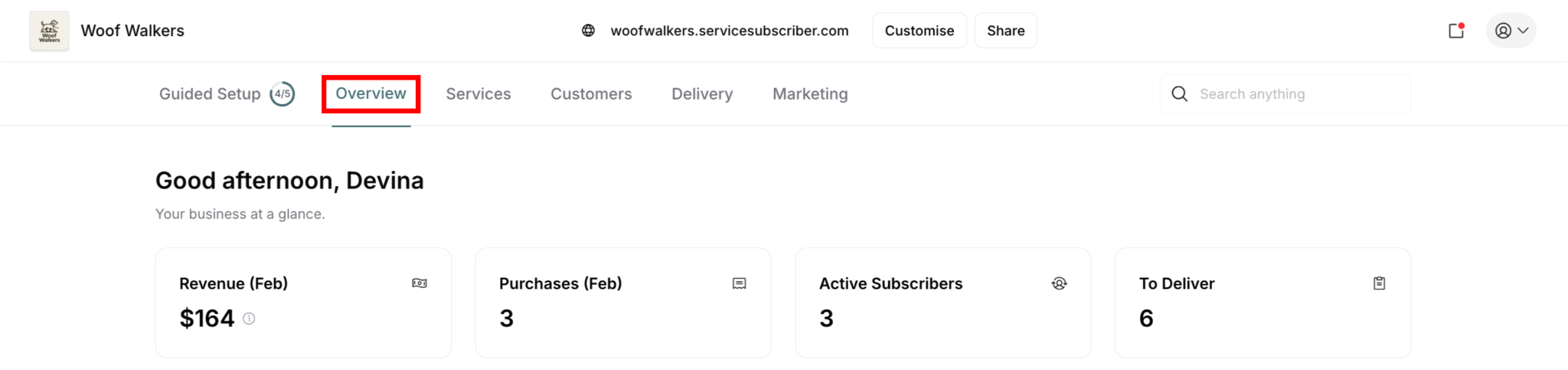
Click Overview in main navigation
Dashboard loads automatically
Shows real-time business data
Dashboard Sections Overview
Your dashboard contains seven main sections:
Key Metrics - Revenue, purchases, subscribers, deliveries
Recent Purchases - Latest customer transactions
Service Delivery - Upcoming and overdue deliveries
Sales Activity - Revenue trends over time
Your Services - Individual service performance
Recent Activity - Platform activity timeline
Key Metrics Cards
Four metric cards at the top show critical business numbers:
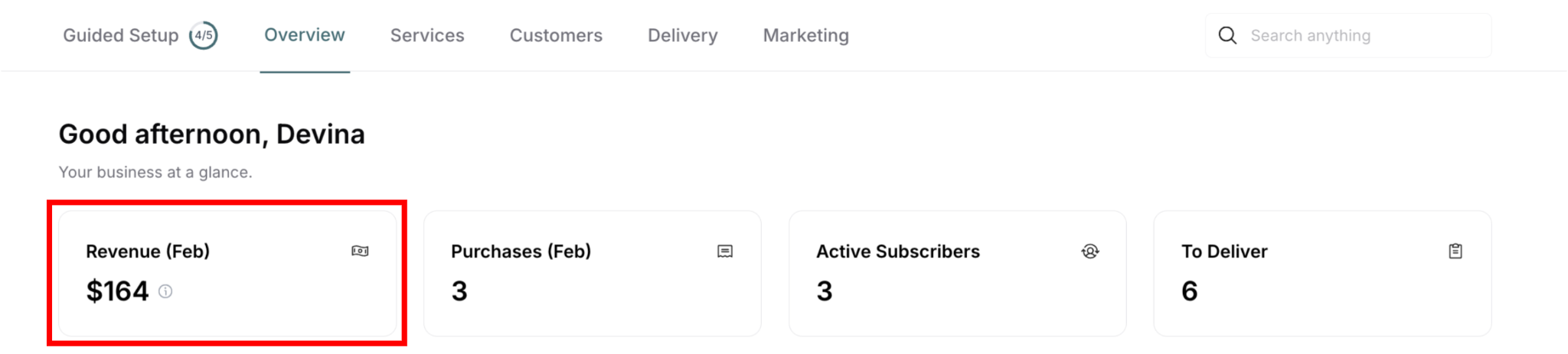
Revenue (Current Month)
What it shows:
Total revenue for current month
Example: "$164"
Month indicated in parentheses: "(Feb)"
Icon: Money/dollar sign
What counts as revenue:
Paid subscriptions for current month
One-time purchases
Completed transactions
Does not include pending payments
Use this to: ✅ Track monthly income ✅ Compare month-over-month performance ✅ Monitor revenue goals ✅ Understand business growth
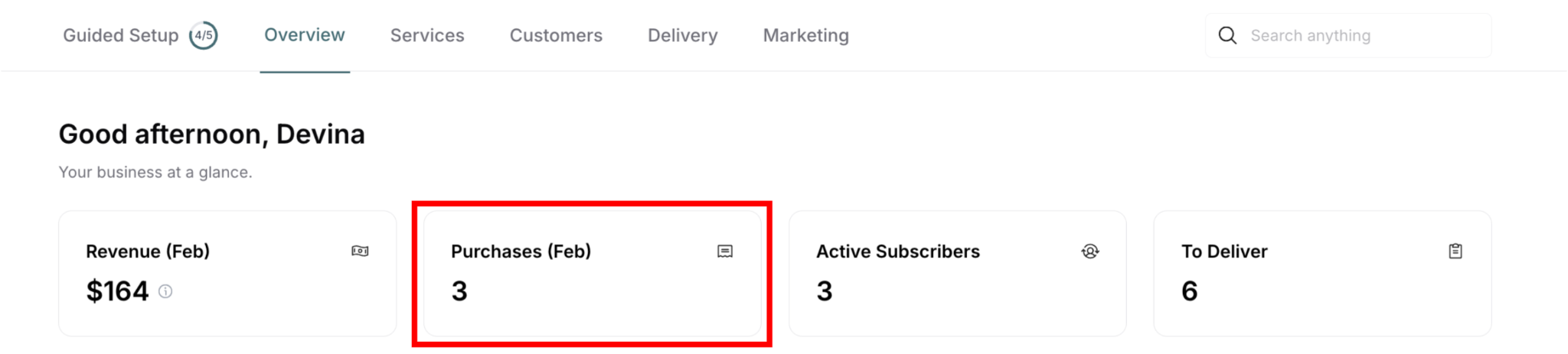
Purchases (Current Month)
What it shows:
Number of purchases in current month
Example: "3"
Month indicated in parentheses: "(Feb)"
Icon: Shopping bag
What counts as a purchase:
New subscriptions started
One-time service purchases
Subscription renewals (if applicable)
Use this to: ✅ Track customer acquisition ✅ Monitor sales volume ✅ Compare purchase trends ✅ Identify busy periods
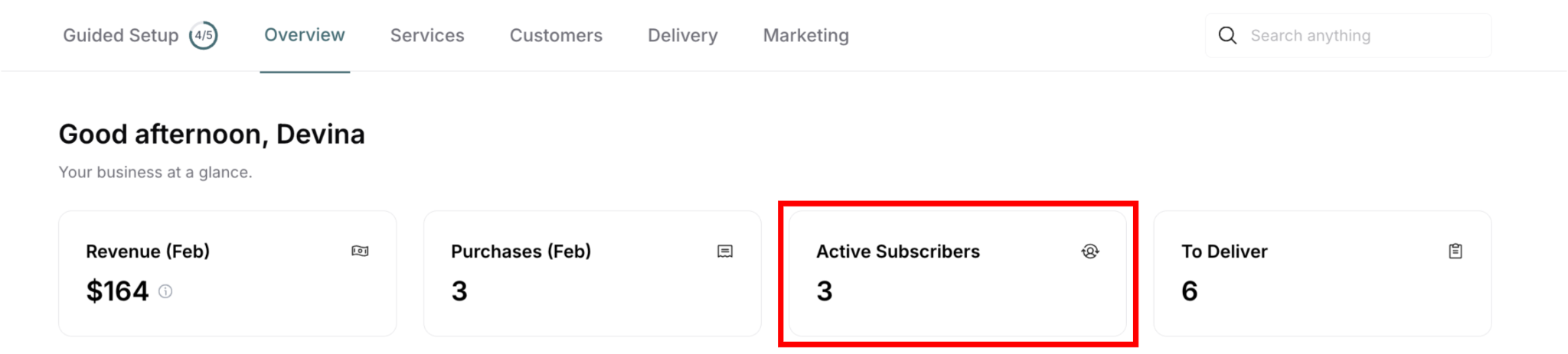
Active Subscribers
What it shows:
Total number of active subscribers
Example: "3"
Real-time count
Icon: Users/people with settings
Who counts as active:
Currently subscribed customers
Paying regular subscriptions
Not canceled or paused
Does not include:
Canceled subscriptions
Expired subscriptions
One-time purchases only
Use this to: ✅ Monitor subscriber base size ✅ Track customer retention ✅ Measure business stability ✅ Plan service capacity
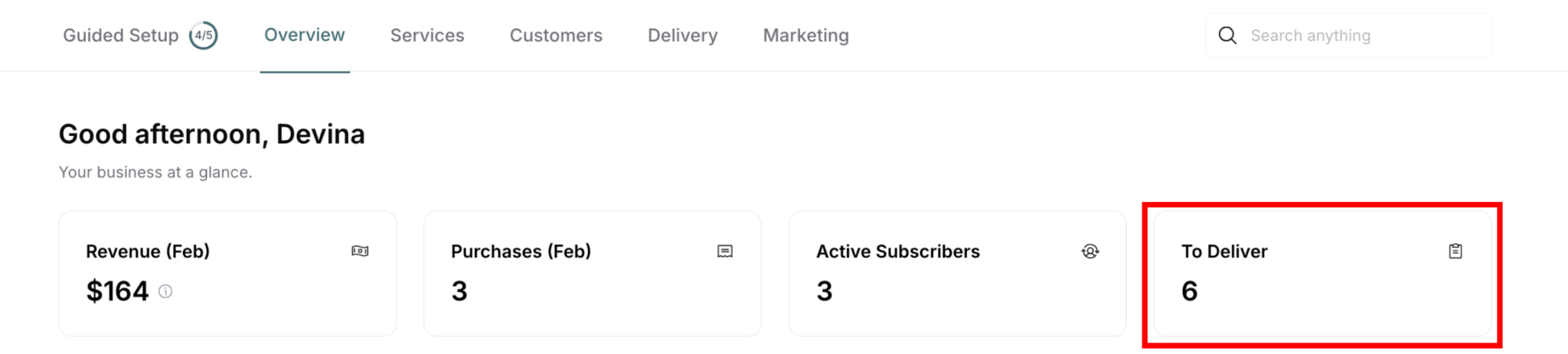
To Deliver
What it shows:
Number of services due for delivery
Example: "6"
Includes all pending deliveries
Icon: Calendar/delivery
What counts:
Service Due deliveries
Overdue deliveries
Scheduled for current period
Use this to: ✅ Plan daily/weekly workload ✅ Identify delivery obligations ✅ Avoid missing deliveries ✅ Manage service capacity
✍️ TIP: High "To Deliver" count means busy schedule ahead. Use this to plan resources and staffing.
Recent Purchases Section
Shows your latest customer transactions:
What This Section Displays
Section heading:
"Recent Purchases"
Subtitle: "Your latest transactions"
Filter: "Past 30 days" (dropdown)
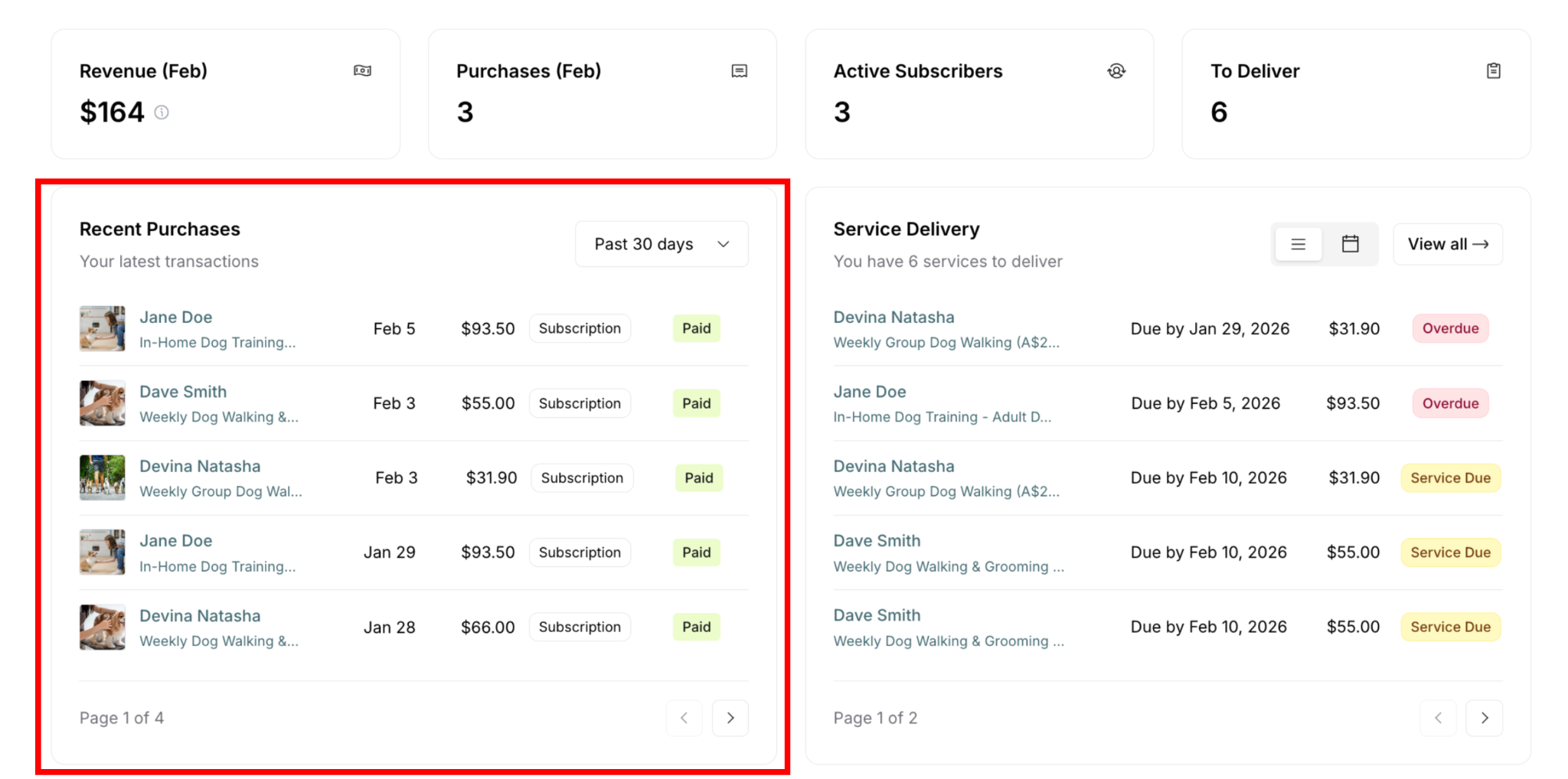
Each purchase shows:
Customer name and avatar
Service name (truncated)
Purchase date (e.g., "Feb 5")
Amount (e.g., "$93.50")
Type: "Subscription" or "One-time"
Status badge: "Paid"
Understanding Purchase Information
Purchase types:
Subscription: Recurring service
One-time: Single service purchase
Status badges:
Paid: Payment received successfully
Using Recent Purchases
Use this section to: ✅ Verify recent payments ✅ Track new customer acquisitions ✅ Monitor subscription signups ✅ Check payment status ✅ Access customer details quickly
Time filter options:
Past 30 days (default), 7 days, 90 days, or last month
Shows most recent activity
Service Delivery Section
Shows all services scheduled for delivery:
What This Section Displays
Section heading:
"Service Delivery"
Subtitle: "You have 6 services to deliver"
View options: List view, Calendar view
"View all →" link
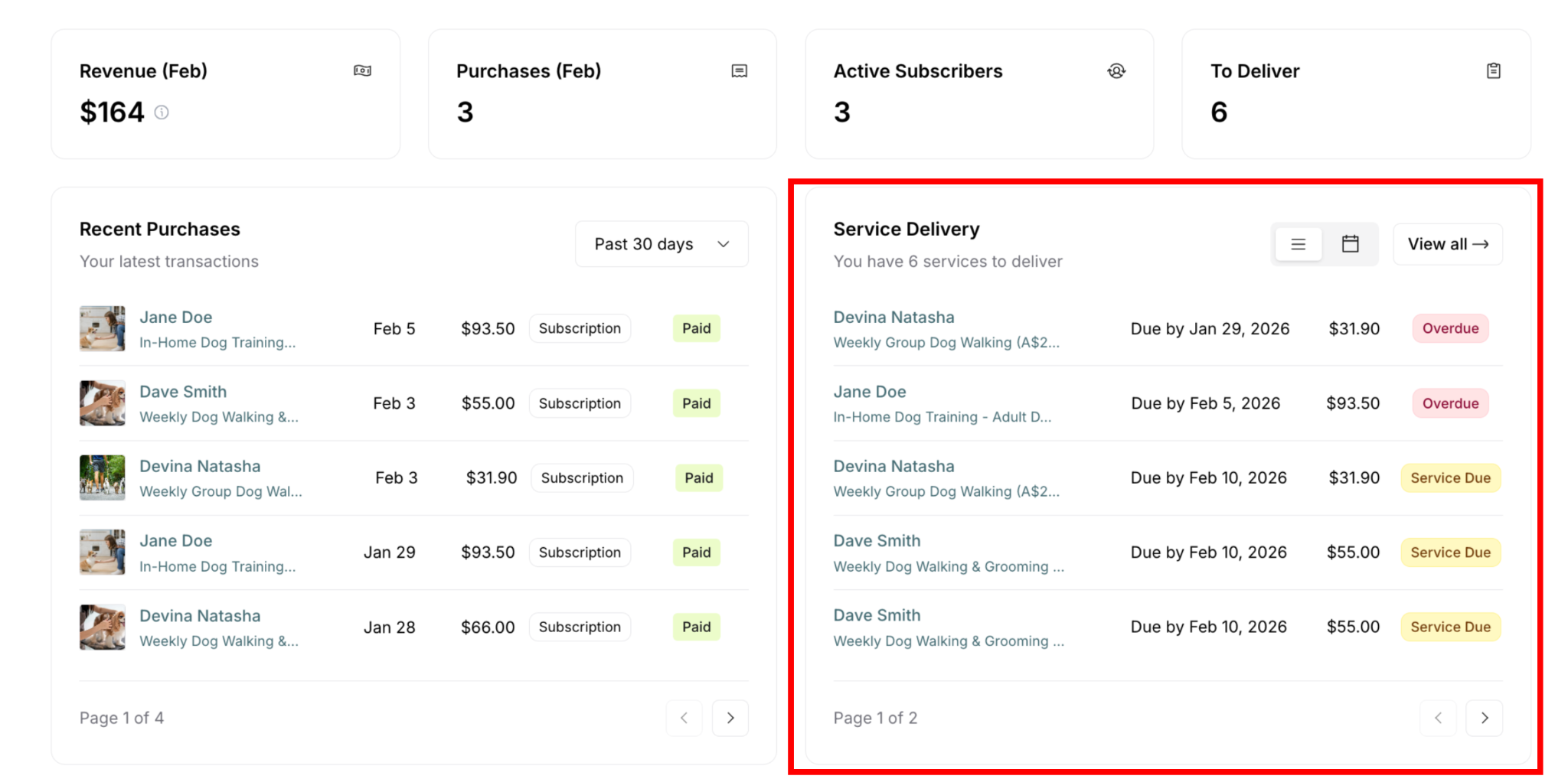
Each delivery shows:
Customer name
Service name (truncated)
Due date (e.g., "Due by Jan 29, 2026")
Amount (e.g., "$31.90")
Status badge: "Overdue" (red) or "Service Due" (yellow)
Understanding Delivery Status
Status badges shown on dashboard:
Service Due (yellow):
Due for delivery soon
Within scheduled period
Not yet overdue
Normal priority
Overdue (red):
Past due date
Requires immediate attention
High priority
May impact customer satisfaction
⚠️ IMPORTANT: Dashboard only shows services requiring action (Service Due and Overdue). It does not display Completed or Cancelled deliveries.
Viewing All Deliveries
To see complete delivery history:
Click "View all →" link (top-right of section)
Opens full Delivery page
Shows all delivery statuses:
Service Due (yellow)
Overdue (red)
Completed (delivered services)
Cancelled (cancelled deliveries)
Why dashboard filters:
Focuses on actionable items
Reduces clutter
Highlights what needs attention
Completed/cancelled don't require action
✍️ TIP: Dashboard shows only what needs your attention. Use "View all →" to see complete delivery records, track completed services, or review cancelled items.
Using Service Delivery
Use this section to: ✅ Plan daily delivery schedule ✅ Identify overdue services immediately ✅ Prioritize urgent deliveries ✅ Contact customers about scheduling ✅ Mark services complete as delivered
Sales Activity Chart
Visual graph showing financial trends:
Time period filters:
7 Days
30 Days
90 Days
1 Year
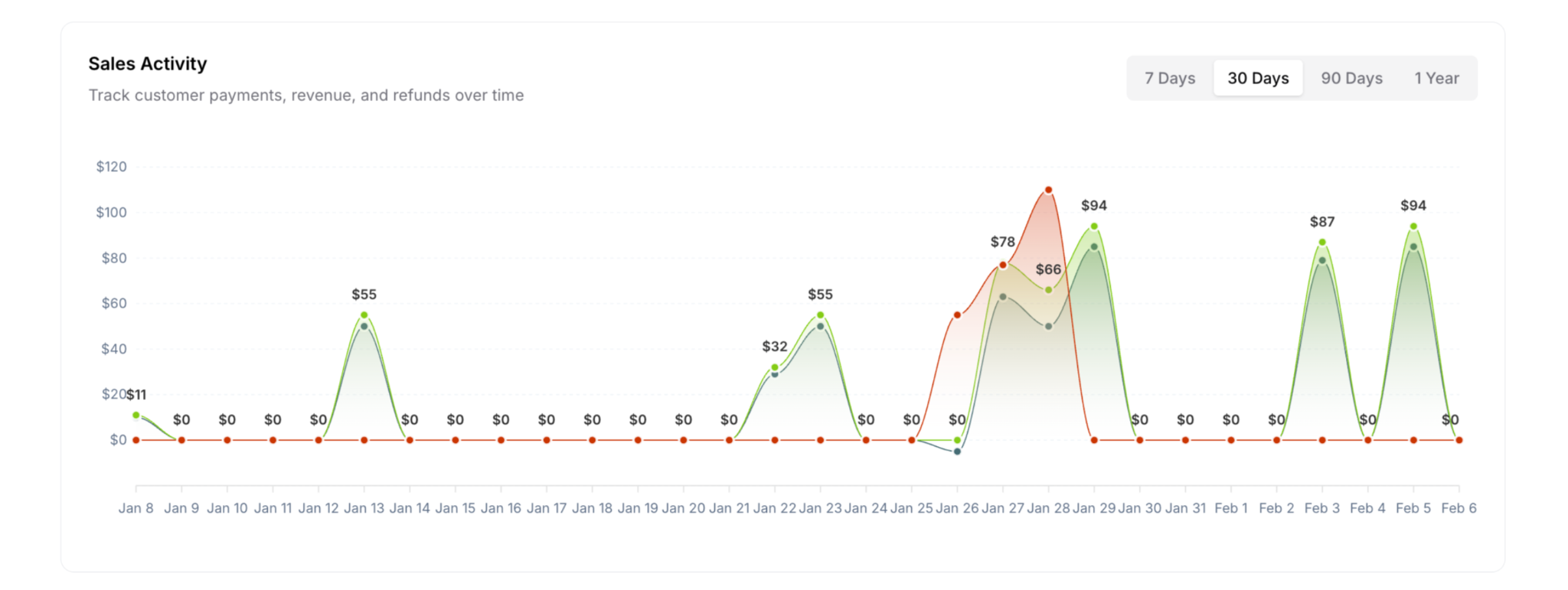
Chart shows three metrics:
Sales (green line): Revenue from new sales
Refunds (red/orange line): Money refunded to customers
Revenue (dark/gray line): Net revenue (sales minus refunds)
Chart features:
Three colored lines tracking different metrics
Data points with amounts labeled
Hover tooltip showing details for specific date
Y-axis: Dollar amounts (vertical)
X-axis: Time period/dates (horizontal)
Peaks and valleys showing trends
Reading the Chart
Understanding the three lines:
Sales (green line):
Gross revenue from purchases
New subscriptions and renewals
Before any refunds
Shows business income activity
Refunds (red/orange line):
Money returned to customers
Cancelled subscriptions
Refund requests processed
Shows business costs
Revenue (dark/gray line):
Net revenue (Sales - Refunds)
Actual money retained
True business income
Most important metric
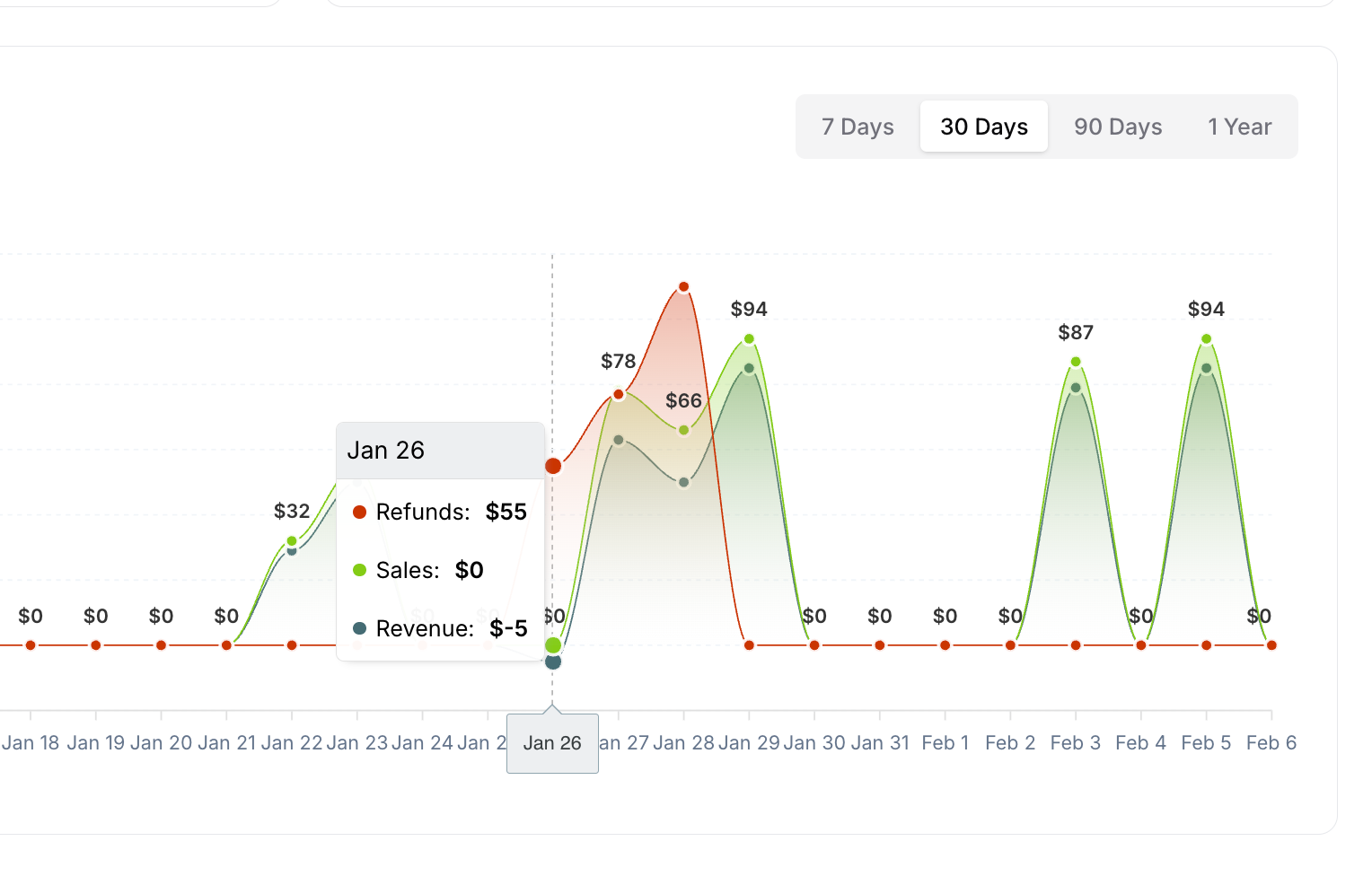
Hover tooltip:
Hover mouse over any date
Tooltip shows all three metrics
Example for Jan 26:
Refunds: $55
Sales: $0
Revenue: $-5 (negative due to refund without new sales)
Understanding Chart Patterns
Interpreting the data:
High green peaks:
Days with strong sales
Successful sales days
Subscription renewal dates
New customer acquisitions
High red peaks:
Days with refund activity
Customer cancellations
Refund requests processed
May indicate service issues
Revenue line below zero:
More refunds than sales that day
Negative revenue day
Example: Jan 26 shows $-5 (refunded $55, no new sales)
Revenue matching sales:
No refunds that day
All sales retained
Healthy business day
Flat lines at $0:
No activity that day
No sales, refunds, or revenue
Slower business periods
Using Sales Activity
Use this chart to: ✅ Track daily financial performance ✅ Identify sales patterns and cycles ✅ Monitor refund frequency ✅ Calculate true net revenue ✅ Spot problem periods (high refunds) ✅ Recognize subscription renewal dates ✅ Compare different time periods ✅ Forecast future revenue
What to look for:
✅ Positive signs:
Green line consistently above red
Growing sales trend
Low refund activity
Revenue line tracks with sales
⚠️ Warning signs:
Red line frequently high (many refunds)
Revenue line often negative
Declining sales trend
Sales and refunds equal (losing all revenue to refunds)
✍️ TIP: Hover over data points to see exact amounts. If you see high refund spikes, investigate those dates—what happened? Customer complaints? Service issues? Billing problems?
Your Services Section
Shows performance of each individual service:
What This Section Displays
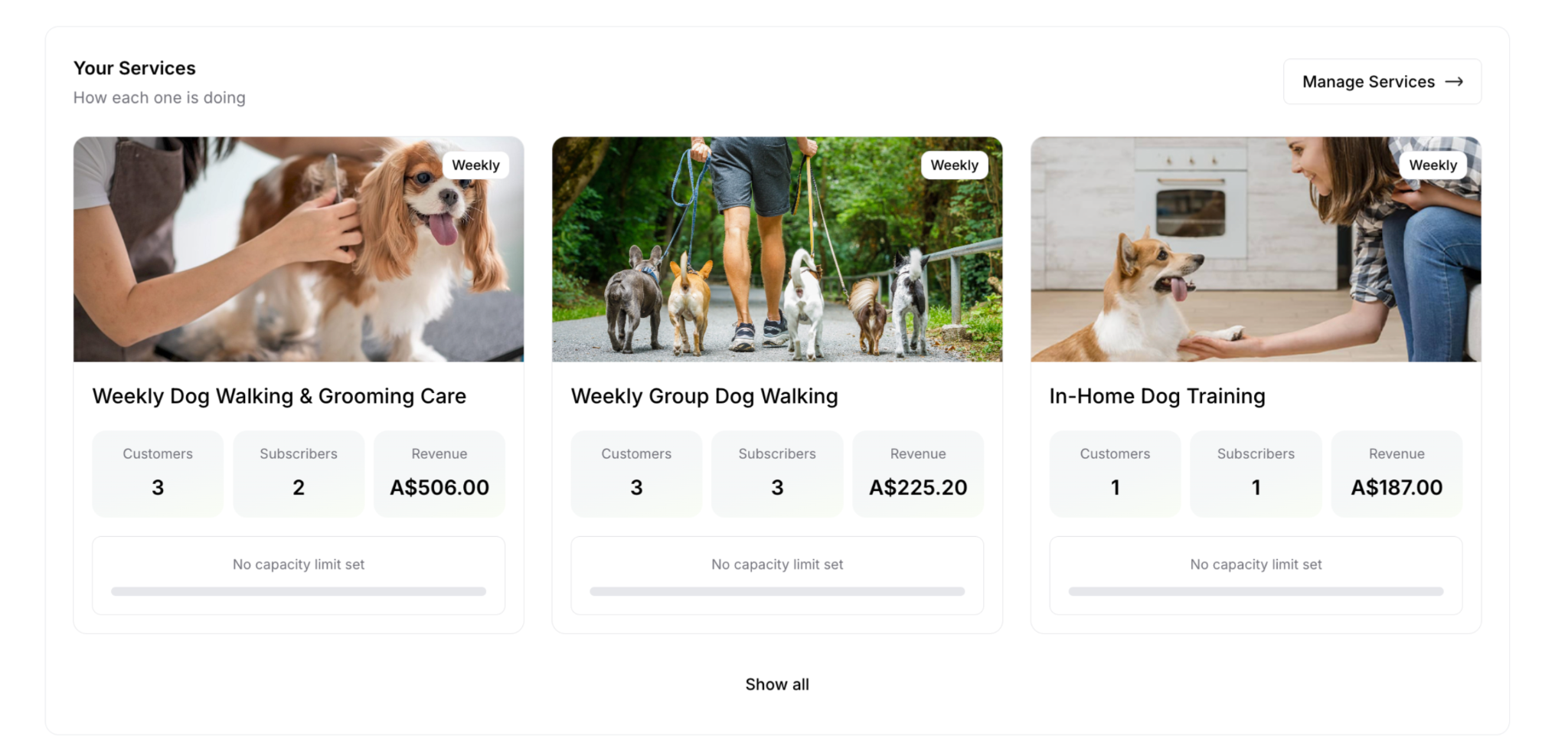
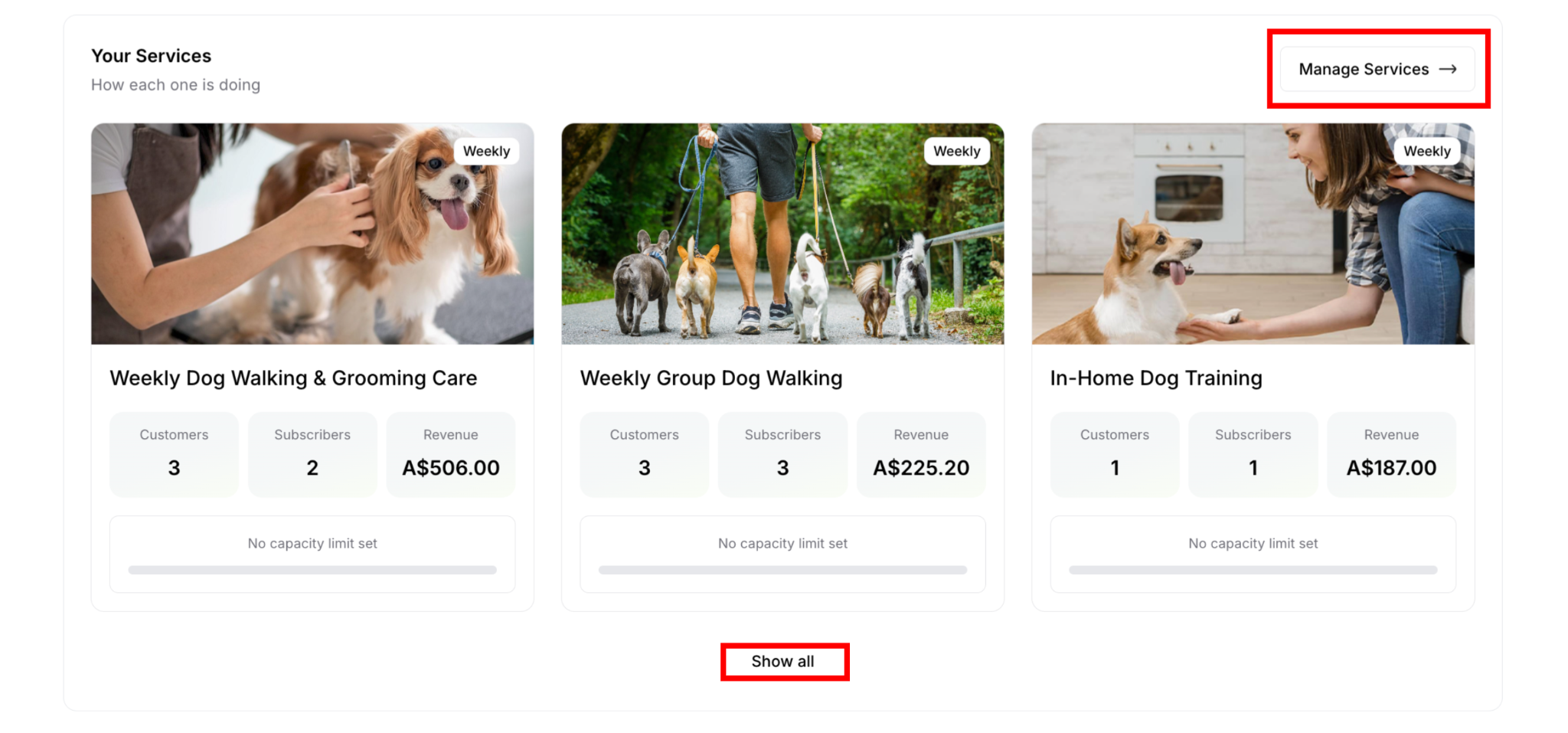
Each service card shows:
Service image
Service name
Frequency badge (e.g., "Weekly")
Three metrics:
Customers: Number of customers
Subscribers: Number of active subscribers
Revenue: Total revenue generated
Capacity status: "No capacity limit set"
Card layout:
Grid format (3 cards per row on desktop)
Visual service photos
Key performance metrics
At-a-glance comparison
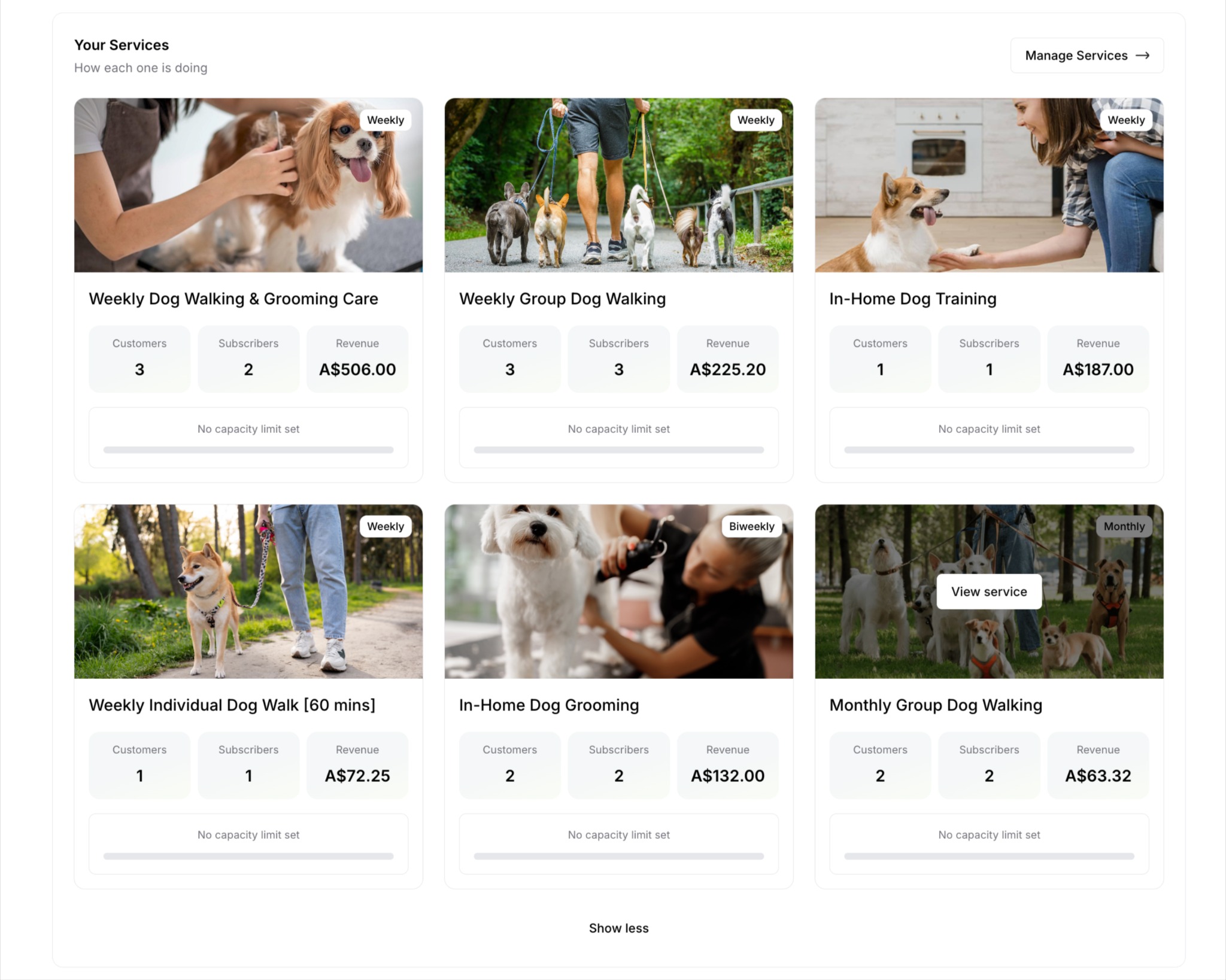
"Show all" button if more than 3 services
Understanding Service Metrics
Customers:
Total number of all customers (one-off + subscribers)
Includes one-time purchasers
Includes active subscribers
Lifetime count for this service
Subscribers:
Active recurring subscribers only
Does not include one-off purchasers
Real-time subscription count
Always equal to or less than Customers
Example:
Customers: 3 (2 subscribers + 1 one-off purchase)
Subscribers: 2 (recurring only)
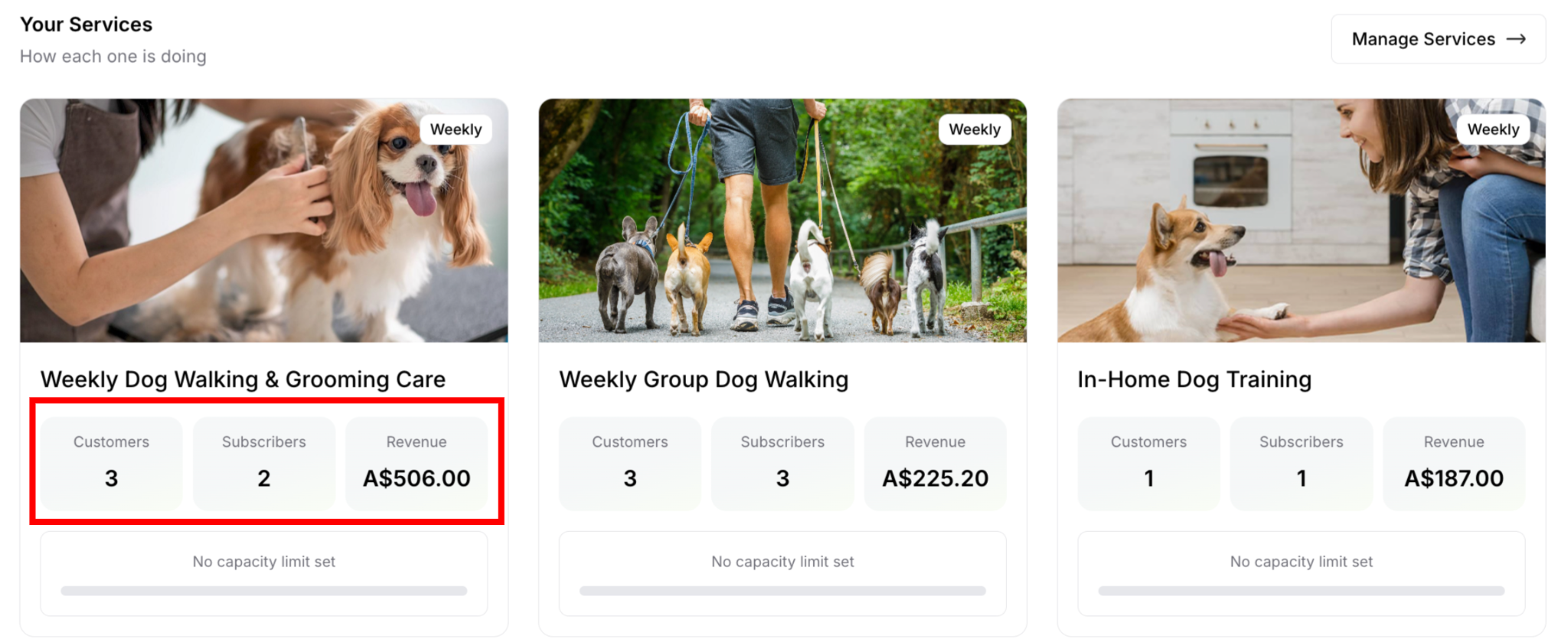
⚠️ IMPORTANT: Customers count is always equal to or higher than Subscribers count because Customers includes both one-off purchasers and subscribers, while Subscribers counts only recurring subscriptions.
Revenue:
Total revenue from this service
All-time cumulative
Format: "A$506.00"
Includes both subscription and one-off revenue
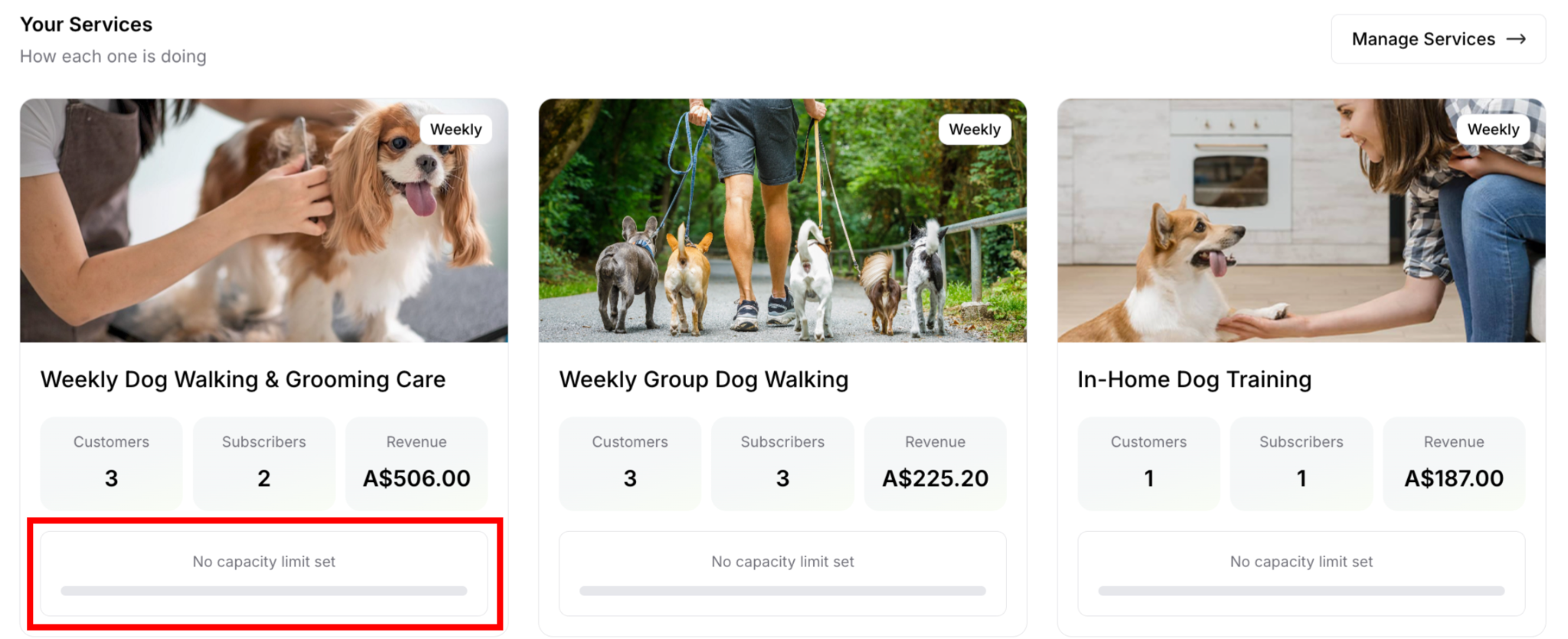
Capacity status:
"No capacity limit set" = Unlimited bookings
Shows limit if capacity configured (e.g., "5 of 10 spots filled")
Helps manage service availability
Using Your Services
Use this section to: ✅ Compare service performance ✅ Identify best-selling services ✅ See subscriber retention rates ✅ Track revenue by service ✅ Understand one-off vs subscription split ✅ Identify underperforming services ✅ Make decisions about service offerings
Quick Actions
Show all button:
Click to expand the card
Shows all services in expanded view
Stays on same page (doesn't redirect)
Click again to collapse
Manage Services → link:
Redirects to Services menu
Add new services
Edit existing services
✍️ TIP: If you see high Customers but low Subscribers, consider why customers aren't converting to subscriptions. Is pricing too high? Are benefits unclear? Would a discount help?
Recent Activity Section
Timeline of unread business events:
What This Section Displays
Each activity shows:
Icon indicating activity type
Activity title with red dot (● = unread)
Activity description
Timestamp (e.g., "3 hours ago")
"Mark as read" button (appears on hover)
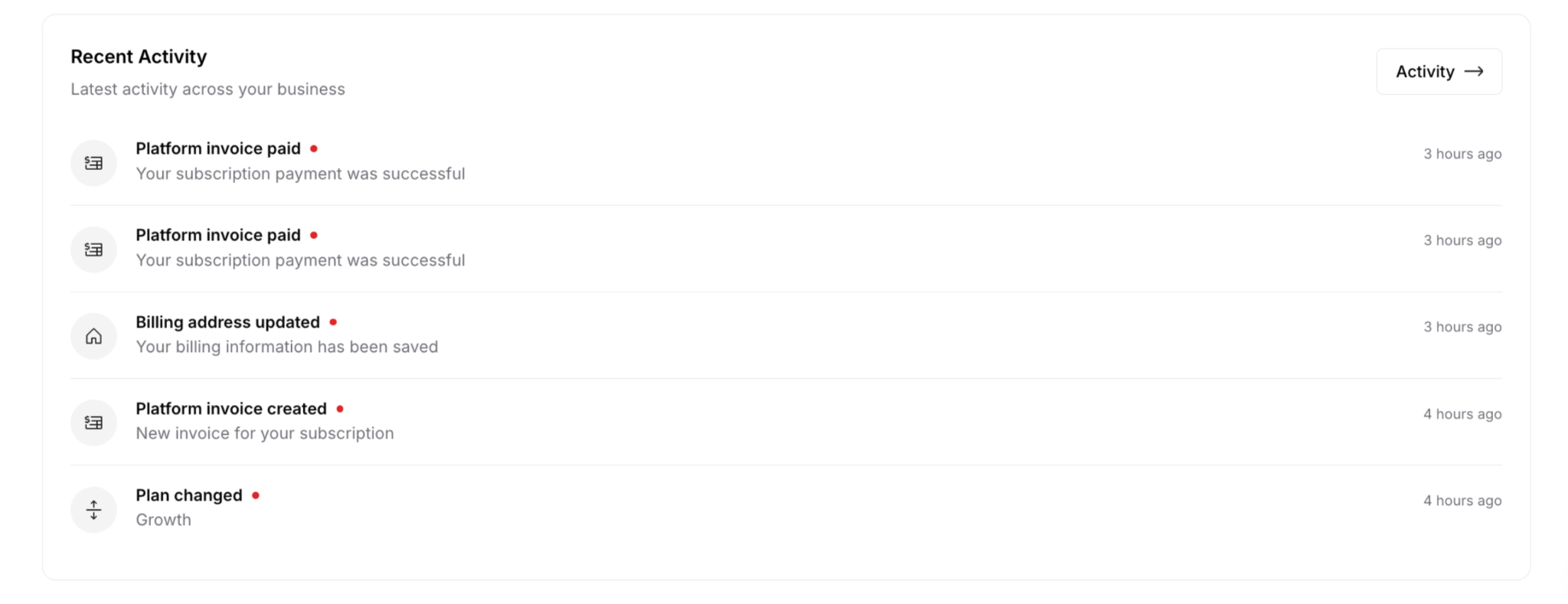
Activity types:
Platform invoice paid ●
Platform invoice updated ●
Billing address updated ●
Platform invoice created
Other system events
⚠️ IMPORTANT: This section only shows unread activities. Once marked as read or after viewing details, activities disappear from this list.
Managing Activity Items
Mark as read:
Hover over any activity row
"Mark as read" button appears (right side)
Click "Mark as read"
Activity removes from Recent Activity list
Still accessible in full Activity page

Why mark as read: ✅ Acknowledge you've seen it ✅ Keep list focused on new items ✅ Reduce dashboard clutter ✅ Track what you've reviewed
Viewing all activities:
Click "Activity →" link (top-right)
Redirects to Notifications & Activity menu
Shows all activities (read and unread)
Complete activity history
Filter and search options
Using Recent Activity
Use this section to: ✅ Monitor new platform events ✅ Track customer account changes ✅ Verify payment processing ✅ Stay informed of system updates ✅ Identify items needing attention ✅ Audit business activities
Dashboard Navigation Tips
Quick Access
From dashboard, quickly access:
Services: Click "Manage Services →" → Services menu
Customers: Click customer name in any list
Delivery: Click "View all →" in Service Delivery
All Activities: Click "Activity →" → Notifications & Activity menu
✍️ TIP: Bookmark your dashboard page for quick morning check-ins. Most business owners start their day here.
✍️ TIP: Your dashboard is your business command center. Make it your first stop every morning and your last check every evening. Pay special attention to:
Was this article helpful?
That’s Great!
Thank you for your feedback
Sorry! We couldn't be helpful
Thank you for your feedback
Feedback sent
We appreciate your effort and will try to fix the article