Customer communication settings control which automated emails your subscribers receive throughout their subscription journey.
What Are Customer Communications?
Automated emails sent to customers at key moments:
Benefits:
Keep customers informed automatically
Reduce "when is my service?" questions
Professional, consistent experience
Save you time on manual communication
Build trust and satisfaction
✍️ TIP: These emails work 24/7 to keep customers informed. Enable them to reduce your communication workload while improving customer experience.
Accessing Communication Settings
During Service Creation
Create or edit a service
Navigate to the Settings tab
Scroll to Customer Communications
Tick/untick the checkboxes of each email type
Service settings showing customer communication toggle options
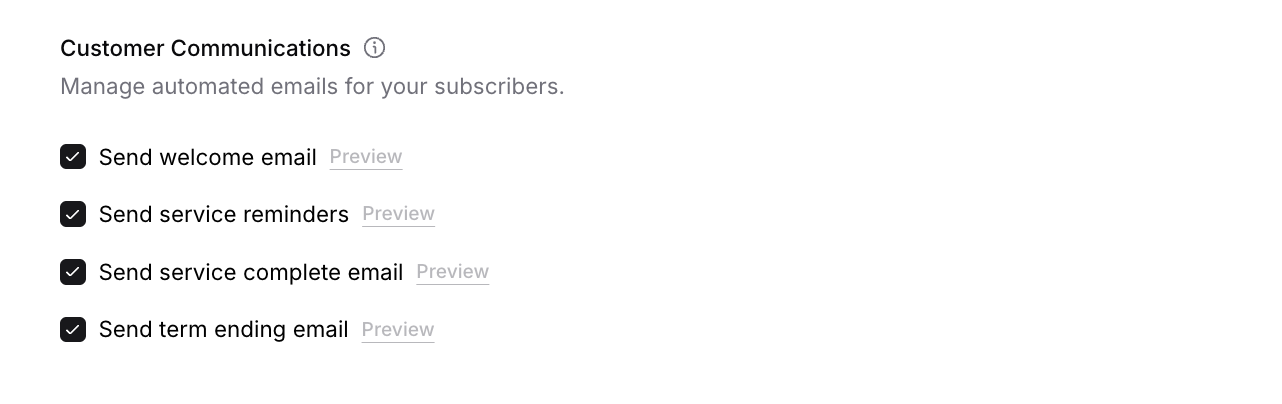
For Existing Services
Go to Services page
Click the three-dot menu (•••) next to the service
Select Service Details from the dropdown
Navigate to the Settings tab
Update communication preferences
Click Save to apply changes
Email Types Explained
Welcome Email
When sent: Immediately after customer subscribes
What it includes:
Thank you for subscribing
Service details and frequency
What to expect next
Your contact information
Next service date
✅ RECOMMENDED: Always enable. This is your first impression and confirmation rolled into one.
Preview example: "Welcome to [Your Business]! Thank you for subscribing to our [Service Name]. Your first service is scheduled for [Date]. We're excited to serve you!"
Service Reminders
When sent: Before service is due (typically 24-48 hours ahead)
What it includes:
Upcoming service notification
Service date and time window
What customer should prepare
Rescheduling information
Contact details
✅ RECOMMENDED: Enable for services requiring customer preparation or access.
Preview example: "Your [Service Name] is scheduled for tomorrow, [Date]. Please ensure gates are unlocked and pets are secured. Need to reschedule? Contact us at [Phone]."
Service Complete Email
When sent: After you mark a service as complete
What it includes:
Confirmation service was delivered
What was done
Next service date
Thank you message
Feedback request (optional)
✅ RECOMMENDED: Enable for professional touch and confirmation.
Preview example: "Your [Service Name] has been completed! We [brief description of work]. Your next service is scheduled for [Date]. Questions? We're here to help!"
Term Ending Email
When sent: Before subscription term ends (only if maximum term is set)
What it includes:
Notification term is ending soon
Renewal options
How to continue service
What happens if they don't renew
Contact information
ONLY RELEVANT IF: You've set a maximum subscription term in Terms & Policies
⚠️ IMPORTANT: This email only applies to services with maximum terms (e.g., 12-month subscriptions). If your service runs indefinitely, this setting doesn't apply.
Preview example: "Your [Service Name] subscription ends on [Date]. To continue service, renew by [Date]. Questions about renewal? Contact us at [Phone]."
Configuring Communication Settings
Enabling Emails
For each email type:
Check the box to enable
Uncheck to disable
Click preview icon to see email template
Save your service
Default recommendation:
✅ Welcome email: ON
✅ Service reminders: ON
✅ Service complete: ON
✅ Term ending: ON (if applicable)
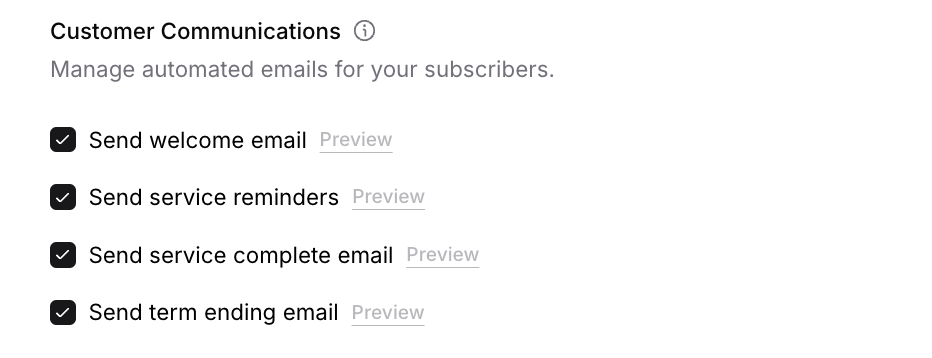
✅ BEST PRACTICE: Enable all relevant emails. More communication is almost always better than less in subscription businesses.
Previewing Email Templates
Before enabling, preview what customers receive:
Click the preview icon next to each email type
Modal shows email design and content
Review for tone and clarity
Close preview when done
✍️ TIP: Preview emails to ensure they match your brand voice and provide the right information.
How Communications Work
Automatic Sending
Once enabled, emails send automatically:
Welcome: Triggers when customer completes subscription
Reminder: Sends 24-48 hours before service due
Complete: Triggers when you mark service complete
Term ending: Sends 7-14 days before term expires
Customer Email Preferences
Customers can manage their email preferences:
Through their customer portal
By clicking unsubscribe links
⚠️ IMPORTANT: Customers can opt out of marketing emails, but critical transactional emails (like payment receipts) still send.
Email Content and Branding
What's Included Automatically
All emails include:
Your business name
Service details
Relevant dates and information
Your contact information
Professional formatting
✍️ TIP: While templates are standardized, they pull your business name, service details, and contact info to personalize each email.
Was this article helpful?
That’s Great!
Thank you for your feedback
Sorry! We couldn't be helpful
Thank you for your feedback
Feedback sent
We appreciate your effort and will try to fix the article