ServiceSubscriber's AI assistant helps you create professional service plans in minutes. Simply describe what you do, and AI generates your service name, description, and pricing suggestions.
This guide walks you through creating your first service using AI.
Before You Start
Have these details ready:
What service you provide (e.g., window cleaning, lawn care)
How often you deliver it (weekly, monthly, etc.)
Approximate pricing
3-6 photos of your work (optional but recommended)
✍️ TIP: Don't worry about perfection. AI generates a starting point—you can edit everything afterward.
Starting Service Creation
From Guided Setup
Navigate to your Guided Setup page
Click Build your first service plan
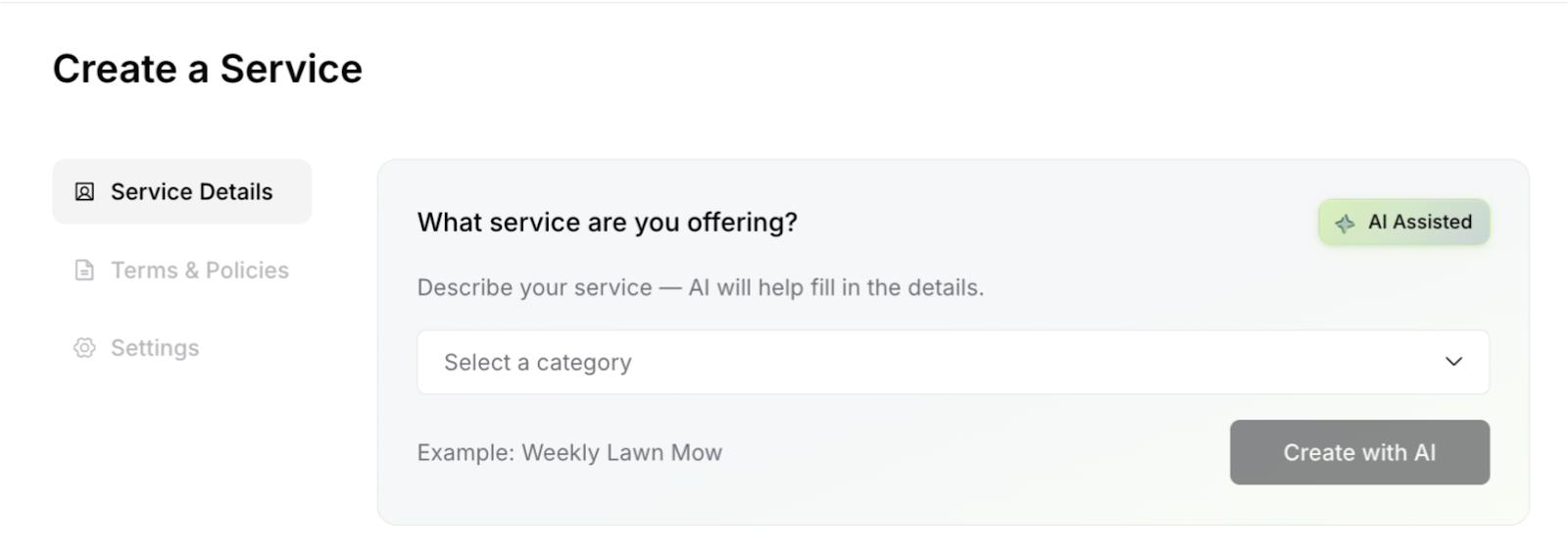
Select Create with AI
From Services Page
Click Services in the main navigation
Click Create Service
Choose Create with AI
Service creation screen showing Create with AI option
Step 1: Choose Your Category
Help AI understand your service type:
Click the Category dropdown
Select the closest match, example:
Home Services
Personal Care
Vehicle Services
Choose the best fit for your service
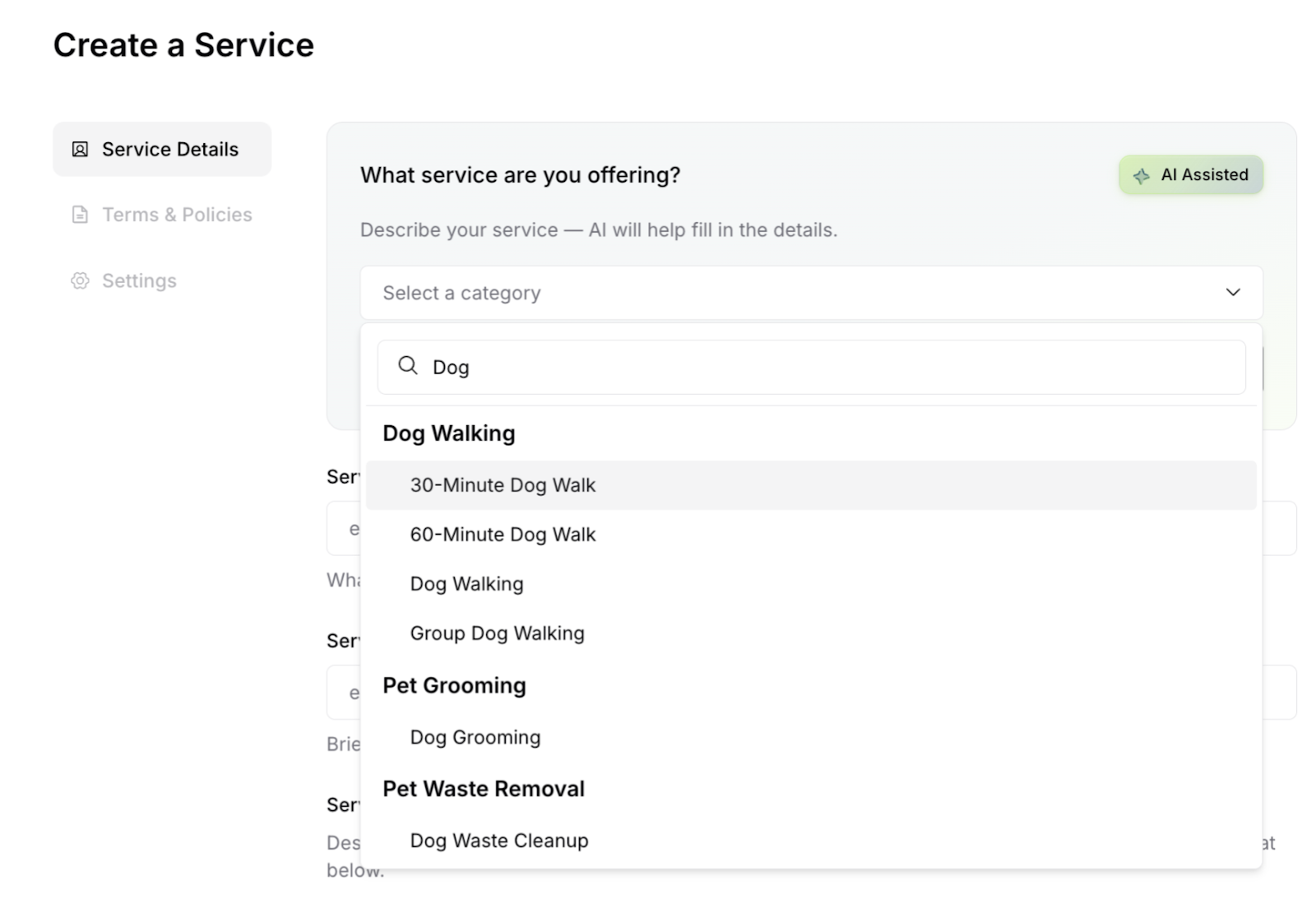
✍️ TIP: Choose the closest category even if not perfect. You can edit the AI-generated content to match your specific service.
Step 2: Generate and Review
Click Generate and watch AI create:
Service Title
Example generated: "Professional Window Cleaning Service"
Clear and descriptive
Customer-friendly
Edit by clicking the field
Service Tagline
Example generated: "Crystal-clear windows delivered monthly"
Brief and compelling
Highlights key benefit
Service Description
Example generated: "Our professional window cleaning service ensures your home maintains pristine, streak-free windows year-round. Each monthly visit includes thorough cleaning of all interior and exterior windows, screens, and sills using environmentally friendly solutions."
Important Notes
Example generated: "Service requires access to the exterior of property. Please ensure gates are unlocked on service day."
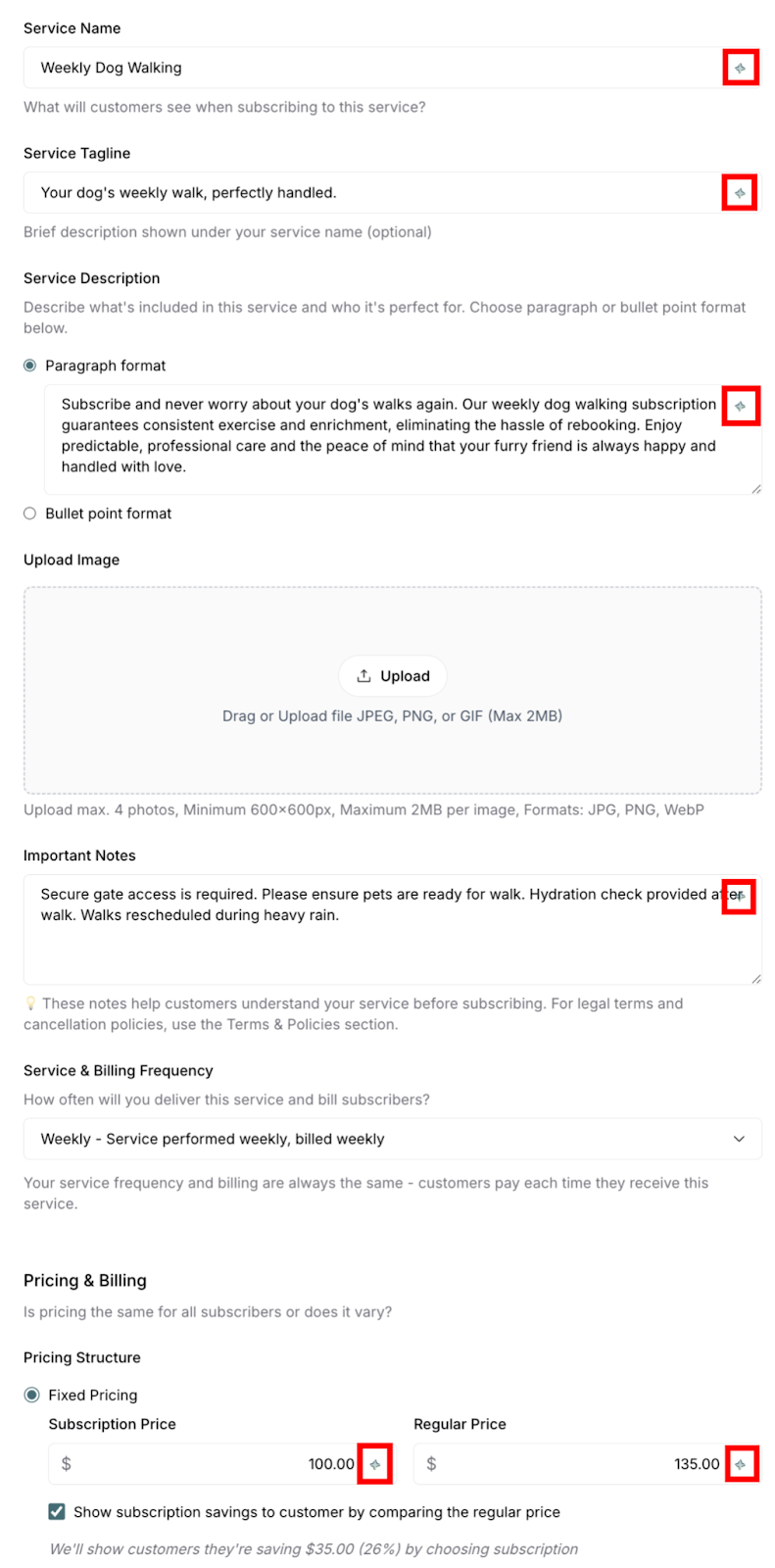
Service fields populated with AI-generated content showing AI indicators
✍️ TIP: AI icon appears next to generated text. Click any field to edit and personalize.
Step 4: Review AI Pricing
AI suggests competitive pricing based on your service:
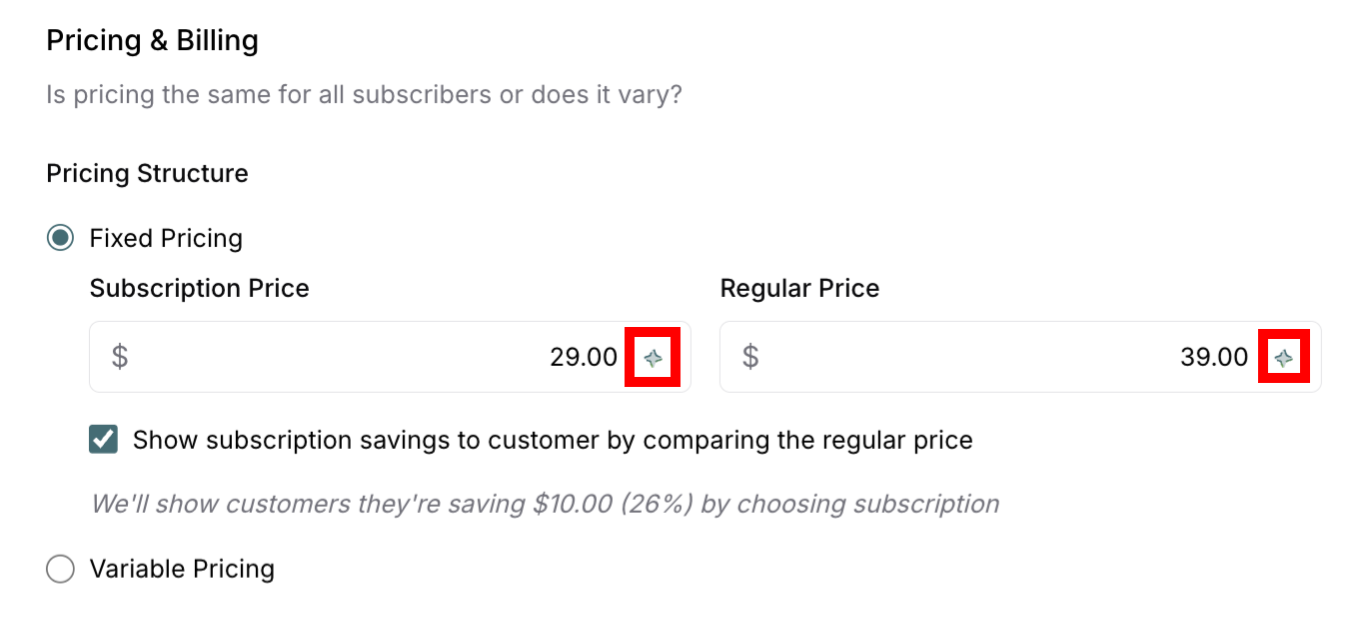
Subscription Price:
Recurring price for subscribers
Based on service type and frequency
Example: $85/month for window cleaning
Regular Price:
One-time service price
Typically 20-30% higher than subscription price
Example: $110/visit
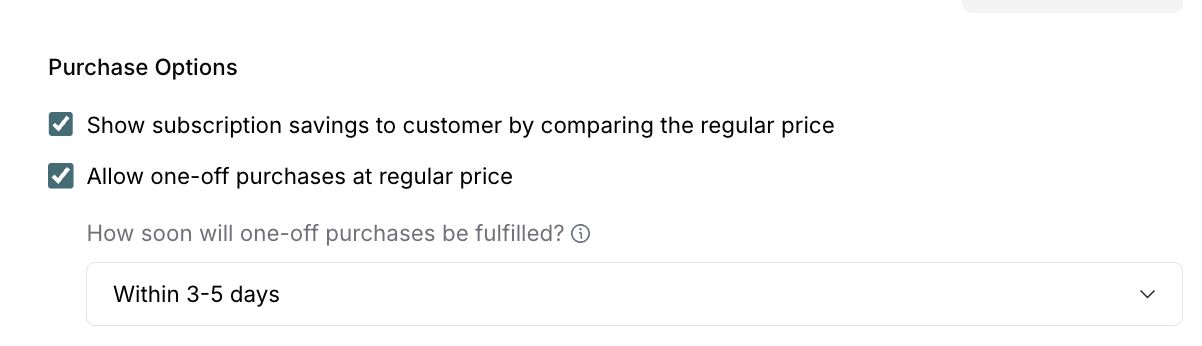
Purchase Options (AI-suggested):
AI will also configure the Purchase Options settings based on your service type:
Show subscription savings: AI may enable this to highlight the value of subscribing by comparing subscription and regular prices
Allow one-off purchases: AI typically enables this to give customers flexibility in how they purchase your service
Fulfillment timeline: AI suggests a realistic timeframe for one-off service delivery (e.g., "Within 3-5 days")
Review and adjust:
You can review these AI-suggested settings and make changes based on your preferences:
If you only want subscription customers (no one-off purchases), uncheck "Allow one-off purchases"
If you don't want to display savings comparison, uncheck "Show subscription savings"
Adjust the fulfillment timeline to match your actual capacity
Refer to the Purchase Options section for detailed information about when to enable or disable these settings.
Step 5: Add Service Images
Upload 3-6 high-quality photos:
Click Add Images
Select your photos
Show your work, results, or team
Best images:
Before/after comparisons
Completed work
Professional appearance
High resolution, good lighting
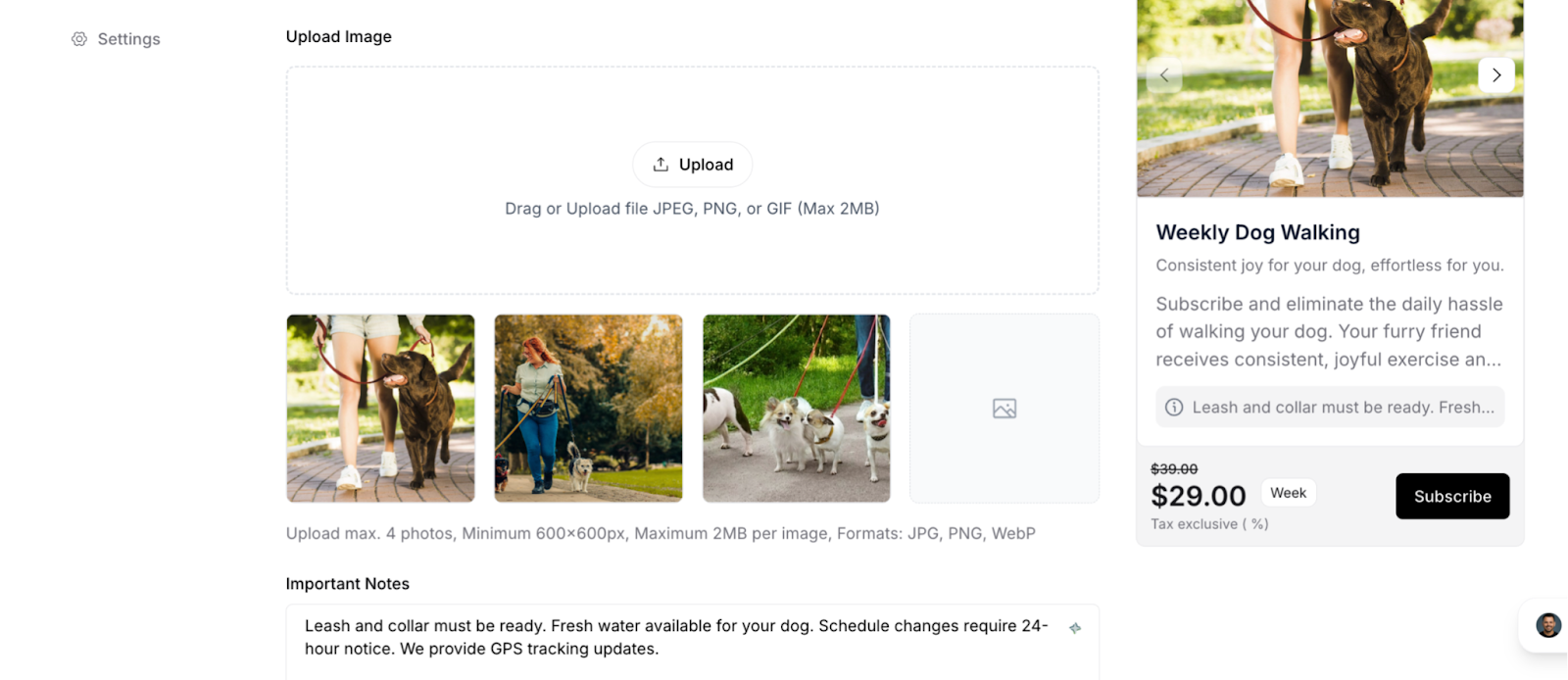
✅ BEST PRACTICE: Start with 2-3 quality images. Add more as you build your portfolio.
Step 6: Configure Service Details
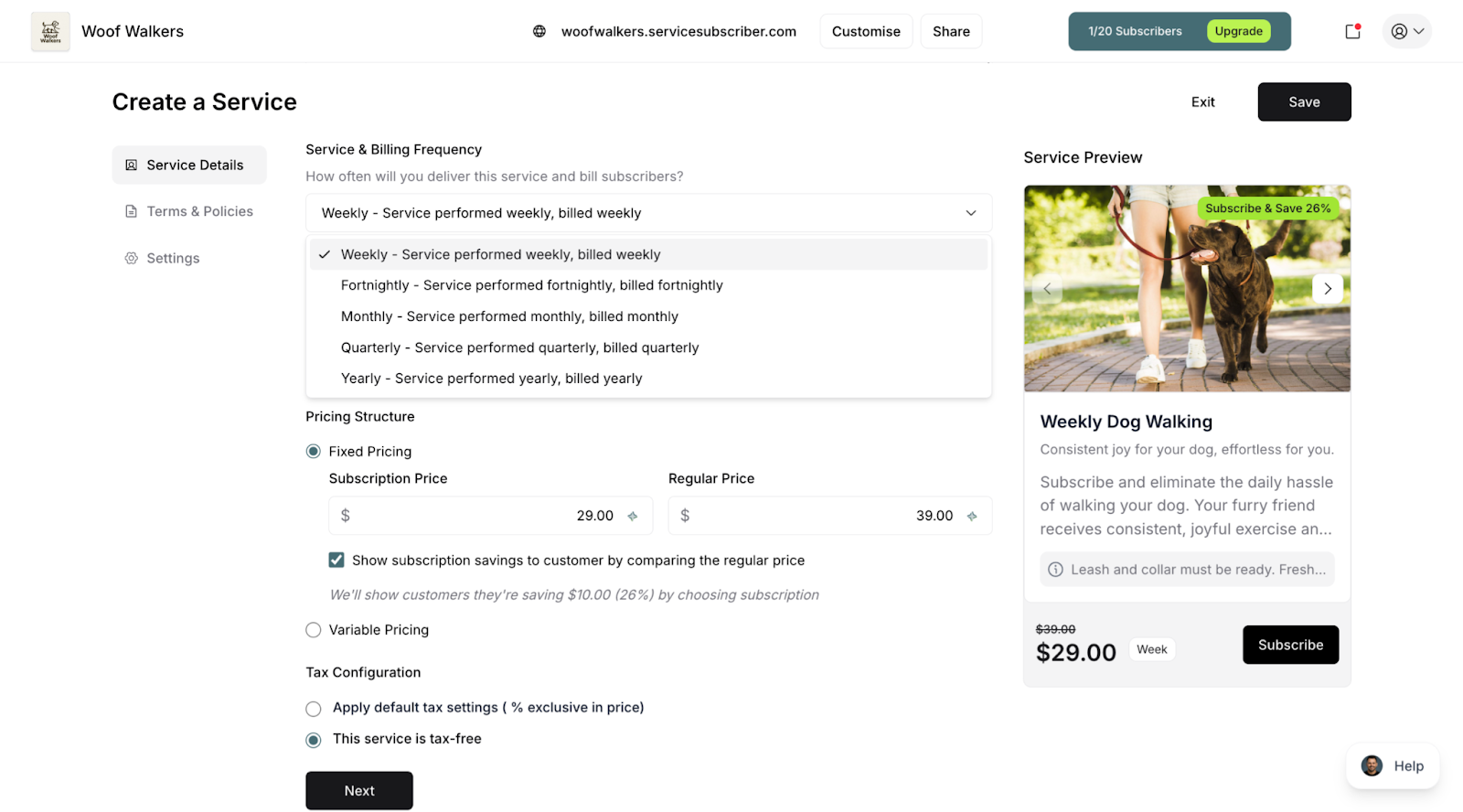
Service Frequency
Select billing and delivery frequency:
Weekly
Fortnightly
Monthly
Quarterly
Tax Settings
Choose tax treatment:
Apply default tax settings (GST 10% exclusive): Tax is calculated and added at checkout based on your account's default tax configuration. The price you set is the base price, and tax is added on top when customers purchase.
This service is tax-free: No tax is calculated or added to the price. Customers pay exactly the price you set with no additional tax charges at checkout.
Service frequency dropdown and tax settings toggle
Step 7: Set Terms & Policies
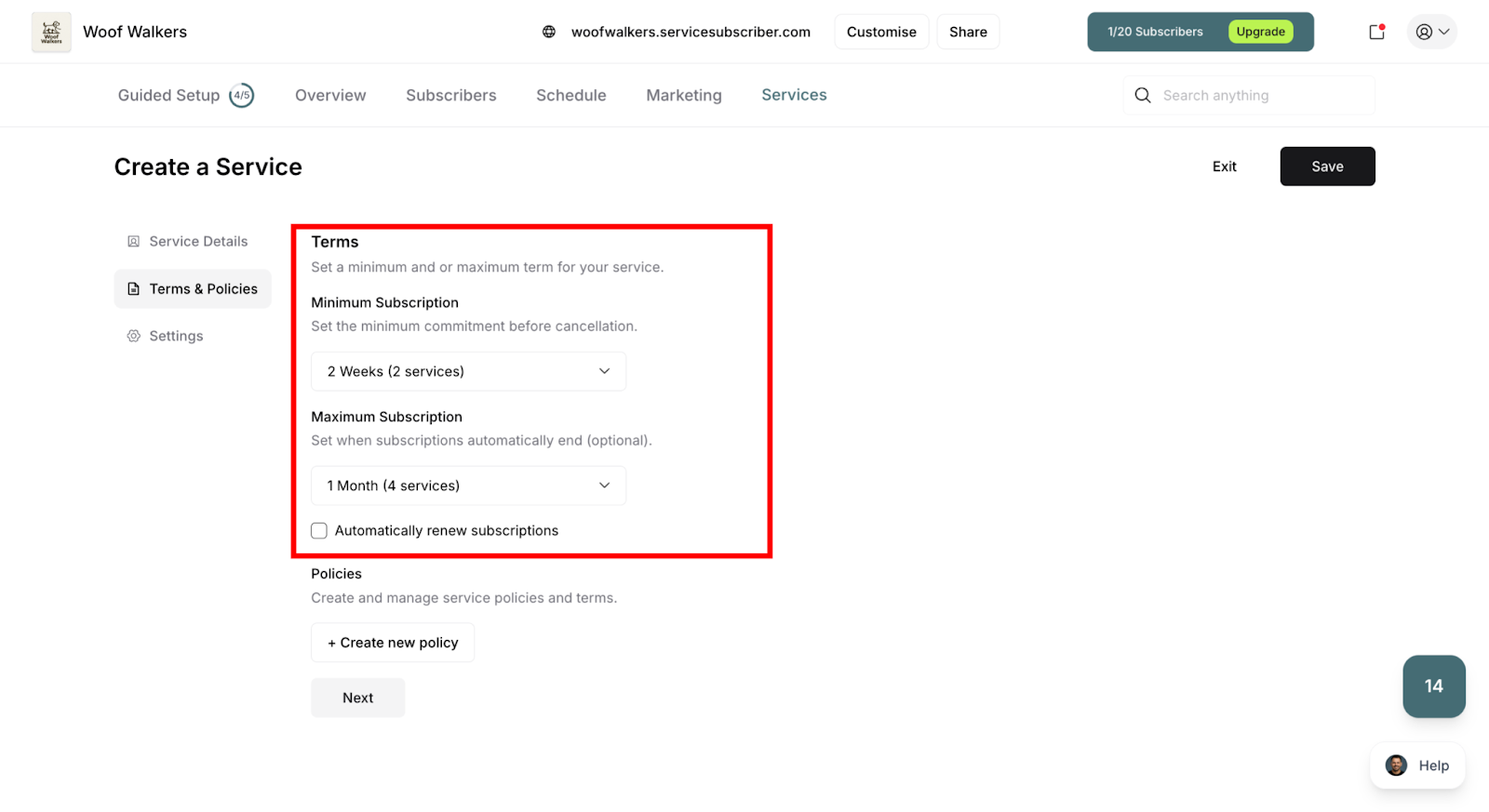
Minimum Term
No minimum (cancel anytime) - Recommended
1, 3, or 6 months minimum
Maximum Term
No maximum (runs indefinitely) - Most common
12 or 24 months maximum
Auto-Renewal
Enable if using maximum term
Subscription continues automatically
Subscription terms showing minimum, maximum, and auto-renewal settings
✍️ TIP: "No minimum, no maximum" reduces friction and builds trust. Use minimums only if essential.
Step 8: Configure Settings
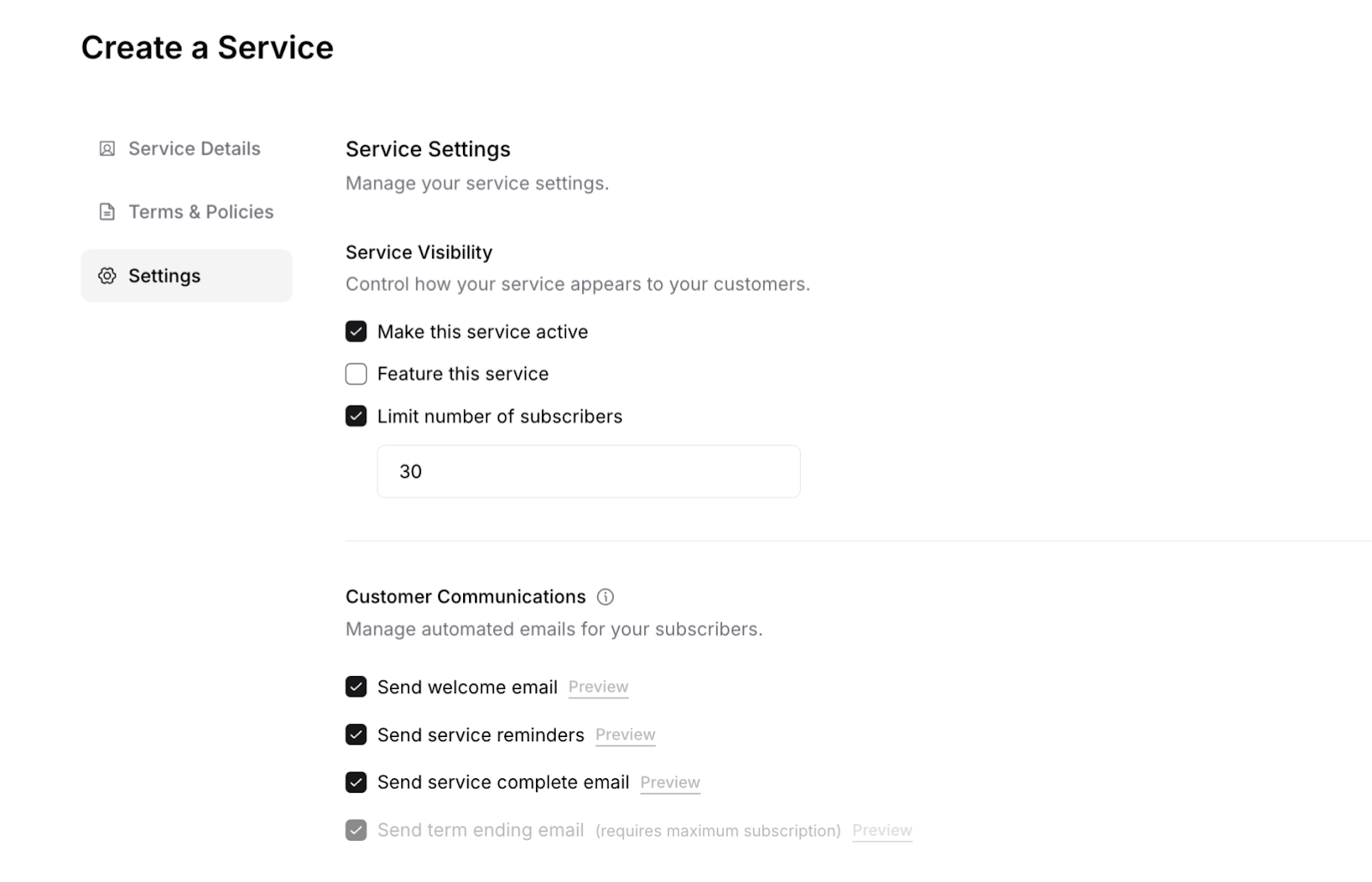
Service Visibility
Show on live site (checked by default):
Service appears on your public subscription page for customers to find and purchase
Controls visibility for both subscriptions and one-off purchases
Uncheck to hide service from public while keeping existing customers
Limit number of subscribers (optional):
Set maximum capacity for subscription purchases only
Example: "Limited to 30 subscribers"
Service subscriptions become unavailable when limit is reached
Important: This limit only applies to subscriptions, not one-off purchases
If you have both purchase options enabled and reach the subscriber limit:
New subscriptions: Not available (limit reached)
One-off purchases: Still available (no limit applies)
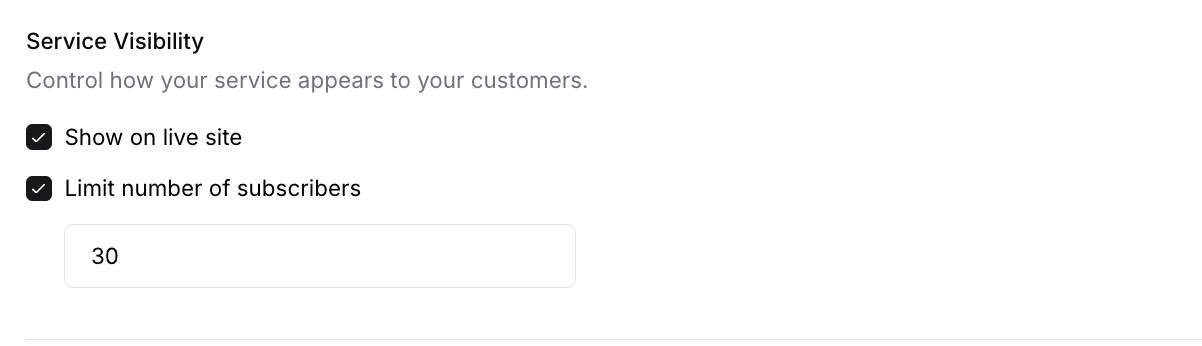
✍️ TIP: Use subscriber limits to manage your recurring workload while still accepting one-off purchases. This gives you capacity control for committed customers while allowing flexibility for occasional service requests.
Customer Communications
Choose which automated emails to send:
✅ Welcome email (recommended) - For both subscriptions and one-off purchases
✅ Service reminders (recommended) - For both subscriptions and one-off purchases
✅ Service complete email (recommended) - For both subscriptions and one-off purchases
⏸️ Term ending email (if using max term) - For subscriptions only
Note: All communication settings apply to both subscription and one-off purchase customers, except term ending email which only applies to subscriptions with maximum terms set.
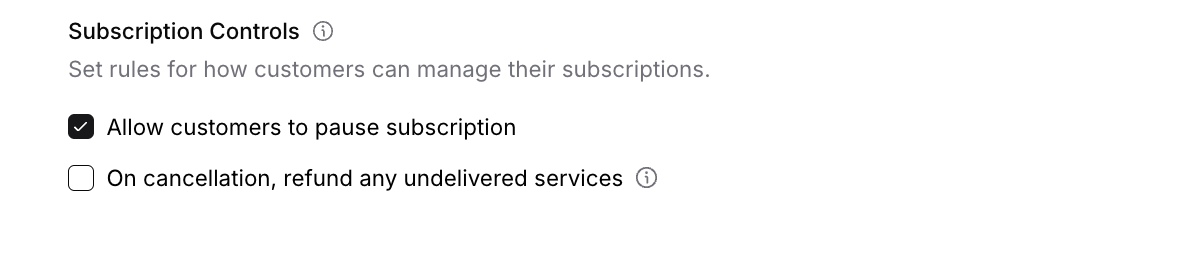
Subscription Control
Important: These controls only apply to subscription purchases. One-off purchase customers cannot pause or cancel on their end—only you can manually cancel one-off purchases through your dashboard (refund required).
Allow customers to pause subscription (checked by default):
Customers can temporarily pause service delivery and billing, then resume when ready
Can be paused anytime, even during minimum term
Only applies to subscriptions (one-off purchases are single transactions)
On cancellation, refund any undelivered services (unchecked by default):
Automatically refund customers for services that were paid for but not yet delivered when they cancel
Customers can only cancel after meeting minimum term requirement
Only applies to subscriptions (one-off customers cannot self-cancel)
Step 9: Preview and Publish
Review the Preview Panel
Check how customers will see your service:
Service name is clear
Description is compelling
Pricing is correct
Images look professional
Click Publish
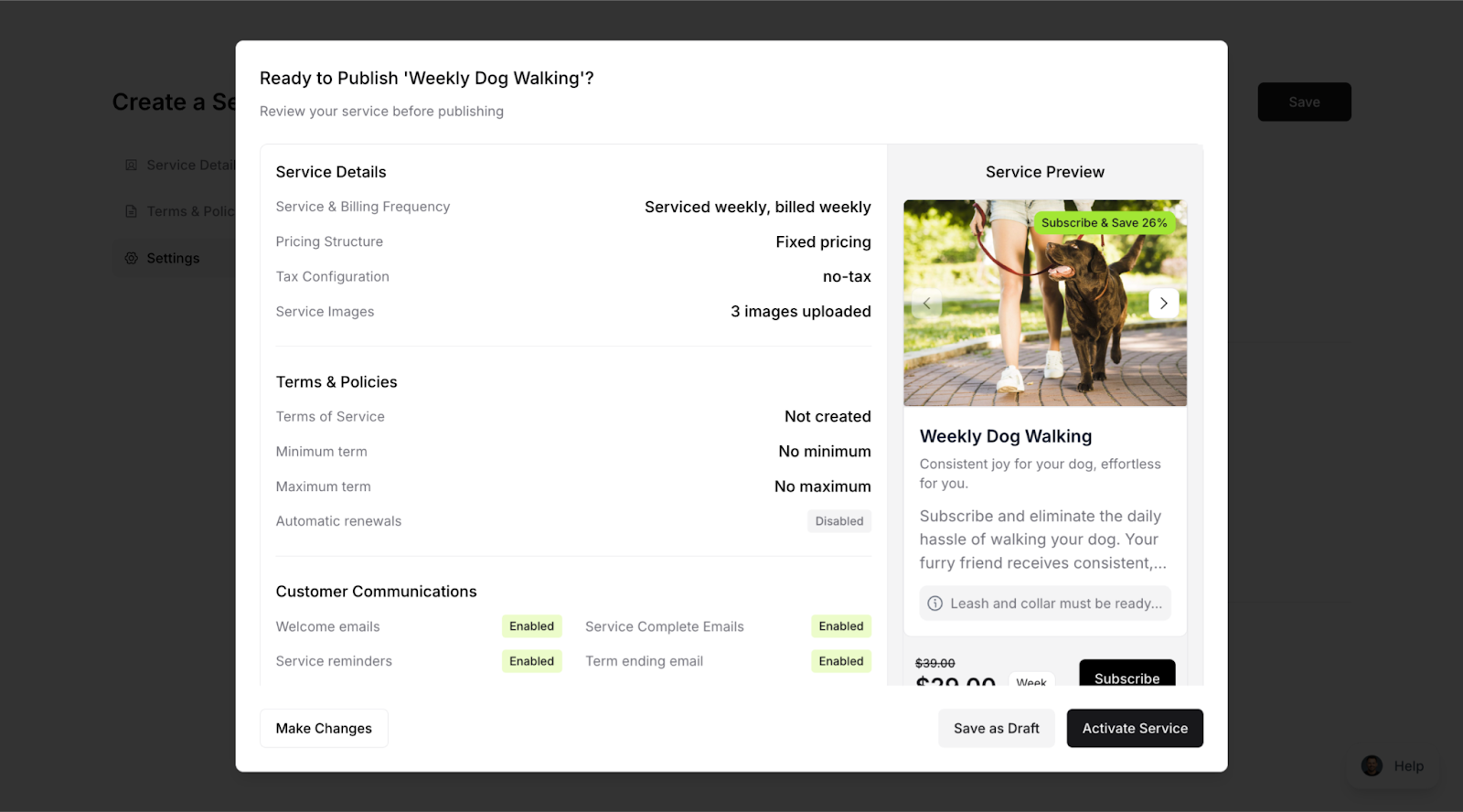
Click Save button
Review the summary modal showing:
Service details
Pricing structure
Terms and policies
Communication settings
Verify everything is correct
Click Activate Service
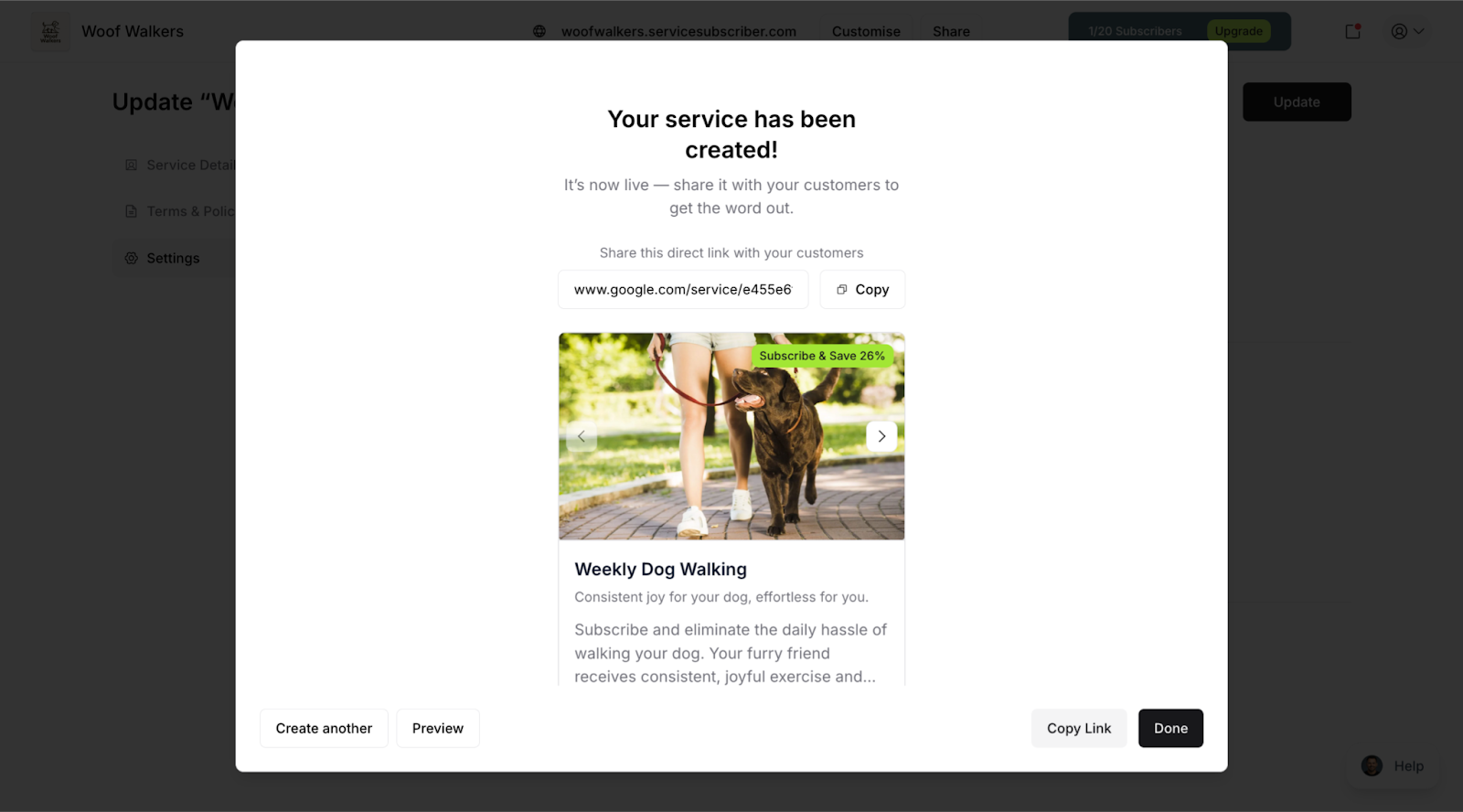
Editing Your Service
To make changes after publishing:
Go to Services page
Click on your service
Click Edit or Make Changes
Update any fields
Click Save or Publish Changes
Changes update immediately on your live site.
Was this article helpful?
That’s Great!
Thank you for your feedback
Sorry! We couldn't be helpful
Thank you for your feedback
Feedback sent
We appreciate your effort and will try to fix the article