What Is Guided Setup?
Guided Setup is your personalized checklist for launching your subscription business. You'll see your Guided Setup page immediately after completing your initial account and business details.
You can always return to it by clicking Guided Setup in your main navigation menu.
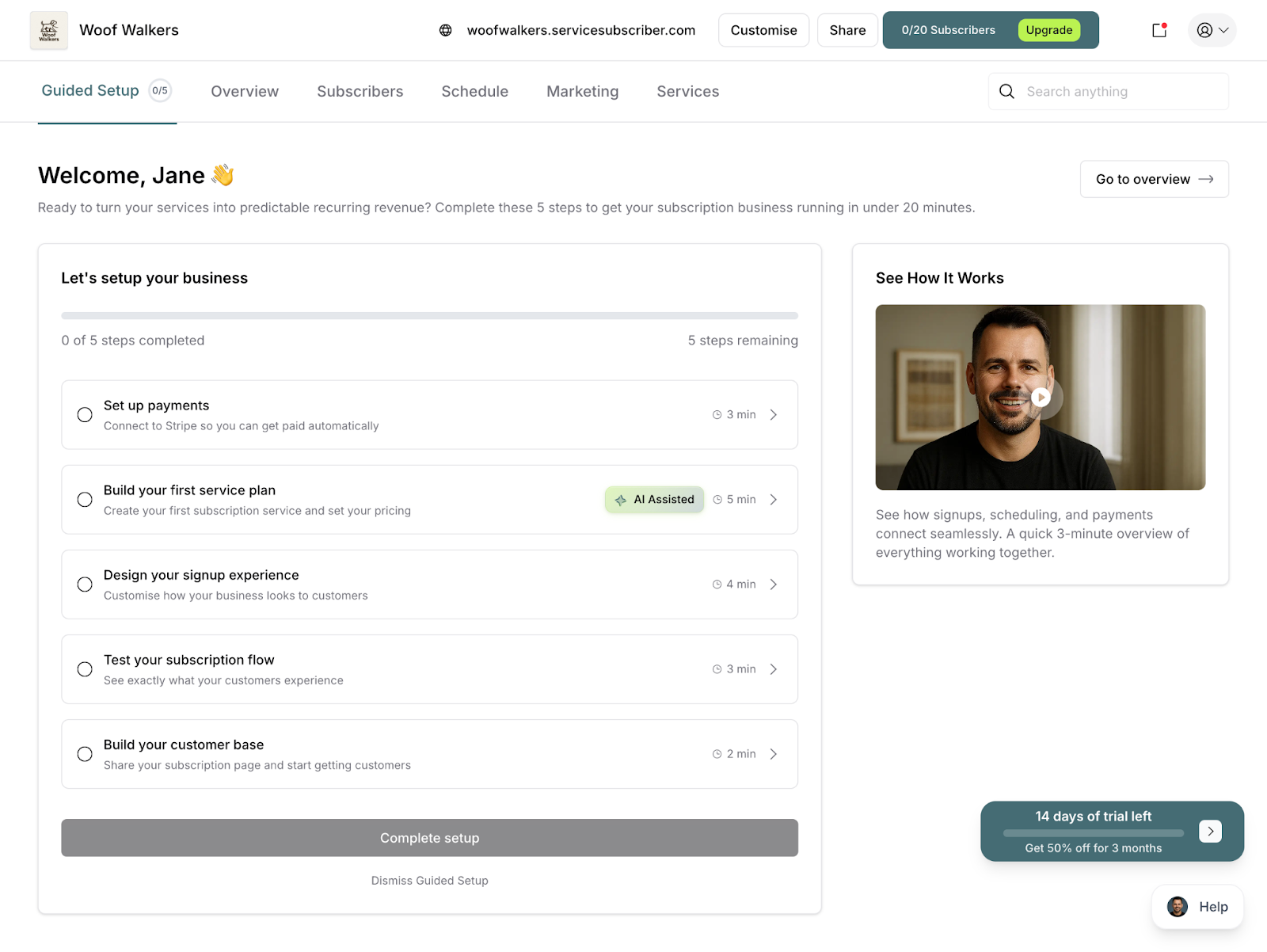
Here's what you'll see:
Welcome Message: A personalized greeting showing your name
Progress Indicator: Shows how many steps you've completed (e.g., "2 of 5 steps completed")
Setup Steps: All five steps listed with time estimates
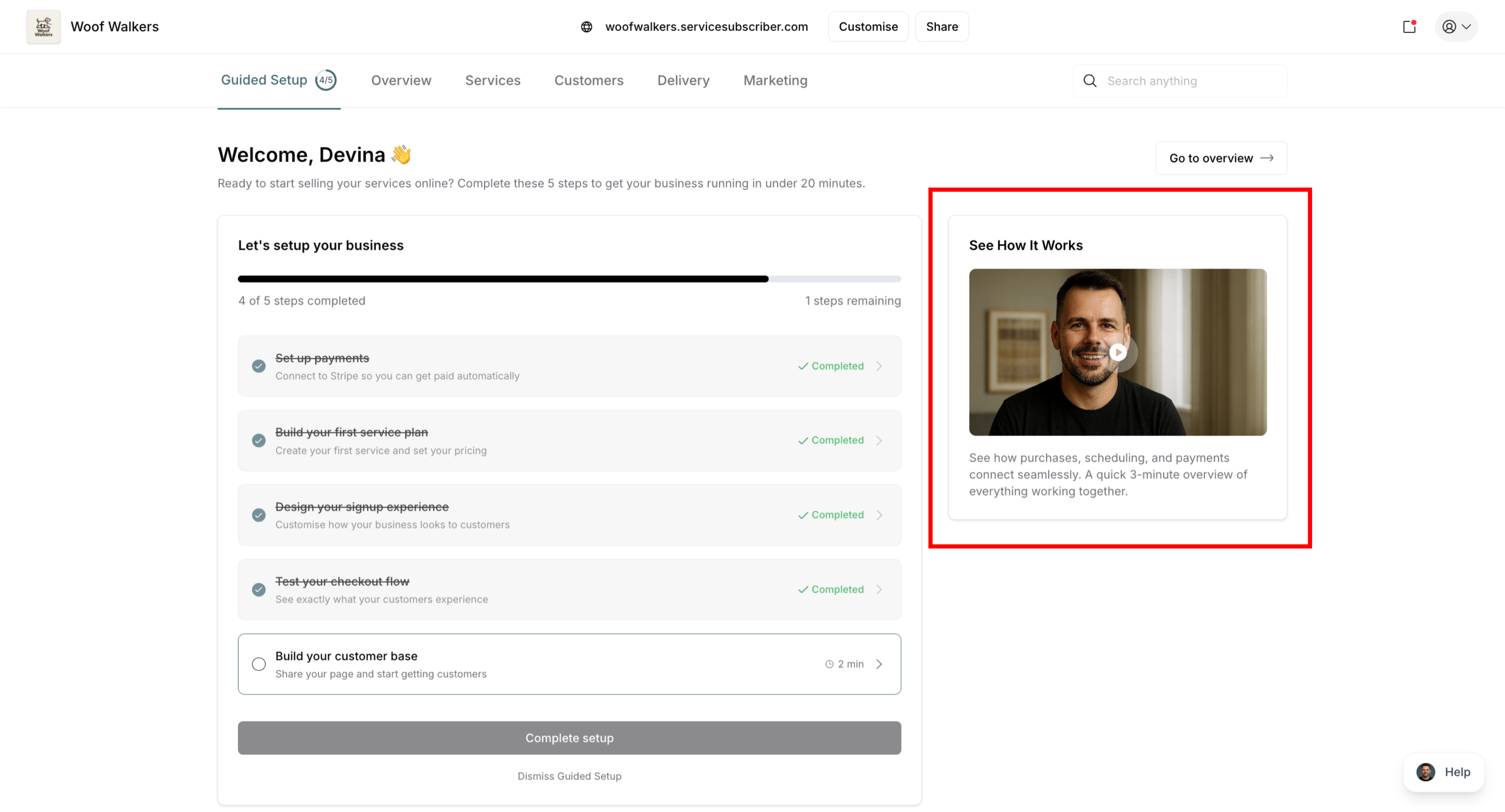
How It Works Video: A quick video walkthrough of the platform
Go to Overview Button: Quick link to your main dashboard
✍️ TIP: Don't feel pressured to complete everything in one sitting. Your progress is saved automatically, and you can come back anytime. That said, most people find it easiest to complete everything in about 20 minutes while they're in the zone.
The Five Setup Steps
Let's walk through each step, what it involves, and why it's important.
Step 1: Connect Your Stripe Account
Time Estimate: 5-10 minutes
Status: Essential for accepting payments
This step connects your ServiceSubscriber account to Stripe, the payment processor that handles all your subscription billing.
What you'll do:
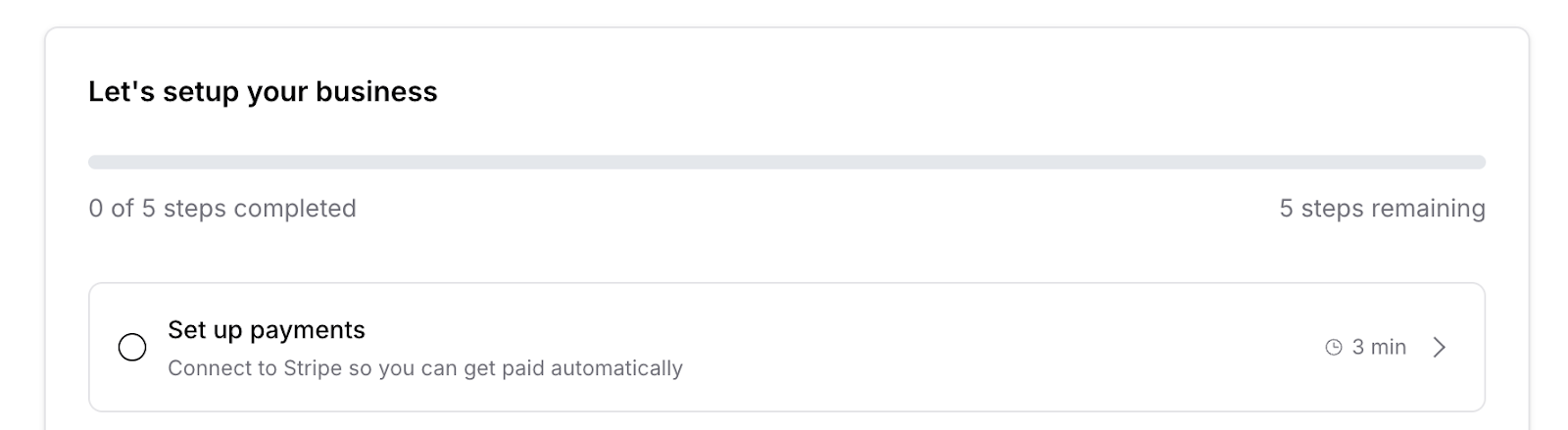
Click the "Set up payments" step
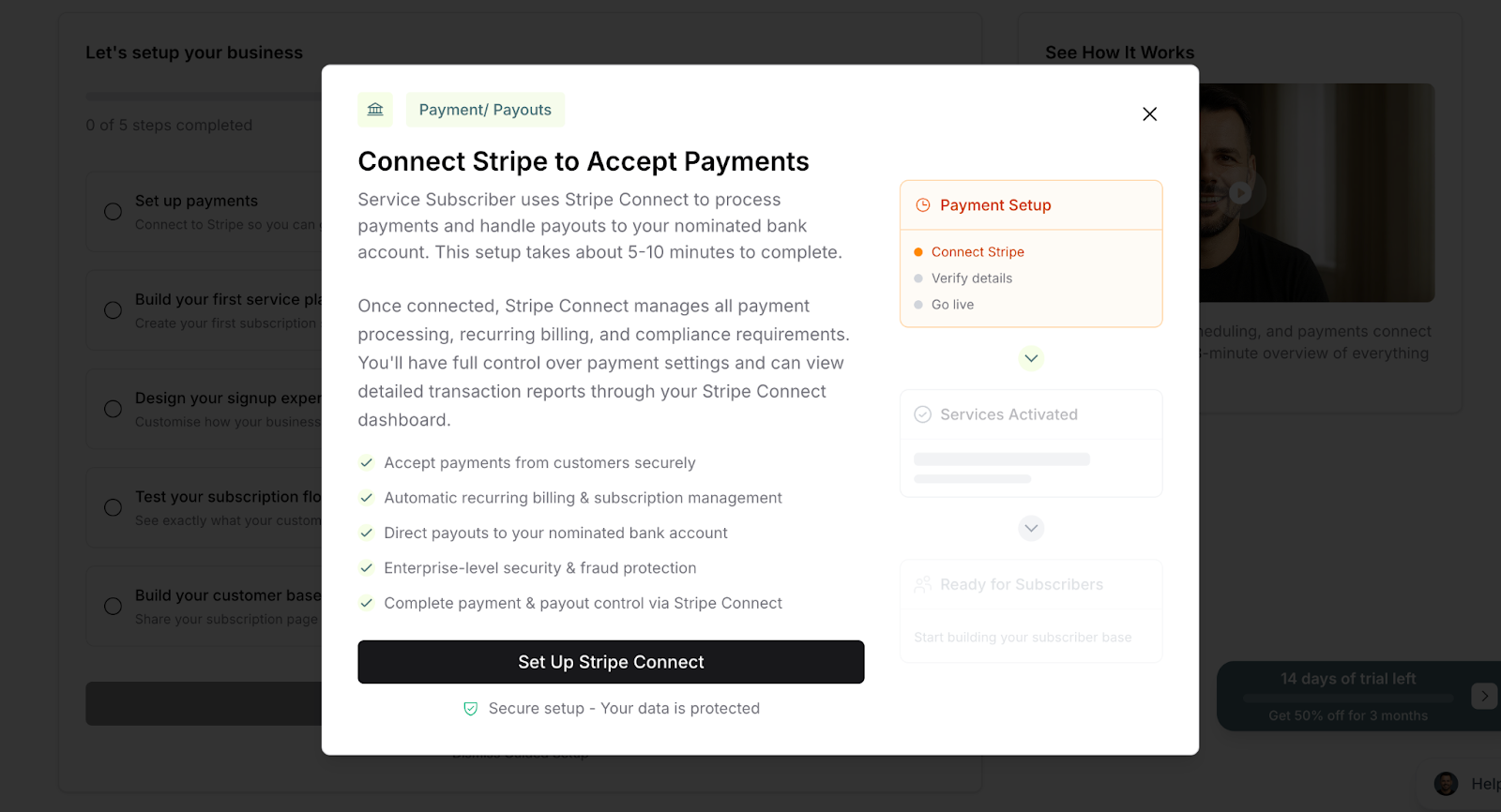
Once a modal pops up, click “Set Up Stripe Connect”
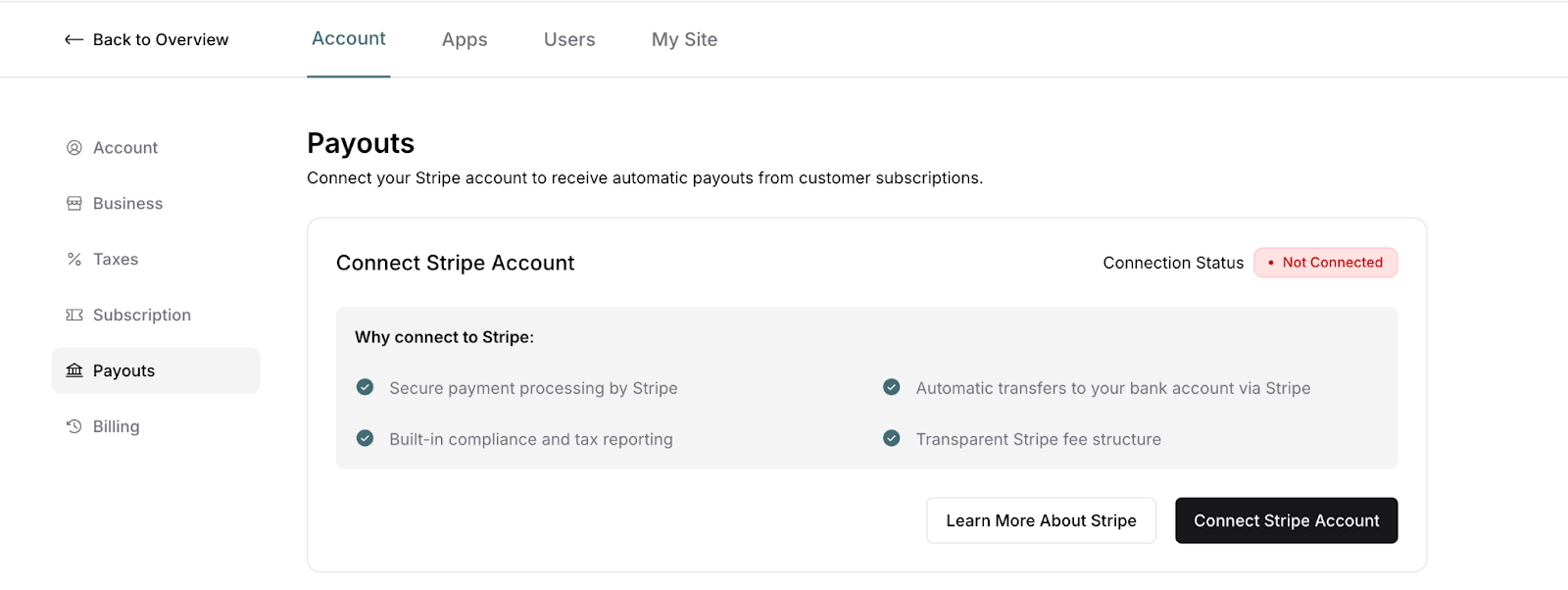
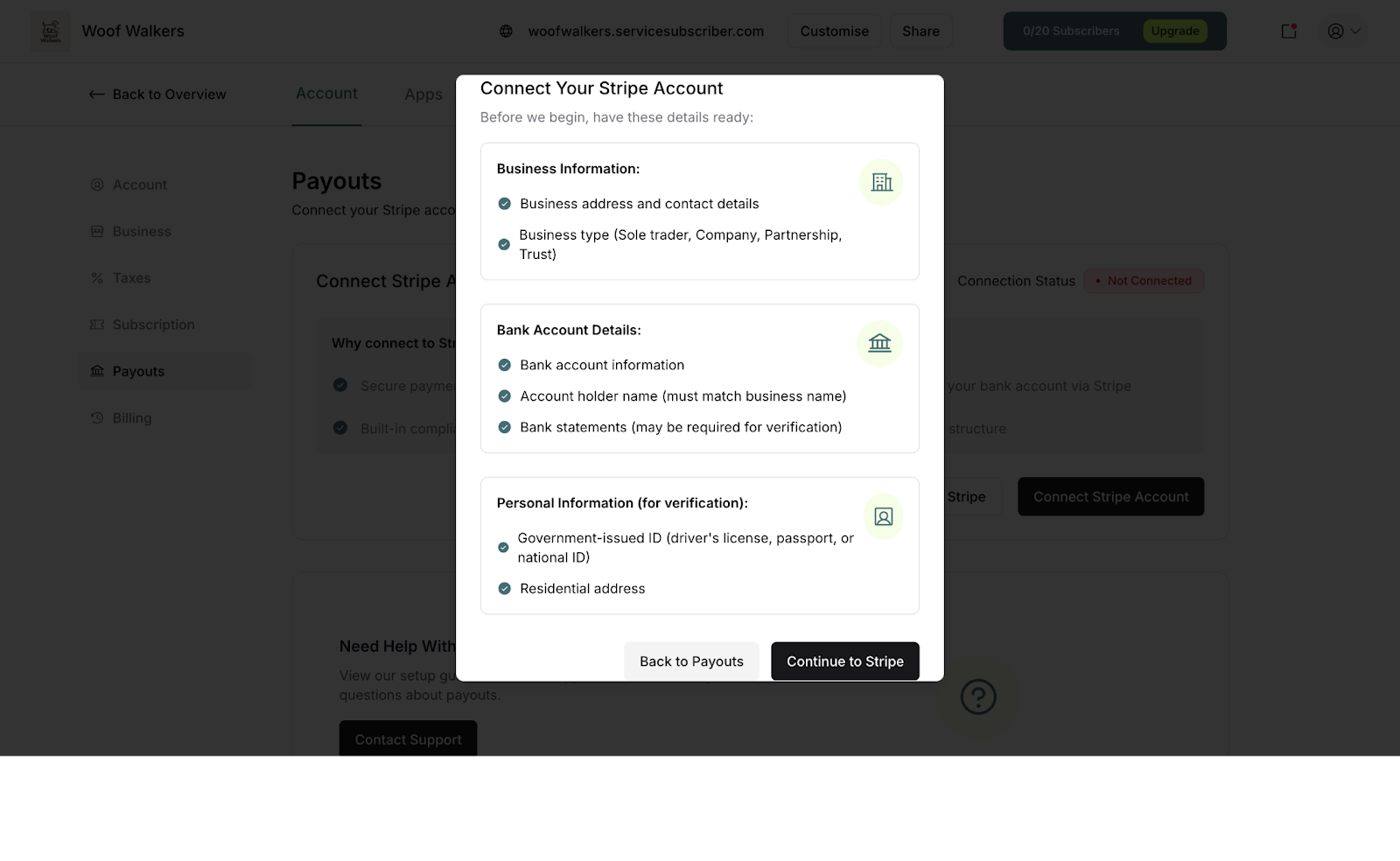
Get directed to the Payout menu, then click “Connect Stripe Account”
Ensure your business information, bank account details, and personal information are ready. Then click ‘Continue to Stripe’
Get redirected to Stripe's secure onboarding
Provide your business and banking information to Stripe
Complete Stripe's verification process
Return automatically to ServiceSubscriber
Why it matters:
Without a connected Stripe account, your services can't accept real payments. Customers can browse your offerings, but they can't subscribe. This is your payment gateway—it's how you get paid!
✅ BEST PRACTICE: Complete this step early. Once Stripe is connected, any services you create go live immediately. If you create services before connecting Stripe, they'll stay in "Pending" status until you complete this step.
❓ COMMON QUESTION: Do I need a Stripe account already?
No! If you don't have a Stripe account, you'll create one during this process. If you already have a Stripe account, you can connect your existing one. The setup wizard guides you through either option.
Step 2: Build Your First Service Plan
Time Estimate: 5 minutes
Status: Essential for customer subscriptions
This is where you create your first service that customers will subscribe to.
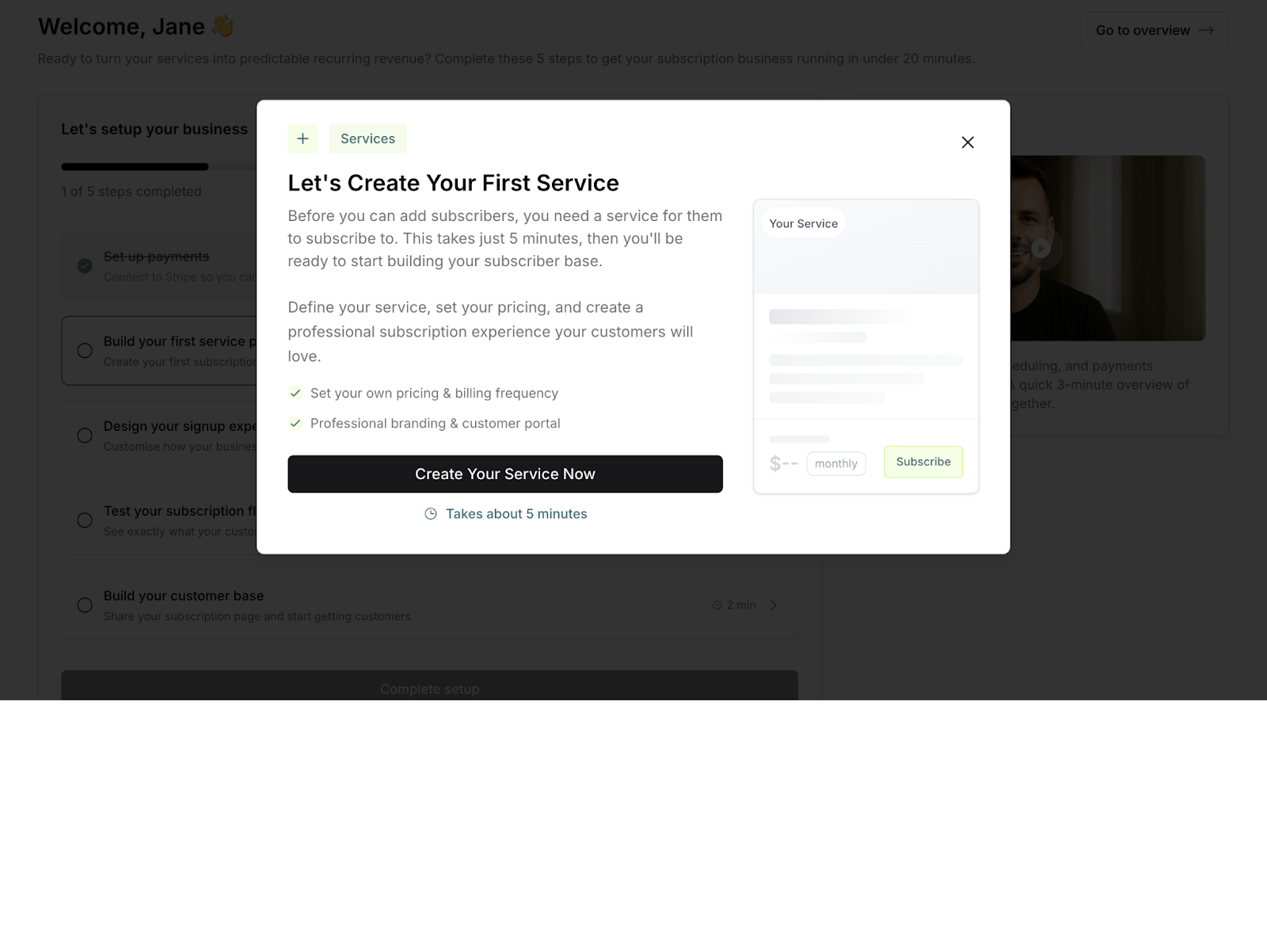
What you'll do:
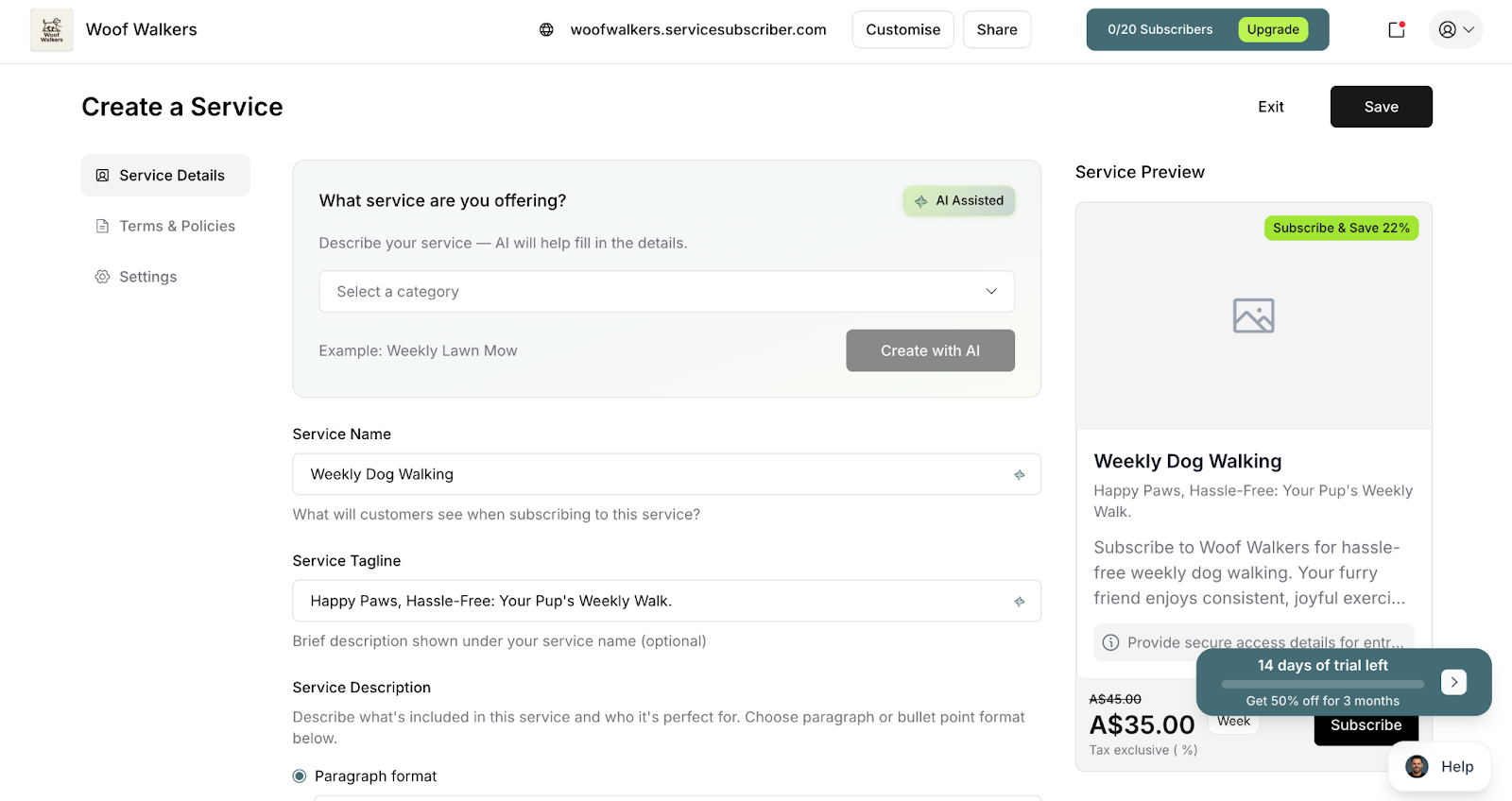
Choose to create with AI assistance or manually
Describe your service (what you do, how often, pricing)
Add service details, images, and important information
Set subscription terms and policies
Configure customer communications
Publish your service
Why it matters:
Your services are what customers subscribe to. Without at least one published service, customers have nothing to sign up for.
Service creation dialog showing options to create with AI or build manually
✍️ TIP: Start with your most popular or signature service. You can always add more services later, but having one solid offering gets you up and running quickly.
Step 3: Design Your Signup Experience
Time Estimate: 4 minutes
Status: Important for professional appearance
This step takes you to your site customization settings where you make your subscription page look and feel like your business.
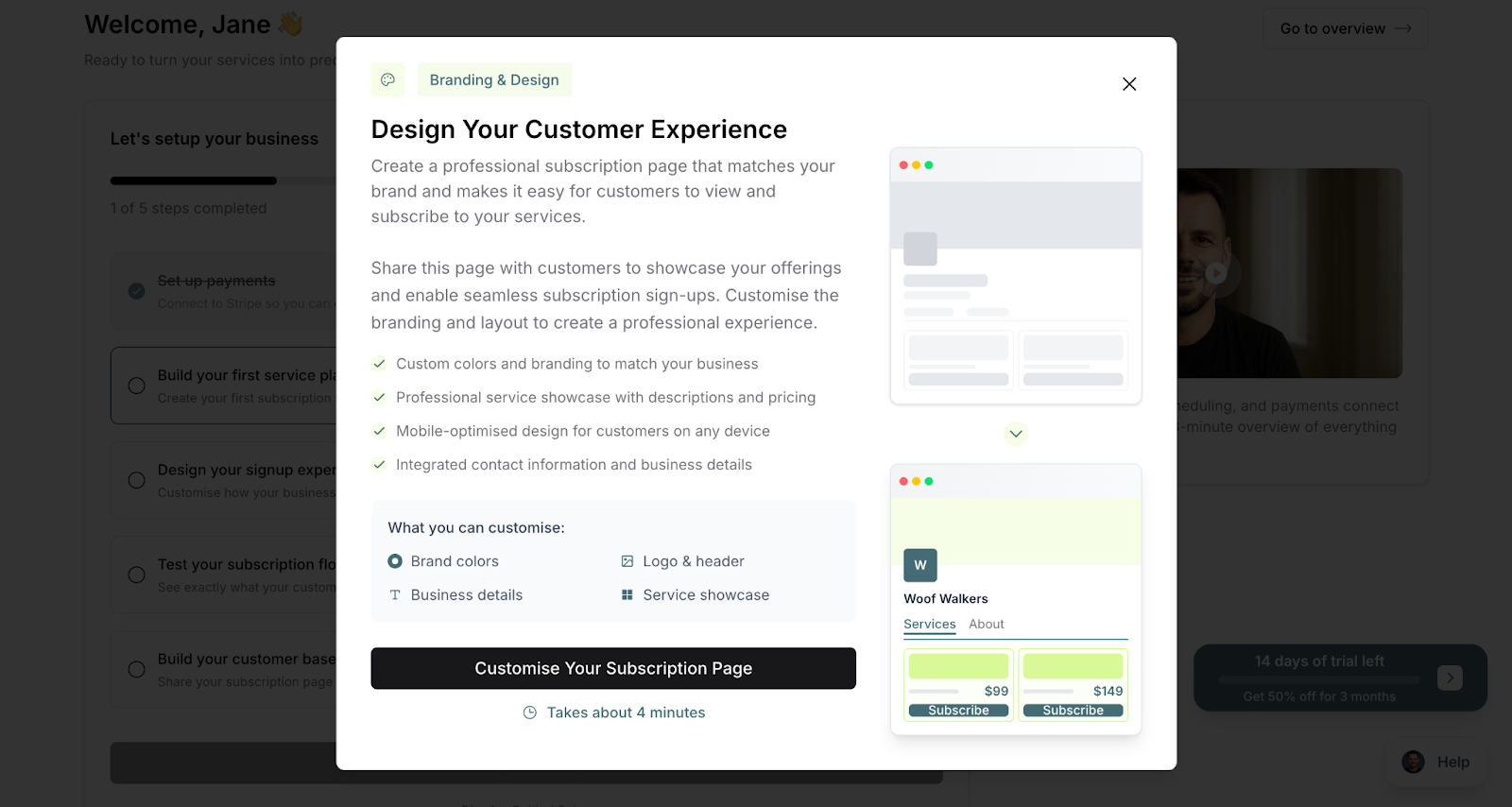
What you'll do:
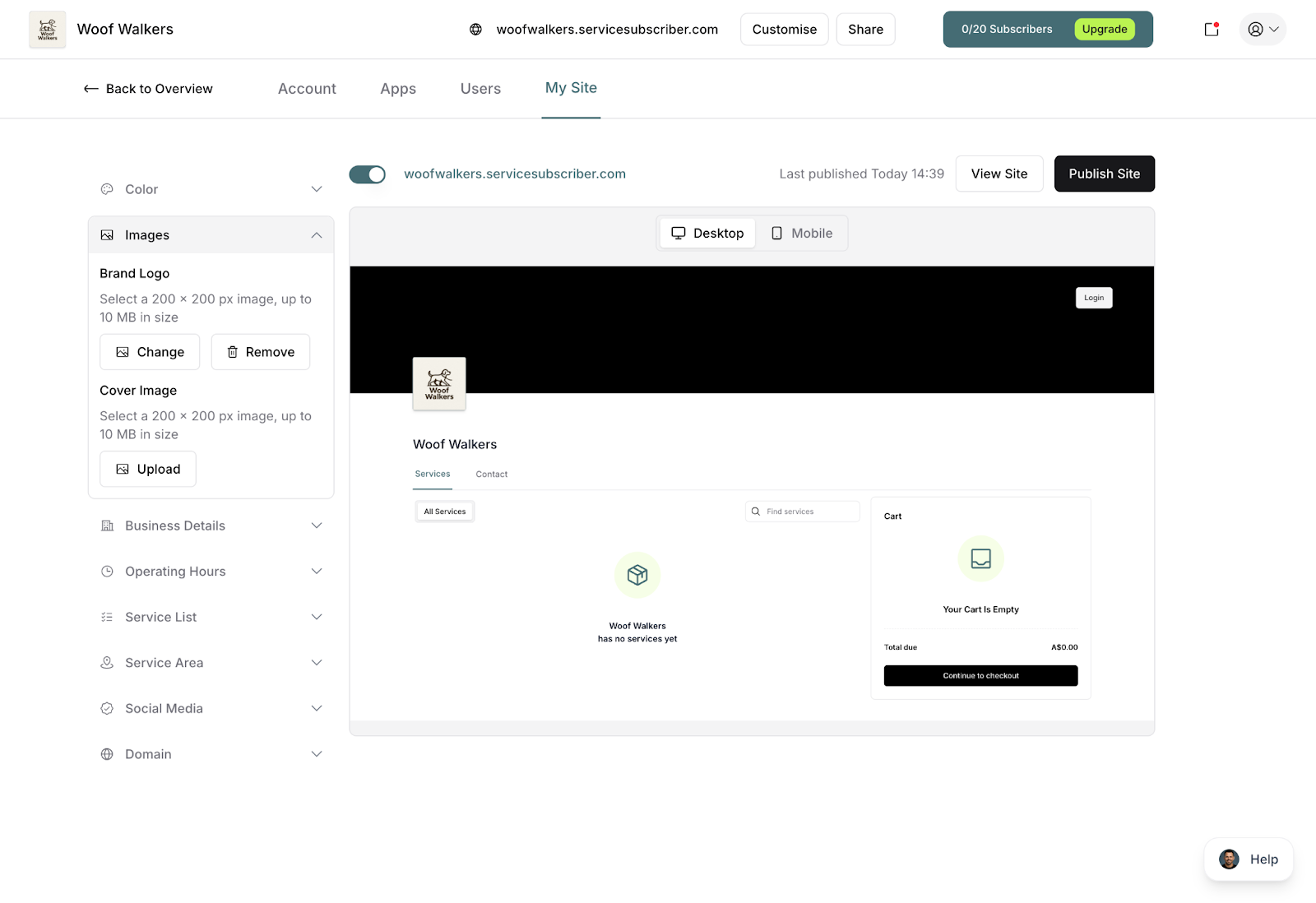
Upload your business logo & Cover Image
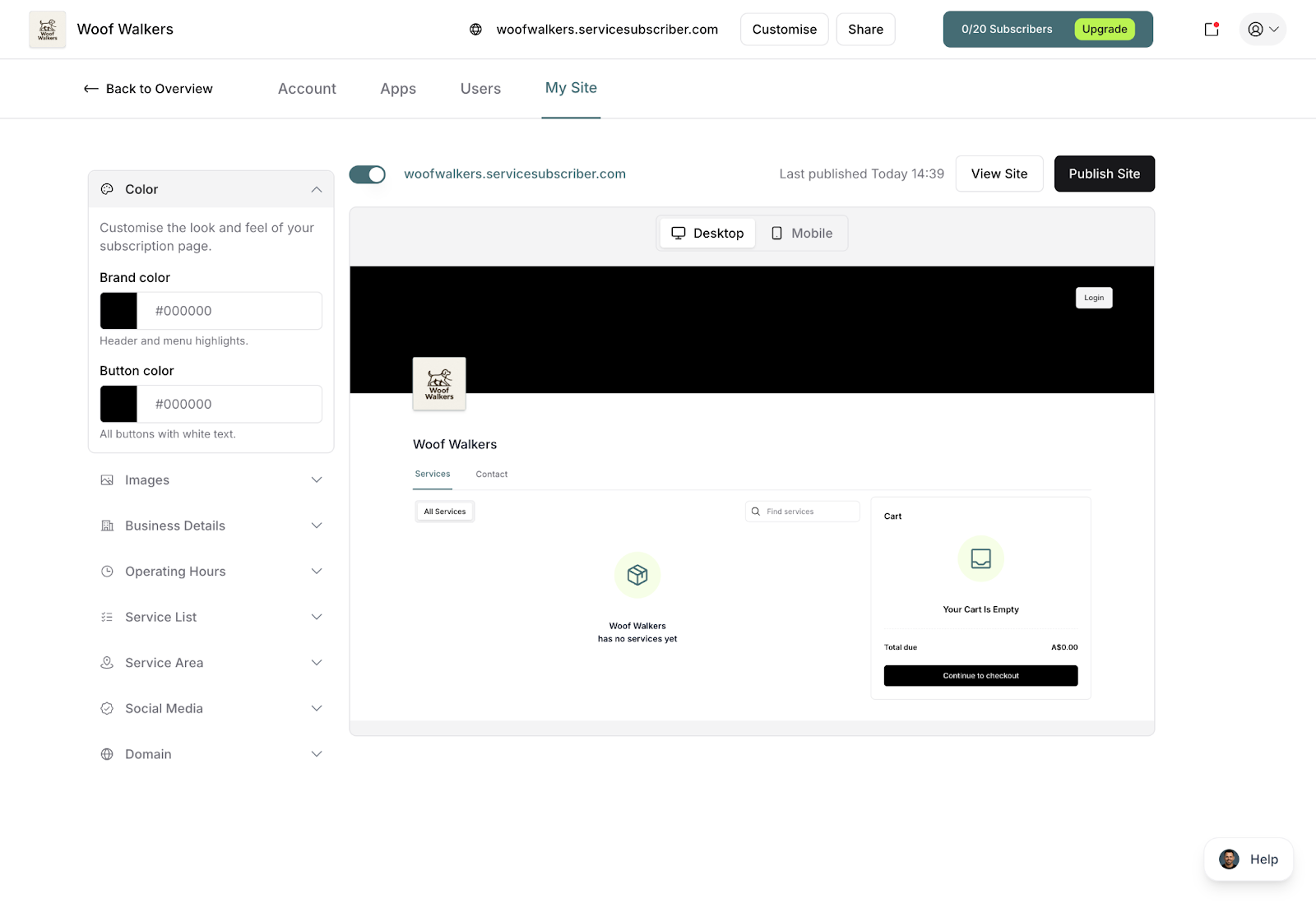
Choose your brand colors
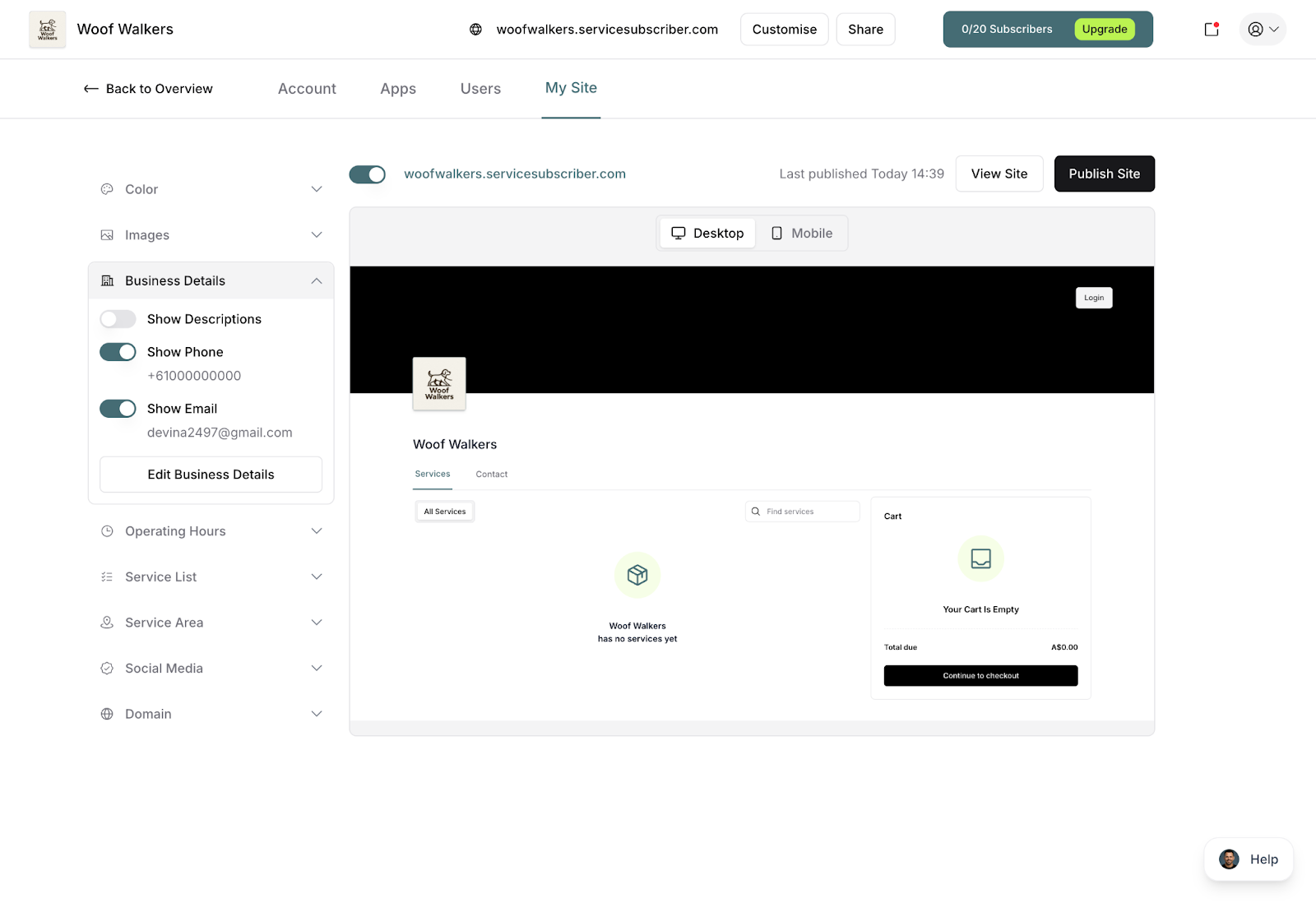
Decide what business information to display
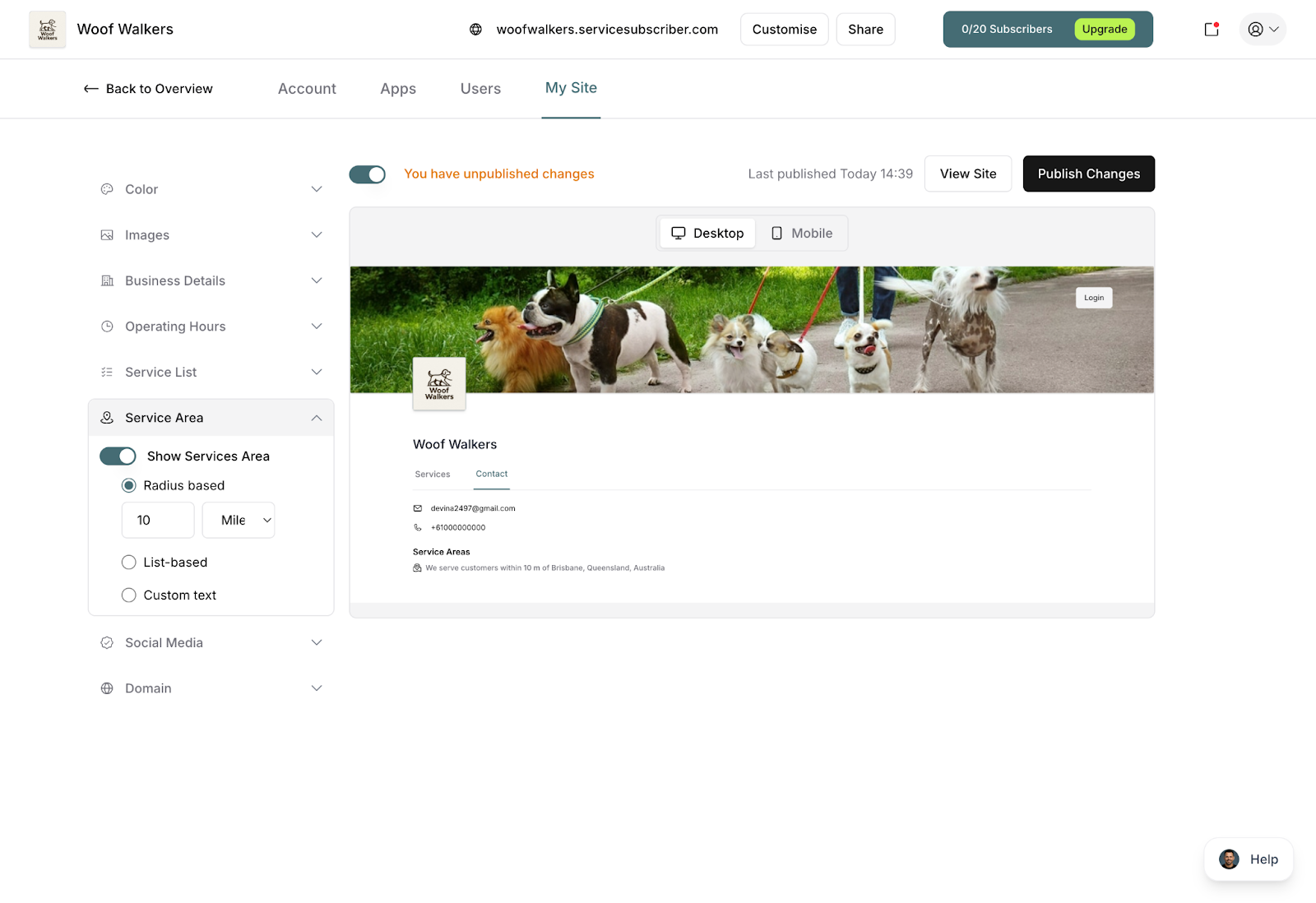
Configure your service area
Add social media links
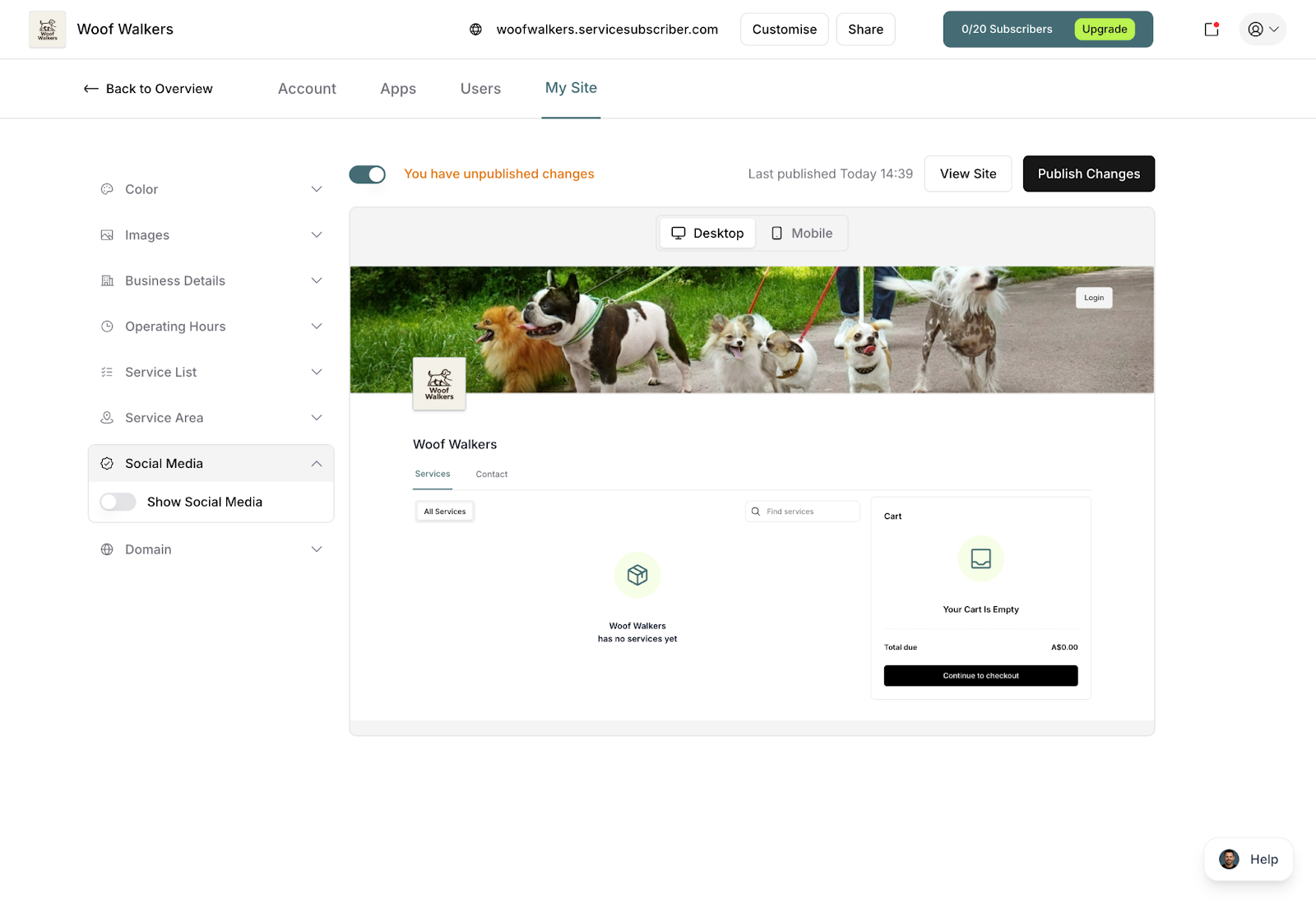
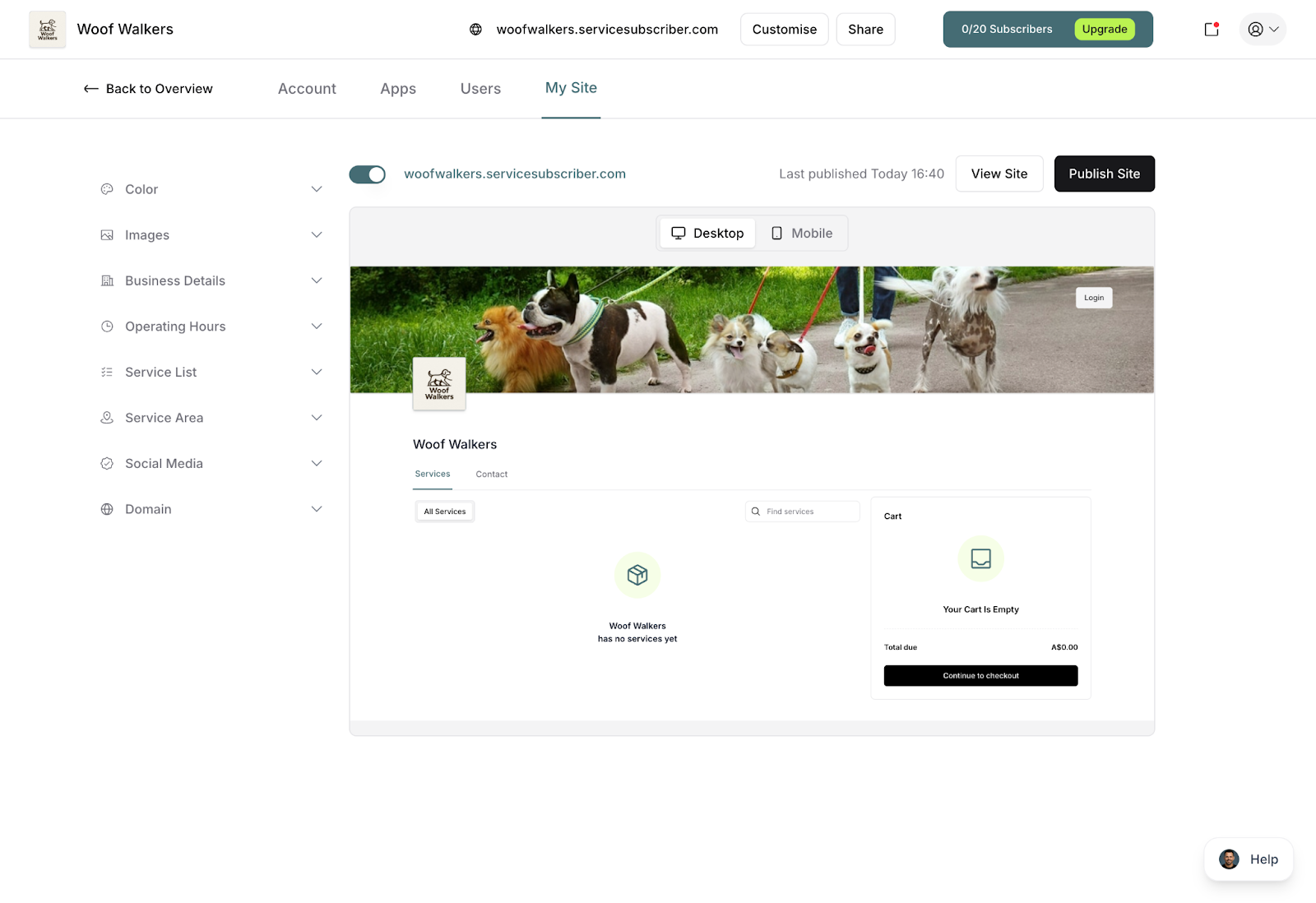
Publish your customized site
Why it matters:
First impressions matter. A well-designed signup page builds trust and makes customers confident they're dealing with a professional business. This is your digital storefront!
Site customization page showing branding options and live preview
✅ BEST PRACTICE: Even if you don't have a logo yet, customize your colors and add a quality cover image. These small touches make a big difference in how professional your business appears.
Step 4: Test Your Subscription Flow
Time Estimate: 3 minutes
Status: Optional but encouraged
This final step walks you through adding your first subscriber, either by inviting them directly or guiding them through your live site.
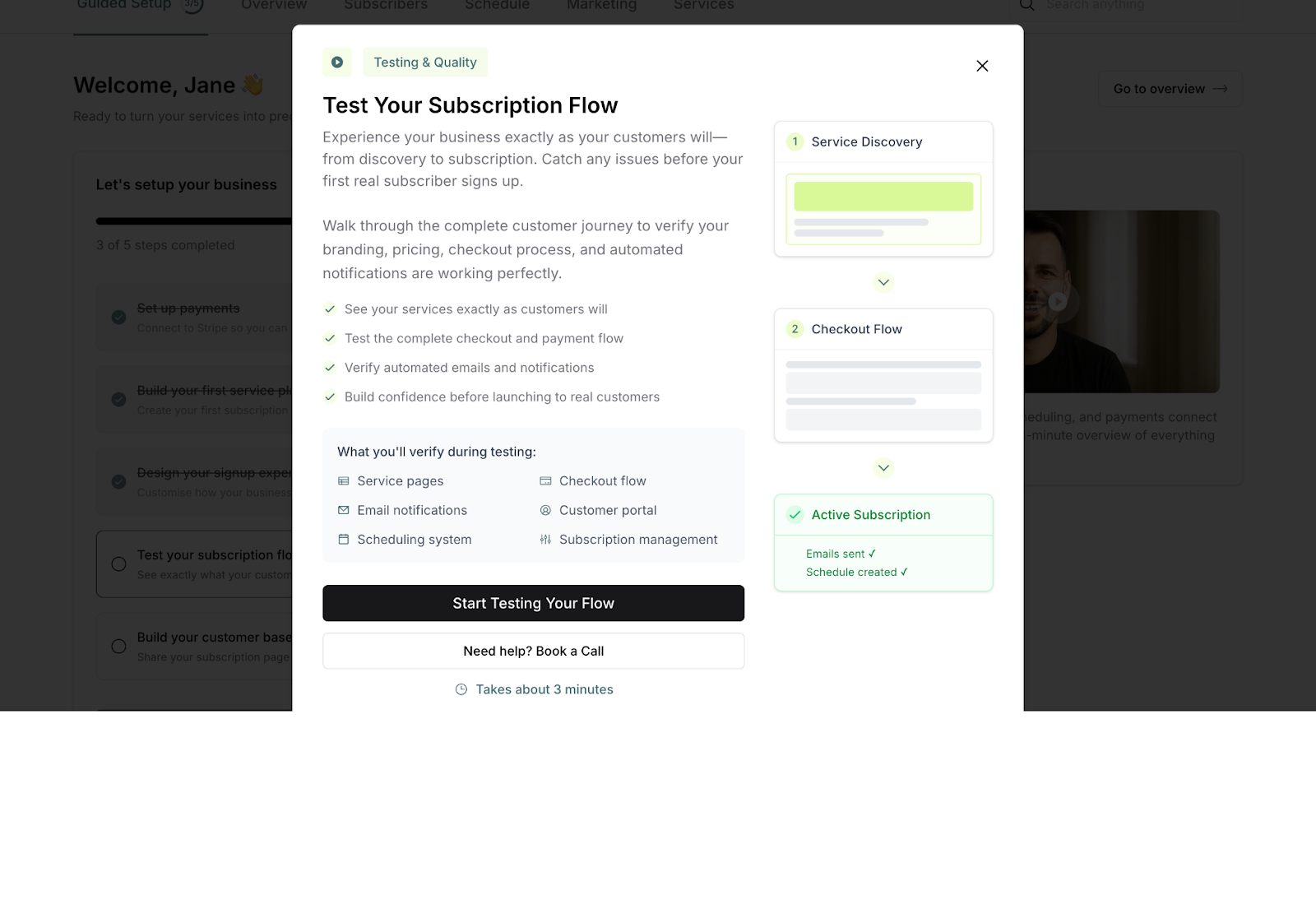
What you'll do:
Learn the two ways customers can subscribe
Optionally create a test subscription
Understand the customer subscription journey
Why it matters: Understanding how the subscription process works helps you explain it to potential customers. Plus, completing this step gives you hands-on experience with how subscriptions work from both sides—yours and your customer's.
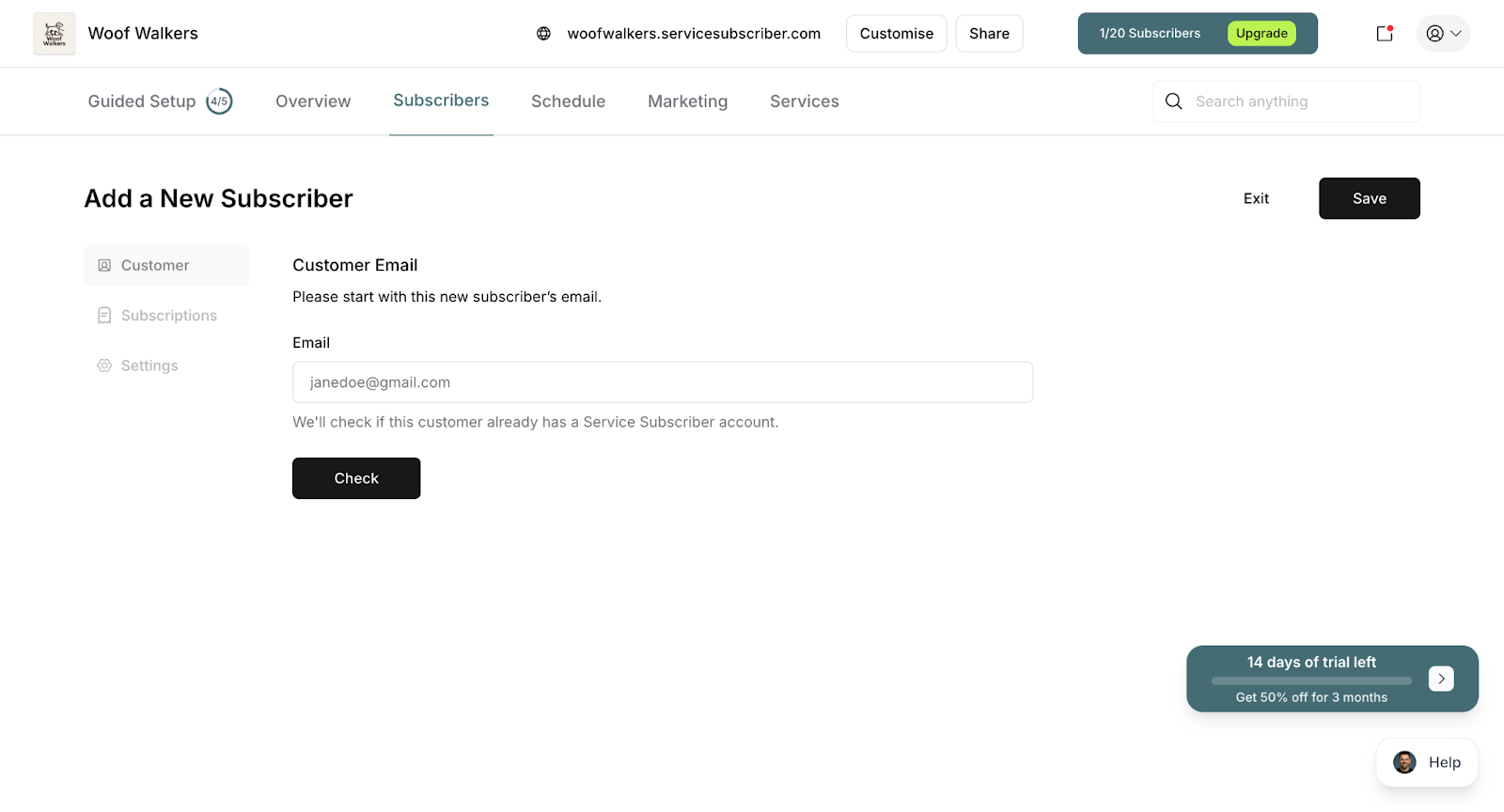
Add subscriber through direct invitation
Add subscriber through live site signup
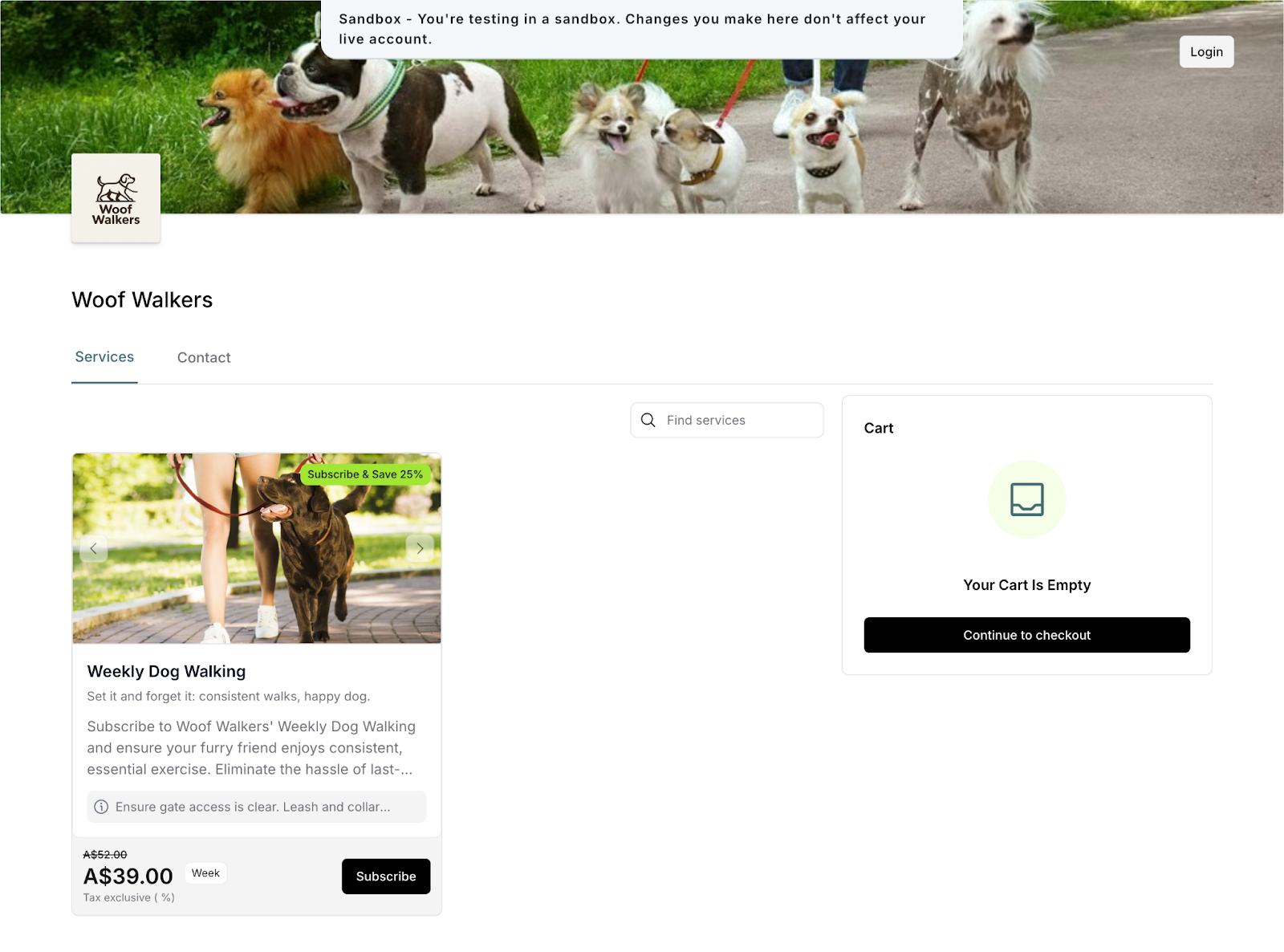
Two Ways to Add Subscribers
Direct Invitation (Dashboard):
You create the subscriber through Create New Subscriber in your dashboard
You send an email invitation to the customer
Customer receives invitation and accepts by providing payment details
Best for customers you've already talked to or committed customers
Live Site Signup (Customer Self-Service):
Customers visit your public subscription page
They choose a service and subscribe themselves
They complete payment and create their account directly
Best for organic discovery and self-service customers
Note: One-off purchases happen only through the live site when customers choose to purchase once instead of subscribing. This testing step focuses specifically on the subscription flow, not one-off purchases.
❓ COMMON QUESTION: Should I add a test subscriber?
It's a great learning experience! Consider inviting yourself (using a different email) or a friend/family member to test the full subscription journey. You can always cancel test subscriptions later. This helps you understand exactly what your customers will experience.
✍️ TIP: After testing, you'll find your test subscriber in the Customers tab along with any real subscribers. Test subscriptions can be cancelled anytime without affecting your service setup.
Step 5: Build Your Customer Base
Time Estimate: < 2 minutes
Status: Helpful for marketing
This step provides you with tools to start attracting customers, including a downloadable QR code.
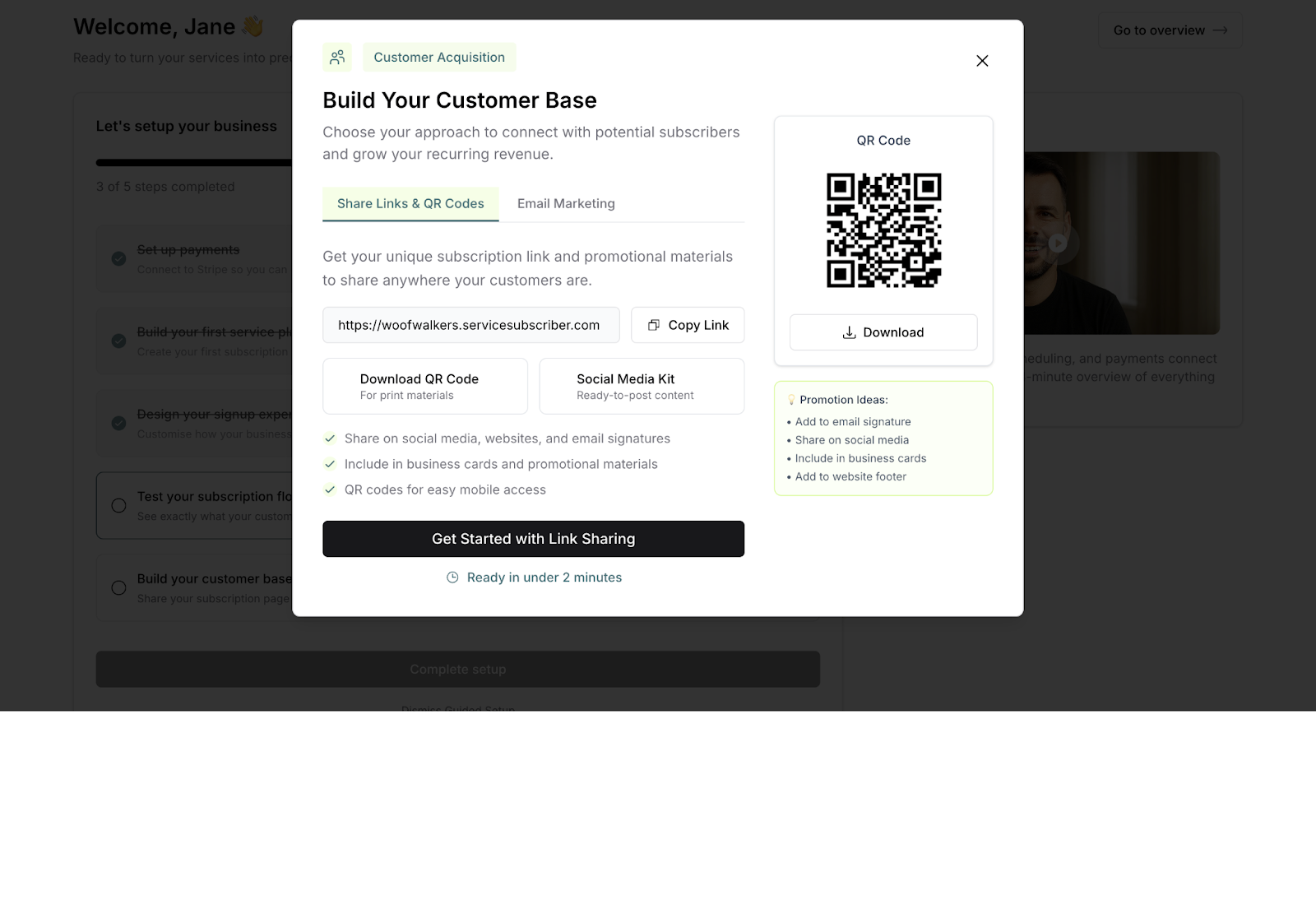
What you'll do:
Download your custom QR code
Learn about sharing your subscription page
Get ideas for marketing your services
Why it matters:
You've built something amazing—now it's time to let people know about it! The QR code makes it easy for potential customers to find your subscription page instantly by scanning with their phone.
✍️ TIP: Print your QR code on business cards, flyers, or even vehicle signage. When customers scan it, they go straight to your subscription page—no typing required!
Ideas for sharing:
Post the QR code on social media
Add it to email signatures
Print it on service invoices
Include it in door hangers or flyers
Display it at local businesses (with permission)
Tracking Your Progress
As you complete each step, Guided Setup tracks your progress automatically.
Completed steps show:
Strikethrough text on the step title
A "Completed" badge
Updated progress indicator at the top
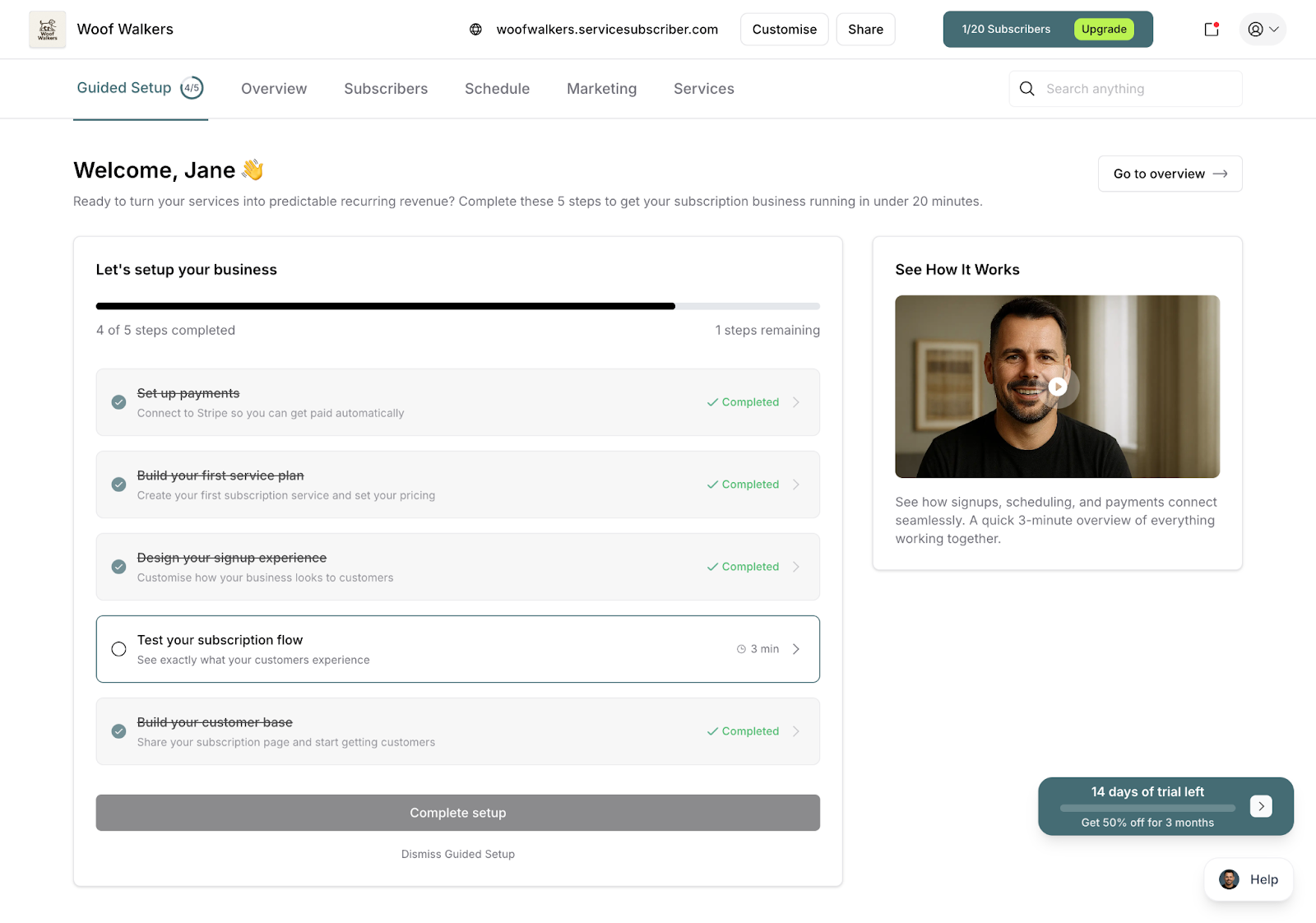
Progress tracking showing completed steps with badges and remaining tasks
You can complete steps in any order, but we recommend following the suggested sequence—each step builds on the previous one.
What Happens After Guided Setup?
Once you've completed all five steps, you're ready to start running your subscription business! Here's what you can do:
You're ready to:
Accept real customer subscriptions
Process payments automatically
Manage your schedule
Track your subscribers
Grow your recurring revenue
Dismissing Guided Setup
Once you're comfortable with the platform, you can dismiss the Guided Setup.
Scroll to the bottom of your Guided Setup page
Click Dismiss Guided Setup
Confirm your choice in the modal that appears
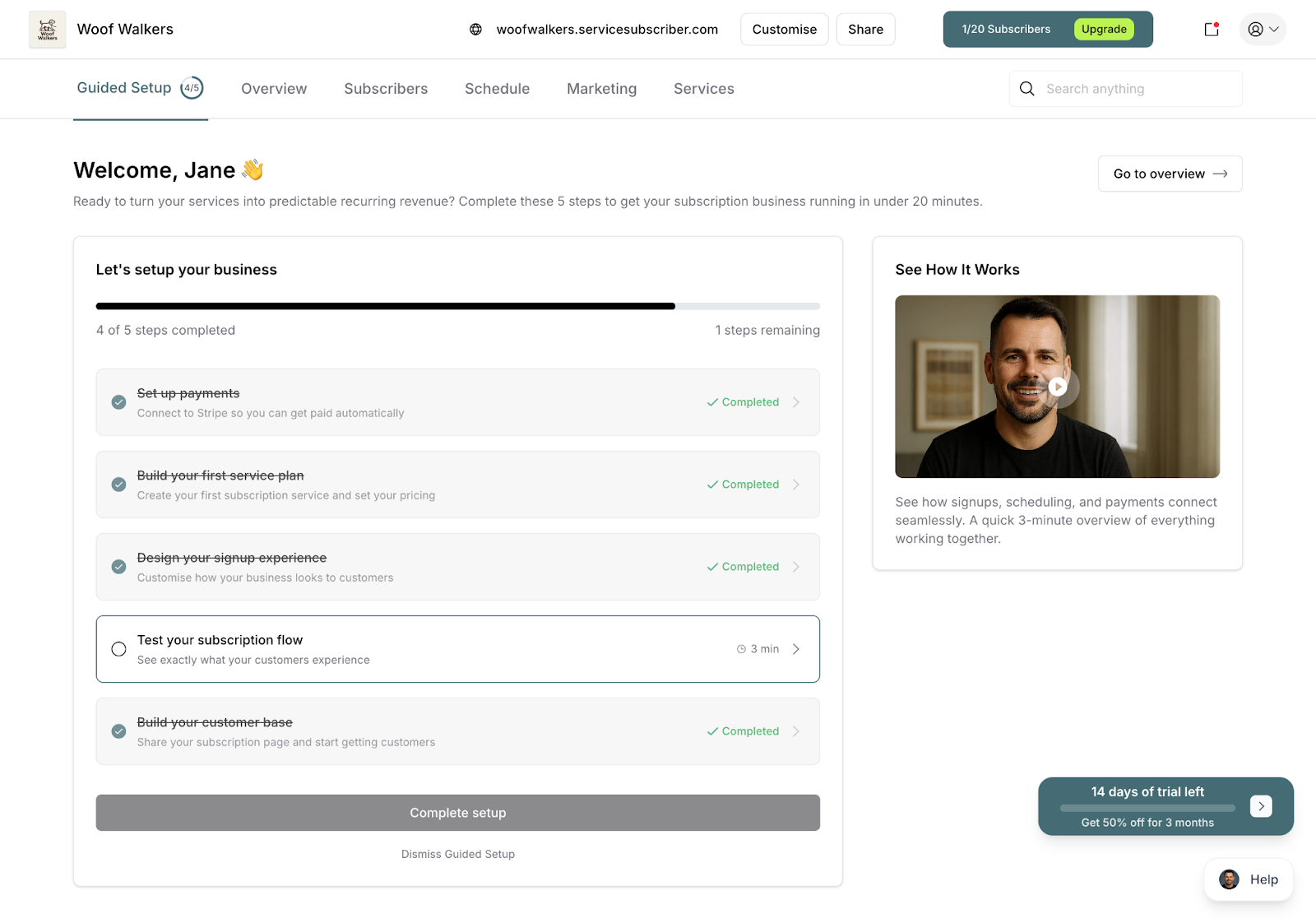
⚠️ IMPORTANT: Dismissing Guided Setup removes it from your navigation menu. You can still access all the features—they're just located in different areas of the platform. Only dismiss it once you're confident navigating ServiceSubscriber independently.
✍️ TIP: There's no rush to dismiss Guided Setup. Many business owners keep it visible for their first few weeks as a helpful reference point.
The "See How It Works" Video
Below your setup steps, you'll find a video tutorial that walks through the entire platform.
What the video covers:
Overview of the platform interface
How to create and manage services
Understanding the customer journey
Managing subscriptions and schedules
Processing payments and tracking revenue
✍️ TIP: If you're a visual learner, watch this video before diving into setup. It gives you context for what each step accomplishes and how everything fits together.
Was this article helpful?
That’s Great!
Thank you for your feedback
Sorry! We couldn't be helpful
Thank you for your feedback
Feedback sent
We appreciate your effort and will try to fix the article