Instead of waiting for customers to find your live site, you can invite them directly to subscribe. This is perfect for existing customers, referrals, or prospects you've already spoken with.
Important: Direct invitations are for subscriptions only. One-off purchases can only be made by customers through your live site—you cannot create one-off purchase invitations.
When to Use Direct Invitations
Instead of waiting for customers to find your live site, you can invite them directly to subscribe. This is perfect for existing customers, referrals, or prospects you've already spoken with.
⚠️ IMPORTANT: Direct invitations are for subscriptions only. One-off purchases can only be made by customers through your live site—you cannot create one-off purchase invitations.
When to Use Direct Invitations
Direct invitations work most effectively when you've already established some connection or relationship with the potential subscriber.
Perfect for:
Send direct subscription invitations to:
Existing one-time customers you're converting to subscriptions
Referrals from current satisfied subscribers
Prospects you've already spoken with about subscribing
Local business networking contacts who expressed interest in subscriptions
People who've inquired about subscriptions through any channel
Customers ready to commit to recurring service
Example scenarios:
"I've cleaned John's windows three times—he's ready for regular subscription service"
"Sarah referred her neighbor who wants the same service—I'll invite them directly to subscribe"
"Met someone at networking event—they want monthly lawn care subscription and gave me their email"
"Customer called asking about subscriptions—I'll send them a personalized invitation"
✍️ TIP: Direct invitations work best when you've already established a relationship or had initial contact. Cold invitations to strangers are less effective than inviting warm leads who know your business.
⚠️ IMPORTANT: If a customer wants to make a one-off purchase, direct them to your live site instead. You cannot create one-off purchase invitations—those must be completed by the customer directly on your live site. Only subscription purchases can be invited.
Accessing the Invite Feature
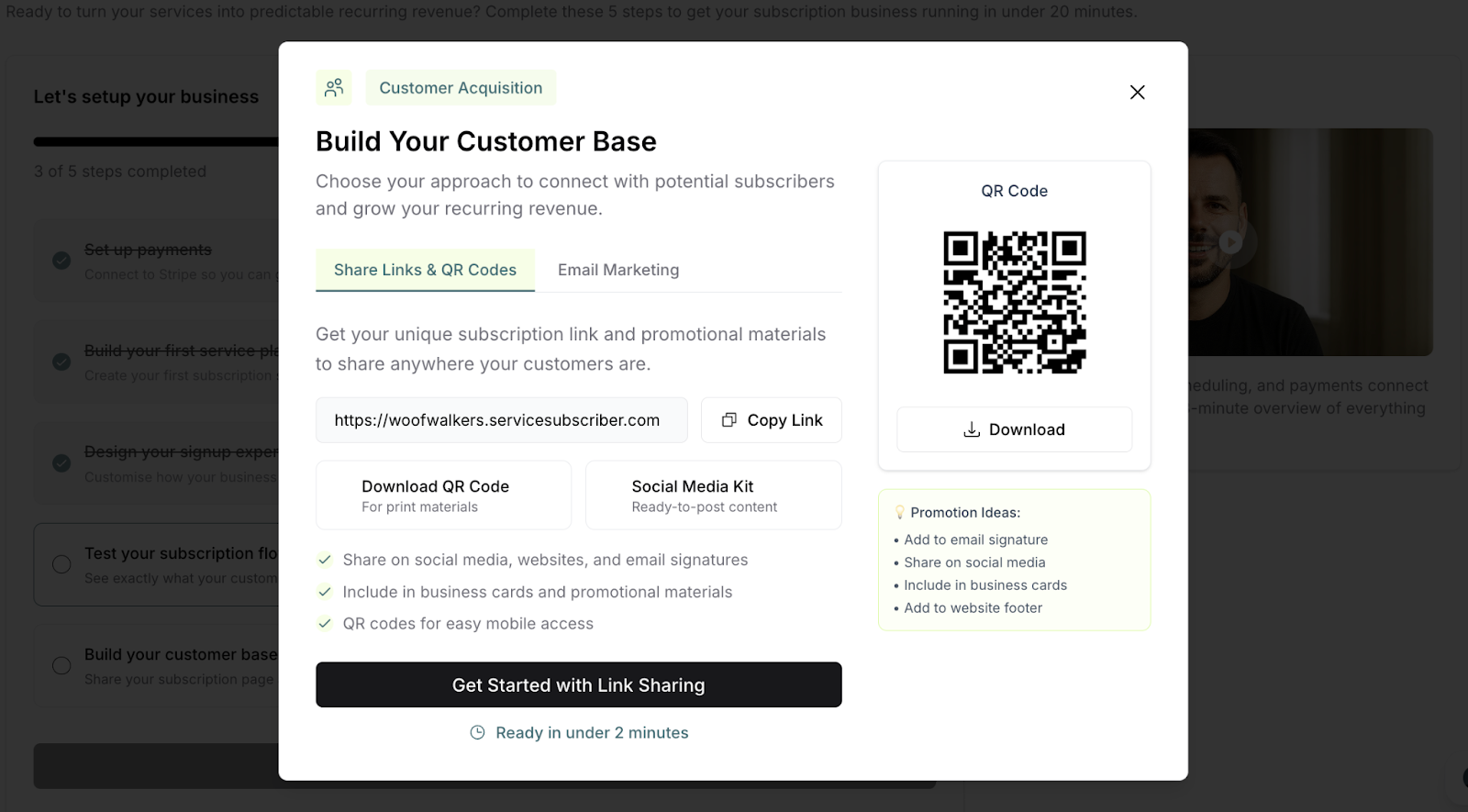
From Guided Setup
Navigate to Guided Setup page
Click Build Your Customer Base (Step 5)
Modal explains invitation process
Click Create New Subscriber button
From Subscribers Page
Click Customers in main navigation
Click Create Subscriber button (top right)
Invitation form opens
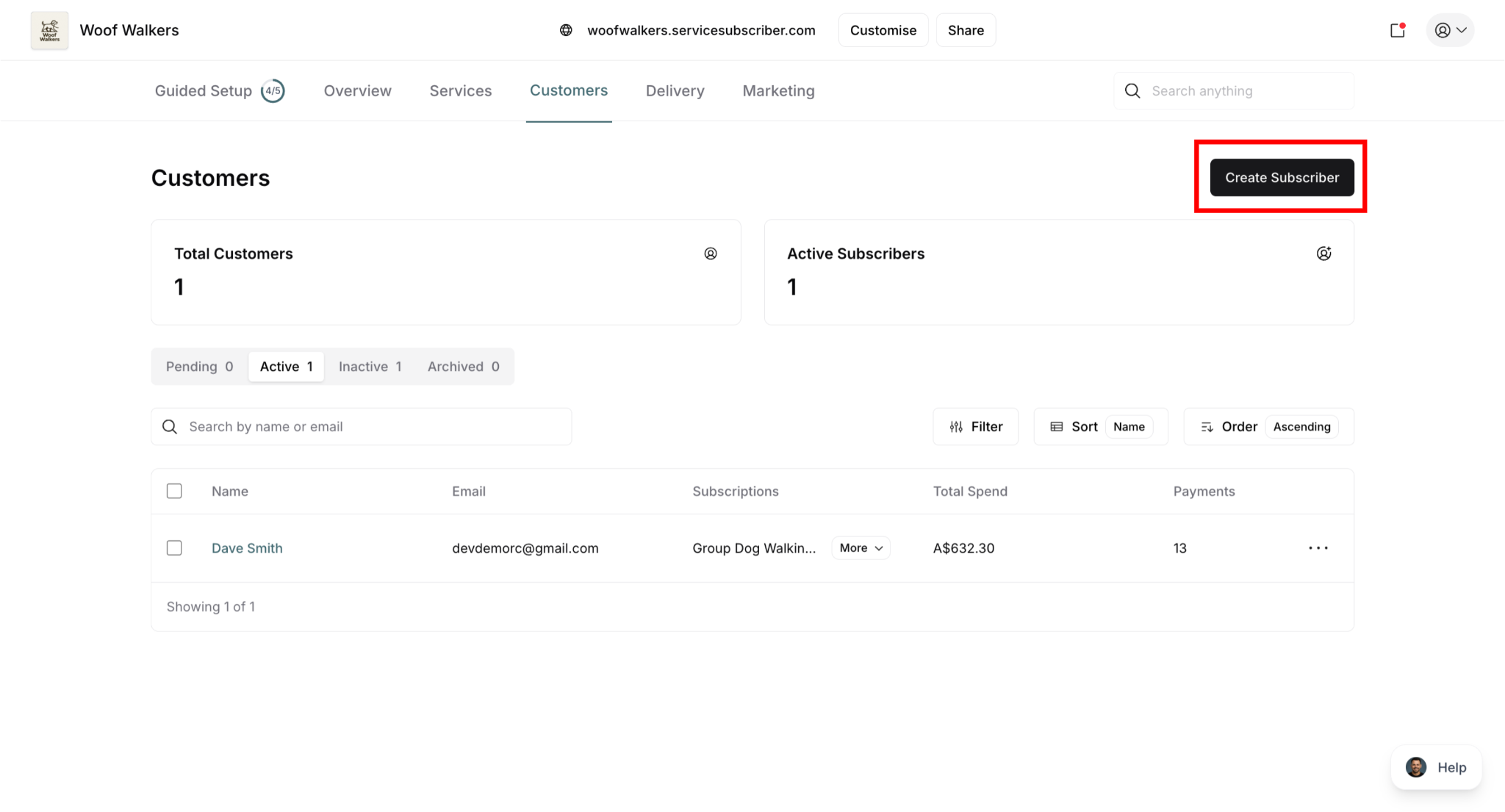
✍️ TIP: The "Create Subscriber" button is specifically for sending subscription invitations. There is no equivalent feature for one-off purchases—those customers must discover and purchase through your live site.
Creating an Invitation
Step 1: Enter Customer Email
In the invitation form, enter the customer's email address
System checks if email already exists in ServiceSubscriber
Shows status:
New customer: Email not in system yet
Existing customer: Customer already has an account
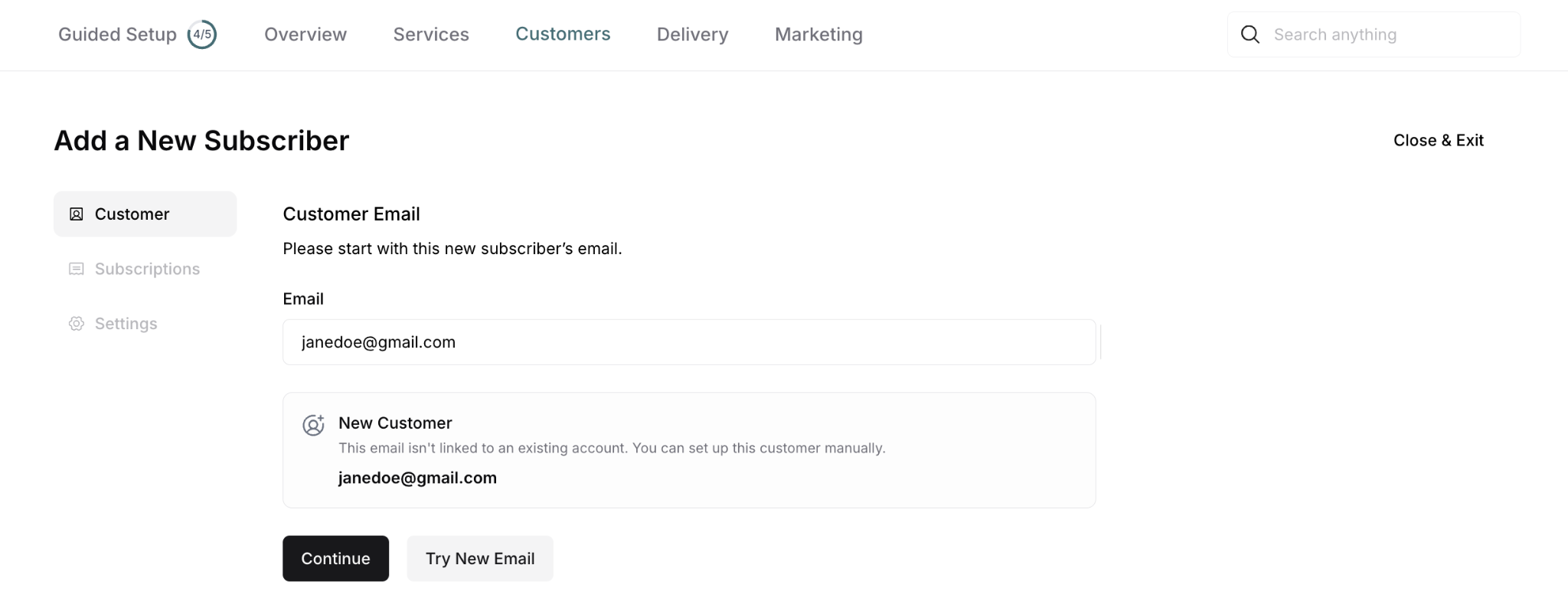
⚠️ IMPORTANT: Use the correct email address—this is where the invitation will be sent.
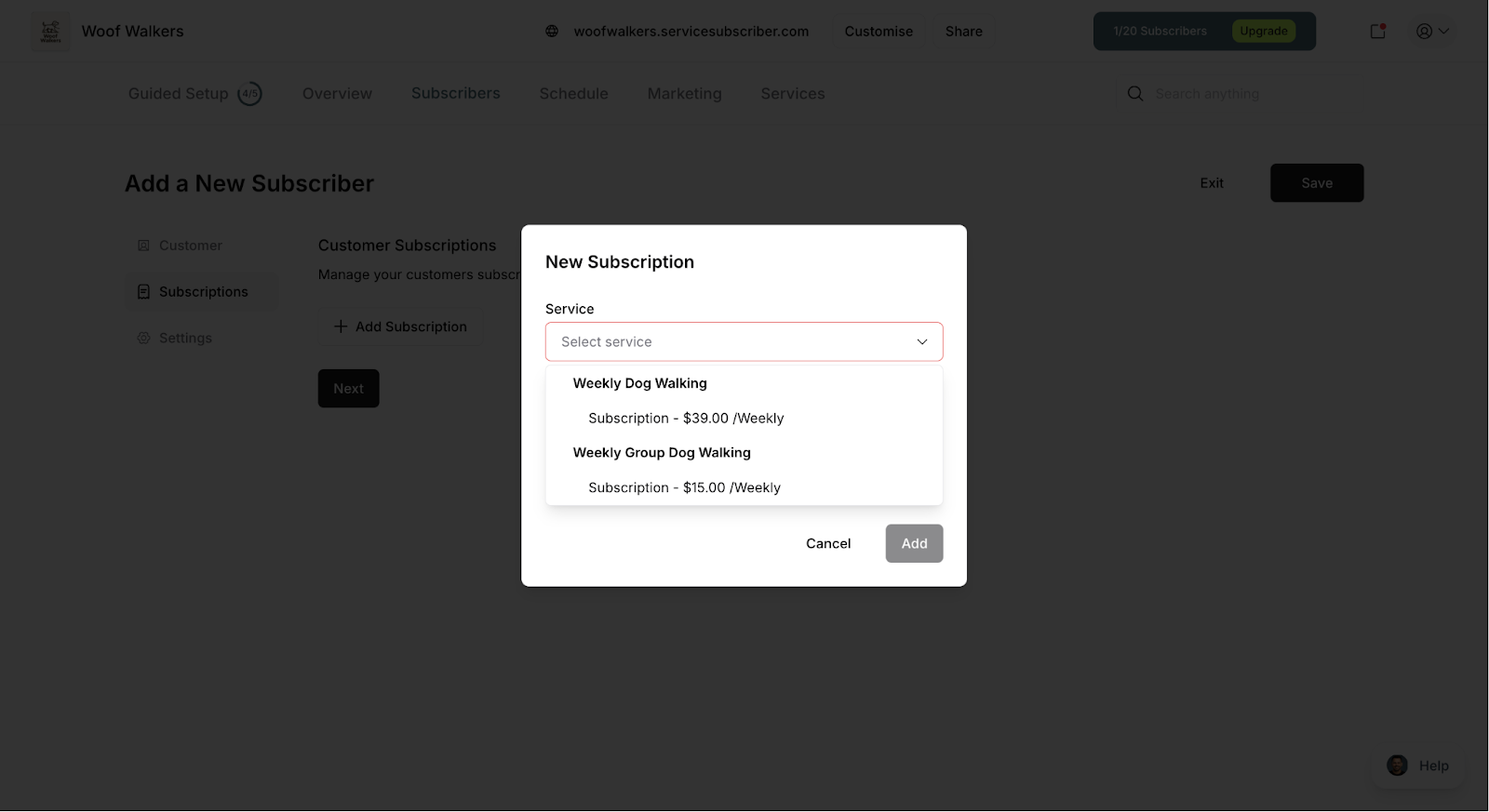
Step 2: Add Subscription Details
Select which service you're inviting them to subscribe to:
Click Service dropdown
Select the service
Service details display:
Pricing
Frequency
Service description
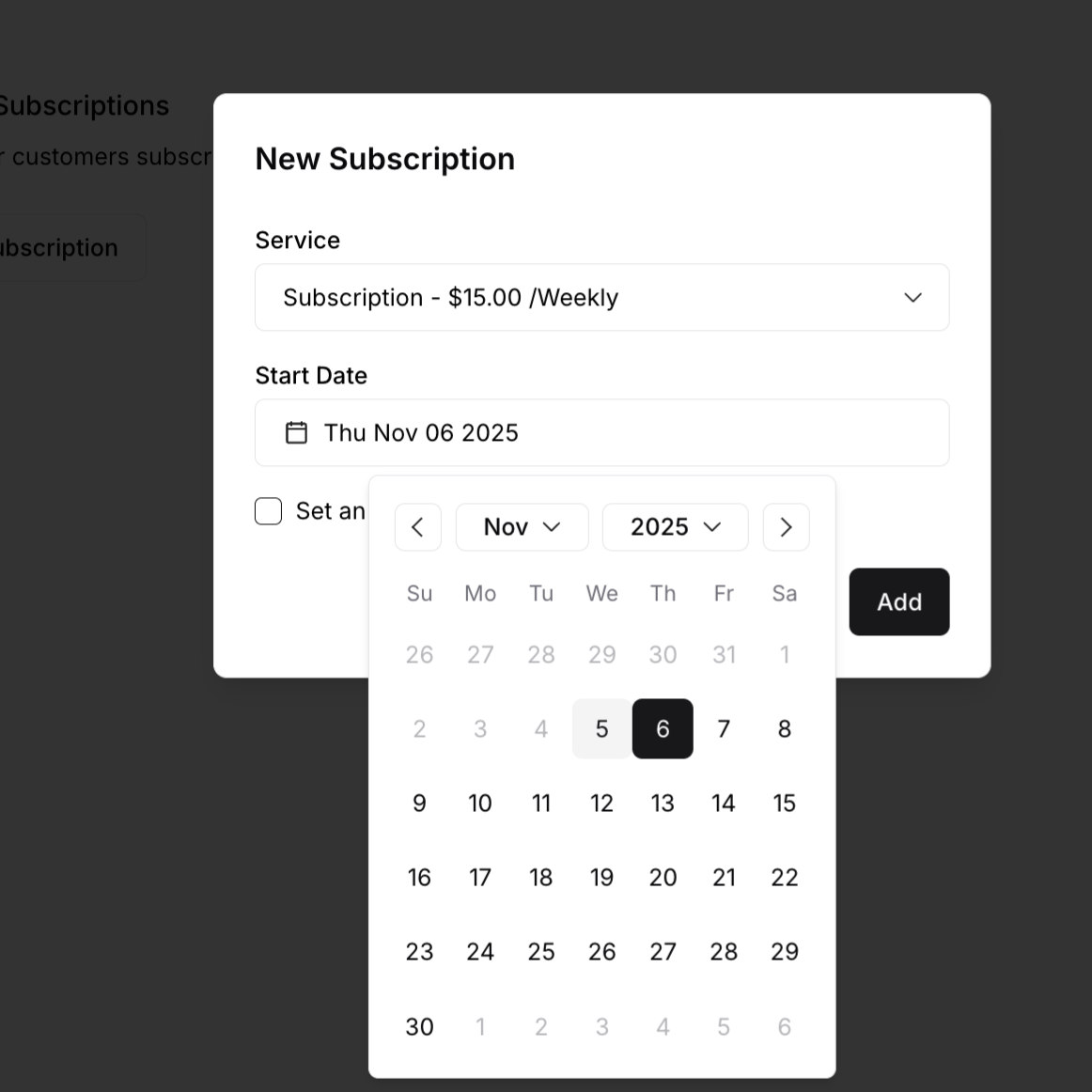
Step 3: Set Start Date
Choose when the subscription begins:
Click Start Date field
Select date from calendar picker
First service will be scheduled from this date
First payment processes on this date
✍️ TIP: Setting a future start date gives you flexibility. Send invitations now, and customers who accept early won't be billed until the start date. This is perfect for planning ahead—like starting new customers at the beginning of the month or aligning with your service route schedule.
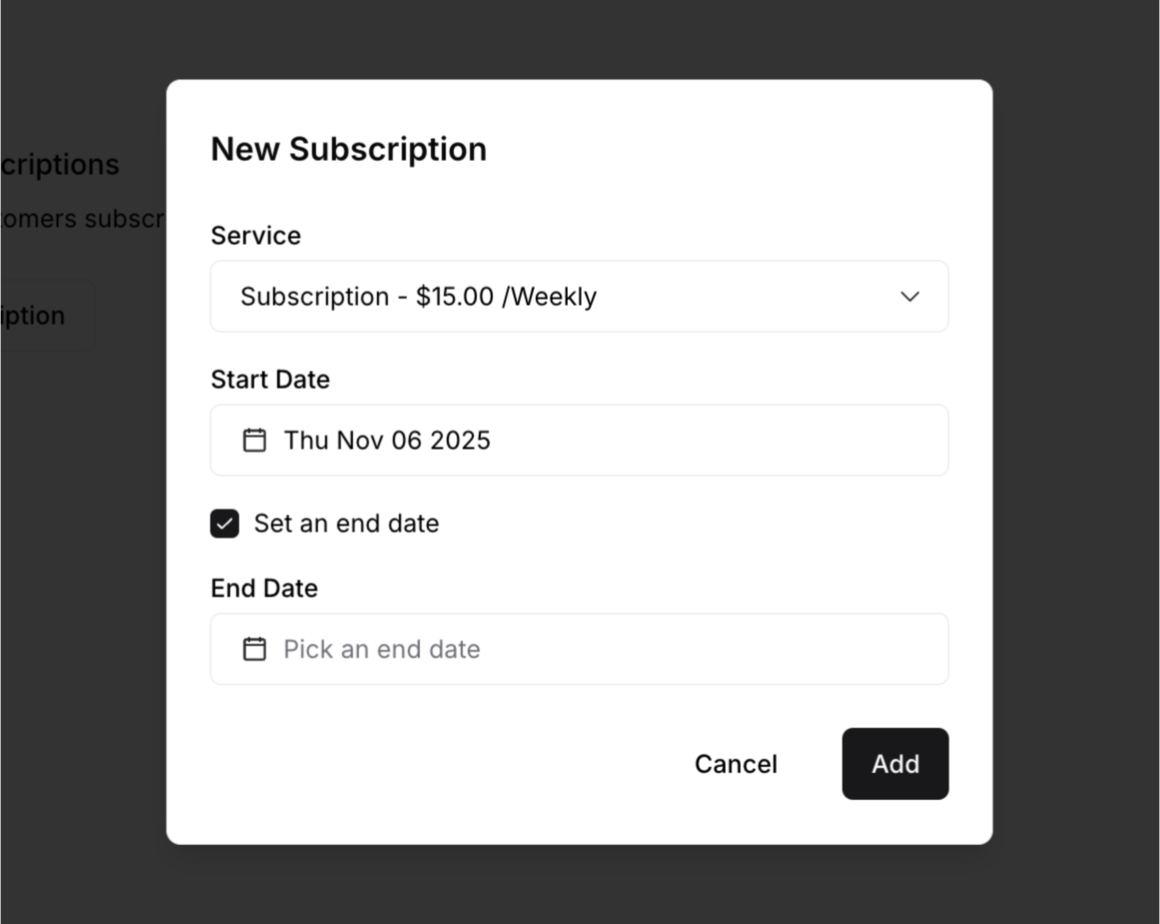
Step 4: Set End Date (Optional)
If the subscription has a specific end date:
Click End Date field
Select date from calendar picker
Subscription automatically ends on this date
When to use:
Seasonal services (lawn care ends in fall)
Trial periods
Fixed-term contracts
Temporary arrangements
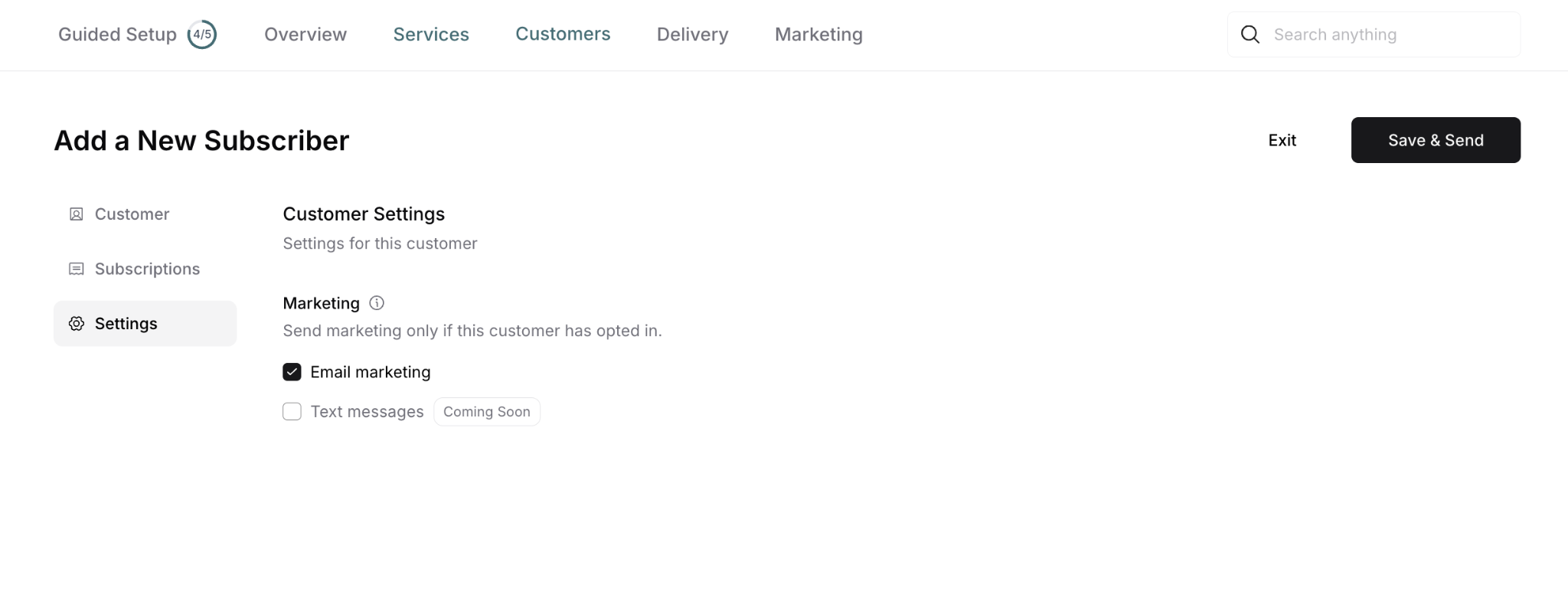
Step 5: Configure Customer Settings
Navigate to the Settings tab:
Marketing preferences:
Email marketing: New customers are added to your marketing list by default. Uncheck to exclude from promotional emails.
Text messages: Coming soon - SMS marketing option (currently unavailable)
Note: Marketing communications include newsletters, promotions, and updates. Transactional emails (receipts, service reminders, subscription notifications) are always sent regardless of this setting.
✅ BEST PRACTICE: Keep email marketing enabled (checked by default) unless the customer specifically requests to opt out. Customers can adjust their marketing preferences later through their customer portal at any time.
✍️ TIP: Transactional emails (payment receipts, service reminders, subscription confirmations) are separate from marketing emails and always sent to keep customers informed about their service.
Step 6: Send the Invitation
Review all invitation details:
Customer email is correct
Service selected properly
Start date makes sense
Settings configured appropriately
Click Save & Send
Invitation Sent confirmation appears showing:
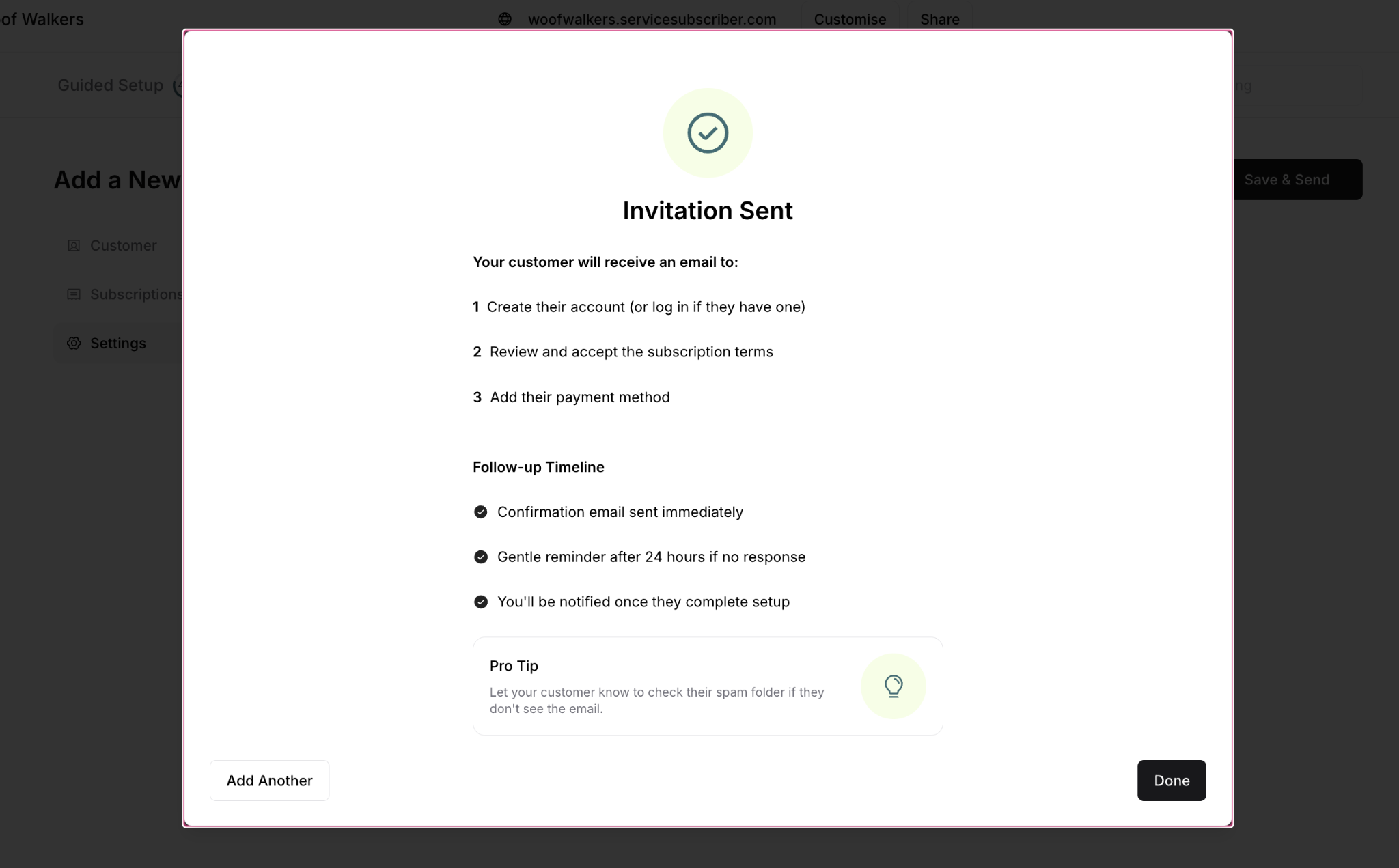
Choose your next action:
Click Add Another to invite another subscriber
Click Done to return to Customers page
What happens immediately: Subscription is created with "Pending" status, invitation email is sent to customer automatically, and the subscription appears in your Subscribers list for tracking.
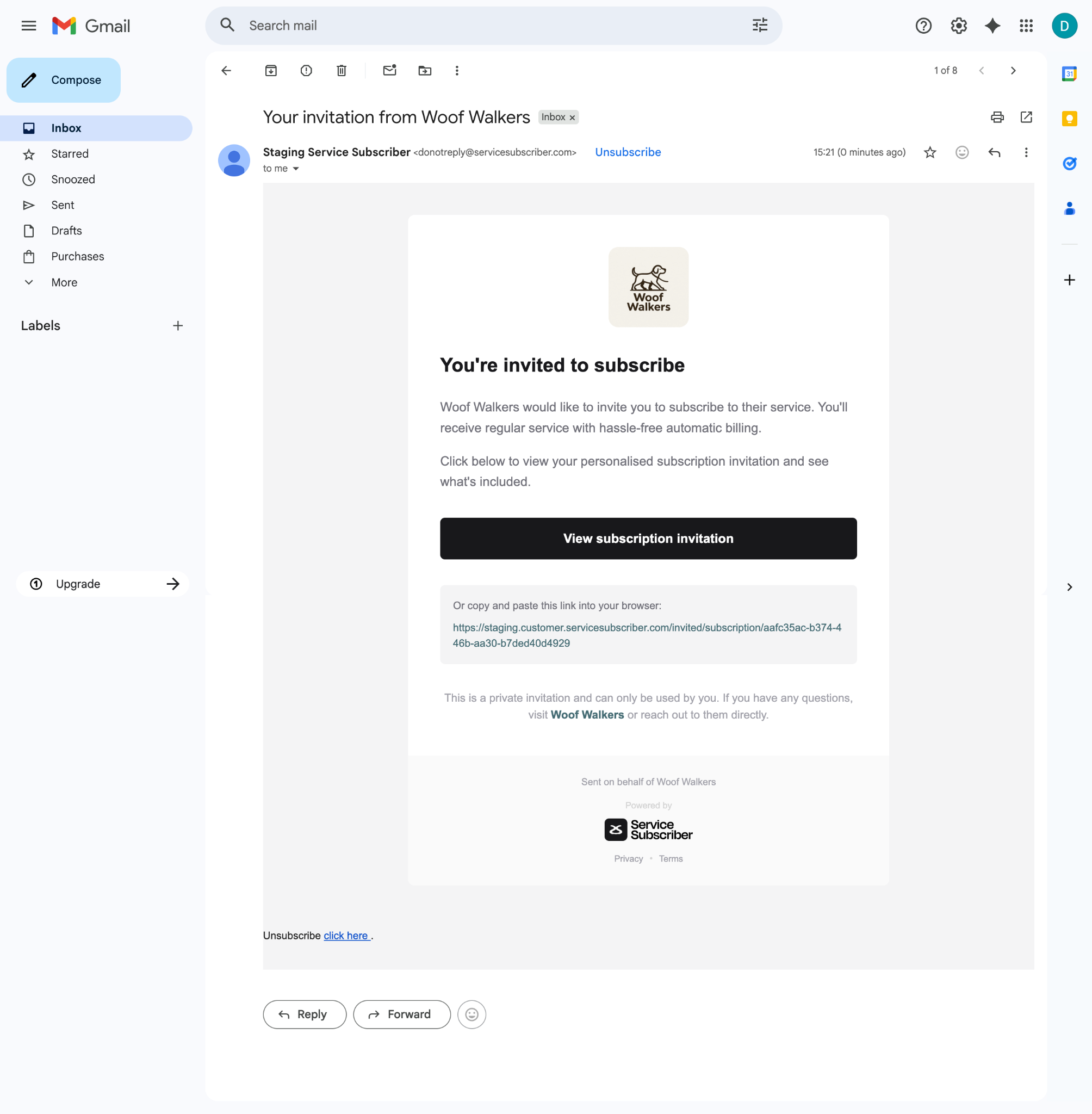
Separate verification email: Customer also receives a One-Time Password (OTP) in a separate email for account security and first-time subscriber verification.
✍️ TIP: Give customers a heads-up before sending. Text or call: "I'm sending you a subscription invite by email—look for it in the next few minutes."
Customer Acceptance Process
What Customers Do
Receive invitation email
Click link in invitation
Enter OTP from second email
Review subscription offer:
Service details
Pricing and frequency
Terms and policies
Accept by clicking Confirm Details or Decline
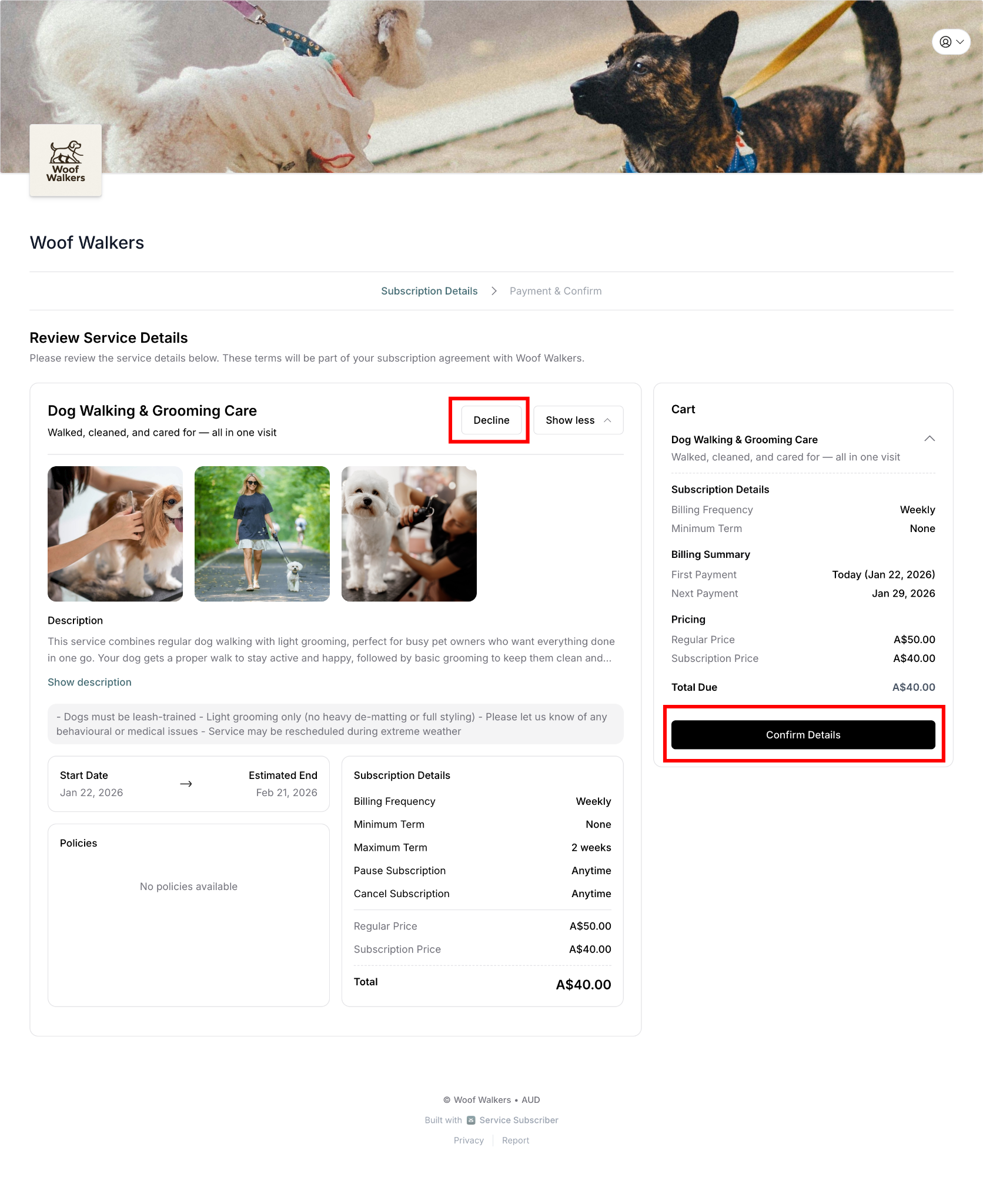
If Customer Accepts
This is what happens if customer accepts:
Subscription status changes to "Active"
First payment processes
First service scheduled
Welcome emails sent
You receive notification
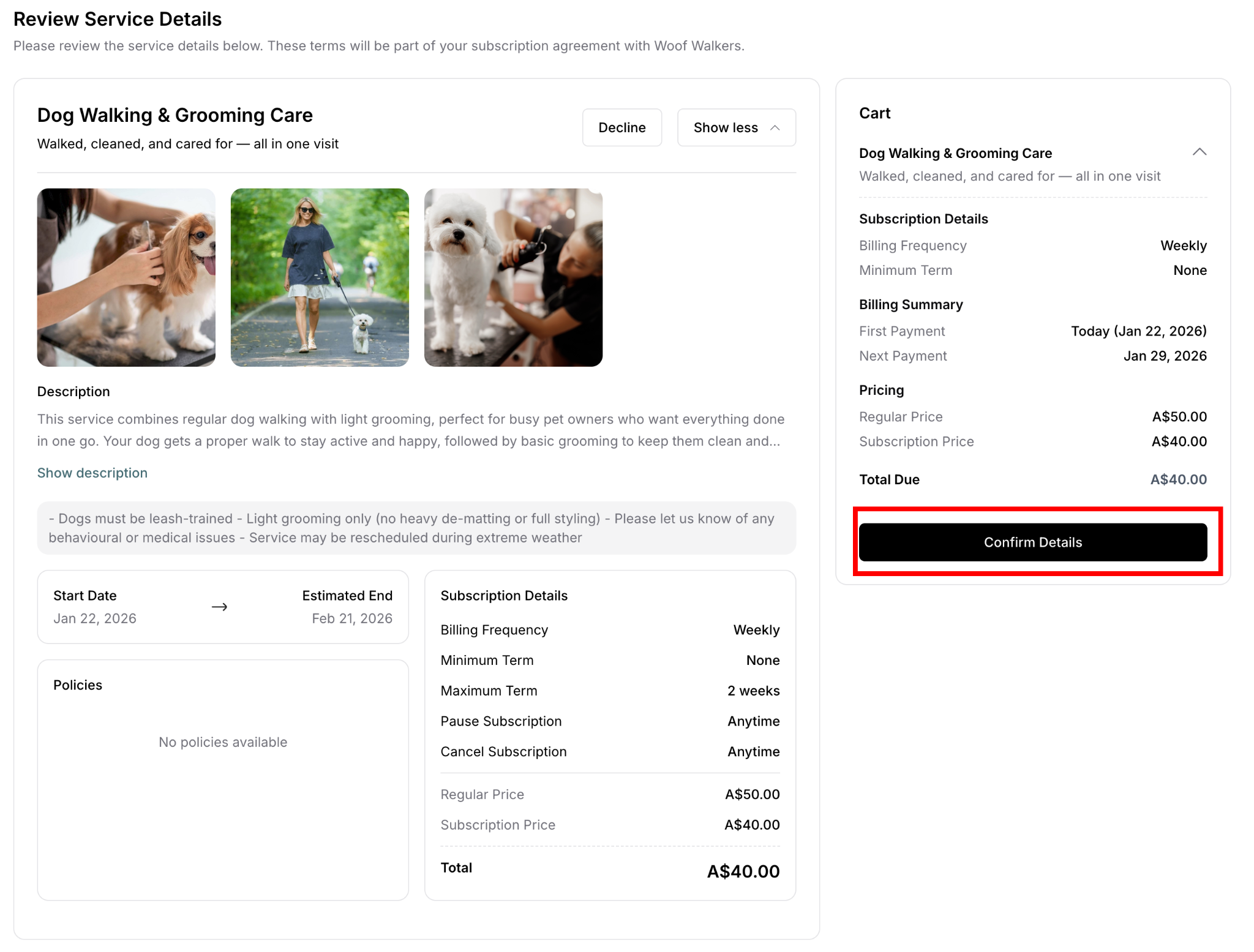
If Customer Declines
This is what happens if customer declines:
Subscription status changes to "Rejected"
You receive email notification
Includes customer's decline reason (if provided)
No payment processed
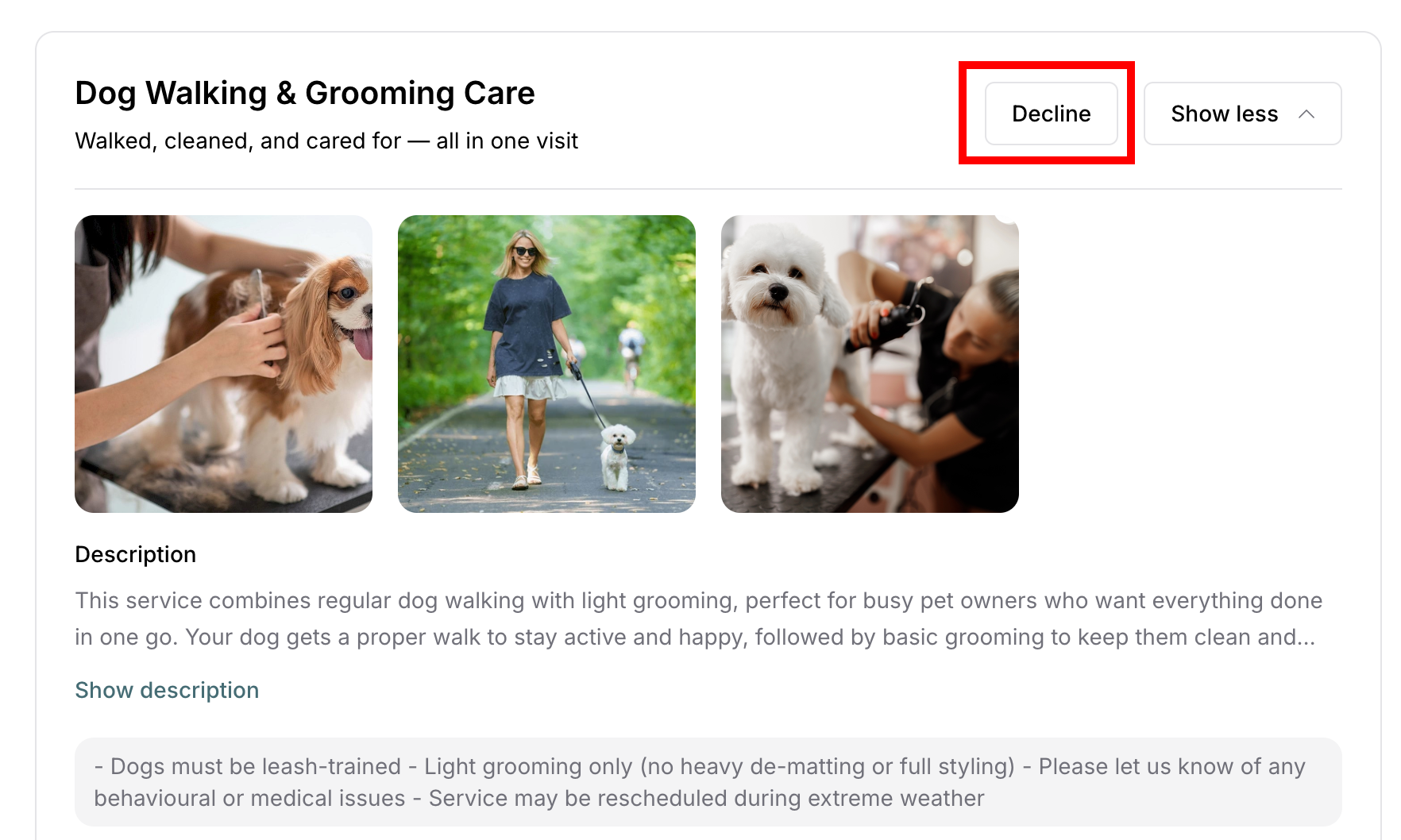
✍️ TIP: If a customer declines, reach out personally to understand concerns. Often it's timing or clarification needed, not disinterest.
Resending Invited Subscriptions
If a customer hasn't responded to your invitation, you can resend it while the status is still pending:
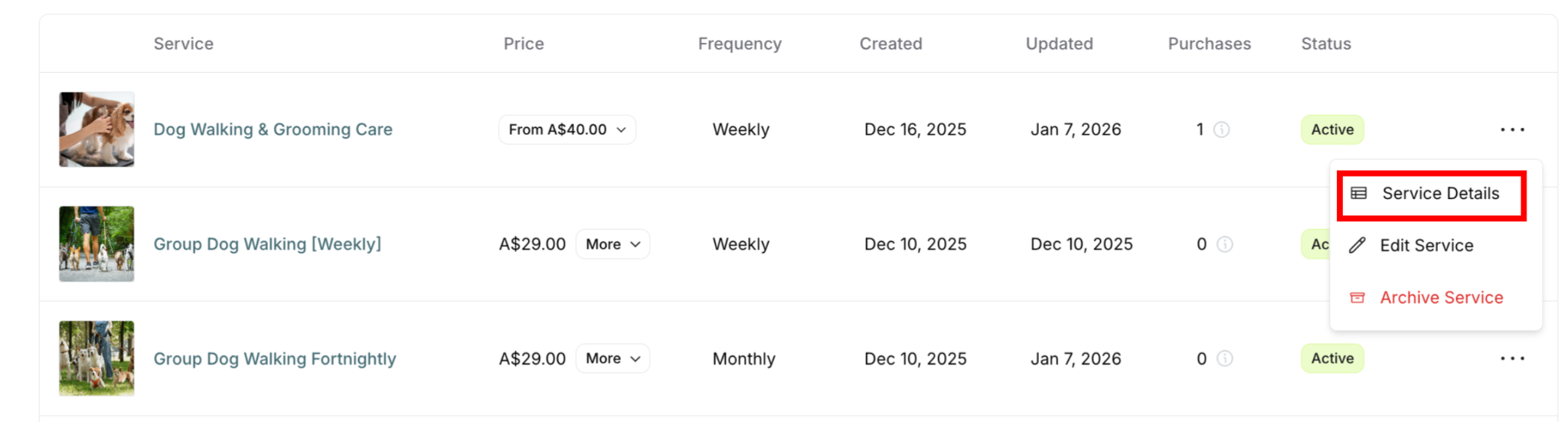
Go to Services in the main navigation
Find the service and click the action menu (⋯)
Select Service Details
Navigate to the Subscriptions tab
Look for pending subscriptions in the list
Click the action menu (⋯) next to the pending subscription
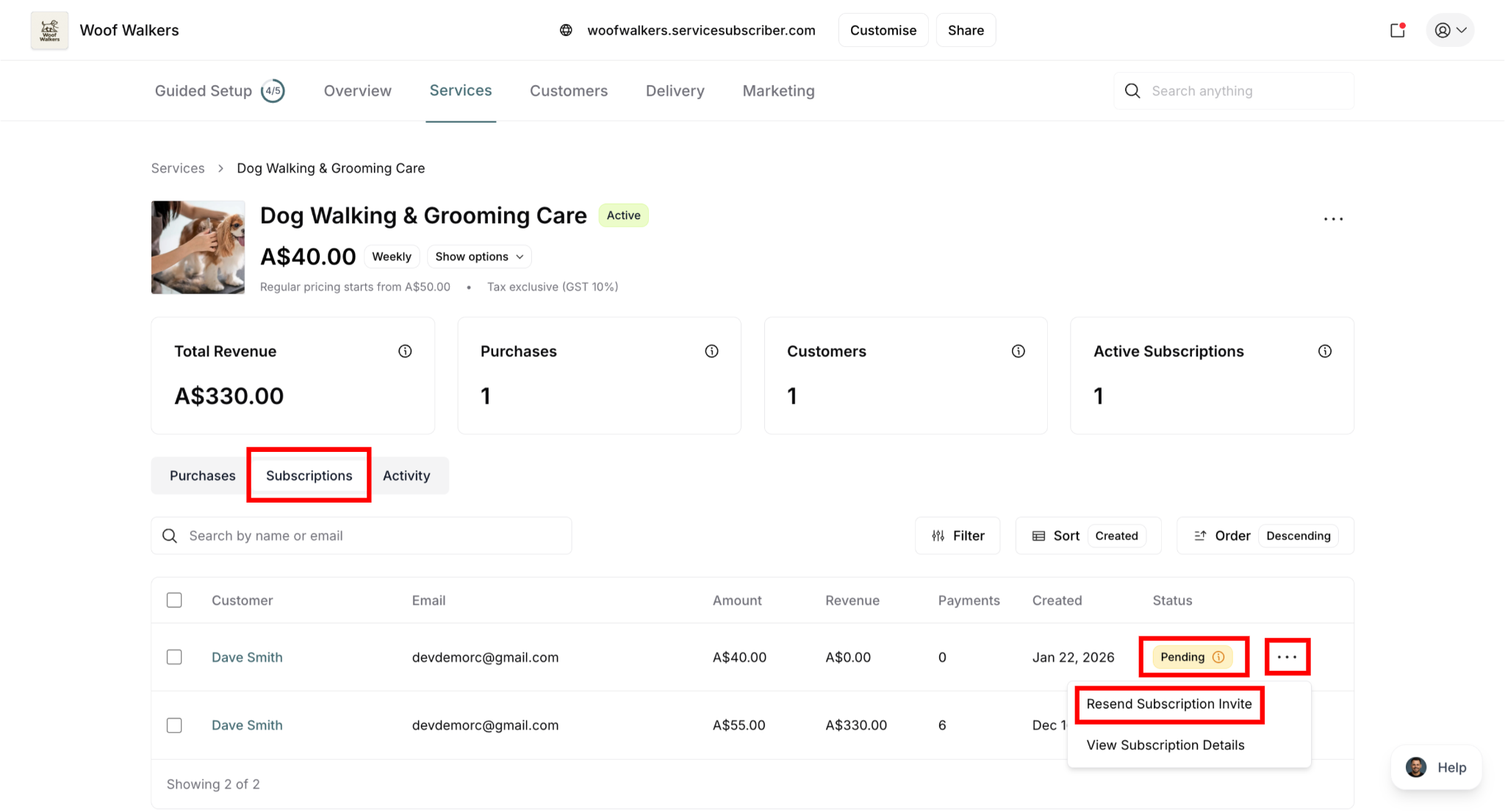
Select Resend Subscription Invite
Confirmation appears that invitation has been resent
When to resend:
Customer hasn't responded after 24-48 hours
Customer mentioned they didn't receive the email
Following up on your initial invitation
Customer needs a reminder to complete signup
What happens:
Customer receives a fresh invitation email
Previous invitation link remains valid
Follow-up timeline restarts (24-hour reminder, etc.)
You're notified when they complete setup
✍️ TIP: Before resending, remind customers to check their spam folder. Most unresponded invitations are in spam, not missed entirely.
Cancelling Invited Subscriptions
If an invitation was sent by mistake and the status is still pending, you can cancel it immediately:
Go to Services in the main navigation
Find the service and click the action menu (⋯)
Select Service Details
Navigate to the Subscriptions tab
Find the pending subscription in the list
Click the action menu (⋯) next to the pending subscription
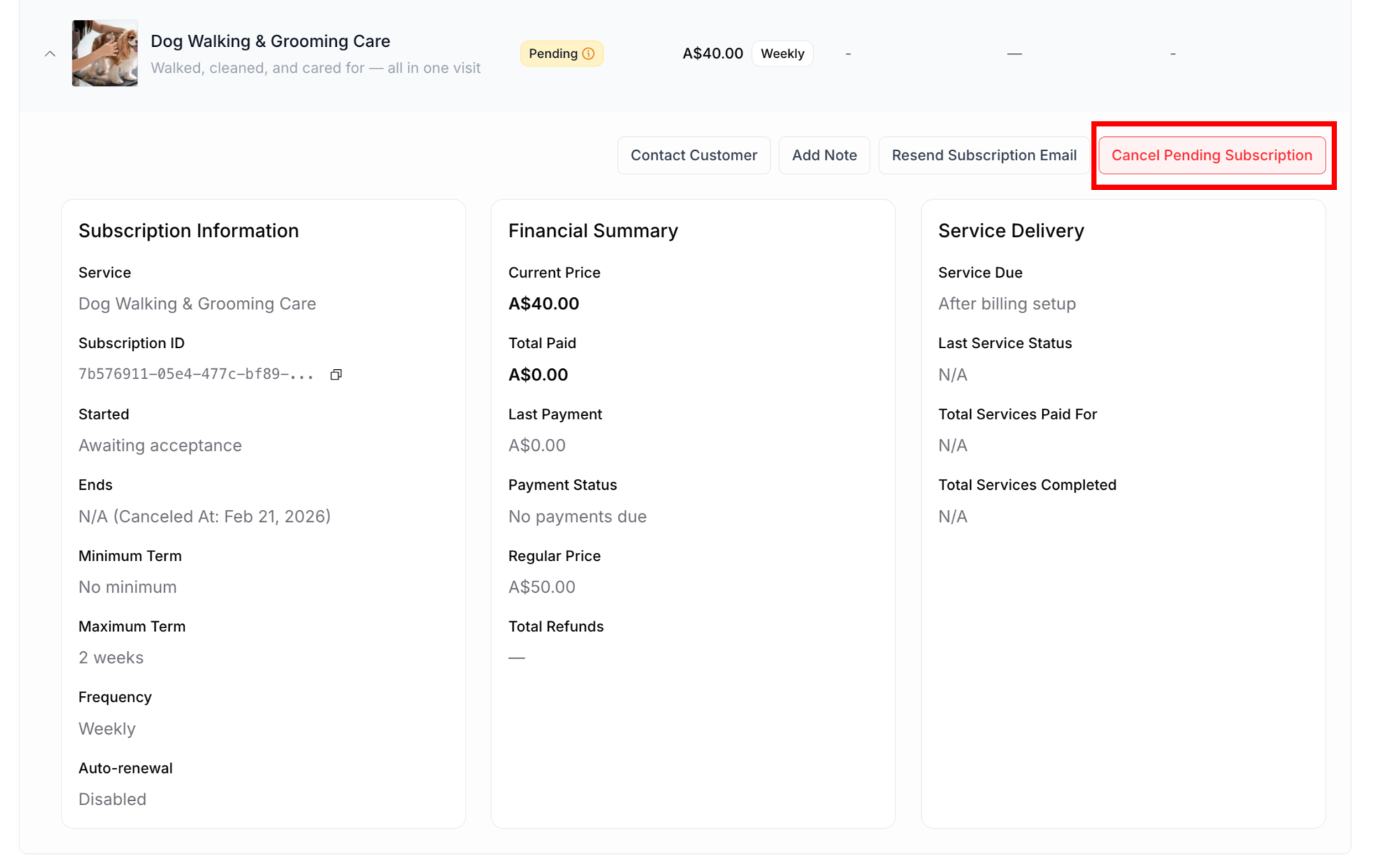
Select View Subcription Details
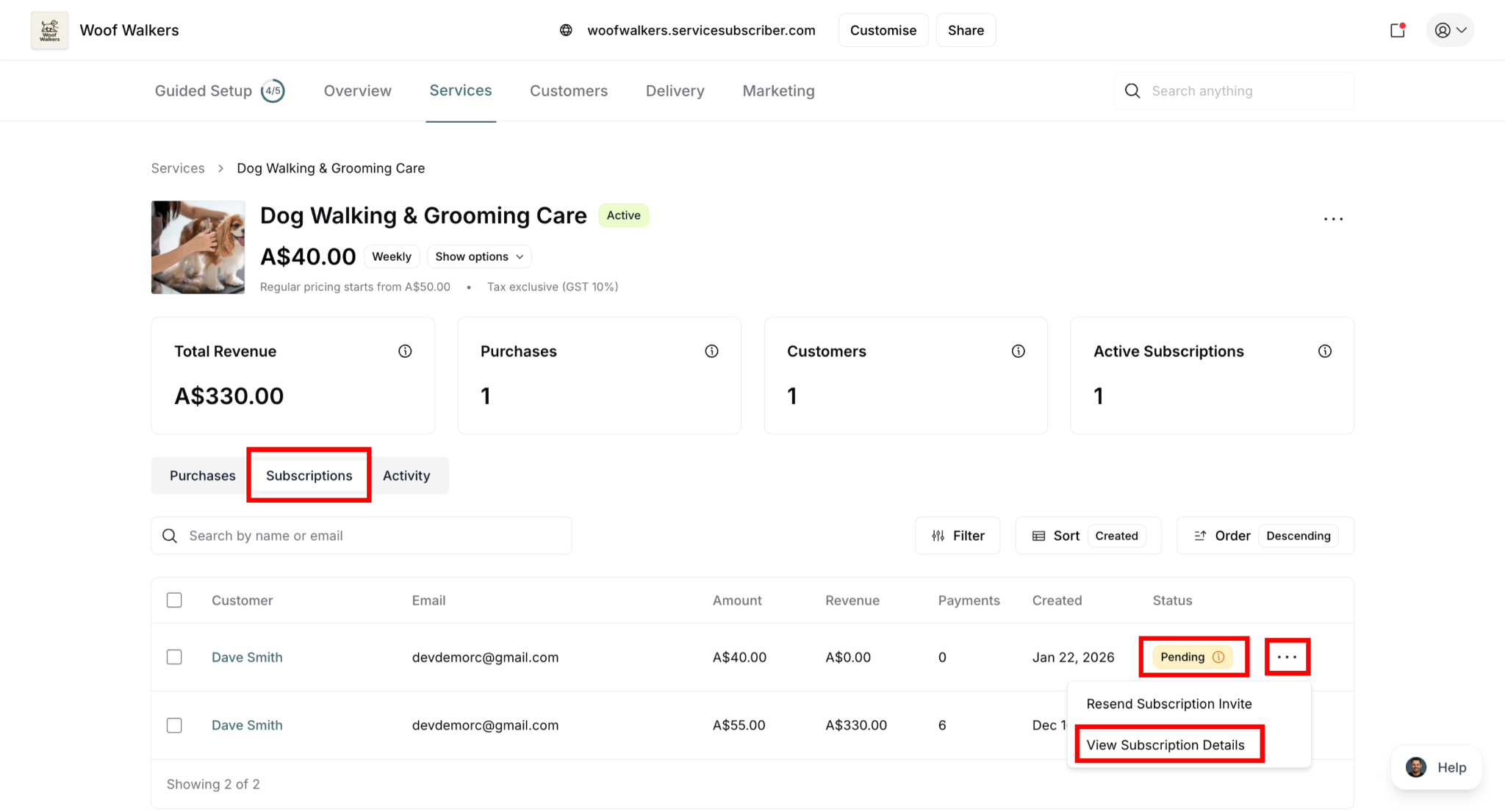
Click Cancel Pending Subscriptions
Confirm cancellation by clicking Withdraw Invite
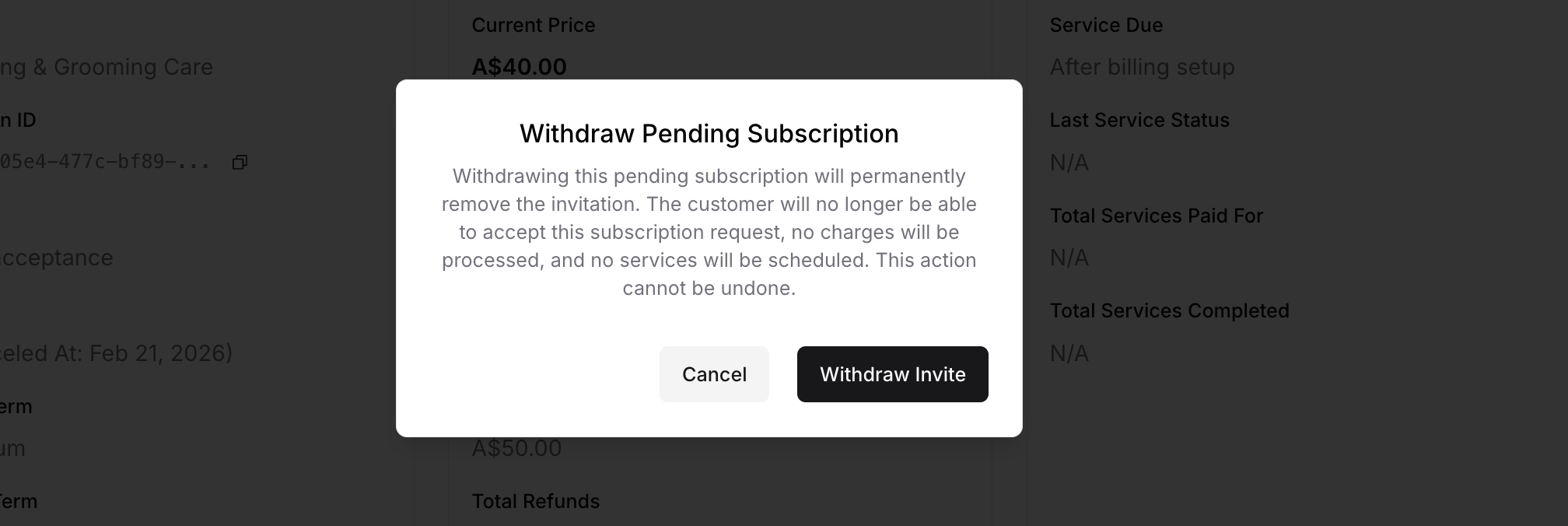
Invitation has successfully been canceled
Customer can no longer accept the invitation
When to cancel:
Invitation sent to wrong email address
Customer declined to subscribe
Service or pricing changed since invitation sent
Customer no longer interested
⚠️ IMPORTANT: You can only cancel invitations with "Pending" status. Once a customer accepts and the subscription becomes "Active," you cannot cancel it this way—you must use the regular cancellation process.
Was this article helpful?
That’s Great!
Thank you for your feedback
Sorry! We couldn't be helpful
Thank you for your feedback
Feedback sent
We appreciate your effort and will try to fix the article