When customers visit your service page, they browse available services, select what they need (one-off or subscription), create an account, and complete checkout. The process is designed to be simple, secure, and flexible.
This guide explains the complete customer signup journey from their perspective.
Why Signup Process Matters
A smooth signup experience helps:
Convert visitors to paying customers
Reduce cart abandonment
Build customer confidence
Enable flexible purchasing options
Create secure customer accounts
Facilitate repeat purchases
✍️ TIP: The signup process uses OTP (one-time password) authentication instead of traditional passwords, making it more secure and easier for customers.
Viewing Available Services
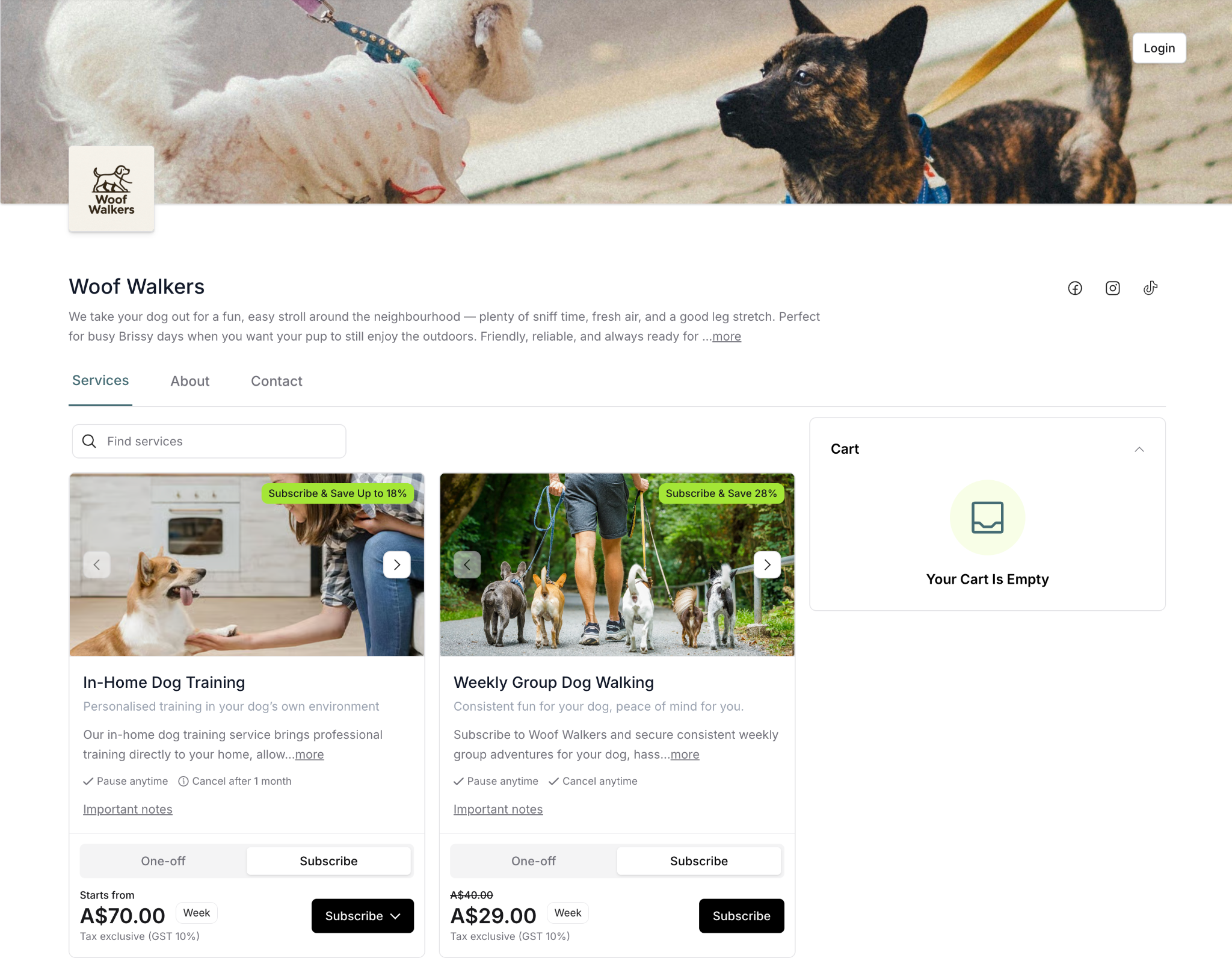
When customers arrive at your service page, they immediately see your available services displayed in a grid layout.
Service Page Overview
What customers see:
Business name and description at top
Cover photo and branding
Navigation tabs (Services, About, Contact)
Search bar to find specific services
Service cards showing all offerings
Cart panel on right side
Social media links (if configured)
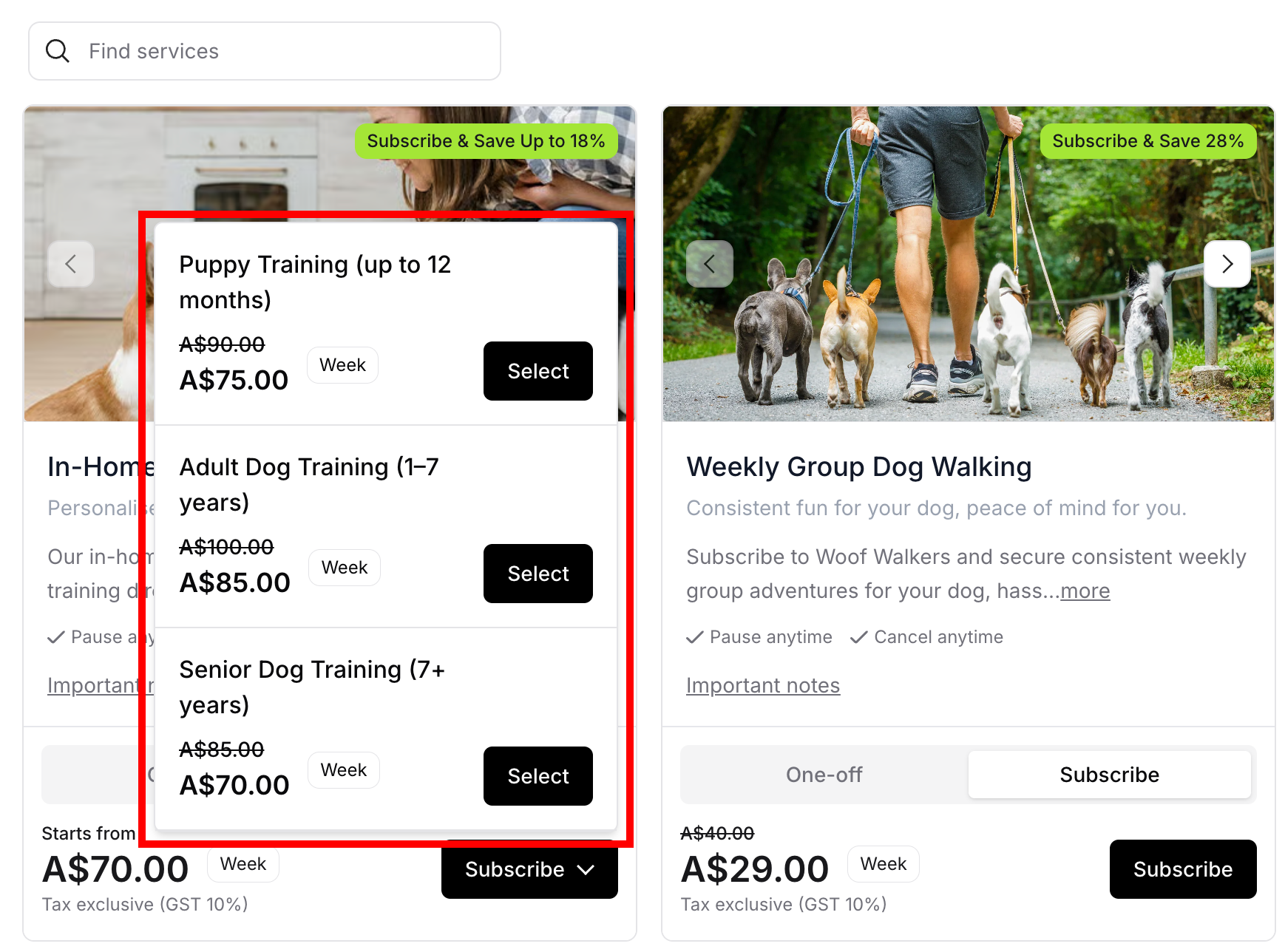
Service Card Information
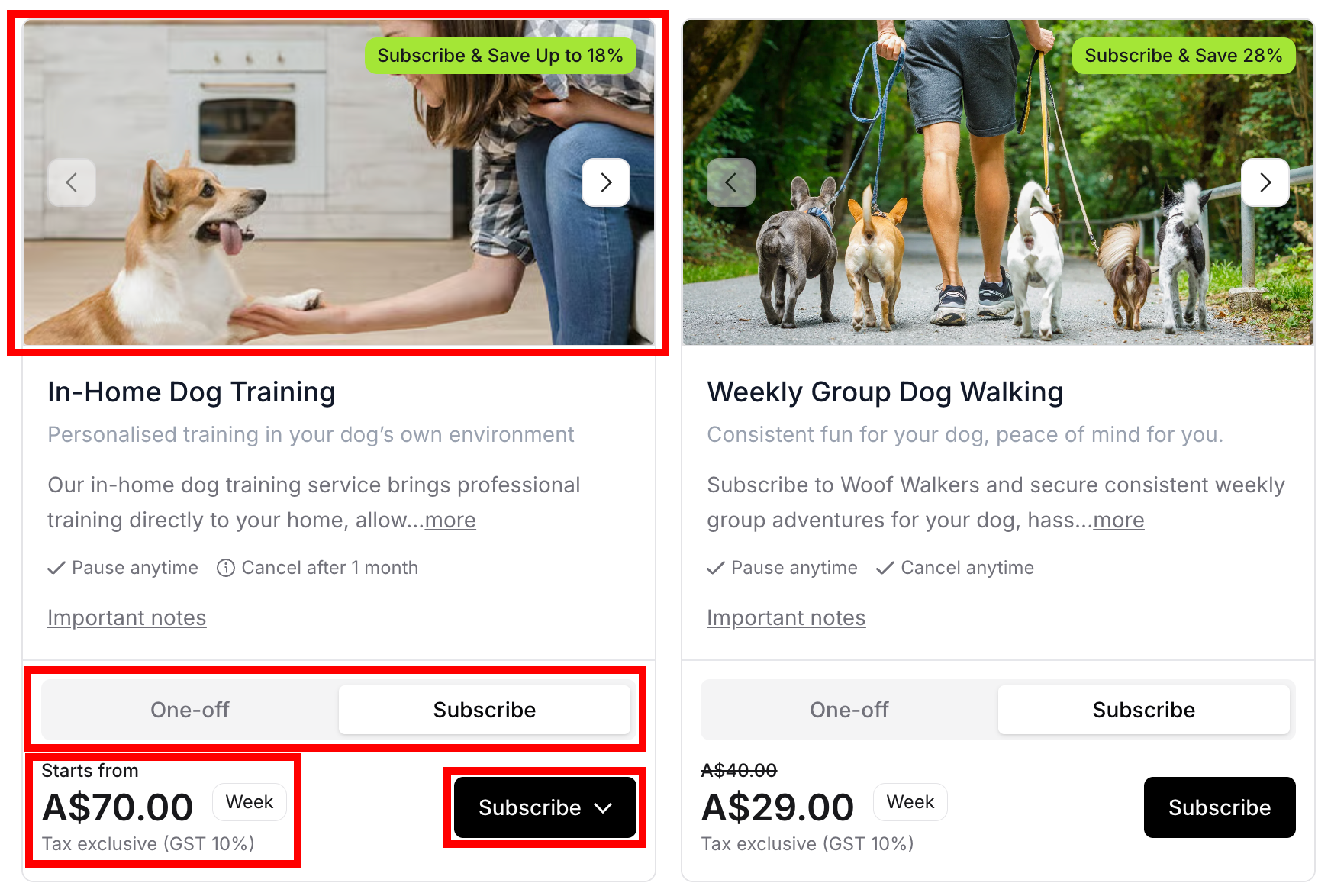
Each service card displays:
Visual elements:
Service photos (carousel if multiple images)
Savings badge (e.g., "Subscribe & Save Up to 18%")
Service name
Brief description
Pricing information:
One-off pricing: "Starts from A$70.00"
Subscription pricing with frequency
Discounted subscription rate
Tax information: "Tax exclusive (GST 10%)"
Action buttons:
"One-off" button (left)
"Subscribe" button (right)
Dropdown arrow if service has tiers
Browsing and Exploring Services
Customers can explore services in detail before making decisions.
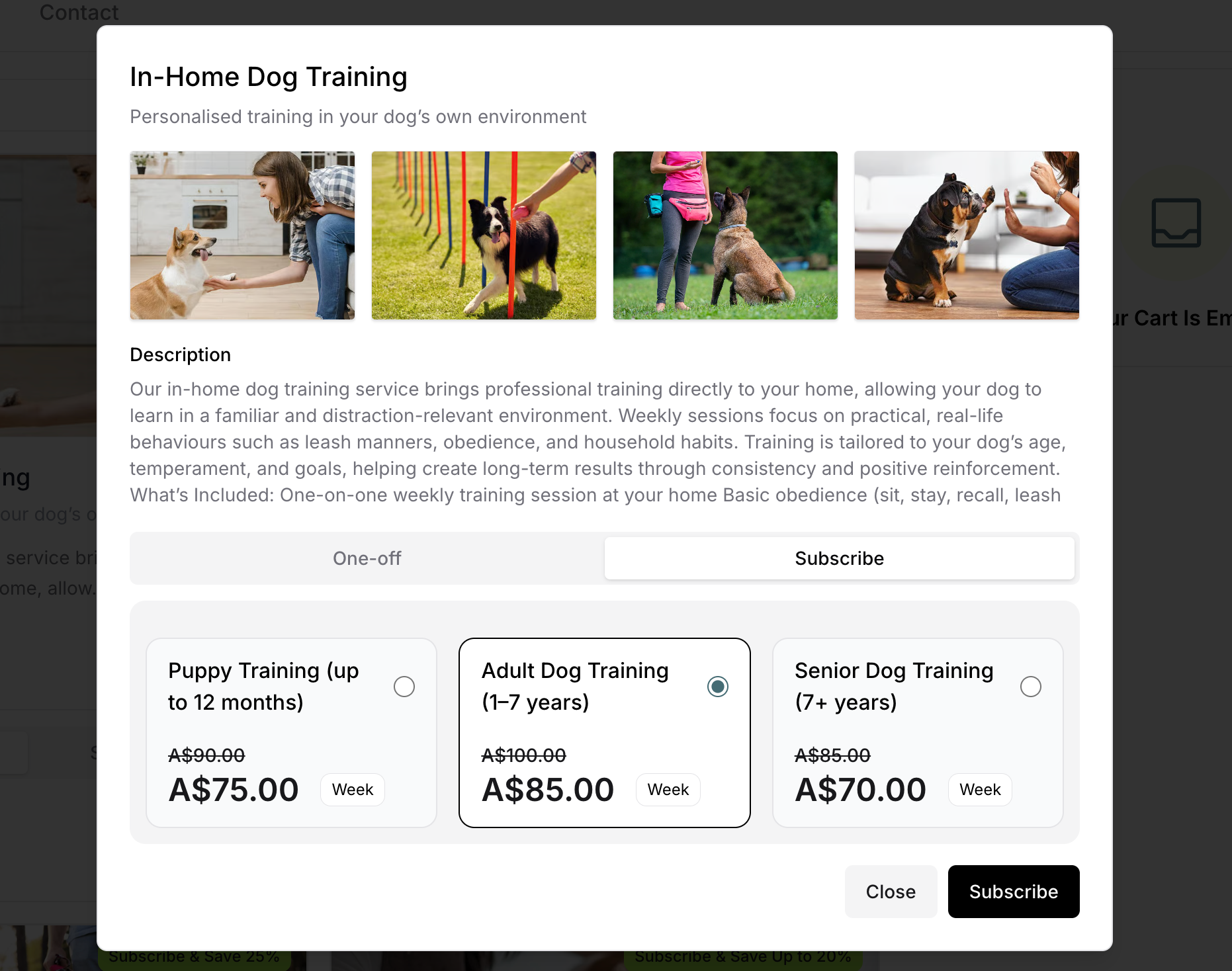
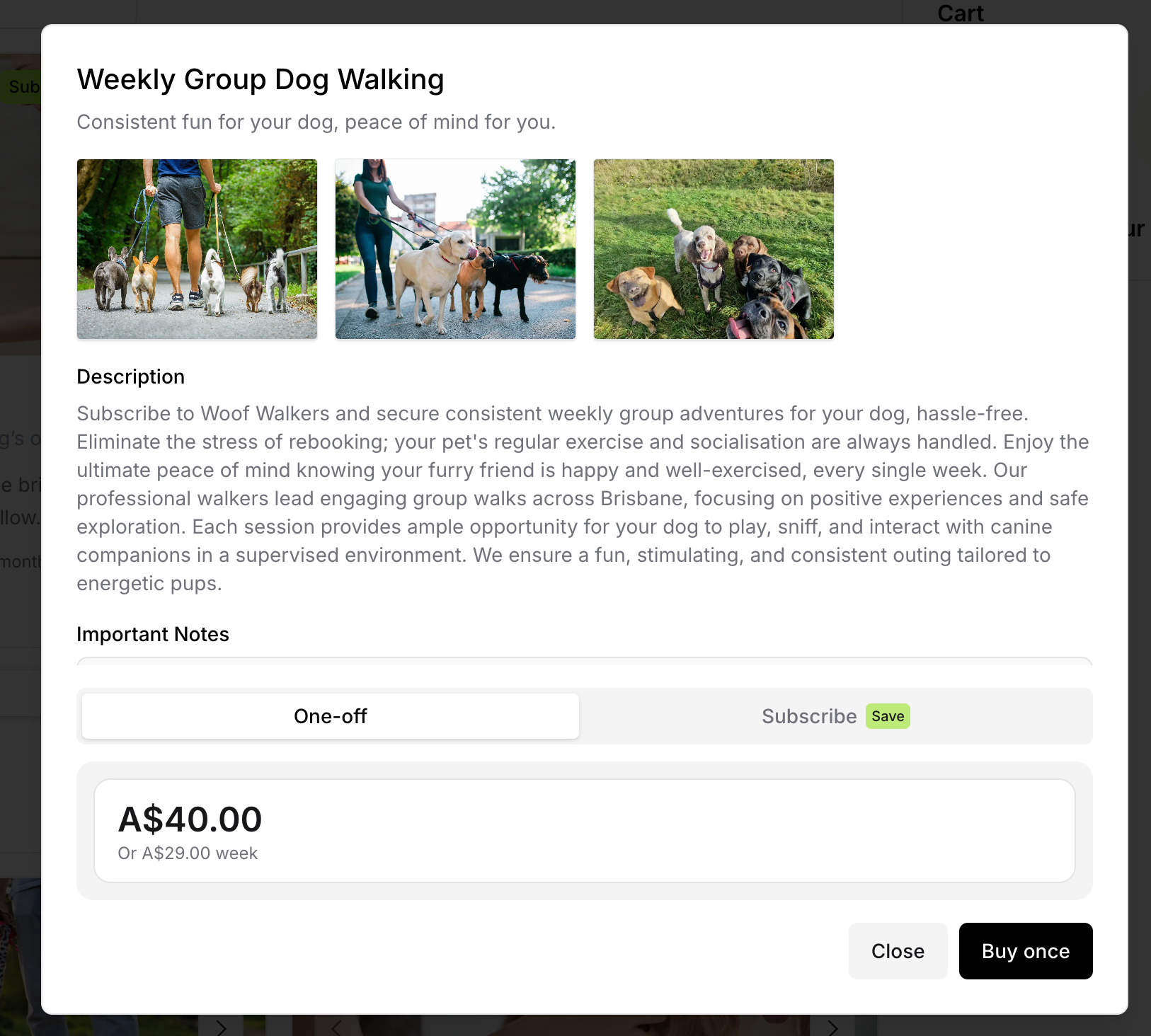
Viewing Full Service Details
To see complete information:
Click subscribe or buy once button
Modal window opens showing full information of the service
Click "Close" to return to browsing
Searching for Services
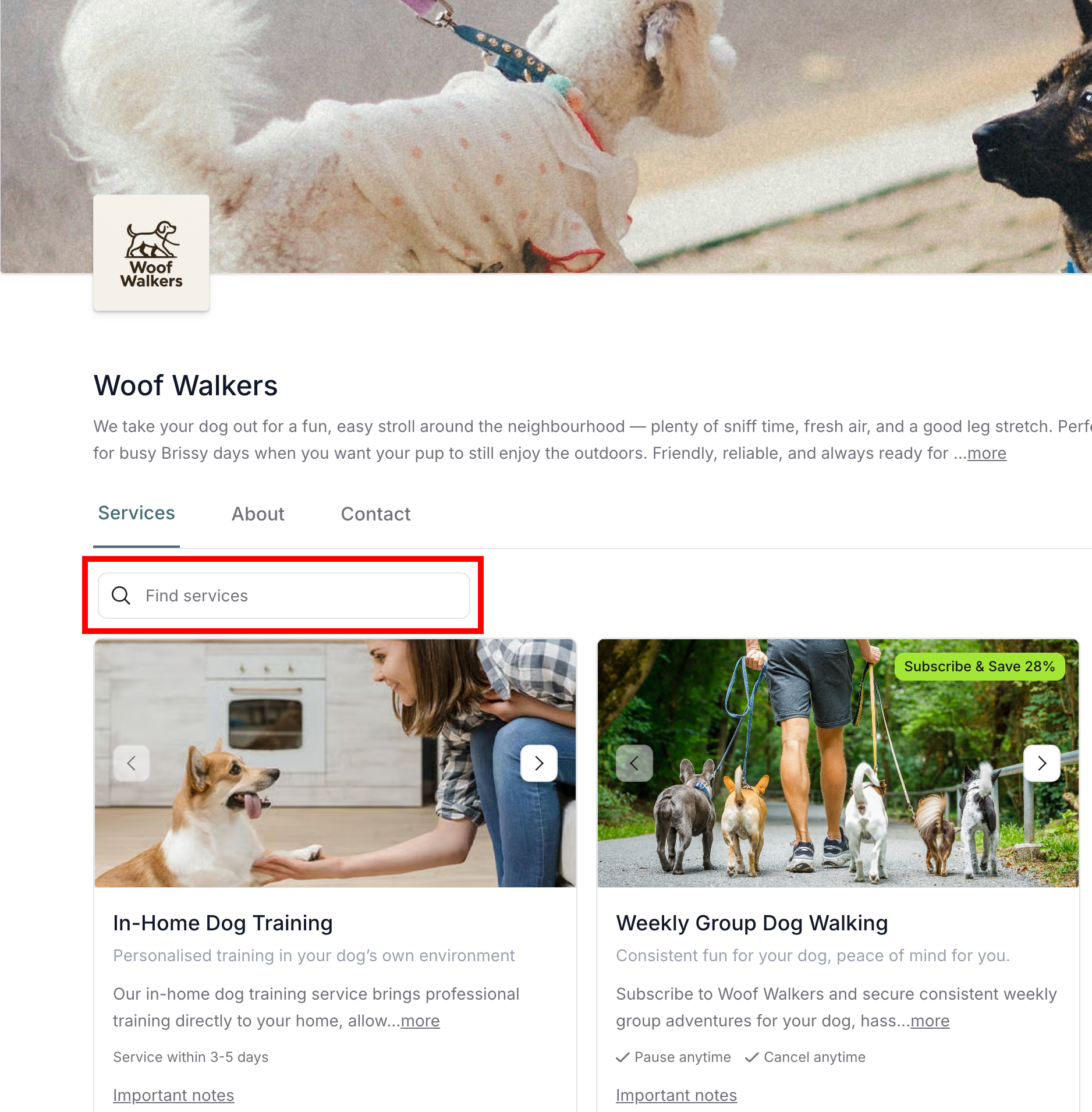
Using the search function:
Type service name or keywords in search bar
Results filter in real-time
Find specific services quickly
Clear search to view all services again
Selecting Services
Customers choose between one-off purchase or subscription for each service.
One-off Purchase Selection
For one-time service:
Click "One-off" tab or button
View one-off pricing display
If service has tiers:
Click dropdown arrow on "Buy once" button
Modal opens showing tier options
Select desired tier
Click "Buy once" button
If service has no tiers:
Click "Buy once" button directly
Modal opens with service details
Click "Buy once" to proceed
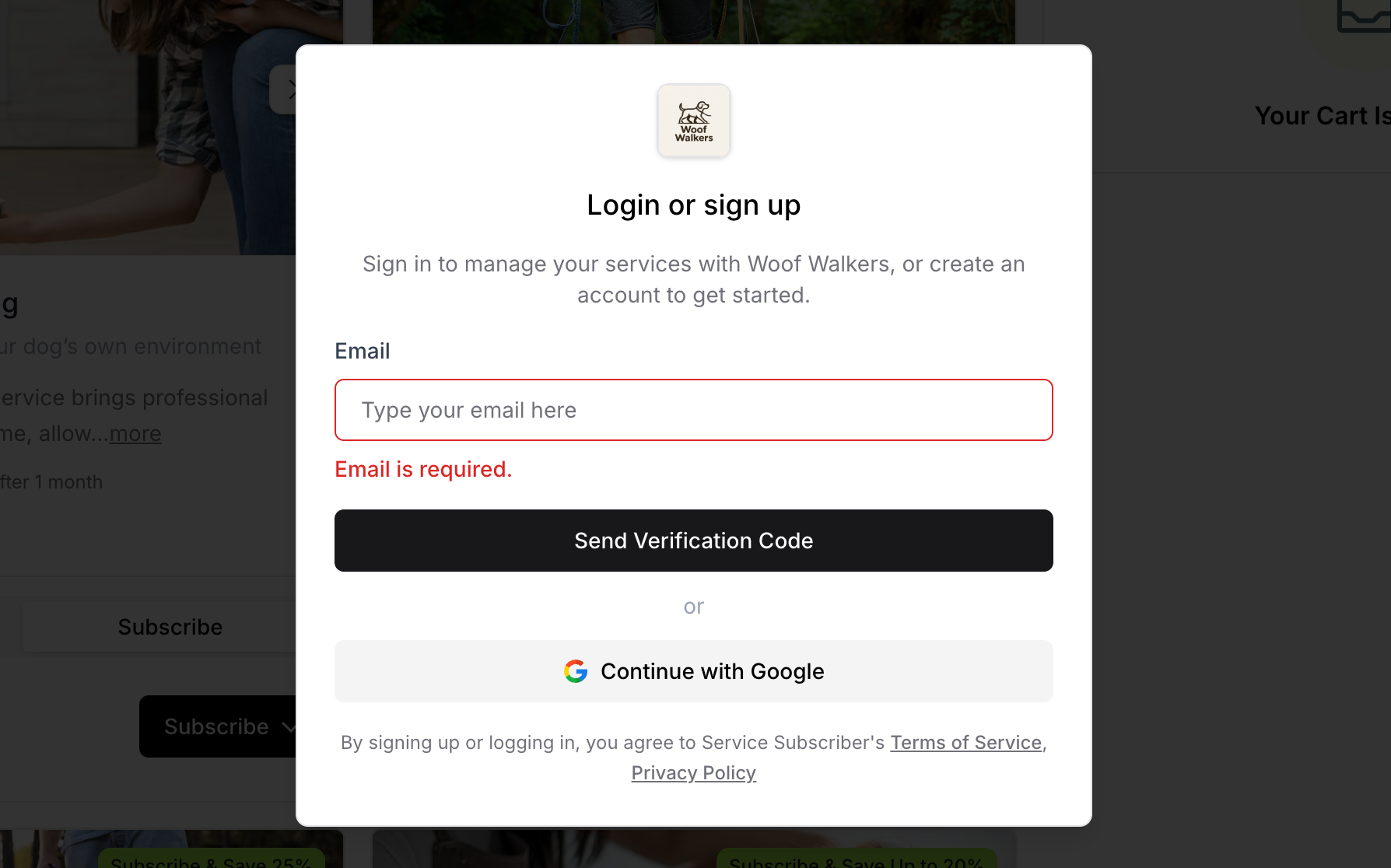
Login/signup prompt appears
Subscription Selection
For recurring service:
Click "Subscribe" tab or button
View subscription details
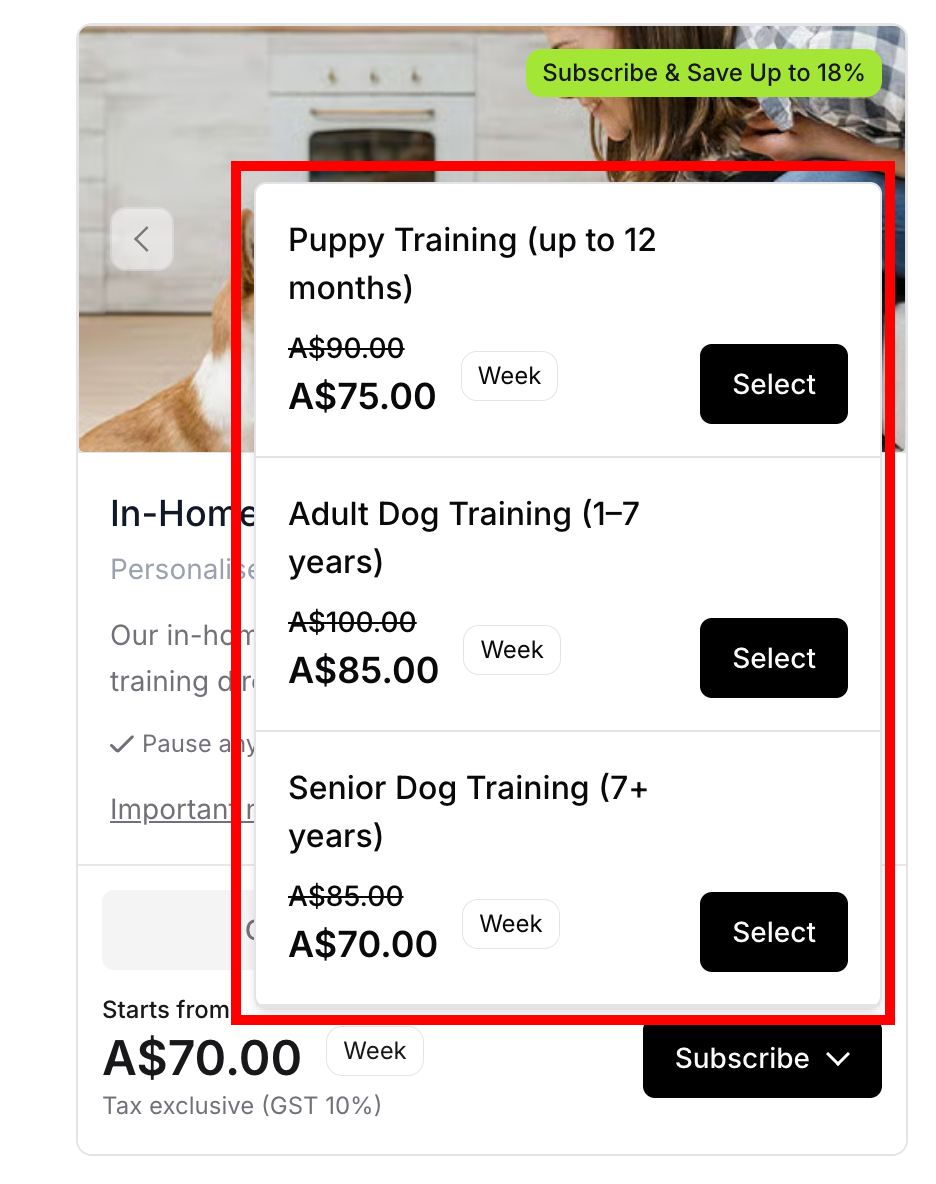
If service has tiers:
Click dropdown arrow on "Subscribe" button
Modal displays all available tiers
Tier cards show: name, pricing, weekly/monthly rate
Select tier
If service has no tiers:
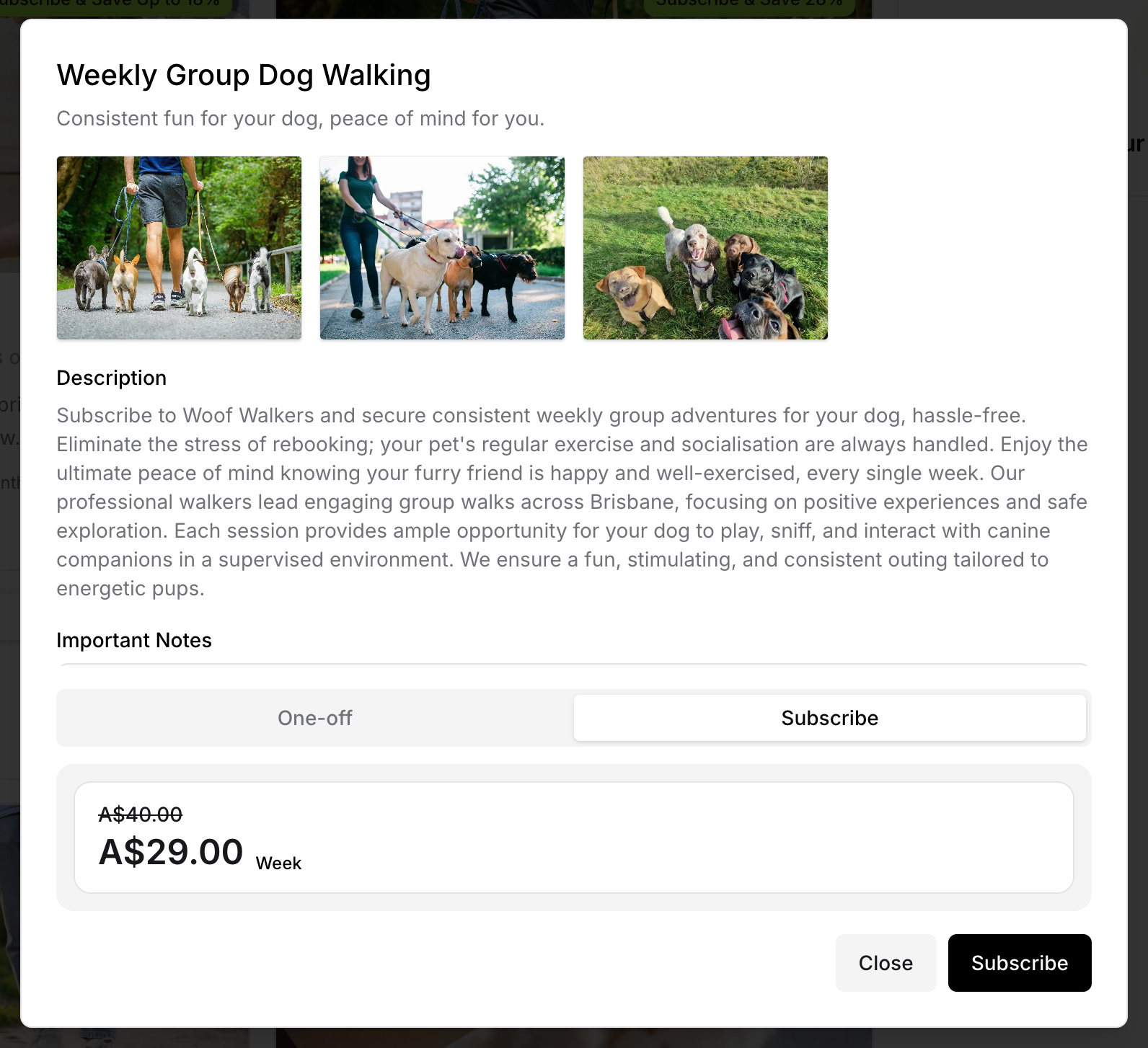
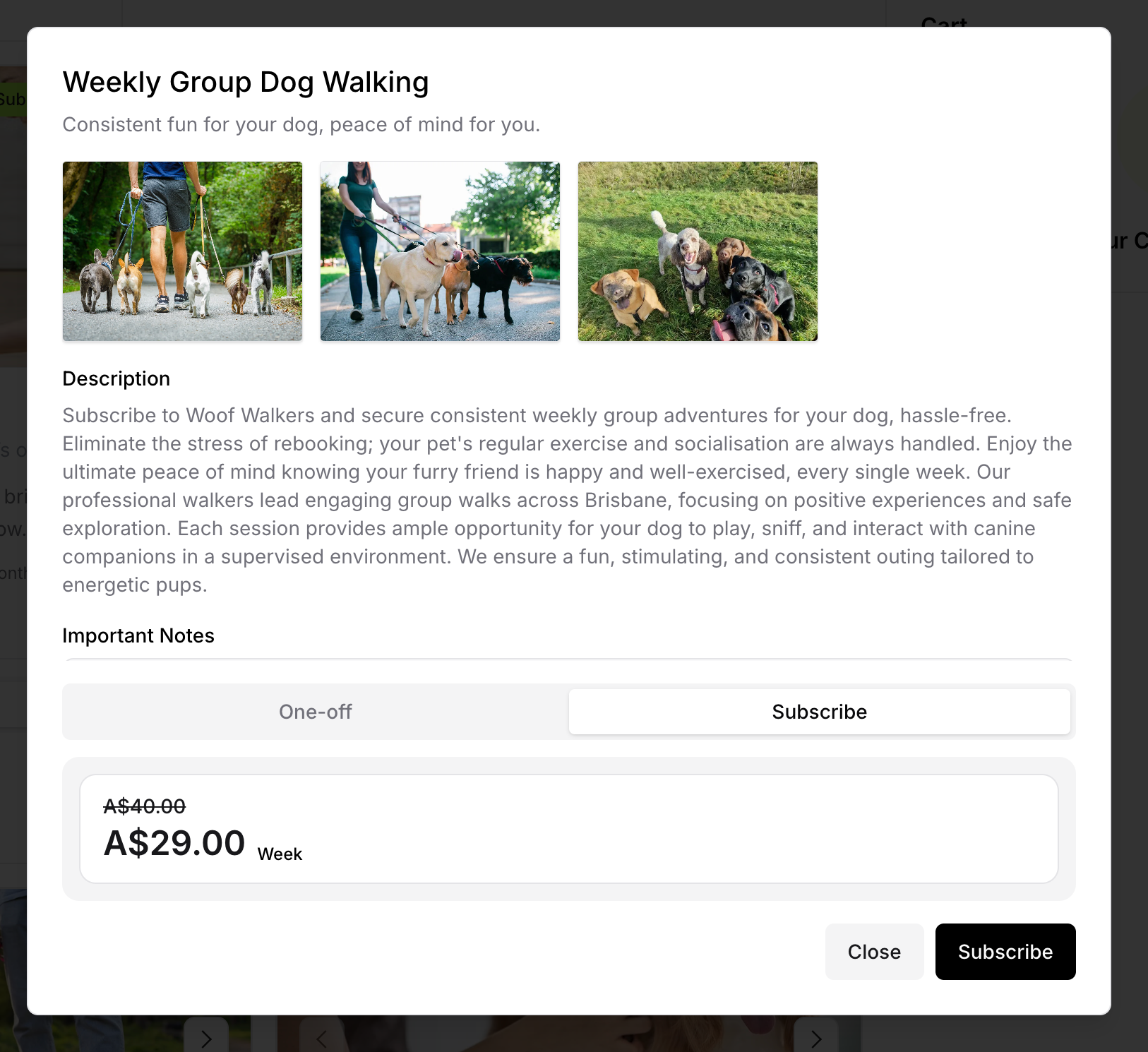
Click "Subscribe" button
Modal opens directly
Review subscription pricing
Confirm selection
Login/signup prompt appears
Login or Sign Up
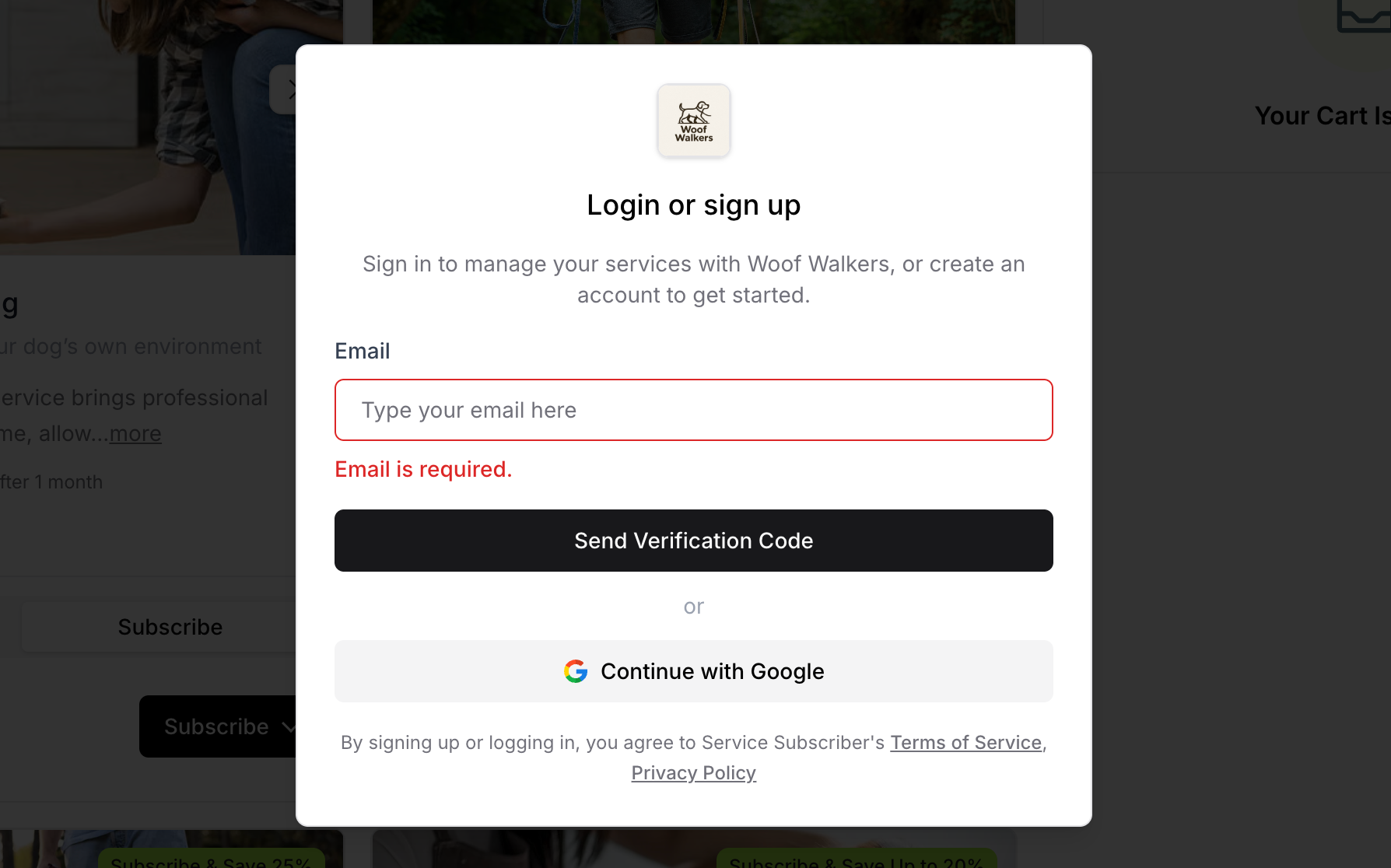
After clicking "Subscribe" or "Buy once", customers must authenticate before the item is added to cart.
Authentication Required First
⚠️ IMPORTANT: Customers must log in or sign up BEFORE items are added to cart. This ensures secure account creation and proper order tracking.
The flow:
Customer clicks "Subscribe" or "Buy once"
Login/signup modal appears immediately
Customer authenticates via OTP or Google
Selected service automatically added to cart
Customer can continue browsing or proceed to checkout
OTP Authentication Process
Email verification steps:
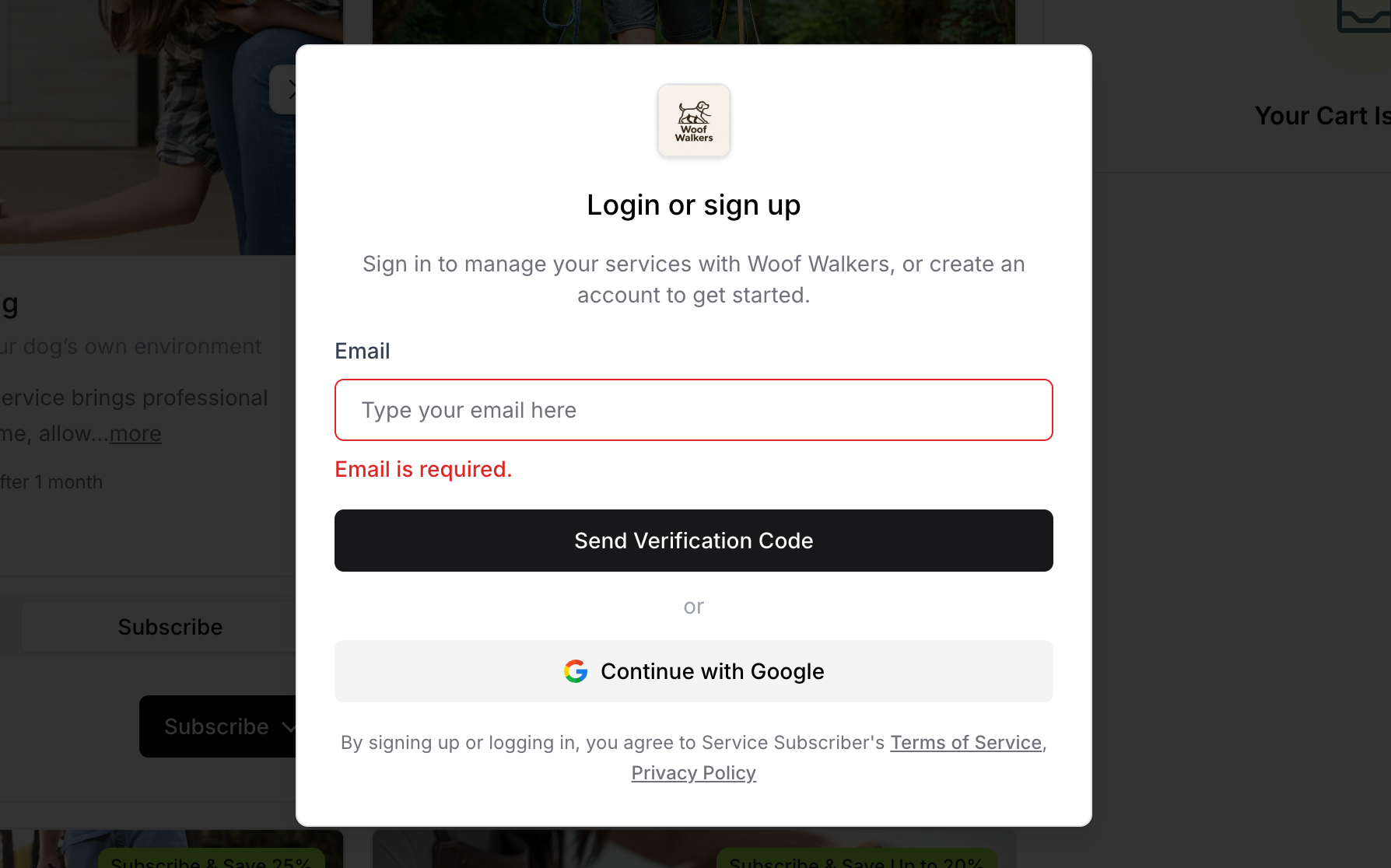
Enter email address:
Type email in field
Click "Send Verification Code"
Receive OTP code:
Service Subscriber sends code to email
Code arrives within 1-2 minutes
Check email inbox
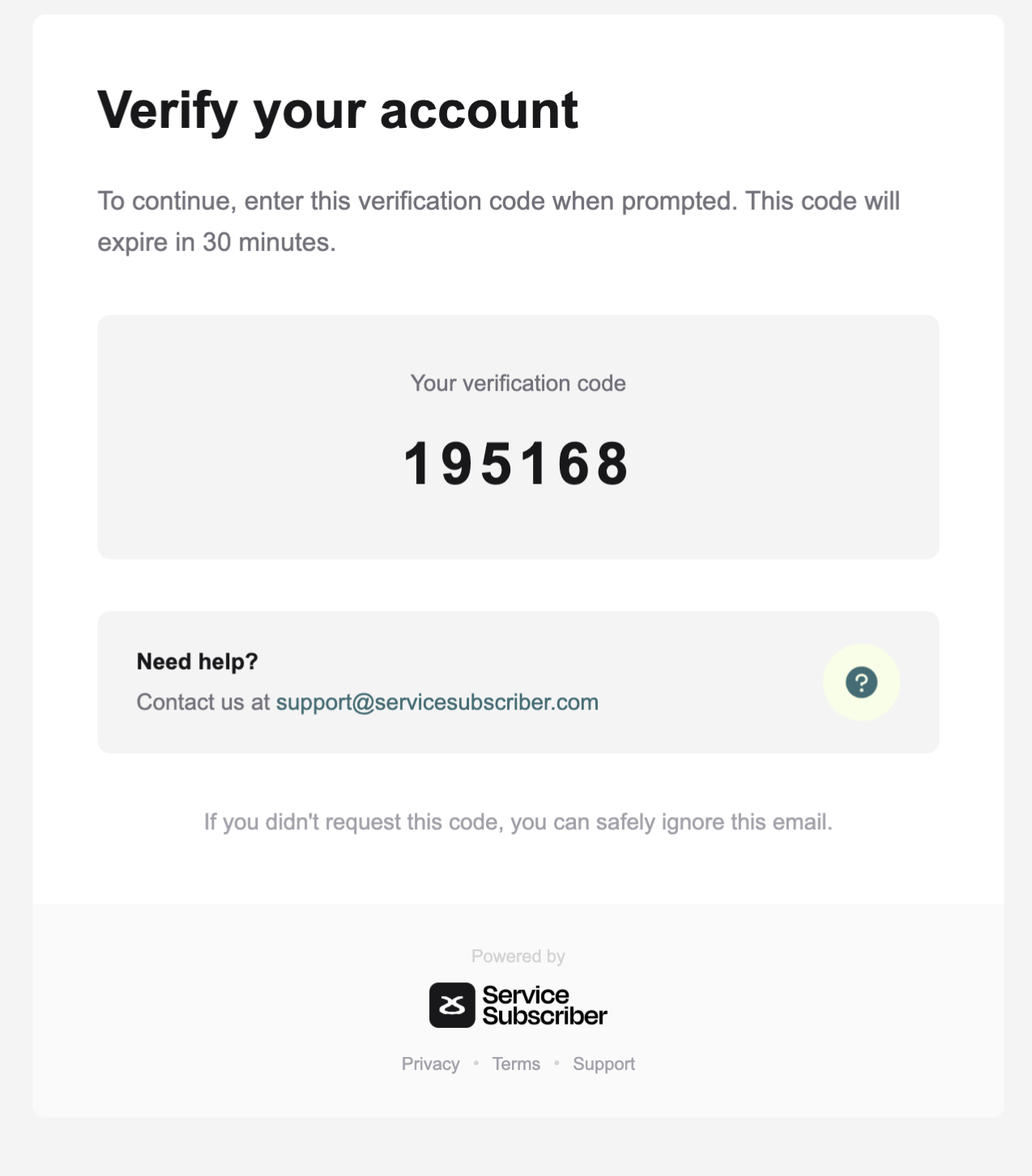
Enter verification code:
Input OTP code from email
Submit code for verification
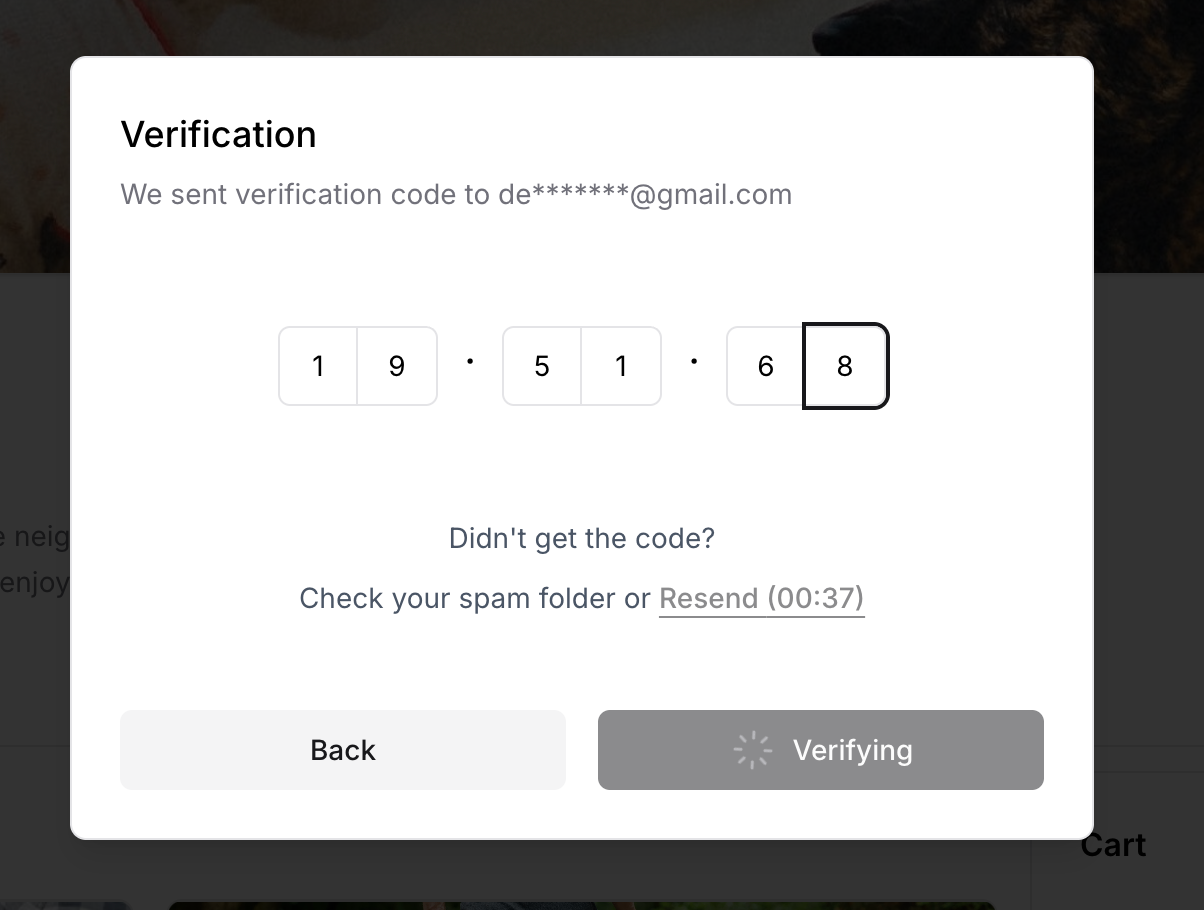
Account authenticated:
New customers: Account created automatically
Existing customers: Logged in to account
Selected service automatically added to cart
Can continue browsing or go to checkout
Google Sign-in Alternative
Using Google authentication:
Click "Continue with Google" button
Google authentication window opens
Select Google account to use
Grant necessary permissions
Account created or logged in automatically
Selected service automatically added to cart
Can continue browsing or go to checkout
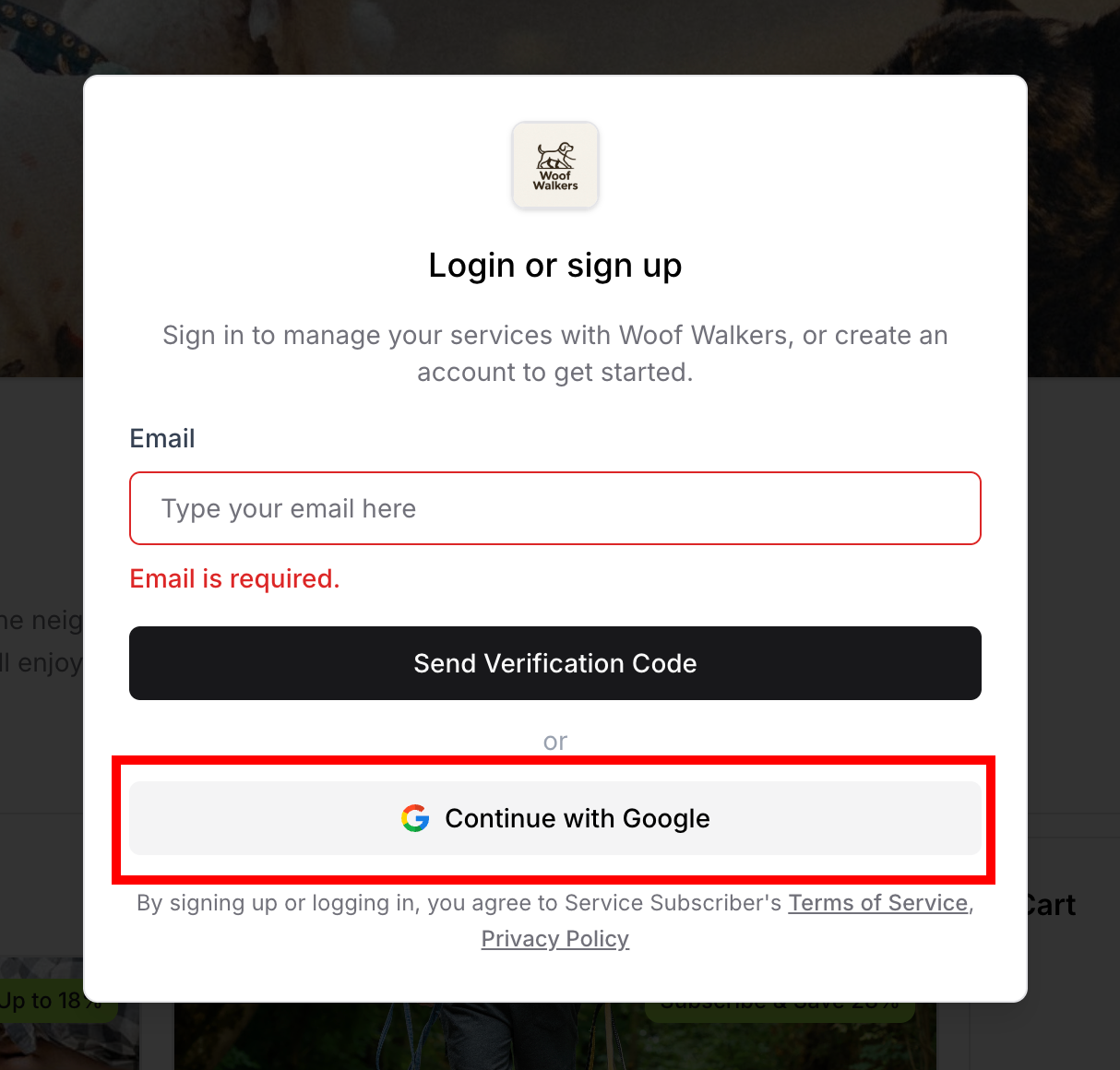
⚠️ IMPORTANT: Service Subscriber uses OTP (one-time password) authentication, NOT traditional passwords. Every login requires a new verification code sent to your email for security.
Benefits of OTP authentication:
More secure than traditional passwords
No password to remember or forget
Reduces account security risks
Simpler customer experience
Prevents unauthorized access
✍️ TIP: If OTP doesn't arrive, customers should check spam/junk folders. They can request a new code if needed.
Building Your Cart
After authentication, the selected service automatically appears in the cart. Customers can add more services or proceed to checkout.
Automatic Cart Addition
After successful login:
Selected service appears in cart immediately
Cart panel updates with item details
Customer remains on main service page
Can continue browsing other services
Can add more items to cart
Or proceed directly to checkout
Cart Panel Overview
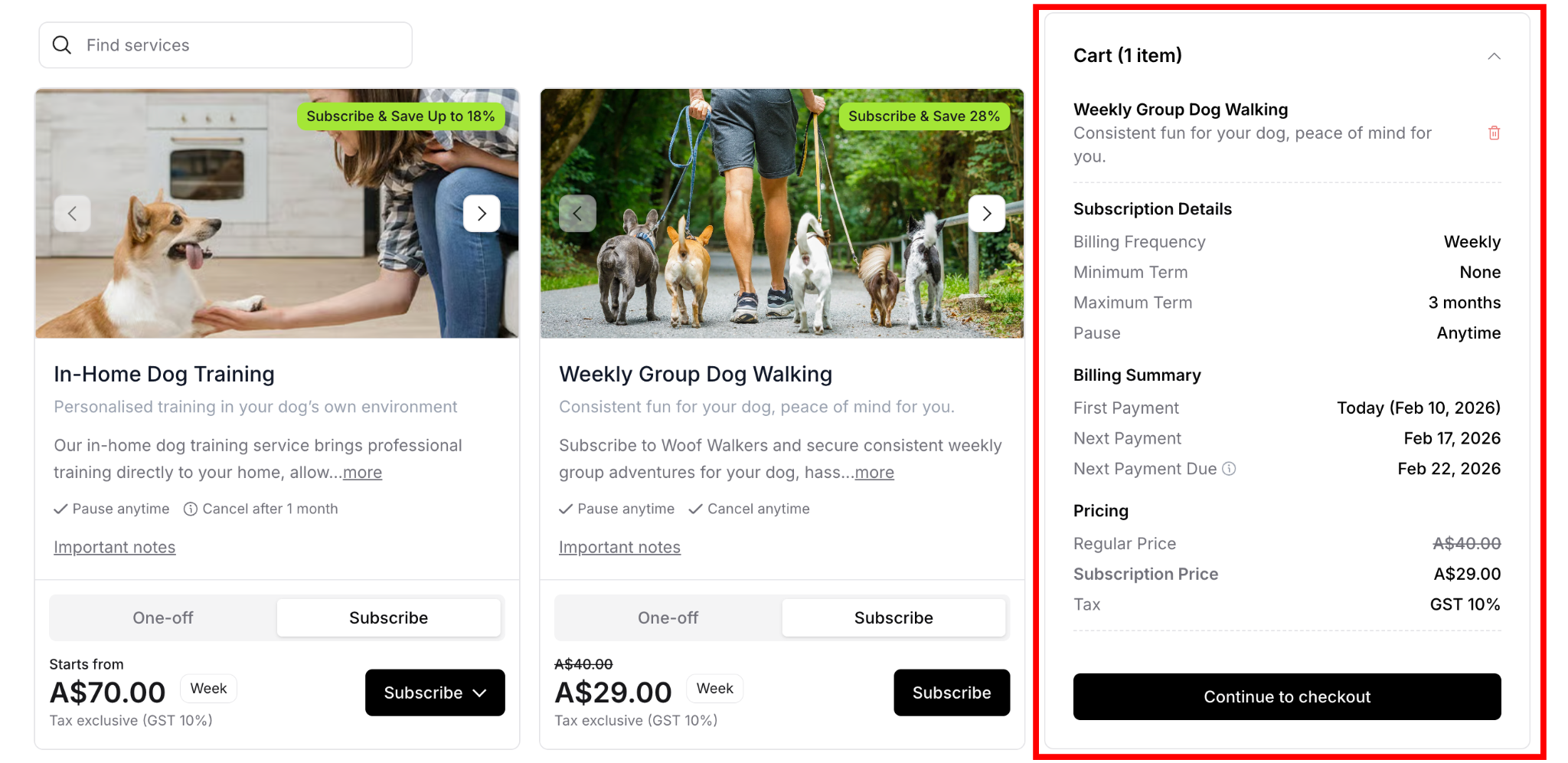
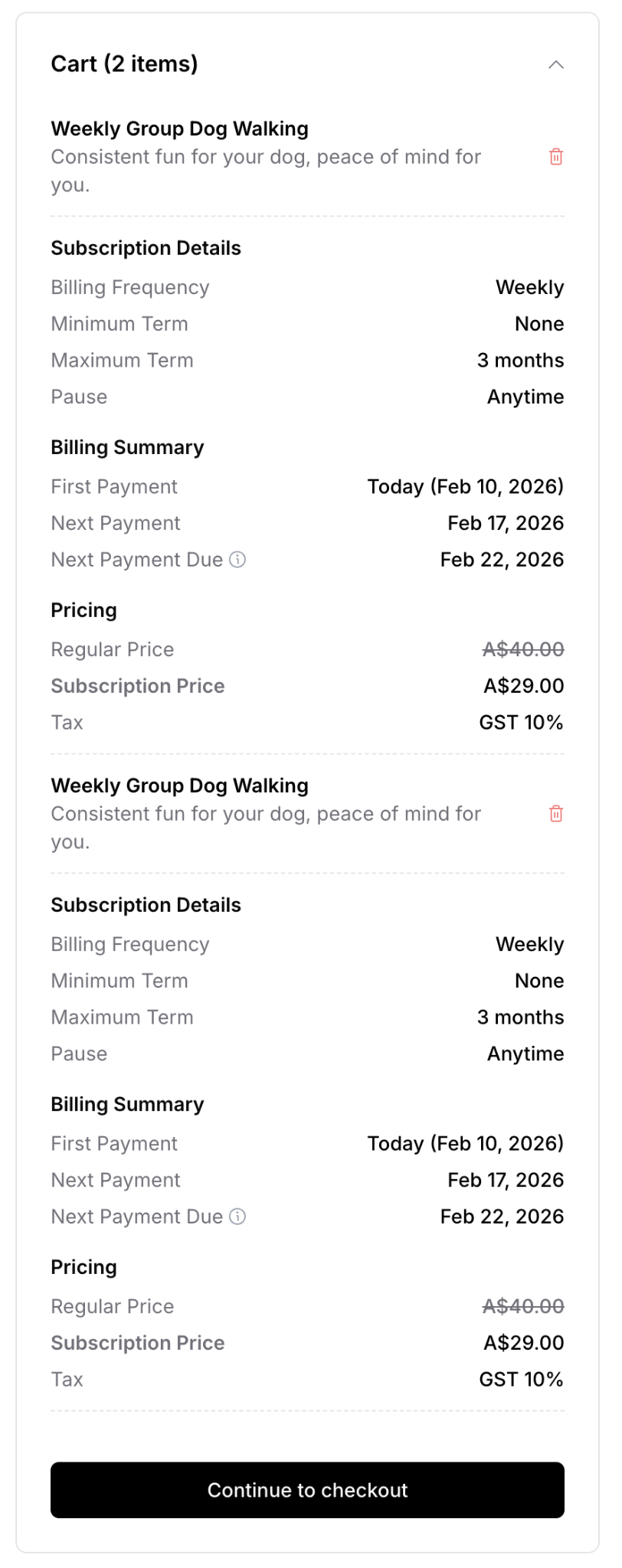
Cart panel (right side) shows:
List of all added items
Each item displays:
Service name
Selected option (tier name if applicable)
Subscription or one-off details
Complete pricing breakdown
Remove icon (trash can)
"Continue to checkout" button at bottom
Adding More Services
To add additional services:
Browse other services on main page
Click "Subscribe" or "Buy once" on another service
Select tier if applicable
Item automatically added to cart (already logged in)
Repeat for as many services as desired
⚠️ IMPORTANT: After initial login, customers stay logged in for the session. Additional services add to cart without requiring login again.
Flexible Purchasing Options
Customers have complete flexibility:
Multiple subscriptions to same service:
Subscribe to same service multiple times
Example: 2 dogs = 2 separate weekly dog walking subscriptions
Click "Subscribe" on same service twice
Each subscription managed independently
All show in cart separately
Mix purchase types:
Combine one-off and subscription in one cart
Example: Weekly dog walking subscription + one-off grooming
Add subscription, then add one-off
Different purchase types processed together
Multiple different services:
Add various services to cart
Mix subscriptions and one-offs
No limit on cart items
Checkout Process
When ready to purchase, customers proceed to checkout to complete payment details.
Starting Checkout
To begin checkout:
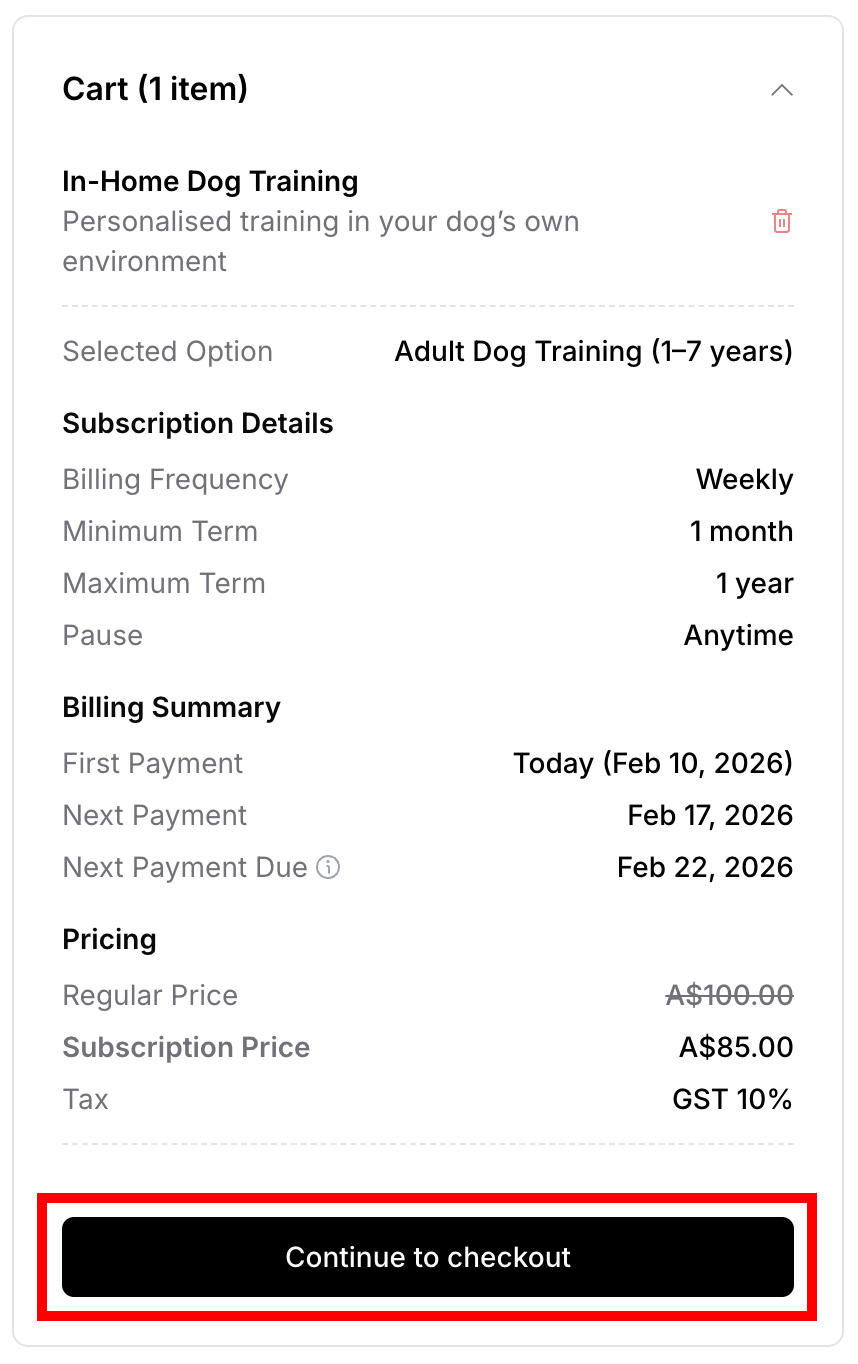
Review cart contents
Verify all desired services included
Click "Continue to checkout" button
Redirects to checkout page
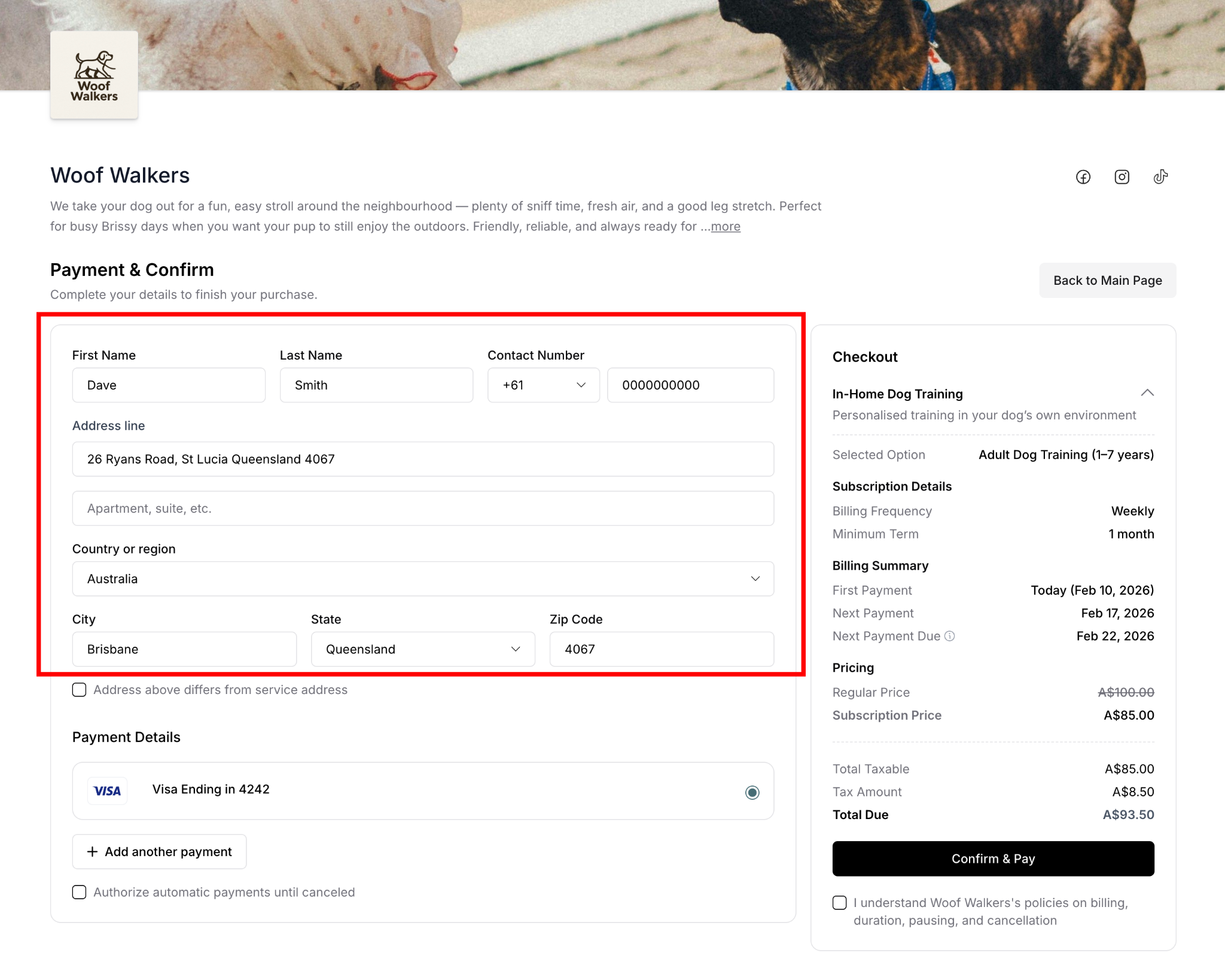
Customer Information
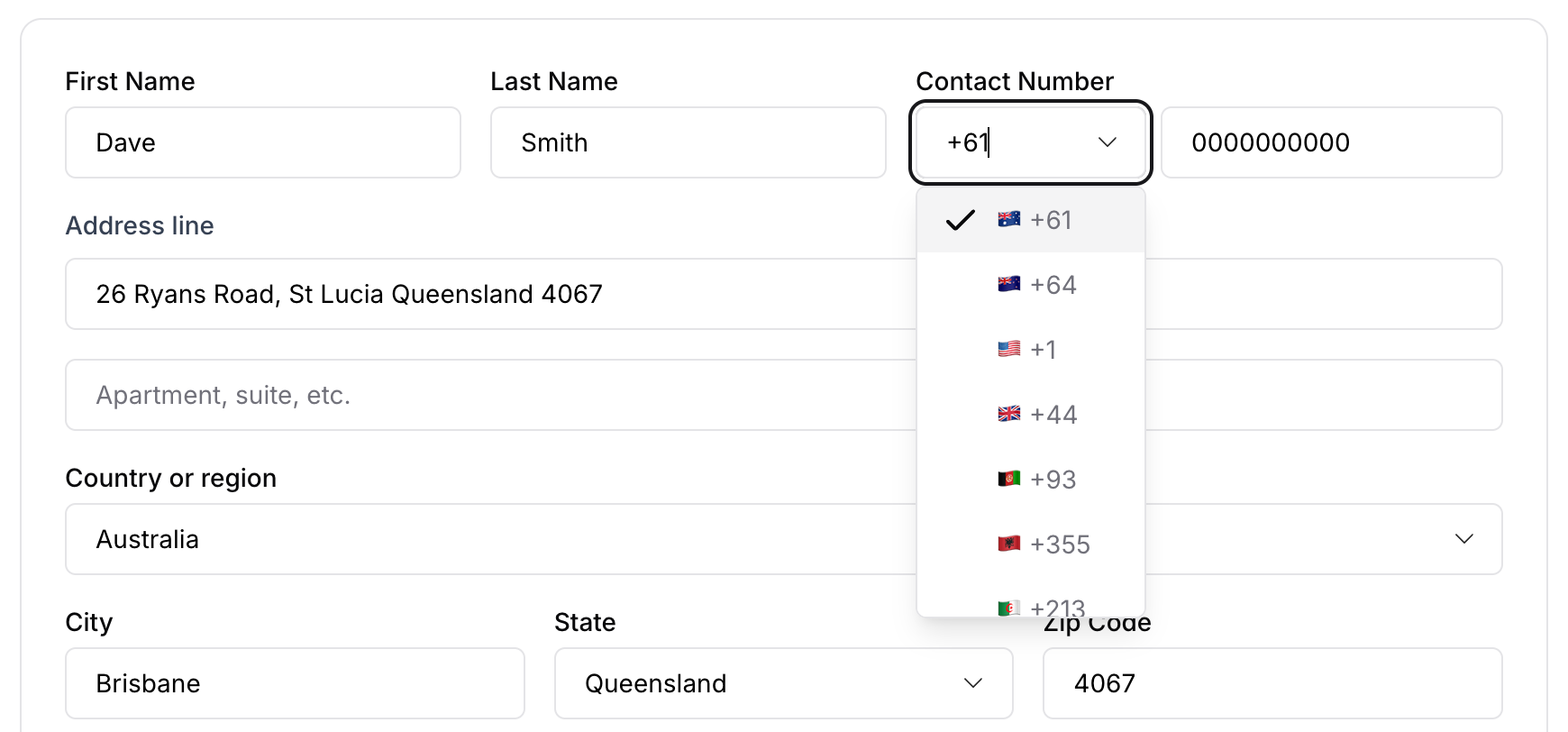
Required fields:
Name section:
First Name field
Last Name field
Contact information:
Contact Number with country code dropdown (+61, etc.)
Phone number field
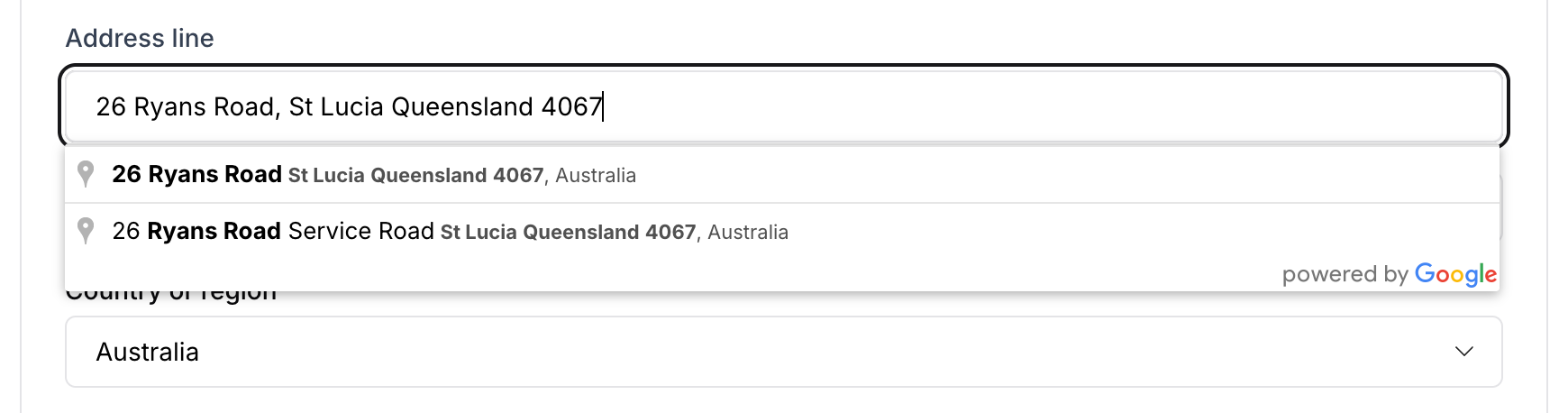
Address line (primary address):
Street address field with Google autocomplete
Apartment, suite, etc. (optional secondary line)
Location details:
Country or region (dropdown selection)
City field
State (dropdown selection)
Zip Code field
For existing customers:
Name auto-filled from account
Contact number pre-filled
Last used address pre-filled
Can edit any field if needed
Service Address Section
When service location differs from billing address:
Check "Address above differs from service address" checkbox
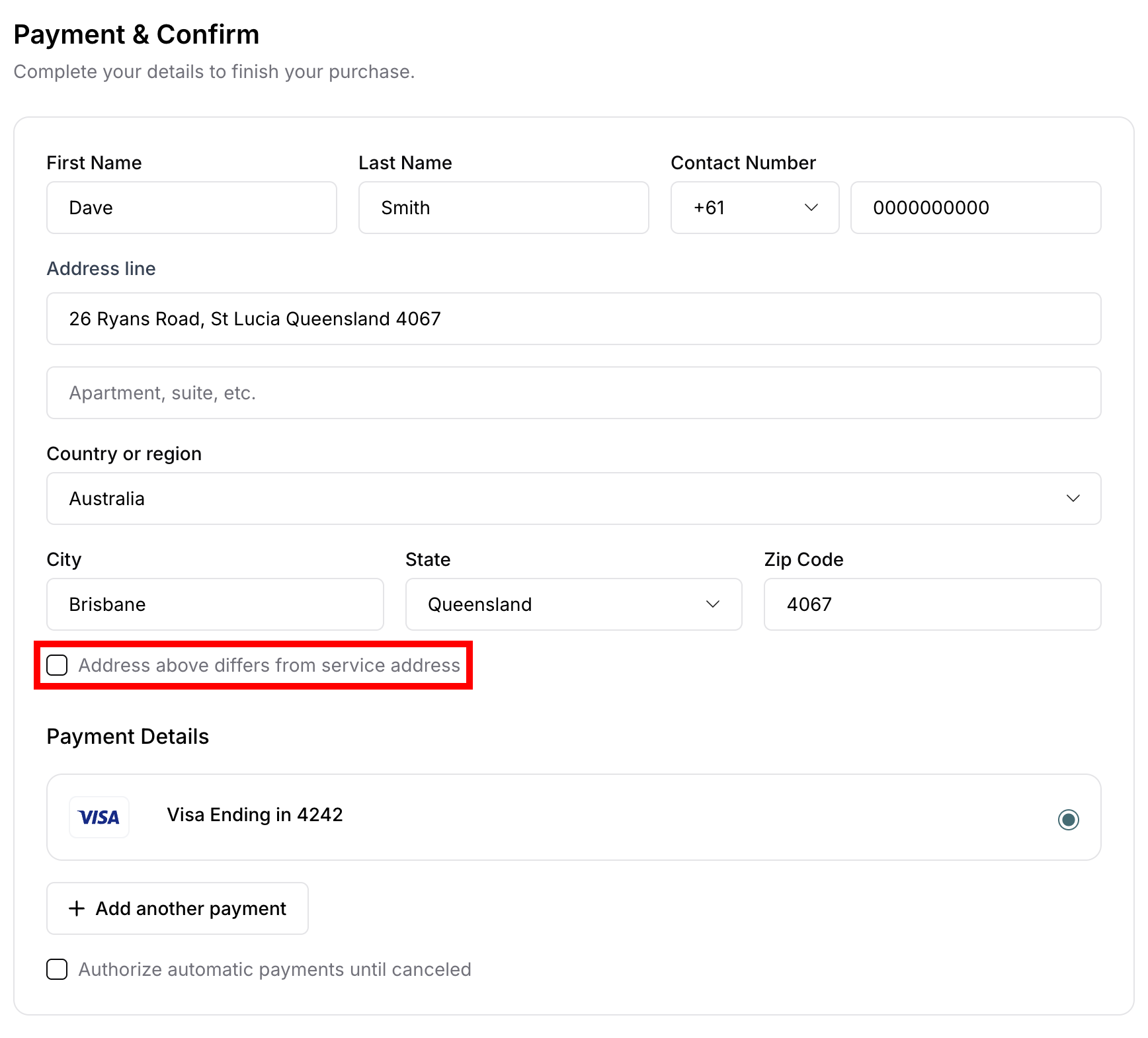
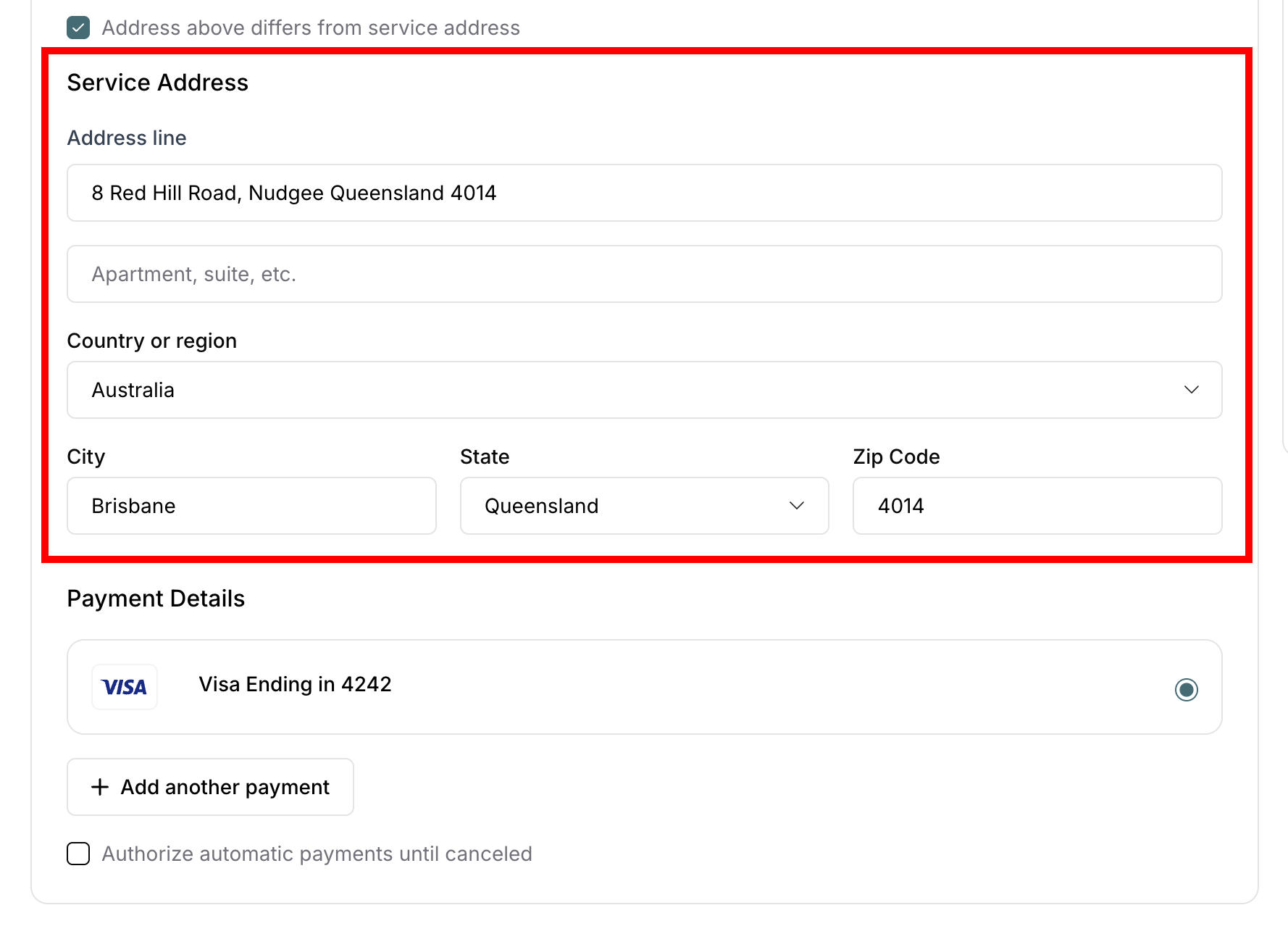
Service Address section expands below
Fill out complete service address:
Address line (with Google autocomplete)
Apartment, suite, etc. (optional)
Country or region
City
State
Zip Code
When to use service address:
Service performed at different location than billing
Example: Billing address is home, service at vacation property
Example: Gift service for someone at different address
Example: Business address vs service location
⚠️ IMPORTANT: Service address is where the business will perform the service. Accuracy is critical for service delivery.
Payment Details
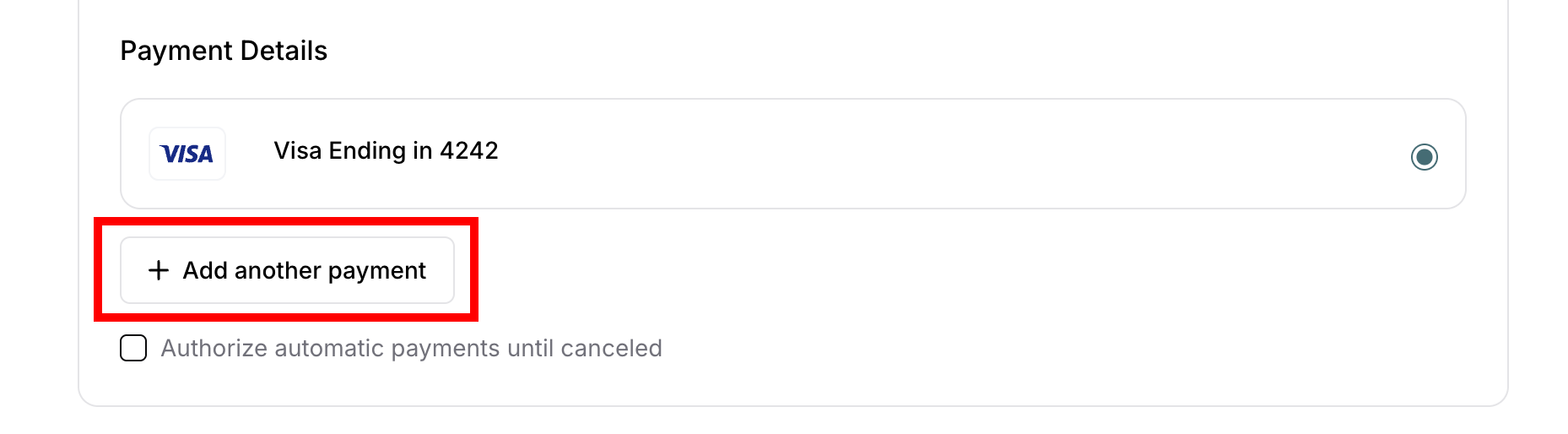
Adding payment method:
For new customers:
Click "+ Add another payment" button
Enter card details securely
Card information saved for future
For existing customers:
Saved payment methods displayed
Shows card type icon (Visa, Mastercard, etc.)
Displays last 4 digits (e.g., "Visa Ending in 4242")
Select preferred payment method (radio button)
Can add additional payment methods if needed
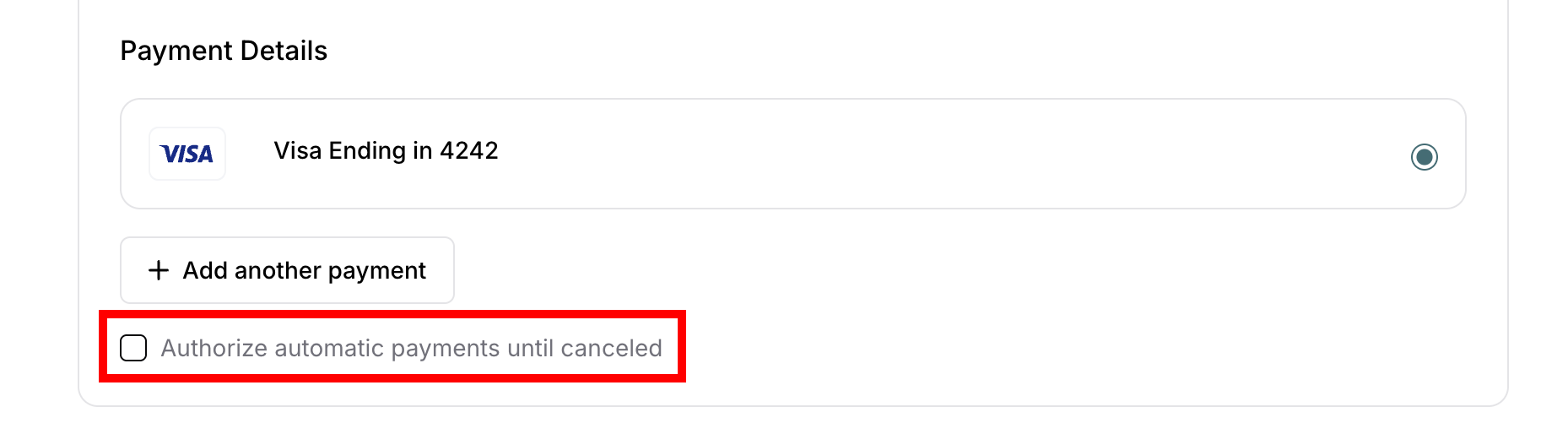
Automatic Payments Authorization
Checkbox option:
"Authorize automatic payments until canceled"
For subscriptions only
Enables recurring billing
Must check to complete subscription purchase
⚠️ IMPORTANT: This authorizes future recurring payments for subscriptions. One-off purchases do not require this authorization.
Review Checkout Details
Before confirming purchase, customers review the complete order summary.
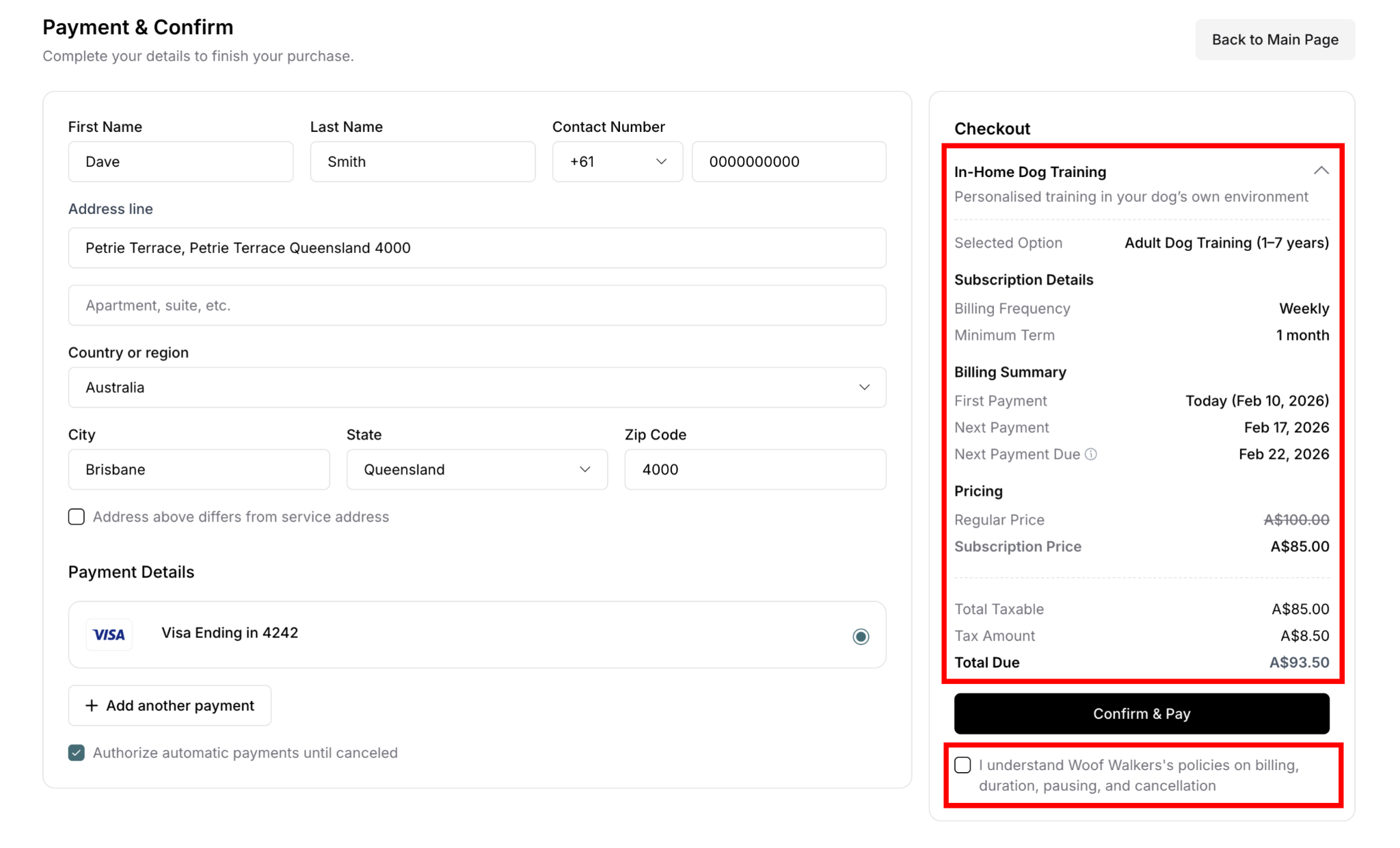
Checkout Summary Panel
Right side panel displays:
For each service in cart:
Service information:
Service name
Brief description
Selected Option:
Tier name if applicable
Example: "Puppy Training (up to 12 months)"
Subscription Details (if subscription):
Billing Frequency: Weekly, Bi-Weekly, Monthly
Minimum Term: Cancellation waiting period
Maximum Term: Total subscription duration
Pause: When pause is allowed
Billing Summary:
First Payment: Date and amount
Next Payment: Recurring date
Next Payment Due: Future billing schedule
Pricing:
Regular Price (if discounted, crossed out)
Subscription Price or One-off Price
Tax (GST 10%)
Totals section:
Total Taxable: Pre-tax amount
Tax Amount: GST calculation
Total Due: Final amount to charge
Policy Agreement
Before completing purchase:
Checkbox: "I understand [Business]'s policies on billing, duration, pausing, and cancellation"
Must check to enable "Confirm & Pay" button
Final Verification
What to verify before confirming:
Correct services in order
Accurate pricing matches expectations
Billing and service addresses correct
Intended payment method selected
Subscription vs one-off as desired
Billing frequency is correct
Policy agreement understood
Complete Purchase
Final step to process payment and activate service.
Confirming Payment
To complete purchase:
Review all checkout details
Verify payment method selected
Check policy agreement checkbox
Click "Confirm & Pay" button
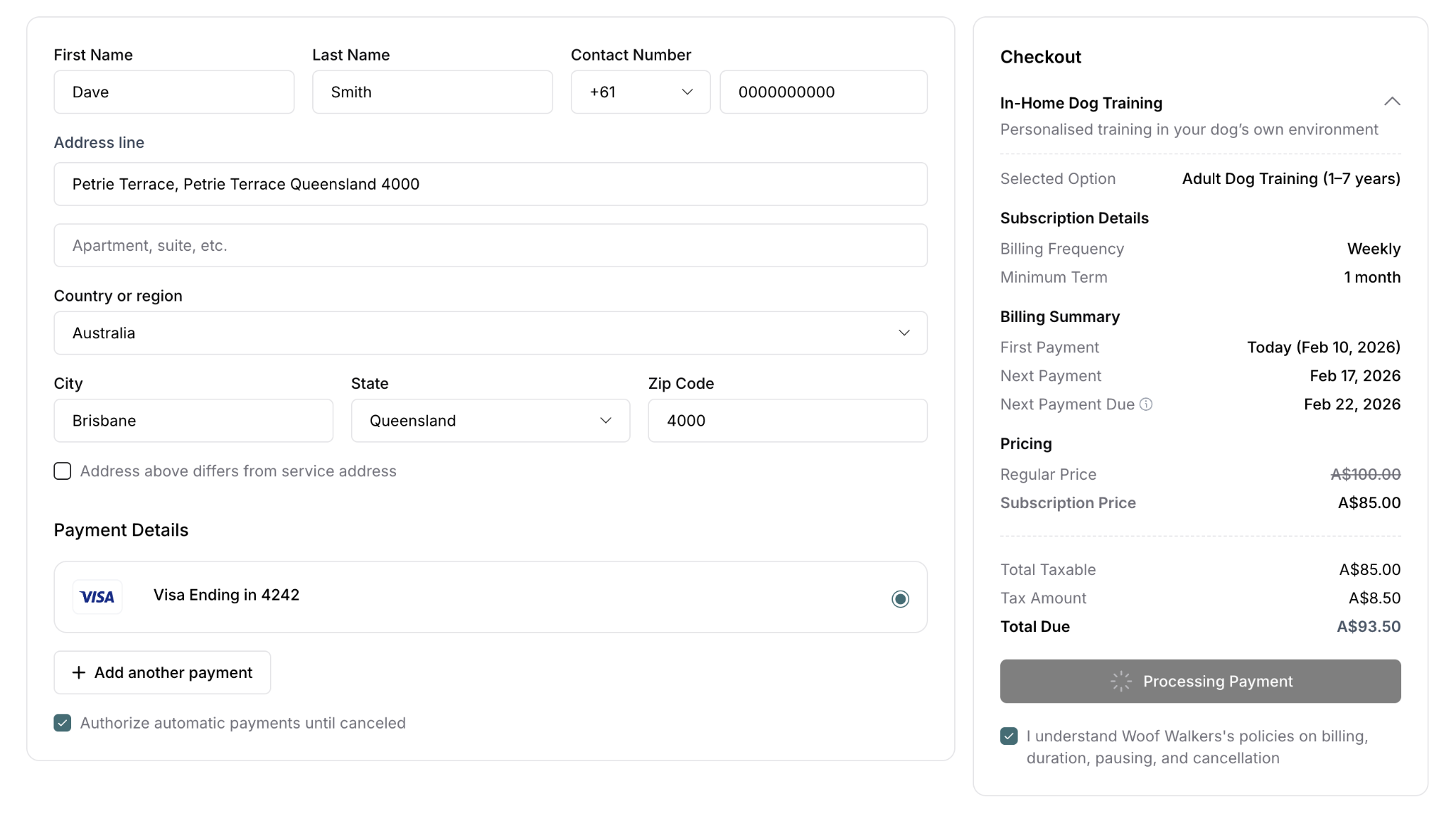
Payment processes immediately
Wait for confirmation (don't refresh page)
What Happens After Confirmation
System processes:
First payment charged immediately
Account created (if new customer)
Subscription activated (if subscription)
One-off service scheduled (if one-off)
Confirmation emails sent
Services accessible in customer portal
Immediate actions:
Payment receipt generated
Order confirmation created
Service scheduled
Portal access enabled
Success Confirmation
After successful purchase:
Confirmation modal appears:
"Congratulations!" or success message
"Your subscription/purchase is successful"
Order details displayed
Purchase summary
Next steps information
Confirmation includes:
Service name(s) purchased
Order number
Amount charged
Payment method used
Service start date
Customer portal access information
✍️ TIP: Customers should save confirmation email and portal access link for managing services later.
After Checkout: Accessing Customer Portal
After successful purchase, customers can access the customer portal to manage their services.
How to Access Customer Portal
Portal access steps:
Click profile icon (top-right corner of page)
Dropdown menu appears showing:
Subscriptions
Wallet
Preferences
Profile
Logout
Click "Subscriptions"
Redirects to customer portal
Alternatively:
Use portal link from confirmation email
Bookmark portal URL for easy access
Login using same email with OTP
Customer Portal Overview
What customers see in portal:
Navigation tabs at top:
Subscriptions
One-off Purchases
Wallet
Preferences
Profile
⚠️ IMPORTANT: The customer portal is a separate interface from the main service page. It's where customers manage all purchased services after checkout.
What Customers Can Do in Portal
Portal capabilities:
View all subscriptions and purchases
See service details and schedules
Update payment methods
Change addresses
View payment history and receipts
Download invoices
Pause subscriptions (if allowed by business, after checkout complete)
Cancel subscriptions (if allowed and minimum term met, after checkout complete)
Update account preferences
Manage email preferences
View activity log
✍️ TIP: Pause and cancel options are only available in the customer portal AFTER purchase is complete, not during checkout. These features are covered in detail in separate articles
Portal vs Service Page
Main service page:
Browse and purchase services
Add items to cart
Complete checkout
Public-facing storefront
Customer portal:
Manage existing purchases
View subscription details
Update payment and addresses
Pause/cancel services
Account management
Private, login-required area
✍️ TIP: The signup process requires login BEFORE adding to cart, ensuring secure account creation. After checkout, customers access a separate customer portal to manage their services, including pause and cancel options. The portal is covered in detail in separate articles.
Was this article helpful?
That’s Great!
Thank you for your feedback
Sorry! We couldn't be helpful
Thank you for your feedback
Feedback sent
We appreciate your effort and will try to fix the article