Canceling a service removes it from your delivery schedule and marks it as not to be delivered. This is different from canceling an entire subscription—service cancellation affects only one specific delivery.
This guide explains when and how to cancel individual services, and the important relationship between canceling and refunding.
Overview: What Service Cancellation Means
Canceling a service:
Removes one specific delivery from schedule
Updates status to Canceled (pink/gray)
Records cancellation with timestamp
Does NOT automatically refund payment
Does NOT affect other deliveries from same subscription
Important distinction: This article covers canceling individual services (one delivery). To cancel an entire subscription, see Managing Customer Subscriptions.
Cancel Service vs Cancel Subscription
⚠️ CRITICAL: These are completely different actions with different effects.
Cancel Service (This Article)
What it does: Cancels one specific delivery
Where: Delivery menu or customer Delivery tab
Effect:
Only this delivery canceled
Other services from subscription continue
Next services still schedule automatically
Subscription remains active
One-time action for one delivery
Example:
Customer has weekly subscription
Week 1 delivery: Completed
Week 2 delivery: Cancel this service ← Only this one
Week 3 delivery: Still schedules automatically
Week 4 delivery: Still schedules automatically
Subscription continues normally
Use when: One specific delivery can't happen, but subscription continues
Cancel Subscription (Different Article)
What it does: Ends entire subscription permanently
Where: Subscriptions tab in customer detail
Effect:
Ends subscription immediately
Stops all future billing
No new deliveries created
All future services canceled
Permanent end to subscription
Example:
Customer has weekly subscription
Cancel subscription ← Ends everything
No more payments
No more deliveries created
Subscription terminated
Use when: Customer wants to end subscription entirely
See Managing Customer Subscriptions for full details
? Remember: Cancel Service = one delivery. Cancel Subscription = everything.
When to Cancel Services
Common scenarios for canceling individual services:
✅ Customer requests cancellation:
Called to cancel this service
Doesn't want this delivery
Still wants subscription to continue
✅ Customer moved/relocated:
No longer at service address
This delivery can't happen
Future deliveries also affected (may need subscription cancellation)
✅ Access issues:
Can't access property
Customer won't provide access
Gate code doesn't work, no response
✅ Service can't be delivered:
Weather makes service impossible
Equipment failure
Staffing shortage
Safety concerns
✅ Wrong service booked:
Customer purchased incorrect service
Need to cancel and rebook correct one
Billing error
✅ Customer no longer needs this service:
One-time situation resolved
Timing no longer works
Changed their mind (one-off)
✅ Quality issue from previous service:
Previous service so poor, canceling next
Relationship ending
Customer unhappy
✅ Billing dispute:
Payment error
Charged incorrectly
Correcting mistake
What Happens When You Cancel
Immediate effects:
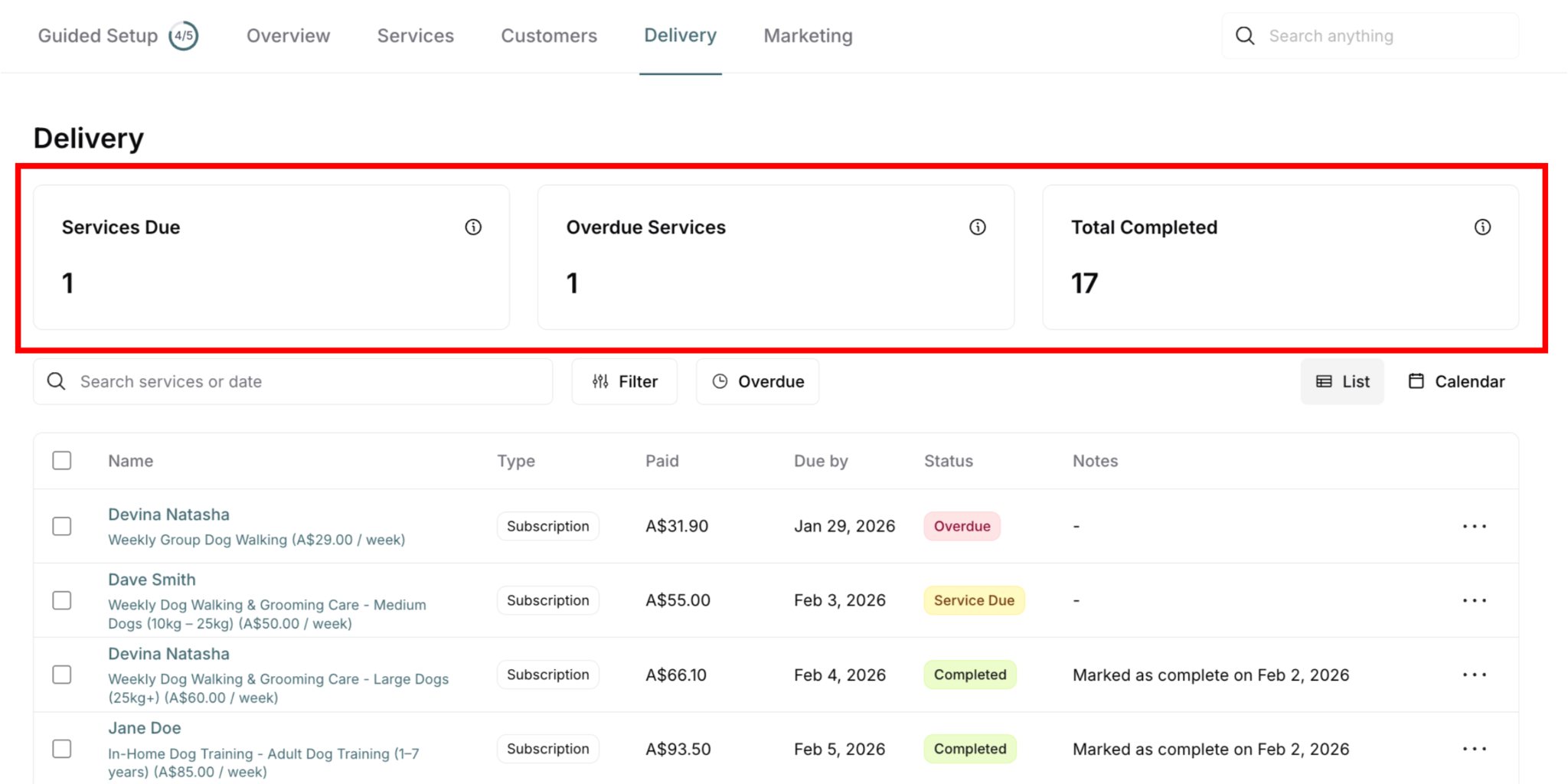
Status changes: Service Due or Overdue → Canceled
Notes update: Shows "Canceled on [date]"
Example: "Canceled on Jan 27, 2026"

Removed from active schedule:
No longer on delivery list for work
Moved to canceled/historical section
Not counted in Services Due
Metrics update:
Services Due count decreases (if was Service Due)
Overdue Services count decreases (if was Overdue)
Customer notification
Payment NOT automatically refunded:
Payment status unchanged
Must process refund separately
Two separate actions required
Which Statuses Can Be Canceled
⚠️ IMPORTANT: Not all delivery statuses can be canceled directly.
Service Due ✅ Can Cancel
This is the most common cancellation scenario:
Service not yet delivered
Scheduled for future or current date
Standard cancellation flow
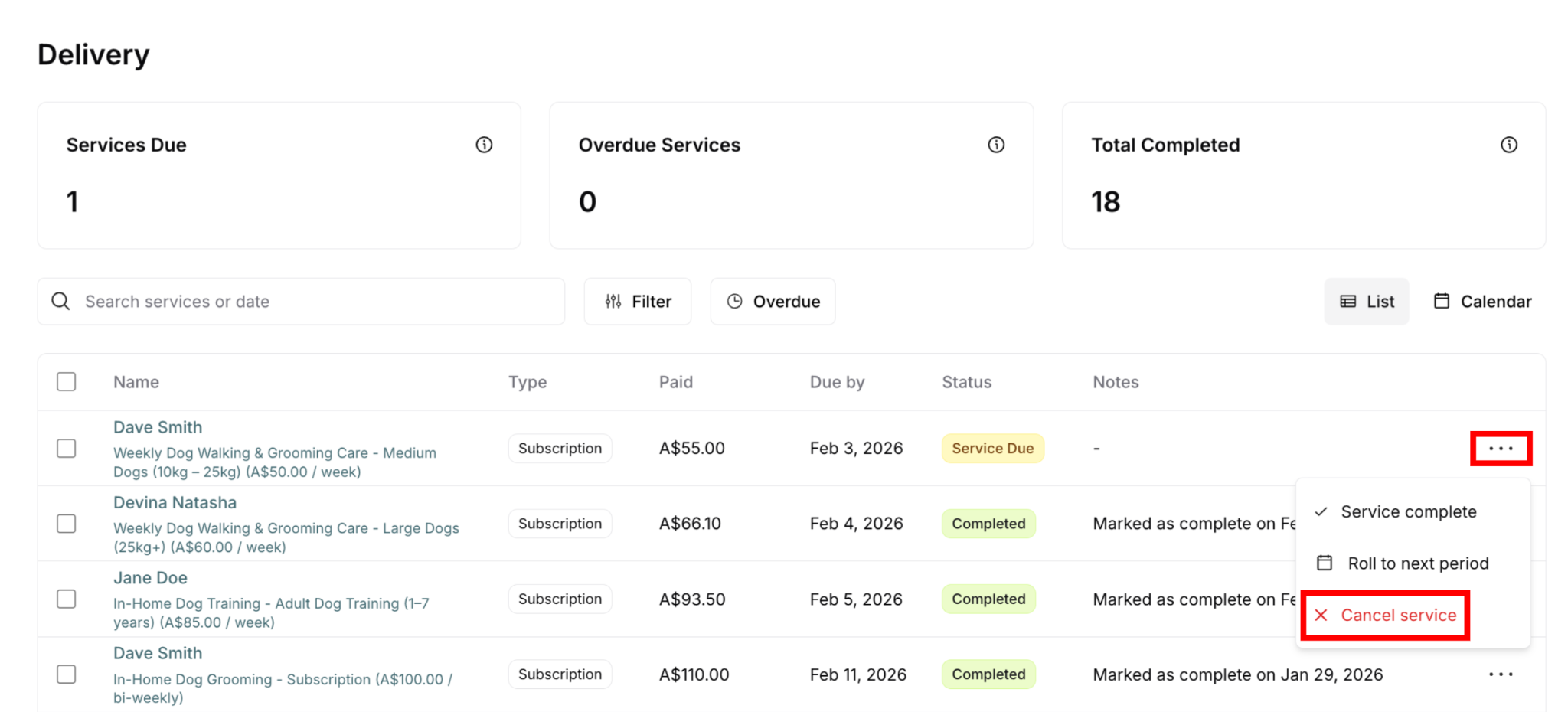
Action available: Three-dot menu (⋯) → Cancel service

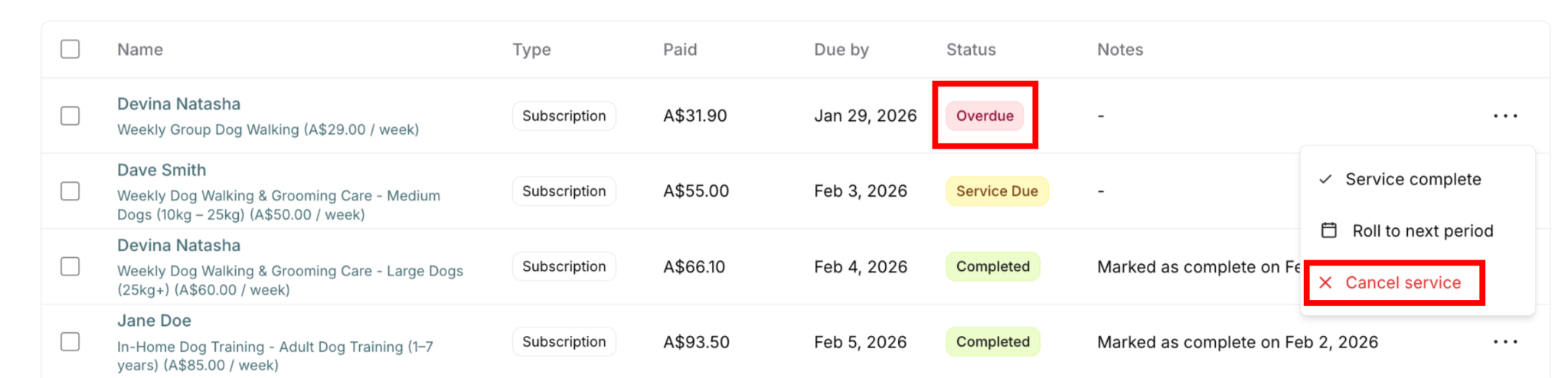
Overdue ✅ Can Cancel
Common cancellation scenario:
Service past due but not completed
Deciding not to deliver at all
Canceling instead of completing
Action available: Three-dot menu (⋯) → Cancel service
Completed ❌ Cannot Cancel Directly
Cancellation not available for completed deliveries
Available action: Mark incomplete only
Three-dot menu (⋯) → Mark incomplete
This reverts status to Service Due or Overdue
Then you could cancel if needed

If you need to "cancel" a completed service:
Mark incomplete first
Status reverts to Service Due or Overdue
Then cancel if appropriate
Or leave as is and process refund separately
Alternative: Leave as Completed, process refund
Service was delivered (even if poor quality)
Completed status stays
Process refund via Purchases tab
Both records exist: Completed delivery + Refunded payment
Canceled ❌ No Actions Available
Already canceled: No actions in three-dot menu
Why: Already in final canceled state, nothing to do

If canceled by mistake: May need to create new purchase/delivery (contact support)
Three Ways to Cancel Services
You can cancel services from three locations:
1. From Delivery Menu (Global View)
Best for:
Cross-customer operations
Daily delivery management
Route planning adjustments
Seeing all deliveries at once
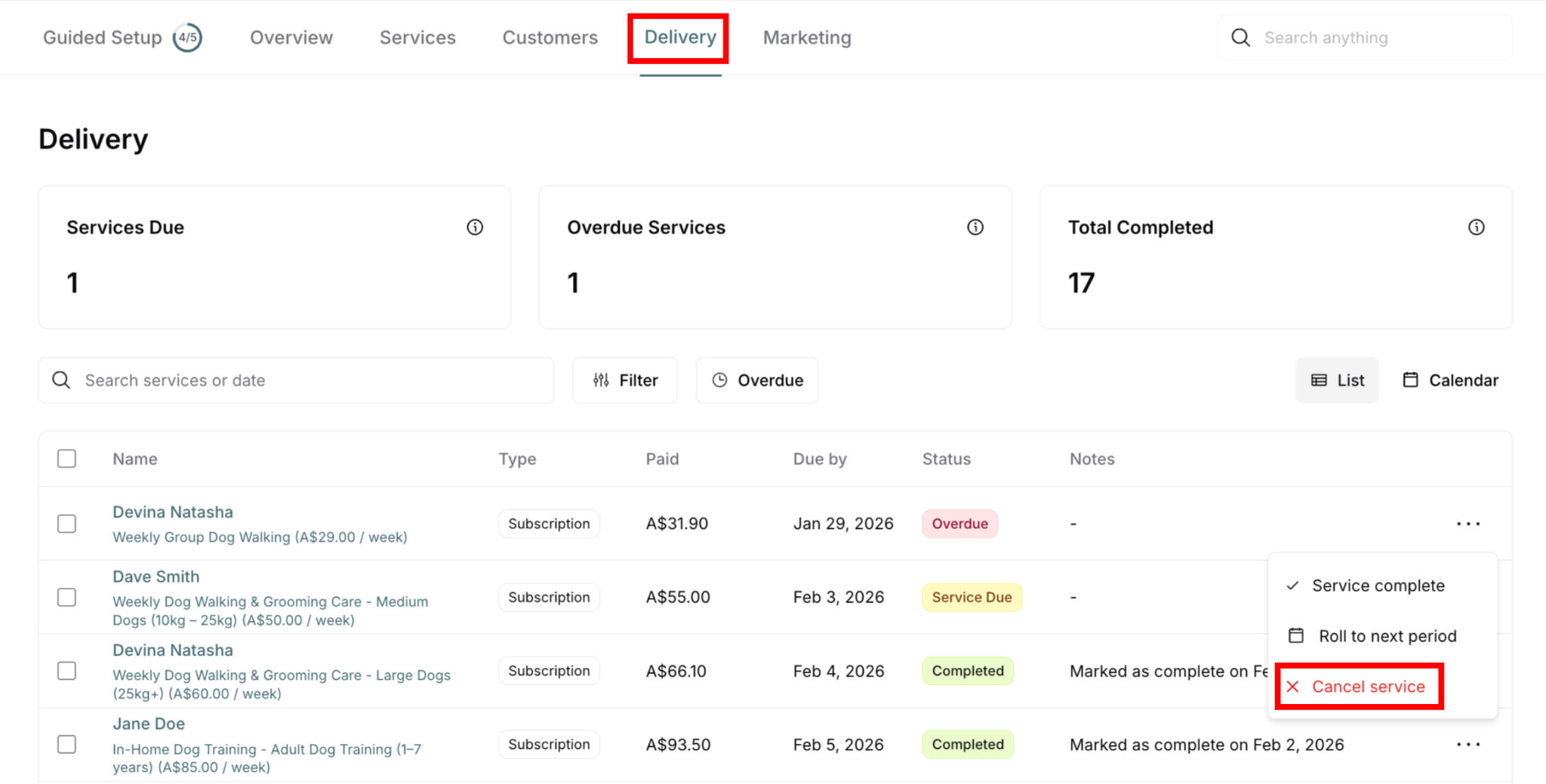
Access: Main navigation → Delivery
How: Find service → Three-dot menu (⋯) → Cancel service
2. From Customer Delivery Tab
Best for:
Viewing all deliveries for one customer
Managing customer's delivery schedule
When reviewing customer's service history
Customer-specific delivery context
Access: Customers → Select customer → Delivery tab
How: Find service → Three-dot menu (⋯) → Cancel service
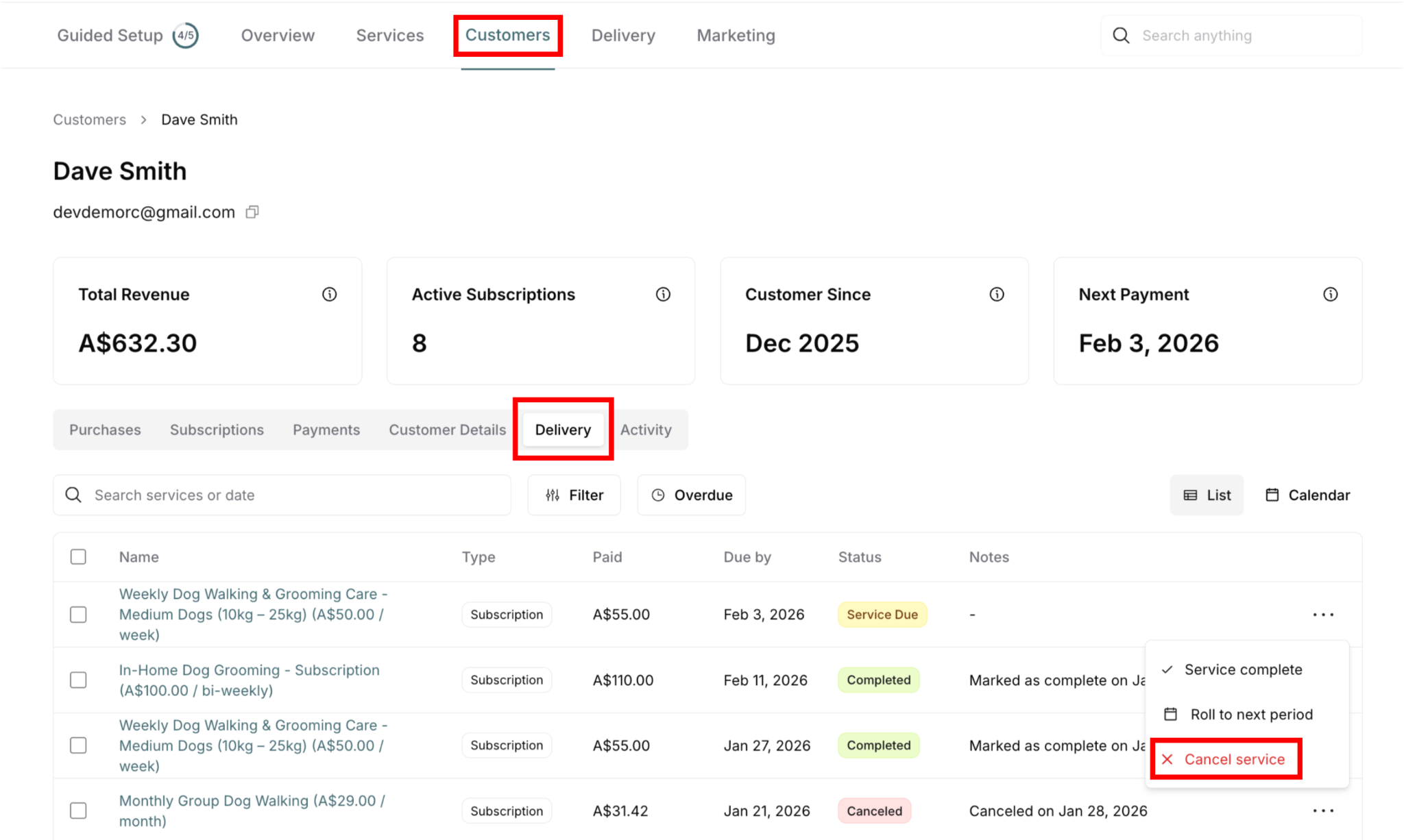
3. From Customer Purchases Tab (Expanded View)
Best for:
When already viewing purchase details
Canceling while processing refund
Managing purchase and delivery together
Single-transaction context
Access: Customers → Select customer → Purchases tab → Expand purchase
How: Expand purchase → Click Cancel Service button (red button in action bar)
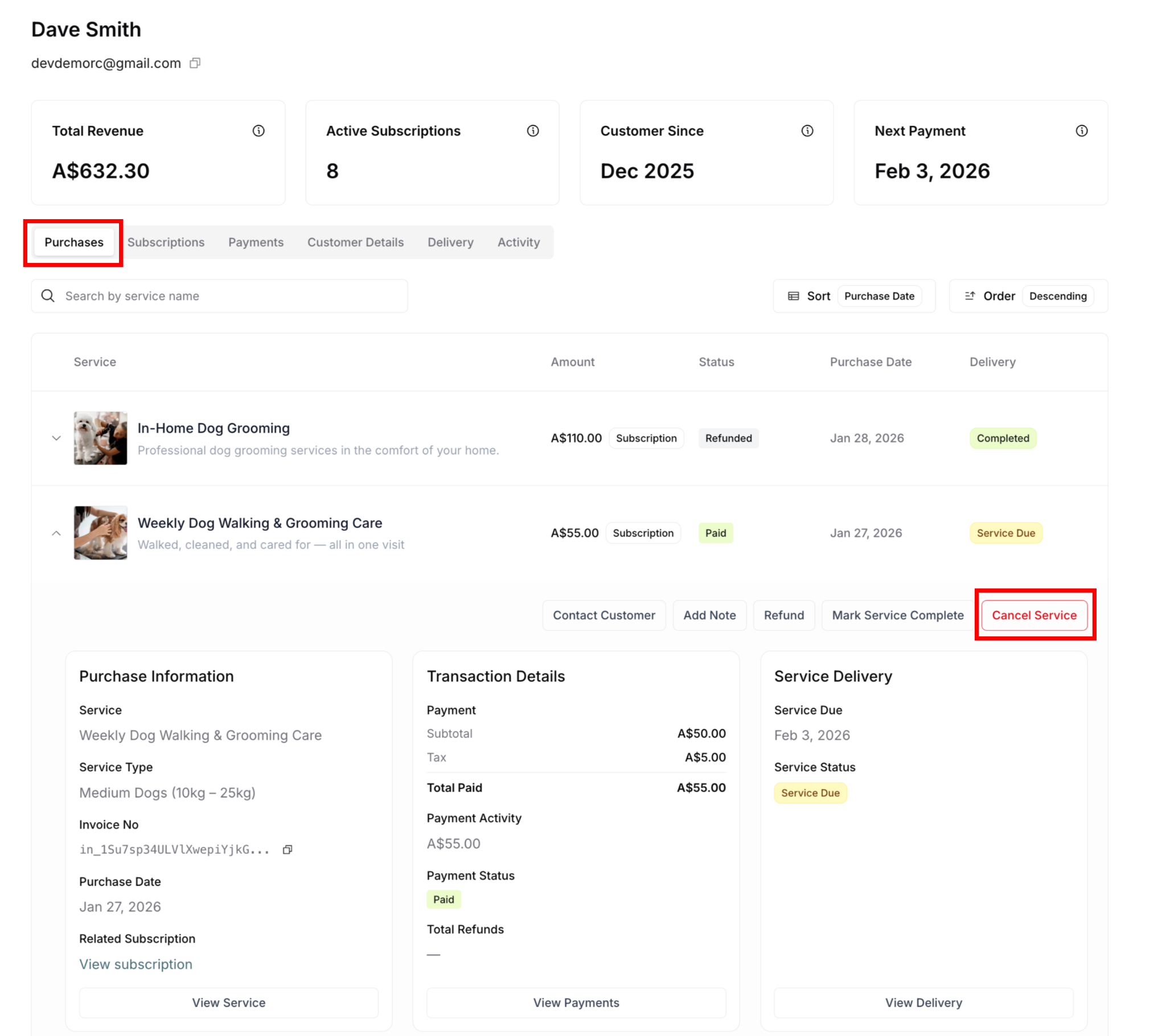
Convenient for combined actions: When you need to both cancel service AND process refund, this view gives you access to both actions in one place:
Cancel Service button (for delivery)
Refund button (for payment)
No need to switch between tabs
✍️ TIP: All three locations have the same functionality for canceling. Choose based on your current workflow:
Working across customers? Use Delivery menu
Focused on one customer's deliveries? Use Delivery tab
Managing payments and deliveries together? Use Purchases tab (expanded view)
How to Cancel a Service
Step-by-Step Process
Available for: Service Due or Overdue deliveries only
NOT available for: Completed or Canceled deliveries
From Delivery Menu or Customer Delivery Tab
Find the service to cancel
Search by customer name or service
Filter by date or status
Locate in list
Verify status is cancelable
Check badge: Service Due (yellow) or Overdue (red)
If Completed, see alternative workflow below
If already Canceled, no action needed
Click three-dot menu (⋯)
Located on far right of delivery row
Action menu appears
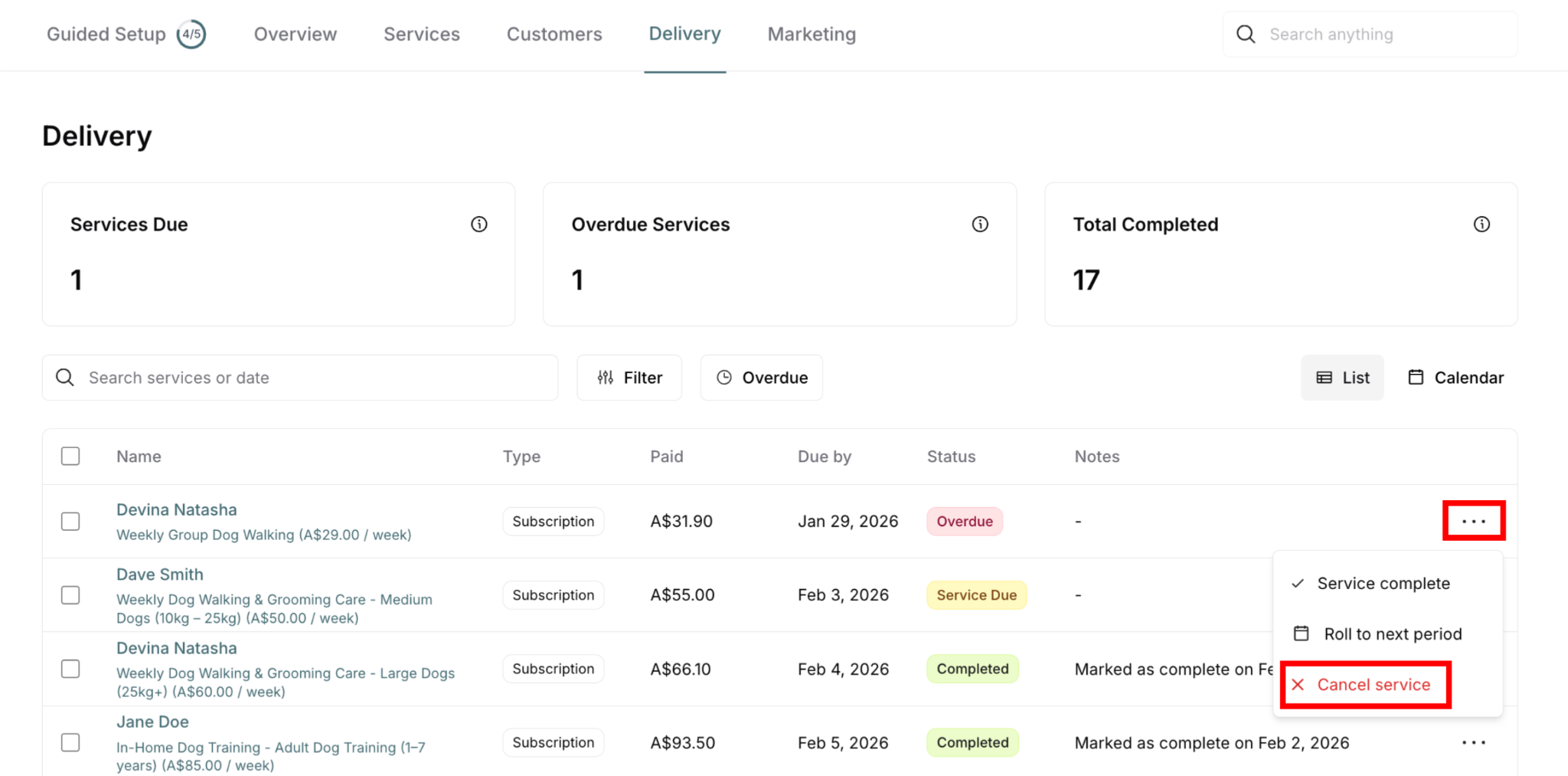
Select "Cancel service" (with X icon)
Usually displayed with red color
Click the option
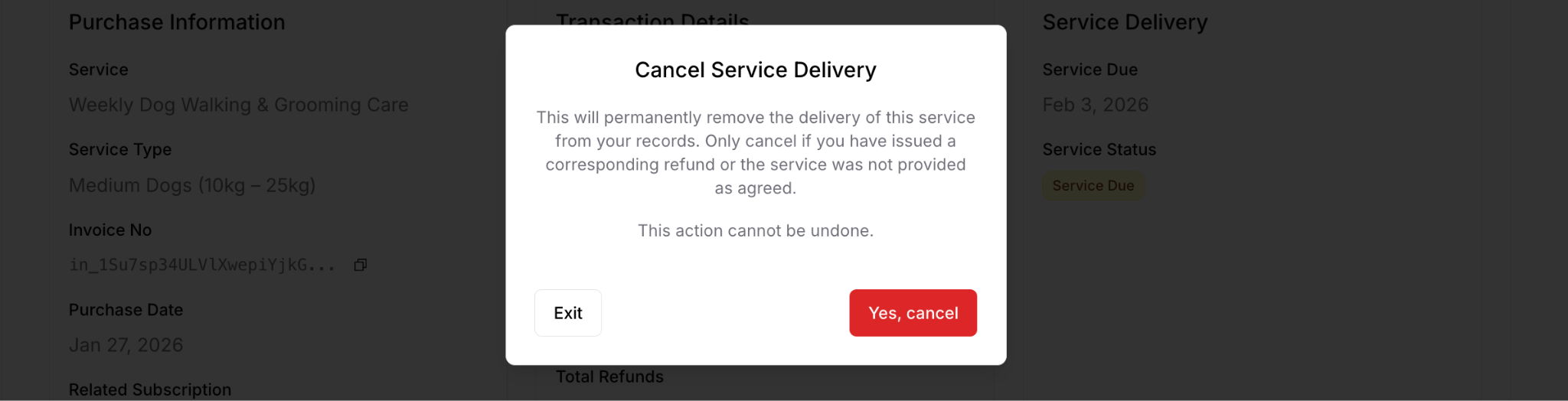
Confirm cancellation
Click Yes, cancel
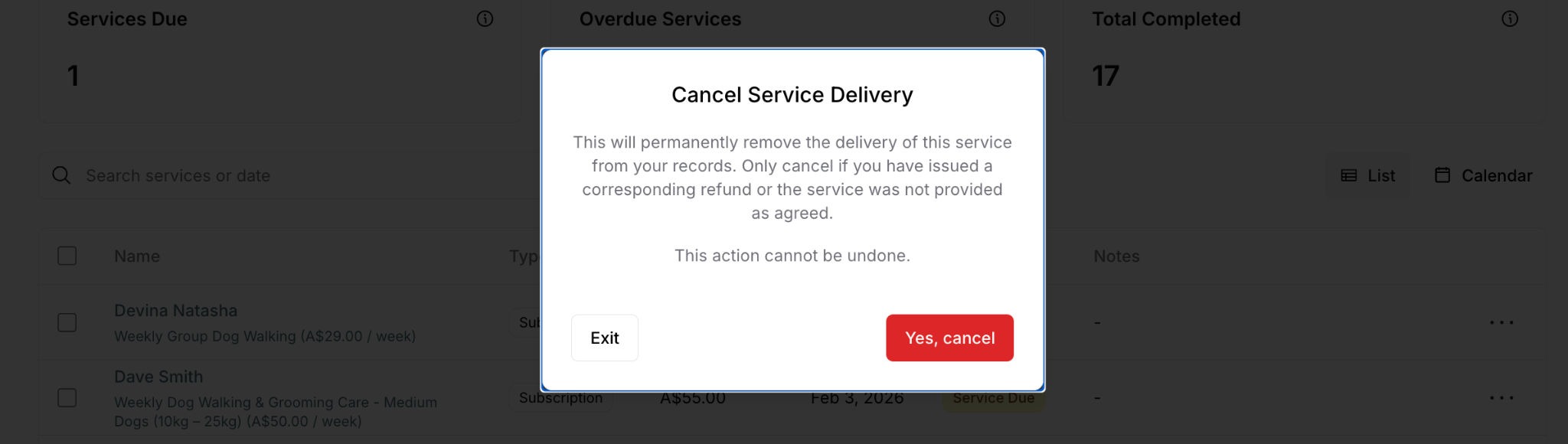
Verify cancellation
Status badge changes to Canceled (pink/gray)
Notes update: "Canceled on [date]"
Service removed from active schedule

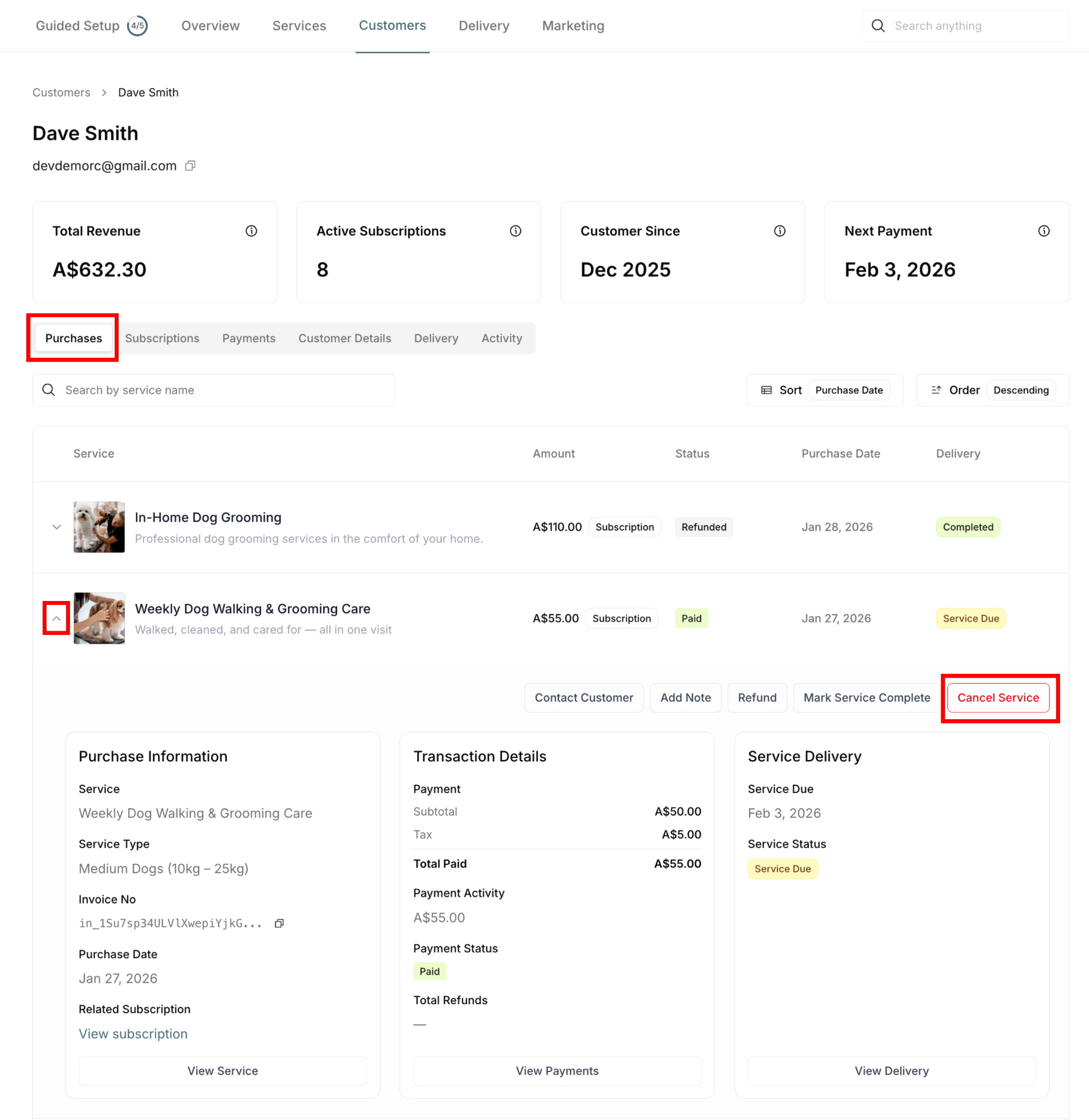
From Customer Purchases Tab (Expanded View)
Navigate to customer's Purchases tab
Customers → Select customer → Purchases tab
Find and expand the purchase
Click arrow (▼) to expand purchase
Three panels appear
Click Cancel Service button
Red button in action bar at top
Located alongside other action buttons
Confirm cancellation
Verify cancellation
Status updates to Canceled
Notes update with cancellation date
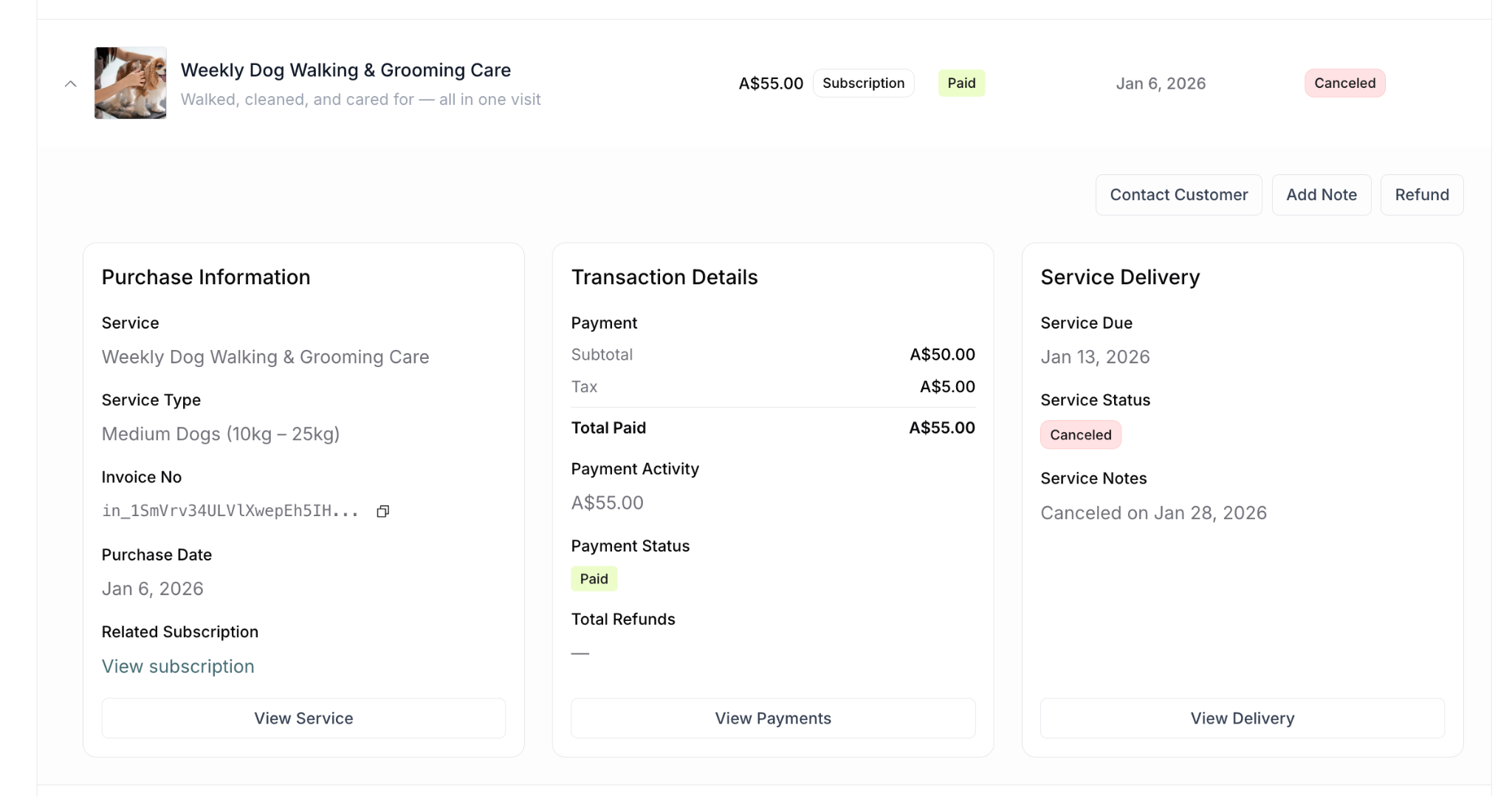
Advantage: Refund button is also visible in same view, making it easy to cancel and refund together
Alternative: Handling Completed Services
If delivery is already Completed and you need to "cancel" it:
Option 1: Mark Incomplete, Then Cancel
When to use: Need to mark as if service never happened
Workflow:
Find Completed delivery
Three-dot menu (⋯) → Mark incomplete
Status reverts to Service Due or Overdue
Three-dot menu (⋯) → Cancel service
Status → Canceled
Process refund separately (if needed)
Result: Delivery shows as canceled (never delivered)
Option 2: Leave Completed, Process Refund
When to use: Service was delivered but refunding for quality/other reasons
Workflow:
Leave delivery as Completed (service was delivered)
Navigate to Purchases tab
Process refund
Both records exist: Completed delivery + Refunded payment
Result: Honest record that service was attempted/delivered but refunded
Which Option to Choose
Use Option 1 (Mark incomplete → Cancel) when:
Service was marked complete by mistake
Need to show service never happened
Complete cancellation record needed
Use Option 2 (Leave completed, refund) when:
Service was actually delivered
Quality issue, customer unhappy
Want honest record of what happened
More common scenario
✍️ TIP: Option 2 (leave completed, just refund) is usually more appropriate when service was actually attempted.
Understanding Automatic Refunds
⚠️ IMPORTANT: Whether canceling a service automatically refunds the payment depends on WHO cancels and your service settings.
The "Automatic Refund" Setting
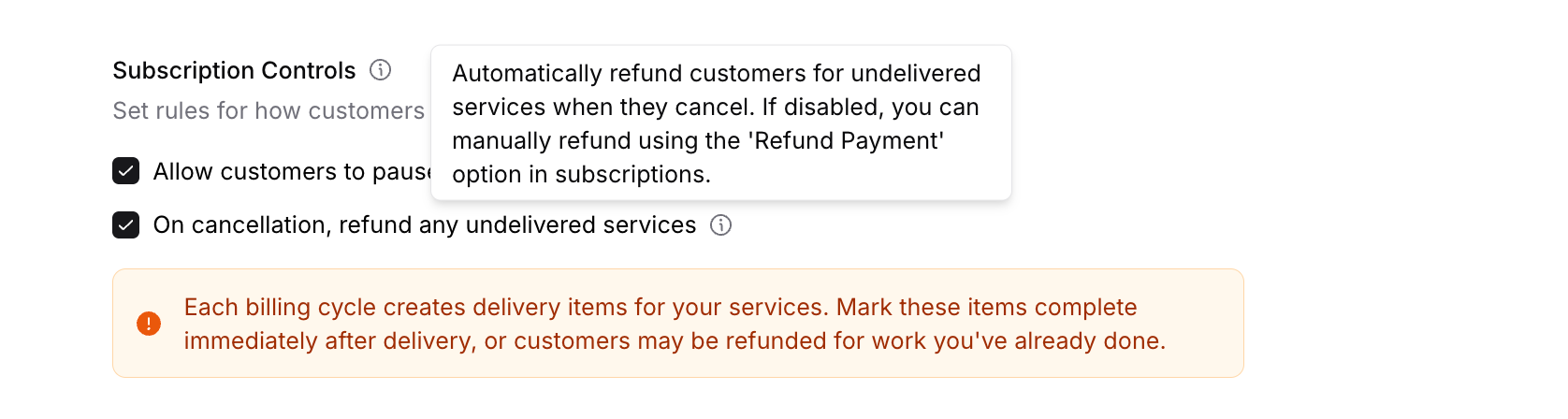
Location: Service settings → Subscription Controls → "On cancellation, refund any undelivered services"
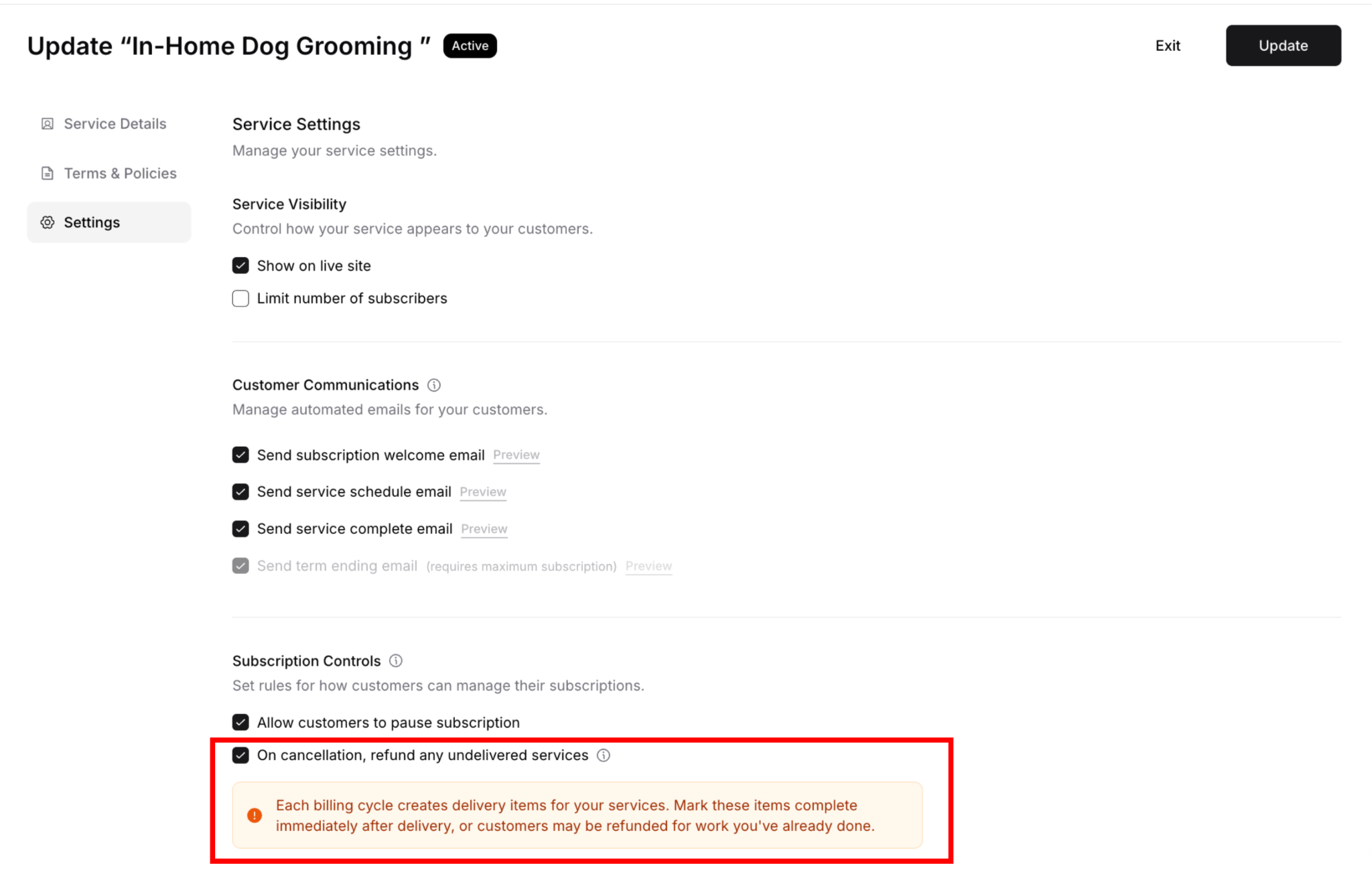
This setting controls customer portal cancellations only (not dashboard cancellations)
When Setting is ENABLED (Checked)
What happens when customer cancels via portal:
Customer clicks cancel on their portal
Service automatically cancels
Payment automatically refunds (if undelivered)
Customer receives confirmation
No manual action needed from you
Requirements for customer portal cancel button:
Minimum term must have passed
Cancel button only appears after minimum term
Protects your minimum commitment period
Your involvement: None needed
System handles both cancellation and refund
Automatic process
Customer gets immediate resolution
When Setting is DISABLED (Unchecked)
What happens when customer cancels via portal:
Customer clicks cancel on their portal
Service automatically cancels
Payment does NOT automatically refund
You manually process refund from dashboard

Your involvement: May need to manually process refund
Customer can request refund via portal
Or you process from Purchases tab
Gives you control over refund decision
When YOU Cancel from Dashboard
Regardless of automatic refund setting:
Canceling from dashboard does NOT automatically refund
You must manually process refund
Two separate actions required:
Cancel service (Delivery menu/tab or Purchases tab)
Process refund (Purchases tab)
Why: Dashboard cancellations give you full control
You decide if refund is appropriate
Flexibility for different scenarios
Manual process for business owner
Summary
Service cancellation basics:
Removes one specific delivery from schedule
Updates status to Canceled
May or may not automatically refund (depends on who cancels and settings)
Does NOT affect other deliveries or subscription
Automatic refund behavior:
Customer cancels via portal + Setting ON = ✅ Auto-refund
Customer cancels via portal + Setting OFF = ❌ No auto-refund (manual option)
You cancel from dashboard = ❌ Always manual refund
Minimum term protection: Cancel button only appears after minimum term
Which statuses can be canceled:
✅ Service Due (yellow) - Direct cancellation available
✅ Overdue (red) - Direct cancellation available
❌ Completed (green) - Must mark incomplete first, then cancel (or leave completed and refund)
❌ Canceled (gray) - Already canceled, no actions available
Three ways to cancel:
Delivery menu (global view)
Customer Delivery tab (customer-specific)
Customer Purchases tab expanded view (convenient for cancel + refund)
Complete cancellation workflow (when you cancel from dashboard):
Cancel the service
Manually process refund (if appropriate)
Communicate with customer
Verify both done
Status combinations:
Canceled + Refunded = ✅ Complete resolution
Canceled + Paid = ⚠️ Need to process refund (if you canceled from dashboard)
Service Due + Refunded = ⚠️ Need to cancel service
Completed + Refunded = ℹ️ Can be appropriate (delivered but refunded)
Critical reminders:
Always mark services complete immediately after delivery
Prevents refund for work already done (if auto-refund enabled)
Customer portal cancellations may auto-refund (check settings)
Dashboard cancellations never auto-refund (always manual)
Only Service Due and Overdue can be canceled directly
Was this article helpful?
That’s Great!
Thank you for your feedback
Sorry! We couldn't be helpful
Thank you for your feedback
Feedback sent
We appreciate your effort and will try to fix the article