Every service delivery has a status that shows where it is in its lifecycle—from scheduled to completed (or canceled). Understanding these statuses helps you prioritize work, identify problems, and maintain customer satisfaction.
This guide explains each delivery status in detail and how to manage them effectively.
Overview: The Four Statuses
Service deliveries have four possible statuses:
Service Due (yellow badge):
Service scheduled, due date approaching or current
Normal state for upcoming deliveries
Action: Deliver service on or before due date
Overdue (red badge):
Service past its due date, not yet completed
Problem state requiring immediate attention
Action: Complete ASAP or reschedule/cancel with communication
Completed (green badge):
Service delivered and marked complete
Final state for successful deliveries
Action: None - transaction complete
Canceled (pink badge):
Service delivery canceled, won't be delivered
Final state for canceled deliveries
Action: Verify refund processed if appropriate
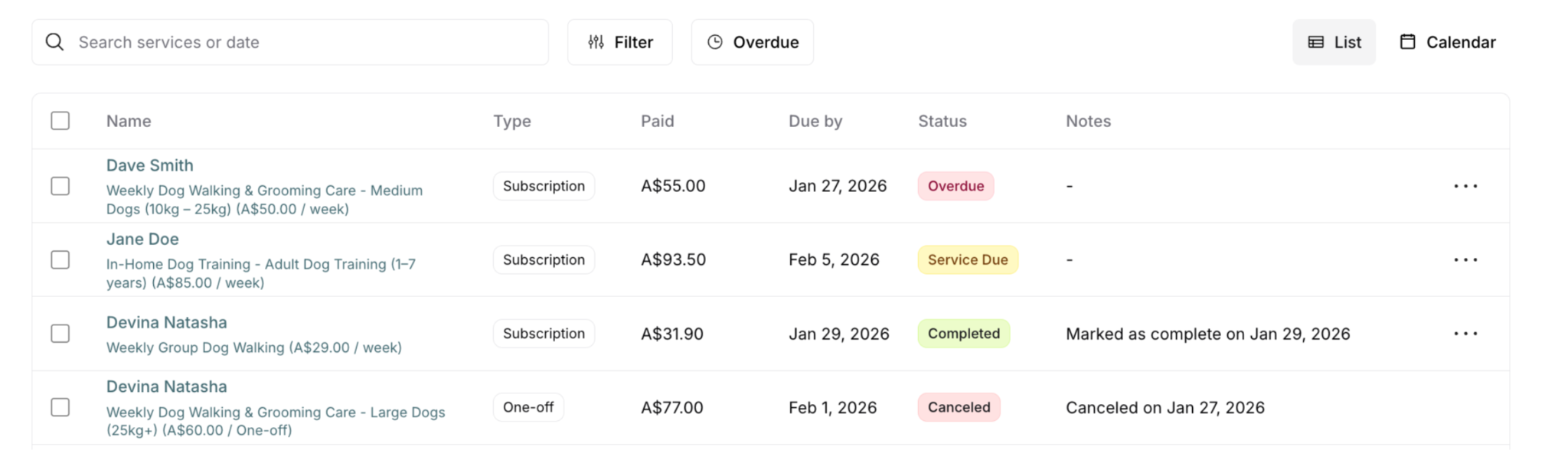
Service Due Status
What It Means
Visual: Yellow badge with text "Service Due"
Meaning: Service is scheduled and has a future or current due date. Service has not yet been completed.
This is normal: All new deliveries start with Service Due status. It's the expected state for upcoming work.
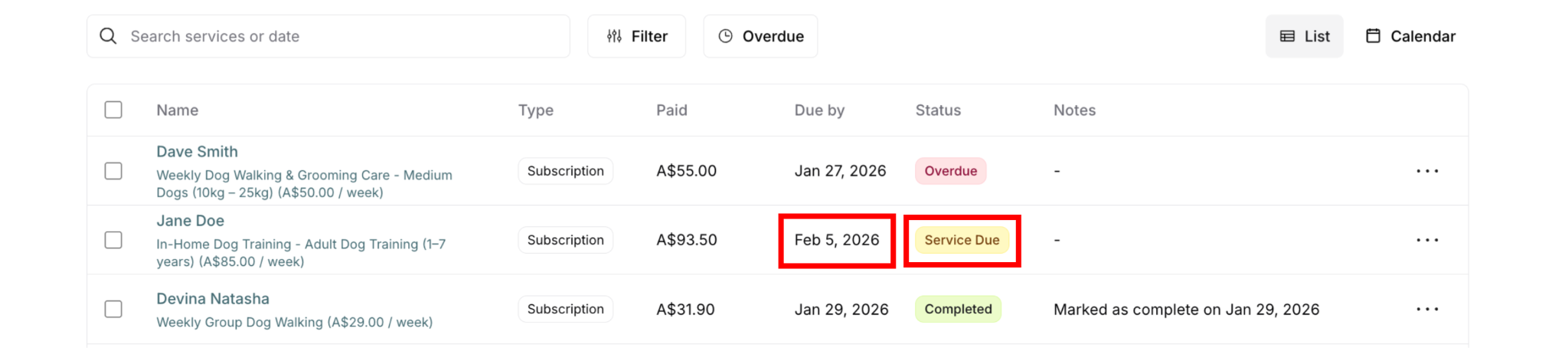
When Services Show Service Due
New deliveries:
Just created from payment
Due date in future
Waiting to be scheduled and completed
Current deliveries:
Due date is today
Ready to be completed
On your schedule for today
Upcoming deliveries:
Due date is tomorrow or later
Not urgent yet
Plan ahead
Actions Available for Service Due
What you can do:
✓ Mark as complete - After delivering service
? Roll to next period - Reschedule if needed
✕ Cancel service - If won't be delivered
Common actions:
Mark complete (most common - normal workflow)
Roll over (if can't deliver on time)
Cancel (if customer cancels or issue arises)
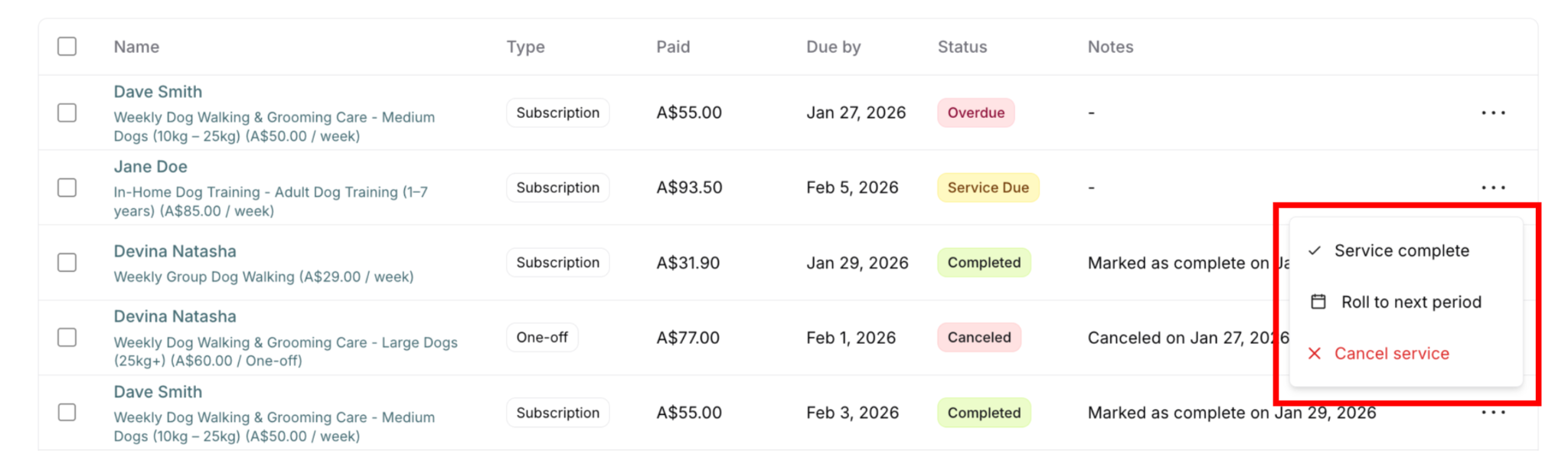
See Marking Services Complete and Incomplete, Canceling Services, and Rolling Services Over and Back for detailed action guides.
Service Due Best Practices
✅ Monitor daily:
Check Services Due count each morning
Review due dates for today
Plan delivery schedule
✅ Complete before due date when possible:
Early completion = happy customers
Prevents accidental overdue
More scheduling flexibility
✅ Don't ignore approaching due dates:
Service due tomorrow = plan today
Service due in 3 days = have on radar
Proactive scheduling prevents overdue
✅ Use for planning:
Service Due items = your workload
Count tells you how busy you'll be
Plan capacity accordingly
Overdue Status
What It Means
Visual: Red badge with text "Overdue"
Meaning: Service past its due date and not yet completed. This is a problem state requiring immediate attention.
This is abnormal: Overdue services indicate late delivery and potential customer dissatisfaction.
⚠️ CRITICAL: Overdue status damages customer satisfaction. Should be addressed immediately.
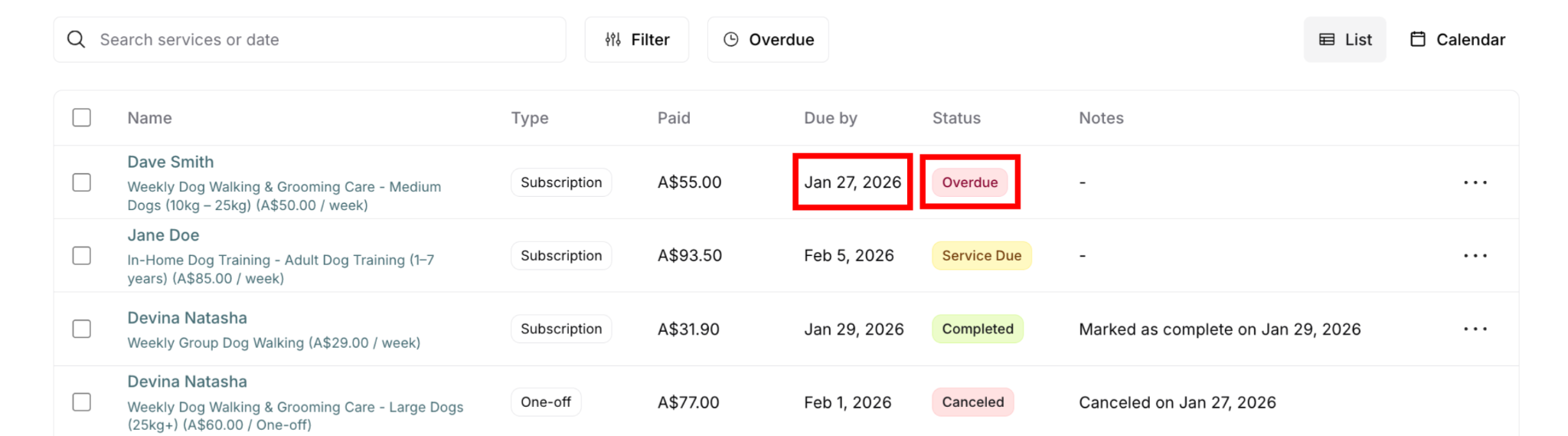
When Services Become Overdue
Automatic status change:
Due date passes
Service not marked complete
System automatically changes Service Due → Overdue
Even if you completed the service but didn't mark it complete in system:
Status still shows Overdue
Must mark complete to update status
System doesn't know you did it until you record it
Why Services Become Overdue
Common reasons:
Forgot to deliver service
Delivered but forgot to mark complete
Scheduling error or miscommunication
Weather or emergency prevented delivery
Staffing shortage or capacity issue
Service took longer than expected
Occasional overdue: Normal business reality
Chronic overdue: Indicates systemic problem requiring attention
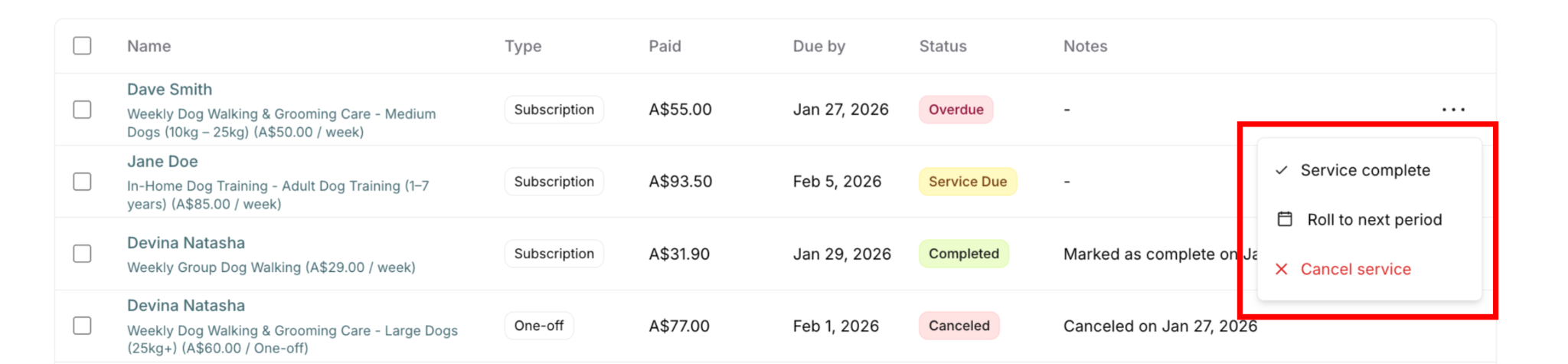
Actions Available for Overdue
What you can do (same as Service Due):
✓ Mark as complete - After delivering service
? Roll to next period - Reschedule to next cycle
✕ Cancel service - If won't be delivered
Common actions:
Mark complete (if already delivered)
Complete ASAP then mark
Contact customer to apologize and reschedule
Roll over with customer permission
Cancel + refund if customer no longer wants
Overdue Best Practices
✅ Check Overdue Services daily:
Use Overdue button in Delivery menu
First thing every morning
Before planning new services
✅ Address immediately:
Overdue = top priority
Before starting new Service Due items
Customer satisfaction at risk
✅ Communicate proactively:
Contact customer immediately
Apologize sincerely
Explain what happened
Offer solution (reschedule, complete ASAP, refund)
✅ Complete or resolve ASAP:
Deliver service today if possible
Don't let overdue pile up
Each day overdue = more damage
✅ Investigate patterns:
Multiple overdue regularly = capacity problem
Same service overdue = scheduling issue
Same day overdue = workflow problem
❌ Don't ignore overdue:
Doesn't go away on its own
Customer getting more frustrated
Damages reputation
❌ Don't let new deliveries take priority:
Overdue = existing obligation
Service Due = future obligation
Fix overdue first
Completed Status
What It Means
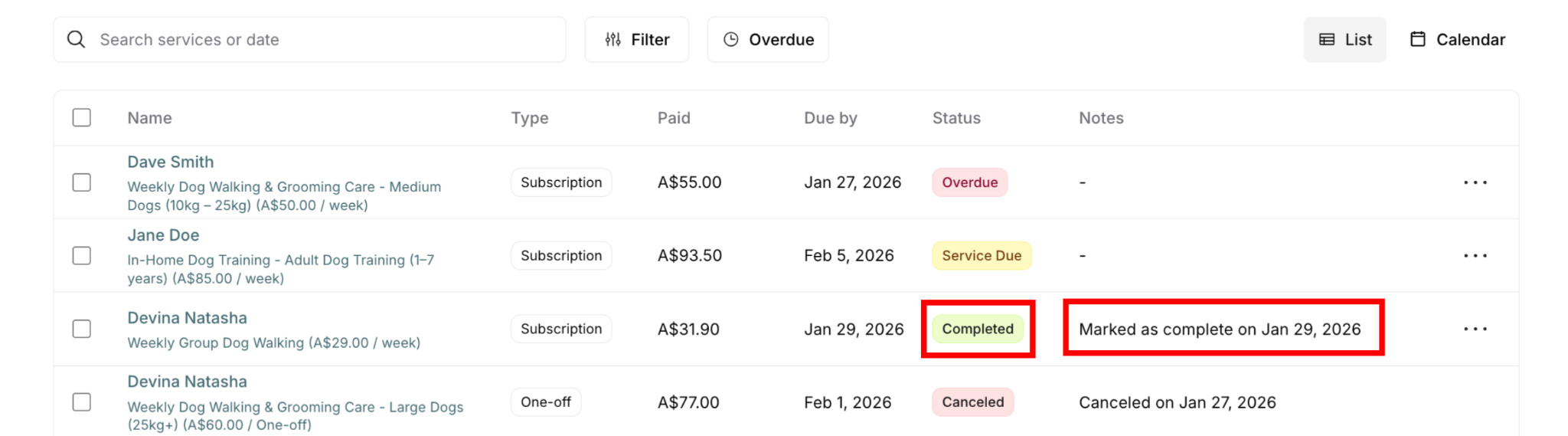
Visual: Green badge with text "Completed"
Meaning: Service has been delivered and marked complete in the system. This is the successful end state for deliveries.
This is the goal: Every Service Due and Overdue should eventually become Completed.
When Services Show Completed
After marking complete:
You delivered the service
You marked it complete (manually or bulk)
Status changes to Completed
Customer receives notification
Automatic transition:
Service Due → You mark complete → Completed
Overdue → You mark complete → Completed
Cannot skip: Services must be marked complete manually; they don't auto-complete.
Actions Available for Completed
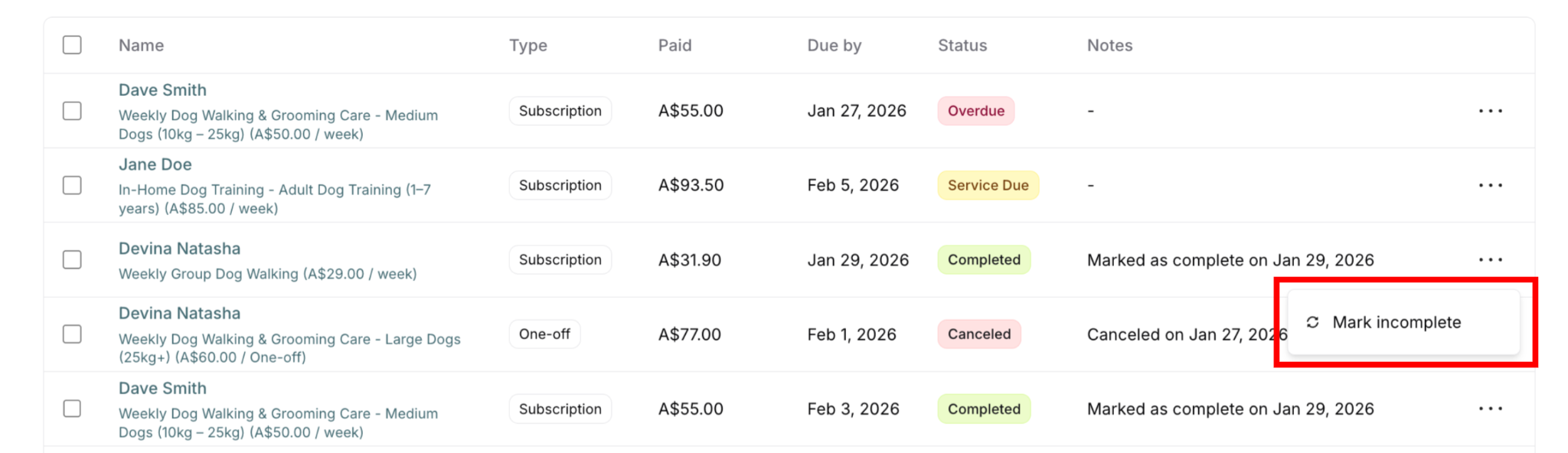
What you can do:
↩️ Mark incomplete - Reverse completion (if error)
Common actions:
Mark incomplete (if marked by mistake)
Usually no action needed (transaction complete)
Completed Best Practices
✅ Mark complete immediately after service:
Same day as delivery
Ideally: Right after finishing
Don't wait until end of day or next day
Real-time customer notification
✅ Verify before marking:
Actually completed the service?
Quality met standards?
Nothing left unfinished?
Mark only after done
❌ Don't mark complete before delivering:
Mark only after service done
Not as planning tool
Customer gets notification immediately
False notification damages trust
Canceled Status
What It Means
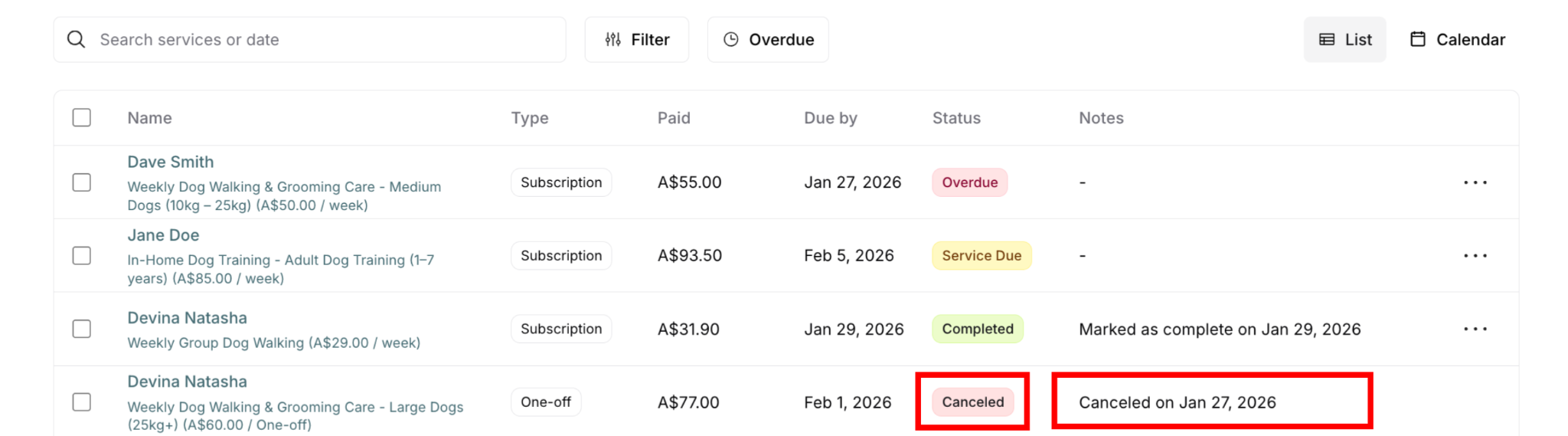
Visual: Pink badge with text "Canceled"
Meaning: Service delivery was canceled and won't be delivered. This is an end state for deliveries that didn't happen.
This is resolution: For services that won't be delivered for any reason.
When Services Show Canceled
After canceling:
You or customer decided service won't be delivered
You clicked Cancel service action
Status changes to Canceled
Removed from active delivery schedule
Various reasons for cancellation:
Customer requested cancellation
Customer moved/no longer needs service
Service can't be delivered (access issues, circumstances)
Quality issue preventing service
Billing error correction
Actions Available for Canceled
Once canceled, there’s no actions available

If canceled by mistake:
May need support to restore
Or create new purchase/delivery
Canceled Best Practices
✅ Always process refund when appropriate:
Cancel service + Process refund = complete resolution
Two separate actions
Don't forget refund step
See MC-003 Processing Refunds
✅ Communicate cancellation:
Tell customer service canceled
Explain refund timeline if applicable
Confirm they received notification
Professional closure
✅ Document reason:
Add note explaining why canceled
Helps with future reference
Important for disputes
Business intelligence
✅ Verify payment status:
Check if payment was refunded
Canceled + Paid = Customer paid but no service (problem)
Canceled + Refunded = Proper resolution
❌ Don't cancel without customer knowledge:
Always communicate first
Get permission unless obvious issue
Unexpected cancellation upsets customers
Status Priority for Action
When you have deliveries in multiple statuses, prioritize this way:
1. Overdue (red) - Highest priority
These are late
Customer likely upset
Address before anything else
Complete or resolve immediately
2. Service Due - Today (yellow)
Due today
Time-sensitive
Schedule and complete today
Prevent becoming overdue
3. Service Due - Upcoming (yellow)
Due in future
Plan ahead
Schedule into calendar
Monitor as due date approaches
4. Completed (green) - No action
Done
No immediate action needed
Historical record
5. Canceled (gray) - Verify refund
Mostly done
Just verify refund processed if appropriate
Close out resolution
Summary
Four delivery statuses:
Service Due (yellow) - Normal upcoming work
Overdue (red) - Late, needs immediate attention
Completed (green) - Successfully delivered
Canceled (pink) - Won't be delivered
Status purposes:
Visual workflow management
Priority identification
Progress tracking
Customer communication
Key principles:
Service Due is normal and expected
Overdue is problem state requiring immediate action
Completed is the goal for all deliveries
Canceled is proper resolution when service won't happen
Status transitions:
Service Due → Overdue (automatic when date passes)
Service Due → Completed (you mark complete)
Service Due → Canceled (you cancel)
Overdue → Completed (you mark complete)
Completed → Service Due/Overdue (mark incomplete)
Priority order: Overdue > Service Due Today > Service Due Future > Completed > Canceled
Target goals:
Overdue Services: 0
Services Due: Complete before due date
Total Completed: Growing number
Canceled: Only when appropriate with refund
Was this article helpful?
That’s Great!
Thank you for your feedback
Sorry! We couldn't be helpful
Thank you for your feedback
Feedback sent
We appreciate your effort and will try to fix the article