Service deliveries don't appear manually—they're created automatically when customers pay for services. Understanding this automated process helps you anticipate deliveries, manage your workload, and troubleshoot scheduling issues.
This guide explains exactly how and when service deliveries are created from both subscriptions and one-off purchases.
Overview: Automatic Delivery Creation
Core principle: Every payment creates a delivery.
The automated flow:
Customer pays for service
↓
Payment processes successfully
↓
System automatically creates delivery
↓
Delivery appears in your Delivery menu/tab
↓
You receive notification (depending on settings)
↓
Service scheduled with due date
Two sources of deliveries:
Subscriptions - Create recurring deliveries (one per payment)
One-off purchases - Create single deliveries (one-time)
You don't manually create deliveries. The system handles this automatically based on customer purchases and subscription billing.
Deliveries from Subscriptions
Subscriptions create recurring deliveries that continue for the life of the subscription.

How Subscription Deliveries Work
The recurring pattern:
Customer subscribes to a service
First payment processes → First delivery created
Time passes (weekly, monthly, etc.)
Next payment processes → Next delivery created
Pattern continues until subscription ends
Each billing cycle = one new delivery
Example: Weekly Subscription
Service: Weekly Dog Walking
Price: $45/week
Billing: Every Monday
Timeline:
Week 1: Payment processes Jan 1 → Delivery created, due Jan 1-7
Week 2: Payment processes Jan 8 → Delivery created, due Jan 8-14
Week 3: Payment processes Jan 15 → Delivery created, due Jan 15-21
Week 4: Payment processes Jan 22 → Delivery created, due Jan 22-28
Result: 4 payments = 4 separate deliveries to complete
Each delivery is independent:
Must be completed separately
Has its own due date
Can be managed individually
Links to specific payment
Example: Monthly Subscription
Service: Monthly Lawn Care
Price: $120/month
Billing: 1st of each month
Timeline:
Month 1: Payment Jan 1 → Delivery created, due January
Month 2: Payment Feb 1 → Delivery created, due February
Month 3: Payment Mar 1 → Delivery created, due March
Result: 3 payments = 3 separate deliveries
Key point: Even though it's "one subscription," you get multiple delivery items—one for each billing period.
When Subscription Deliveries Are Created
Creation timing: Immediately after successful payment
Specific moments:
New subscription starts → First delivery created with first payment
Recurring billing date → New delivery created with each payment
Customer resumes paused subscription → Delivery created with resumed payment
Manual payment processing → Delivery created when payment succeeds
Not created when:
❌ Subscription is paused (no billing, no deliveries)
❌ Payment fails (no successful payment, no delivery)
❌ Subscription canceled before next billing (no future payments, no new deliveries)
Subscription Delivery Due Dates
How due dates are calculated:
Based on billing frequency and schedule:
Weekly subscriptions → Due within that week
Fortnightly subscriptions → Due within that two-week period
Monthly subscriptions → Due within that month
Quarterly subscriptions → Due within that quarter
Example calculations:
Weekly subscription billing on Monday:
Payment: Jan 1 (Monday)
Due date: Jan 1-7 (that week)
Monthly subscription billing on 1st:
Payment: Jan 1
Due date: Anytime in January
Fortnightly subscription billing on Monday:
Payment: Jan 1
Due date: Jan 1-14 (that fortnight)
Flexibility: You can complete the service anytime within the due period. System tracks when service should be done by, not the exact hour.
✍️ TIP: Subscription deliveries typically have flexible due dates within the billing period, giving you scheduling flexibility for route planning.
Multiple Services from Same Subscription
Important: If a customer has multiple subscriptions, each creates its own deliveries.
Example:
Customer: Jane Smith
Subscription 1: Weekly Dog Walking ($45/week)
→ Creates delivery every week
Subscription 2: Monthly Grooming ($110/month)
→ Creates delivery every month
Result in Delivery tab:
- Dog Walking delivery (due Jan 7)
- Dog Walking delivery (due Jan 14)
- Grooming delivery (due Jan 31)
- Dog Walking delivery (due Jan 21)
- Dog Walking delivery (due Jan 28)
- Grooming delivery (due Feb 28)
And so on...
Each subscription operates independently, creating its own delivery schedule.
Deliveries from One-off Purchases
One-off purchases create single deliveries for one-time services.

How One-off Deliveries Work
Simple one-time pattern:
Customer purchases one-time service
Payment processes
System creates one delivery with due date
You complete service
Transaction complete (no future deliveries)
One payment = one delivery, then done
Example: One-off Purchase
Service: Deep Gutter Cleaning
Price: $200
Type: One-off purchase
Timeline:
Customer purchases: Feb 1
Payment processes: Feb 1
Delivery created: Due within 3-5 days (Feb 4-6)
Service completed: Feb 5
Transaction complete: No more deliveries
Result: 1 payment = 1 delivery (one-time)
Difference from subscription: No recurring deliveries. Service happens once, delivery tracked once, then complete.
When One-off Deliveries Are Created
Creation timing: Immediately after successful payment
Specific moment: When customer completes checkout and payment processes
Common scenarios:
Customer purchases from your live site
You send invoice and customer pays
Manual one-off purchase created and paid
Not created when:
❌ Customer adds to cart but doesn't complete checkout
❌ Payment fails or is declined
❌ Invoice sent but not yet paid
Once payment succeeds, delivery appears in your system immediately.
One-off Delivery Due Dates
How due dates are calculated: Based on delivery timeframe configured for that service.
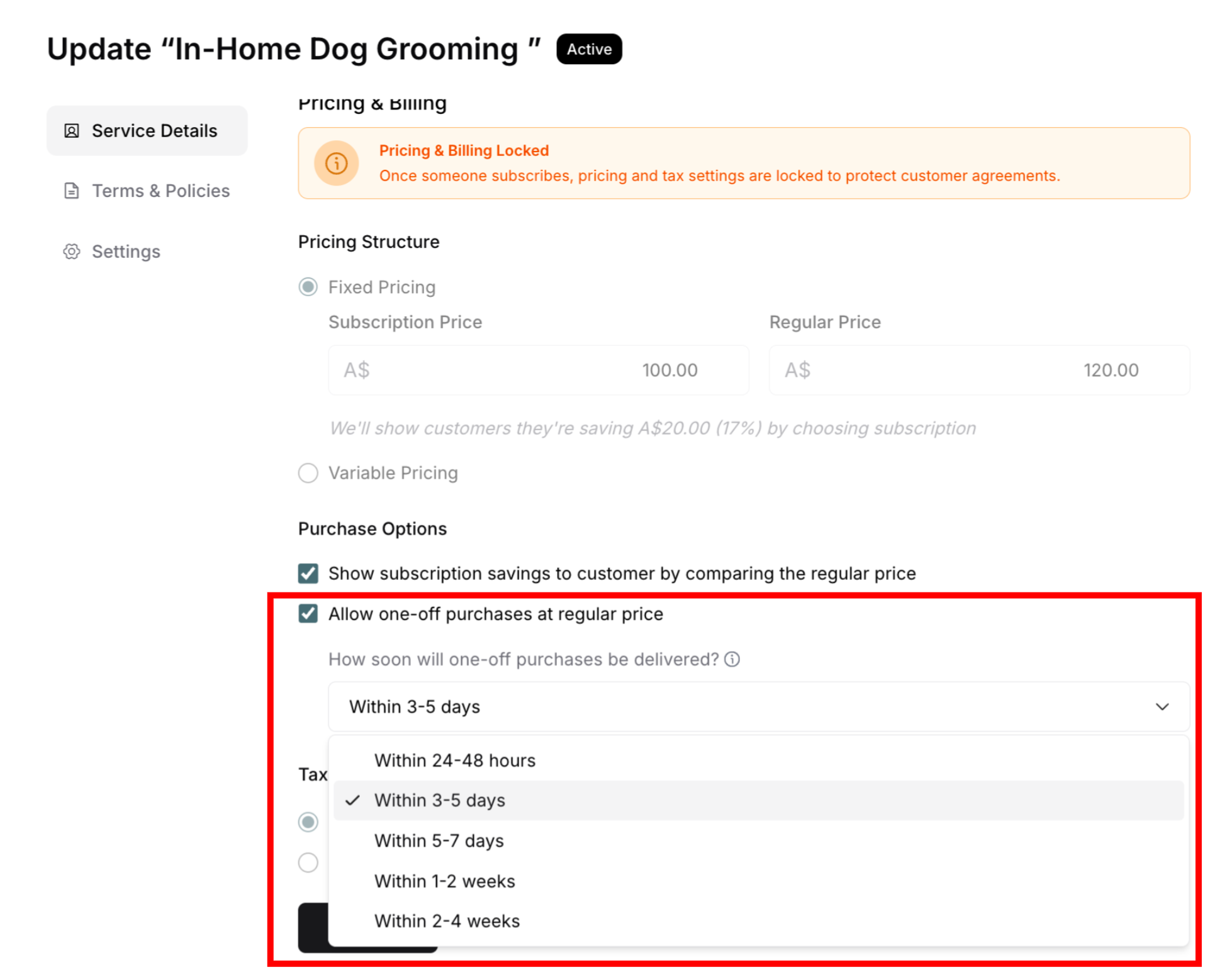
Configuration location: Set when service was created under Purchase Options → "How soon will one-off purchases be delivered?"
Available timeframe options:
Within 24-48 hours
Within 3-5 days (common default)
Within 5-7 days
Within 1-2 weeks
Within 2-4 weeks
How it calculates:
Service: House Cleaning
Setting: "Within 3-5 days"
Customer purchases: Jan 10, 2026
System calculates due date: Jan 13-15, 2026
Delivery shows: Due by Jan 15, 2026
Service: Deep Clean
Setting: "Within 1-2 weeks"
Customer purchases: Jan 10, 2026
System calculates due date: Jan 17-24, 2026
Delivery shows: Due by Jan 24, 2026
The due date shown: Latest date in the range (gives you the full window)
Setting Delivery Timeframes
When to set: When creating or editing a service
Where to set: Services → Edit service → Purchase Options
Choosing timeframe considerations:
Shorter timeframes (24-48 hours, 3-5 days):
✅ Good for urgent services
✅ Quick turnaround expectation
✅ Competitive advantage
❌ Requires capacity management
❌ Less scheduling flexibility
Longer timeframes (1-2 weeks, 2-4 weeks):
✅ More scheduling flexibility
✅ Easier to manage capacity
✅ Good for complex services
❌ Customer waits longer
❌ May lose to faster competitors
Most common: "Within 3-5 days" provides balance between customer expectations and operational flexibility.
✍️ TIP: Set realistic timeframes based on your actual capacity. Better to promise 5-7 days and deliver early than promise 24-48 hours and be late.
One-off vs Subscription Timing
Key difference in due dates:
One-off purchases:
Specific timeframe from purchase date
Countdown starts immediately
Example: "Within 3-5 days" from Jan 10 = Due by Jan 15
Subscription deliveries:
Based on billing cycle period
More flexible window
Example: Monthly billing Jan 1 = Due anytime in January
Why the difference: One-off customers expect quick turnaround. Subscription customers expect regular service within the billing period.
The Purchase-to-Delivery Connection
Understanding how purchases and deliveries relate is essential for managing your business.
One Purchase = One Delivery
The fundamental rule: Every purchase creates exactly one delivery.
For subscriptions:
Subscription: Weekly Service, $50/week
Month 1:
Payment 1 ($50) → Delivery 1
Payment 2 ($50) → Delivery 2
Payment 3 ($50) → Delivery 3
Payment 4 ($50) → Delivery 4
4 payments = 4 deliveries to track and complete
For one-offs:
One-off: Spring Cleaning, $200
Payment ($200) → Delivery 1
1 payment = 1 delivery to track and complete
The Complete Lifecycle
Full flow from payment to service:
1. Customer Action
↓ Customer subscribes or purchases
2. Payment Processing
↓ Payment method charged
3. Purchase Created
↓ Purchase record in system
↓ Appears in Purchases tab
4. Delivery Created
↓ Delivery automatically generated
↓ Appears in Delivery menu/tab
↓ Due date calculated
5. Service Scheduled
↓ On your delivery list
↓ Status: Service Due
6. Service Delivered
↓ You complete the work
7. Mark Complete
↓ Update in system
↓ Status: Completed
8. Customer Notified
↓ Completion email sent
↓ Transaction complete
Each step happens automatically except steps 6 and 7 (your work and marking complete).
Viewing the Connection
You can see the purchase-delivery connection in multiple places:
From Purchases tab:
Navigate to customer → Purchases tab
Expand a purchase
See "Service Delivery" panel on right
Shows delivery due date and status
Click "View Delivery" to see in Delivery tab
From Delivery menu/tab:
Find a delivery in list
See customer name and service
"Paid" column shows purchase amount
Delivery links back to purchase
Both views show same information, just from different angles:
Purchases tab = Payment-focused (money in)
Delivery menu/tab = Service-focused (work out)
What Happens After Delivery Creation
Once a delivery is created automatically, here's what happens:
Immediate Effects
Delivery appears in your system:
✅ Shows in Delivery menu (global list)
✅ Shows in customer's Delivery tab
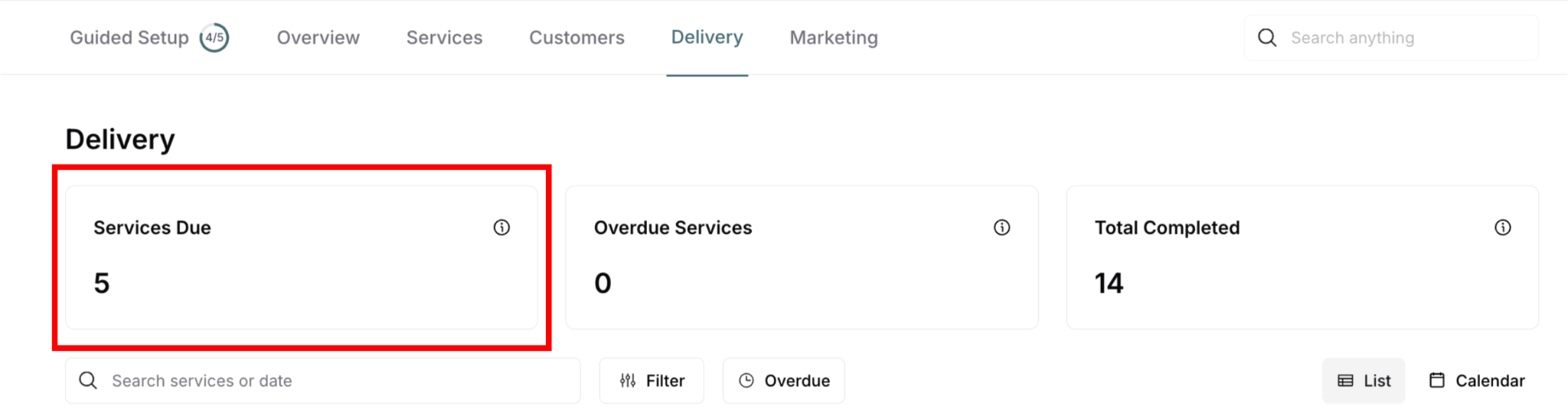
✅ Status: "Service Due" (yellow)
✅ Due date displayed
✅ Linked to purchase/payment

Metrics update:
"Services Due" count increases
Adds to your workload
Visible in delivery planning
Your Responsibilities
After delivery is created, you must:
Acknowledge it exists:
Review in Delivery menu
Add to your schedule
Plan route and timing

Deliver the service:
Complete work by due date
Maintain quality standards
Communicate with customer if needed
Mark as complete:
Update in system after delivery
Triggers customer notification
Updates status to "Completed"

Handle issues if any:
Reschedule if needed (roll over)
Cancel if appropriate
Process refund separately if warranted
The system creates the delivery; you fulfill it.
Delivery Creation Scenarios
Scenario 1: New Subscription Starts
What happens:
Customer subscribes to weekly service
First payment processes immediately
First delivery created instantly
Shows in your Delivery menu with due date
Your action: Check Delivery menu, note new customer, plan first service
Scenario 2: Recurring Subscription Billing
What happens:
Billing date arrives (e.g., Monday for weekly)
Payment processes automatically
New delivery created for this period
Previous delivery (hopefully) already completed
If previous delivery not yet completed:
Previous delivery past its due date → Status changes to "Overdue" (red)
New delivery still created (separate item)
You now have two deliveries: one Overdue, one Service Due
Both need attention (Overdue first)
Your action:
Complete previous overdue delivery ASAP
Continue regular service schedule for new delivery
Prevent pileup by completing services before next billing
⚠️ IMPORTANT: New deliveries create automatically even if previous ones aren't complete. Each billing cycle creates its own delivery regardless of prior completion status.
Scenario 4: Paused Subscription Resumes
What happens:
Subscription was paused (no deliveries created while paused)
You or customer resumes subscription
Next billing processes
Delivery created for resumed period
Your action: Service resumes as normal, complete delivery
Scenario 5: Payment Fails
What happens:
Billing date arrives
Payment fails (card declined, insufficient funds, etc.)
No delivery created (no successful payment)
System retries payment (usually)
If retry succeeds → Delivery created then
Your action: No delivery to complete yet. May need to contact customer about payment issue.
Summary
Automatic delivery creation:
Deliveries created automatically from payments
You don't manually create deliveries
System handles timing and scheduling
From subscriptions:
Each recurring payment creates one delivery
Ongoing pattern throughout subscription life
One subscription = multiple deliveries over time
From one-off purchases:
Single payment creates single delivery
Due date based on configured timeframe
Set when service was created
Options: 24-48 hours, 3-5 days, 5-7 days, 1-2 weeks, 2-4 weeks
Key principle: 1 payment = 1 delivery (always)
Your responsibilities:
Monitor new deliveries daily
Plan and schedule services
Complete deliveries on time
Mark complete in system
Was this article helpful?
That’s Great!
Thank you for your feedback
Sorry! We couldn't be helpful
Thank you for your feedback
Feedback sent
We appreciate your effort and will try to fix the article