Marking services complete is how you record that deliveries have been fulfilled. This updates the system, notifies customers, and keeps your delivery tracking accurate. This is one of your most frequent daily actions.
This guide explains how to mark services complete (and incomplete if needed) efficiently and accurately.
Overview: Why Mark Services Complete
Marking complete serves multiple purposes:
For you:
✅ Records service delivery in system
✅ Removes from active work list
✅ Tracks productivity (Total Completed count)
✅ Maintains accurate delivery status
✅ Provides proof of service delivery
For customers:
✅ Receives completion notification
✅ Knows service was done
✅ Creates service history record
✅ Peace of mind confirmation
For business:
✅ Accurate delivery records
✅ Performance metrics
✅ Dispute protection
✅ Quality tracking
The rule: Always mark services complete after delivering them. Don't leave completed services unmarked.
What Happens When You Mark Complete
Immediate effects:
Status changes: Service Due (yellow) or Overdue (red) → Completed (green)
Notes update: Shows "Marked as complete on [date]"

Customer notification: Email sent automatically confirming service completion
List updates: Service moves from active to completed in Delivery menu
Metrics update:
Services Due count decreases (if was Service Due)
Overdue Services count decreases (if was Overdue)
Total Completed count increases
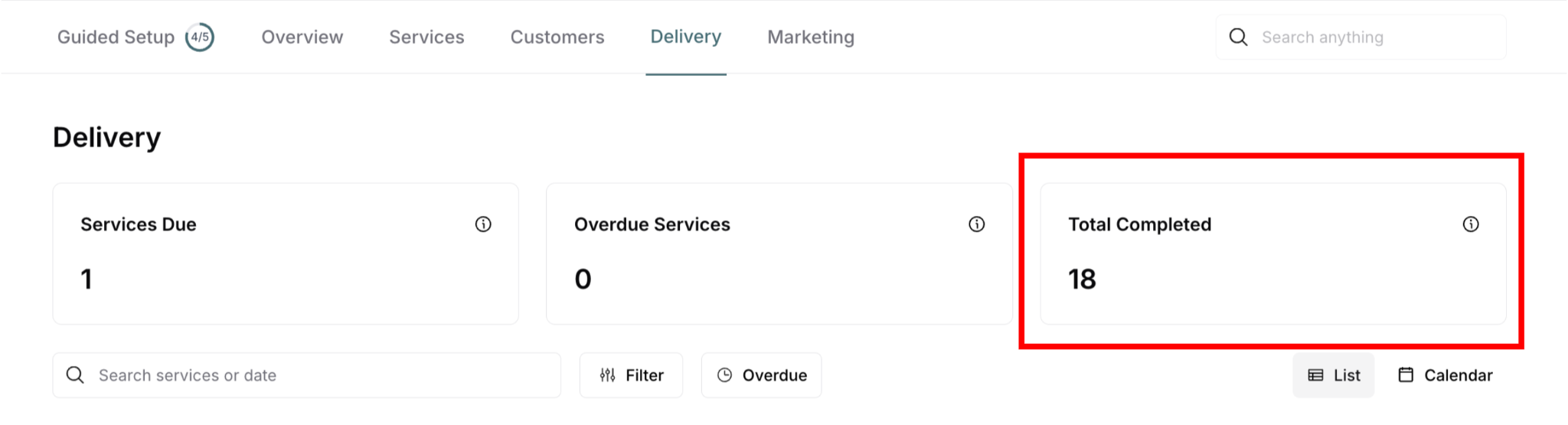
Activity log: Completion recorded in Activity tab
Two Ways to Mark Complete
You can mark services complete from two locations:
1. From Delivery Menu (Global View)
Best for:
Daily batch operations
Completing multiple services at once
Route-based completion
Overall delivery management
Access: Main navigation → Delivery
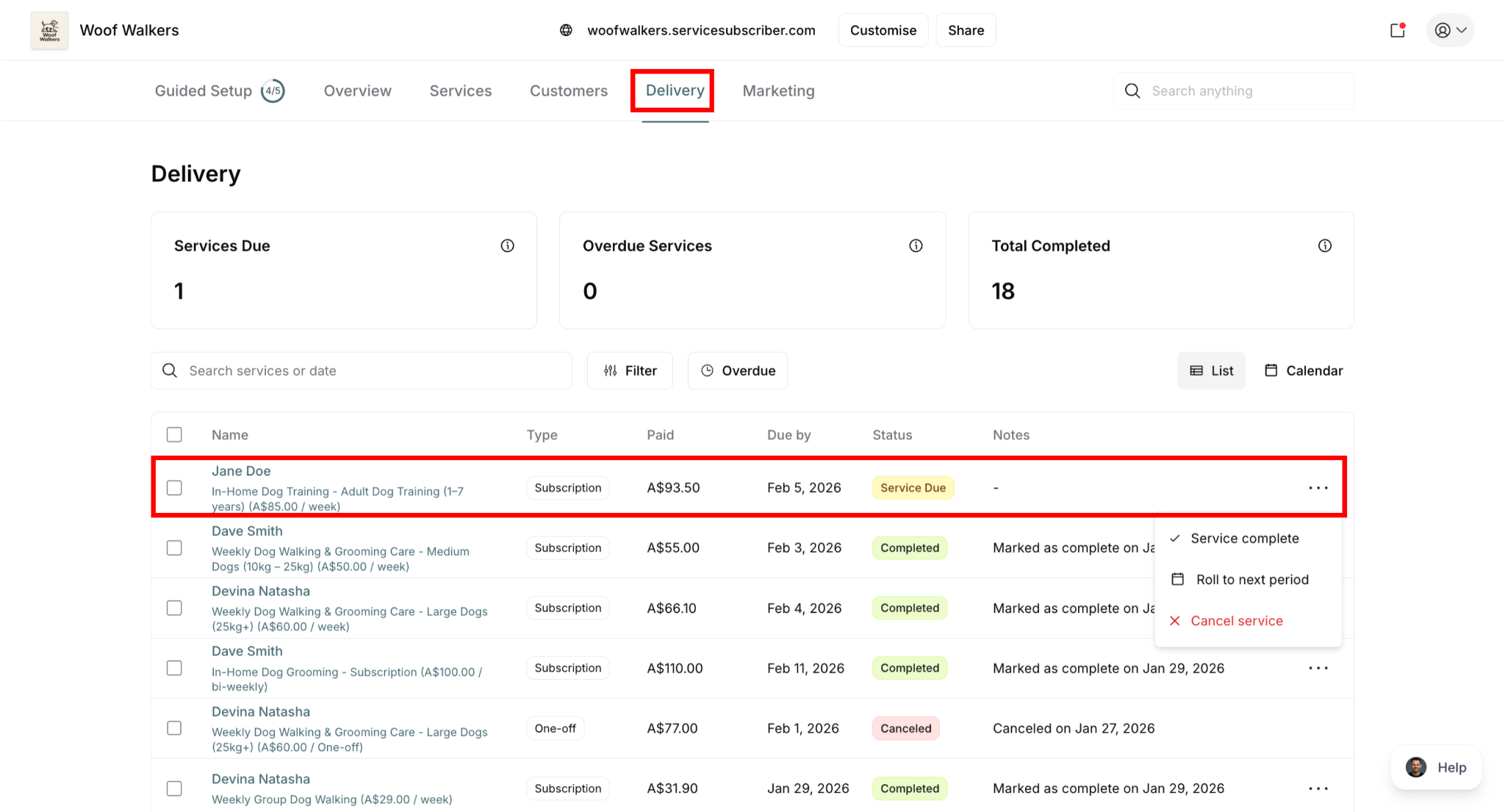
2. From Customer Delivery Tab
Best for:
Individual customer context
When already on customer page
Single service completion
Customer-specific workflow
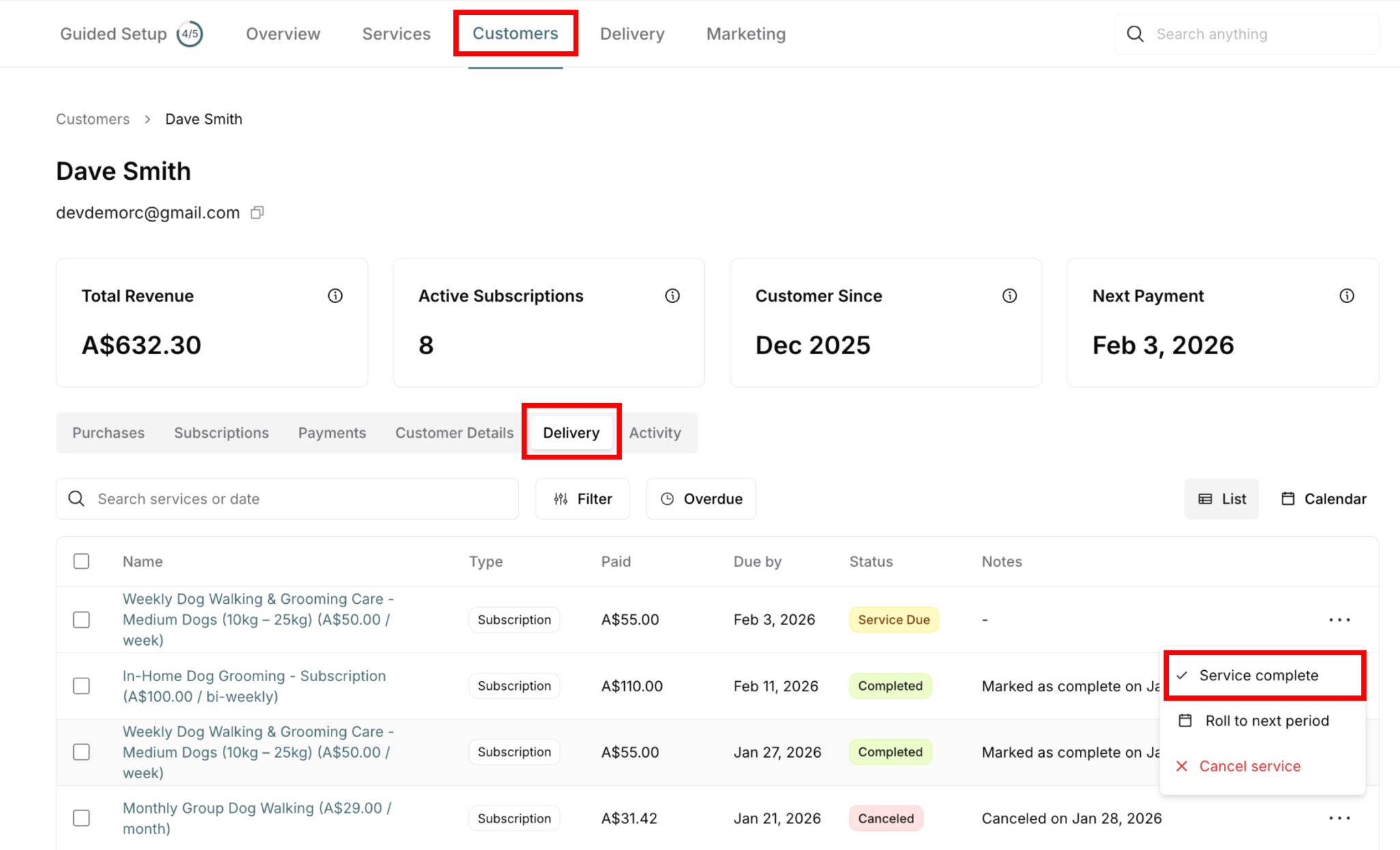
Access: Customers → Select customer → Delivery tab
✍️ TIP: Most operators use Delivery menu for daily operations and customer Delivery tab when investigating specific customer issues.
Marking Complete: Individual Service
From Delivery Menu
Step-by-step process:
Navigate to Delivery menu
Click Delivery in main navigation
See list of all deliveries
Find the service to mark complete
Search by customer name or service
Filter by date or status
Visually scan list
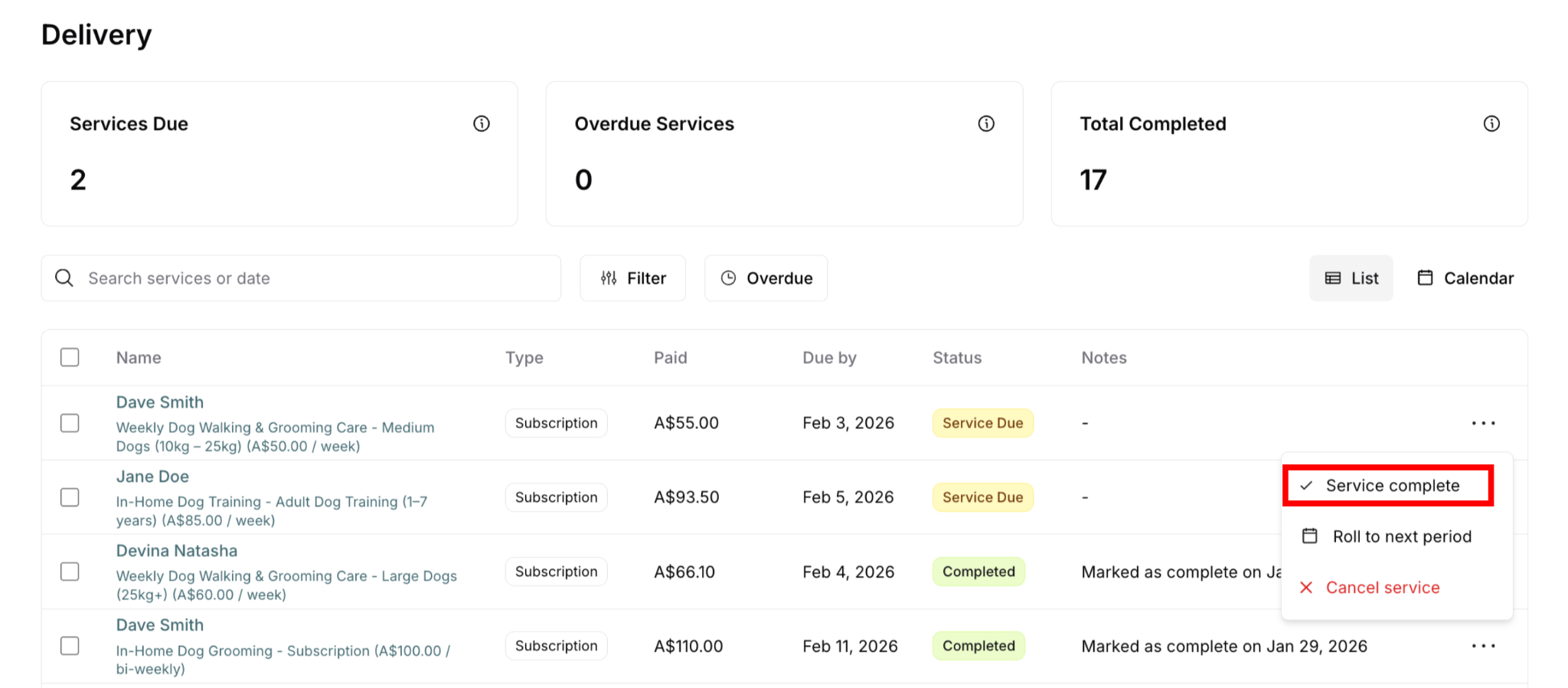
Click three-dot menu (⋯)
Located on far right of delivery row
Menu appears with action options
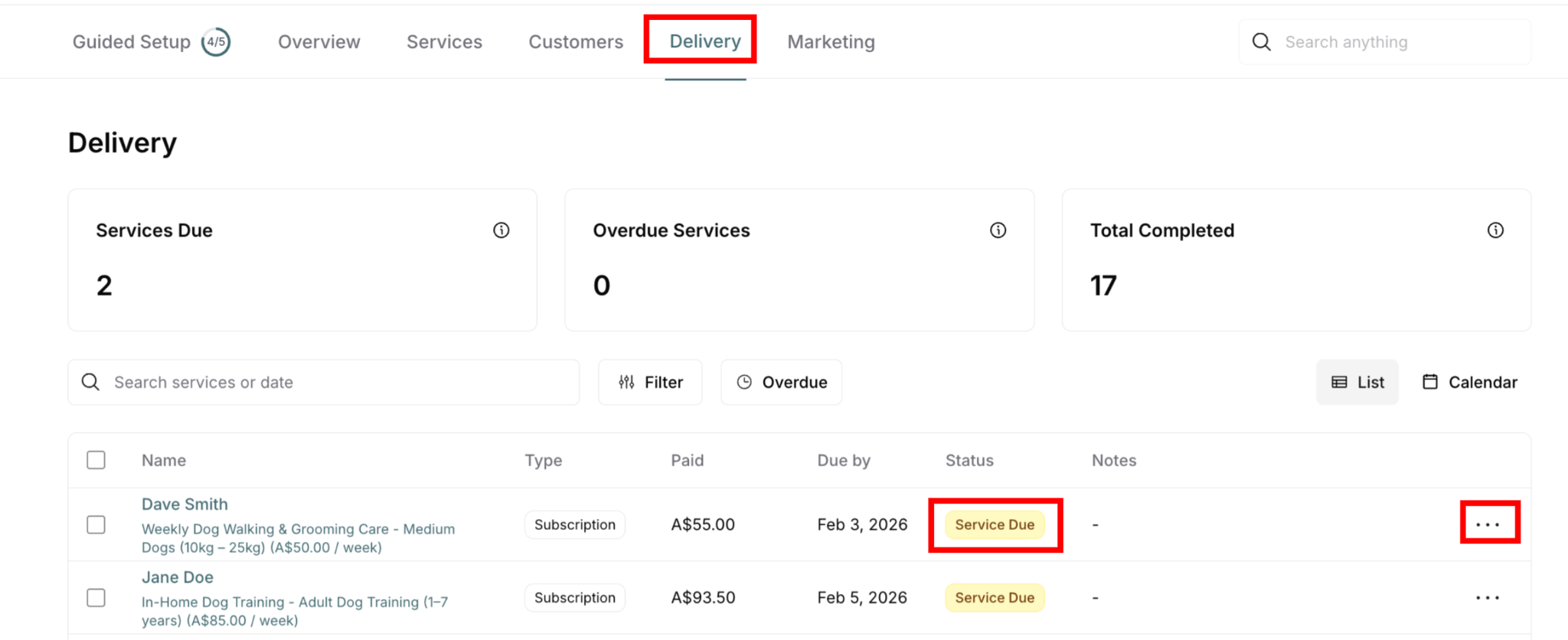
Select "Service complete" (with checkmark icon)
Click the option
Action processes immediately
Verify completion
Success message appears: "Delivery marked as completed successfully"
Status badge changes to Completed (green)
Notes update to show completion date
Service moves in list

When available: Only for Service Due or Overdue deliveries
Not available for: Already Completed or Canceled items
From Customer Delivery Tab
Step-by-step process:
Navigate to customer
Customers menu → Select customer
Or click customer name in Delivery menu
Open Delivery tab
Click Delivery tab in customer detail
See that customer's deliveries only
Find the service to mark complete
Scroll through customer's delivery list
Identify specific service
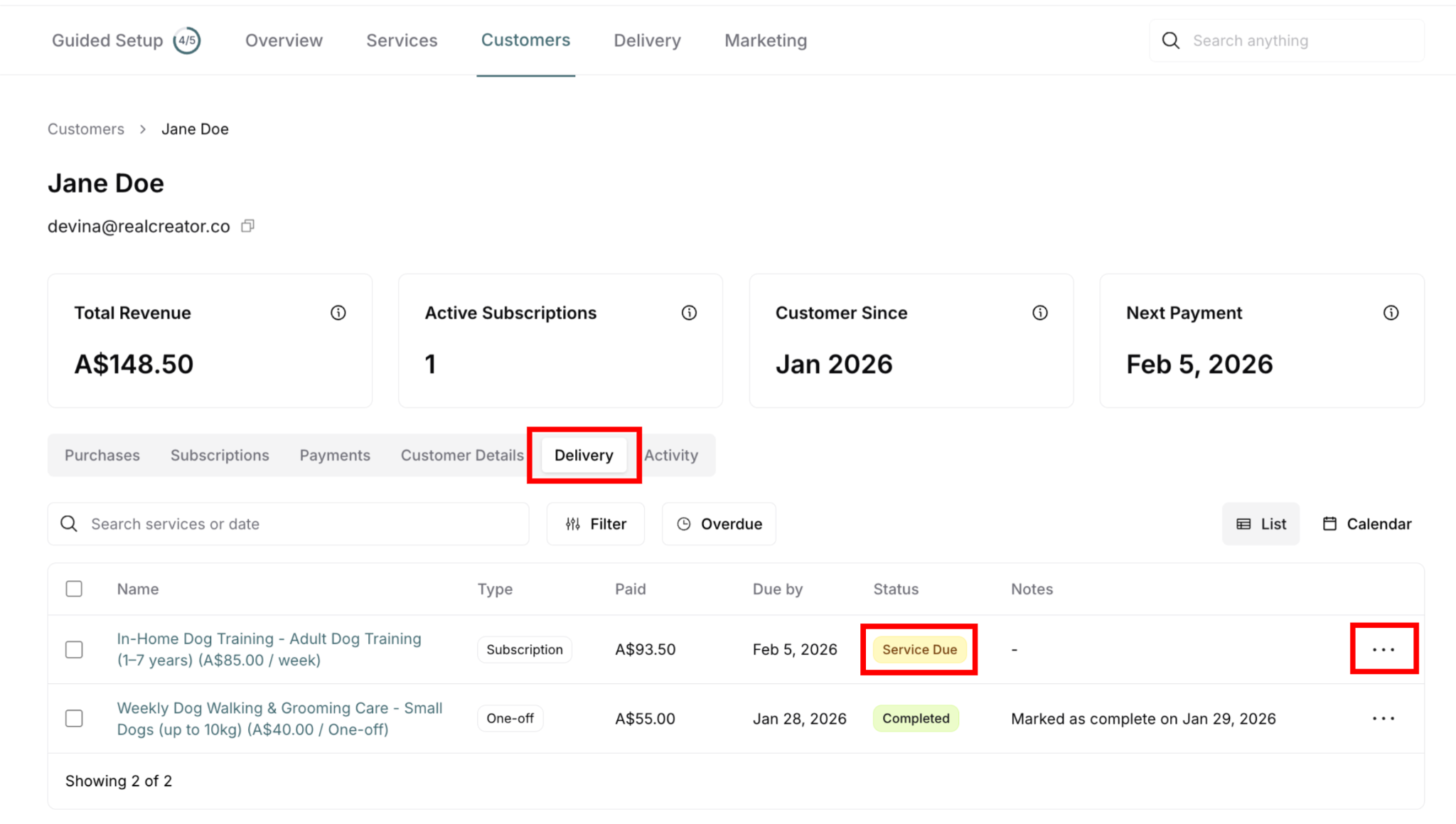
Click three-dot menu (⋯)
On the right of delivery row
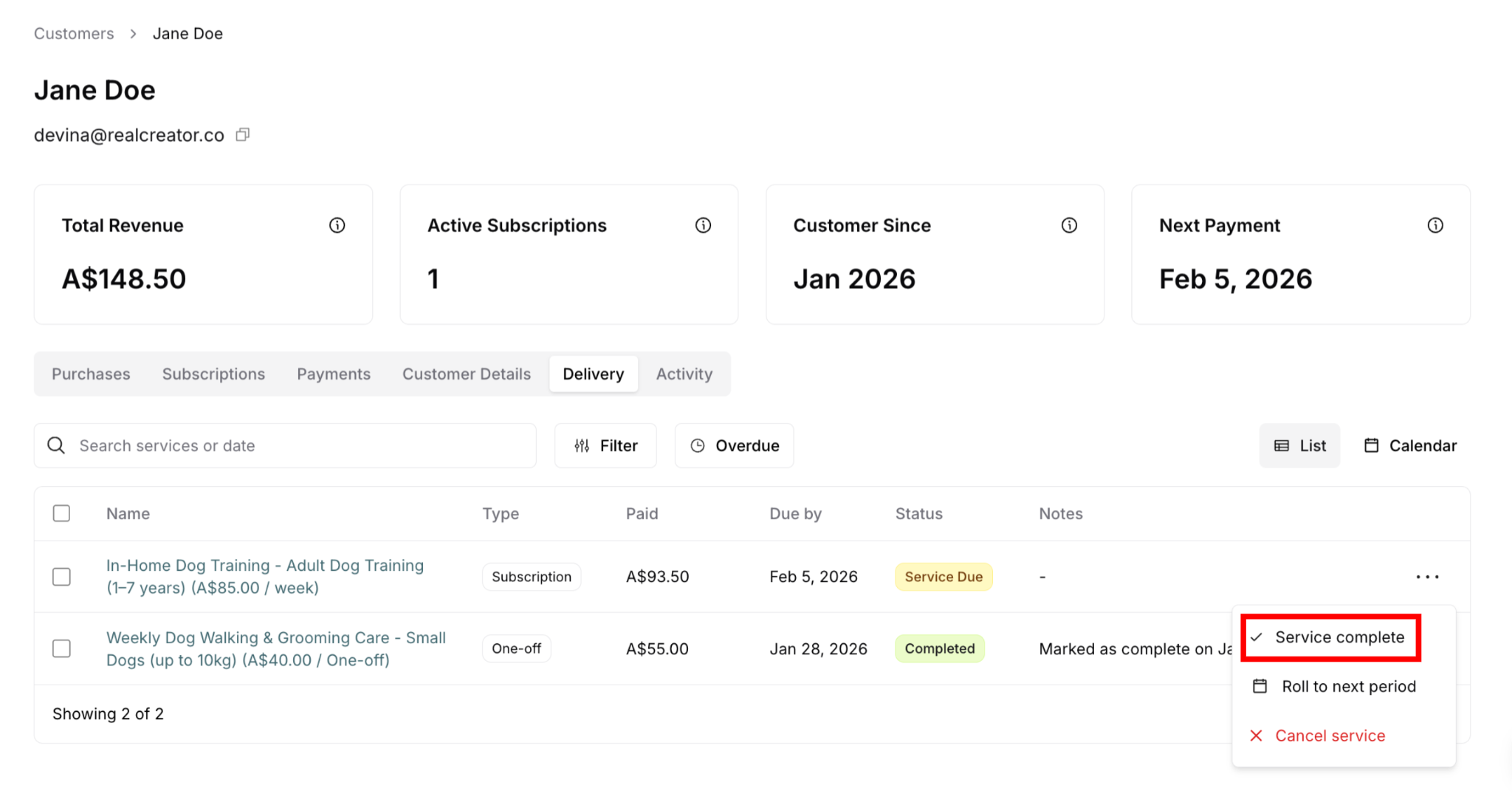
Action menu appears
Select "Service complete"
Click the option
Action processes
Verify completion
Success message
Status updates
Same effects as Delivery menu completion
Same functionality: Works identically to Delivery menu, just scoped to one customer
Bulk Marking Complete: Multiple Services
Bulk completion lets you mark multiple services complete at once—a huge time-saver for batch operations.
When to Use Bulk Completion
✅ After completing route: Completed 5+ services, mark all at once
✅ End of day processing: Batch mark all day's completions
✅ Area-based completion: Finished neighborhood, mark all together
✅ Efficiency: Faster than individual marking
✅ Mixed statuses OK: Select everything from route including already-finished items—system filters automatically
How Bulk Completion Works
Available: Only in Delivery menu (not in customer Delivery tab)
Smart filtering: System automatically processes only completable items (Service Due or Overdue), ignoring Canceled and already-Completed selections
Process:
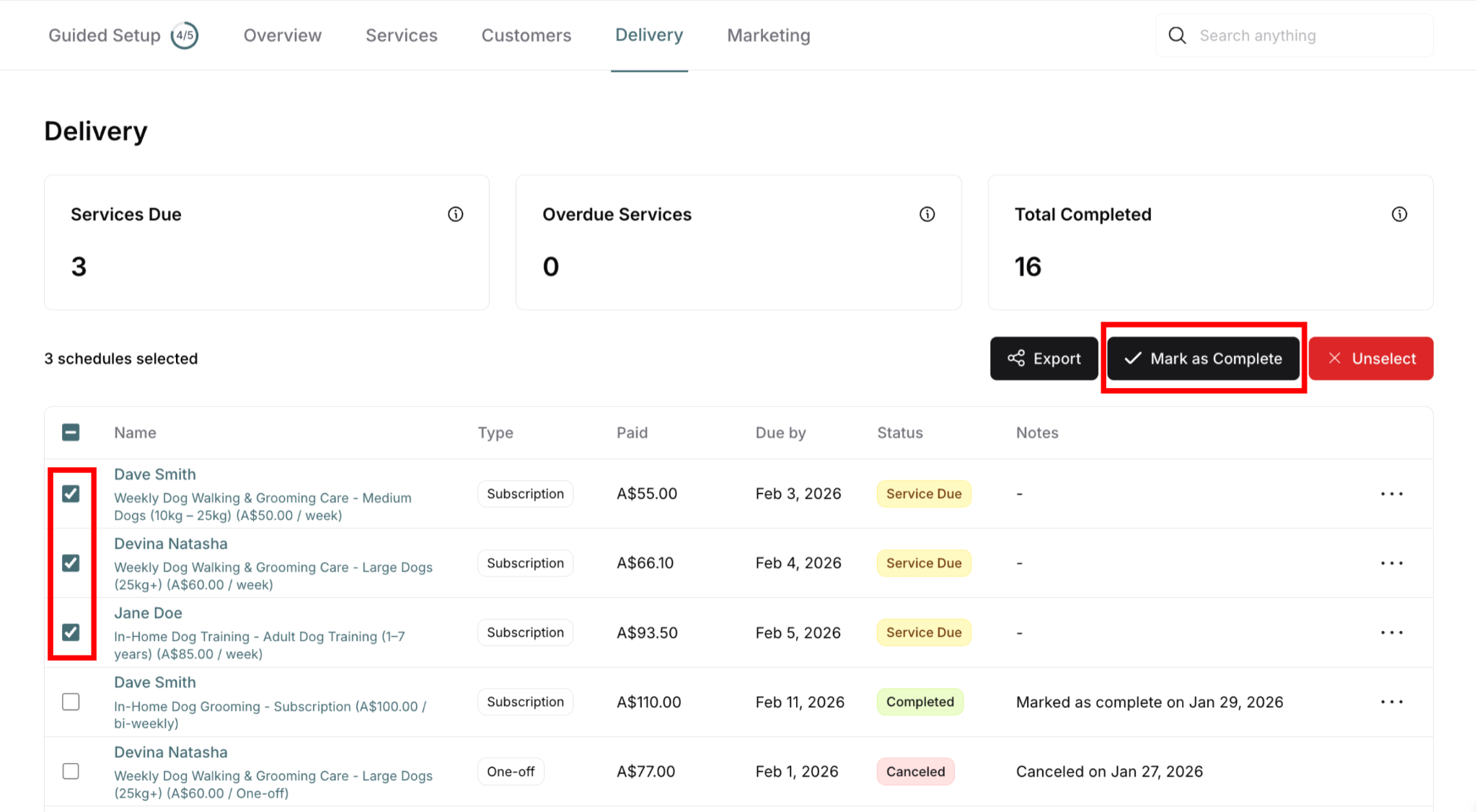
Select deliveries using checkboxes
Click Mark as Complete button
Confirm in modal
All completable items marked simultaneously
Bulk Completion: Step-by-Step
Step 1: Navigate to Delivery menu
Main navigation → Delivery
See full delivery list
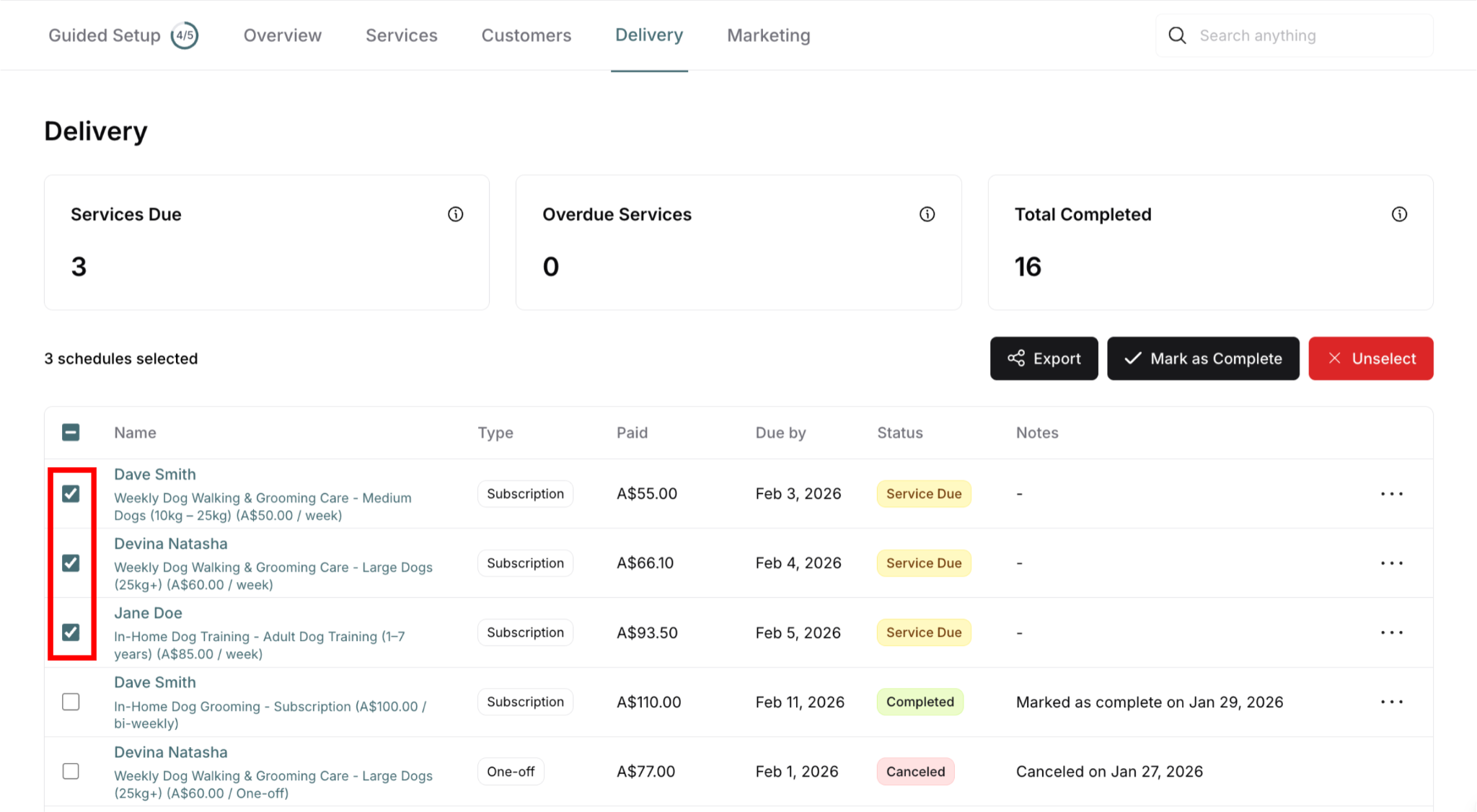
Step 2: Select deliveries
Click checkbox next to each delivery to mark complete
Can select across different customers
Can mix Service Due and Overdue
Can include Canceled and Completed (system will ignore these)
Selection counter appears: "X schedules selected"
Step 3: Action buttons appear
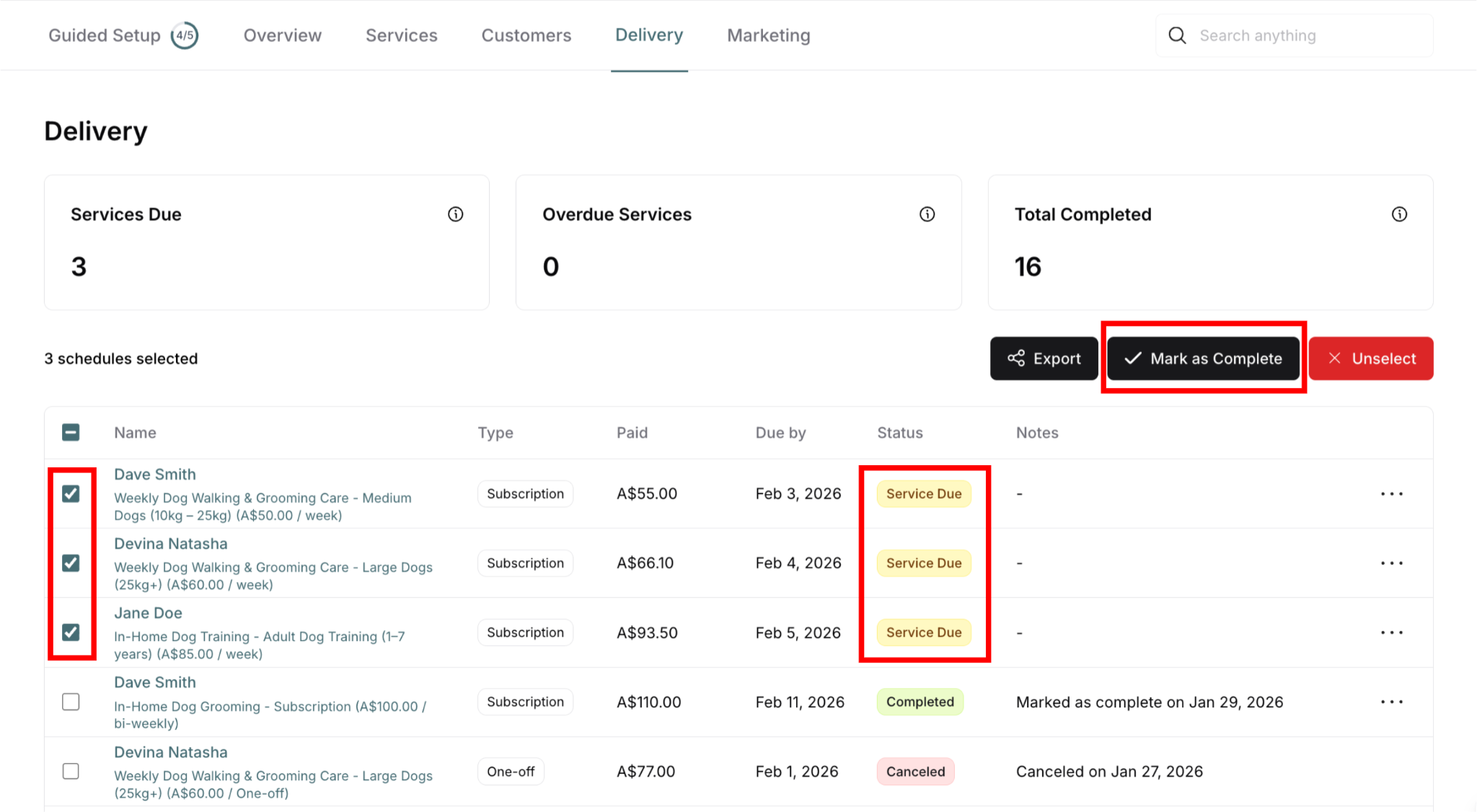
Buttons shown depend on what you selected:
If you selected only completable items (Service Due/Overdue):
Export (black button)
Mark as Complete (black button)
Unselect (red button)
If you selected only finished items (Canceled/Completed):
Export
Unselect
NO Mark as Complete button
If you selected mixed statuses:
Export
Mark as Complete - will only mark completable ones
Unselect
Step 4: Click Mark as Complete
Black button in top-right
Confirmation modal appears
Step 5: Review confirmation modal
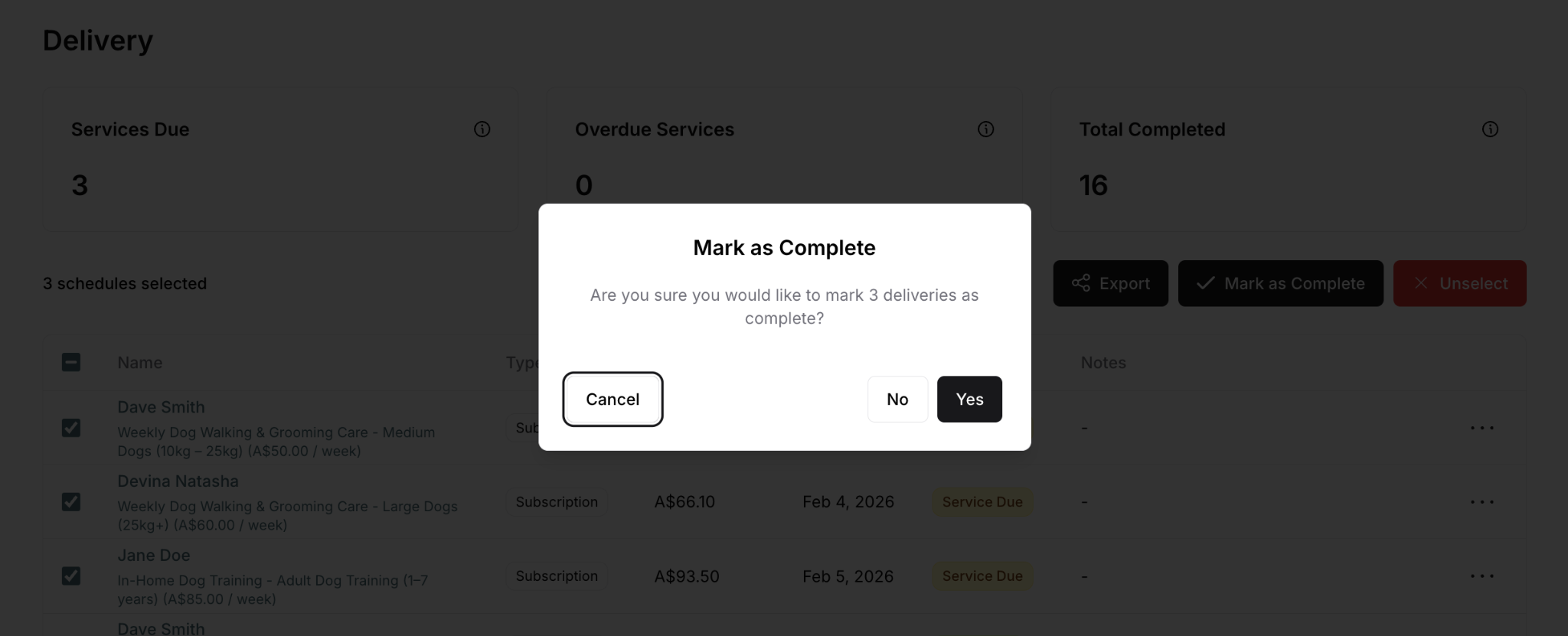
Modal shows:
Header: "Mark as Complete"
Message: "Are you sure you would like to mark X deliveries as complete?"
X = count of completable items only (Service Due + Overdue)
Does NOT count Canceled or Completed items
Buttons: Cancel, No, Yes
Important: The number shown is ONLY completable items, even if you selected more
Example:
Selected 5 deliveries:
- 3 Service Due ✓
- 1 Canceled ✗
- 1 Completed ✗
Modal shows: "Mark 3 deliveries as complete?"
(Only the 3 Service Due items)
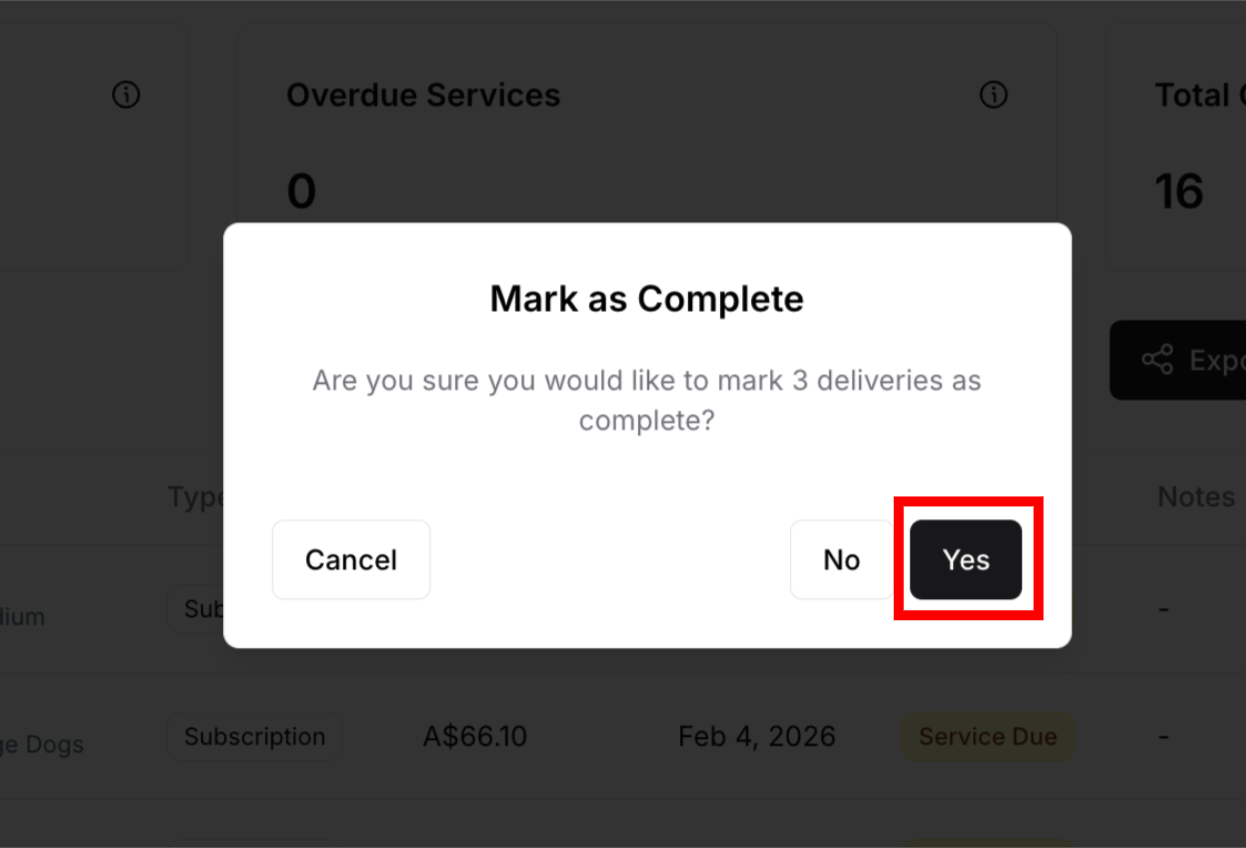
Step 6: Click Yes to confirm
All completable selected deliveries marked complete
Canceled and Completed selections unchanged
Modal closes
Step 7: Verify success
Success message may appear
Selected completable items now show Completed (green)
Notes updated with completion date (same for all)
Previously Canceled/Completed items unchanged
Selection cleared
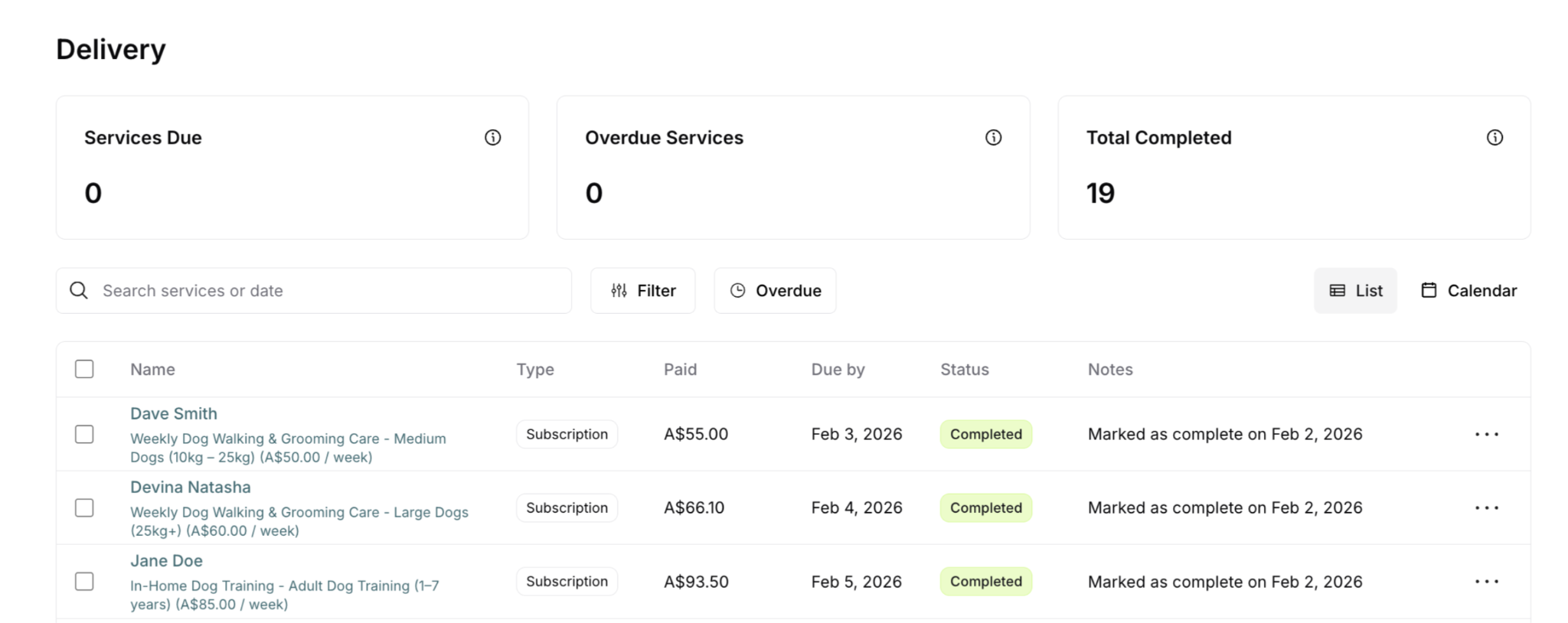
Marking Services Incomplete
Mark incomplete reverses a completion—essentially an "undo" for marking complete.
When to Mark Incomplete
Common scenarios:
✅ Marked wrong service by mistake:
Selected wrong row
Clicked wrong checkbox in bulk
Immediately noticed error
✅ Marked before actually completing:
Accidentally clicked
Marked in planning mode
Service not actually done yet
✅ Need to redo service:
Quality didn't meet standards
Customer unhappy with result
Need to return and fix
✅ Completion recorded in error:
System glitch
Someone else marked by mistake
Wrong service marked
Use sparingly: Mark incomplete should be rare exception, not regular occurrence
How to Mark Incomplete
Available: Only for Completed (green) deliveries
From Delivery menu or customer Delivery tab:
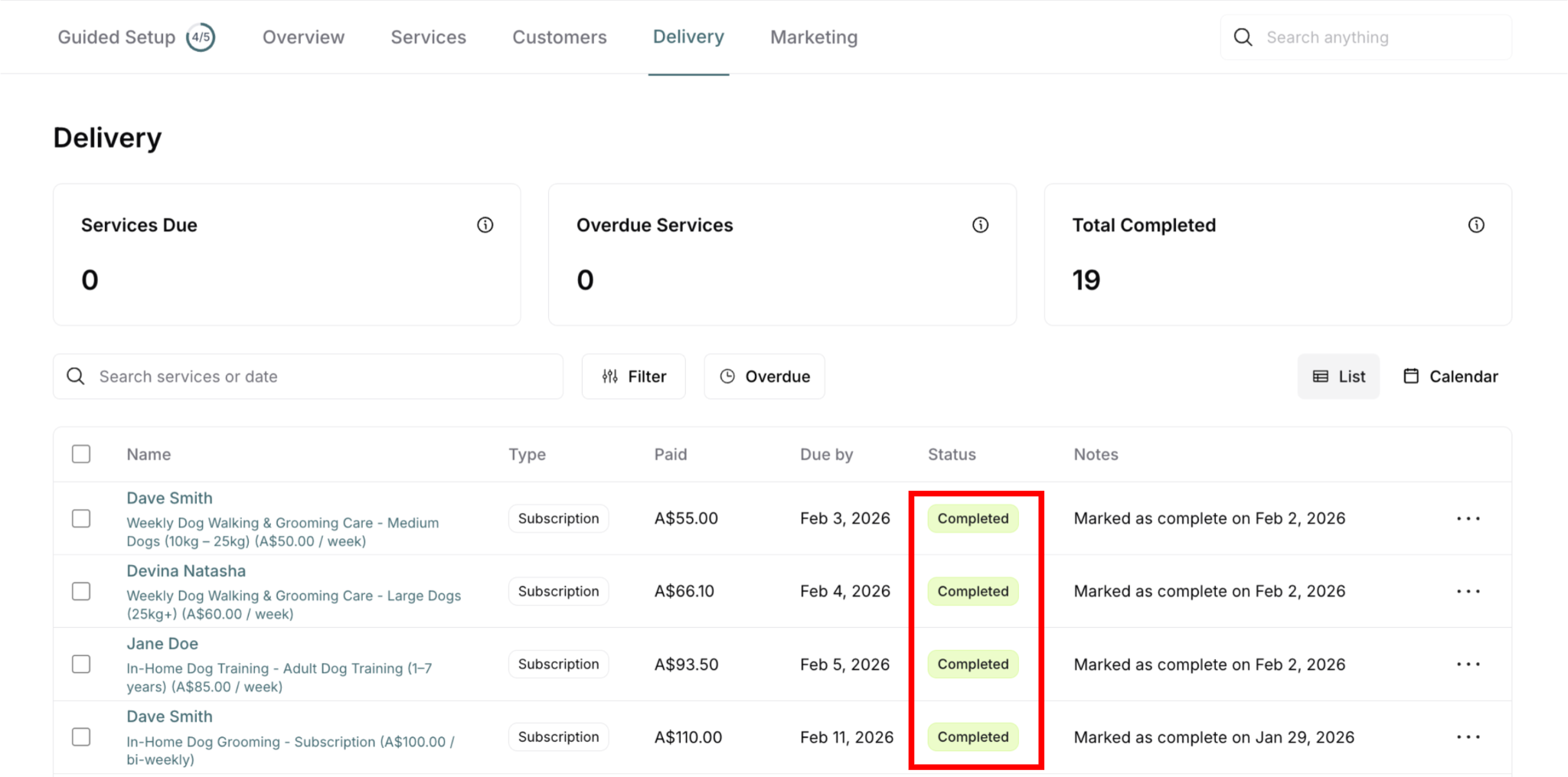
Find the completed service
Look for Completed (green) status
May need to filter to show completed items
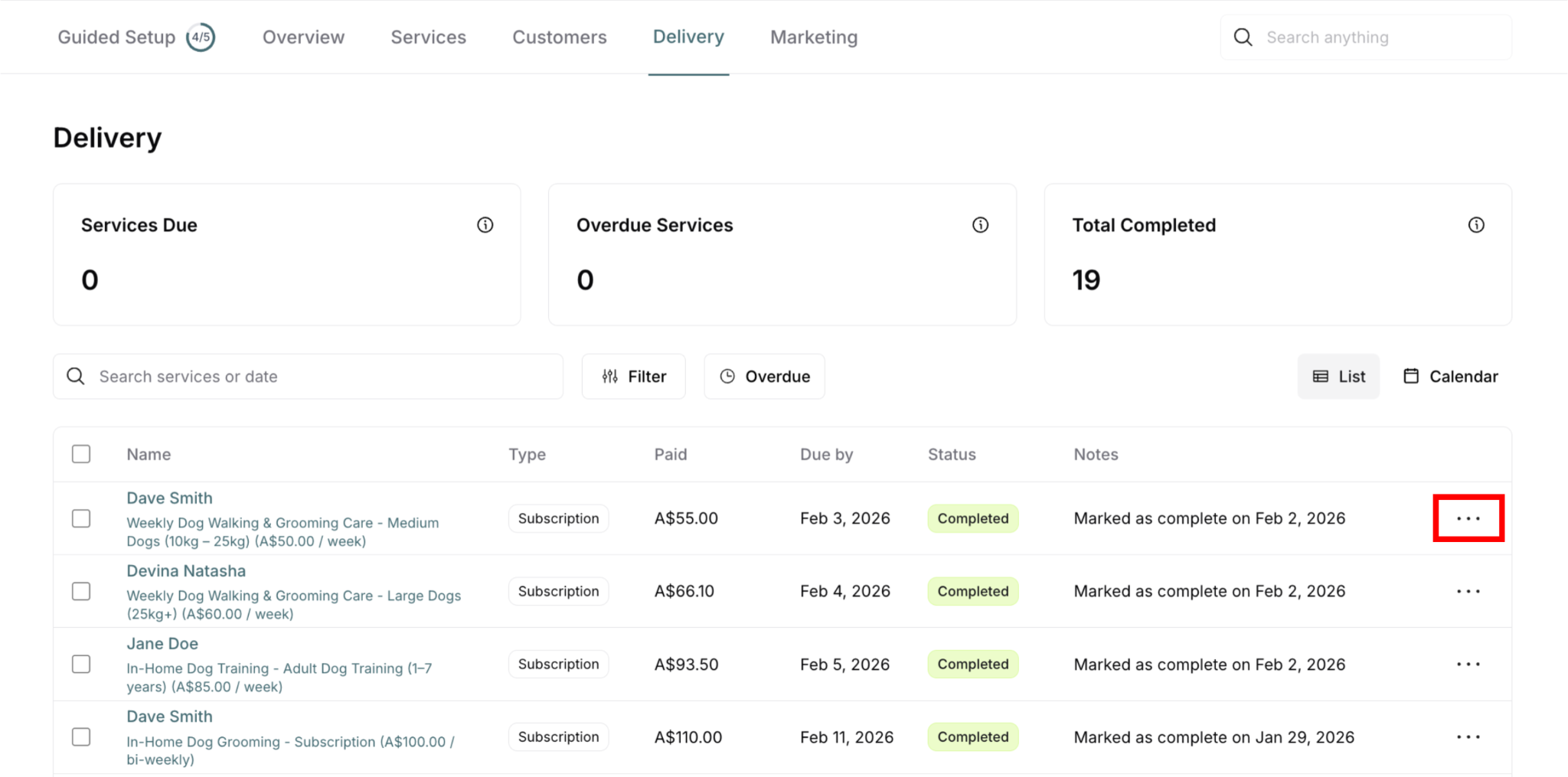
Click three-dot menu (⋯)
Action menu appears
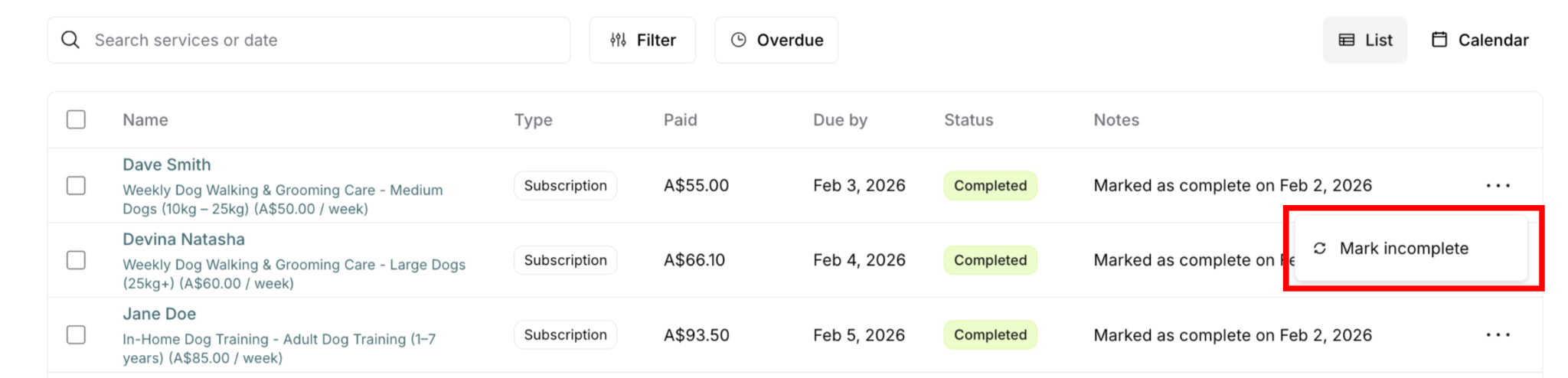
Select "Mark incomplete" (with return arrow icon)
Option appears for completed items only
Click to reverse completion
Status reverts
Completed → Service Due (if still within due date)
Completed → Overdue (if past due date)
Notes: Completion note removed
Returns to active delivery list

No confirmation modal: Action happens immediately (can mark complete again if error)
What Happens When Marked Incomplete
Immediate effects:
Status changes: Completed (green) → Service Due (yellow) or Overdue (red)
Notes update: "Marked as complete on [date]" removed, returns to "–"
Customer notification: May or may not notify customer (depends on system settings)
List updates: Returns to active delivery list
Metrics update:
Total Completed count decreases
Services Due or Overdue count increases
Can complete again: Service now available to mark complete properly
Summary
Marking complete is essential:
Records service delivery
Notifies customers
Updates metrics
Maintains accuracy
Two ways to mark:
Individual: Three-dot menu → Service complete
Bulk: Select multiple → Mark as Complete button
Where to mark:
Delivery menu (global view) - recommended for daily operations
Customer Delivery tab - for customer-specific context
Bulk completion benefits:
Mark multiple at once
Smart filtering (only completable items)
Mixed status selection OK
Major time-saver
When to mark:
✅ Best: Immediately after service
✅ Good: Same day as service
❌ Bad: Next day or later
Mark incomplete:
Reverses completion
Use for errors only
Use sparingly
Can re-mark complete after
Best practices:
Mark only actually completed services
Verify before bulk confirming
Build into daily routine
Use mobile access for real-time
Review daily for missed markings
Key principle: Accurate, timely completion marking keeps your delivery tracking reliable and your customers informed.
Was this article helpful?
That’s Great!
Thank you for your feedback
Sorry! We couldn't be helpful
Thank you for your feedback
Feedback sent
We appreciate your effort and will try to fix the article