Subscriptions tabThe Purchases tab shows all individual payment transactions for a customer—both one-off purchases and individual payments from subscriptions. This is where you manage day-to-day service delivery operations for specific purchases.
Important: Purchases tab shows individual transactions. For managing subscription contracts (pause, resume, cancel entire subscription), use the Subscriptions tab.
This guide explains how to manage individual purchases and service deliveries.
Understanding the Purchases Tab
What the Purchases Tab Shows
Individual purchase transactions:
Each payment made by customer (subscription or one-off)
One-off purchases (standalone transactions)
Individual payments from subscriptions (each payment appears separately)
Example: Customer with 6-month monthly subscription
Purchases tab: Shows 6 separate purchase entries (one per month)
Subscriptions tab: Shows 1 subscription (the parent contract)
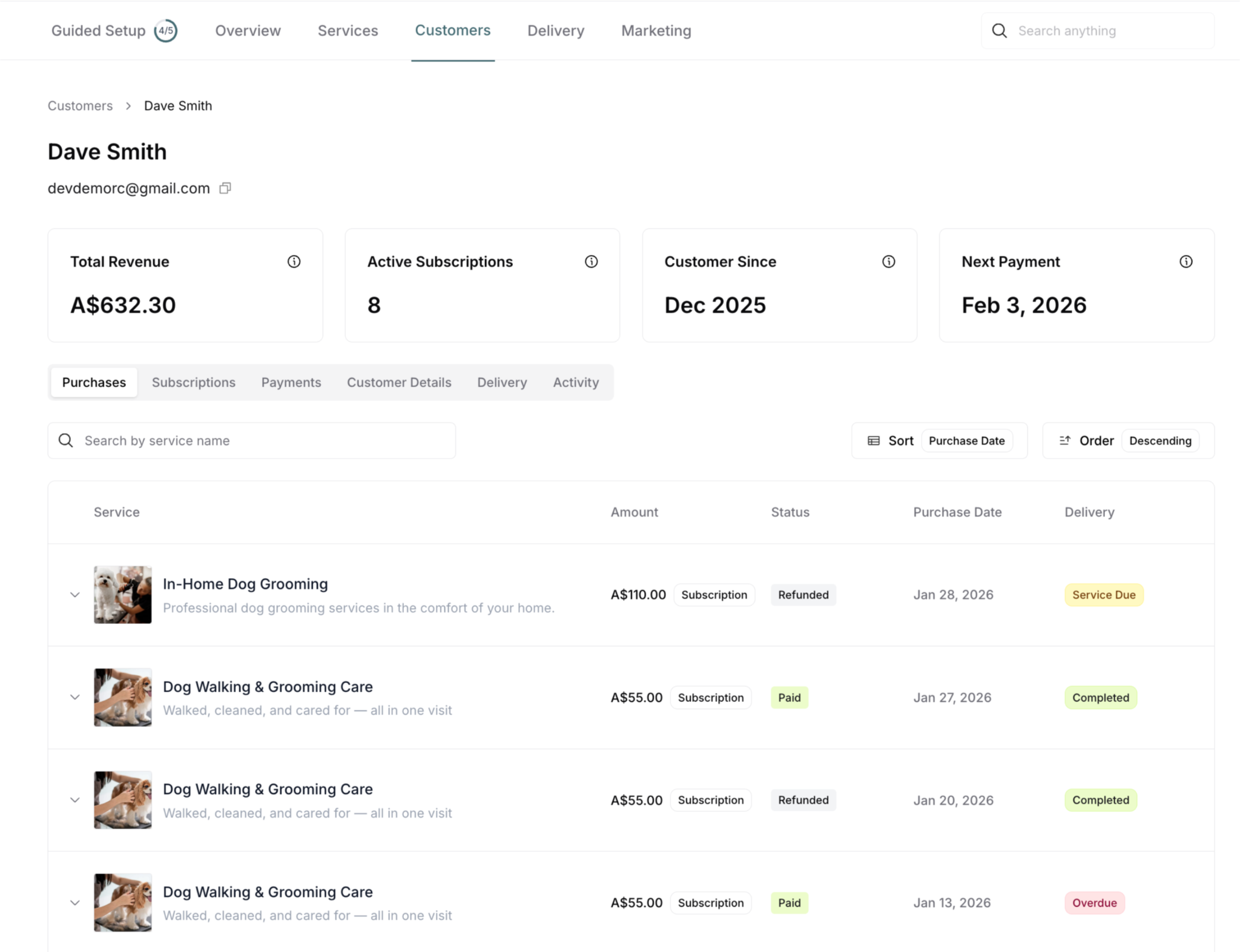
Purchase List Columns
Service: Service name and description
Amount: Payment amount for this purchase
Status: Purchase type and payment status
"Subscription" badge - Part of recurring subscription
"One-off" badge - Standalone one-time purchase
"Paid" - Payment successful
"Refunded" - Payment refunded
Purchase Date: When payment was made
Delivery: Service delivery status
"Service Due" - Scheduled, not delivered
"Overdue" - Past due date, not completed
"Completed" - Service delivered
"Canceled" - Service canceled
Features Available
Search: "Search by service name"
Type to filter purchases
Real-time results
Sort: Purchase Date
Default: Newest first
Order: Descending or Ascending
Control sort direction
Expandable rows: Click arrow (▼)
See complete purchase details
Access quick actions (availability varies by status)
Navigate to related views
Expanded Purchase View
Click the arrow (▼) next to any purchase to see detailed information in three panels.
Three-Panel Layout with Navigation
When you expand a purchase, you see three panels with complete purchase details and navigation buttons:
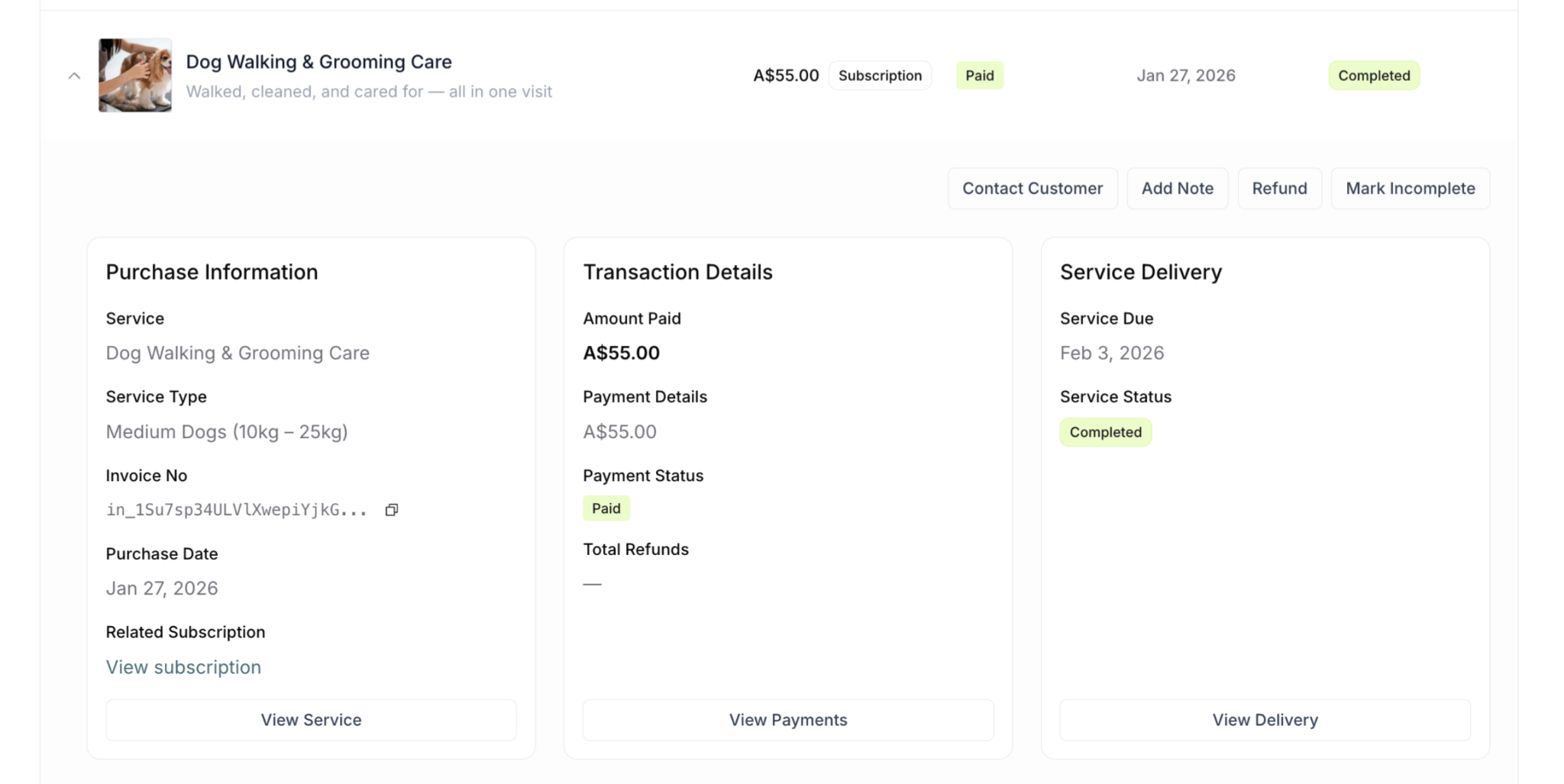
Left Panel: Purchase Information
Service name and service type
Invoice number with copy button
Purchase date
Related subscription (if applicable - subscription purchases only)
View Service button at bottom
Center Panel: Transaction Details
Amount paid
Payment details (with original amount if refunded)
Payment status (Paid, Refunded)
Total refunds
Refund reason (if applicable)
View Payments button at bottom
Right Panel: Service Delivery
Service due date
Service status (Service Due, Overdue, Completed, Canceled)
Service notes (for completed or canceled services)
View Delivery button at bottom
For complete field descriptions, see MC-002 Customer Detail View, Tab 1: Purchases.
Navigation Using View Buttons
Each panel has a "View" button at the bottom that navigates to different areas for additional context and full actions.
View Service Button
Location: Bottom of Purchase Information panel (left)
What it does: Opens the service detail page
Takes you to: Services → Service detail page
Use when:
Need to see complete service configuration
Want to review service settings and pricing
Check service terms or description
Verify service details or availability
View Payments Button
Location: Bottom of Transaction Details panel (center)
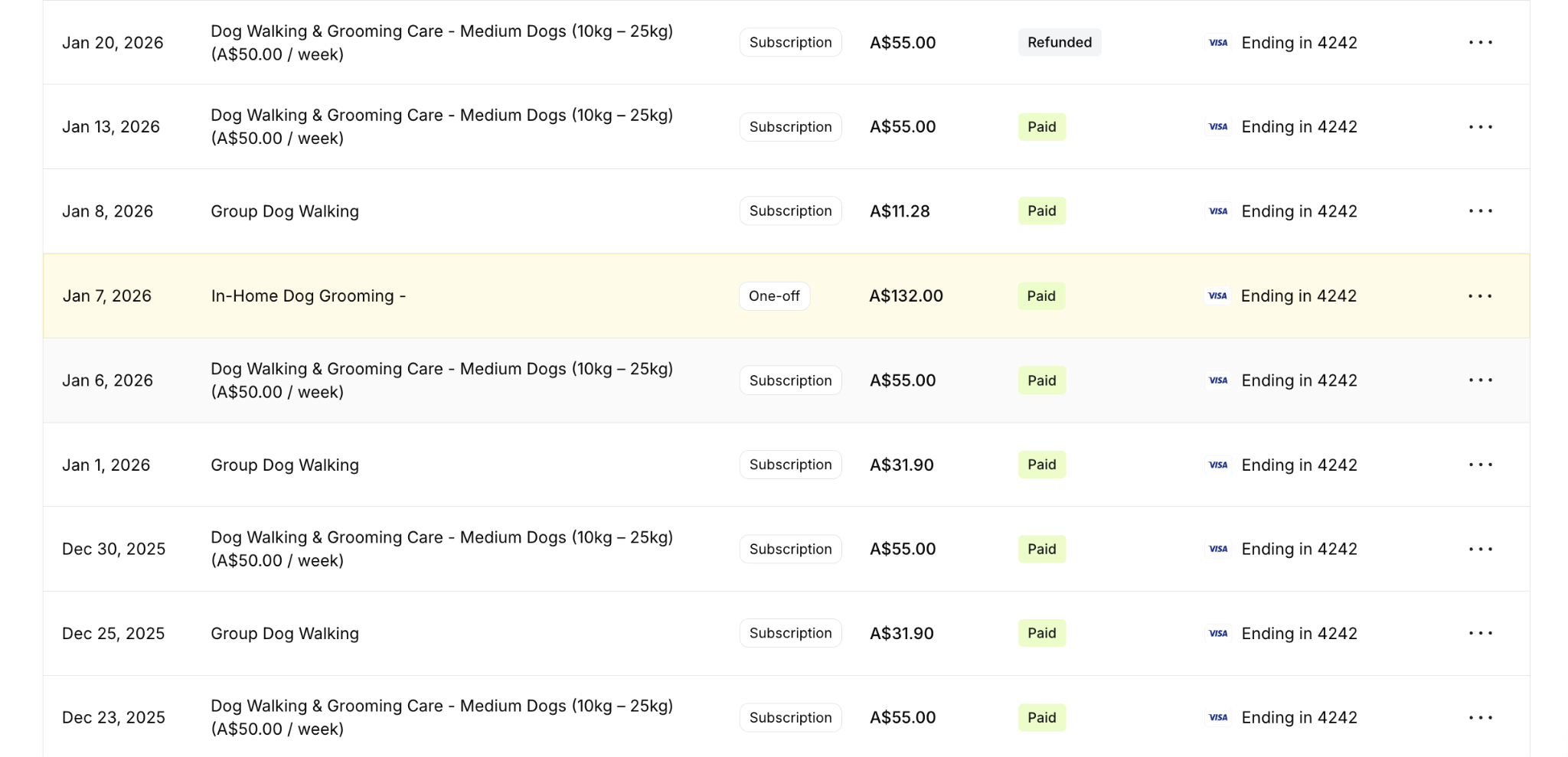
What it does: Opens Payments tab and highlights this specific payment
Takes you to: Payments tab (in customer detail)
What happens:
Navigates to Payments tab
Briefly highlights the related payment for 1-2 seconds
Makes it easy to spot the specific payment in the list
Use when:
Need to access invoice or receipt download
Want to see complete payment history
Reviewing payment method details
Need Stripe transaction information
View Delivery Button
Location: Bottom of Service Delivery panel (right)
What it does: Opens Delivery tab showing this service
Takes you to: Delivery tab (in customer detail)
Shows: Delivery schedule and all service deliveries for this customer
Why use View Delivery:
Access full delivery action menu via three-dot (⋯) menu
See complete delivery schedule
Manage multiple services together
Use calendar view for planning
Access additional actions not in expanded view (Roll to next period, etc.)
✍️ TIP: For complete delivery management with all action options, always use the View Delivery button to access the Delivery tab where the full three-dot action menu is available.
Full Delivery Management in Delivery Tab
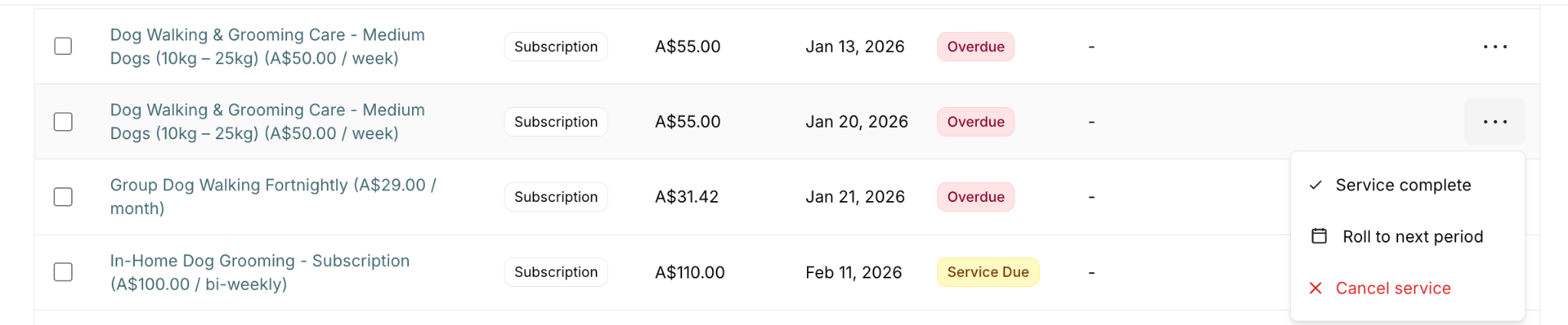
For complete delivery management with all available actions, use the View Delivery button to navigate to the Delivery tab, then click the three-dot menu (⋯).
Full Actions Available in Delivery Tab
For Service Due or Overdue status:
✓ Service complete - Mark service as delivered
? Roll to next period - Reschedule to next billing cycle
✕ Cancel service - Cancel this delivery
For Completed status:
↩️ Mark incomplete - Reverse completion
✕ Cancel service - Cancel completed delivery

For Canceled status:
No action available

✍️ TIP: Actions like "Roll to next period" are ONLY available in Delivery tab three-dot menu, not in expanded purchase view.
Quick Actions in Expanded Purchase View
Action buttons appear when you expand a purchase. Available actions depend on payment status AND delivery status.
Understanding Quick Action Availability
⚠️ CRITICAL: Quick actions in expanded view are limited. The specific buttons available depend on the combination of:
Payment Status: Paid or Refunded
Delivery Status: Service Due, Overdue, Completed, or Canceled
Purchase Type: Subscription or One-off
Quick Actions for Subscription Purchases
Subscription: PAID + Service Due
Available actions:
Contact Customer
Add Note
Refund
Mark Service Complete
Cancel Service
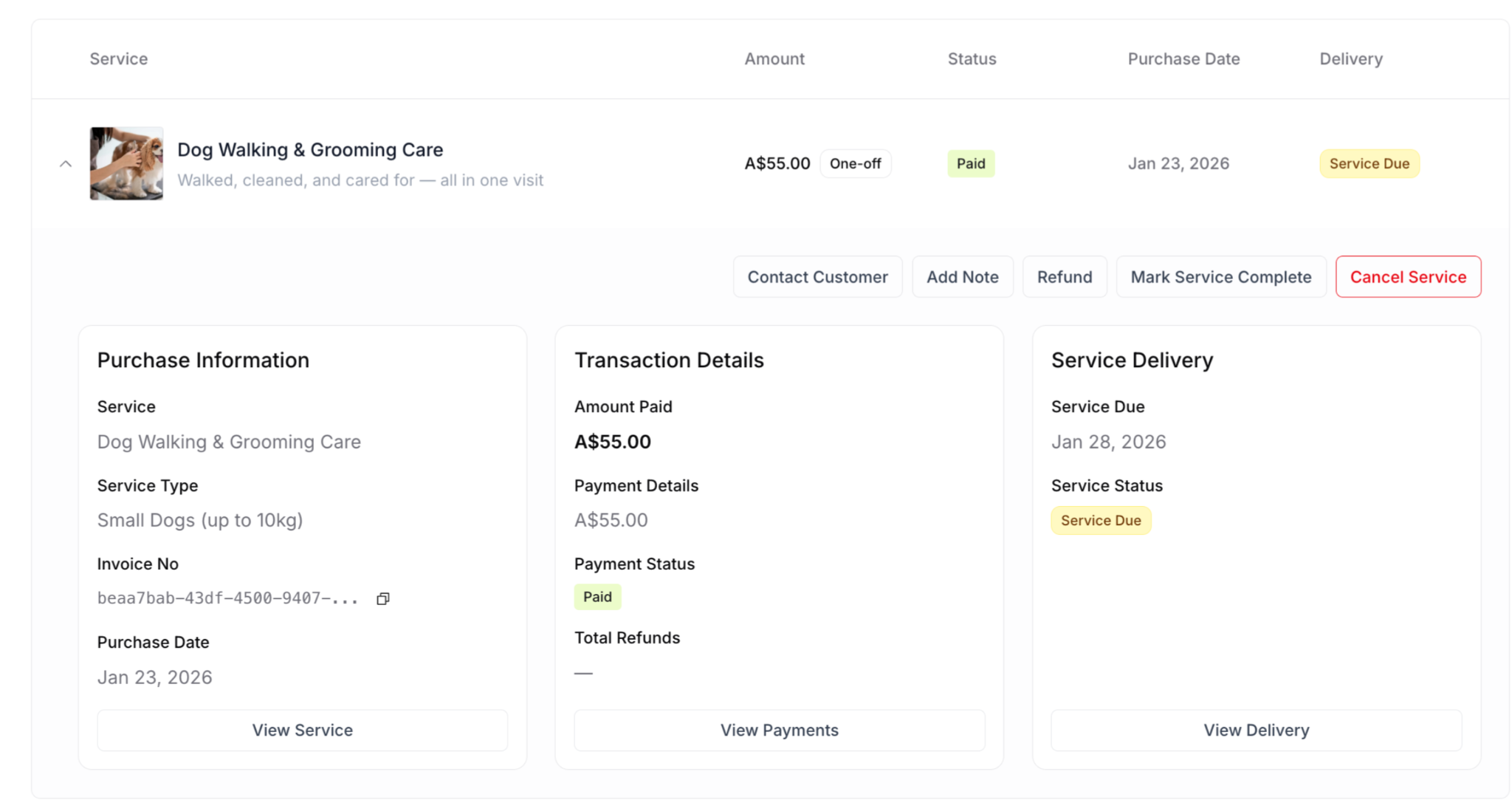
When this appears: Payment successful, service scheduled but not yet delivered
Subscription: PAID + Overdue
Available actions:
Contact Customer
Add Note
Refund
Mark Service Complete
Cancel Service
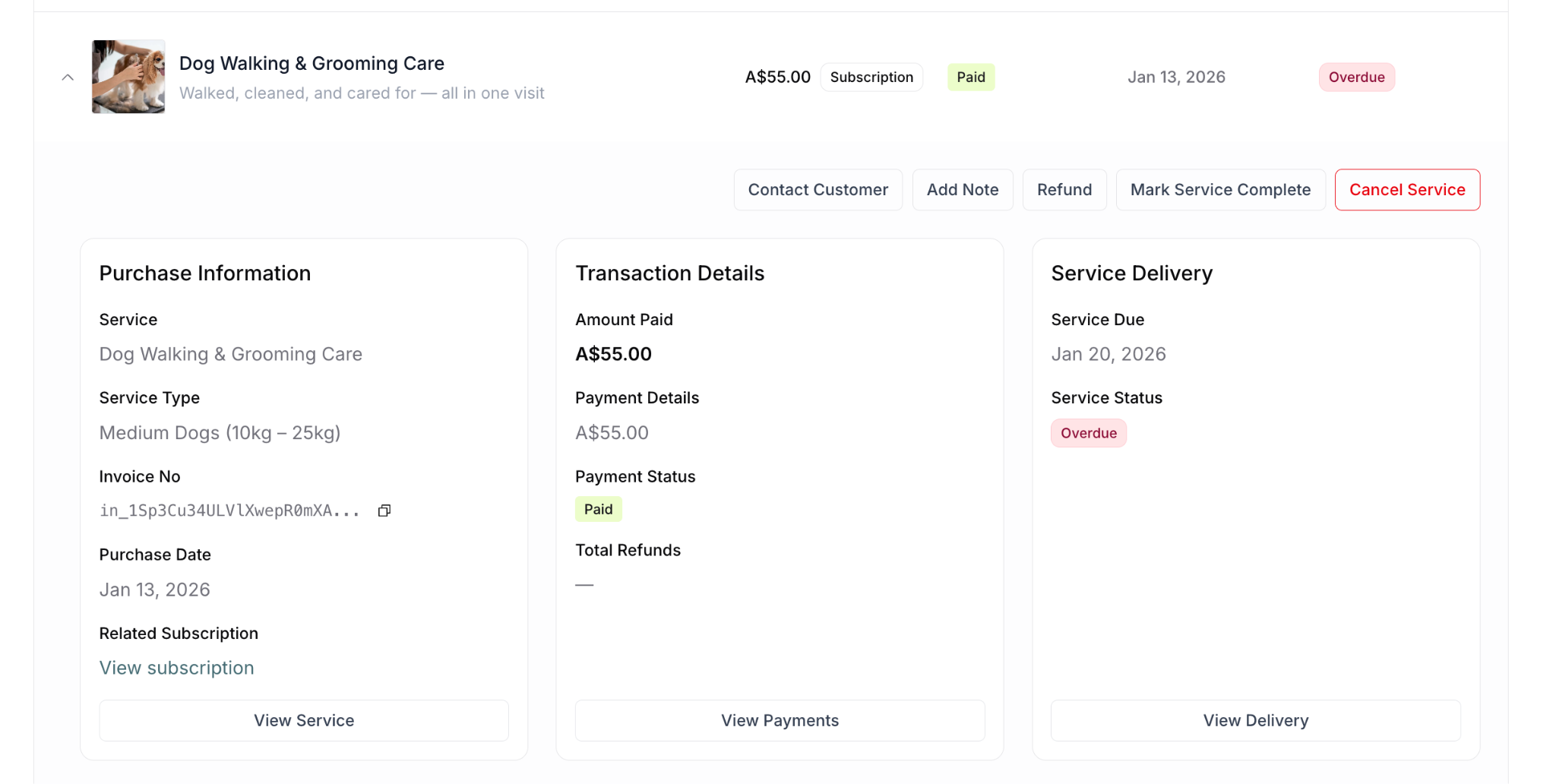
When this appears: Payment successful, service past due date but not delivered
Subscription: PAID + Completed
Available actions:
Contact Customer
Add Note
Refund
Mark Incomplete
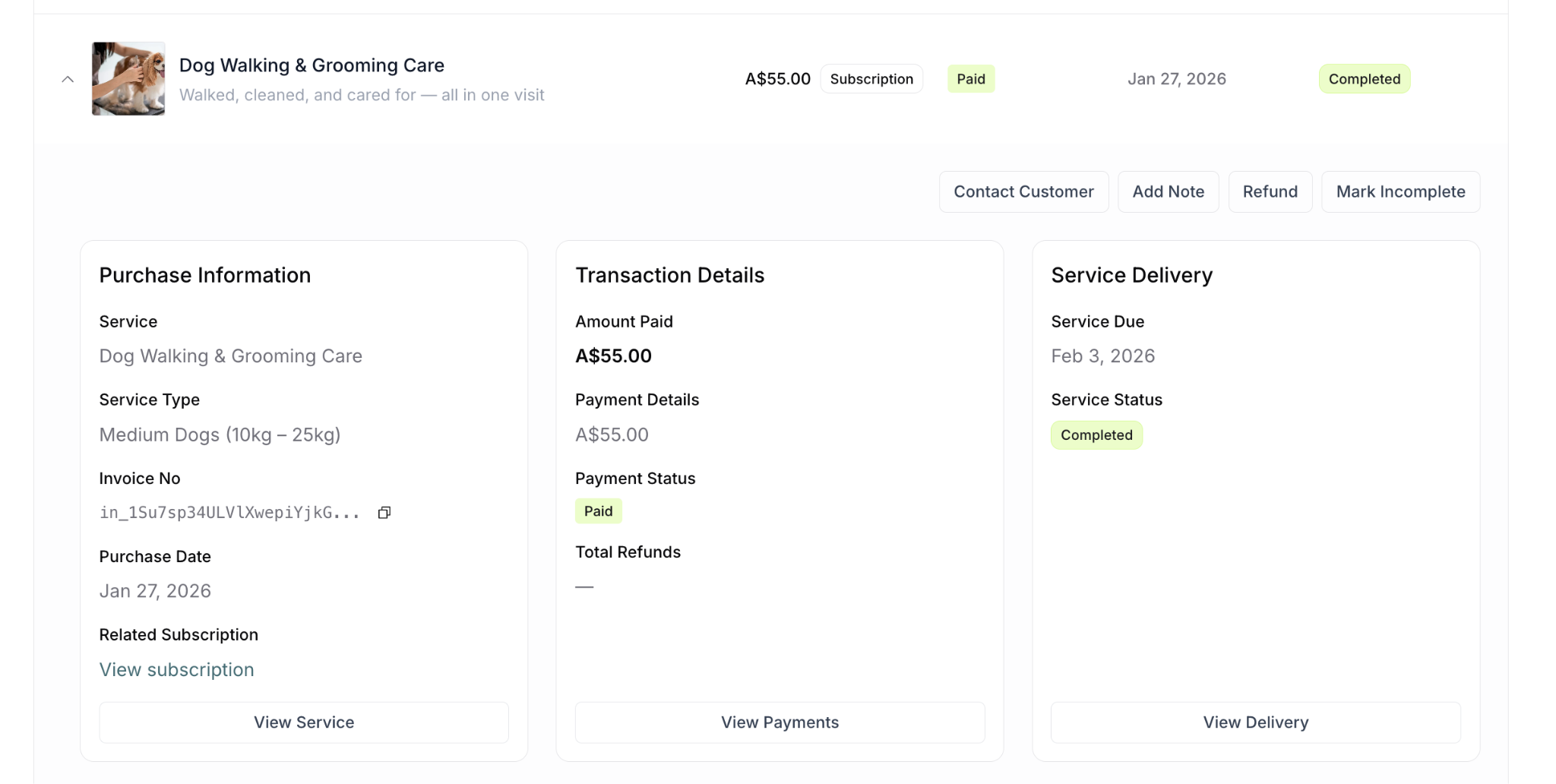
When this appears: Payment successful, service already marked complete
Note: Cancel Service not available for completed services. Use Mark Incomplete if completion was error.
Subscription: REFUNDED + Service Due
Available actions:
Contact Customer
Add Note
Mark Service Complete
Cancel Service
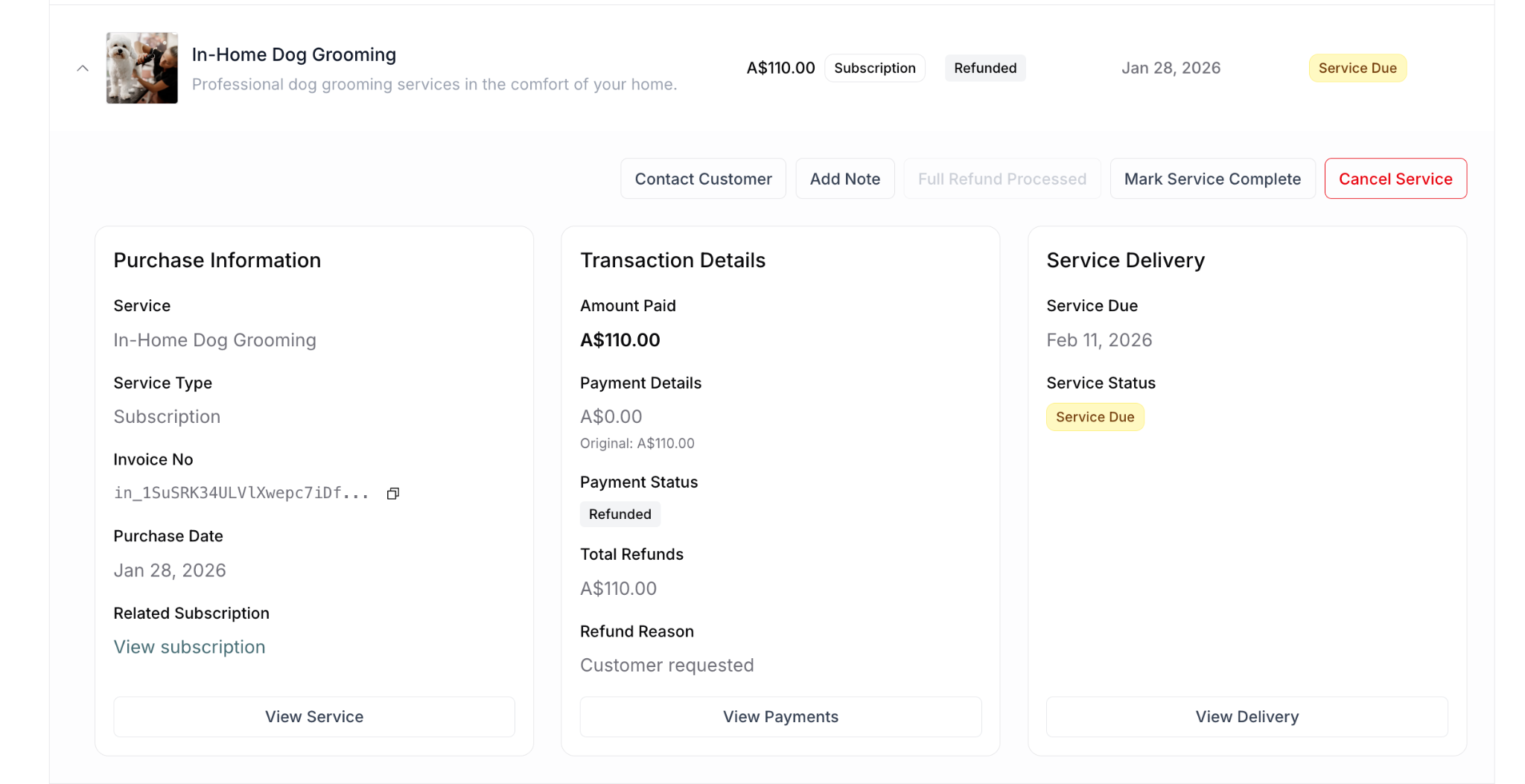
When this appears: Payment refunded, but service still scheduled
Note: Refund button NOT available (already refunded). Can still complete or cancel service.
Subscription: REFUNDED + Overdue
Available actions:
Contact Customer
Add Note
Mark Service Complete
Cancel Service
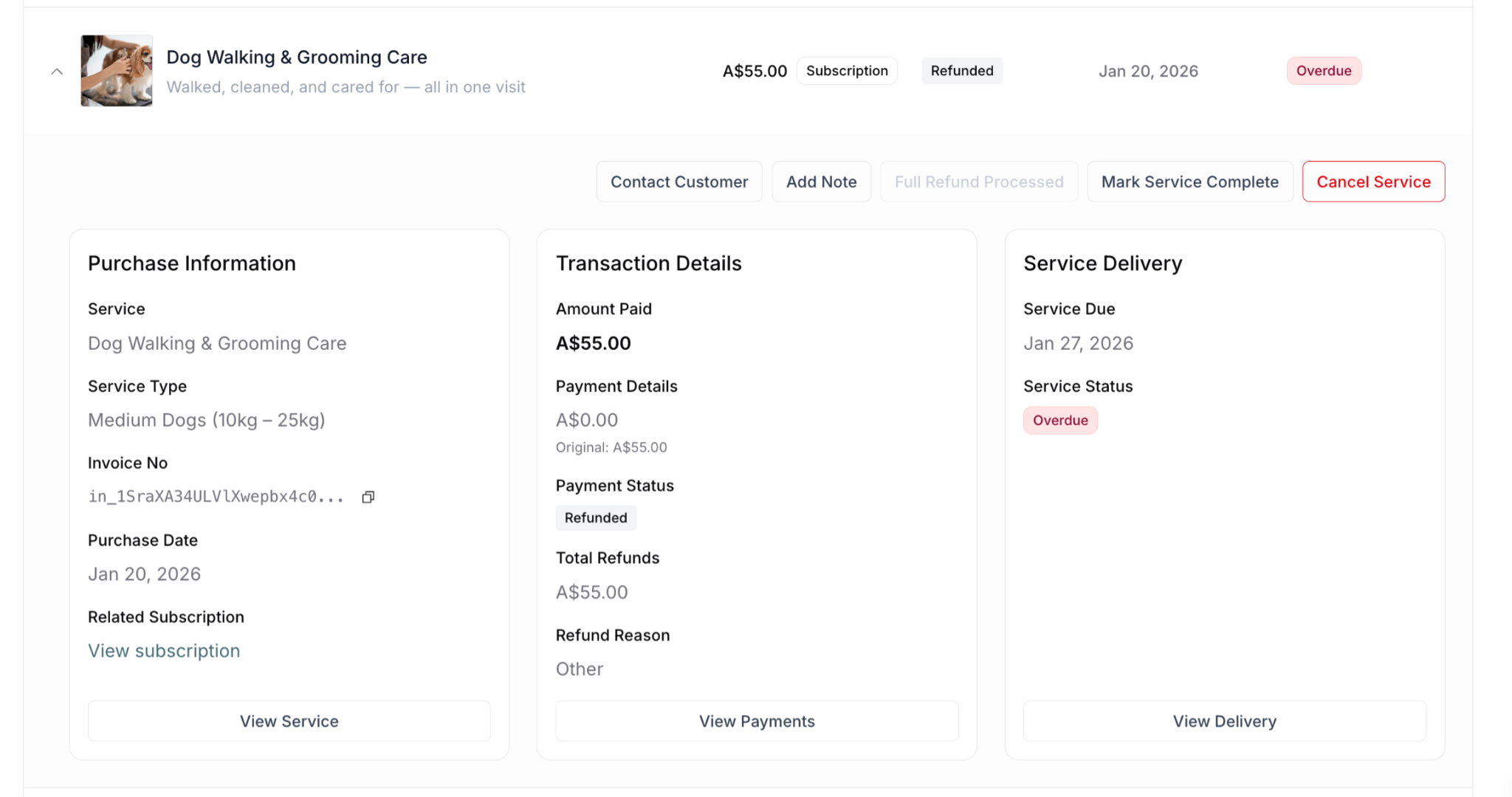
When this appears: Payment refunded, service past due
Note: Refund button NOT available (already refunded). Can still complete or cancel service.
Subscription: REFUNDED + Completed
Available actions:
Contact Customer
Add Note
Mark Incomplete
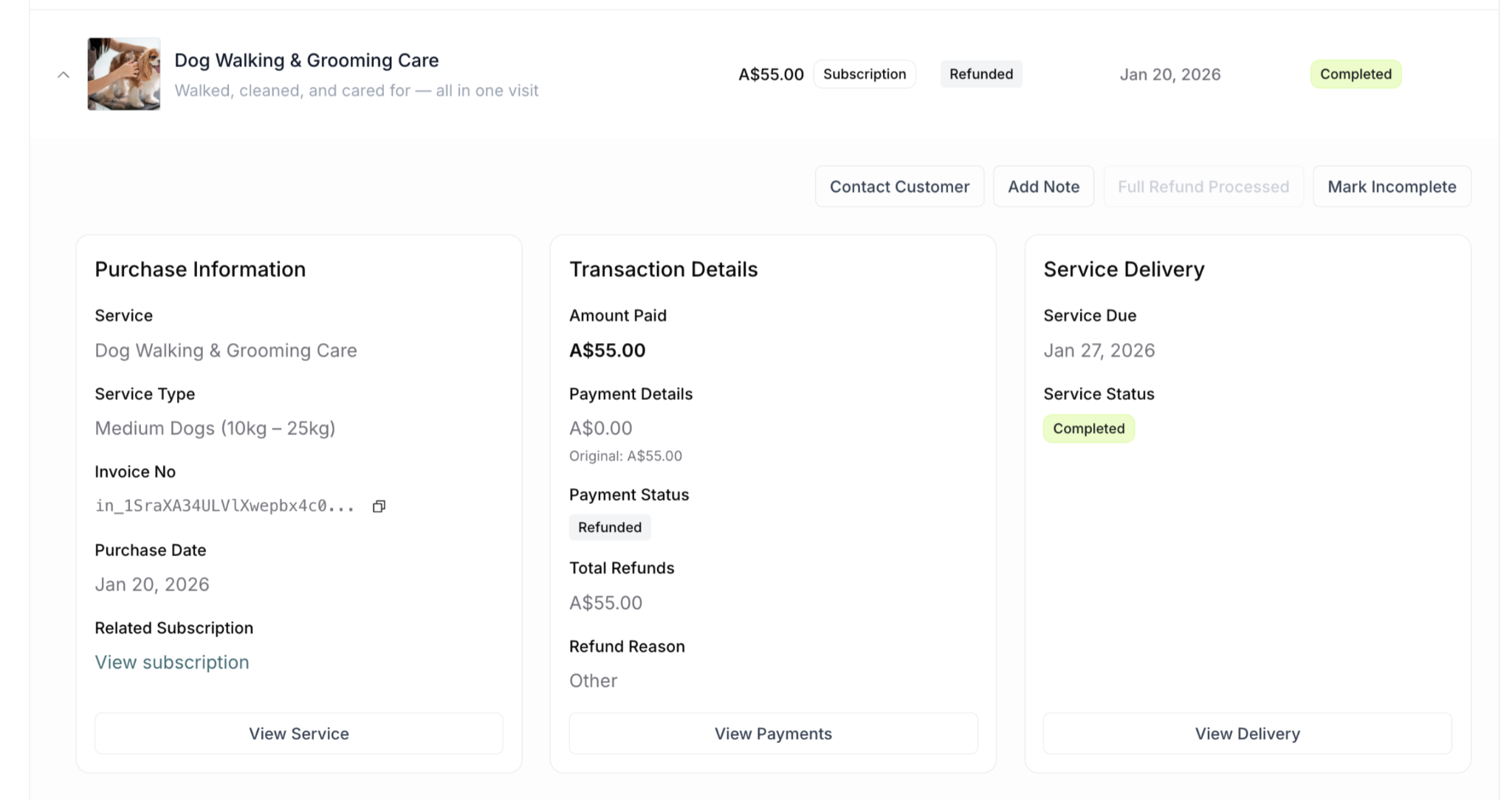
When this appears: Payment refunded, service was marked complete
Note: Refund button NOT available (already refunded). Can reverse completion if needed.
Subscription: REFUNDED + Canceled
Available actions:
Contact Customer
Add Note
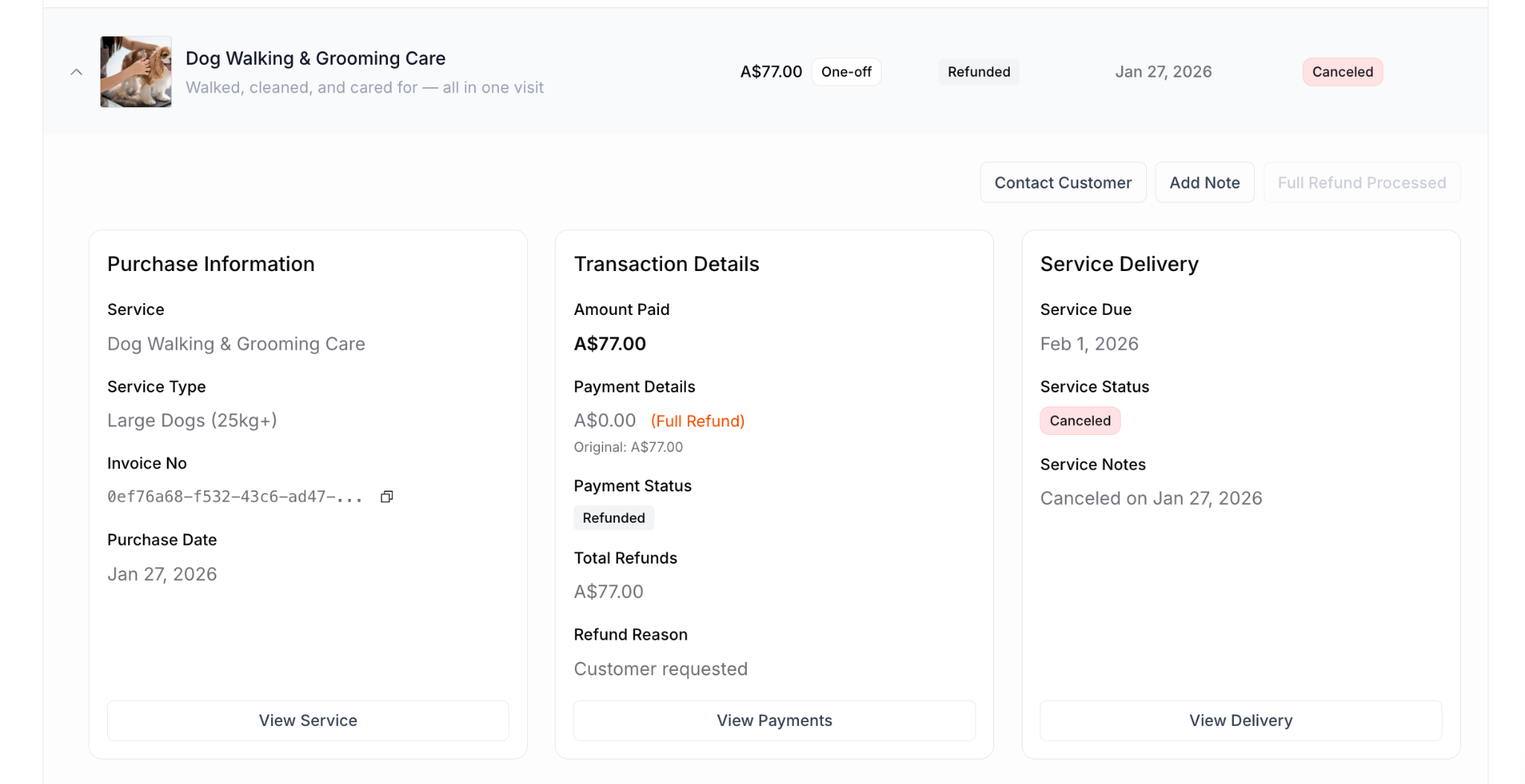
When this appears: Payment refunded AND service canceled - transaction complete
Note: NO delivery action buttons. Transaction fully resolved.
Quick Actions for One-off Purchases
One-off: PAID + Service Due or Overdue
Available actions:
Contact Customer
Add Note
Refund
Mark Service Complete
Cancel Service
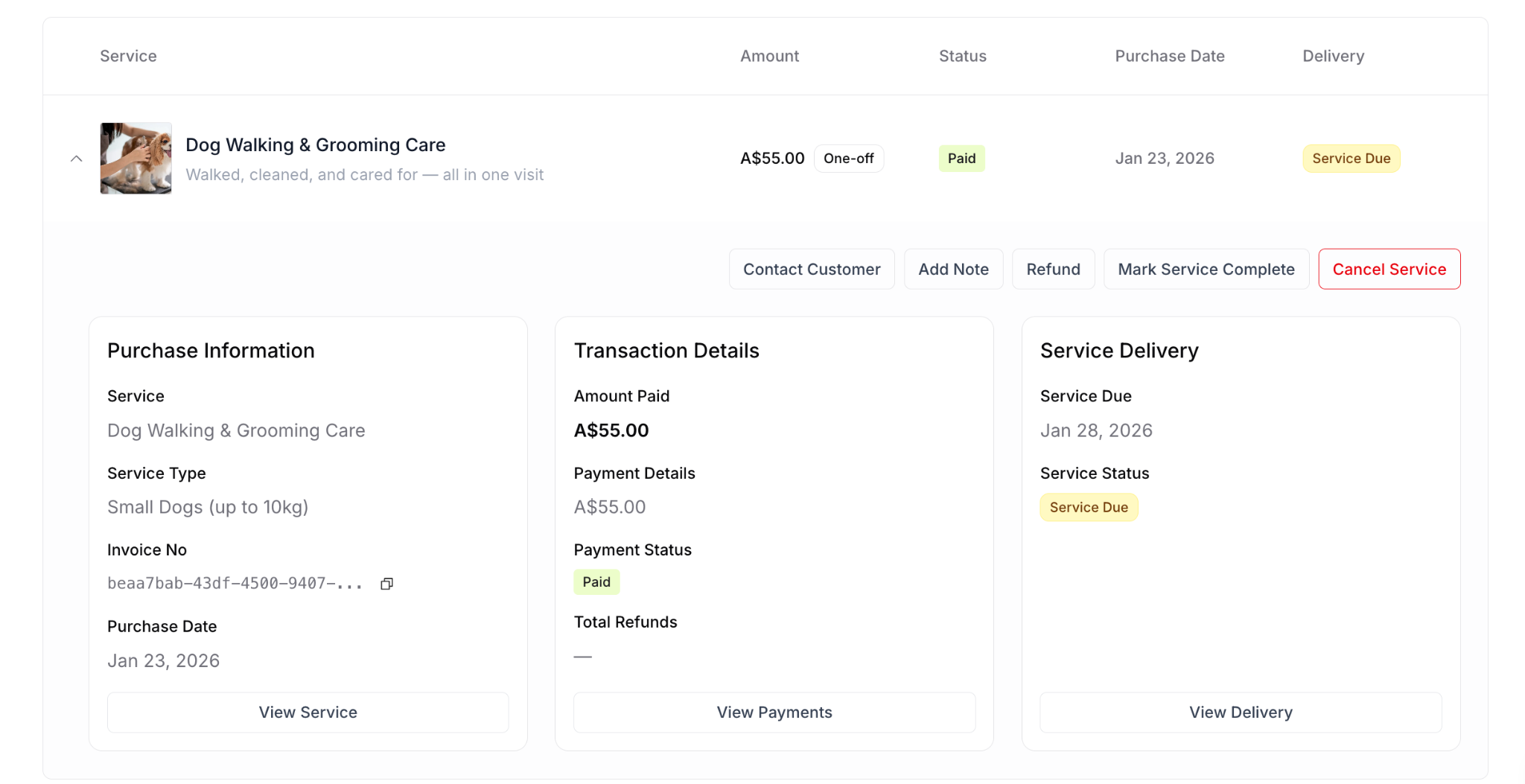
When this appears: Payment successful, service scheduled or overdue
One-off: PAID + Completed
Available actions:
Contact Customer
Add Note
Refund
Mark Incomplete
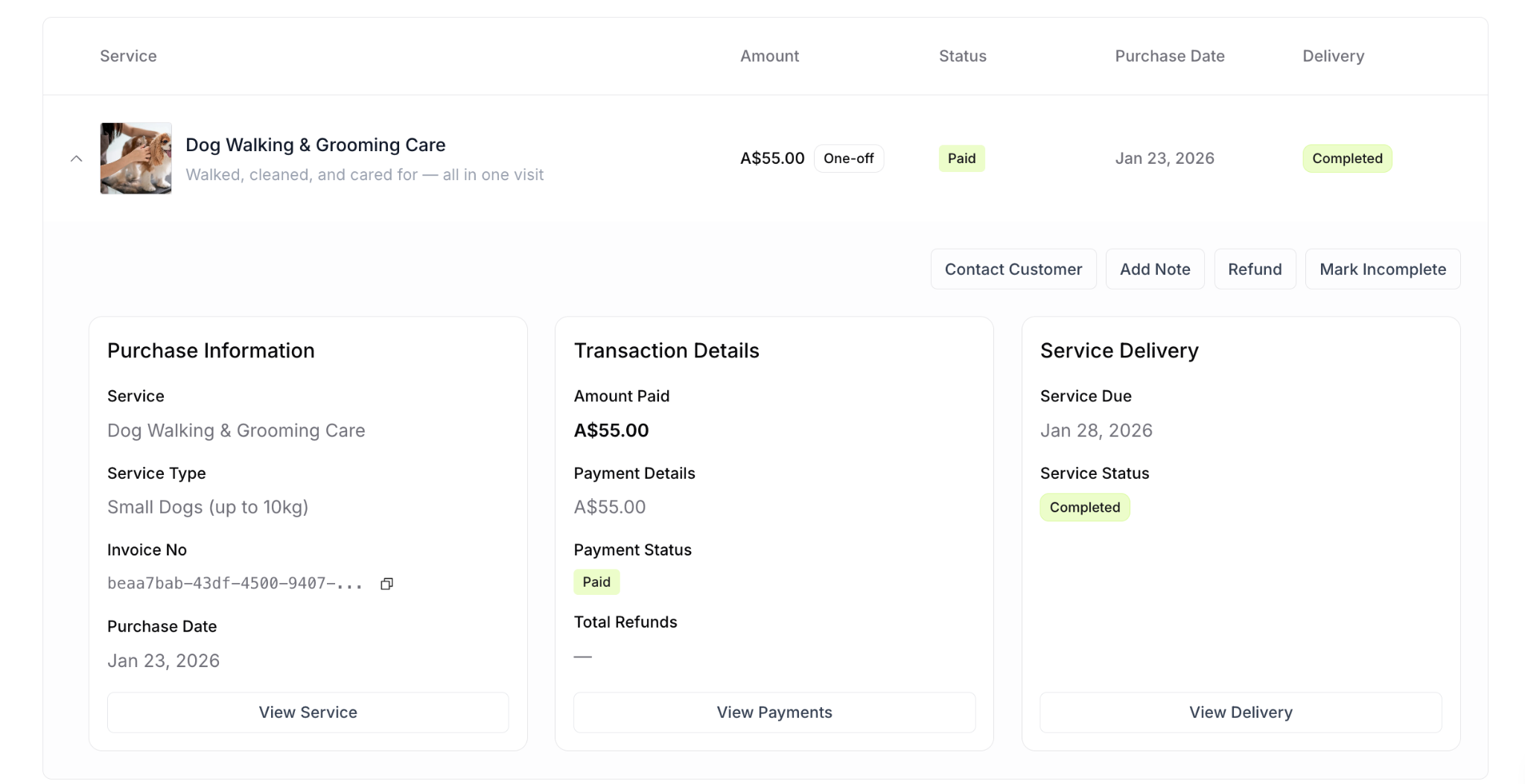
When this appears: Payment successful, service already delivered
One-off: PAID + Canceled
Available actions:
Contact Customer
Add Note
Refund
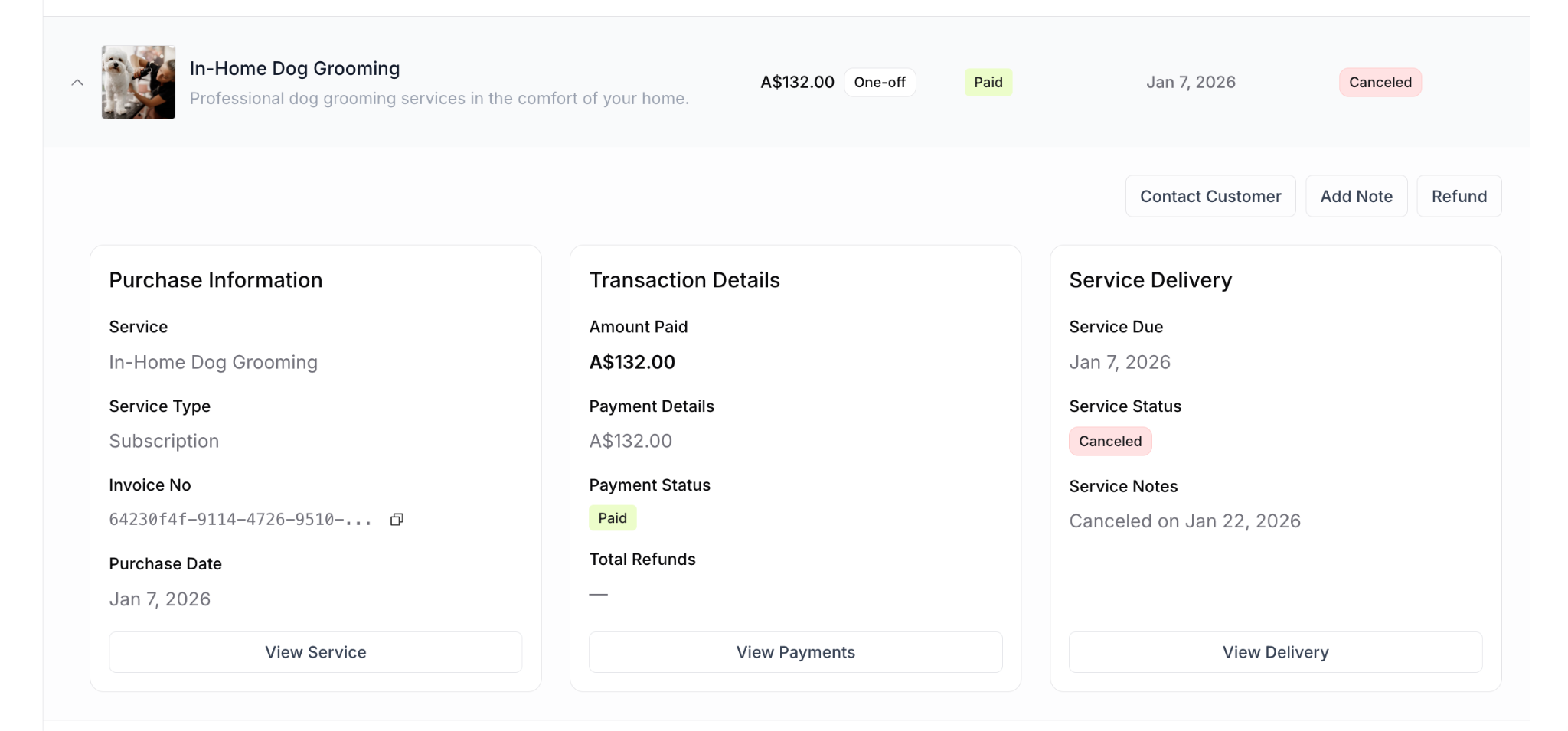
When this appears: Payment successful, but service was canceled
Note: Service already canceled, so only refund available as delivery action
Common Workflows
Workflow 1: Completing Today's Services
Daily routine:
Morning:
Navigate to customer detail pages
Check Purchases tab for today's due services
Or use Delivery tab to see all today's services across customers
Plan route and schedule
After each service:
Open customer's Purchases tab
Find the service just completed
Expand purchase
Click Mark Service Complete
See success message: "Delivery marked as completed successfully"
Move to next service
End of day:
Review Purchases or Delivery tab
Verify all today's services marked complete
Check for any missed
Plan tomorrow's services
✅ BEST PRACTICE: Mark services complete immediately after delivery, not end of day. Keeps records real-time and customers informed.
Workflow 2: Handling Overdue Services
Daily overdue check:
Review customers with overdue services
Purchases tab shows "Overdue" (red) status
Prioritize these immediately
For each overdue service:
If delivered but not marked:
Expand purchase
Click Mark Service Complete
Add note explaining delay if needed
If not yet delivered:
Deliver service ASAP
Mark complete after delivery
Consider proactive customer communication
May warrant goodwill gesture
If can't deliver:
Contact customer to explain
Use Delivery tab for full options:
Roll to next period - Reschedule (only in Delivery tab)
Cancel Service - If won't deliver
Process refund if appropriate (if payment is Paid)
See MC-003 Processing Refunds
Workflow 3: Canceling Service Before Delivery
Customer requests cancellation:
Step 1: Cancel the service
Option A: From expanded purchase (if Cancel button available based on status):
Expand the purchase
Click Cancel Service
Confirm cancellation
Option B: From Delivery tab (always available):
Click View Delivery
Find service in Delivery tab
Click action menu (⋯)
Select Cancel service
Step 2: Process refund (if payment is Paid and not yet refunded)
From same expanded purchase view
Click Refund button (if available)
Or navigate to process refund via other means
See MC-003 Processing Refunds for complete steps
Step 3: Communicate with customer
⚠️ IMPORTANT: For one-off purchases, always cancel service when refunding to prevent accidental delivery.
Workflow 4: When Service Already Canceled and Refunded
Situation: Purchase shows Refunded status and Canceled service status
What you see:
Payment Status: Refunded
Service Status: Canceled
Service Notes: "Canceled on [date]"
No delivery action buttons in expanded view
Only Contact Customer and Add Note available
What this means:
Transaction is complete
Service won't be delivered
Money already returned
Nothing further needed
Available actions:
Contact Customer (if follow-up needed)
Add Note (document situation)
Review history in Activity tab
Common scenario: Customer requested cancellation, you canceled service and processed refund. Transaction fully resolved - no further action needed.
Workflow 5: Refunded But Service Still Pending
Situation: Payment refunded but service not yet canceled
Examples:
Subscription, Refunded, Service Due
Subscription, Refunded, Overdue
One-off would typically have service canceled with refund
What you see:
Payment Status: Refunded
Service Status: Service Due or Overdue
Delivery action buttons available (Mark Complete, Cancel)
Refund button NOT available (already refunded)
Why this happens:
Refund and service cancellation are separate actions
Refund processed but service not canceled yet
Common when refund processed quickly but delivery update forgotten
What to do:
Review if service should be delivered
If service won't be delivered: Click Cancel Service
If service will be delivered despite refund: Mark complete when done
Add note explaining situation
✍️ TIP: When refunding, remember to also cancel service if it won't be delivered. These are two separate actions.
Summary
Purchases tab shows:
Individual payment transactions
Both subscription payments and one-off purchases
Each payment from subscription appears separately
Three-panel expanded view:
Purchase Information (left) → View Service button
Transaction Details (center) → View Payments button
Service Delivery (right) → View Delivery button
Quick actions in expanded view:
Availability depends on Payment Status + Delivery Status combination
Paid = Refund button available
Refunded = No refund button
Refunded + Canceled = No delivery actions (complete)
Refunded + other = Delivery actions available
See Quick Actions Matrix for all combinations
Limited vs. Full actions:
Expanded view: Limited quick actions (varies by status)
Delivery tab: Full action menu via three-dot (⋯) menu
Roll to next period ONLY in Delivery tab
Important distinctions:
Cancel Service (Purchases) = Cancels one delivery
Cancel Subscription (Subscriptions) = Ends entire subscription
Refund and Cancel Service are separate actions
Use correct tab for correct action
Best practices:
Mark complete same day with success confirmation
Review overdue services daily
Understand when action buttons appear
Use View Delivery for actions not in expanded view
Cancel service when refunding if service won't be delivered
Check Payment Status to know if Refund available
Was this article helpful?
That’s Great!
Thank you for your feedback
Sorry! We couldn't be helpful
Thank you for your feedback
Feedback sent
We appreciate your effort and will try to fix the article