Your Customers dashboard is mission control for managing all customer relationships. It shows who has purchased from you (subscriptions or one-off purchases), their purchase details, payment history, and scheduled services—everything you need to deliver great service.
Important: The Customers dashboard includes both subscription customers and one-off purchase customers in a unified view.
This guide explains how to navigate and use your Customers dashboard effectively.
Accessing the Subscribers Dashboard
To view your customers:
Click Customers in the main navigation
Your Customers dashboard loads
This is your central hub for all customer management, including both subscribers and one-off purchasers.
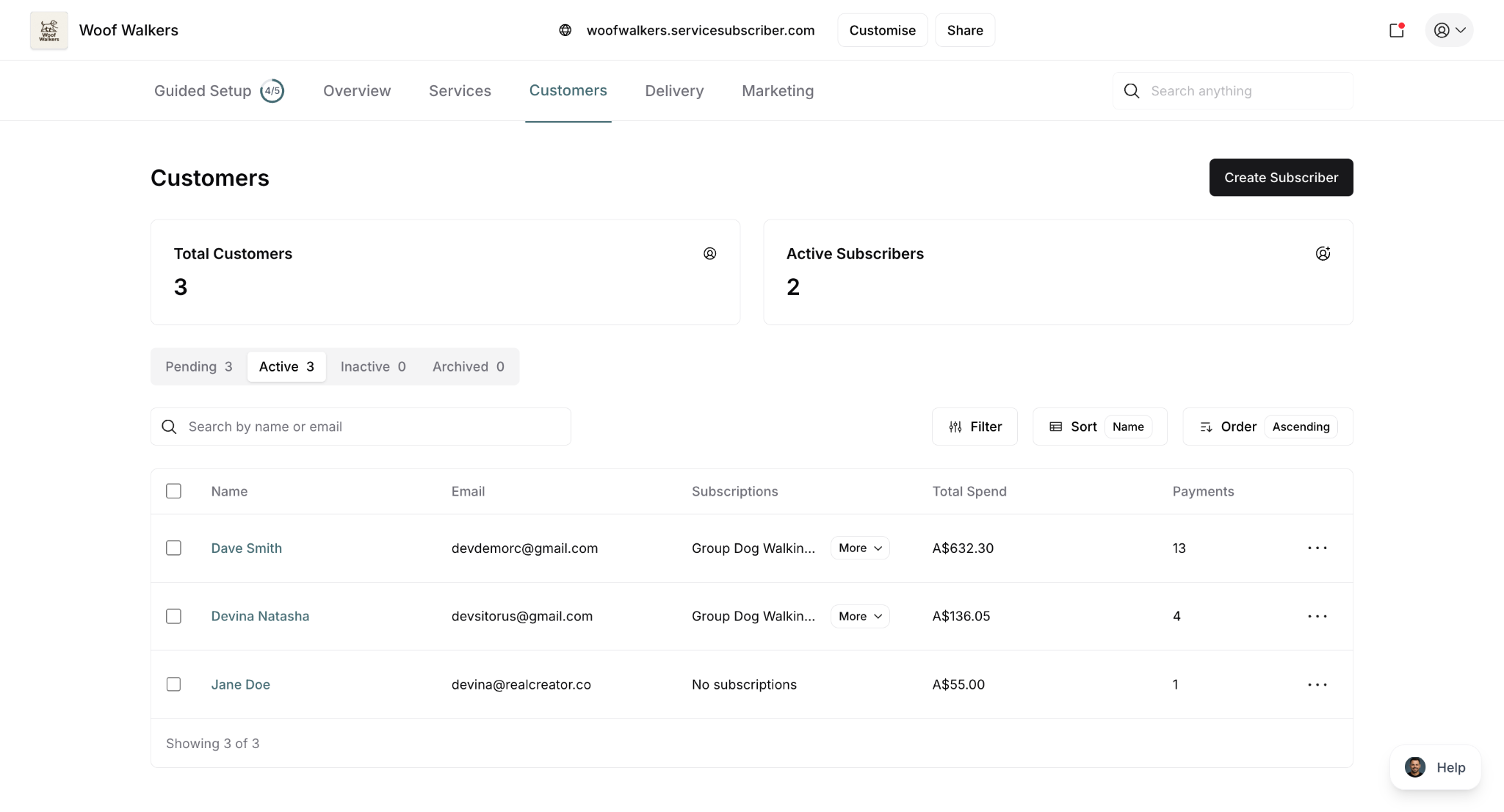
Dashboard Overview
Page Header
At the top of your Customers dashboard, you'll see key metrics and action buttons providing a quick overview and access to common tasks.
Key metrics displayed:
Total Customers: Count of all unique customers (both subscribers and one-off purchasers)
Active Subscribers: Count of customers with at least one active subscription
Action button:
Create Subscriber: Opens the form to send a subscription invitation to a potential customer
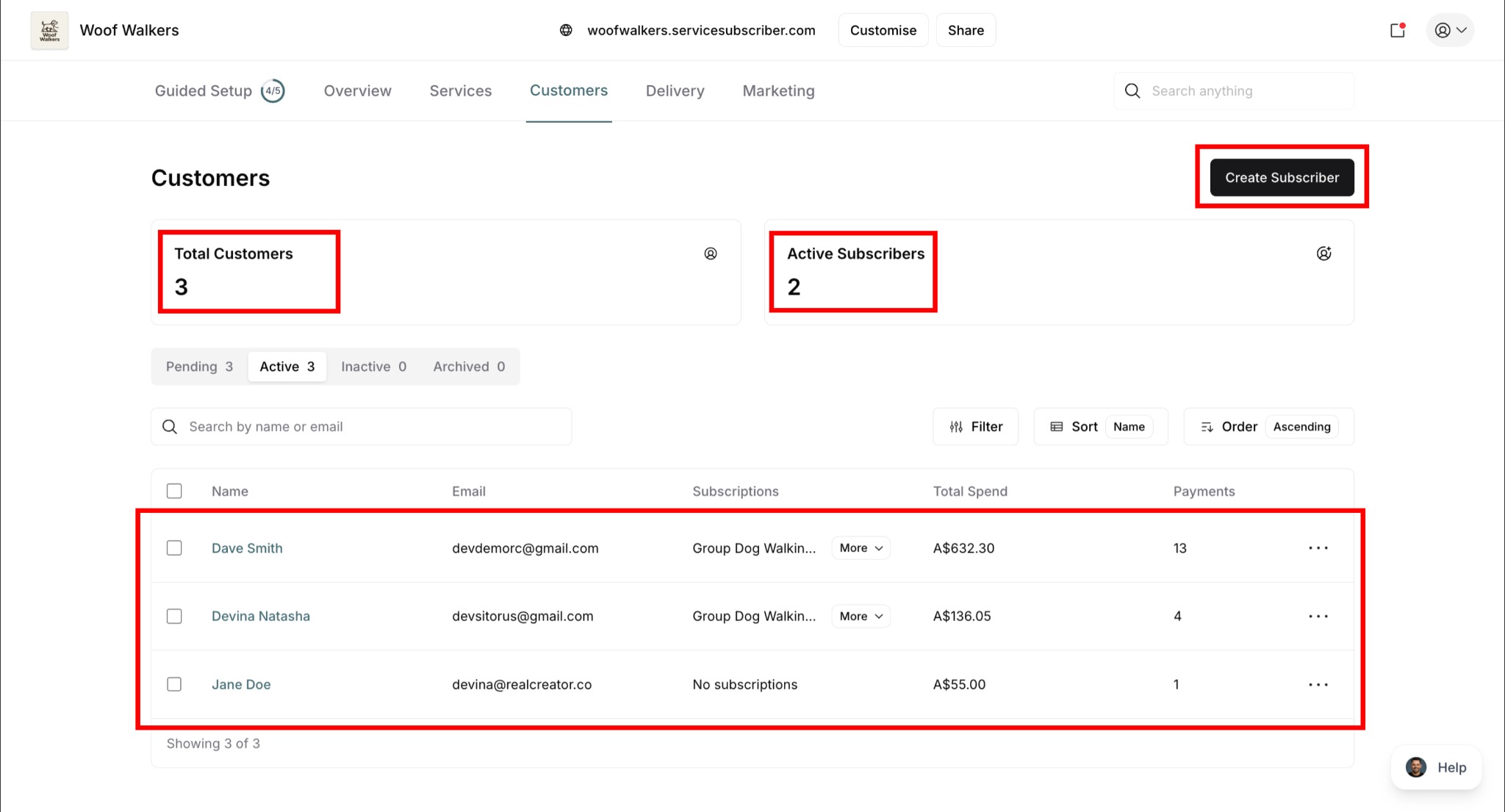
✍️ TIP: Total Customers includes everyone who has ever purchased from you (subscriptions or one-off). Active Subscribers shows only those with current active subscriptions.
Understanding the Metrics
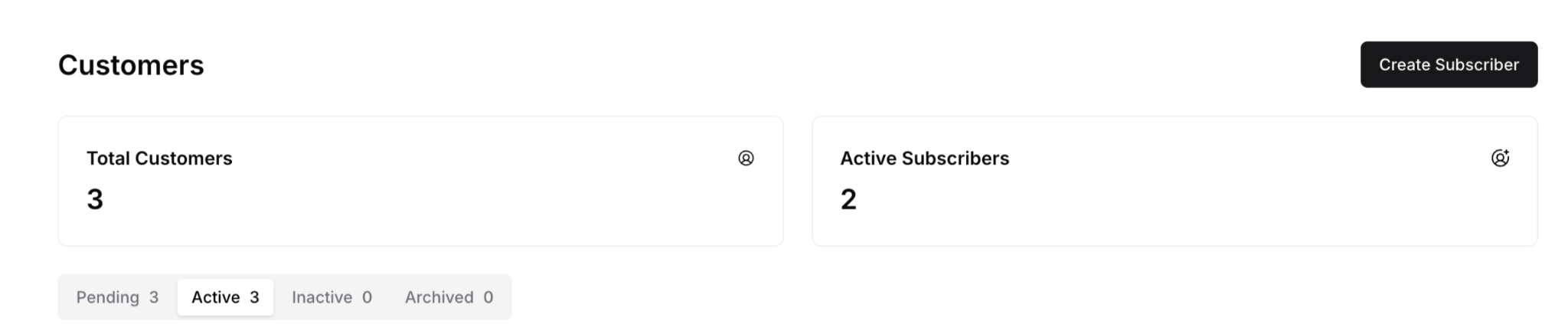
Total Customers (3):
Includes all customers regardless of purchase type
Counts each person once (even if they have multiple purchases)
Includes: Active subscribers, one-off purchasers, canceled subscribers, pending invitations
Active Subscribers (2):
Shows only customers with at least one active subscription
Excludes: One-off-only customers, canceled subscriptions, pending invitations
This is your core recurring revenue base
Example: If you have 3 total customers:
Customer A: Has active subscriptions (counts in both metrics)
Customer B: Has active subscriptions (counts in both metrics)
Customer C: Made one-off purchase only (counts only in Total Customers)
Result: Total Customers = 3, Active Subscribers = 2
Customer Status Tabs
Customers are organized into four status tabs based on their subscription status. The tab system allows you to quickly filter and view customers by their current state.
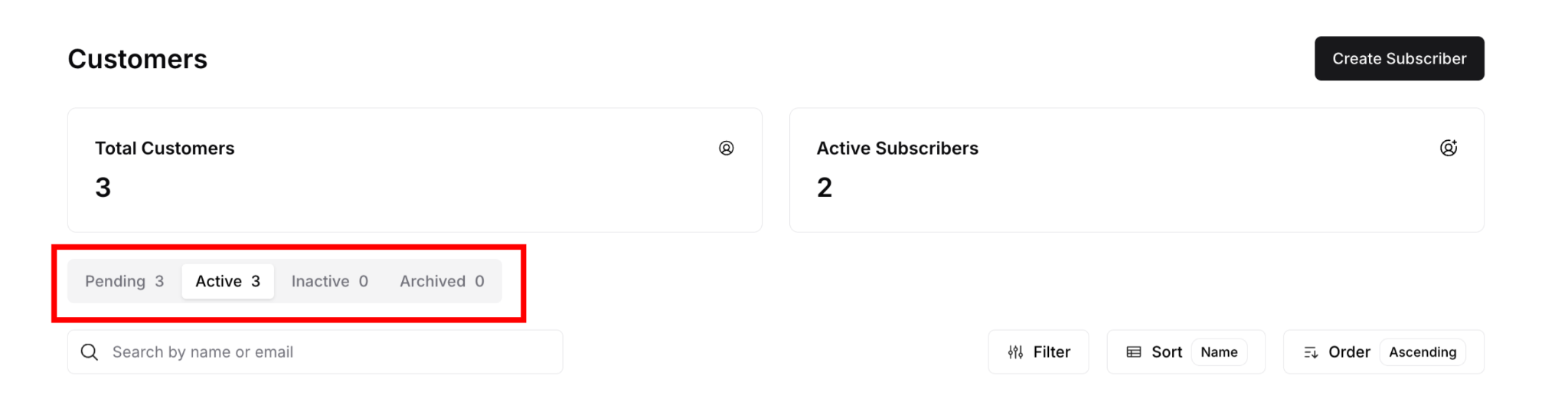
Status tabs available:
Pending [count]: Customers with subscription invitations that haven't been accepted yet
Active [count]: Customers with at least one active subscription
Inactive [count]: Customers with paused or expired subscriptions
Archived [count]: Customers who have been archived
How Status Classification Works
⚠️ IMPORTANT: Status tabs are based on subscription status only, not purchase type.
Key points:
Status tabs show subscription-related states (Pending, Active, Inactive, Archived)
One-off-only customers (no subscriptions) don't appear in status tabs but are included in Total Customers count
A customer can appear in multiple tabs if they have subscriptions with different statuses
For example: If Jane has one active subscription and one pending invitation, she appears in both Active and Pending tabs
To view customers by status:
Click on the desired status tab (Pending, Active, Inactive, or Archived)
The list filters to show only customers with subscriptions in that status
The number next to each tab indicates how many customers fall into that category
Customer List View
What You See
Each customer appears as a row in your list displaying essential information at a glance for quick reference and management.
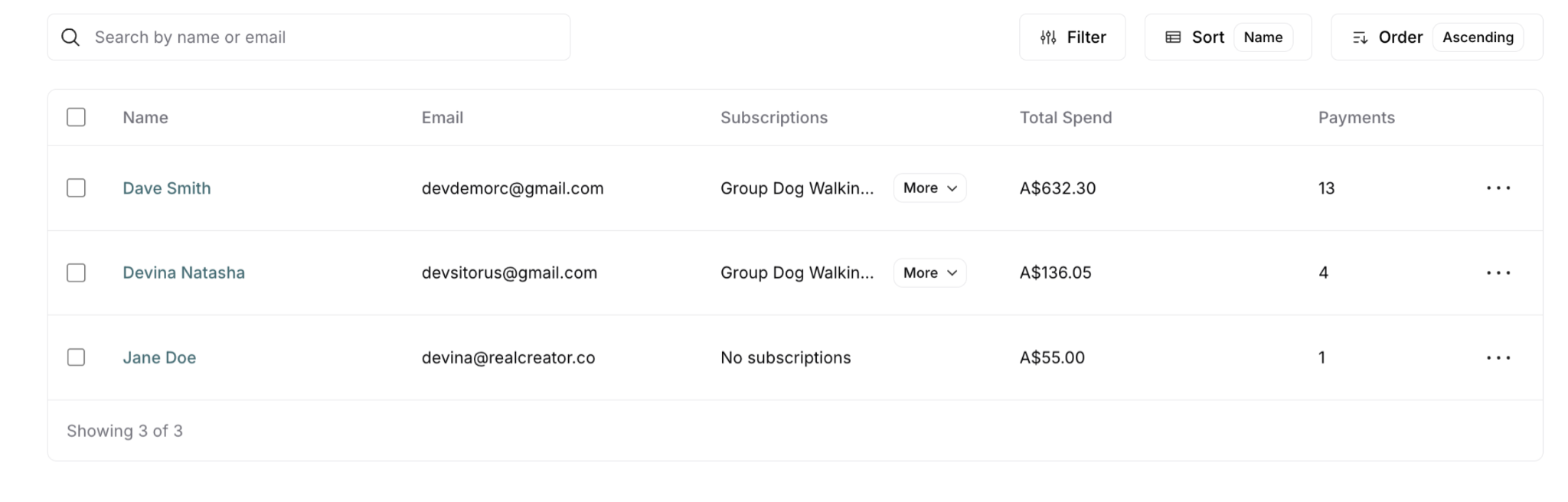
Customer information displayed:
Name: Customer's full name (clickable link to details)
Email: Customer's email address
Subscriptions: Service names and subscription details (shows "No subscriptions" for one-off-only customers)
Total Spend: Lifetime revenue from this customer (subscriptions + one-off purchases)
Payments: Number of payments processed
Action menu (⋯): Quick actions for this customer
Understanding Subscription Display
In the Subscriptions column:
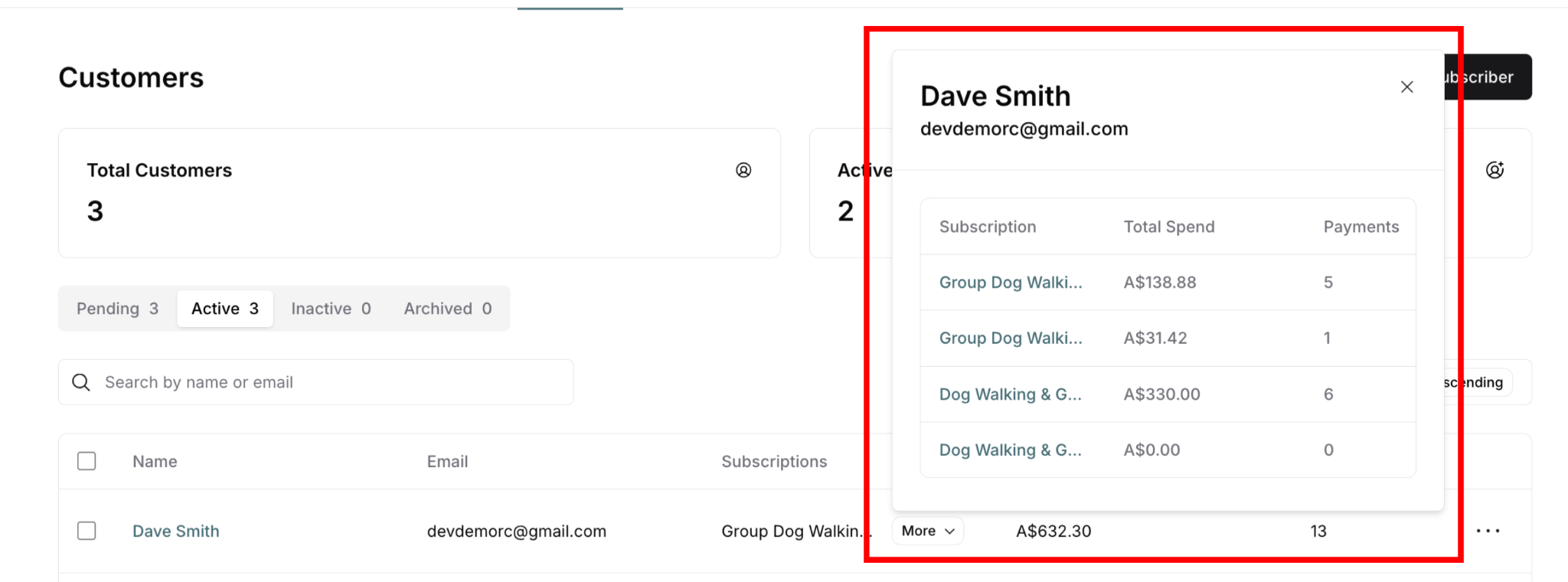
Active subscribers: Shows service name with "More" dropdown if multiple subscriptions (e.g., "Group Dog Walkin... More")
One-off-only customers: Shows "No subscriptions"
Multiple subscriptions: Click "More" to see all subscriptions
Filtering, Sorting & Ordering Customers
Search
Search by name or email:
Use the search bar at the top: "Search by name or email"
Type customer name or email address
List filters instantly as you type
Filter Options
Click the Filter button to narrow your customer list.
Filter by status:
Pending: Awaiting invitation acceptance
Active: Currently subscribed customers
Inactive: Paused or payment-failed subscriptions
Archived: Canceled or ended subscriptions
Filter by date added: Filter customers by when they were created
Filter by service: See only customers enrolled in a particular service
To apply filters:
Click Filter button
Select desired criteria
Click Show Results to update the view
Use Reset to clear filters or Cancel to close without applying
Sort Options
Click the Sort button to organize your customer list.
Sort by:
Name: Alphabetical order by customer name (A-Z or Z-A)
Subscriptions: By number or type of subscriptions
Total Spend: By lifetime revenue from each customer (highest to lowest or vice versa)
Payment: By payment count or status
Created: By date customer was created (newest or oldest first)
Current sort is displayed next to the Sort button (e.g., "Sort Name")
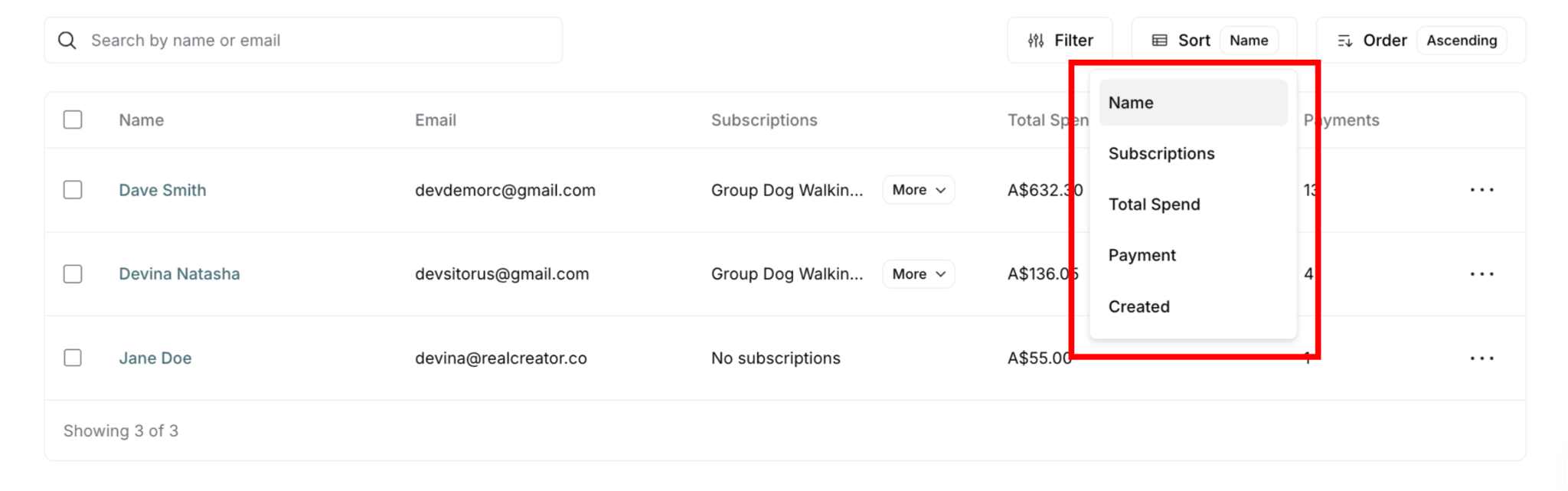
To sort your list:
Click the Sort button
Select your preferred sorting criteria from the dropdown
The list reorders automatically based on your selection
? TIP: Combine Sort and Order to find exactly what you need. For example, sort by "Total Spend" and order "Descending" to see your highest-value customers first.
Order Options
After selecting sort criteria, choose the order:
Ascending: A to Z, 0-9, oldest to newest, lowest to highest
Descending: Z to A, 9-0, newest to oldest, highest to lowest
Customer Actions
Quick Actions from List
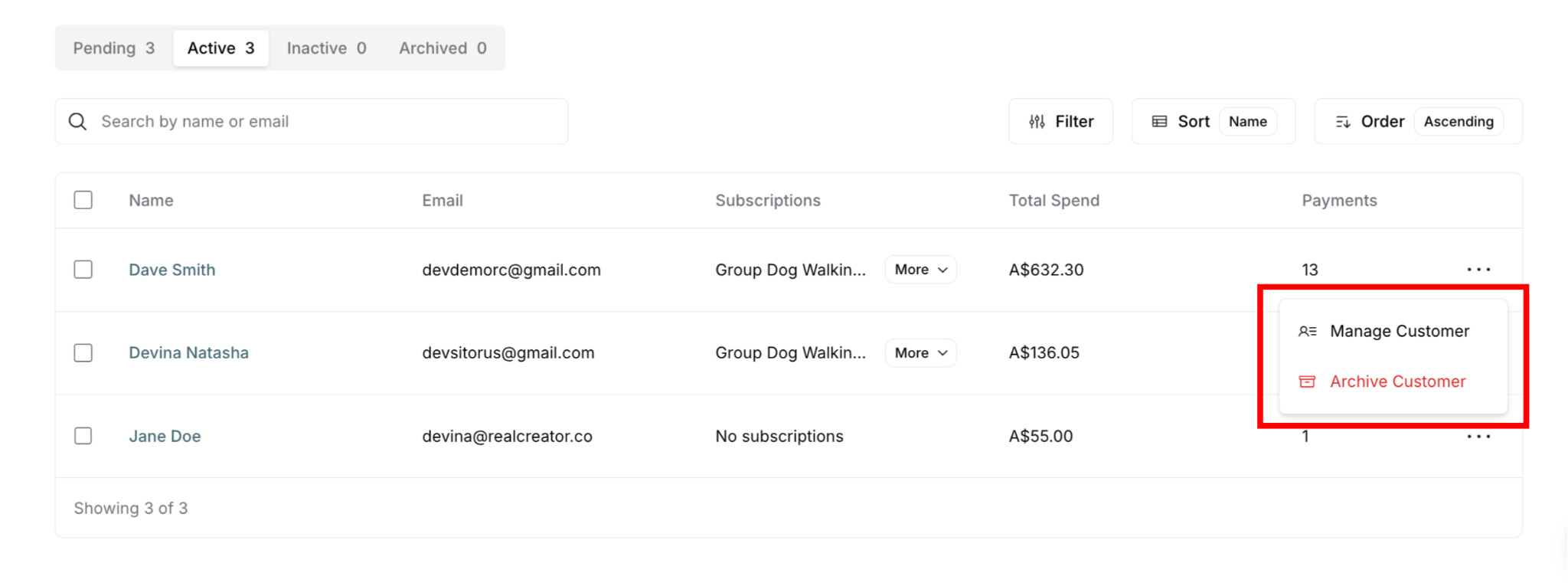
Click the action menu (⋯) next to any customer to access quick actions:
Available actions:
Manage Customer: View complete customer profile with all details, purchases, subscriptions, and history
Archive Customer: Move customer out of main list while preserving all historical records
Customer Detail View
Click on any customer's name to open their complete profile with detailed information and management options.
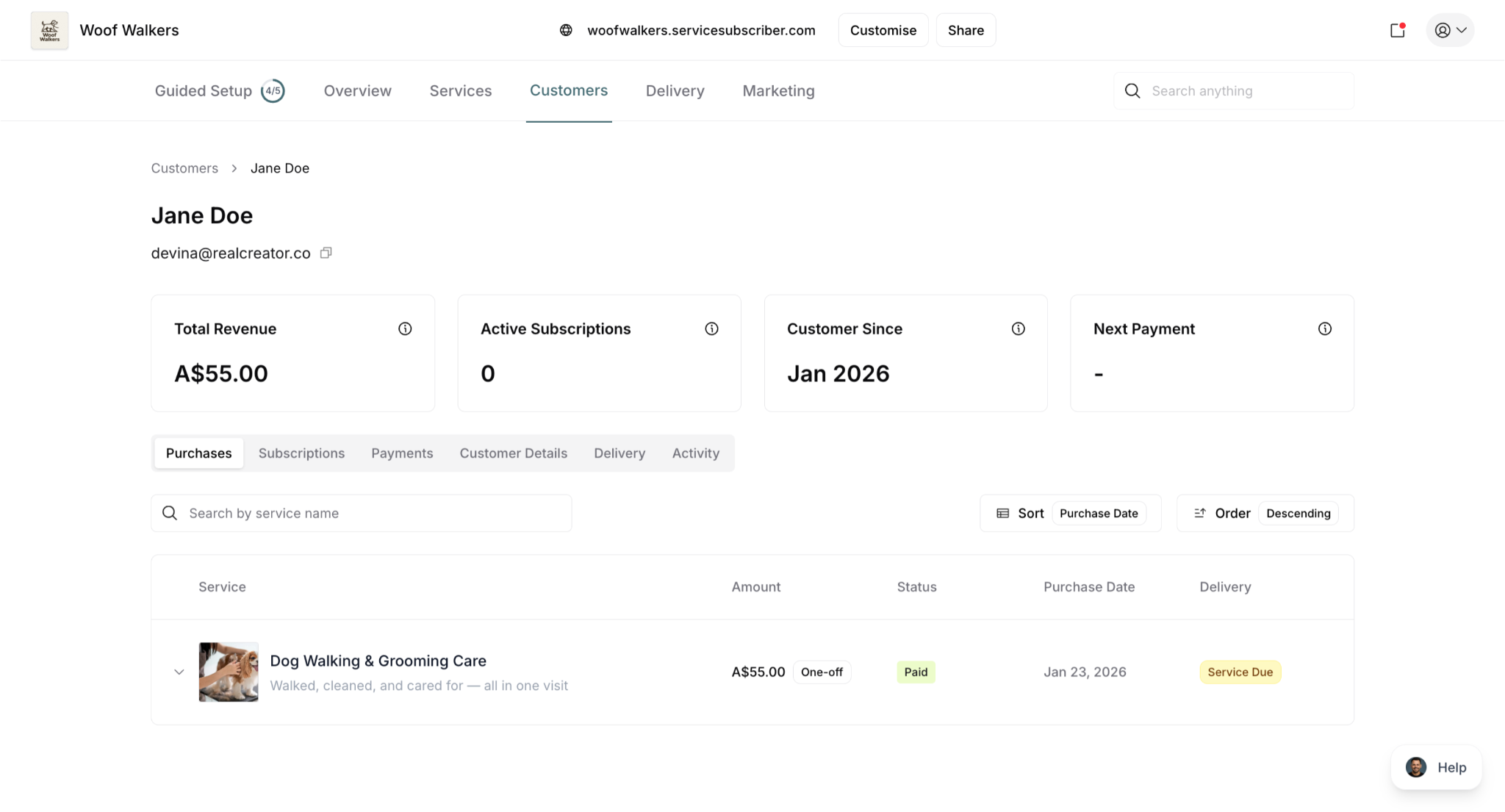
Customer Header
Displays:
Customer name
Email address (with copy button)
Breadcrumb navigation (Customers > Customer Name)
Four key metrics:
Total Revenue: Lifetime earnings from this customer (all purchases)
Active Subscriptions: Number of current active subscriptions
Customer Since: Date of first purchase
Next Payment: Date of next scheduled subscription payment
Customer Detail Tabs
Six tabs provide comprehensive customer information:
1. Purchases Tab
Shows all one-off purchases made by this customer.
Displays:
Service name and description
Service image thumbnail
Amount paid
Status: "Paid" only
Purchase Date
Delivery status (Service Due, Overdue, Completed, Canceled)
Features:
Search by service name
Sort by Purchase Date
Order: Descending or Ascending
Expandable rows (click arrow to see full details)
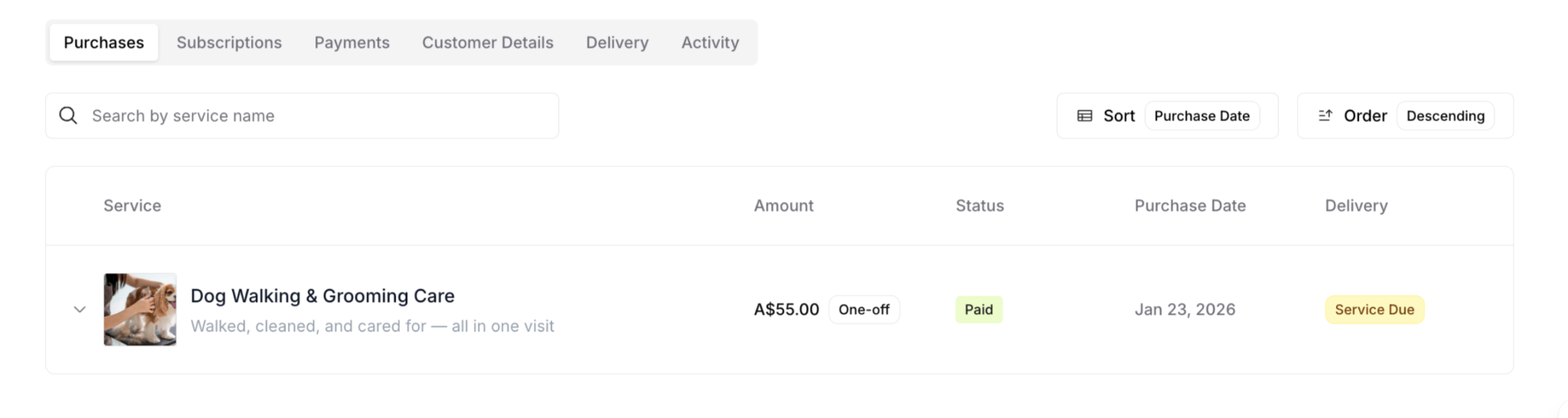
? TIP: The Purchases tab shows ONLY one-off purchases. For subscriptions, use the Subscriptions tab.
2. Subscriptions Tab
Shows all subscriptions for this customer (active, pending, canceled).
Displays:
Service name and description
Service image thumbnail
Amount (subscription price)
Status: Subscription, Paid badge
Purchase Date
Delivery status (Service Due, Overdue, Completed)
Features:
Search by service name
Sort by Purchase Date
Order: Descending or Ascending
Expandable rows for full subscription details
Status badges: Active, Pending, Canceled
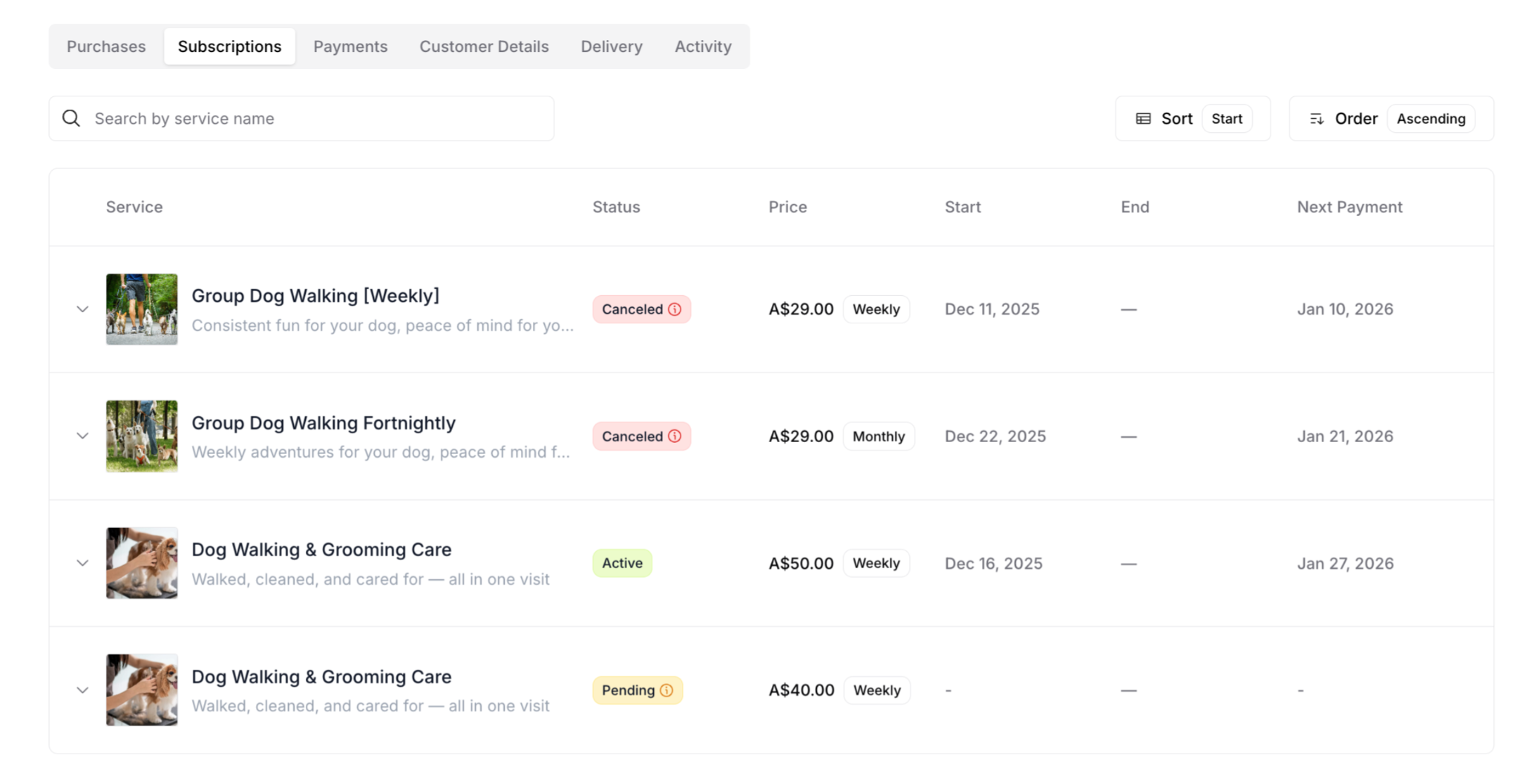
⚠️ IMPORTANT: The Subscriptions tab shows ONLY subscription purchases. One-off purchases appear in the Purchases tab.
3. Payments Tab
Shows complete payment history for this customer (both subscriptions and one-off purchases).
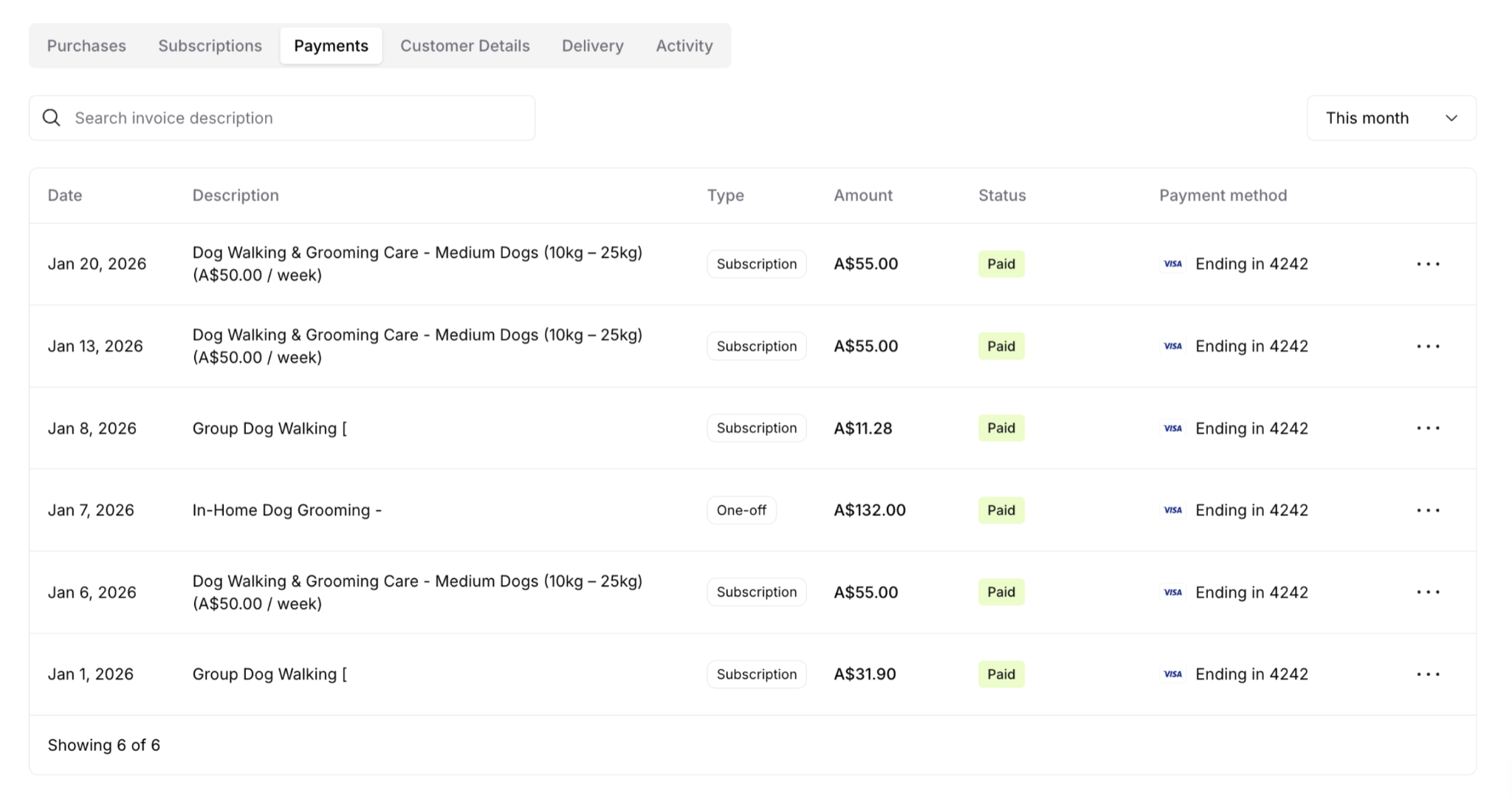
Displays:
Date: Payment date
Description: Service name with pricing details
Type: "Subscription" or "One-off"
Amount: Payment amount
Status: Paid (green badge)
Payment method: Card type and last 4 digits
Action menu (⋯): Additional payment actions
Features:
Search invoice description
Filter by date range (This month, Last month, etc.)
Complete payment history in chronological order
✍️ TIP: The Type column clearly shows whether each payment was for a subscription or one-off purchase, making it easy to track revenue sources.
4. Customer Details Tab
View and edit customer information.
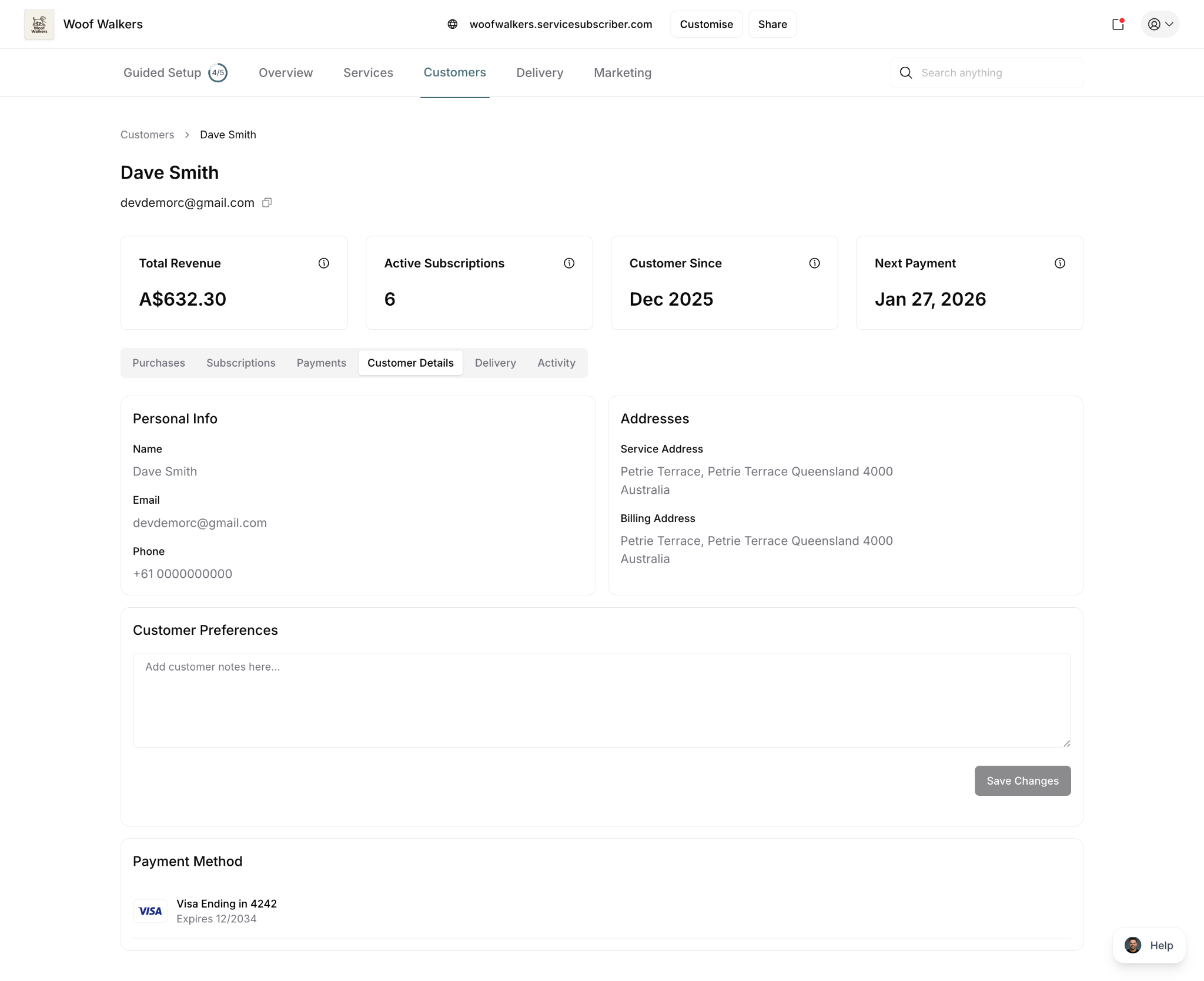
Personal Info:
Name
Email
Phone
Addresses:
Service Address (where service is performed)
Billing Address
Customer Preferences:
Internal notes field ("Add customer notes here...")
Save Changes button
Payment Method:
Saved card information
Card type (Visa, Mastercard, etc.)
Last 4 digits
Expiration date
✅ BEST PRACTICE: Use the Customer Preferences notes field to record important details like gate codes, pet names, special instructions, or customer preferences that help you deliver better service.
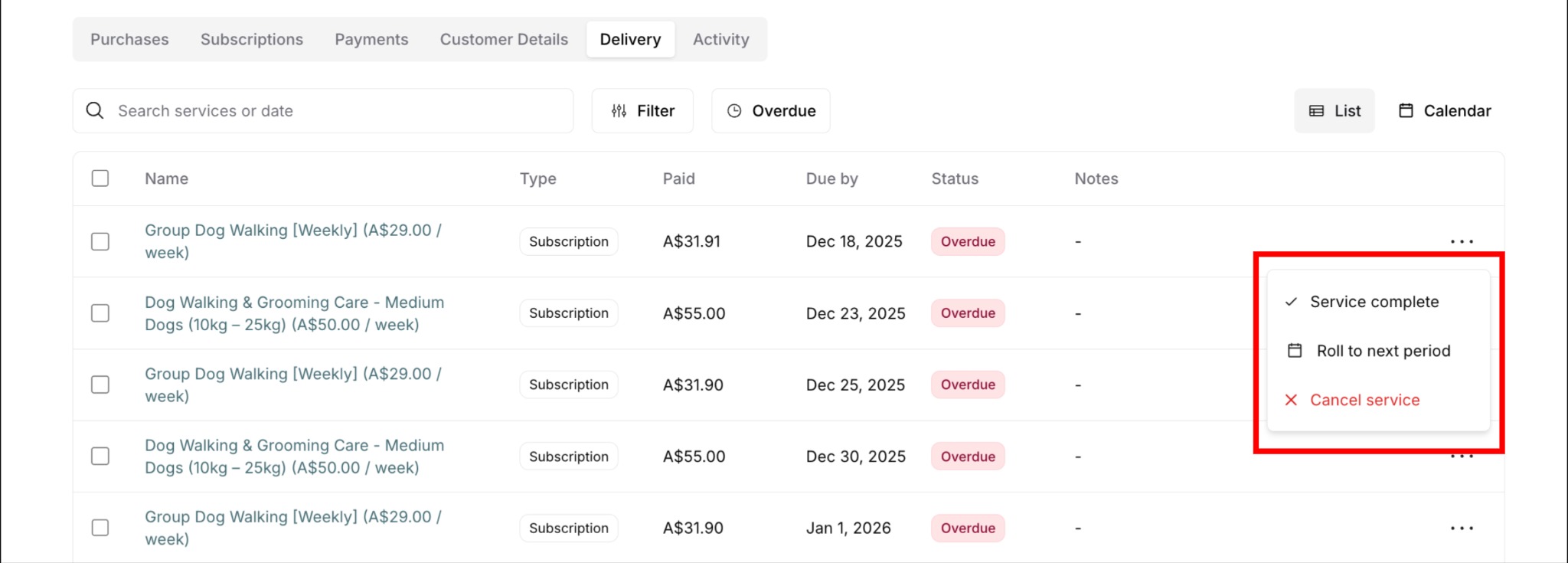
5. Delivery Tab
View all scheduled services for this customer (subscriptions only).
Displays:
Service name and pricing
Type: "Subscription"
Amount paid for this delivery
Due by: Service due date
Status: Service Due, Overdue, Completed
Notes: Any delivery notes
Features:
Search services or dates
Filter: View all or only Overdue services
View toggle: List or Calendar view
Action menu (⋯): Mark complete, roll to next period, cancel service
✍️ TIP: The Delivery tab shows only subscription services with recurring deliveries. One-off purchases don't appear here since they're one-time deliveries managed separately.
6. Activity Tab
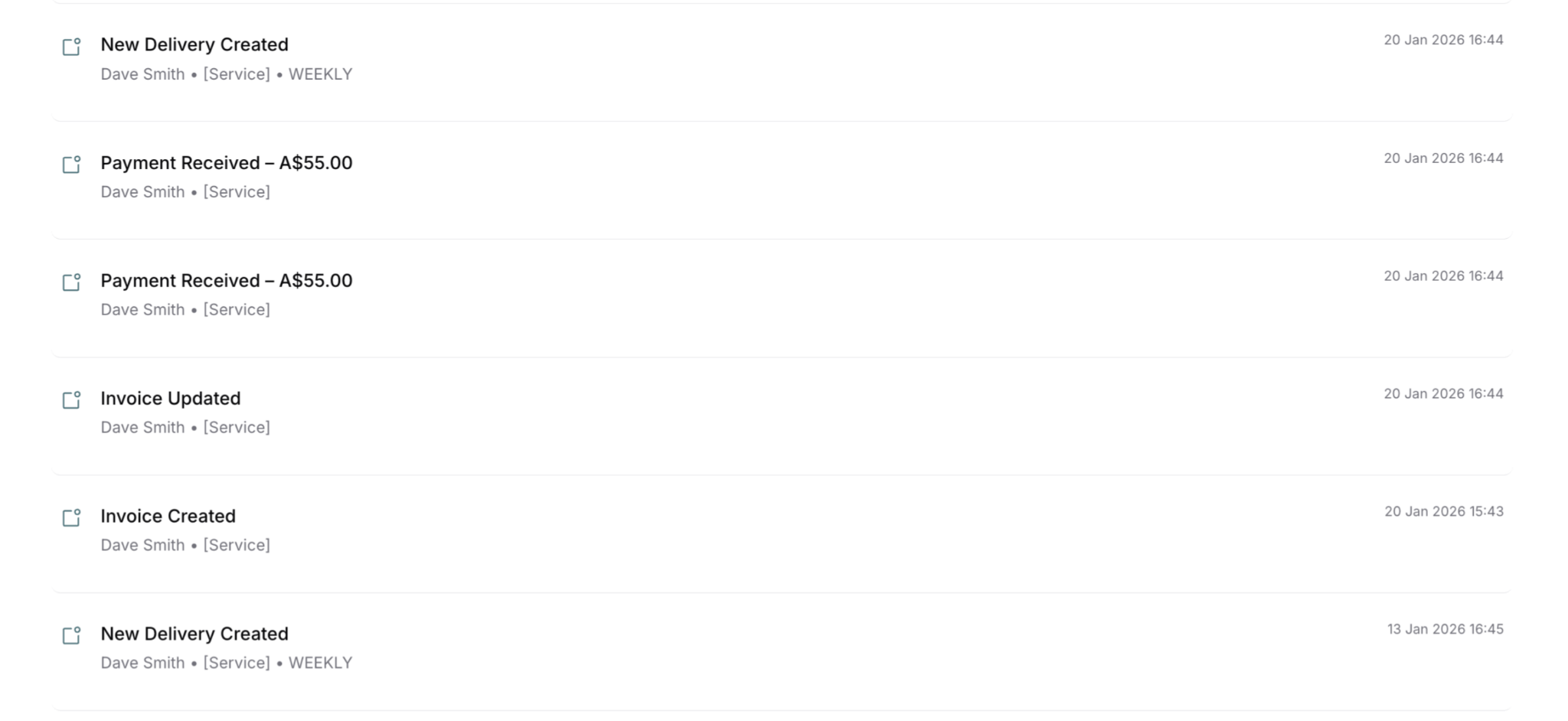
Complete timeline of all customer interactions and events.
Activity types tracked:
Subscription Business Deleted
New Delivery Created
Payment Received
Invoice Updated
Invoice Created
Each entry shows:
Event title
Customer name and service
Timestamp (date and time)
Additional context (service frequency, amount, etc.)
Features:
Chronological timeline (newest first)
Complete history since customer creation
All purchase types included (subscriptions and one-off)
✅ BEST PRACTICE: Use the Activity tab to review customer history before reaching out, troubleshoot issues, or understand their purchase patterns.
Understanding Customer Types
Your Customers dashboard includes three types of customers:
1. Active Subscribers
Have at least one active subscription
Appear in "Active Subscribers" metric
Show subscription details in Subscriptions column
Contribute to recurring revenue
2. One-off-Only Customers
Made one-off purchases but no subscriptions
Included in "Total Customers" metric
Show "No subscriptions" in Subscriptions column
Don't appear in Active Subscribers count
Excellent leads for subscription conversion
3. Mixed Customers
Have both subscriptions AND one-off purchases
Counted in both Total Customers and Active Subscribers
Show subscription details in list view
Complete purchase history visible in detail view
✍️ TIP: Customers showing "No subscriptions" are prime candidates for subscription conversion. They've already tried your service through a one-off purchase—follow up to invite them to subscribe and save.
Was this article helpful?
That’s Great!
Thank you for your feedback
Sorry! We couldn't be helpful
Thank you for your feedback
Feedback sent
We appreciate your effort and will try to fix the article