Payouts are how you receive money from your subscription business. When customers pay for their subscriptions, the funds transfer from Stripe to your bank account based on your payout schedule.
This guide explains how payouts work, when you get paid, and how to track your money.
What Are Payouts?
A payout is a transfer of funds from your Stripe account to your connected bank account.
Simple flow:
Customer pays subscription → Money goes to your Stripe balance
Stripe deducts fees → Platform and processing fees removed
Payout processes → Remaining funds transfer to your bank
Money arrives → Appears in your bank account
✍️ TIP: Think of your Stripe balance as a holding area. Money accumulates there from customer payments, then transfers to your bank account based on your payout schedule.
Accessing Your Payout Information
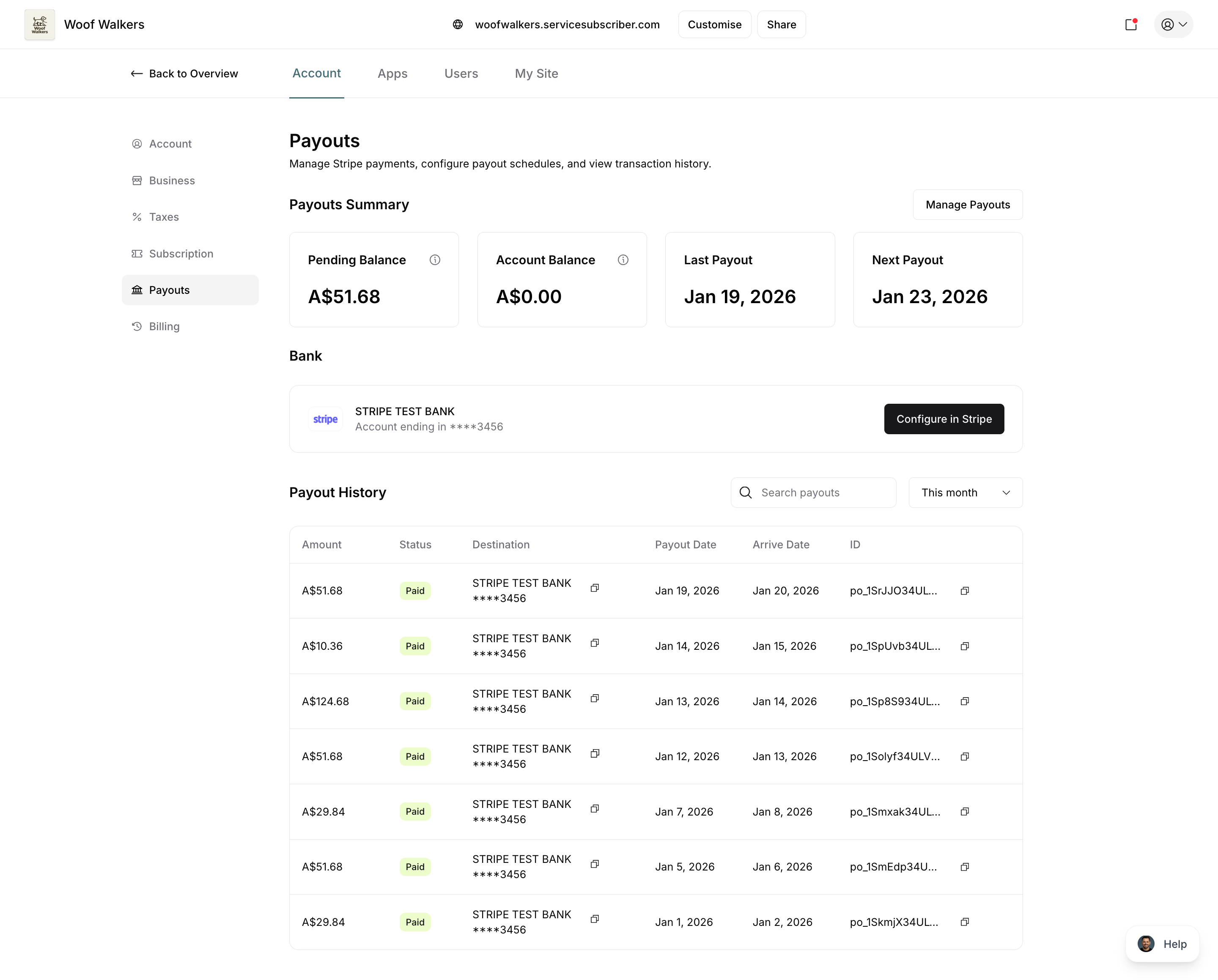
View all payout details in one place:
Navigate to Payouts in the main menu
The main Payouts tab shows:
Connected Stripe account status
Recent payout history
Upcoming payout schedule
Total amount paid out
Your Payout Schedule
Your payout schedule determines how often money transfers to your bank account.
Schedule Options
Daily Payouts (Most Common)
Funds transfer every business day
Steady, predictable cash flow
Best for active businesses with regular subscriptions
Weekly Payouts
Funds transfer once per week (you choose the day)
Good for businesses with consistent weekly revenue
Reduces number of bank transactions
Monthly Payouts
Funds transfer once per month (you choose the date)
Simplifies accounting with fewer transactions
Better for seasonal businesses
✅ BEST PRACTICE: Most subscription businesses choose daily or weekly payouts for better cash flow management. You can always change this later as your needs evolve.
Setting Your Schedule
To configure your payout schedule:
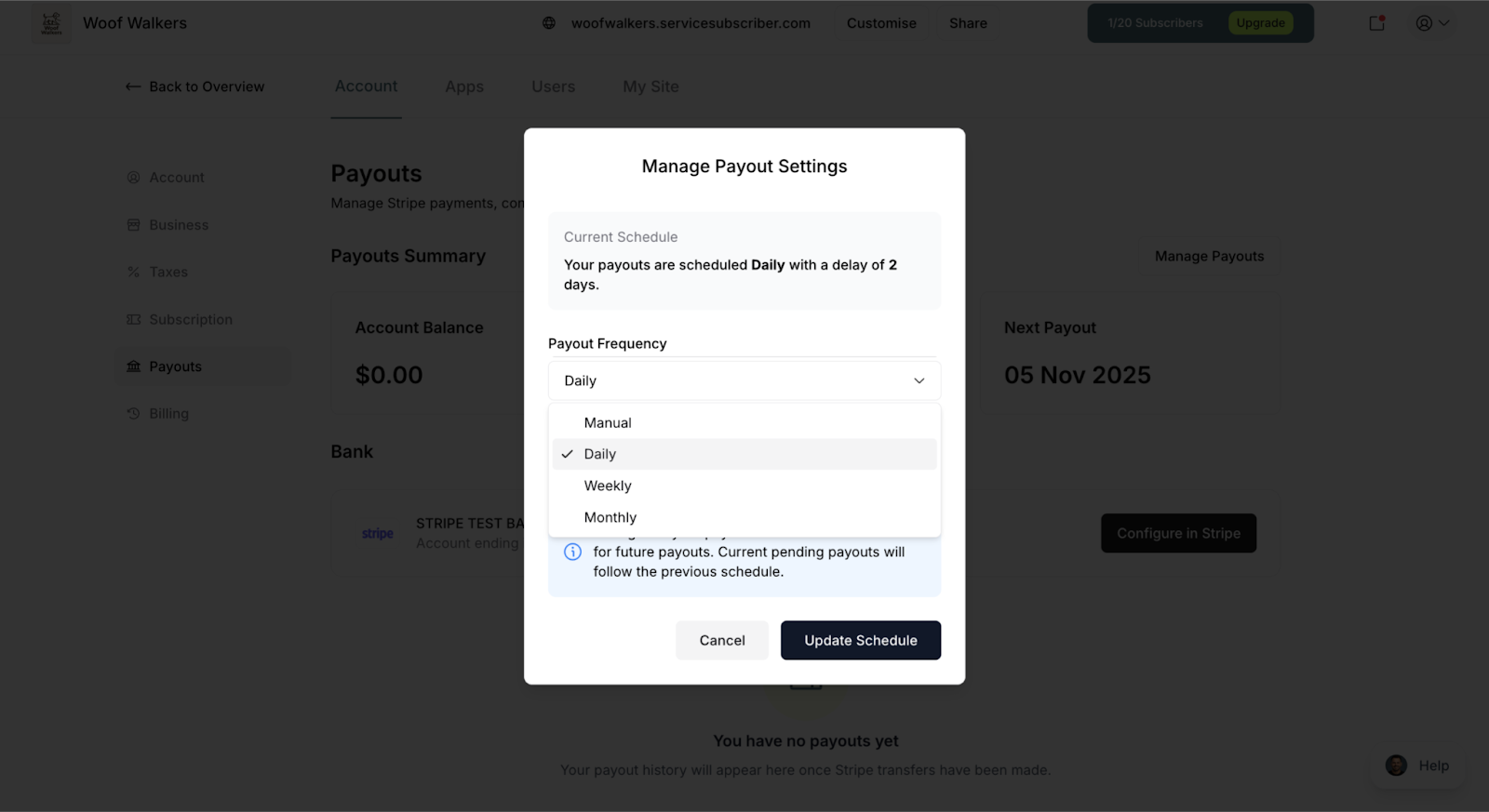
Go to Account > Payouts page
Find Payouts Summary
Click Manage Payouts
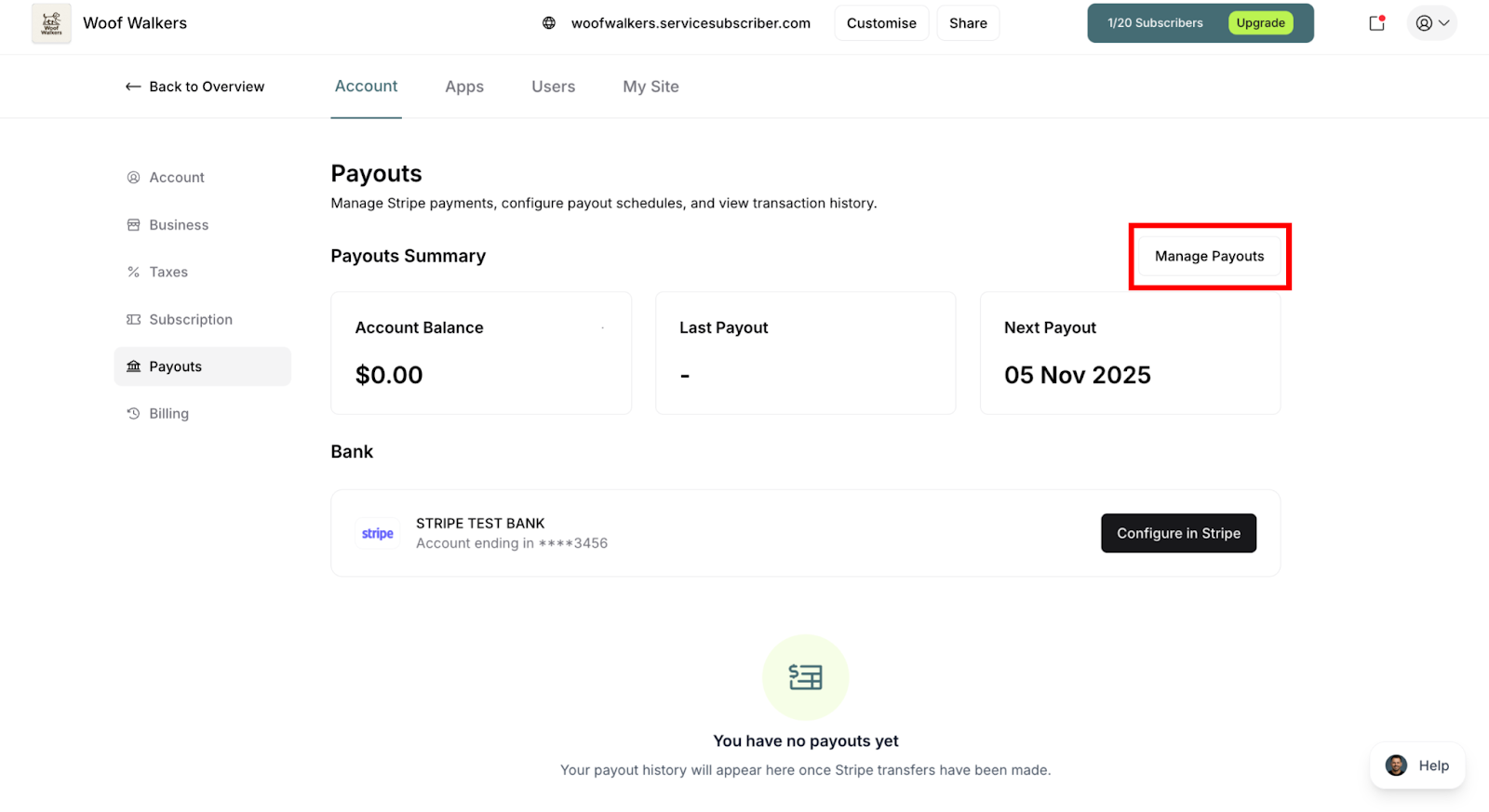
Select your preferred frequency
Optionally, set Delay Days
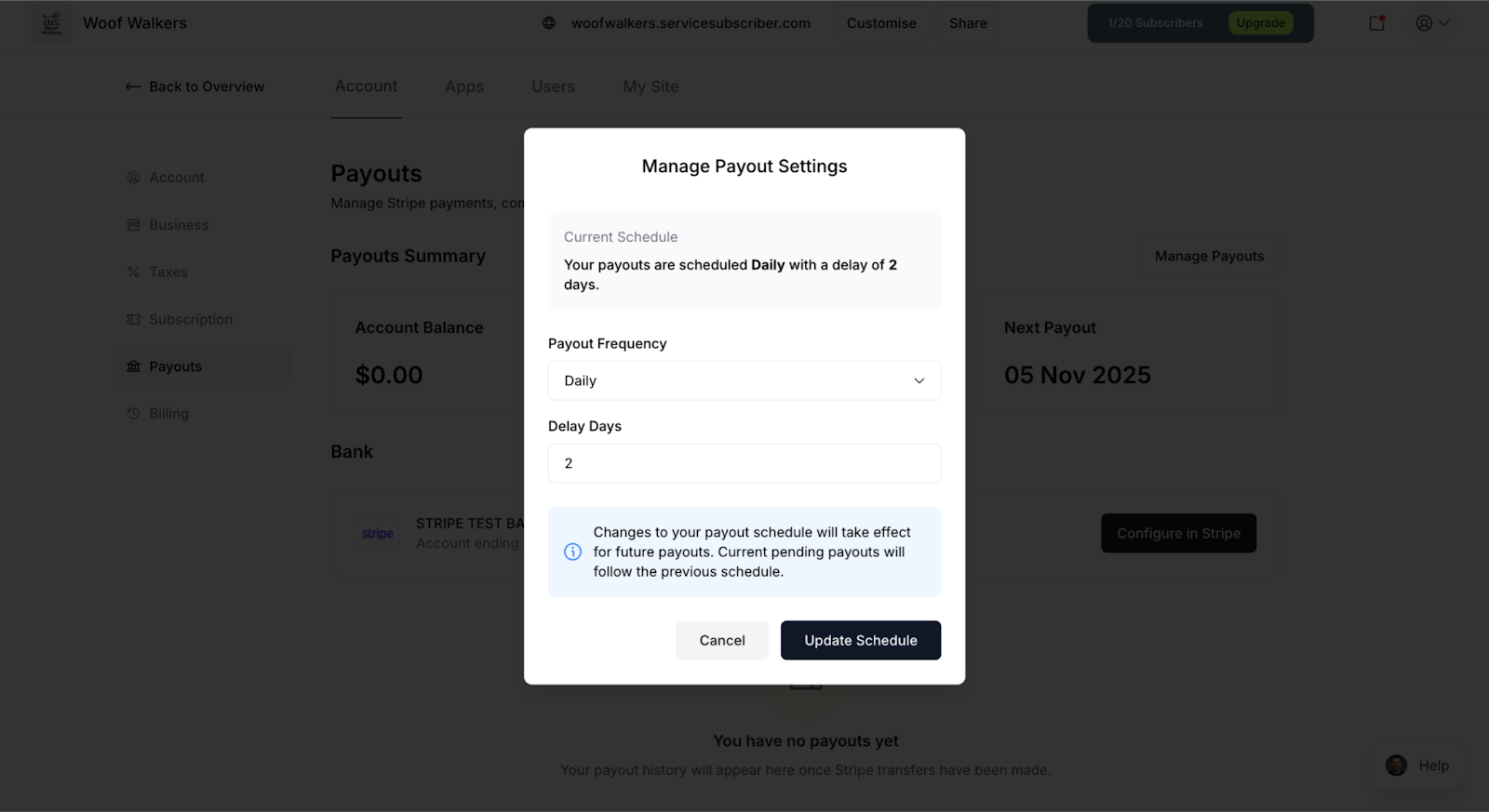
Save your changes
Changes typically take effect for the next payout cycle.
How Much You Receive
The amount that reaches your bank account isn't the full subscription price—fees are deducted first.
Fee Breakdown
Customer pays: $100 subscription
Stripe processing fee: ~$3.20 (2.9% + $0.30)
This is Stripe's fee for handling the credit card transaction
Varies slightly by region and card type
ServiceSubscriber transaction fee: $2 (Starter) or $1 (Growth)
2% on Starter plan
1% on Growth plan
You receive: ~$94.80 (Starter) or ~$95.80 (Growth)
✍️ TIP: Factor these fees into your pricing. If you want to net $100 per subscription, you need to price higher to account for processing and platform fees.
Payout Timing
Understanding when money arrives helps with cash flow planning.
First Payout Timeline
Your first payout takes longer:
7-14 days after your first transaction
Stripe verifies your account during this period
Security measure to prevent fraud
One-time delay only
Example:
First customer pays: October 1
First payout processes: October 8-15
Money arrives in bank: October 10-22
Ongoing Payout Timeline
After the initial period:
Payouts follow your set schedule (daily, weekly, monthly)
Transfers typically take 2-7 business days to reach your bank
Timing depends on your bank's processing speed
Example with daily payouts:
Customer pays: Monday
Payout initiates: Tuesday (next business day)
Arrives in bank: Wednesday-Monday (2-7 days)
⚠️ IMPORTANT: Weekends and bank holidays don't count as business days. A Friday payout might not arrive until the following Tuesday or Wednesday.
Viewing Payout History
Track all your payouts in ServiceSubscriber:
In ServiceSubscriber
Navigate to Payouts
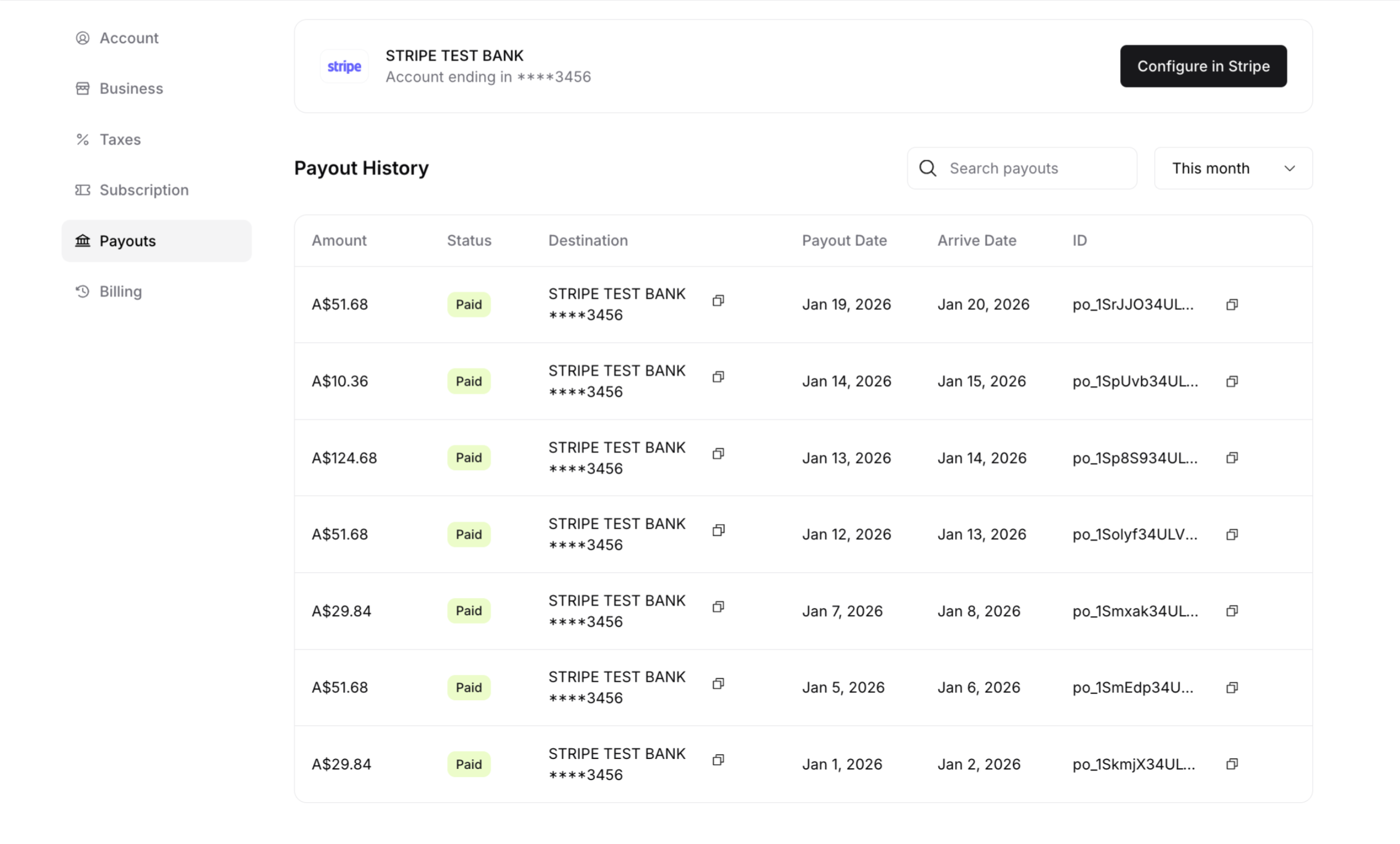
View list of past payouts showing:
Payout date
Amount transferred
Status (Paid, In Transit, Failed)
Destination bank account
In Stripe Dashboard
For detailed information:
Log in to stripe.com
Go to Payouts section
View comprehensive payout details:
Individual transactions included in each payout
Exact fee breakdowns
Bank arrival estimates
Payout reports you can download
✍️ TIP: Use Stripe's dashboard for detailed financial records and reconciliation. It shows transaction-level detail that's helpful for accounting and taxes.
Payout Status Indicators
Understanding status messages helps you track your money:
Pending
Payout is scheduled but hasn't been sent yet
Waiting for payout schedule date
In Transit
Money has been sent to your bank
Should arrive within 2-7 business days
Most common status you'll see
Paid
Money has arrived in your bank account
Payout is complete
Safe to spend or allocate funds
Failed
Payout couldn't complete
Usually due to incorrect bank details
Requires attention to resolve
What Affects Payout Amounts
Several factors influence how much each payout contains:
Customer Payment Timing
Only successful payments from the previous period are included (subscriptions and one-off purchases)
Failed payments don't contribute to payouts
Refunds reduce your payout amount
Refunds and Disputes
Refunds:
Deducted from your next payout
May cause a payout to be smaller than expected
Original Stripe fees are not refunded to you
Applies to both subscription refunds and one-off purchase refunds
Disputes/Chargebacks:
Customer disputes temporarily freeze those funds
Resolved disputes release funds to appropriate party
May result in negative balance if you lose dispute
Can occur on both subscription payments and one-off purchases
Payment Schedule
Your payout reflects:
Subscription payments:
Which subscriptions renewed that period
New subscriber payments
Subscription billing cycles processed
One-off purchases:
One-time service purchases at regular price
Non-recurring customer payments
Purchases fulfilled during the payout period
Other payments:
Any manual payments processed
Adjustments or credits applied
✍️ TIP: Track your expected revenue against actual payouts. Large discrepancies might indicate failed payments, refunds, or billing issues that need attention. Remember to account for both subscription and one-off purchase revenue when calculating expected payouts.
✅ BEST PRACTICE: Review your payout statements in Stripe to see the breakdown of subscription vs. one-off purchase revenue. This helps you understand which revenue stream is driving your business growth.
Managing Your Bank Account
Viewing Connected Bank
Your payout destination appears in the Payouts page:
Bank name
Account type (checking/savings)
Last 4 digits of account number
Updating Bank Information
To change your bank account:
Log in to your Stripe dashboard at stripe.com
Go to Settings > Bank accounts and payouts
Click Add bank account or Edit
Enter new bank details
Save changes
⚠️ IMPORTANT: Update bank information in Stripe, not ServiceSubscriber. Changes take effect for future payouts—in-progress payouts go to the previous account.
✅ BEST PRACTICE: If you're closing a bank account, update your Stripe bank details first, then wait until all in-transit payouts complete before closing the old account.
Was this article helpful?
That’s Great!
Thank you for your feedback
Sorry! We couldn't be helpful
Thank you for your feedback
Feedback sent
We appreciate your effort and will try to fix the article