All subscription management happens in your Account Settings. This is your central location for managing your ServiceSubscriber plan, billing, and account preferences.
Accessing Account Settings
To access your subscription and account management:
Log in to your ServiceSubscriber account
Click on your profile icon in the top right corner
Select Account Settings from the dropdown menu
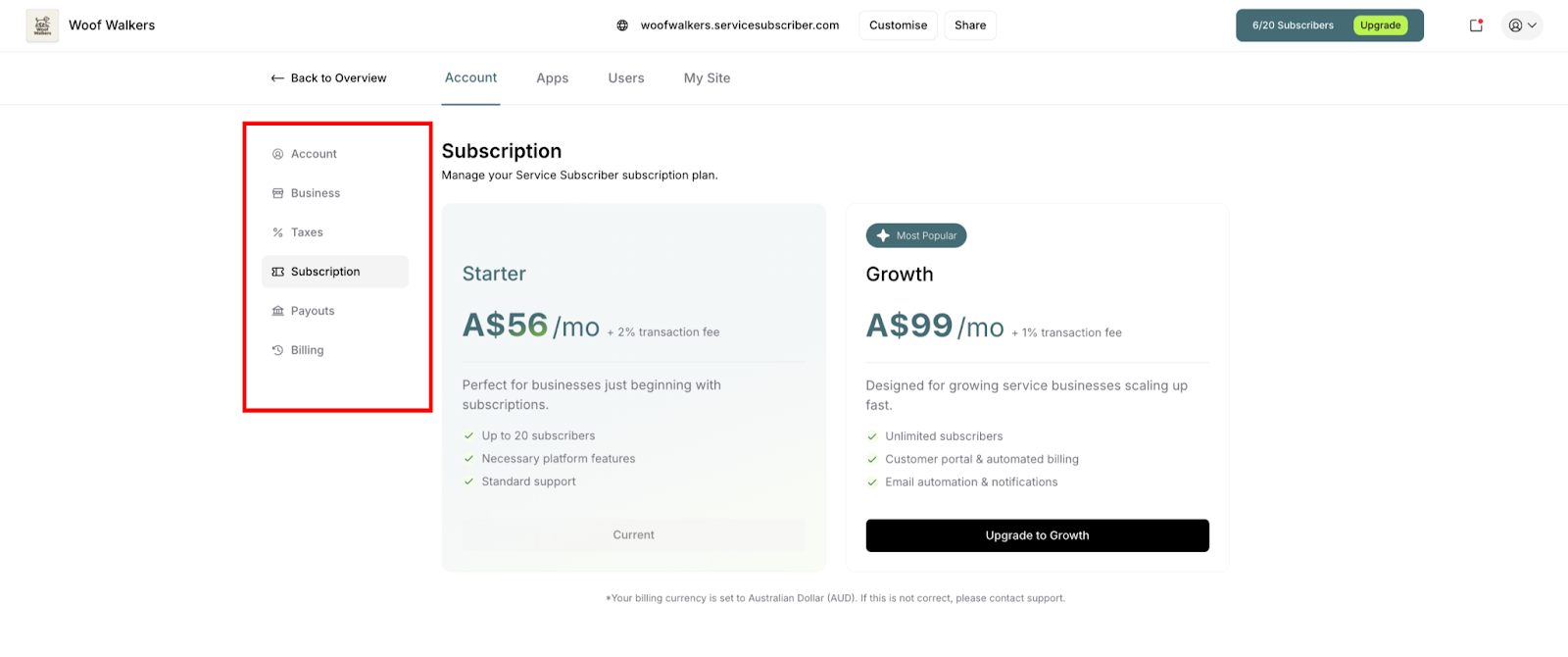
You'll see a sidebar menu with several sections:
Account: Personal profile and account deletion
Business: Business information and settings
Taxes: Tax configuration
Subscription: Plan management and upgrades
Payouts: Stripe payout settings
Billing: Payment history and invoices
Managing Your Subscription Plan
Viewing Your Current Plan
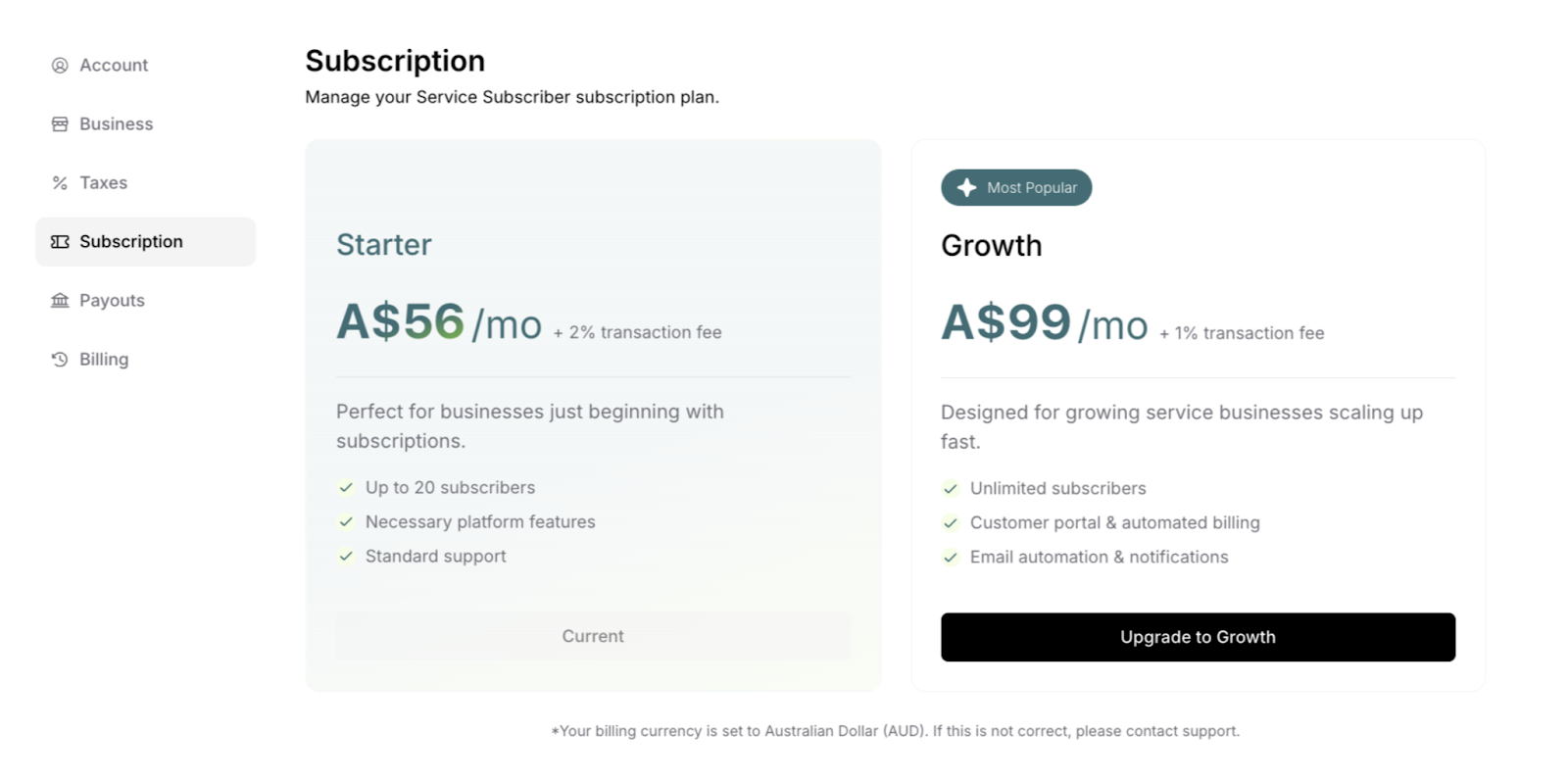
Click on the Subscription tab to see:
Your current plan (Starter or Growth)
Available upgrade or downgrade options
Managing Billing
Accessing Billing Information
Click on the Billing tab to access:
Billing History: Complete record of all platform charges
Invoices: Download past invoices for accounting
Payment Method: Update your credit card details
Billing Address: Manage your billing address information
Viewing Billing History
Your billing history shows:
Date of each charge
Amount charged
Plan period covered
Payment status
Invoice number
Downloading Invoices
Your billing history provides easy access to all your platform invoices for accounting and tax purposes.
To download an invoice:
Navigate to Account Settings > Billing
Scroll to the Invoice List section
Locate the invoice you need in the table
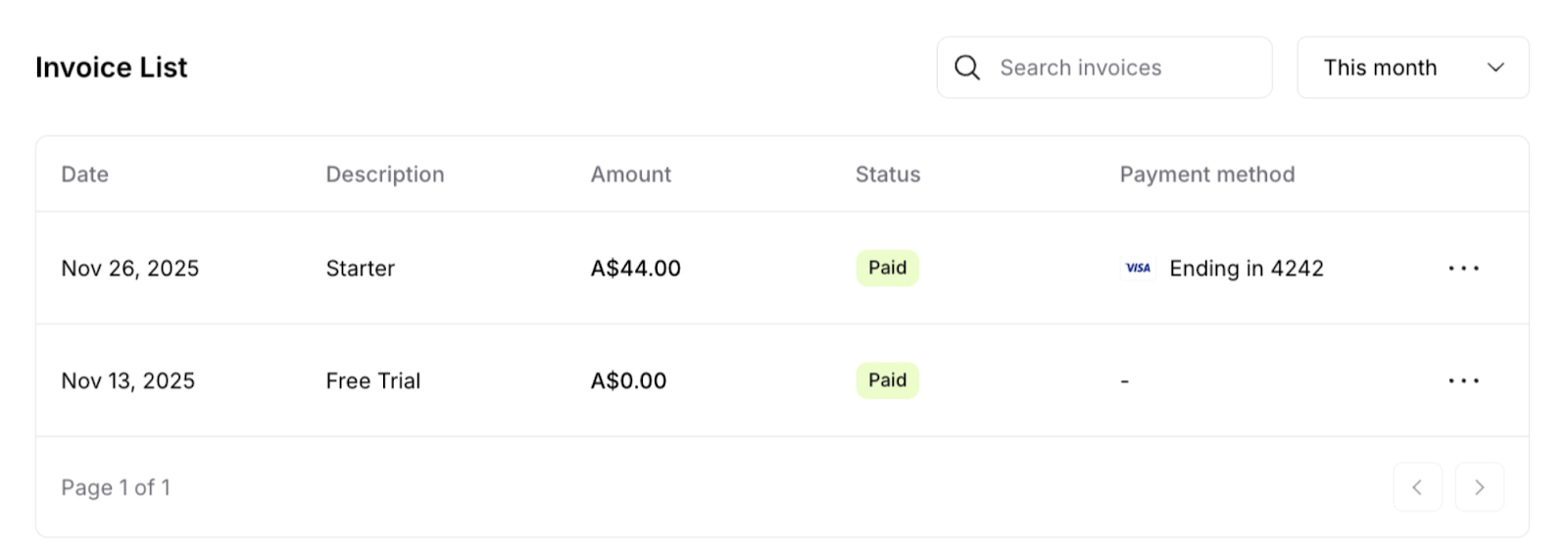
Click the three-dot menu (⋯) on the right side of the invoice row
Choose from two options:
Invoice Link: Opens the invoice in your browser for viewing
Download PDF: Downloads the invoice as a PDF file to your device
Invoice List details:
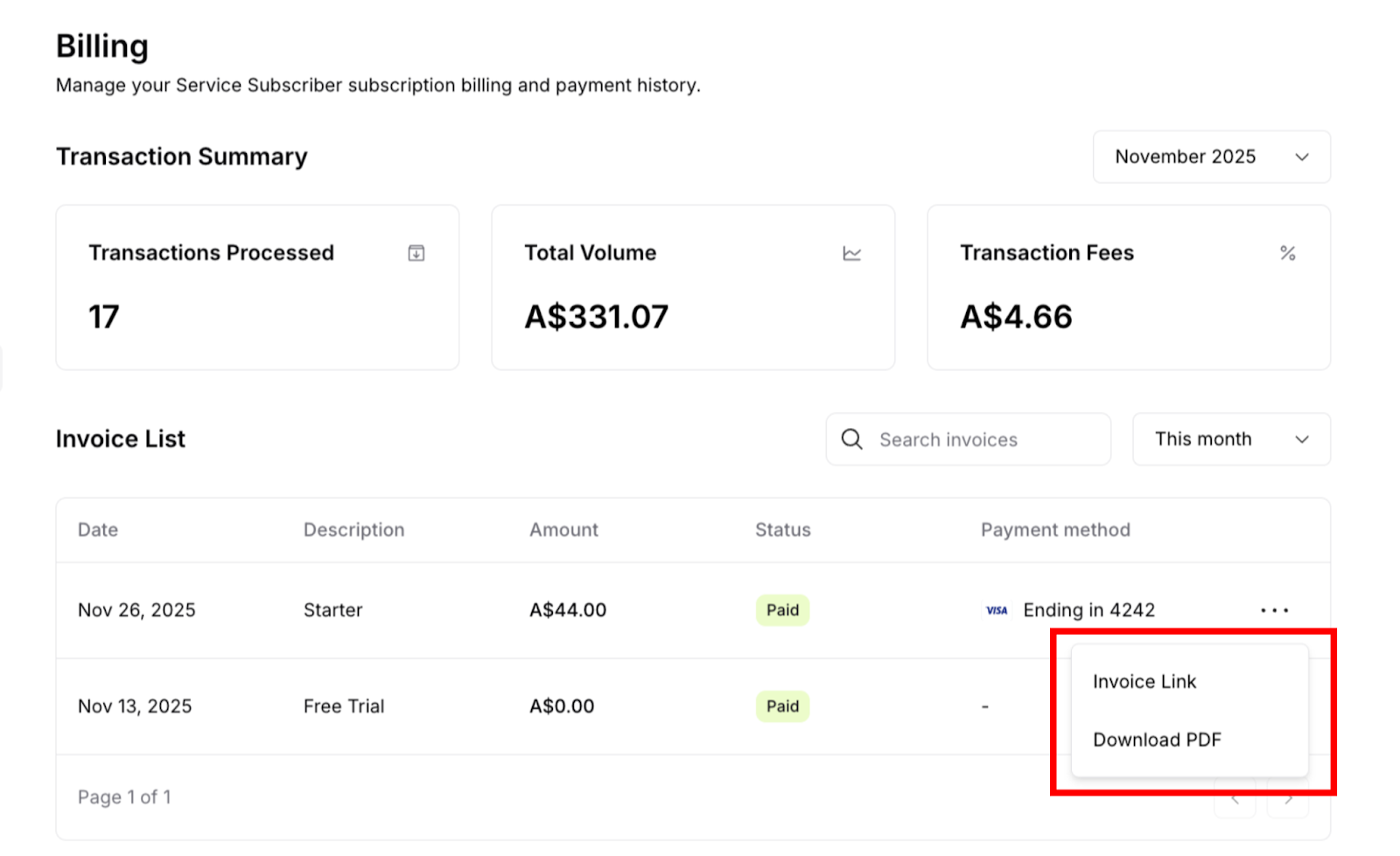
Each invoice entry displays:
Date: When the invoice was generated
Description: Plan type (e.g., "Starter", "Free Trial")
Amount: Total charged (e.g., A$44.00)
Status: Payment status with green "Paid" badge
Payment method: Card type and last 4 digits (e.g., "Ending in 4242")
Filtering and searching:
Use the search bar to find specific invoices by searching date, amount, or description
Use the time filter dropdown (e.g., "This month") to view invoices from specific periods
Navigate through pages if you have multiple invoices using the pagination controls
Viewing and Updating Payment Method
Your payment method is how ServiceSubscriber charges your monthly subscription fee. You can view your current card details and update them anytime to keep your account in good standing.
To view your current payment method:
Navigate to Account Settings > Billing
Scroll to the Billing Details section
Find the Payment Method card
Your current payment method displays:
Card type (Visa, Mastercard, etc.) with logo
Last 4 digits of card number (e.g., "Ending in 4242")
Expiration date (e.g., "Expires 12/2034")
Default status indicator
To update your credit card:
Navigate to Account Settings > Billing
Scroll to the Billing Details section
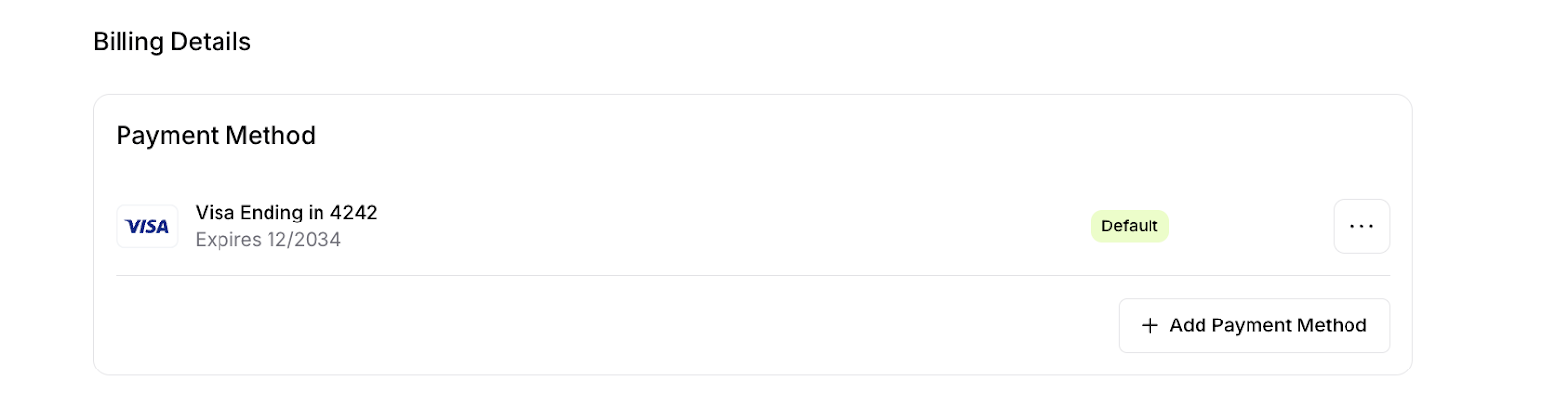
Find the Payment Method card showing your current card
Click Add Payment Method to add your new credit card
Fill out the card details in the modal window that appears:
Card number
Expiration date
CVC/CVV security code
Cardholder name
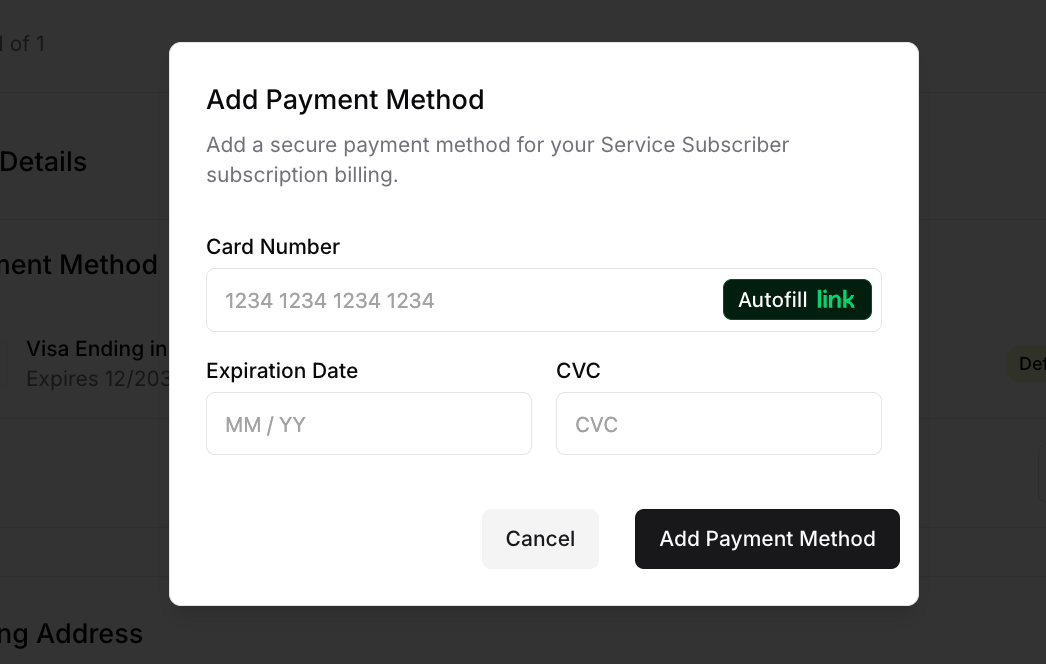
Click Add Payment Method to save the new card
Set the new card as your default payment method (if not automatically set)
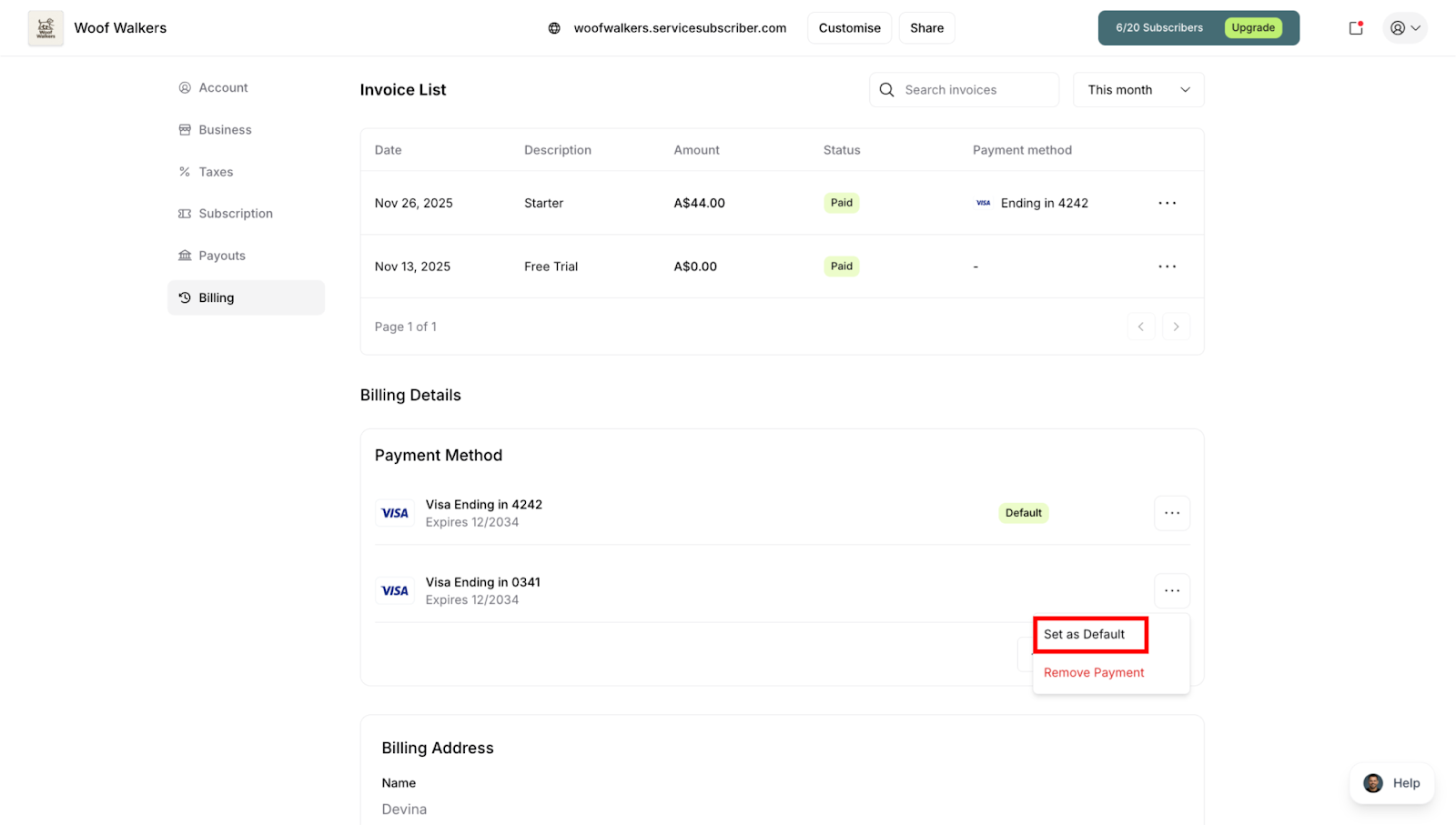
Optional: Remove your old card by clicking the three-dot menu (⋯) next to it, then select Remove Payment
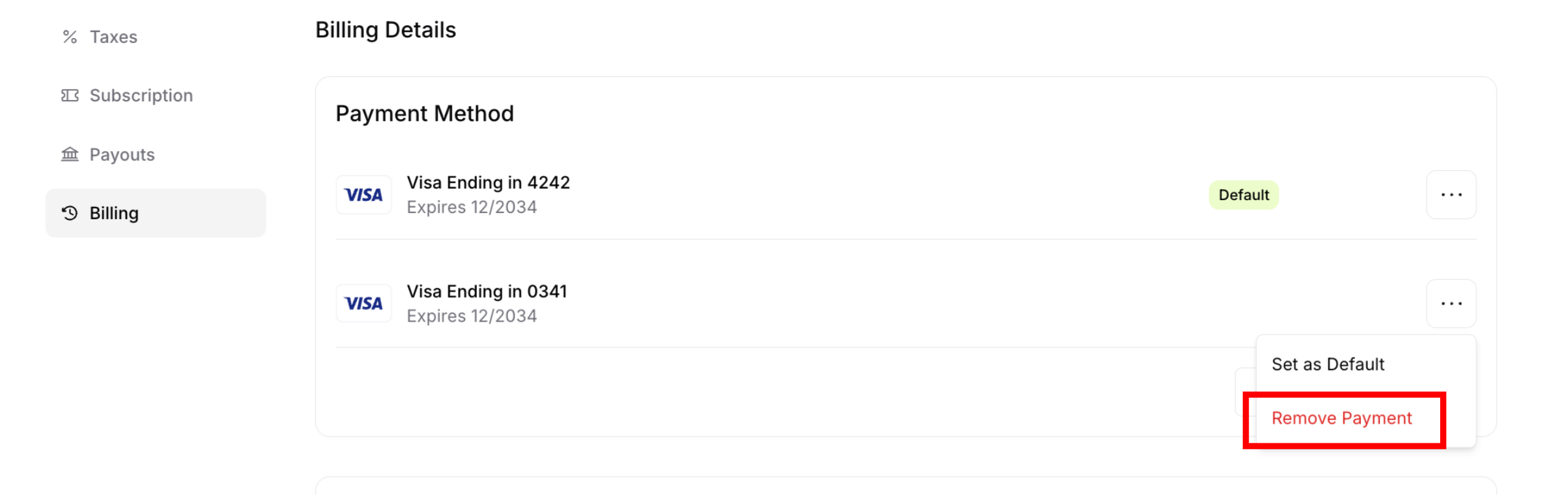
✍️ TIP: You can keep multiple payment methods on file and switch between them as needed. Just make sure the card you want to use for billing is set as the default.
When to update your payment method:
Your card is expiring soon (check the expiration date displayed)
You've received a replacement card with new details
A payment has failed due to insufficient funds or card issues
You want to use a different card for business expenses
Your card has been lost, stolen, or compromised
Managing Billing Address
Your billing address appears on all invoices and should match your business registration or payment card's registered address.
To update your billing address:
Navigate to Account Settings > Billing
Scroll to the Billing Details section
Find the Billing Address card below Payment Method
Review your current address information displayed:
Name
Email address
Country
Street address
City, State, and Postal Code
Phone number
Click the Edit Billing Details button at the bottom of the section
Update any field that needs to be changed
Click Save to confirm your changes
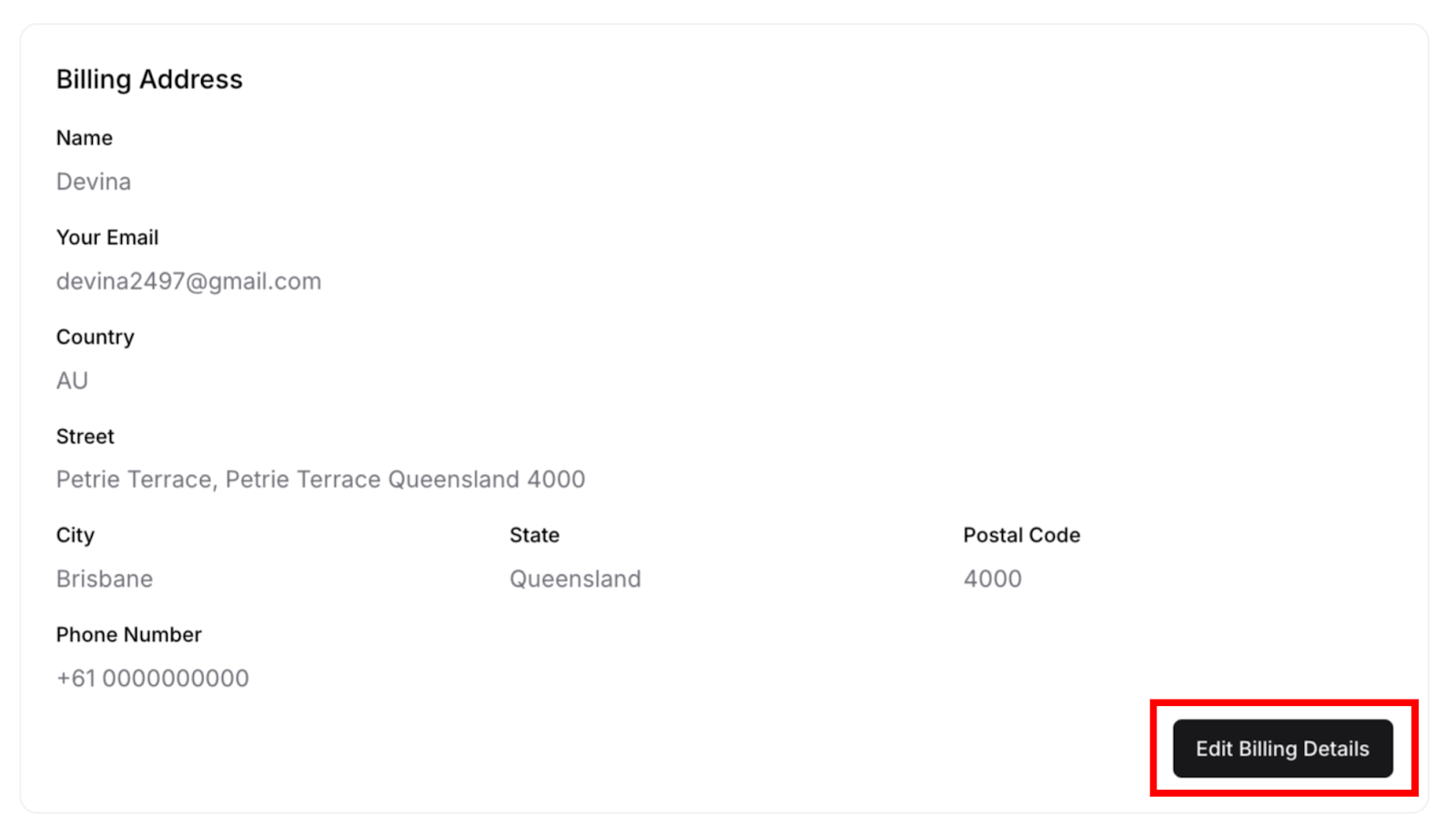
Address information included:
Name: Account holder or business name
Your Email: Contact email for billing communications
Country: Billing country (e.g., AU for Australia)
Street: Complete street address
City: City name
State: State or province
Postal Code: ZIP or postal code
Phone Number: Contact phone number
✍️ TIP: Ensure your billing address matches your payment method's registered address to avoid payment processing issues and ensure accurate tax calculations.
Ending Your Subscription
ServiceSubscriber does not have a standalone "cancel subscription" option. To end your subscription completely, you must delete your account.
Deleting Your Account
To permanently end your ServiceSubscriber subscription:
Navigate to Account Settings > Account tab
Scroll to find the Delete Account option
Review the warning about permanent deletion
Confirm account deletion
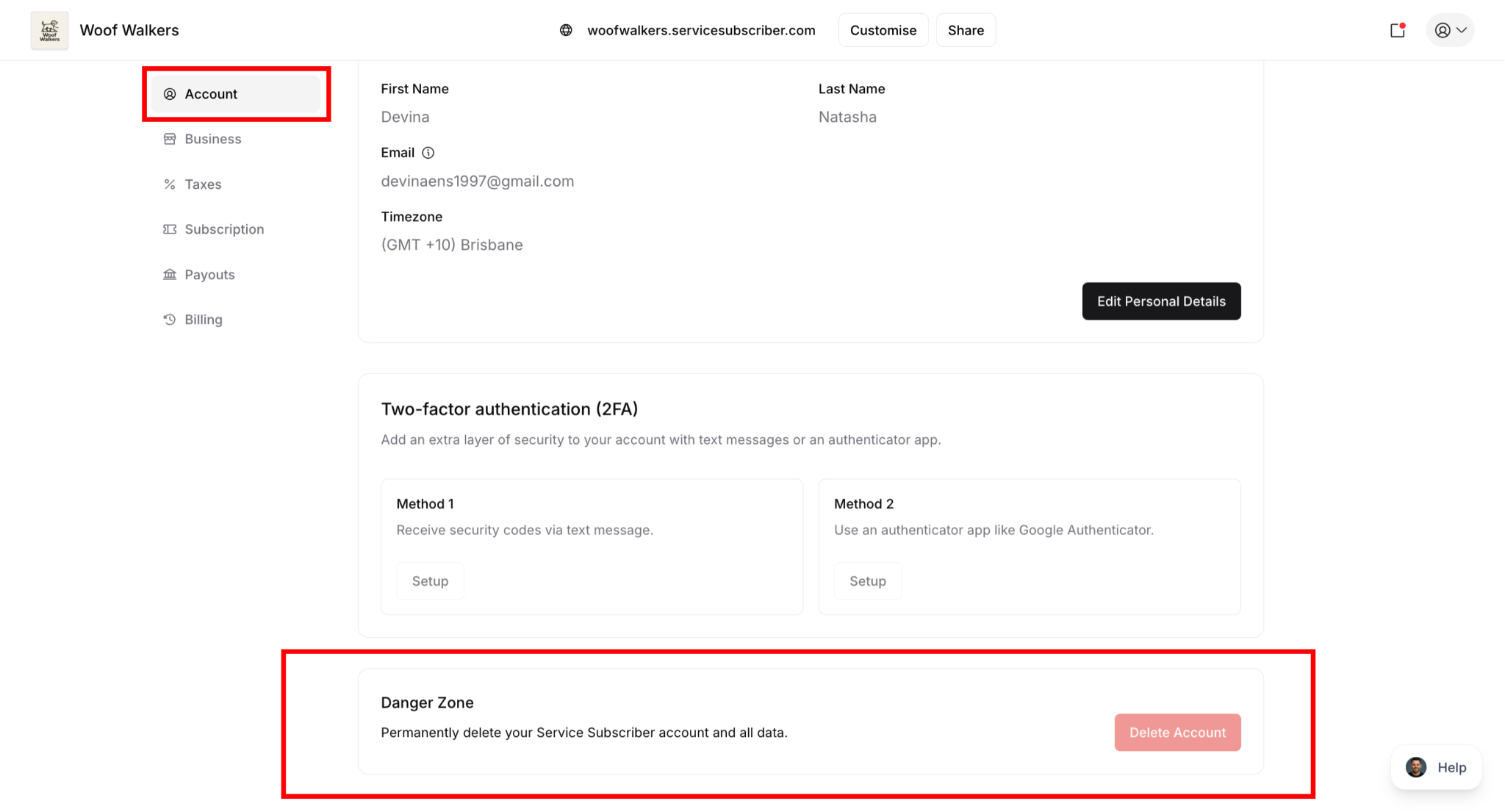
⚠️ CRITICAL WARNING: Deleting your account is permanent and irreversible. This action will:
End your ServiceSubscriber subscription immediately
Remove access to your dashboard
Stop all future platform charges
Prevent you from managing customer subscriptions
Delete your business data after the retention period
Leave customer subscriptions running through Stripe without management capability
Before deleting your account:
Manually cancel all active customer subscriptions
Communicate with customers about your business closure
Download all important data and reports
Export your customer list and payment history
Consider downgrading to Starter instead as a less drastic option
Understanding Your Charges
Monthly Subscription Charge
When it occurs: On your billing anniversary date each month
Amount: $29 (Starter) or $79 (Growth)
What it covers: Platform access for the next 30 days
Example:
Started subscription: October 15
Monthly charges occur: 15th of each month
Amount: Based on your current plan
Transaction Fees
When they occur: With each customer payment processed
Amount: 2% (Starter) or 1% (Growth) of transaction
How it's handled: Automatically deducted before funds reach your Stripe account
Example:
Customer pays $100 subscription
Starter: $2 transaction fee, you receive $98
Growth: $1 transaction fee, you receive $99
(Plus Stripe's separate processing fees)
Pro-Rata Charges
When they occur: When you upgrade mid-cycle
Amount: Proportional to remaining days in billing period
Purpose: Fair billing for partial month on new plan
✅ BEST PRACTICE: Review your monthly invoice to understand exactly what you're being charged and why. This helps you track expenses and plan for growth.
Handling Failed Payments
Why Payments Fail
Common reasons:
Expired credit card
Insufficient funds
Card declined by bank
Incorrect billing information
Card reported lost or stolen
What Happens When Payment Fails
You receive an email notification
Your account status changes to "Past Due"
ServiceSubscriber attempts to charge again
After multiple failures, service may be suspended
Was this article helpful?
That’s Great!
Thank you for your feedback
Sorry! We couldn't be helpful
Thank you for your feedback
Feedback sent
We appreciate your effort and will try to fix the article