As your subscription business grows, you may want to upgrade from Starter to Growth to take advantage of lower transaction fees. Upgrading is quick, seamless, and takes effect immediately.
When to Consider Upgrading
As your subscription business grows, you may want to upgrade from Starter to Growth to take advantage of lower transaction fees. Upgrading is quick, seamless, and takes effect immediately.
When to Consider Upgrading
You should think about upgrading to Growth when:
Revenue-based signals:
Processing $5,000+ monthly in total revenue (subscriptions + one-off purchases)
Paying more than $50/month in transaction fees
Consistently adding new customers each month (subscribers or one-off purchasers)
One-off purchase revenue is pushing you over the $5,000 breakeven point
Business-based signals:
Planning aggressive growth or marketing campaigns
Ready to scale operations
Looking to maximize profitability
Expanding beyond the 20-subscriber limit on Starter plan
✍️ TIP: Don't forget to include one-off purchase revenue when calculating your monthly total. If you have $4,000 in subscription revenue and $1,500 in one-off purchases, your total monthly revenue is $5,500—making Growth more economical.
✅ BEST PRACTICE: Review your total revenue monthly. Once you consistently hit $5,000+ per month for 2-3 months in a row, upgrade to Growth to start saving on transaction fees immediately.
The Upgrade Process
Step 1: Navigate to Your Subscription Settings
Log in to your ServiceSubscriber account
Click on Account in the top right corner / profile drop down
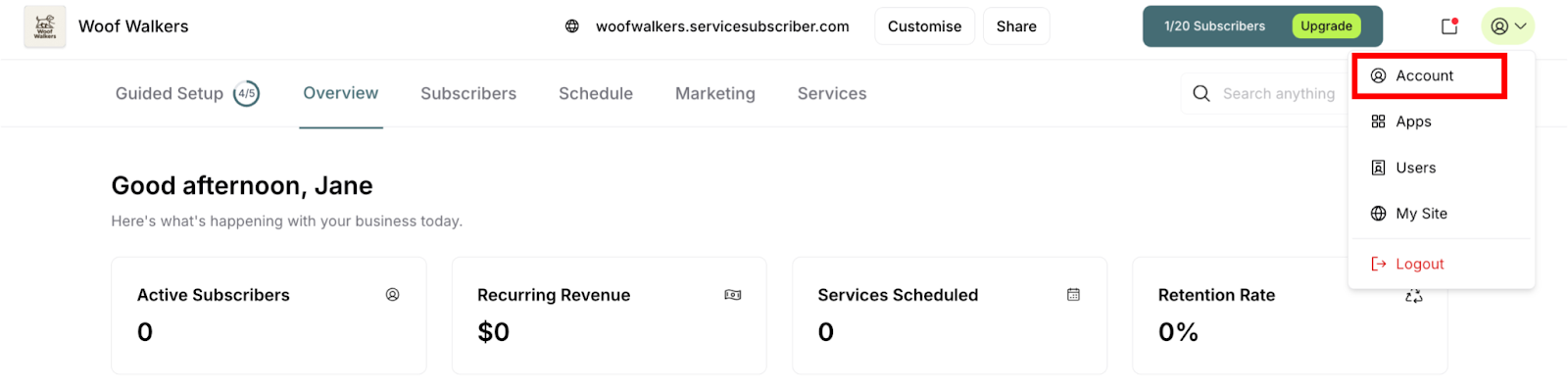
Select the Subscription tab
You'll see your current plan (Starter) displayed
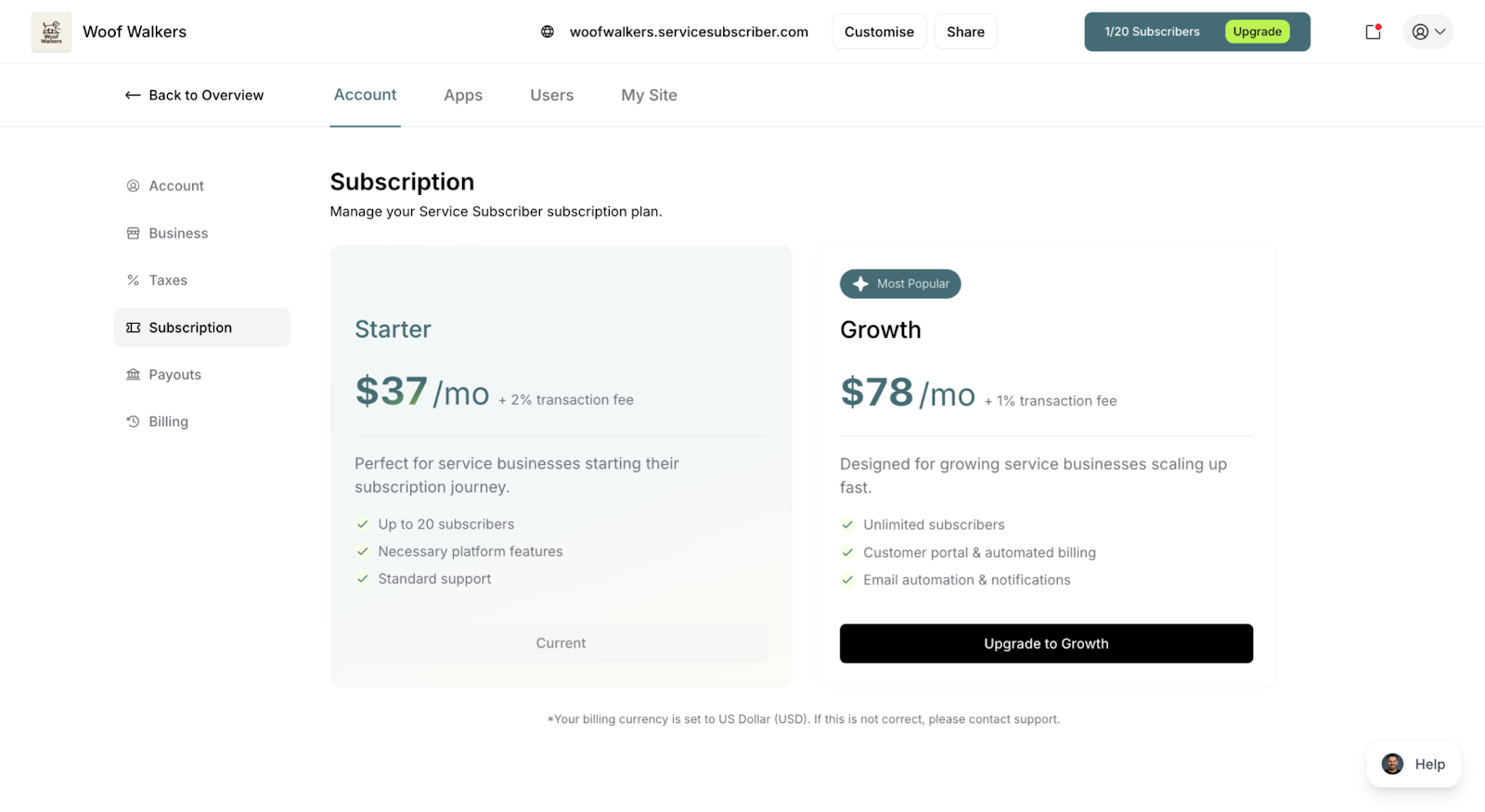
Step 2: Select Upgrade to Growth
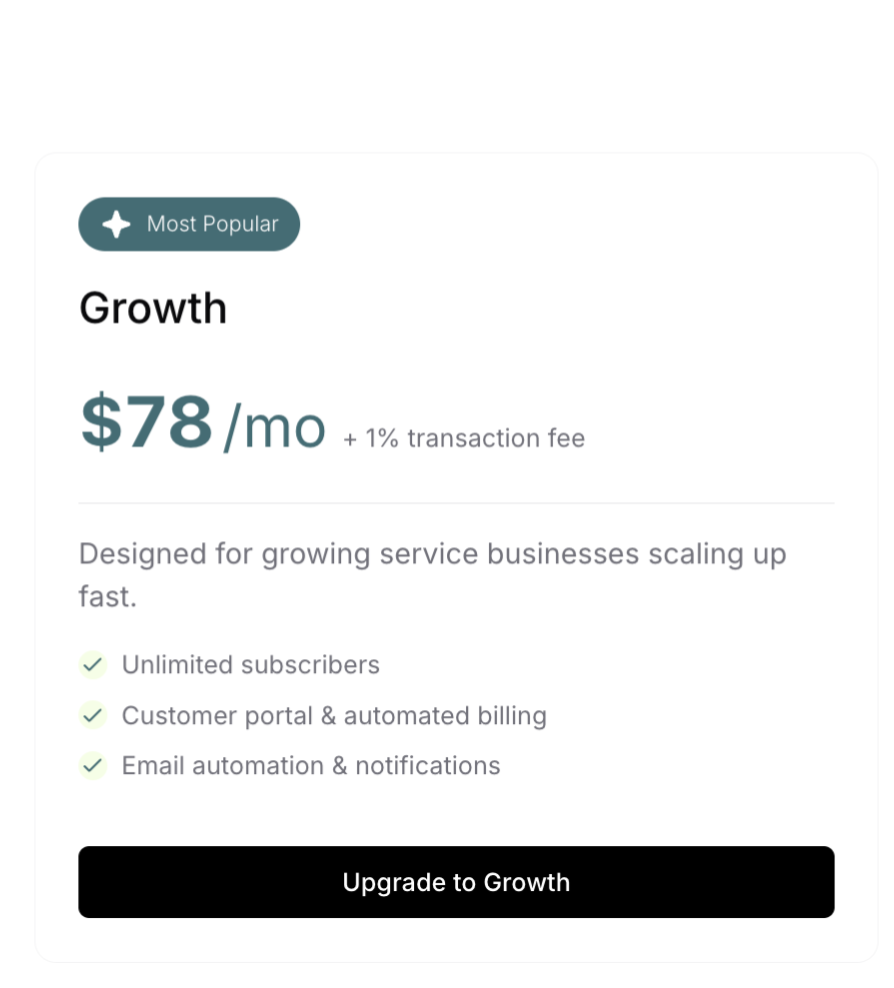
Look for the Upgrade to Growth button or section
Review the Growth plan details:
$79/month subscription fee
1% transaction fee (down from 2%)
All features (same as Starter)
Click Upgrade or Select Growth Plan
Growth plan option showing pricing and upgrade call-to-action
Step 3: Review the Changes
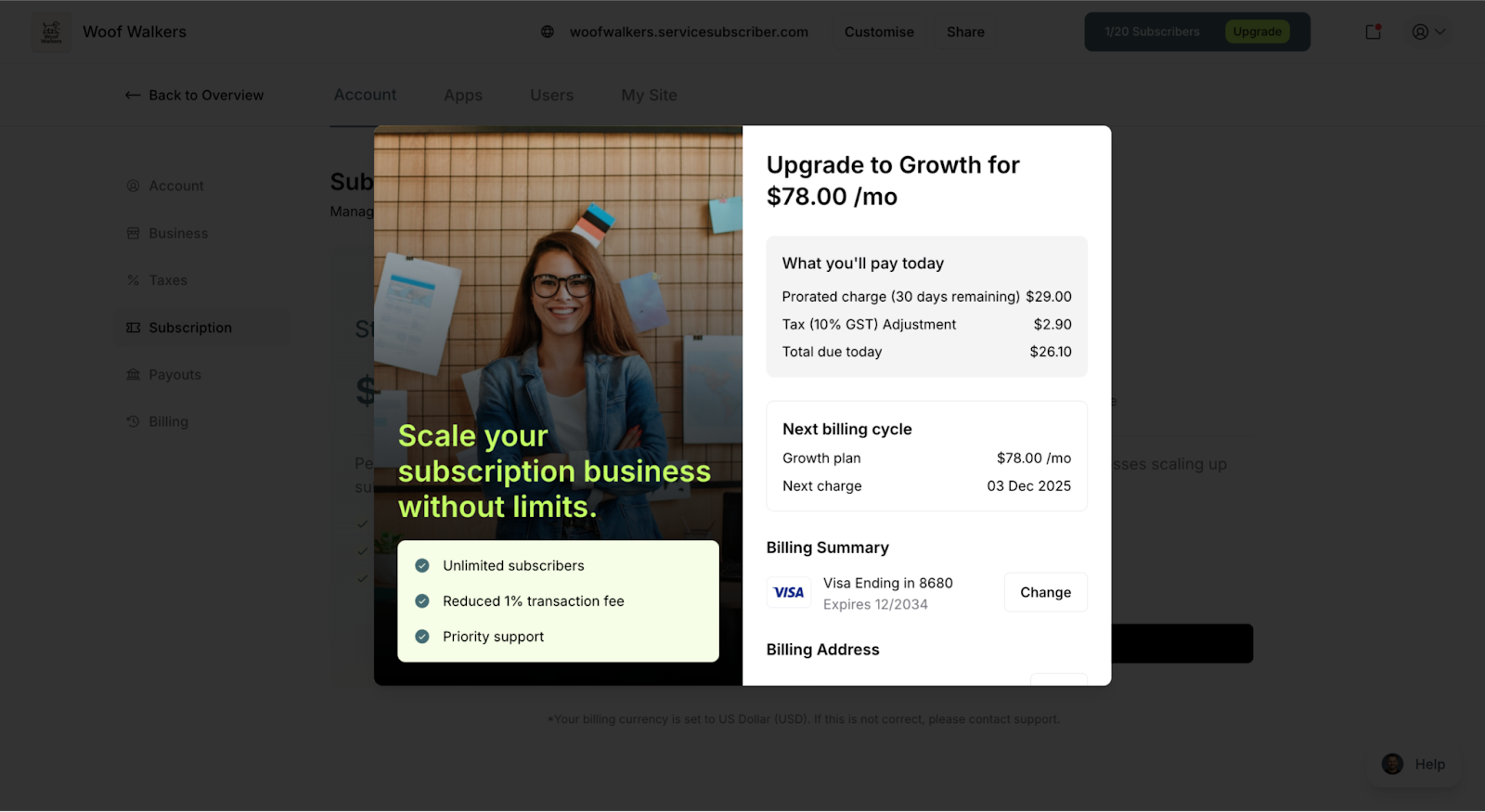
Before confirming, you'll see a summary showing:
What changes:
Monthly fee increases to $79
Transaction fee decreases to 1%
Billing adjusts immediately
What stays the same:
All your services remain active
Customers are unaffected
Settings and customizations preserved
Access to all platform features
Confirmation screen displaying plan change summary
Step 4: Confirm Your Upgrade
Review the upgrade summary carefully
Note any pro-rata charges for the current billing period
Click Confirm Upgrade or Continue
Your upgrade processes immediately
✅ Success! You're now on the Growth plan with lower transaction fees.
Understanding Pro-Rata Billing
When you upgrade mid-cycle, ServiceSubscriber handles billing fairly:
How it works:
You're charged the difference between plans for the remaining days in your current billing period
Your next full billing cycle starts at your regular renewal date
Future charges are the full Growth plan rate ($79/month)
Example:
You're on day 15 of your 30-day Starter cycle
15 days remaining until renewal
Difference: $79 - $29 = $50 for a full month
Pro-rata charge: $50 × (15/30) = $25
You're charged $25 immediately for the upgrade
Next month: Full $79 charge
✍️ TIP: Upgrading right after your renewal date minimizes the immediate pro-rata charge, but don't wait if the math shows immediate savings on transaction fees.
What Changes Immediately
Transaction Fees Drop
From the moment you upgrade:
New payments are charged 1% instead of 2% (for both subscriptions and one-off purchases)
Existing scheduled subscription payments process at the new rate
One-off purchases also benefit from the lower 1% fee
Savings begin with the very next transaction of any type
Billing Updates
Your billing reflects the change:
Monthly charge becomes $79
Future invoices show Growth plan pricing
Billing date remains the same
Nothing Else Changes
Your business continues normally:
All customers remain active (subscribers and one-off purchasers)
Services stay published
Purchase options remain configured as you set them
Schedule items unchanged
Customer experience identical
Settings and customization preserved
Upgrading During Your Promotional Period
If you're still in your 3-month discounted period:
What happens:
Your 50% discount continues on the Growth plan
You pay ~$39/month (discounted) instead of $79
Transaction fees are 1% (not discounted) for all payment types
After 3 months, regular Growth pricing ($79) begins
✍️ TIP: Upgrading during your promotional period is a great opportunity to test Growth's lower transaction fees on both subscriptions and one-off purchases while your monthly subscription cost is still reduced.
✅ BEST PRACTICE: If you're approaching the $5,000 breakeven point and still have promotional pricing, upgrade immediately to maximize savings during the discounted period.
Downgrading Back to Starter
Changed your mind? You can downgrade too:
Go to Payouts > Subscription
Look for Change Plan or downgrade options
Select Starter Plan
Confirm the change
Downgrade takes effect at your next billing cycle
⚠️ IMPORTANT: Unlike upgrades, downgrades typically take effect at the end of your current billing period, not immediately. You'll continue enjoying Growth benefits until your renewal date.
Was this article helpful?
That’s Great!
Thank you for your feedback
Sorry! We couldn't be helpful
Thank you for your feedback
Feedback sent
We appreciate your effort and will try to fix the article