Accessing Your Services
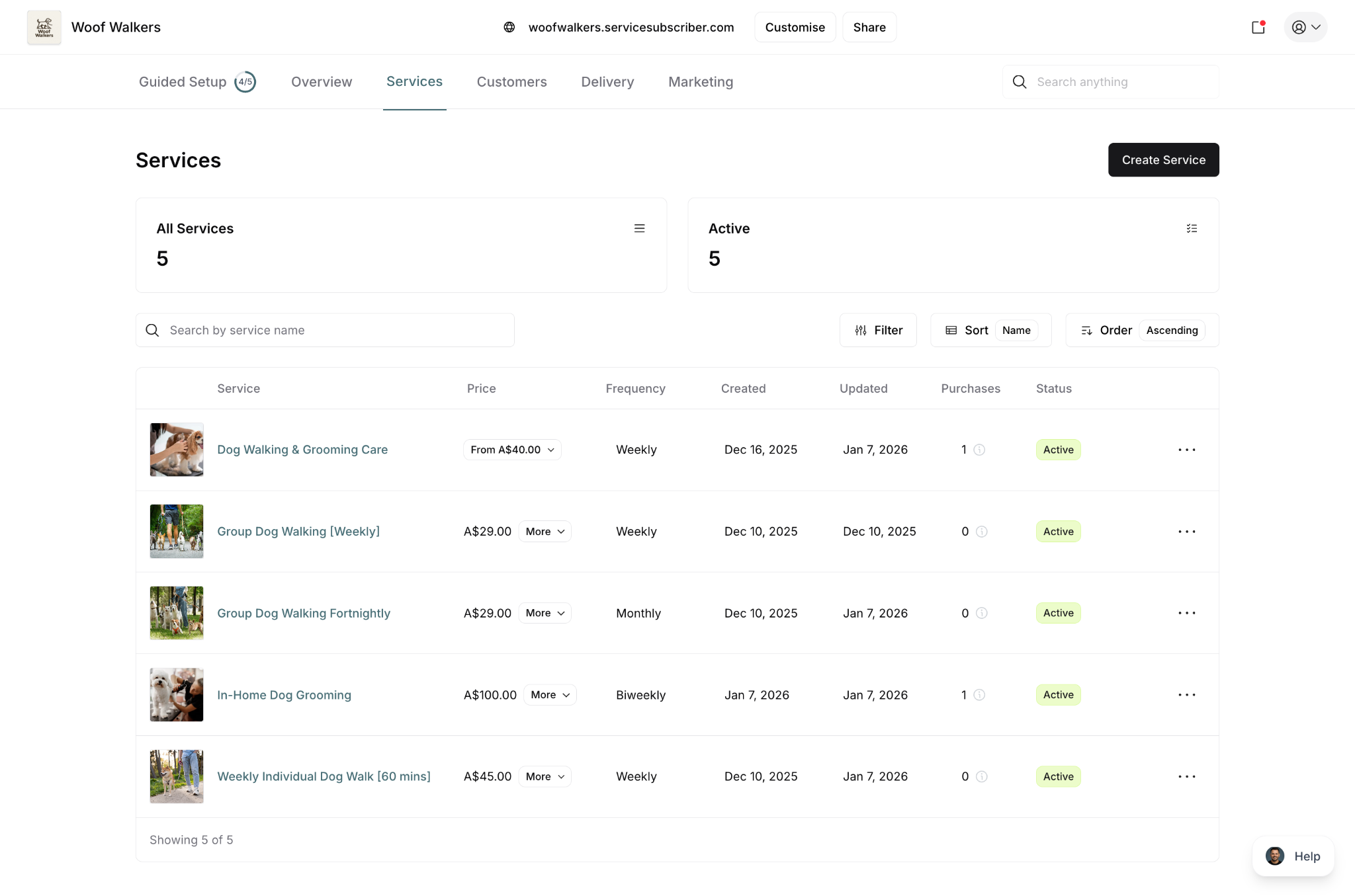
View all your services in one place:
Click Services in the main navigation
See all your services listed in a table with:
Service: Service name and thumbnail image
Price: Starting price (shows "From A$[amount]" for variable pricing or fixed price with "More" dropdown)
Frequency: Billing cycle (Weekly, Fortnightly, Monthly, Biweekly, Quarterly, Yearly)
Created: Date service was created
Updated: Last modification date
Purchases: Total customer count with breakdown
Status: Current status (Active or Draft)
Actions menu (⋯): Quick access to service options
Page header shows:
All Services: Total count of all services (active and draft)
Active: Count of currently live services
Create Service button (top right)
List controls:
Search bar: Search by service name
Filter: Filter services by criteria
Sort: Sort by Name, Created, Updated, or other fields
Order: Ascending or Descending
✍️ TIP: The Services page is your command center for all service management. Use it to monitor performance, track customer counts, and quickly access any service for editing.
Editing a Service
Opening the Editor
Navigate to Services page
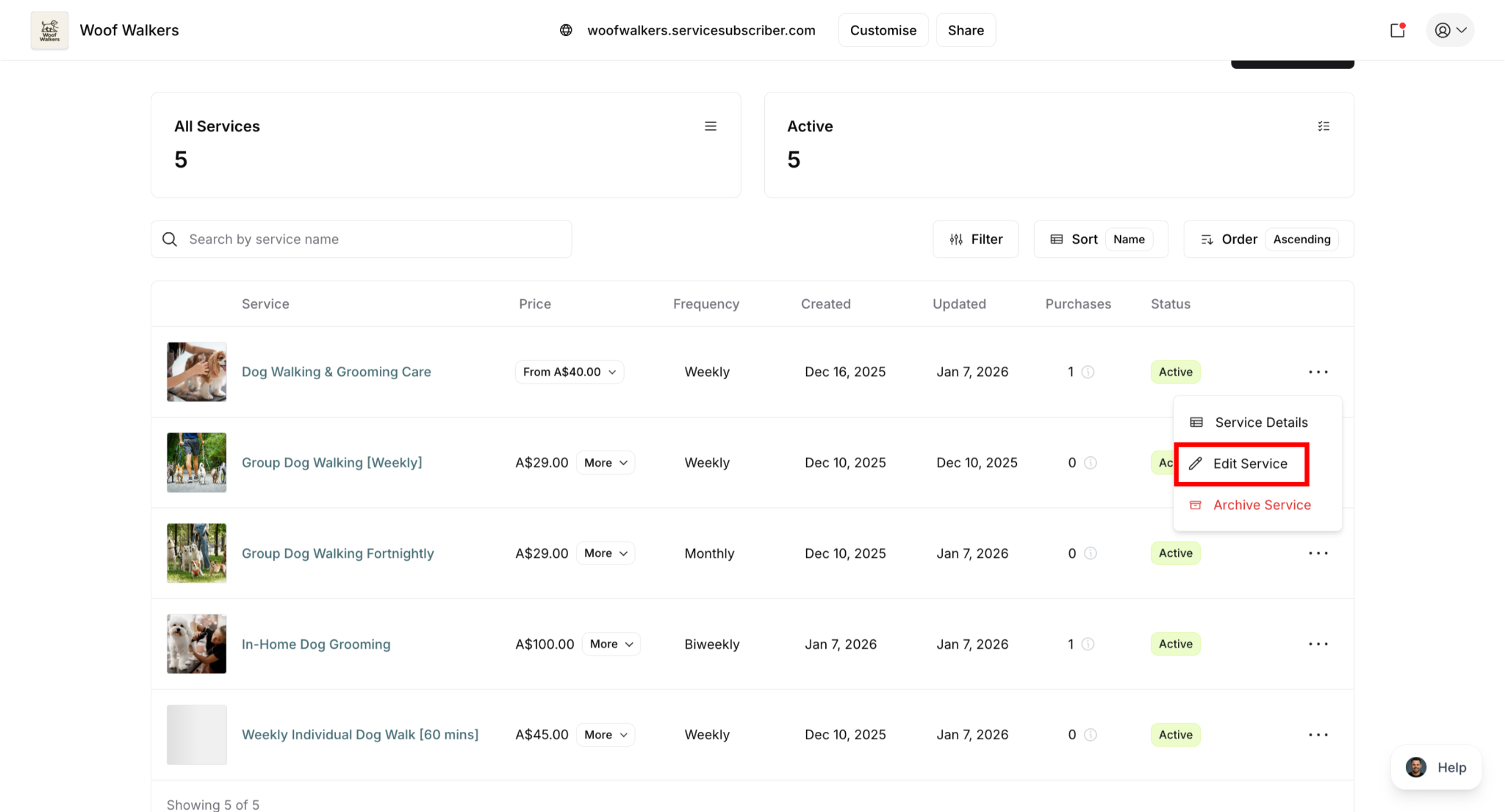
Click the three-dot menu (•••) next to the service
Click Edit Service button
What You Can Edit
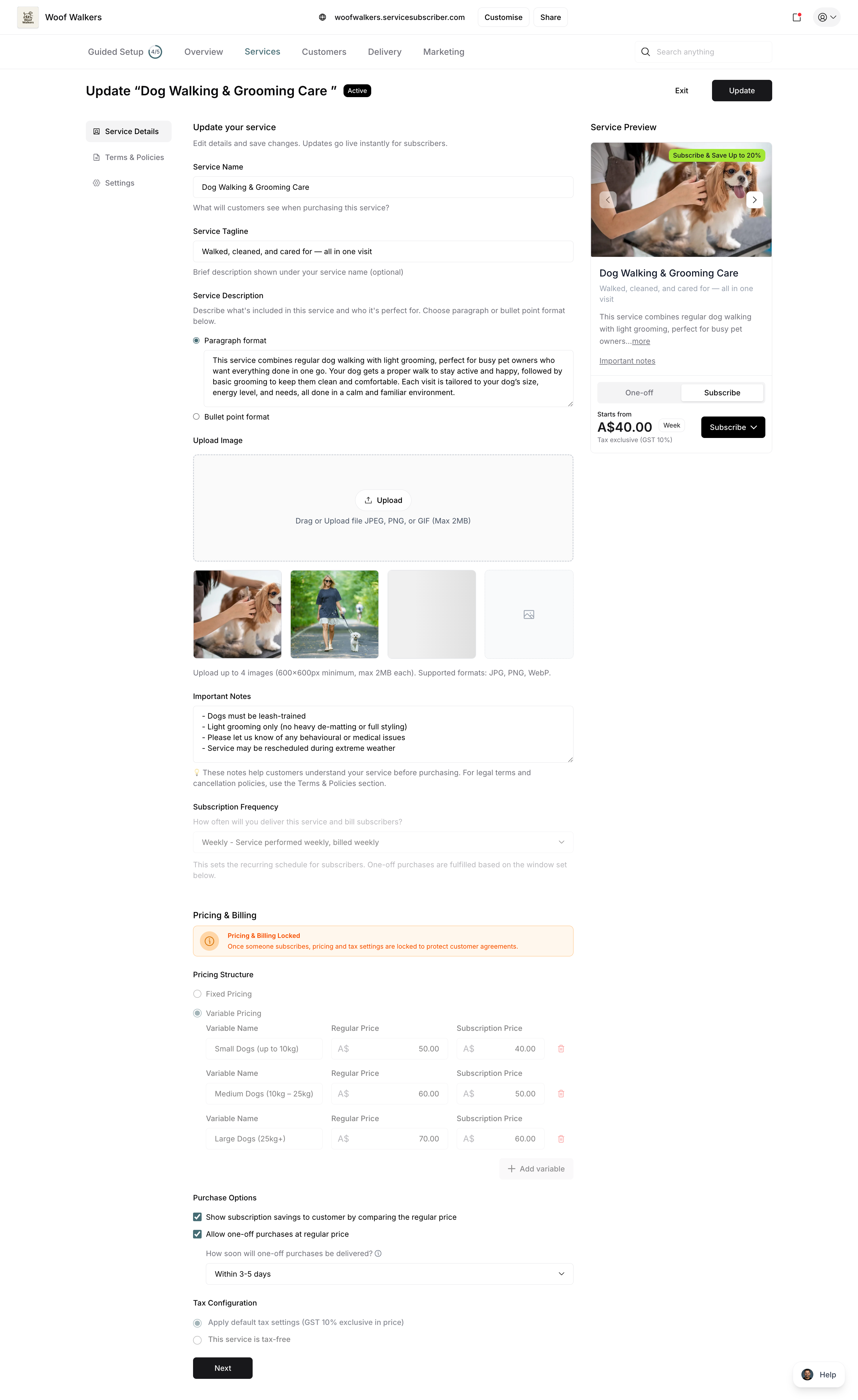
Details Tab
Always editable:
Service name and tagline
Description and important notes
Service images
Important notes
Only editable with NO subscribers AND NO one-off purchases:
Pricing (subscription and regular prices)
Service frequency (weekly, fortnightly, monthly, quarterly, yearly)
Tax configuration
⚠️ IMPORTANT: Once your service has active subscribers OR any one-off purchases have been made, pricing, frequency, and tax settings are permanently locked to protect existing customer agreements. To change these, create a new service with updated settings.
✍️ TIP: Check both your active subscriber count AND one-off purchase count before expecting to edit pricing, frequency, or tax settings. Even a single one-off purchase locks these fields permanently.
Purchase Options
Always editable:
Show subscription savings to customer
Allow one-off purchases at regular price
Fulfillment timeline for one-off purchases
Note: You can enable or disable these options anytime, even with active subscribers or one-off purchases. Changes only affect new purchases—existing subscriptions continue unchanged.
Terms & Policies Tab
Always editable:
Minimum subscription term
Maximum subscription term
Auto-renewal settings
Service policies and terms text
Note: Changes to subscription terms apply to new subscribers only. Existing subscribers remain on their original terms.
Settings Tab
Service Visibility (always editable):
Show on live site (control public visibility)
Limit number of subscribers (set capacity limits)
Customer Communications (always editable):
Send welcome email
Send service reminders
Send service complete email
Send term ending email
Subscription Controls (always editable):
Allow customers to pause subscription
On cancellation, refund any undelivered services
Note: These settings control how the service operates but don't affect existing subscription agreements. Changes apply to new behaviors going forward.
How to Make Changes
Click into any field to edit
Update the content
Changes preview in real-time
Continue editing multiple fields as needed
Click update to save changes

Managing Multiple Services
Organizing Your Services
Service list view:
The Services page displays all your services in a table format showing:
Service: Service name and thumbnail image
Price: Starting price (shows "From A$[amount]" for variable pricing or fixed amount with "More" dropdown)
Frequency: Billing cycle (Weekly, Fortnightly, Monthly, Biweekly, Quarterly, Yearly)
Created: Date service was created
Updated: Last modification date
Purchases: Total customer count (hover to see breakdown of one-off purchases vs. subscriptions)
Status: Current status badge (Active or Draft)
Action menu (⋯): Quick access to service options
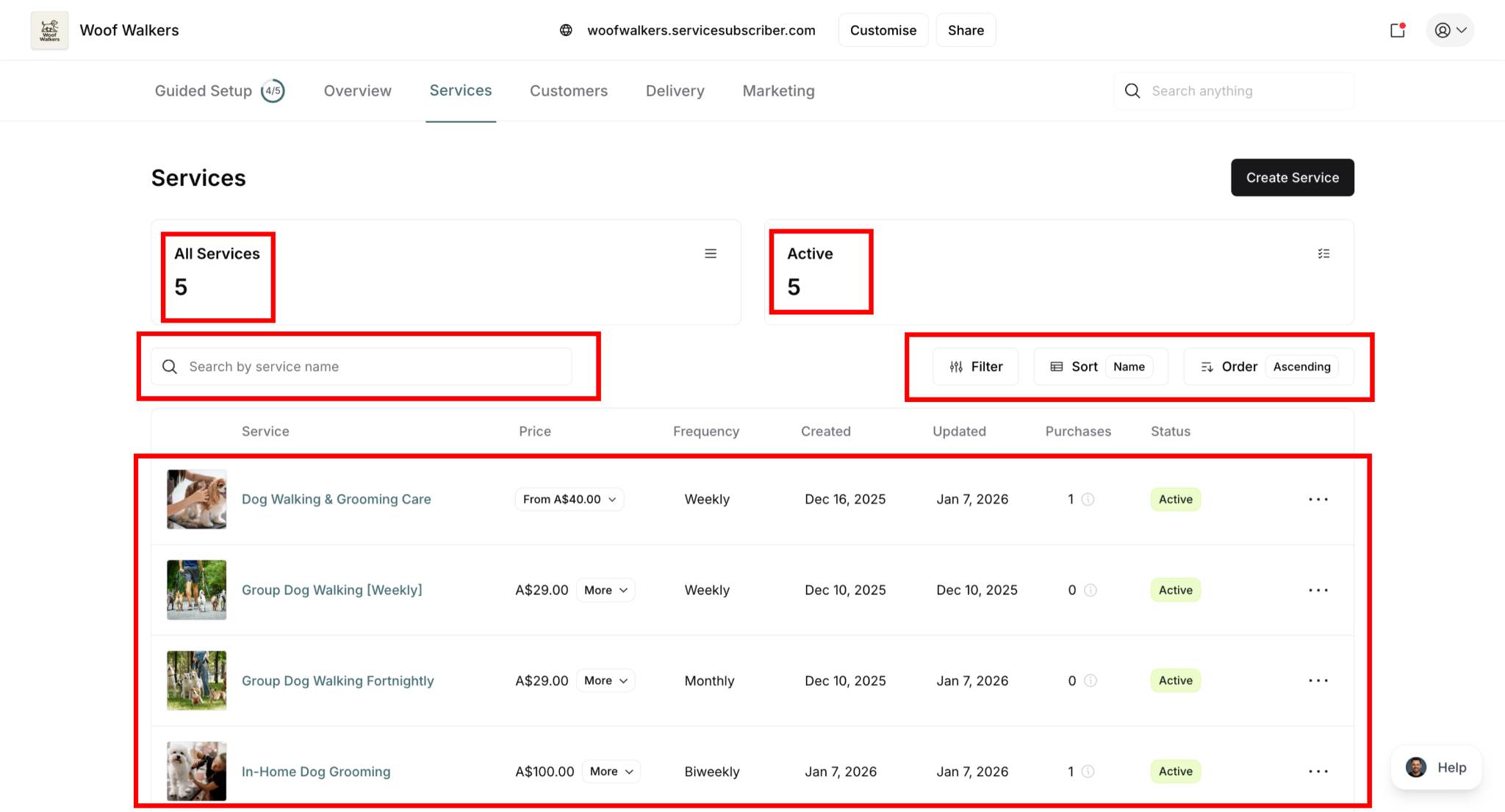
Sorting and filtering:
All Services tab: View complete service list (active and draft)
Active tab: View only published, live services
Sort: By Name, Created date, Updated date, or other fields
Order: Ascending or Descending
Search: Find services quickly by name using search bar
Filter: Apply additional criteria to narrow results
Understanding the Purchases Column
The Purchases column shows total customers for each service. Hover over any number to see the breakdown:
X One-off: Number of one-time purchases
X Subscriptions: Number of active subscribers
Why this matters: This data reveals which services attract subscribers vs. one-off purchasers, helping you optimize pricing and marketing strategies.
✍️ TIP: Services with many one-off purchases but few subscriptions might need better subscription value messaging or a larger price gap to incentivize subscriptions.
Was this article helpful?
That’s Great!
Thank you for your feedback
Sorry! We couldn't be helpful
Thank you for your feedback
Feedback sent
We appreciate your effort and will try to fix the article