My Site Settings is your central hub for customizing and managing your subscription website. This is where you control everything from colors and branding to publishing your site live for customers.
This guide explains how to access My Site Settings and what you'll find there.
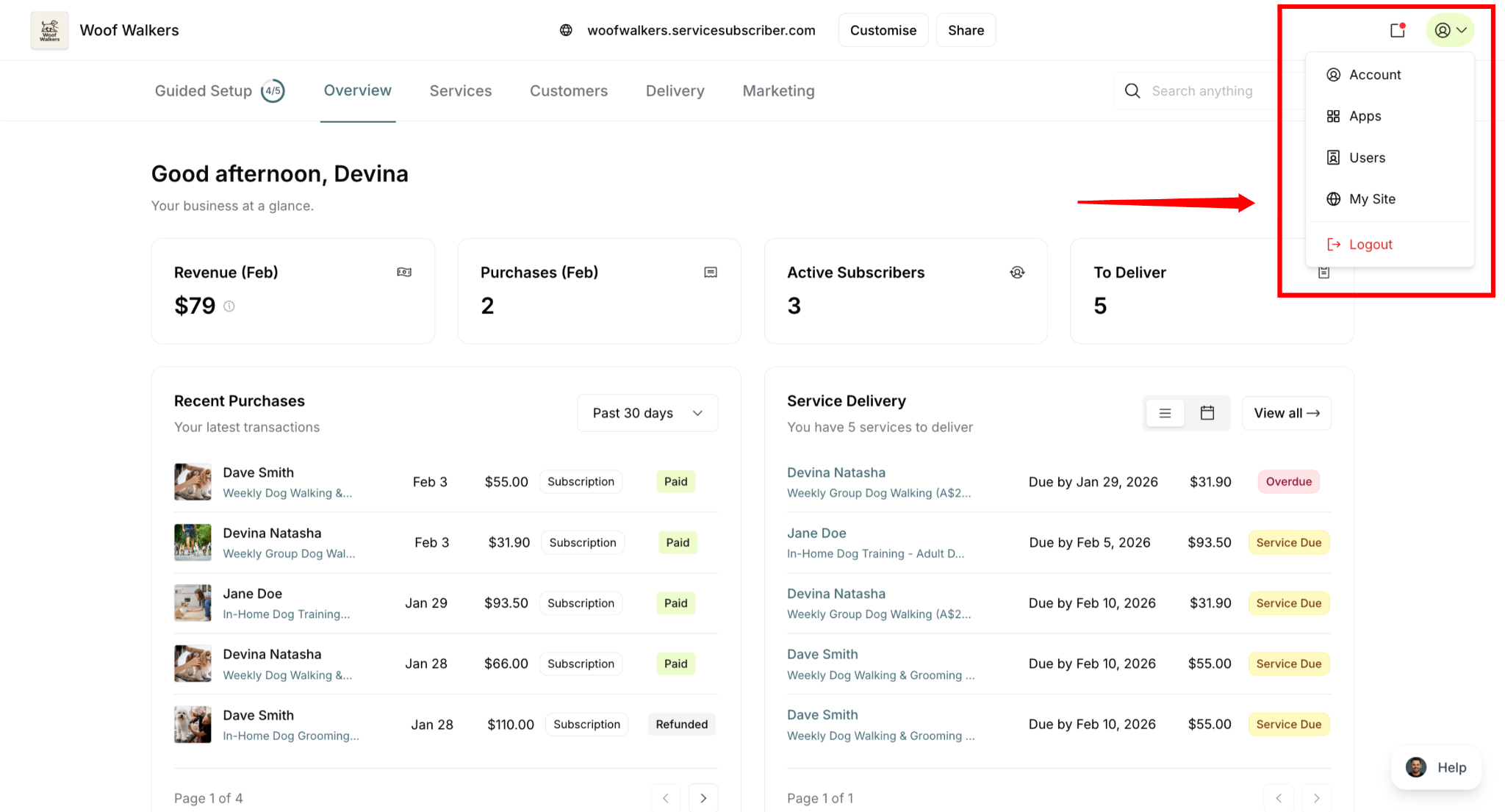
How to Access My Site Settings
From your dashboard:
Click your profile icon (top-right corner)
Select My Site from the dropdown
You'll find My Site listed alongside Account, Apps, Users, and Logout.
Understanding the My Site Interface
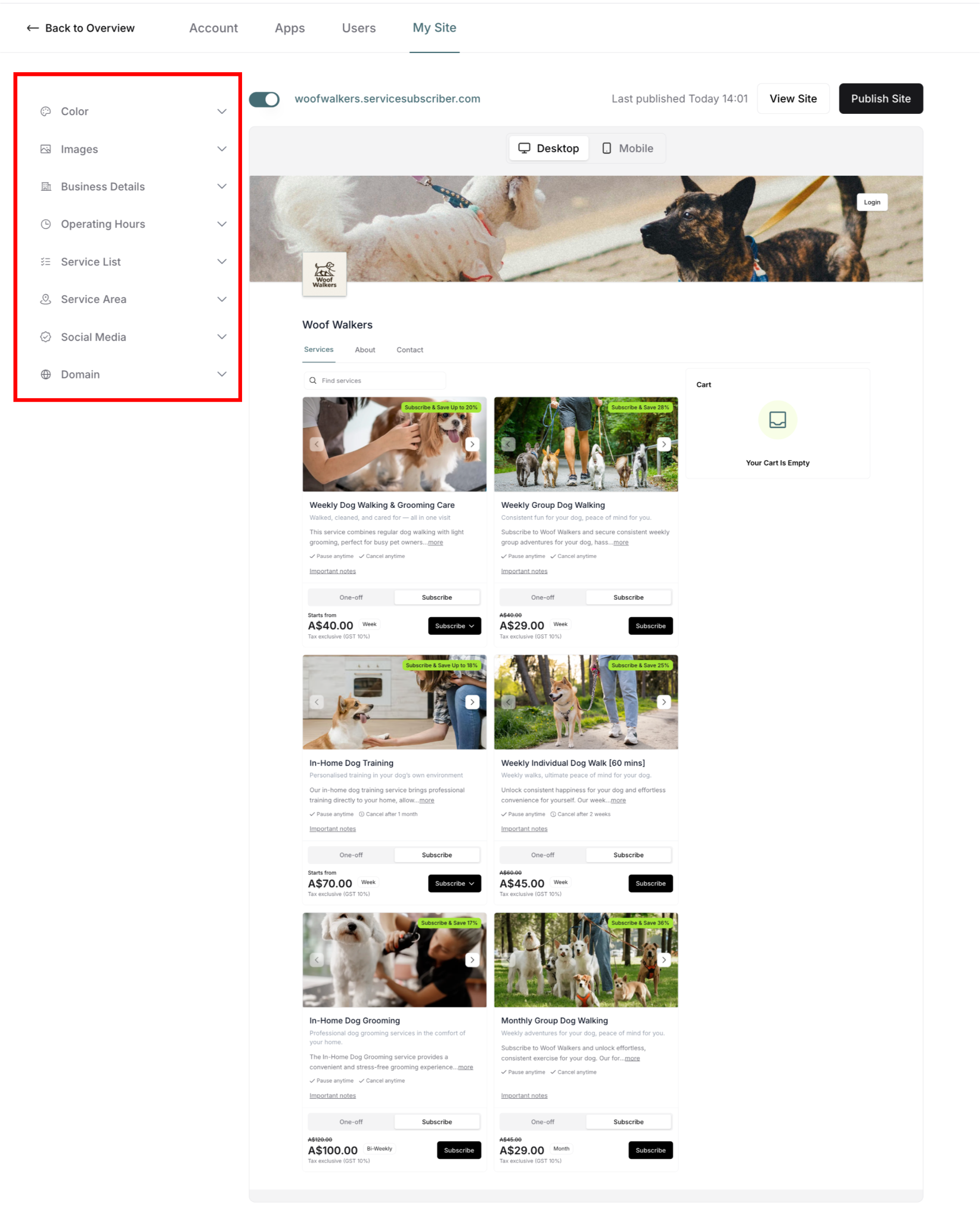
The My Site Settings screen uses a split-screen layout:
Left Panel: Settings & Controls
All your site customization options:
Color (branding colors)
Images (logos, photos)
Business Details (name, description, contact info)
Operating Hours (when you're available)
Service List (services order and visibility)
Service Area (where you operate)
Social Media (link accounts)
Domain (custom URL)
✍️ TIP: Each setting has its own dedicated article for detailed guidance.
Right Panel: Live Preview
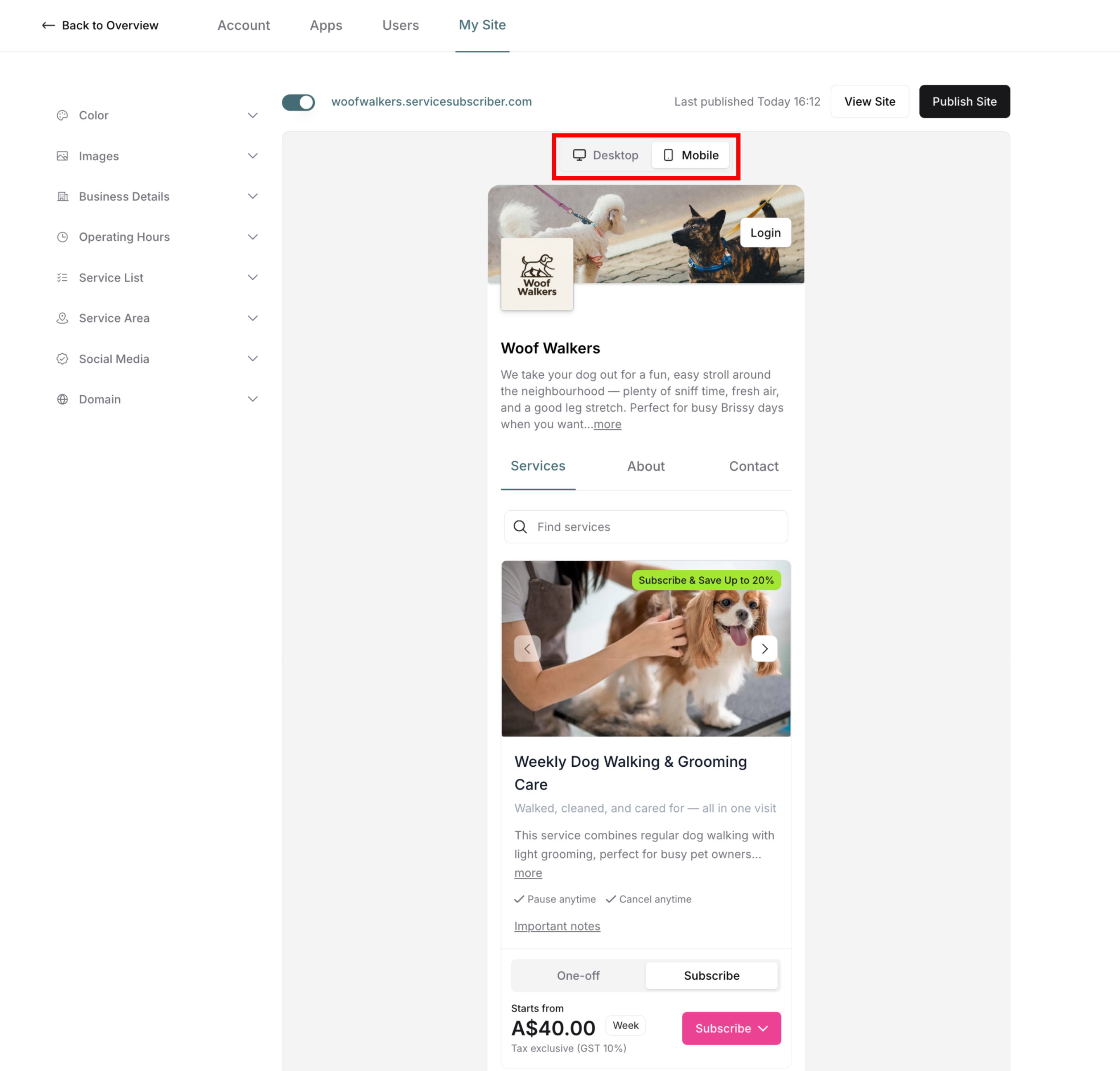
Real-time preview of your website:
See changes instantly as you make them
Toggle between Desktop and Mobile views
Navigate between tabs (Services, Contact)
Click through service images
⚠️ IMPORTANT: Preview functionality differs from live site (see below).
Key Controls & Actions
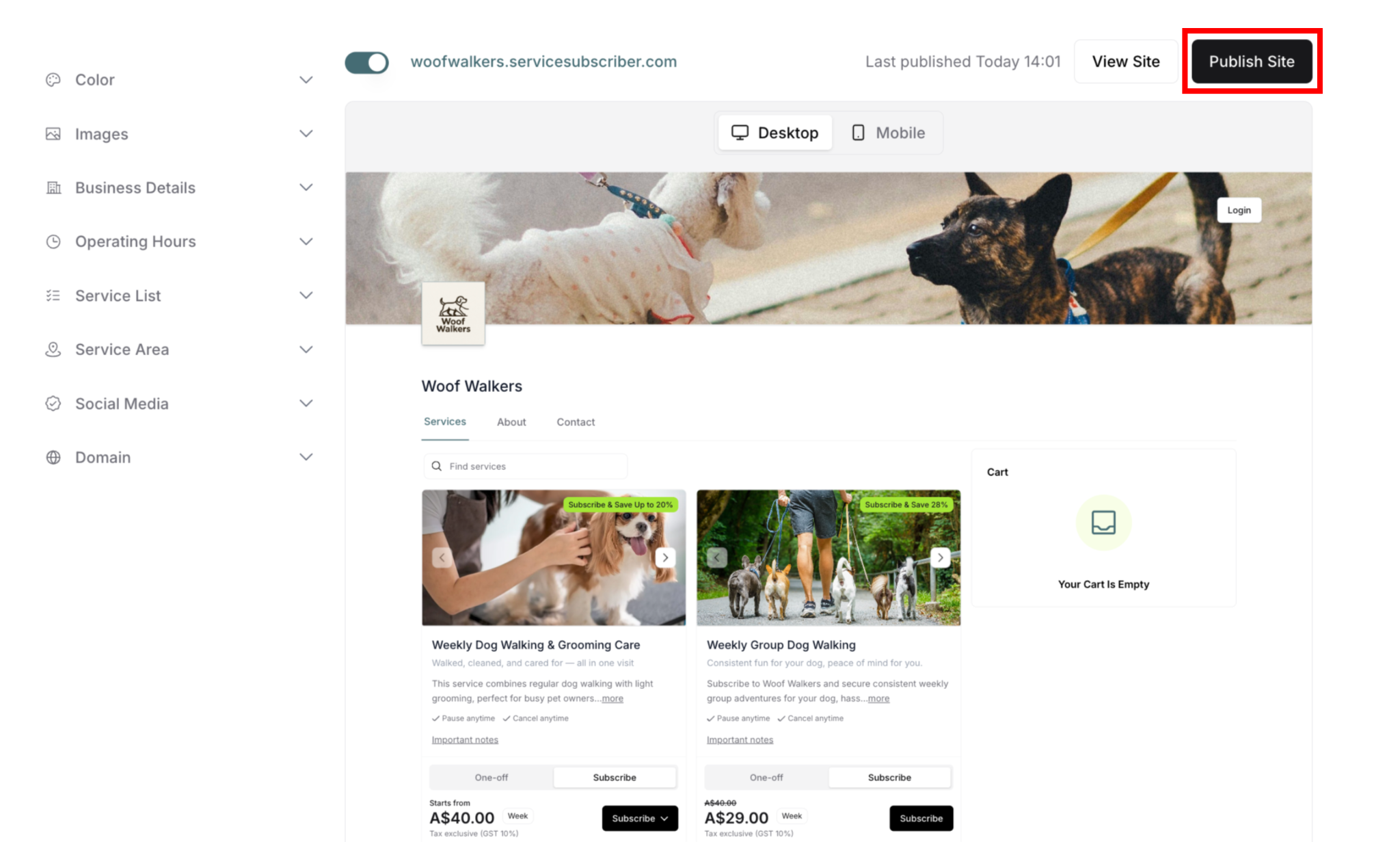
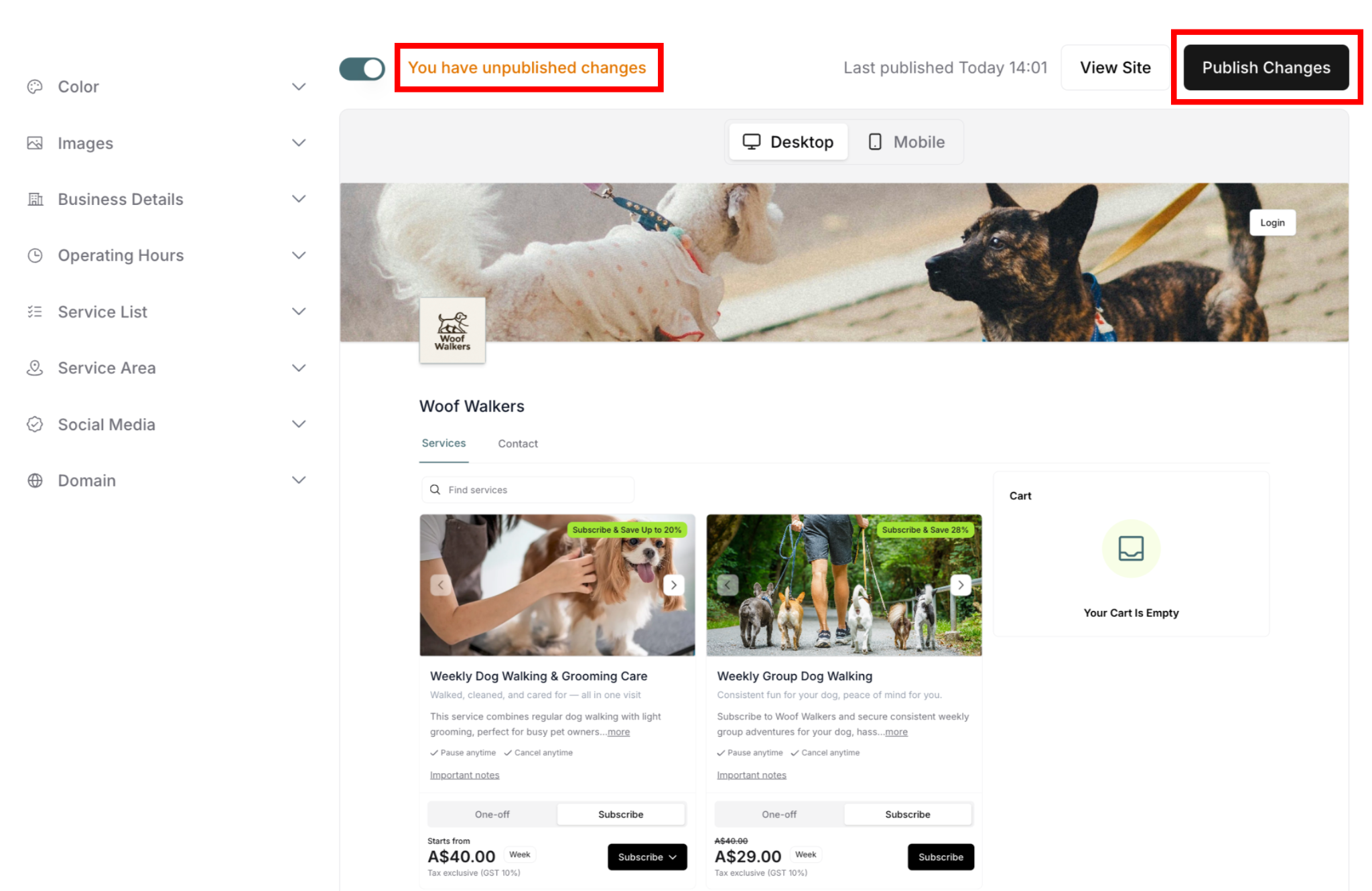
Publish Site Button
Located in top-right corner, controls when changes go live:
"Publish Site"
Site is up-to-date
No pending changes
All changes published
"Publish Changes"
Unsaved changes exist
Click to publish changes
Warning appears: "You have unpublished changes"
Site Status Toggle
The toggle switch next to your website URL:
Toggle OFF (Deactivate Site):
Confirmation modal appears
Site becomes temporarily unavailable
Customers can't sign up for new subscriptions
Existing subscribers keep current subscriptions
Your service settings remain saved
Toggle ON (Activate Site):
Confirmation modal appears
Site becomes live and visible
Customers can sign up
⚠️ IMPORTANT: If site is inactive and you make changes, button stays "Publish Site" (doesn't change to "Publish Changes").
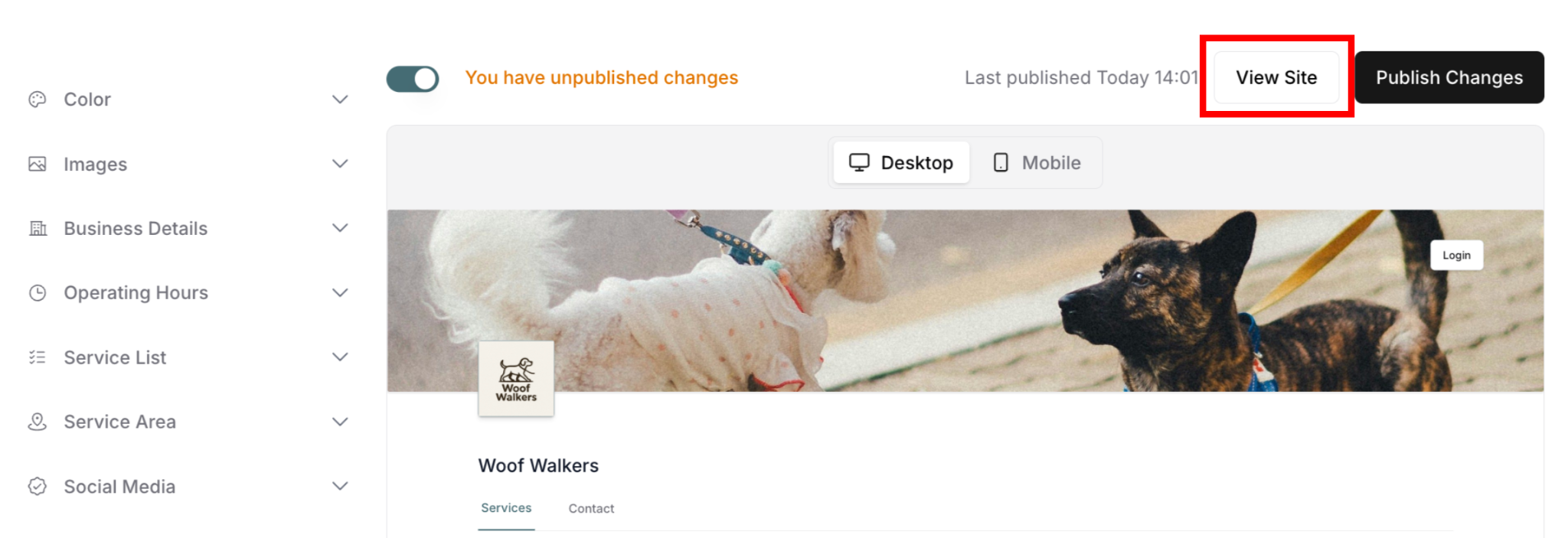
View Site Button
Opens your actual live website in new window:
See customer perspective
Test full functionality
Verify everything works
Last Published Information
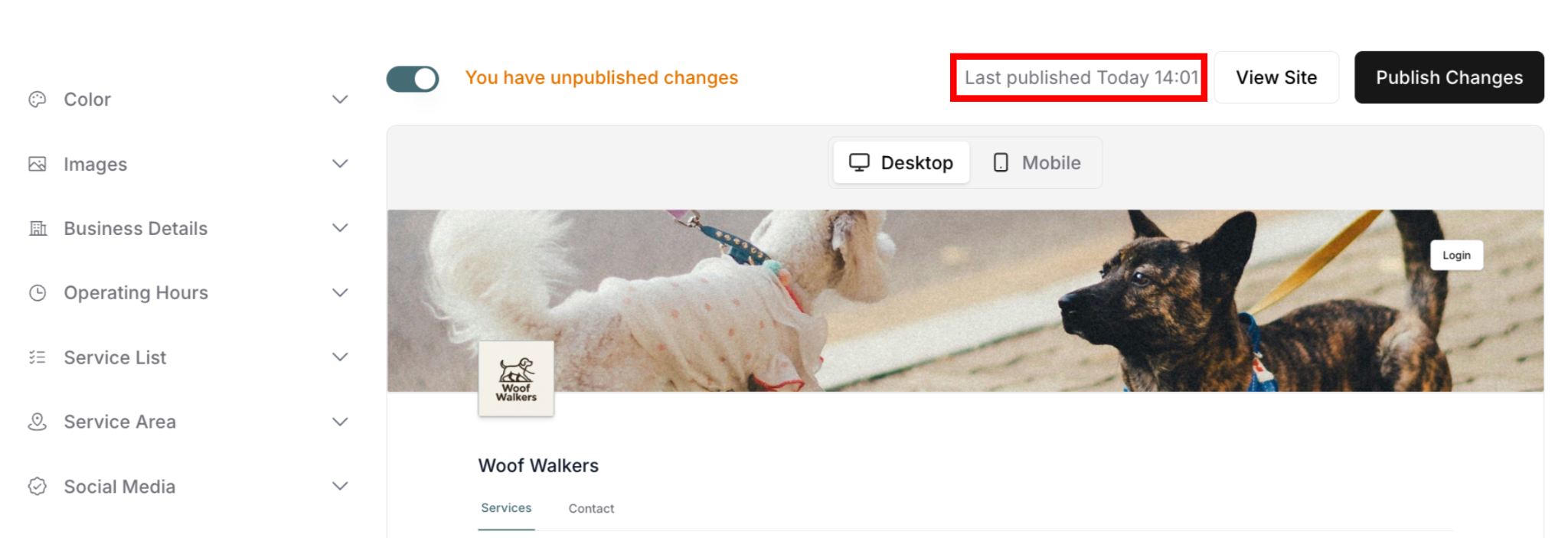
Shows date and time site was last published:
Track when changes went live
Verify publish status
Monitor update history
Preview vs. Live Site
Understanding the difference:
In the Preview (Right Panel):
✅ Can do:
Navigate between tabs
Click through service images
View design changes
Test mobile/desktop layouts
❌ Cannot do:
Subscribe to services (button non-functional)
Use search bar (non-functional)
Re-arrange tab positions
Complete actual transactions
Purpose: View design and layout changes only
On the Live Site (View Site Button):
✅ Full functionality:
Subscribe buttons work
Items add to cart
Checkout process functions
Search bar works
Complete customer experience
Purpose: Test actual customer experience
What's Customizable
You can customize but NOT re-arrange:
Tab Navigation:
Tabs: Services, Contact
Position: Fixed (cannot re-arrange)
Visibility: Can hide tabs via left panel settings
Service List:
Order: Can re-arrange via Service List settings
Visibility: Can show/hide services
Content: Edit via individual service settings
✍️ TIP: Make changes in the left panel and watch them appear instantly in the preview. When satisfied, click "Publish Site" to make changes live.
Was this article helpful?
That’s Great!
Thank you for your feedback
Sorry! We couldn't be helpful
Thank you for your feedback
Feedback sent
We appreciate your effort and will try to fix the article