Your service list determines which subscription services customers can see and in what order they appear. Managing service visibility and order helps you control your offerings and showcase your best services first.
This guide explains how to manage your service list display.
Why Service List Management Matters
Control what customers see:
Showcase active services only
Hide services temporarily without deleting
Prioritize popular services at top
Test new services before full launch
Adjust offerings seasonally
✍️ TIP: Putting your most popular or profitable services first can increase conversions by 15-25%. Customers often subscribe to services they see first.
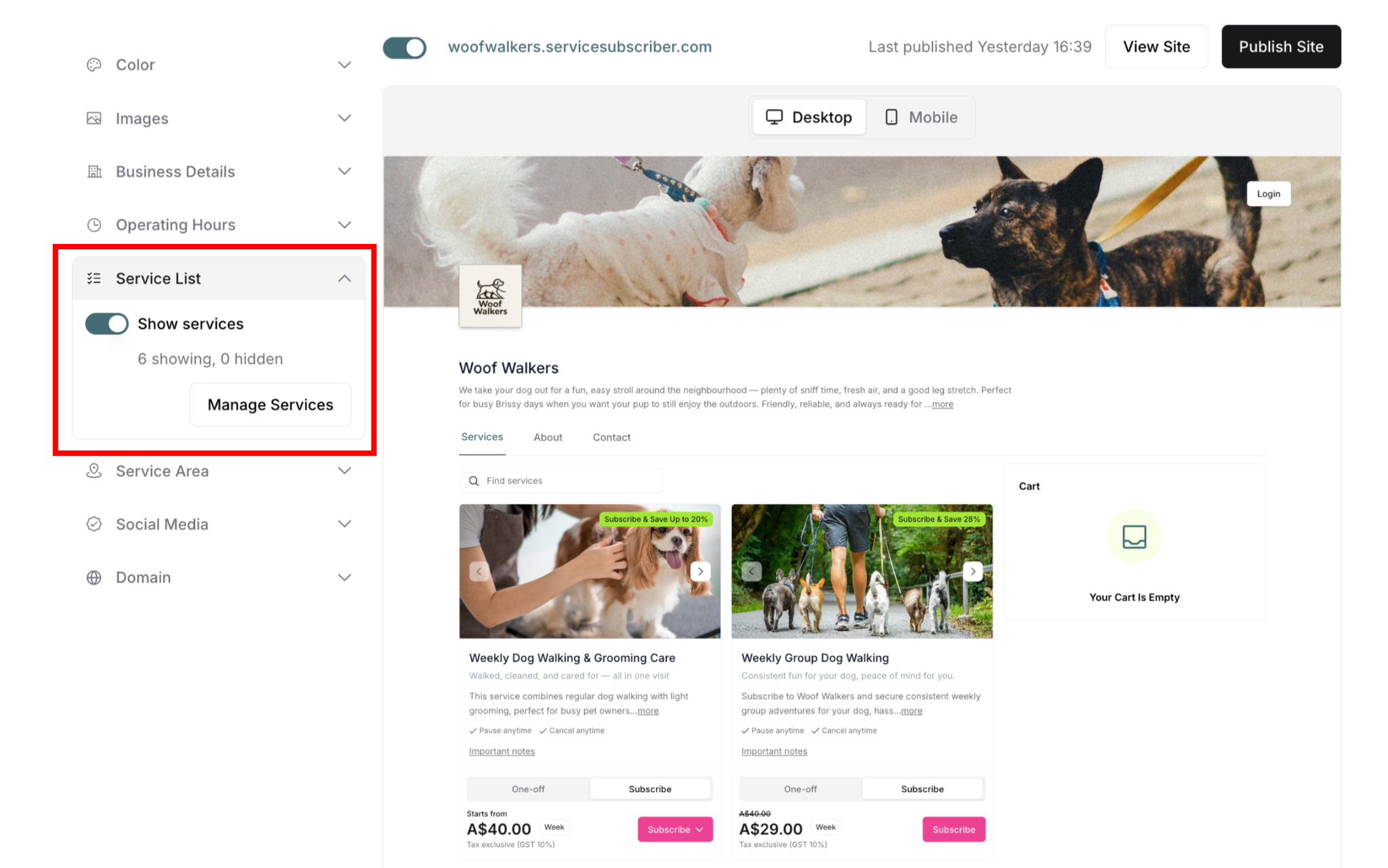
Accessing Service List Settings
From My Site Settings:
Navigate to My Site (profile icon → My Site)
Find Service List in left panel
Click to expand section
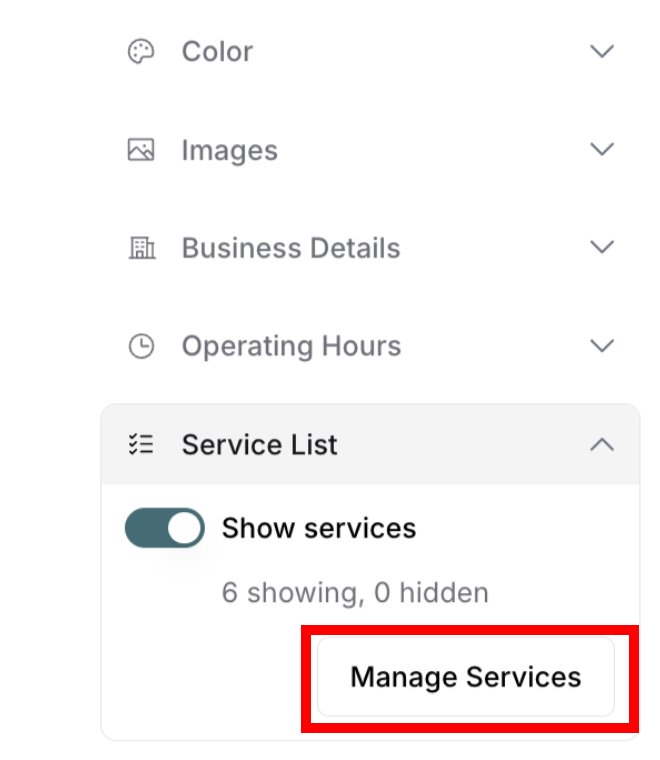
See toggle, count, and Manage button
Service List Display Options
The Service List section shows three key elements:
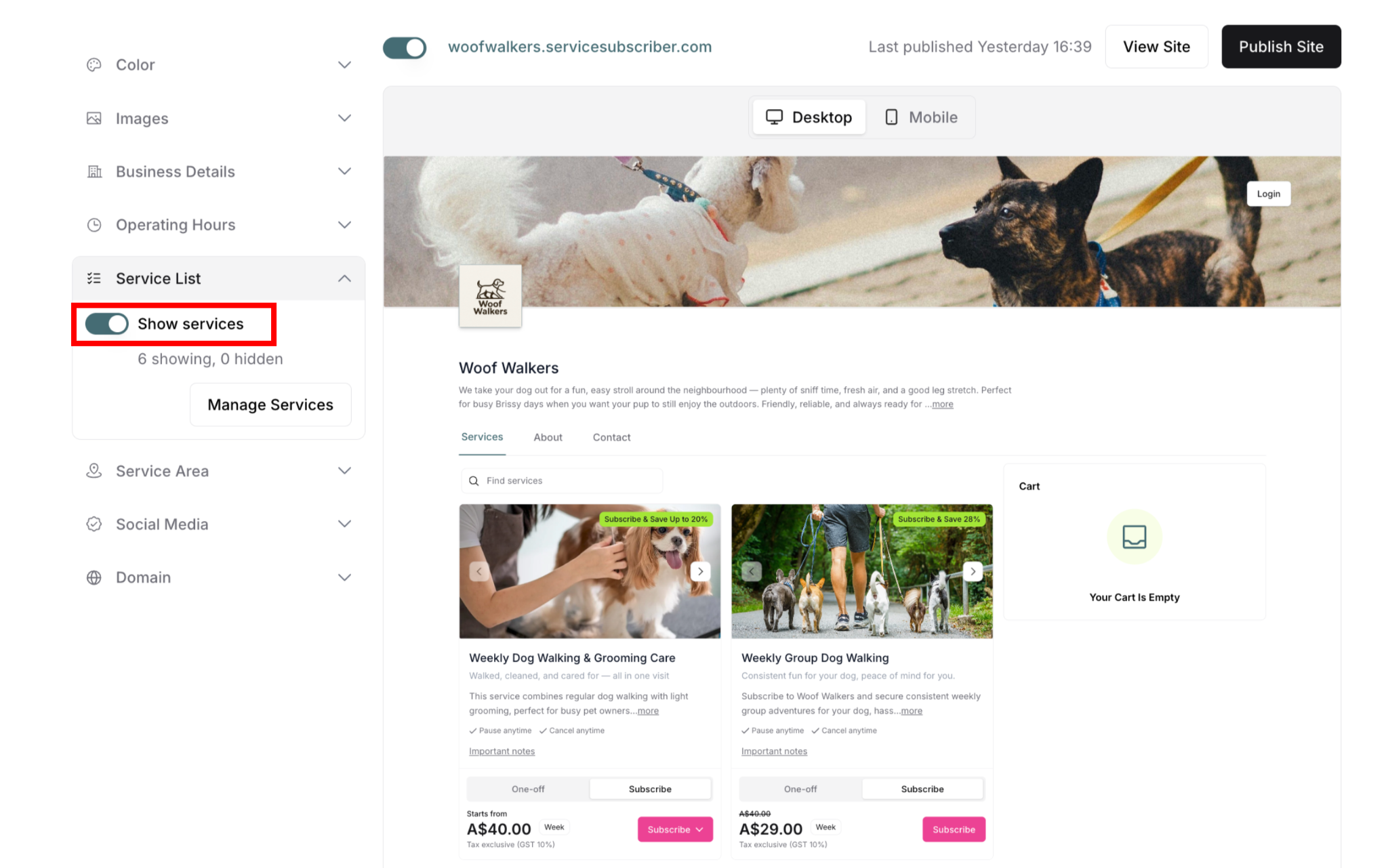
Show Services Toggle
Toggle ON: All non-hidden services display on subscription page
Toggle OFF: All services hidden from customers
When to toggle ON:
✅ Ready to accept subscriptions
✅ Services are configured
✅ Want customers to see offerings
✅ Normal business operations
When to toggle OFF:
❌ Temporarily closing for season
❌ Updating all services
❌ Not ready for subscriptions
❌ Testing site without live services
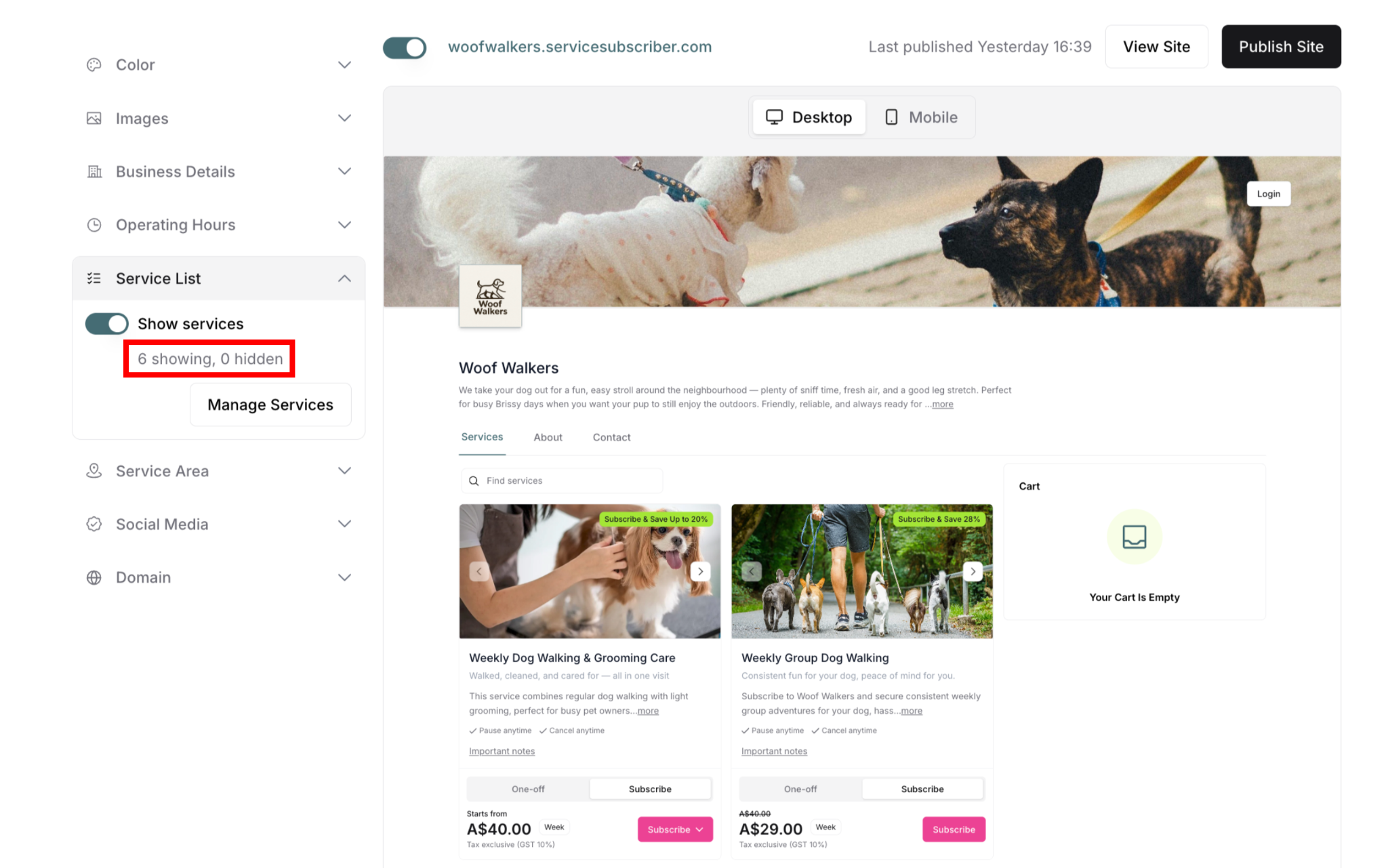
Service Count Display
Shows current visibility status:
Format: "6 showing, 0 hidden"
First number: Services visible to customers
Second number: Services hidden but still exist
Updates automatically as you show/hide
Example scenarios:
"6 showing, 0 hidden" = All services visible
"4 showing, 2 hidden" = 2 services temporarily hidden
"0 showing, 6 hidden" = All services hidden
✍️ TIP: This count helps you quickly see how many services are live without opening the modal.
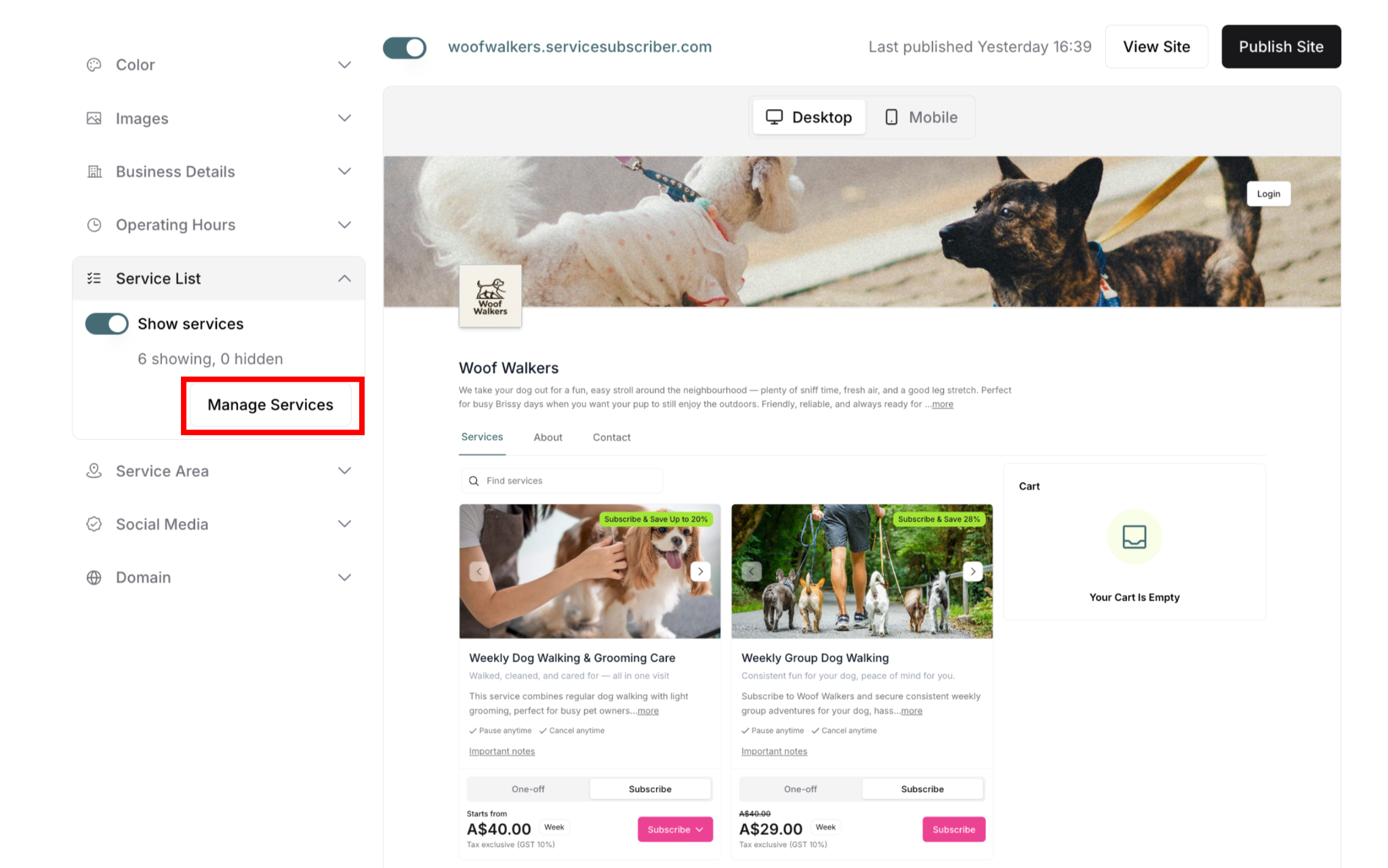
Manage Services Button
Opens modal to control individual services:
Show or hide specific services
Reorder service display
View all service details
Manage visibility individually
How to Manage Services
Opening the Manage Services Modal
To access service management:
Find Service List section (left panel)
Click Manage Services button
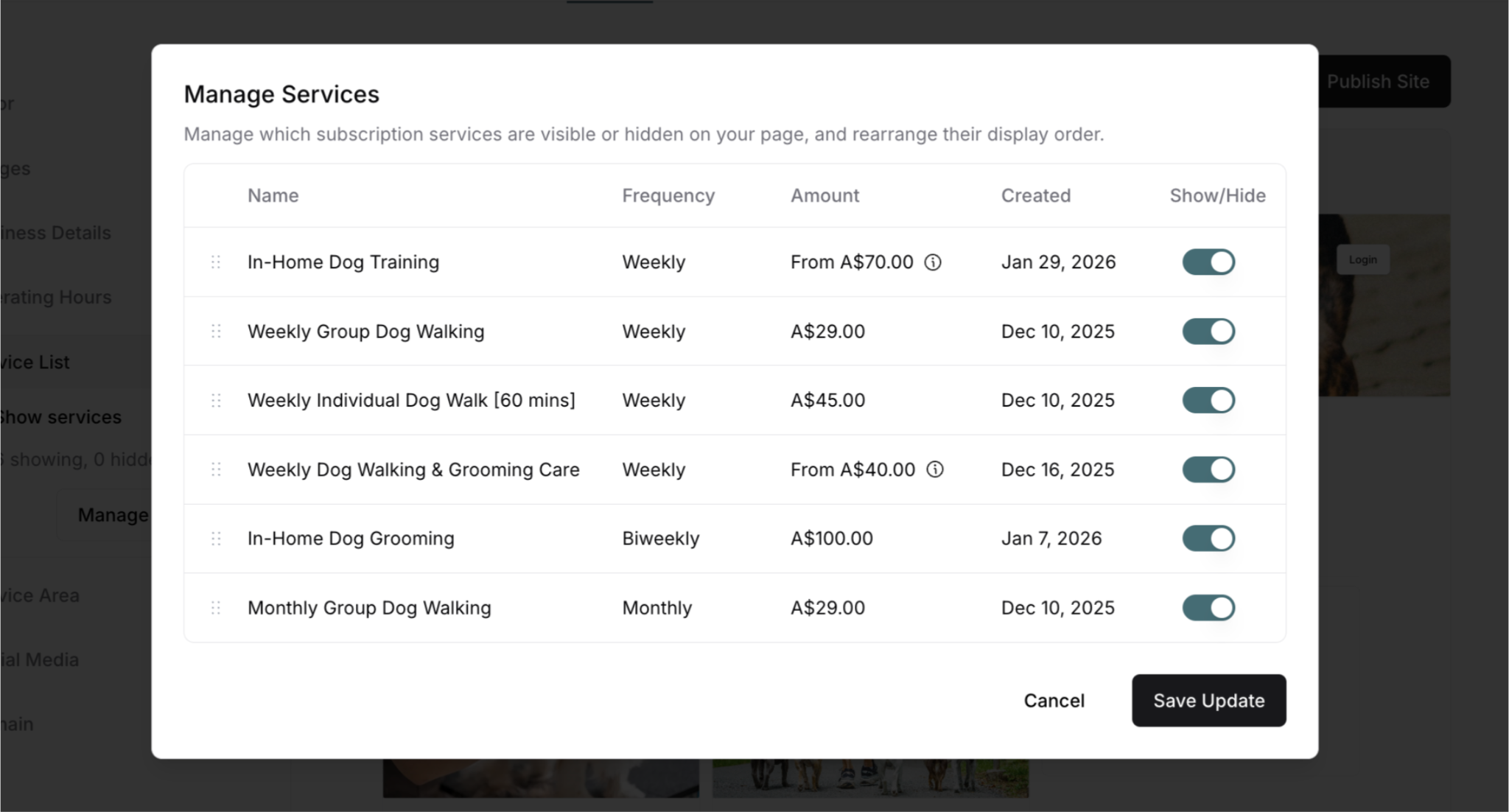
Modal appears: "Manage Services"
View and edit your services
Click Save Update to save, or Cancel to discard
Understanding the Modal
Service table columns:
Drag handle (::): Reorder services
Name: Service title
Frequency: Billing period (Weekly, Biweekly, Monthly)
Amount: Service price (e.g., A$29.00, From A$40.00)
Created: Date service was created
Show/Hide: Toggle visibility
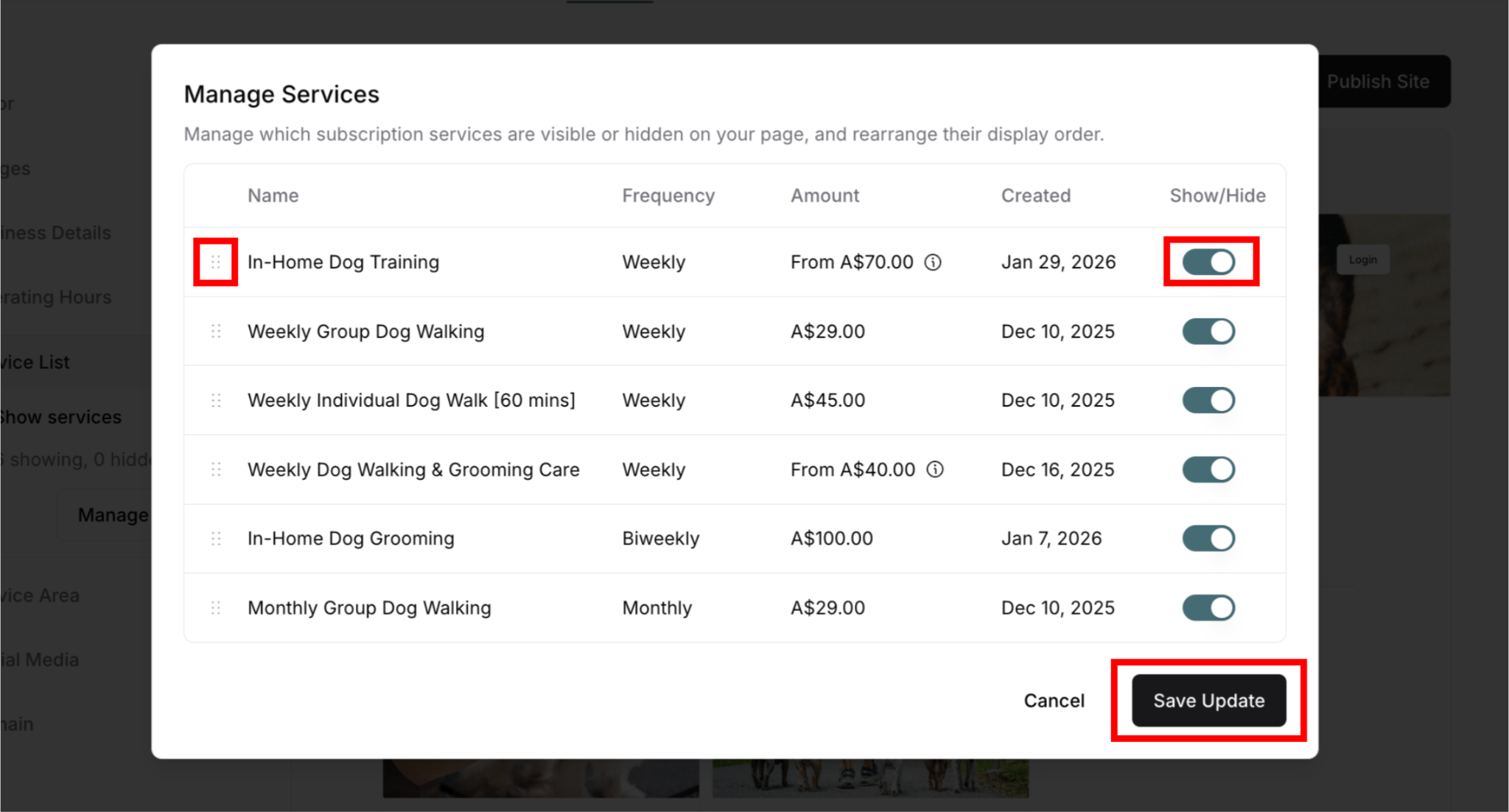
Each service row shows:
All service details at a glance
Current visibility status
Ability to show, hide, or reorder
Showing and Hiding Individual Services
How to Hide a Service
To hide a specific service:
Open Manage Services modal
Find service to hide in table
Locate Show/Hide toggle
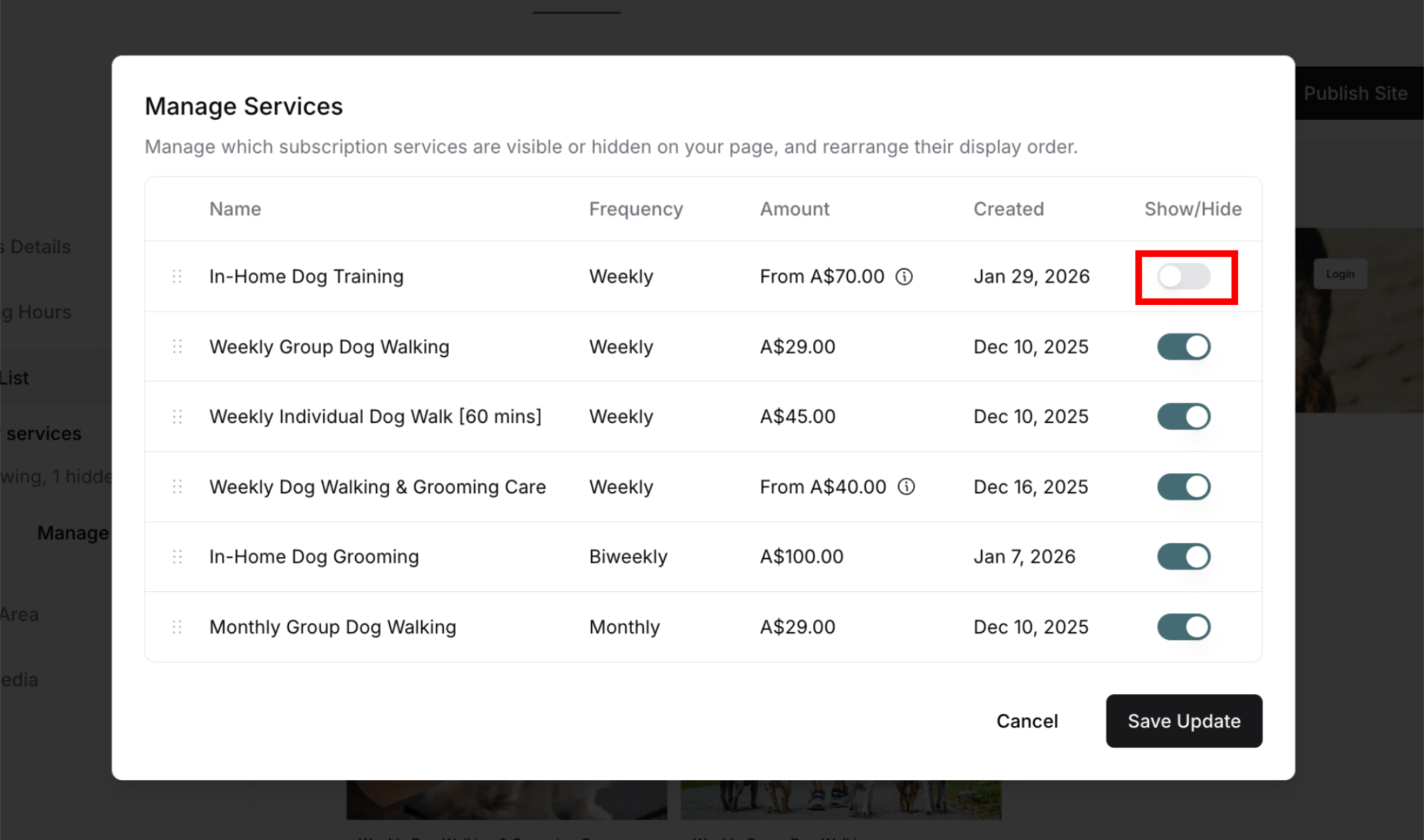
Click toggle to OFF (gray)
Service will be hidden from customers
Click Save Update
Click Publish Changes to make live
When to hide services:
✅ Seasonal service (out of season)
✅ Temporarily unavailable
✅ Testing pricing changes
✅ Capacity reached for now
✅ Updating service details
How to Show a Hidden Service
To make a service visible:
Open Manage Services modal
Find hidden service in table
Locate Show/Hide toggle (far right)
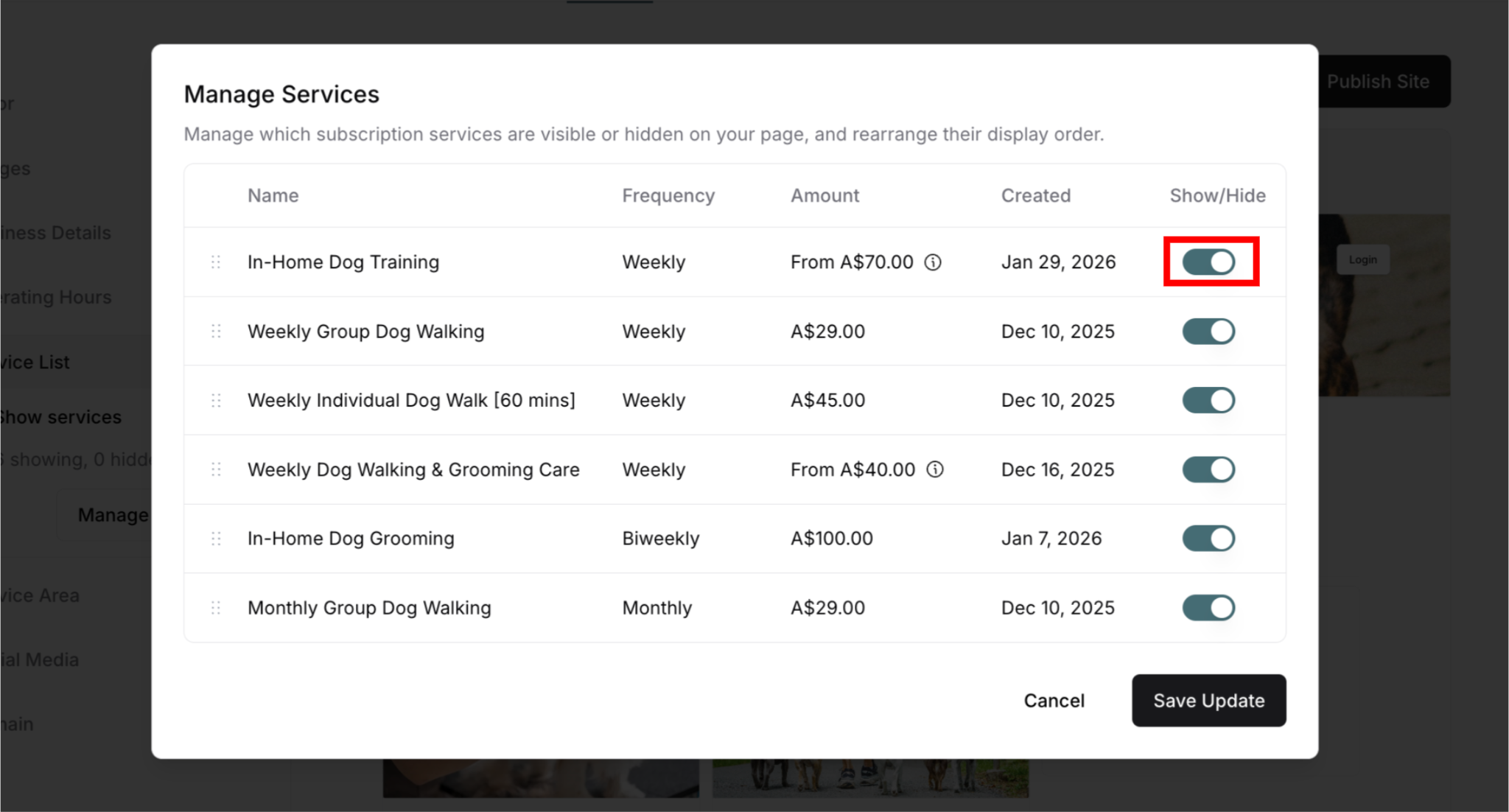
Click toggle to ON (teal/blue)
Service will display to customers
Click Save Update
Click Publish Changes to make live
Result: Service appears on subscription page in its current position.
Toggle Behavior
Toggle ON (teal/blue):
Service visible to customers
Appears on Services tab
Customers can subscribe
Counts in "showing" number
Toggle OFF (gray):
Service hidden from customers
Not on Services tab
Customers cannot subscribe
Counts in "hidden" number
Service data still exists (not deleted)
⚠️ IMPORTANT: Hiding a service doesn't delete it. All service details remain saved and can be shown again anytime.
Reordering Services
Change the order services appear on your site:
How to Reorder Services
Step-by-step:
Open Manage Services modal
Find drag handle (::):
Located far left of service name
Six dots in two columns
Indicates draggable row
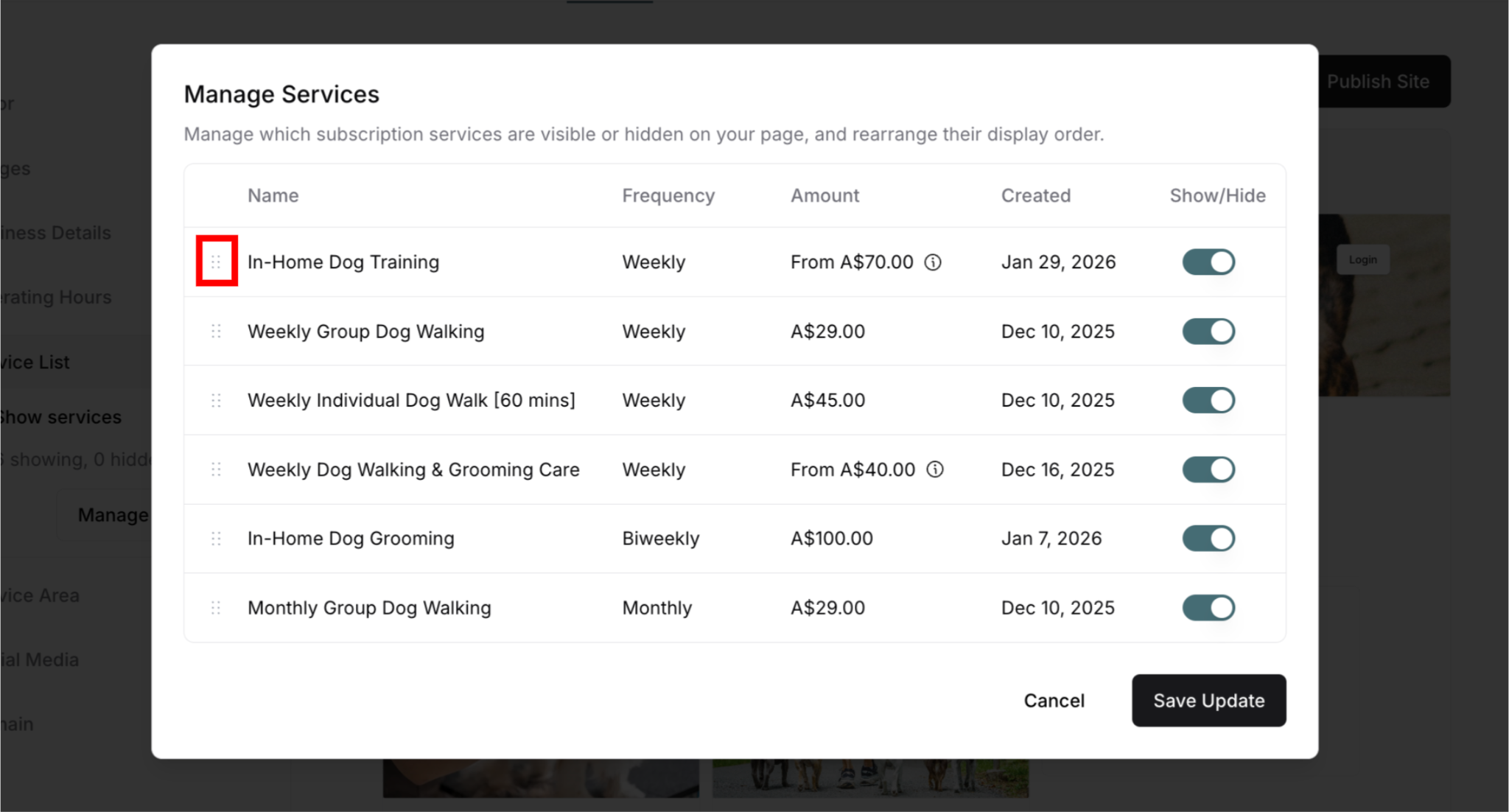
Click and hold drag handle:
Cursor changes to grab/move icon
Row becomes draggable
Drag service up or down:
Move to desired position
Other services shift automatically
Drop in new position
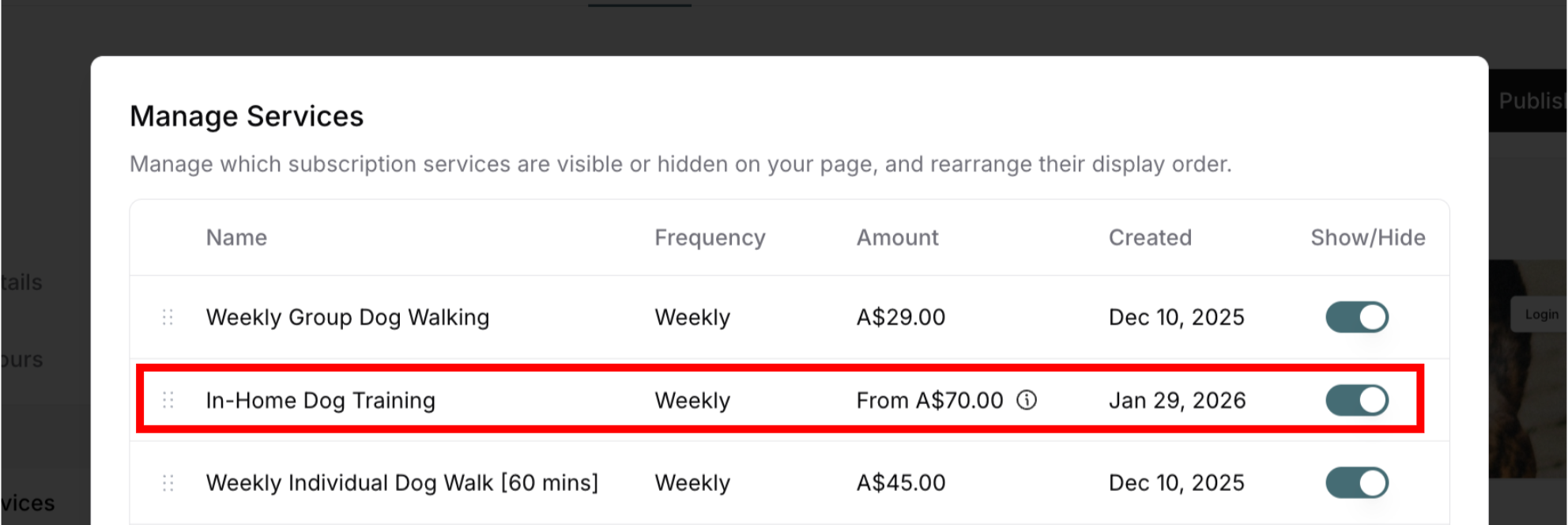
Repeat for other services:
Arrange all services as desired
No limit on reordering
Click Save Update:
Order is saved
Modal closes
Click Publish Changes:
New order goes live
Customers see updated order
Why Order Matters
First position (top):
Most visible to customers
Seen first when browsing
Highest conversion rate
Best for popular services
Middle positions:
Good visibility
Standard placement
Balanced exposure
Last positions (bottom):
Least prominent
Lower conversion
Good for niche services
Consider hiding if low demand
✍️ TIP: Put your most profitable or popular services at the top. Customers often choose from the first 2-3 services they see.
Saving and Publishing Changes
Saving Your Changes
After managing services:
Review all changes (show/hide, order)
Verify everything is correct
Click Save Update
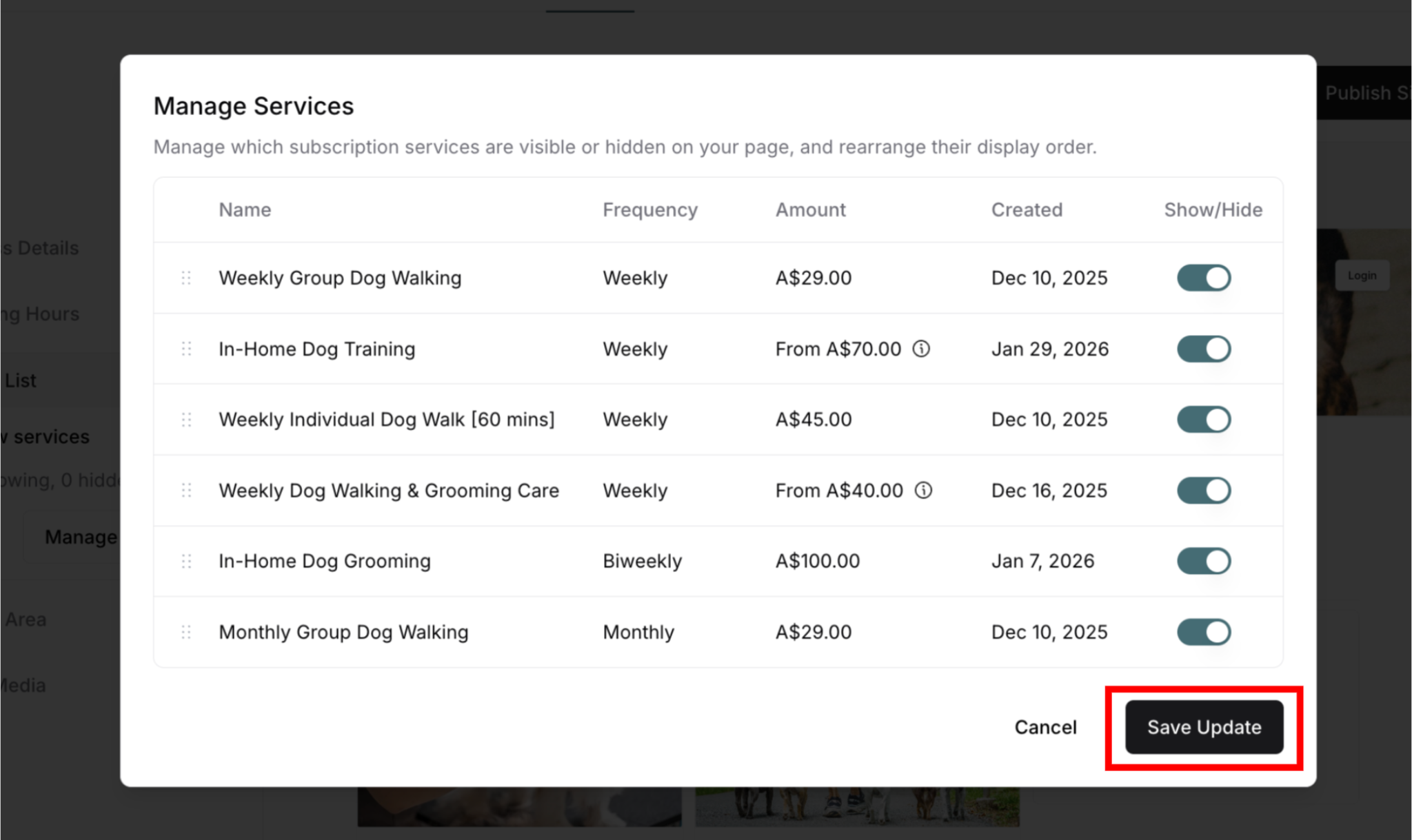
Modal closes
Changes saved but not published yet
⚠️ CRITICAL: Saving is not the same as publishing.
Publishing Changes
To make changes live:
Verify Show services toggle is ON (if you want services visible)
Click Publish Changes button (top-right)
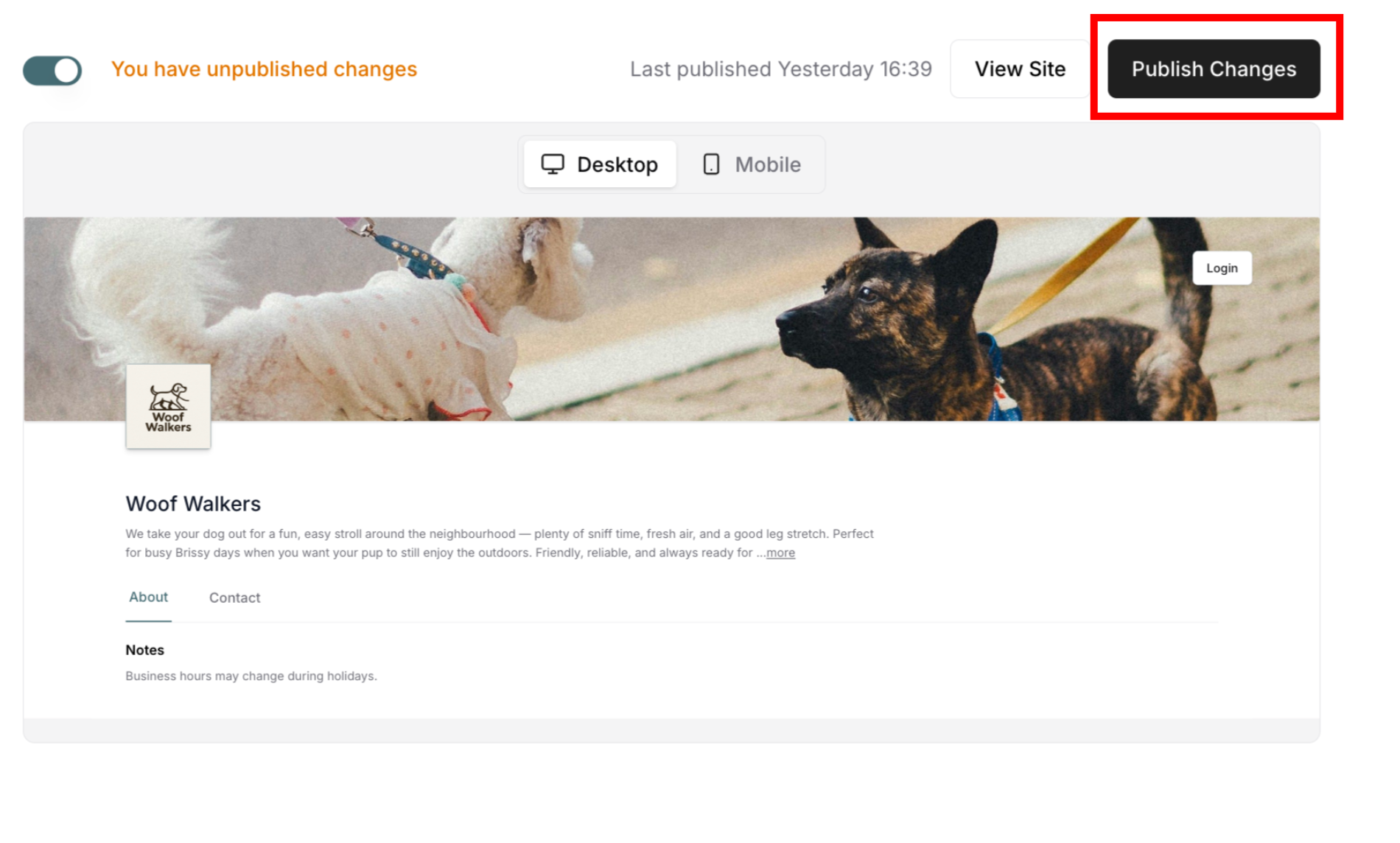
Wait for confirmation
Changes go live
Customers see updated services
If you don't publish:
Changes remain unpublished
Preview shows changes
Live site shows old service list
Customers see old order/visibility
To verify published changes:
Click View Site after publishing
Navigate to Services tab
Check service order and visibility
Verify correct services appear
Best Practices
For Service Order:
✅ Put popular services first
✅ Feature profitable services prominently
✅ Group similar services together
✅ Consider seasonal relevance
✅ Test different orders to see what converts
For Visibility:
✅ Hide rather than delete (preserve data)
✅ Hide seasonal services in off-season
✅ Show only services you can deliver
✅ Keep visibility current
✅ Update regularly as offerings change
For Management:
✅ Review service list monthly
✅ Reorder based on popularity data
✅ Hide unavailable services promptly
✅ Test visibility on live site after changes
✅ Keep "showing" count reasonable (3-8 services ideal)
✍️ TIP: Review your service list monthly and adjust order based on what's converting best. Hide services you can't currently deliver rather than deleting them, so you can bring them back easily when ready.
Was this article helpful?
That’s Great!
Thank you for your feedback
Sorry! We couldn't be helpful
Thank you for your feedback
Feedback sent
We appreciate your effort and will try to fix the article