Your brand colors and images create the visual identity customers see on your subscription page. Consistent, professional branding builds trust and makes your business memorable.
This guide explains how to customize your site's colors and images.
Accessing Color & Branding Settings
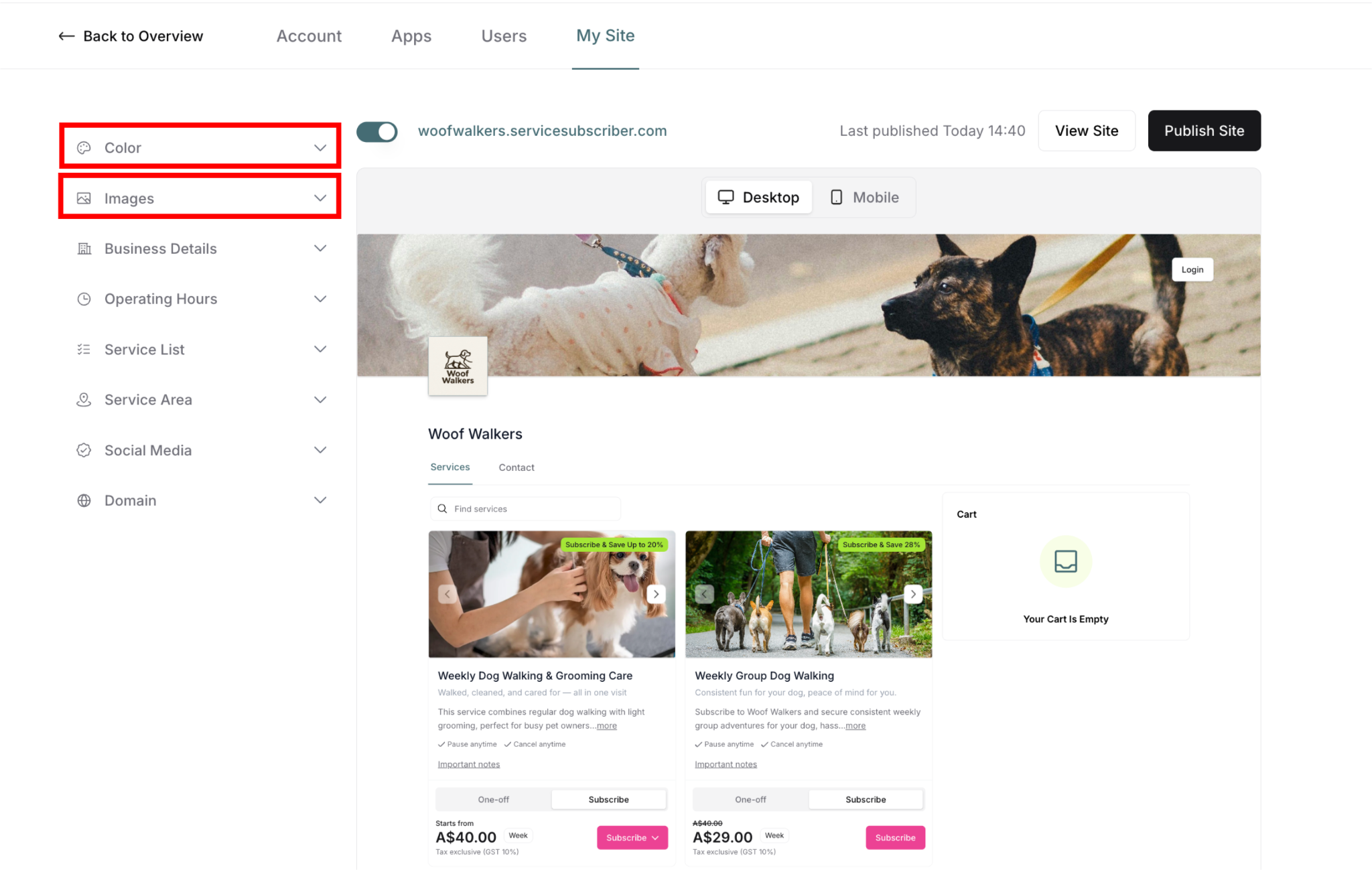
From My Site Settings:
Navigate to My Site (profile icon → My Site)
Find Color and Images in left panel
Click to expand each section
Changes appear instantly in right preview
✍️ TIP: Make all branding changes before publishing your site for the first time.
Color Settings
The Color section controls your site's color scheme:
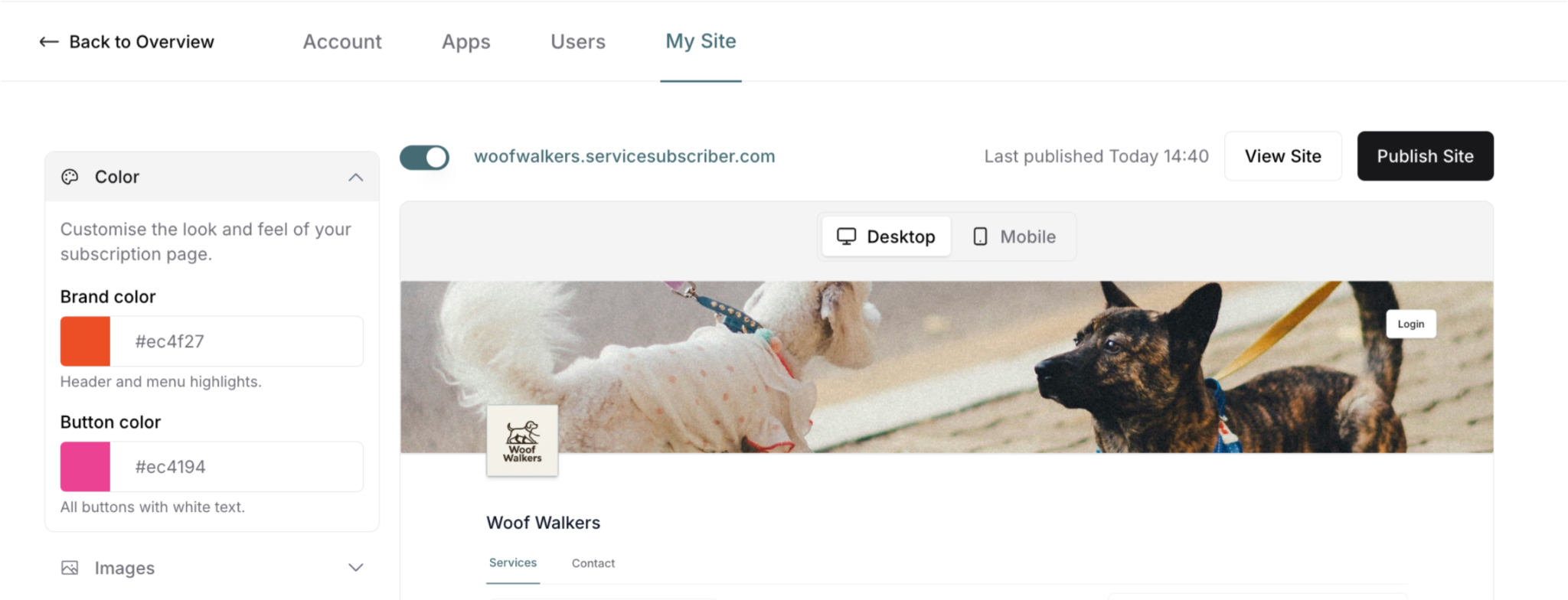
Brand Color
What it affects:
Header and menu highlights
Navigation elements
Cover image background (if no cover image uploaded)
Visual accent elements
To set brand color:
Click Color to expand section
Find Brand color field
Click color picker square
Select color from picker, OR
Enter hex code directly (e.g., #ec4f27)
Preview updates instantly on right
Button Color
What it affects:
All Subscribe buttons
Select buttons
Call-to-action buttons
Any interactive buttons on site
To set button color:
Find Button color field (below Brand color)
Click color picker square
Select color from picker, OR
Enter hex code directly (e.g., #ec4194)
Preview updates instantly on right
✍️ TIP: Choose colors that match your existing brand identity. Use your logo colors for consistency.
Using the Color Picker
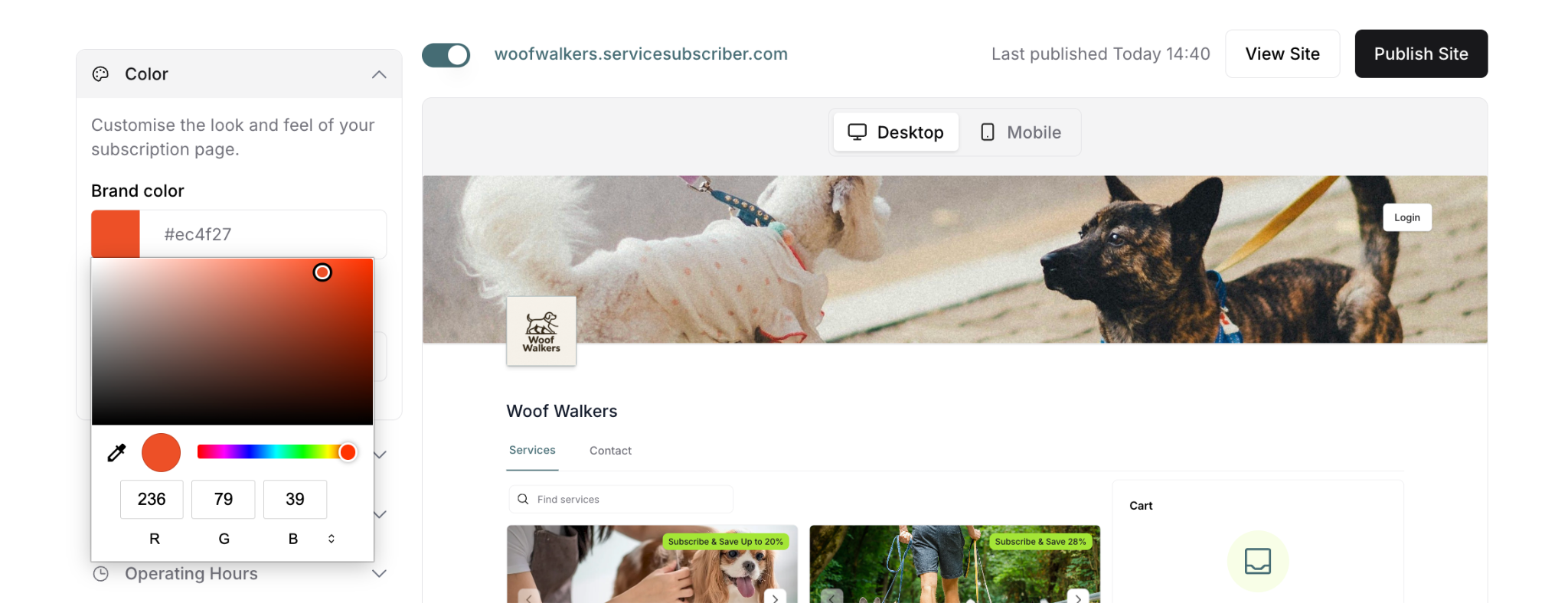
Two ways to set colors:
Method 1: Color Picker
Click colored square
Visual picker appears
Click desired color
Color applies instantly
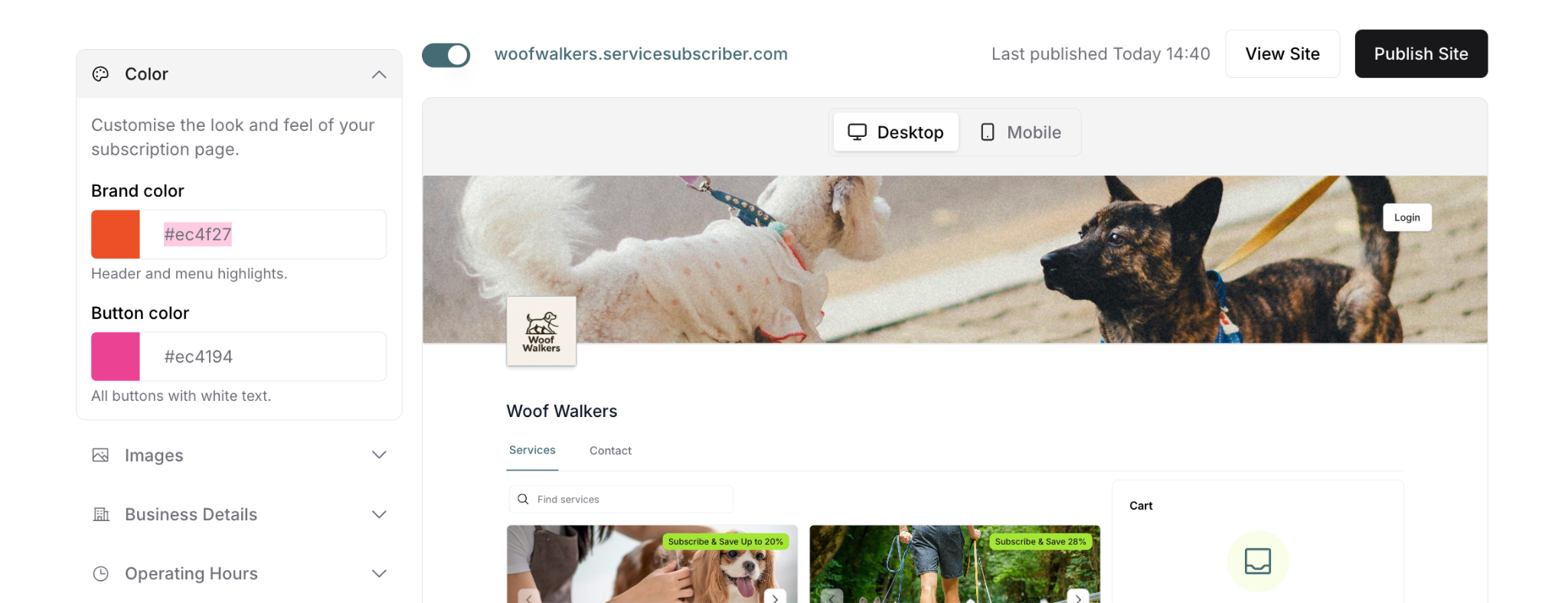
Method 2: Hex Code
Enter 6-digit hex code (e.g., #ec4f27)
Include the # symbol
Color applies instantly
Useful for matching exact brand colors
Images Settings
The Images section controls your visual branding:
Brand Logo
Logo specifications:
Size: 200 × 200 px
File size: Up to 4 MB
Format: PNG, JPG, or WEBP
Background: Transparent preferred (PNG)
Design: Square or slightly horizontal
To upload brand logo:
Click Images to expand section
Find Brand Logo field
Click Upload button (or Change if replacing)
Select logo file from computer
Wait for image to load in preview
Verify logo appears correctly
Click Publish Site to make live
Cover Image
Cover image specifications:
Size: 1800 × 240 px
File size: Up to 4 MB
Format: PNG, JPG, or WEBP
Aspect ratio: Wide horizontal banner
Content: Relevant to your business
To upload cover image:
Find Cover Image field (below Brand Logo)
Click Upload button (or Change if replacing)
Select image file from computer
Wait for image to load in preview
Verify image appears correctly
Click Publish Site to make live
⚠️ IMPORTANT: If no cover image is uploaded, the Brand Color fills the header area instead.
Image Upload Actions
Upload button behavior changes based on status:
"Upload" button shows when:
Never uploaded an image before
Previously removed the image
Starting fresh
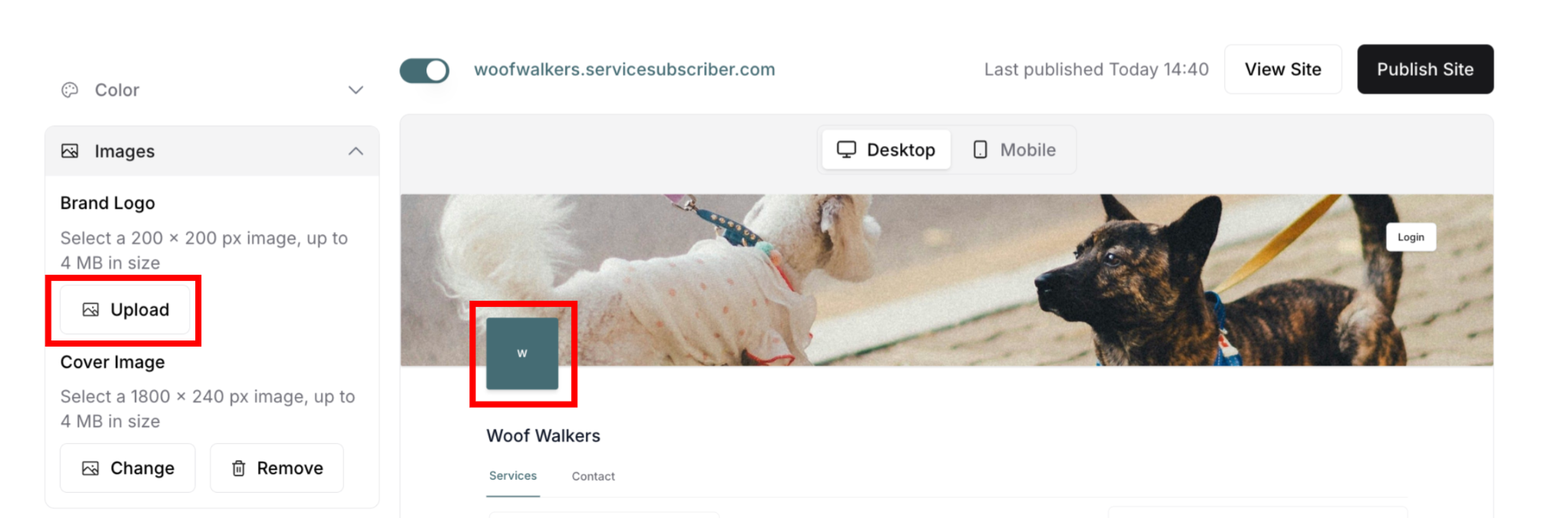
"Change" and "Remove" buttons show when:
Image already uploaded
Want to replace with new image
Want to remove current image
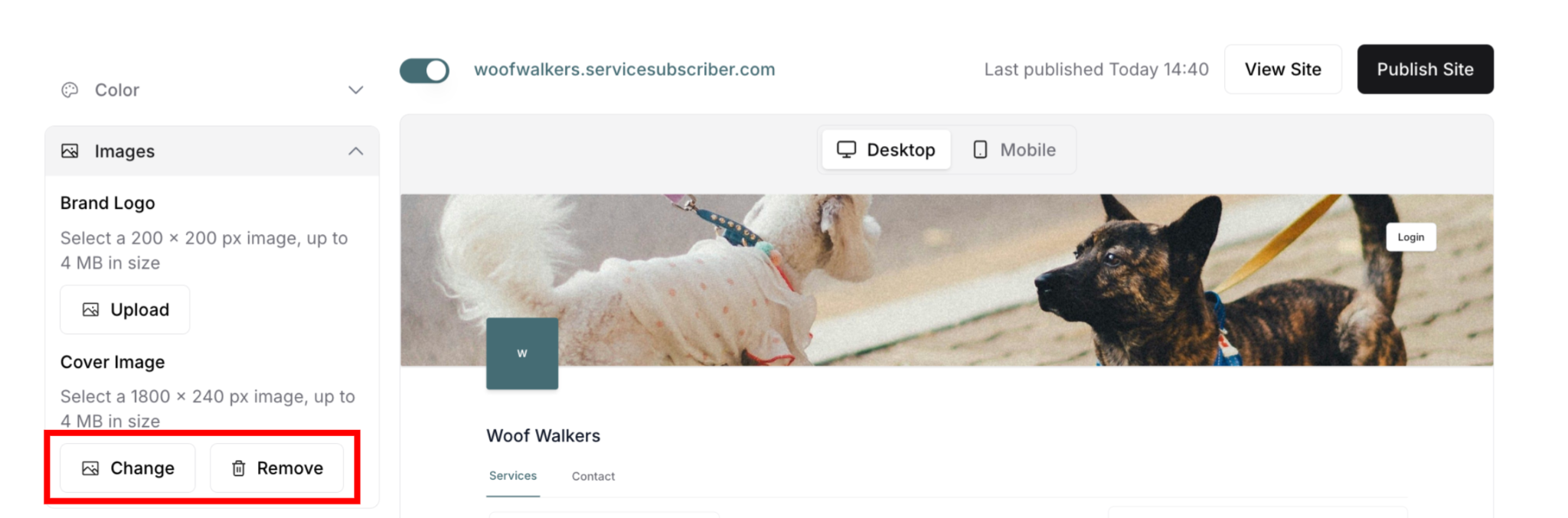
Actions available:
Upload: Add new image (first time)
Change: Replace existing image
Remove: Delete current image (reverts to Upload button)
Image Positioning & Requirements
Critical Image Rules
⚠️ CANNOT reposition images after upload:
Images display exactly as uploaded
No cropping tools available
No repositioning options
No zoom or alignment controls
To ensure proper display: ✅ Use exact recommended dimensions ✅ Crop/edit images before uploading ✅ Test images at correct size first ✅ Center important content in frame ✅ Preview before finalizing
Best Practices
For Brand Logo:
Center logo in 200×200 canvas
Leave small margin around edges
Use transparent background (PNG)
Keep design simple and clear
Test visibility at small size
For Cover Image:
Use 1800×240 dimensions exactly
Place key content in center
Avoid text on edges (may crop on mobile)
Use high-quality, professional photos
Ensure good contrast with text
✍️ TIP: Create your images at exact specifications before uploading. Use image editing software like Canva, Photoshop, or free tools to prepare files properly.
Previewing Your Changes
Real-time Preview
Changes appear instantly:
Change colors on left
See updates on right immediately
Toggle Desktop/Mobile views
Test different combinations
Experiment freely before publishing
After Publishing
Once satisfied with branding:
Click Publish Site (or Publish Changes)
Wait for confirmation
Click View Site to see live version
Check branding in actual site context
Verify on different devices
Common Branding Scenarios
Starting Fresh (No Images Yet)
Set Brand Color
Set Button Color
Upload Brand Logo (Upload button)
Upload Cover Image (Upload button)
Preview changes
Publish Site
Updating Existing Branding
Adjust colors as needed
Click Change to replace logo (Change button)
Click Change to replace cover (Change button)
Preview changes
Publish Changes
Removing Branding Elements
Click Remove next to logo or cover
Image disappears
Brand Color fills header (if cover removed)
Upload button appears
Publish Changes
✍️ TIP: Consistent branding across colors, logo, and cover image creates professional appearance and builds customer trust. Take time to get it right before publishing.
Was this article helpful?
That’s Great!
Thank you for your feedback
Sorry! We couldn't be helpful
Thank you for your feedback
Feedback sent
We appreciate your effort and will try to fix the article