Your business information helps customers learn about you and contact you directly. You control what appears on your public subscription page—description, phone number, and email address—by toggling each option on or off.
This guide explains how to manage your business details display.
Why Business Information Matters
Visible contact information builds trust:
Shows you're a legitimate business
Makes it easy for customers to reach you
Builds confidence before subscribing
Provides multiple contact methods
Creates professional presentation
✍️ TIP: Displaying your phone and email can increase subscription conversions by 15-20%. Customers need to know how to reach you.
Accessing Business Details Settings
From My Site Settings:
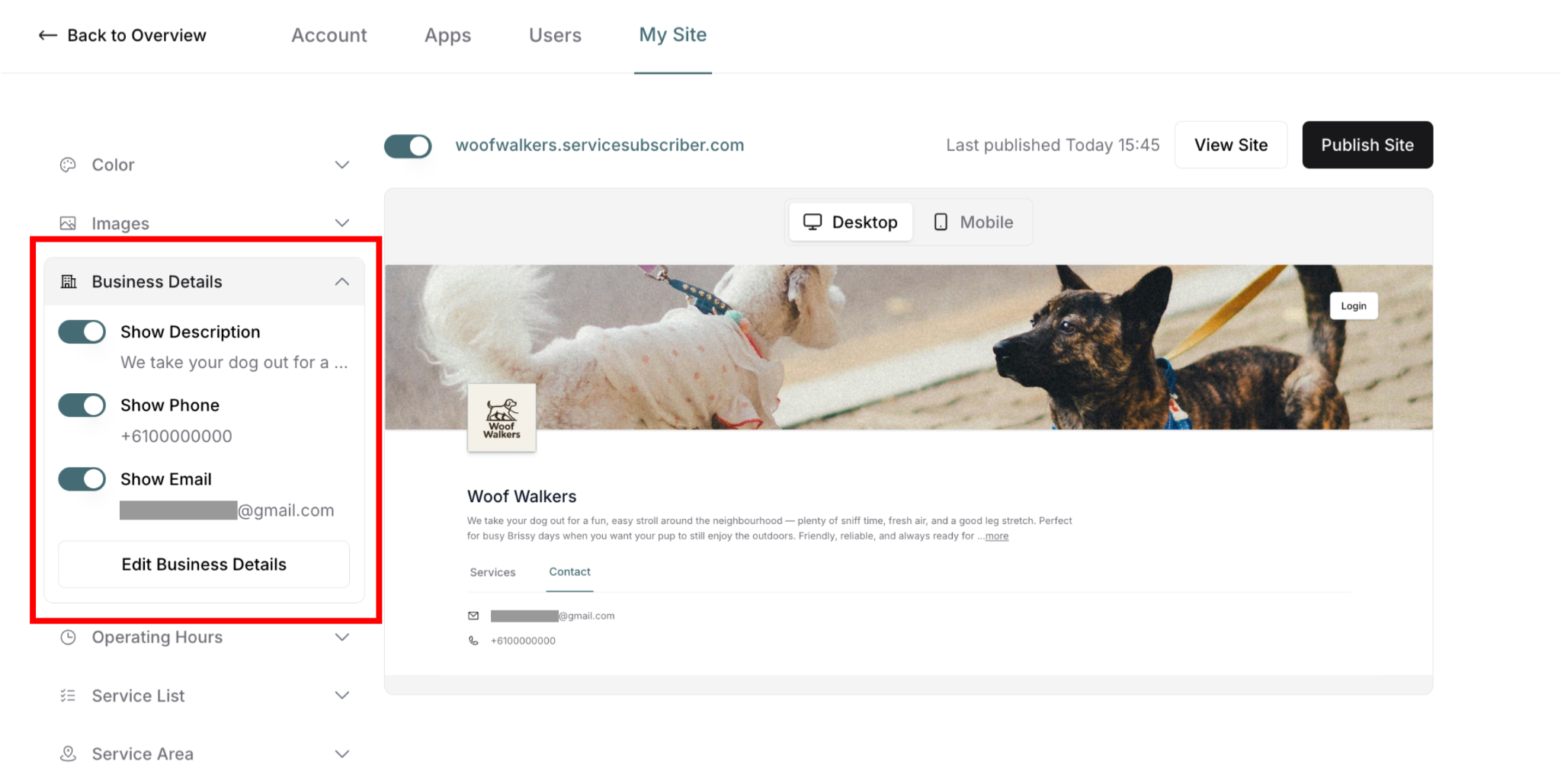
Navigate to My Site (profile icon → My Site)
Find Business Details in left panel
Click to expand section
See three toggle options and Edit button
Business Details Display Options
Three toggles control what customers see:
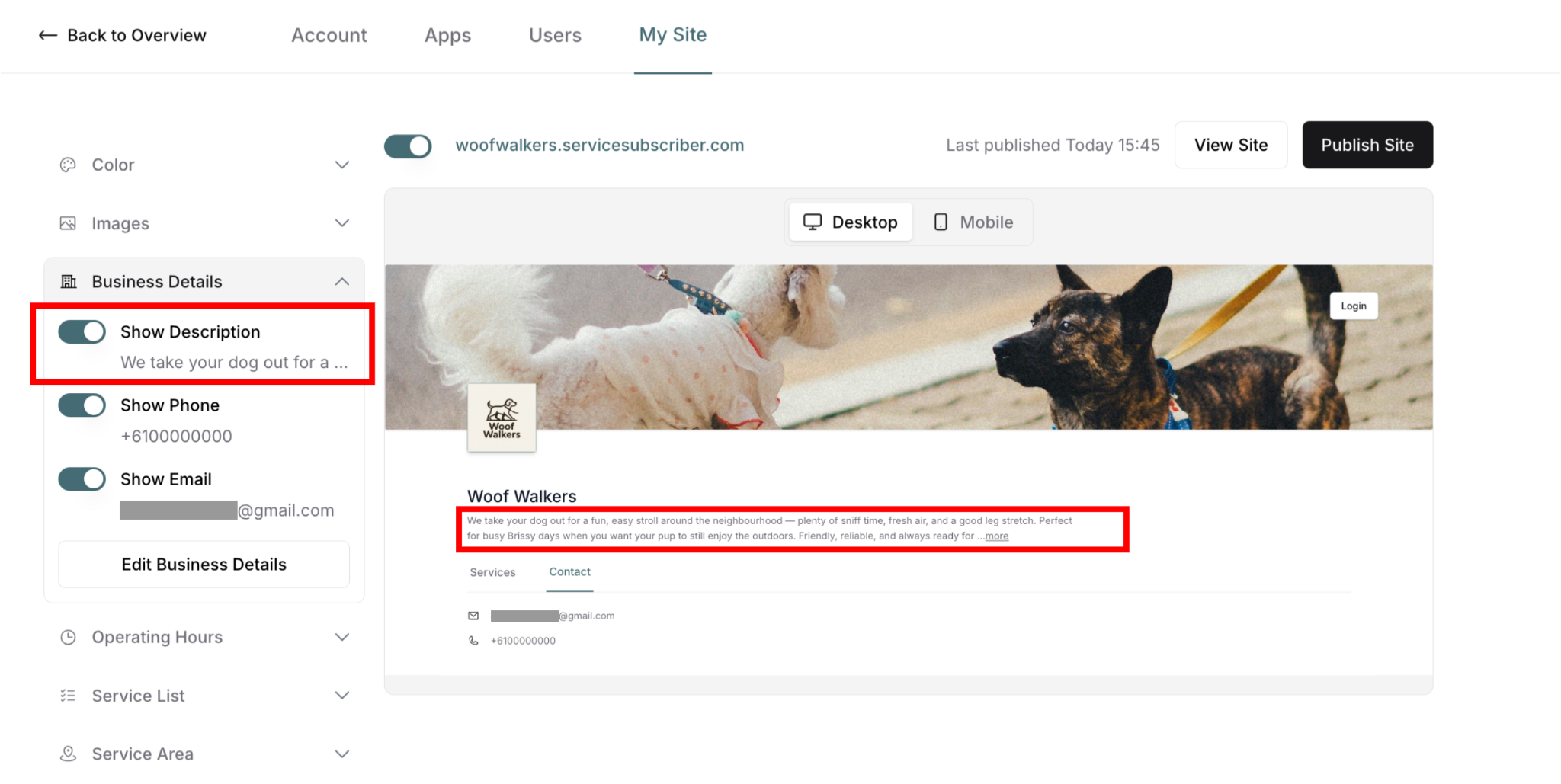
Show Description
Toggle ON: Business description displays on subscription page
Toggle OFF: Description hidden from customers
When to enable:
✅ Want to introduce your business
✅ Have compelling description written
✅ Want to build connection with customers
✅ Share your story or value proposition
When to disable:
❌ Prefer minimal page design
❌ Description not yet written
❌ Let services speak for themselves
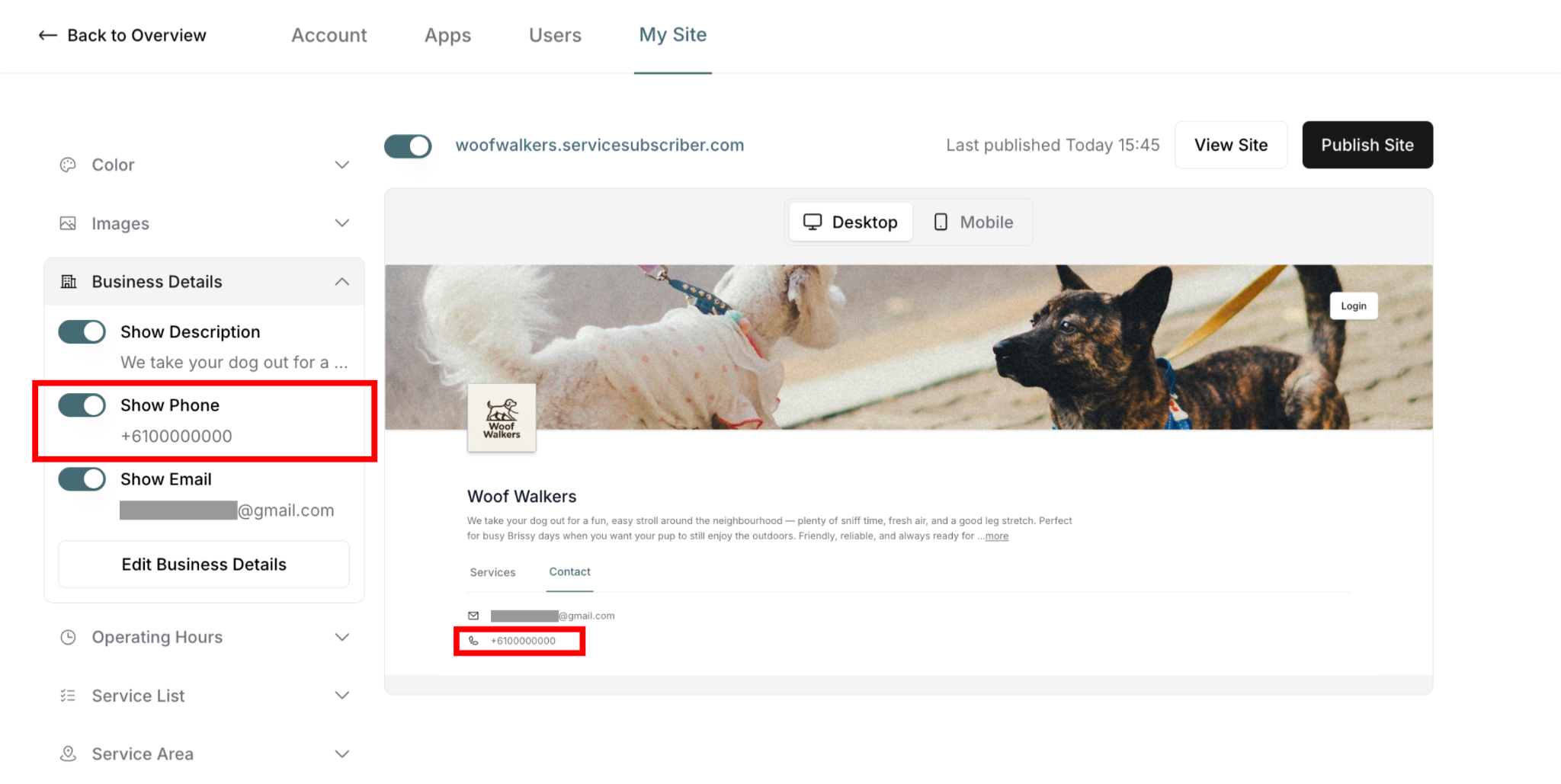
Show Phone
Toggle ON: Phone number displays in Contact tab
Toggle OFF: Phone number hidden from customers
When to enable:
✅ Want customers to call you
✅ Prefer phone communication
✅ Can answer during business hours
✅ Offer phone support
When to disable:
❌ Don't want phone calls
❌ Prefer email communication only
❌ Phone number not ready
❌ Privacy concerns
✍️ TIP: Enable phone display if you can answer calls. Click-to-call on mobile makes it very easy for customers to contact you.
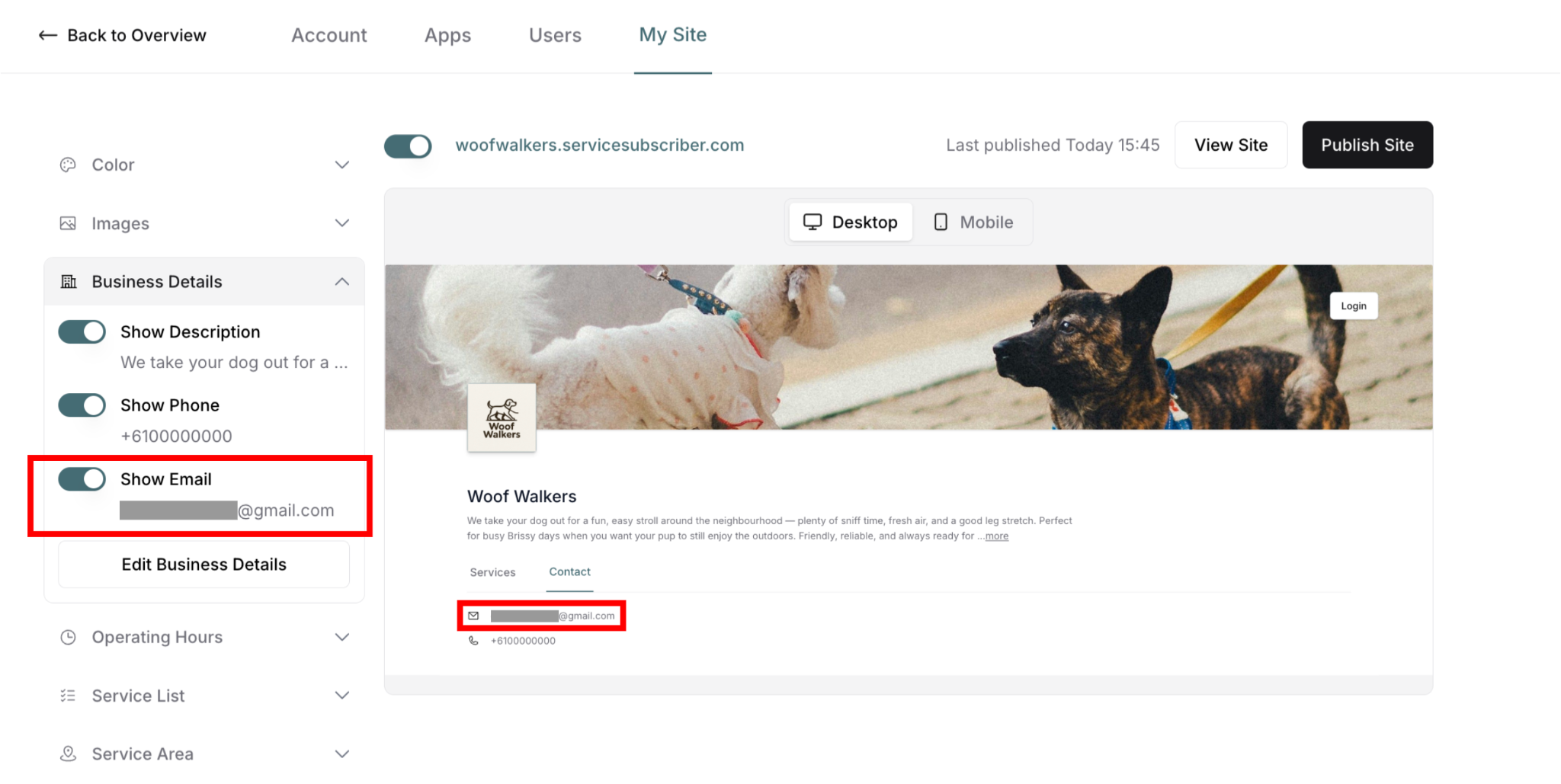
Show Email
Toggle ON: Email address displays in Contact tab
Toggle OFF: Email address hidden from customers
When to enable:
✅ Monitor email regularly
✅ Prefer written communication
✅ Can respond within 24 hours
✅ Offer email support
When to disable:
❌ Don't check email frequently
❌ Prefer other contact methods
❌ Privacy concerns
How to Edit Business Details
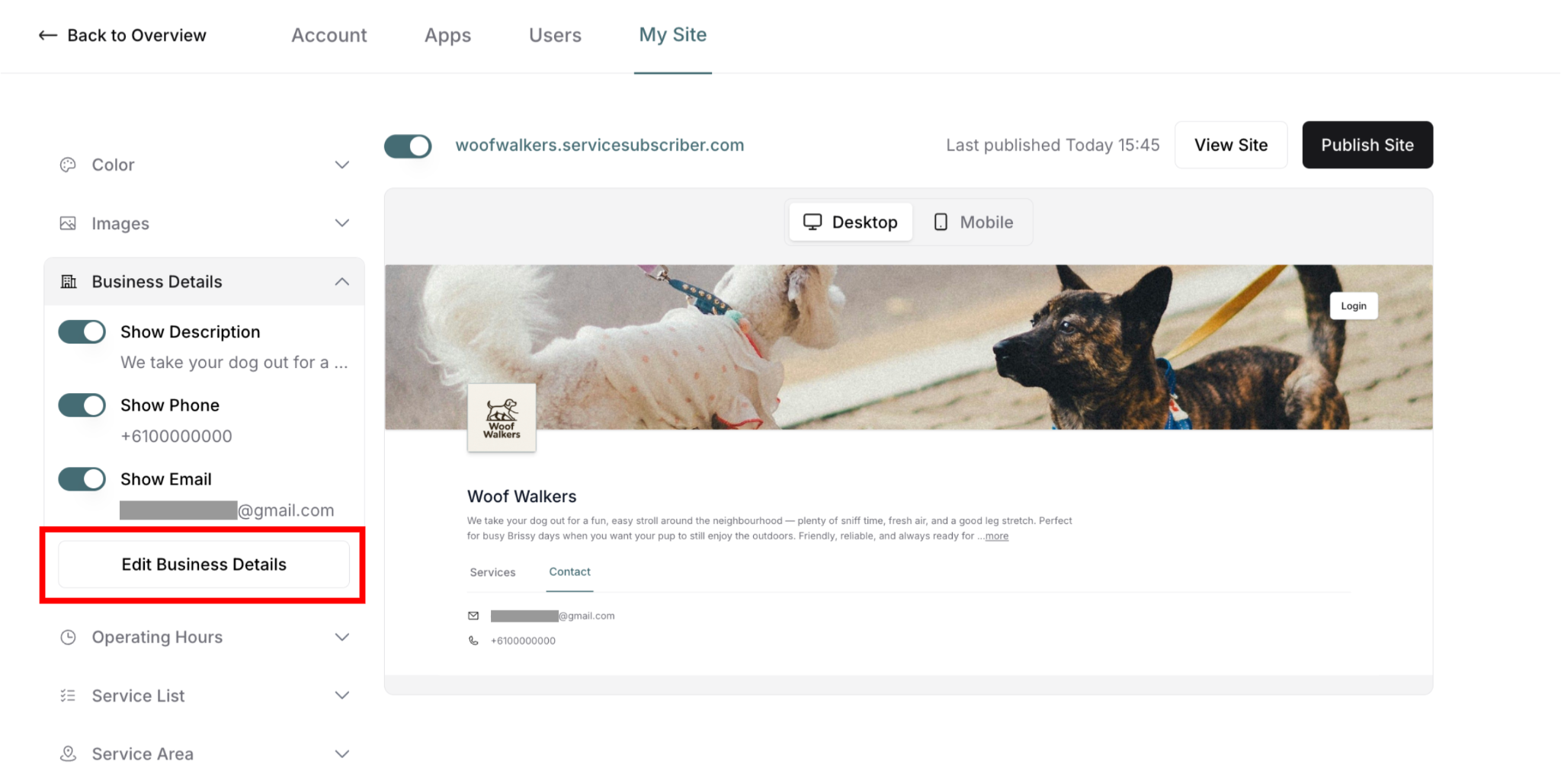
Opening the Edit Modal
To update your information:
Find Business Details section (left panel)
Click Edit Business Details button
Modal appears: "Edit Business Details"
Make your changes
Click Save Update to save, or Cancel to discard
What You Can Edit
Business Description:
Text field: "Tell people about your business?"
Write or update your business description
Explains your services and value
Appears below business name on site
Phone Number:
Country code dropdown (e.g., +61)
Phone number field
Updates displayed phone number
Will show in Contact tab if toggled on
Email Address:
Display only (cannot edit here)
Shows your current email
View what customers will see
Contact support to change email
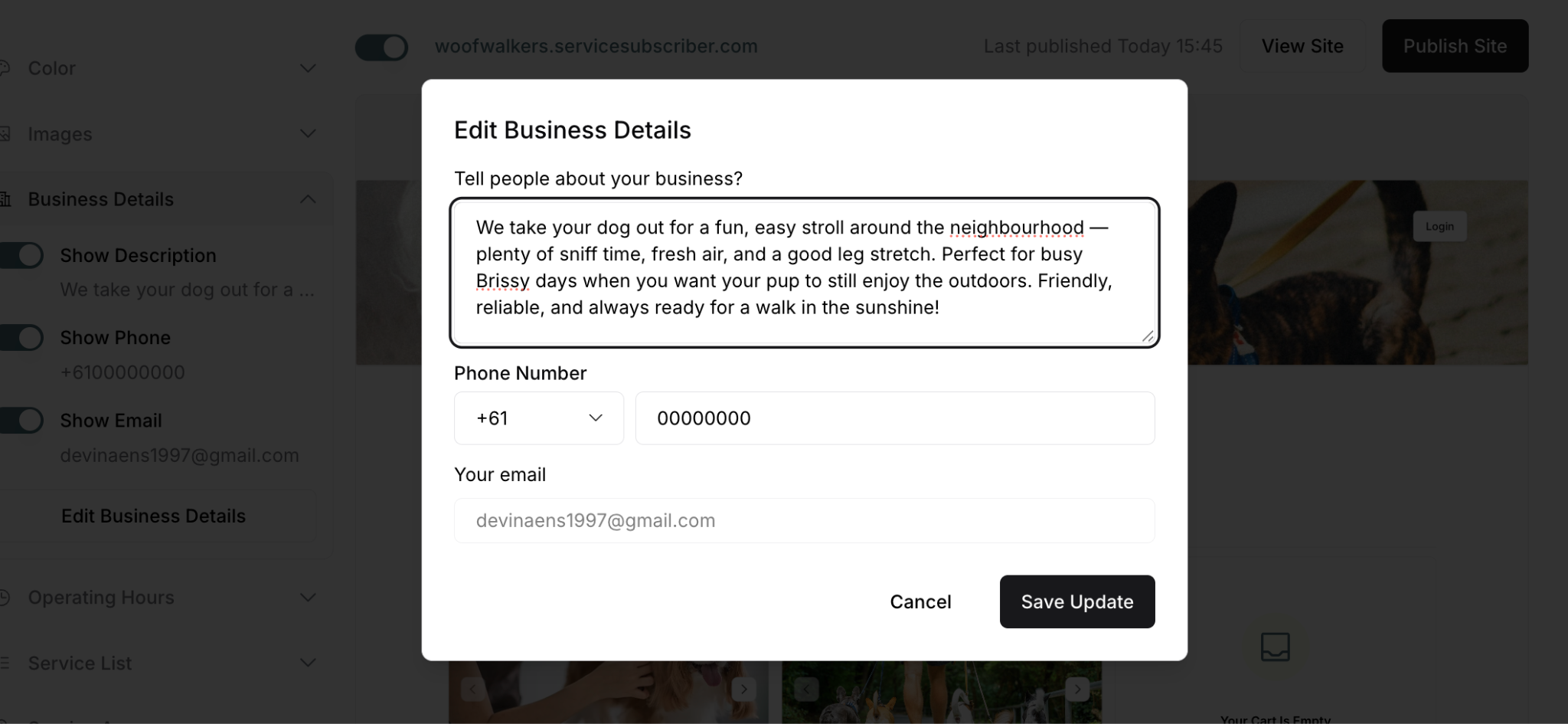
⚠️ IMPORTANT: Email cannot be changed in this modal—it's display-only. You can only edit description and phone number.
Step-by-Step: Editing Business Details
Complete process:
Click Edit Business Details button
Modal opens with current information
Edit description:
Click in "Tell people about your business?" field
Type or update your description
Use clear, concise language
Edit phone number:
Select country code from dropdown
Enter phone number in field
Verify number is correct
Review email:
Check displayed email is correct
Note: Cannot edit email here
Click Save Update
Modal closes
Changes reflected in preview
Click Publish Changes to make live
What Happens After Editing
Changes Reflected in Preview
Once you save:
Description updates in preview (if Show Description ON)
Phone number updates in Contact tab (if Show Phone ON)
Email address displays in Contact tab (if Show Email ON)
See changes instantly on right panel
Publishing Your Changes
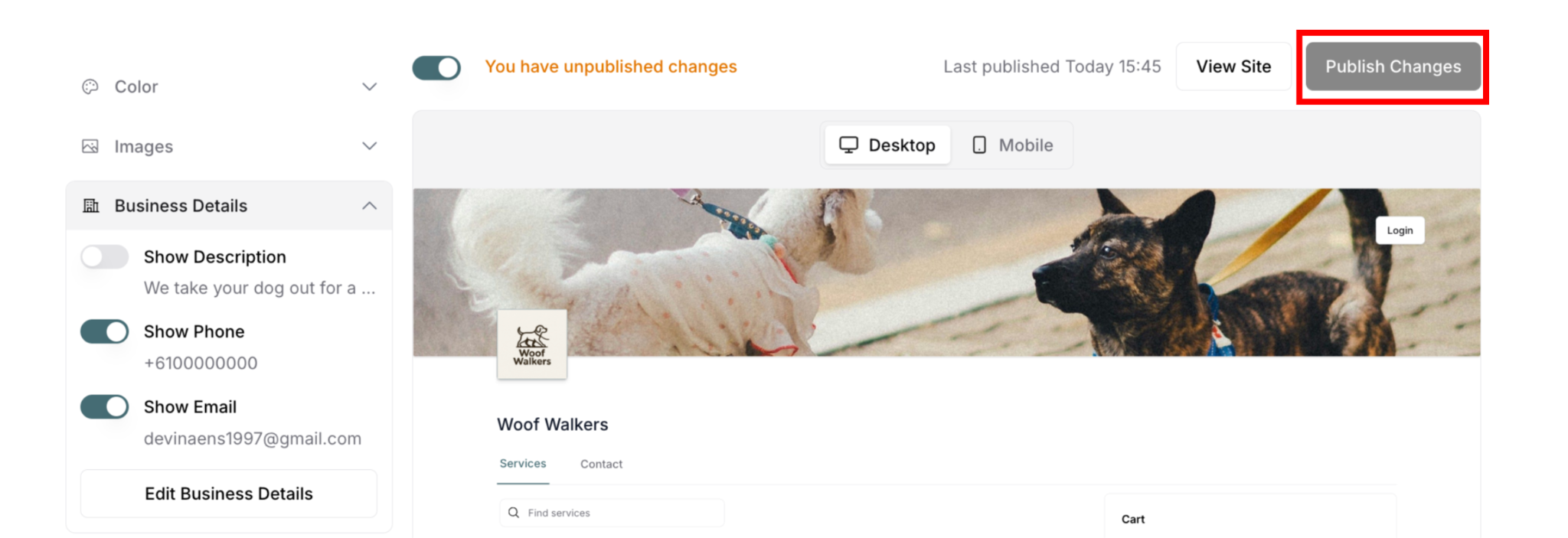
⚠️ CRITICAL: Changes must be published to go live.
If you don't publish:
Changes remain unpublished
Preview shows changes
Live site shows old information
Customers don't see updates
To publish:
Click Publish Changes button (top-right)
Wait for confirmation
Changes go live
Customers see updated information
Testing published changes:
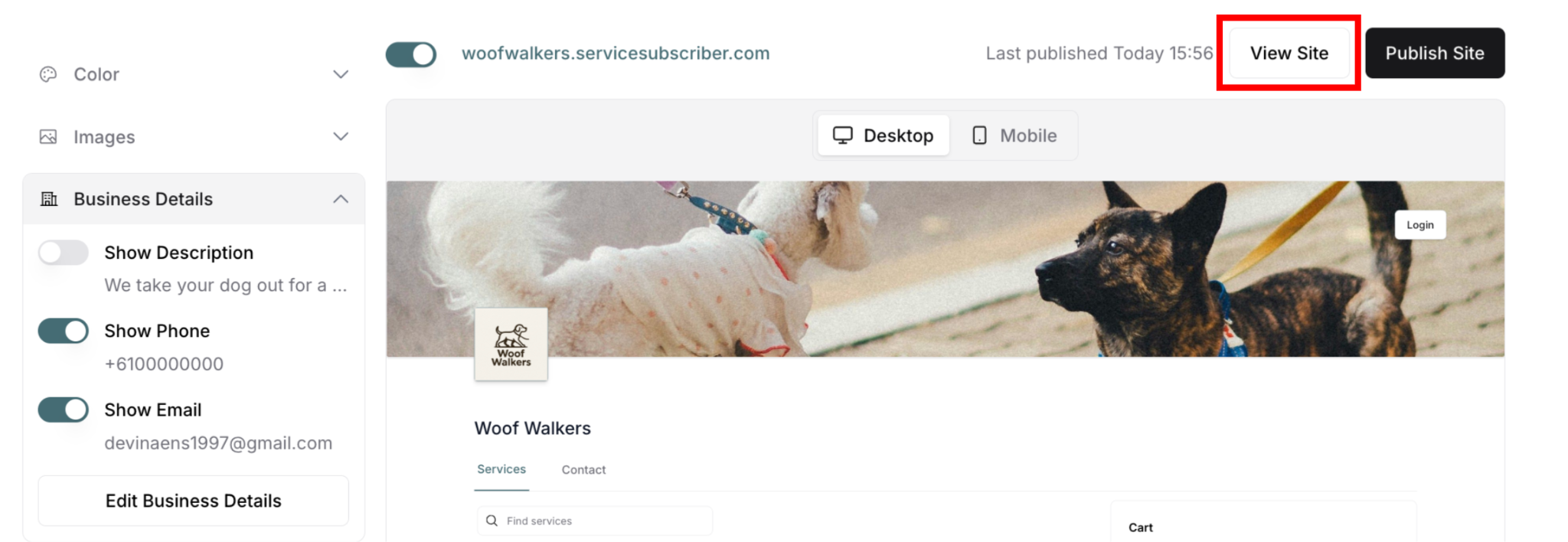
Click View Site after publishing
Opens live subscription page
Verify information displays correctly
Check Contact tab for phone/email
How Information Displays on Your Site
Description Display
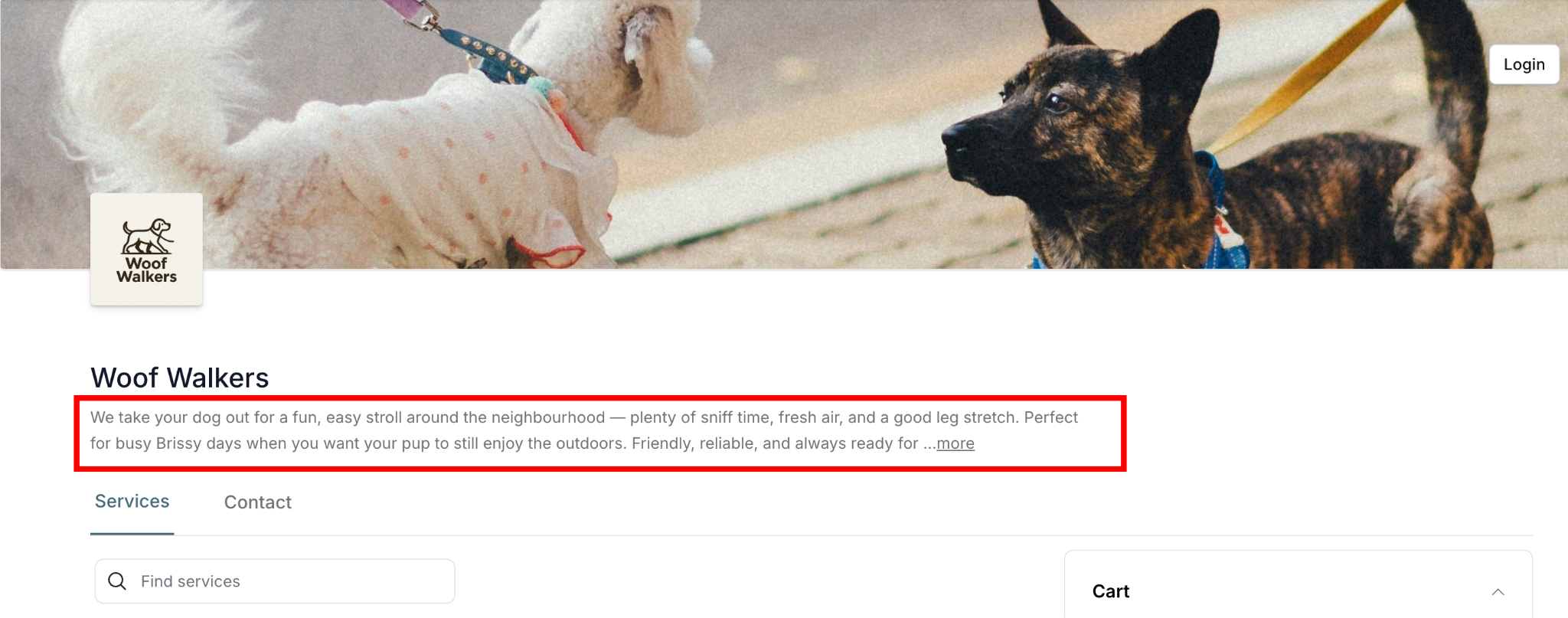
When Show Description is ON:
Appears below business name
Displays at top of page
Shows your business introduction
Visible to all customers
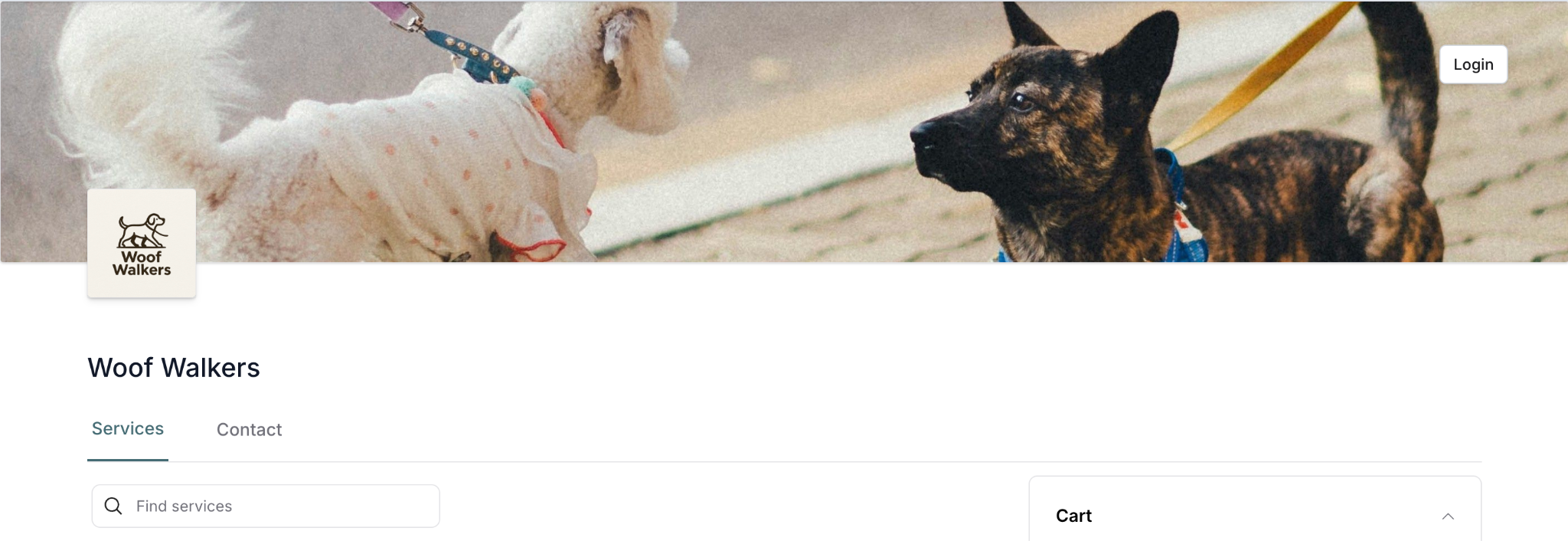
When Show Description is OFF:
Description hidden completely
Even if description text exists
Clean, minimal appearance
Description still saved (can toggle on later)
Contact Tab Display
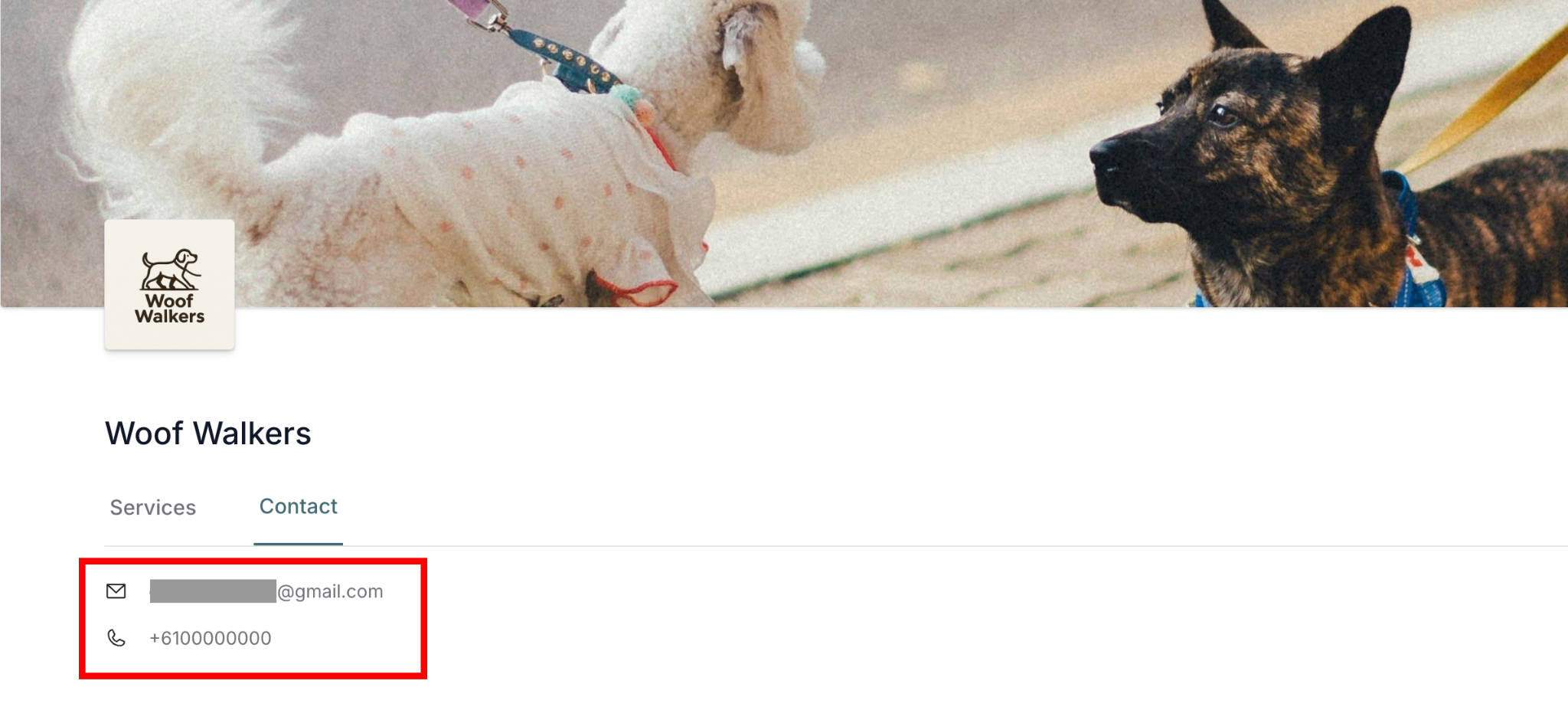
When Show Phone and/or Show Email are ON:
Customers see Contact tab with:
Email icon + your email address (if Show Email ON)
Phone icon + your phone number (if Show Phone ON)
Clickable links (email opens mail client, phone dials on mobile)
Easy one-click contact
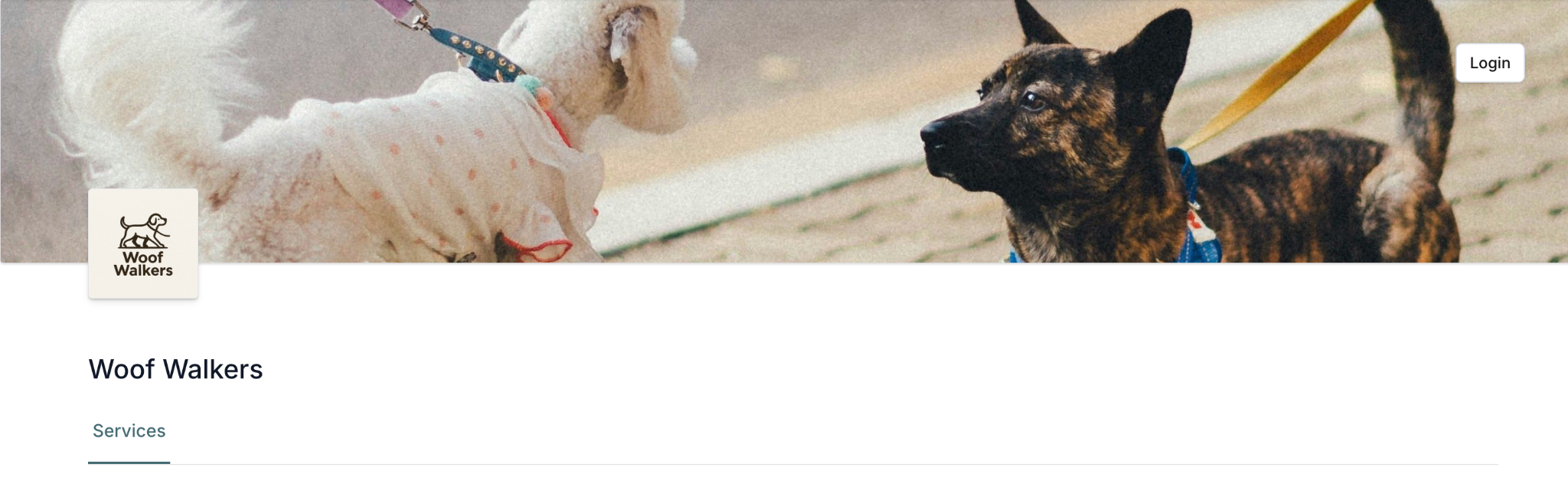
When Show Phone and Show Email are OFF:
Contact information hidden
Contact tab may disappear if both email and phone are toggled off
No contact details visible
Privacy maintained
Best Practices
For Descriptions:
✅ Keep it concise (2-3 sentences)
✅ Focus on customer benefits
✅ Explain what makes you unique
✅ Use friendly, professional tone
✅ Update as business evolves
For Phone Numbers:
✅ Use dedicated business line if possible
✅ Answer during business hours
✅ Set up professional voicemail
✅ Return calls promptly
✅ Consider time zone implications
For Email Display:
✅ Use professional email address
✅ Check email daily
✅ Respond within 24 hours
✅ Set up auto-reply if away
✅ Keep inbox monitored
✍️ TIP: Edit all your information first, decide what to display using toggles, then publish everything at once. You can always adjust visibility later without losing saved information.
Was this article helpful?
That’s Great!
Thank you for your feedback
Sorry! We couldn't be helpful
Thank you for your feedback
Feedback sent
We appreciate your effort and will try to fix the article