Your business hours tell customers when you're available for services. Displaying operating hours builds trust, sets expectations, and helps customers book subscriptions during your available times.
This guide explains how to set up and display your business hours.
Why Business Hours Matter
Clear operating hours help customers:
Know when you're available
Book services at appropriate times
Set realistic expectations
Plan around your schedule
Contact you during business hours
✍️ TIP: Displaying business hours can reduce inquiry calls by 30-40%. Customers can see your availability before subscribing.
Accessing Operating Hours Settings
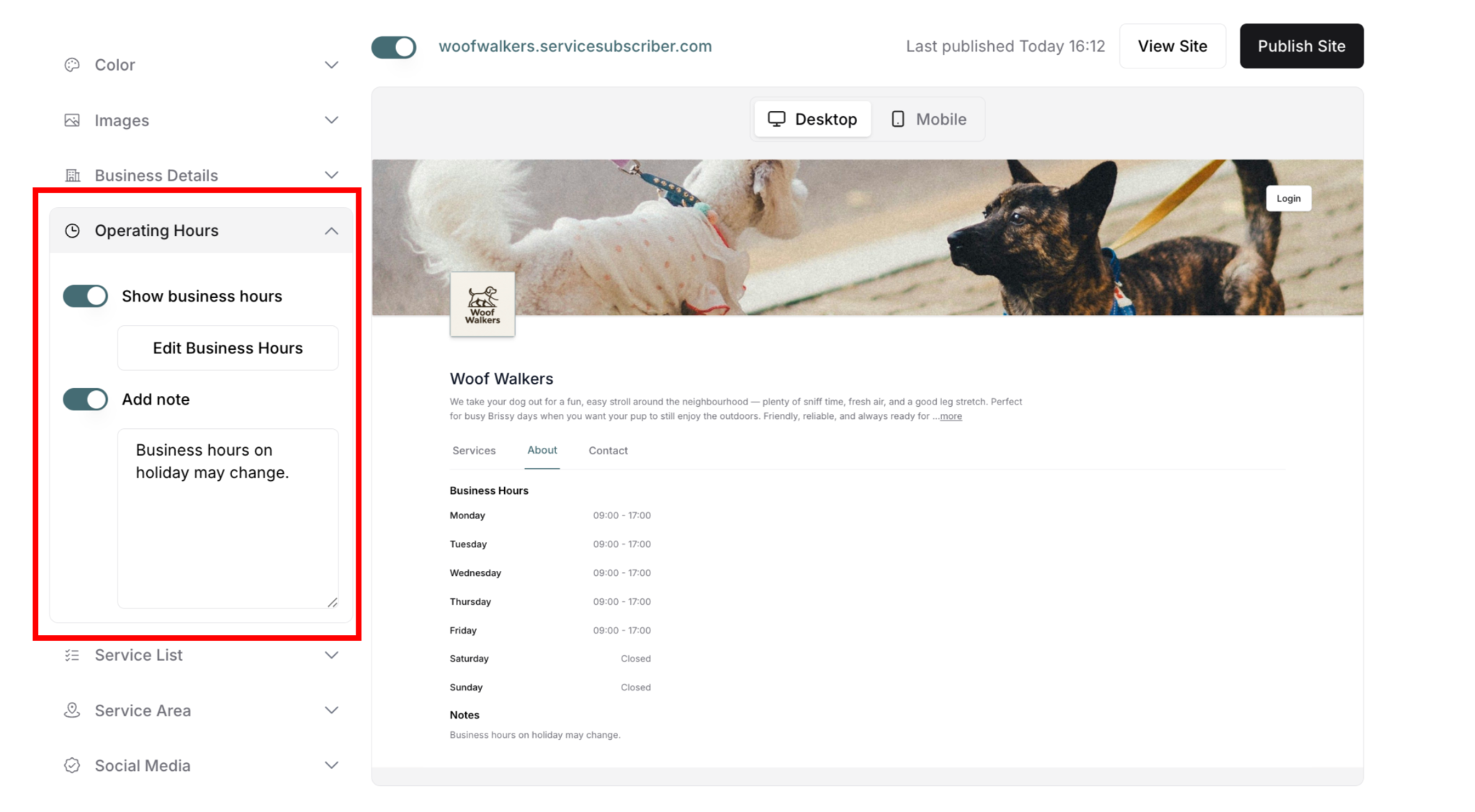
From My Site Settings:
Navigate to My Site (profile icon → My Site)
Find Operating Hours in left panel
Click to expand section
See toggle, button, and note options
Operating Hours Display Options
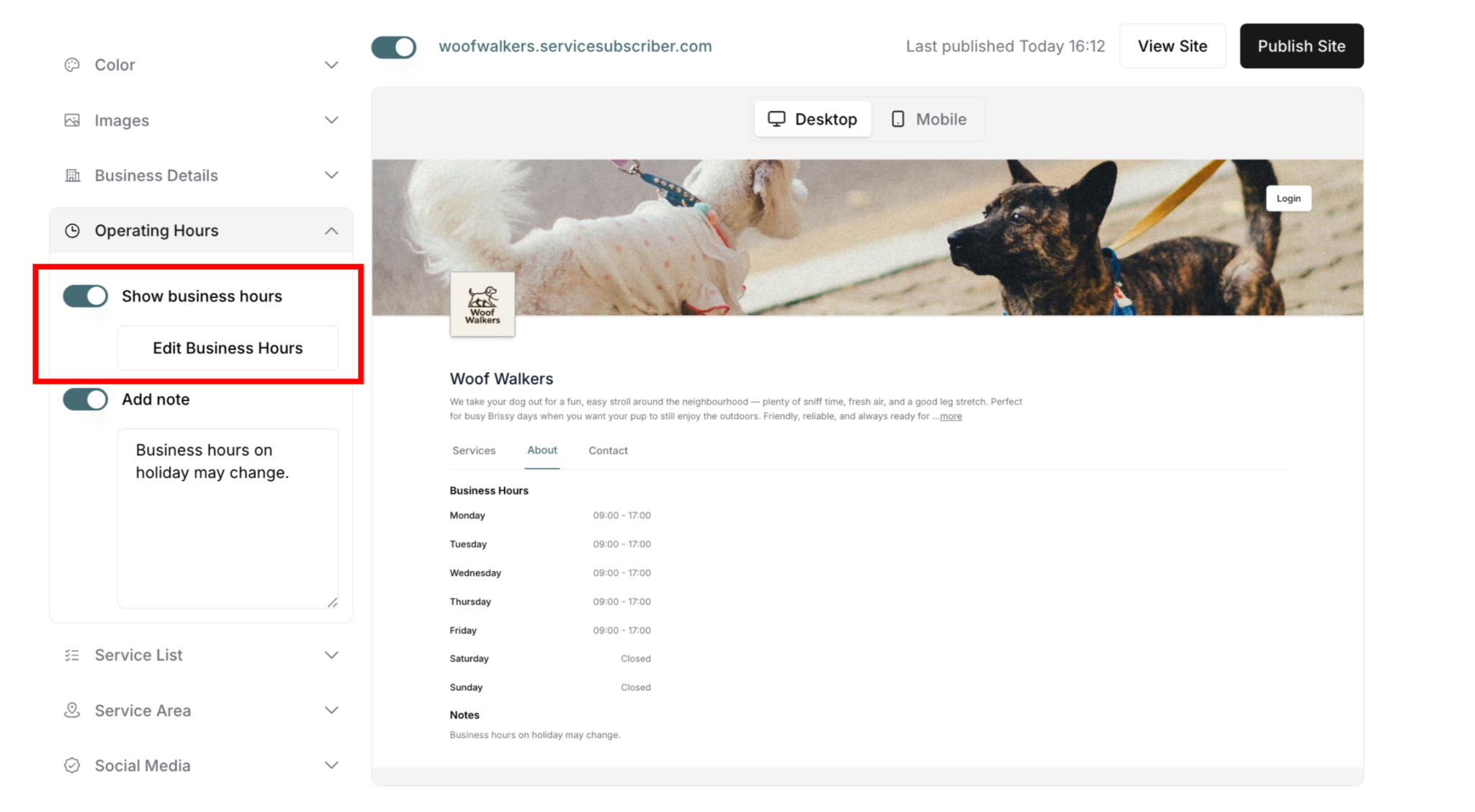
Three controls manage your business hours:
Show Business Hours Toggle
Toggle ON: Business hours display in About tab
Toggle OFF: Business hours hidden from customers
When to enable:
✅ Want customers to see your availability
✅ Have set business hours
✅ Help customers plan subscriptions
✅ Reduce scheduling confusion
When to disable:
❌ Don't have set hours
❌ Prefer not to display publicly
❌ Hours not yet configured
Edit Business Hours Button
Opens modal to set your operating hours:
Configure days and times
Add multiple time slots per day
Copy hours between days
Set which days you're open/closed
Add Note Toggle
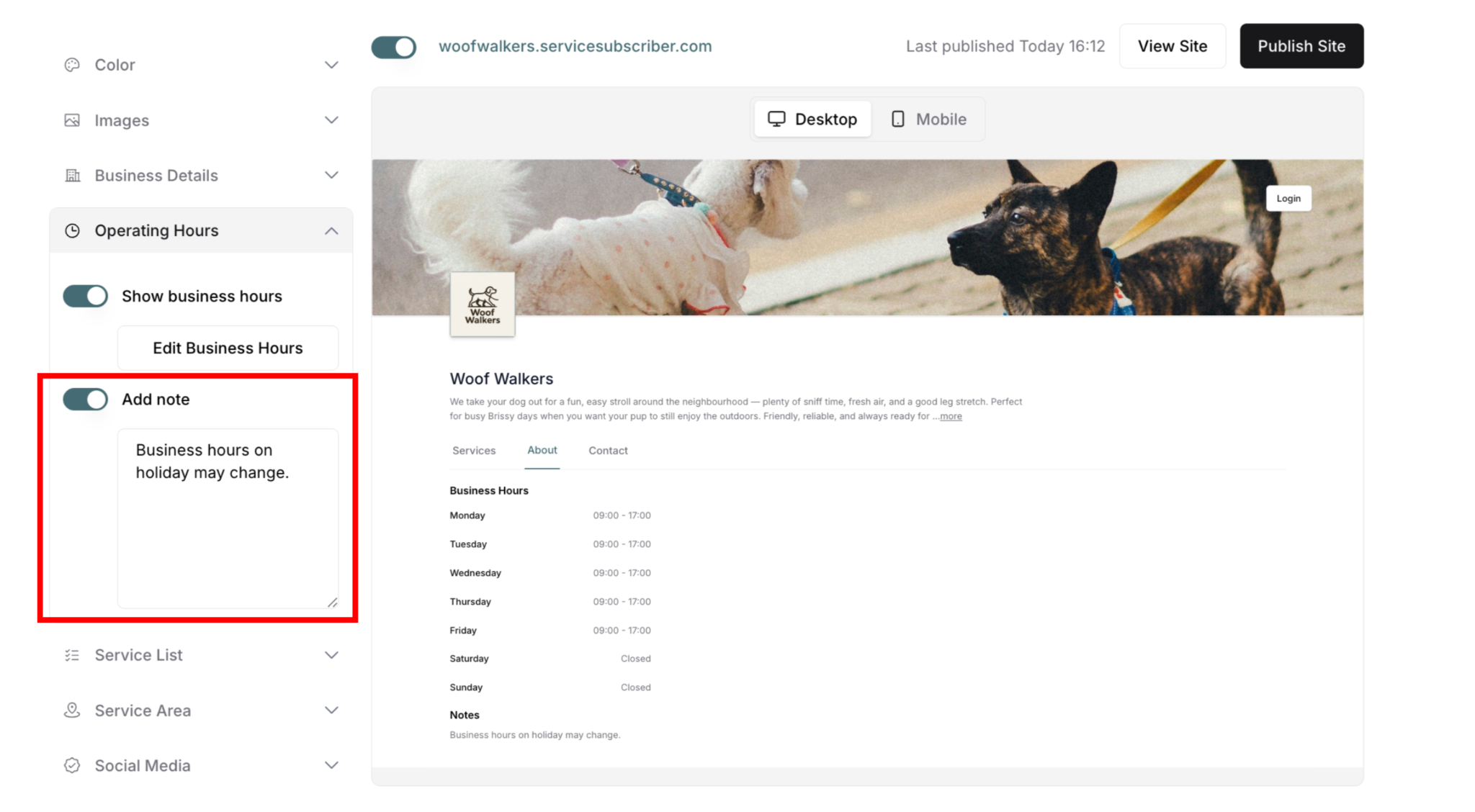
Toggle ON: Shows note field for special messages Toggle OFF: Hides note field
Use notes for:
Holiday hours variations
Special operating notes
Seasonal schedule changes
Important timing information
Note field:
Text input: "Text field for holiday hours or special notes"
Appears when Add Note toggled ON
Displays below hours on About tab
Great for temporary schedule changes
How to Edit Business Hours
Opening the Edit Modal
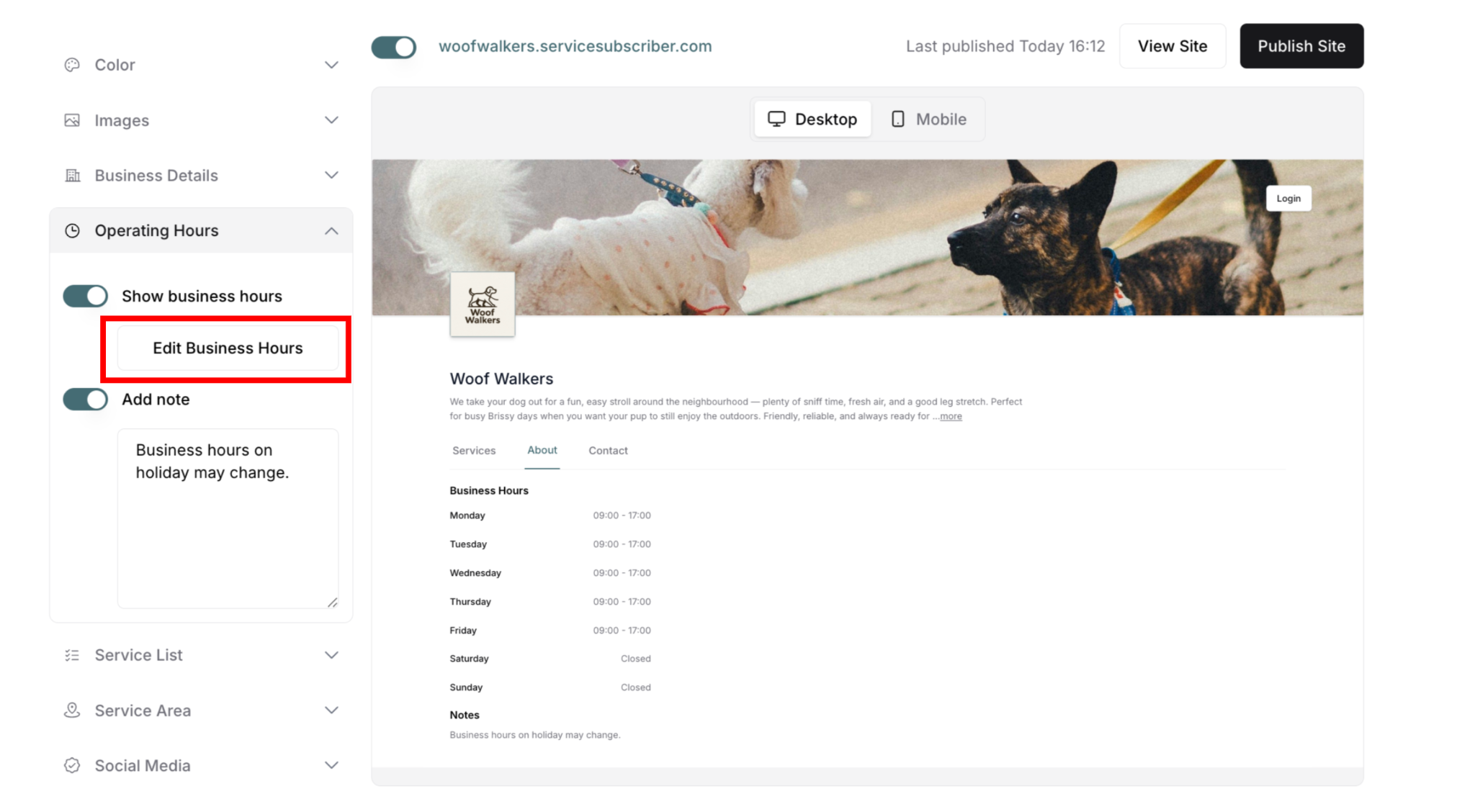
To set your hours:
Find Operating Hours section (left panel)
Click Edit Business Hours button
Modal appears: "Add Operating Hours"
Set your schedule
Click Save Update to save, or Cancel to discard
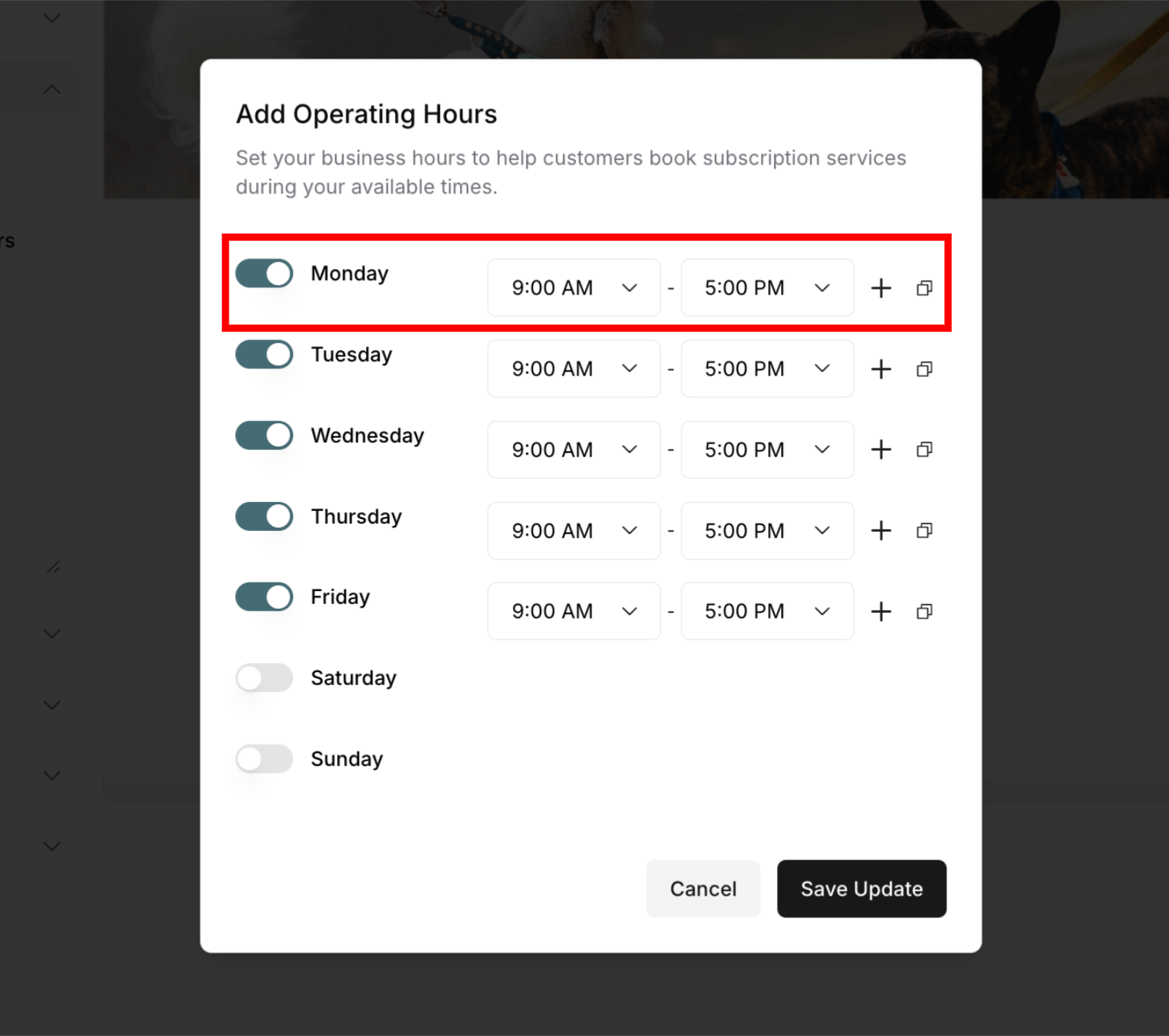
Understanding the Modal
Each day shows:
Toggle (ON = open, OFF = closed)
Day name (Monday, Tuesday, etc.)
Start time dropdown (when you open)
Dash separator (-)
End time dropdown (when you close)
Plus (+) icon (add more time slots)
Copy icon (copy to other days)
Setting Hours for Each Day
To configure a day:
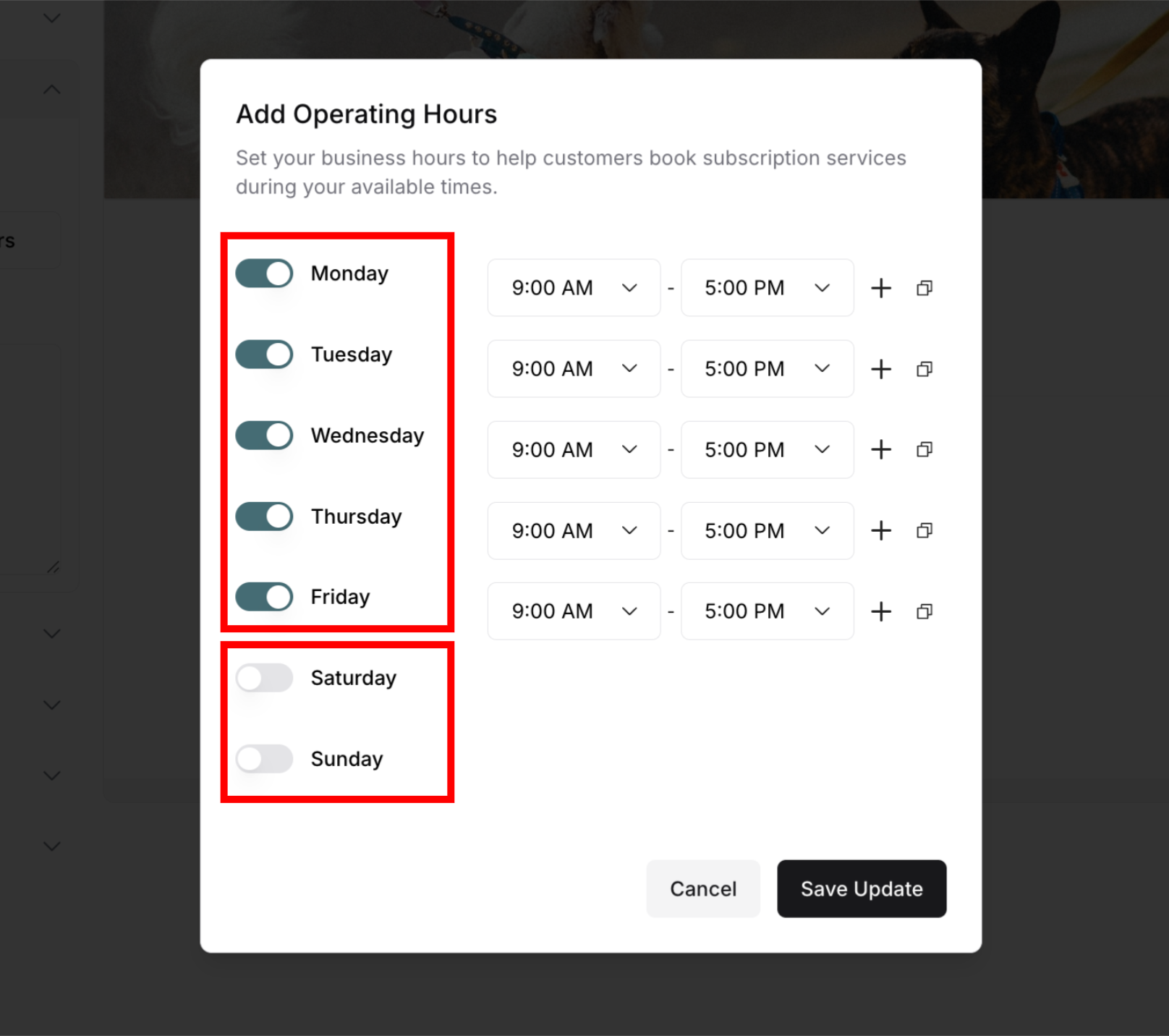
Toggle the day ON:
Find the day (e.g., Monday)
Click toggle to enable (turns teal/blue)
Time fields appear
Set opening time:
Click start time dropdown
Select opening time (e.g., 9:00 AM)
Set closing time:
Click end time dropdown
Select closing time (e.g., 5:00 PM)
Repeat for other days:
Configure each business day
Leave days OFF if closed
For closed days:
Keep toggle OFF (gray)
No time fields appear
Will display as "Closed" on site
Adding Multiple Time Slots Per Day
Some businesses have split hours (e.g., close for lunch):
To add multiple time slots:
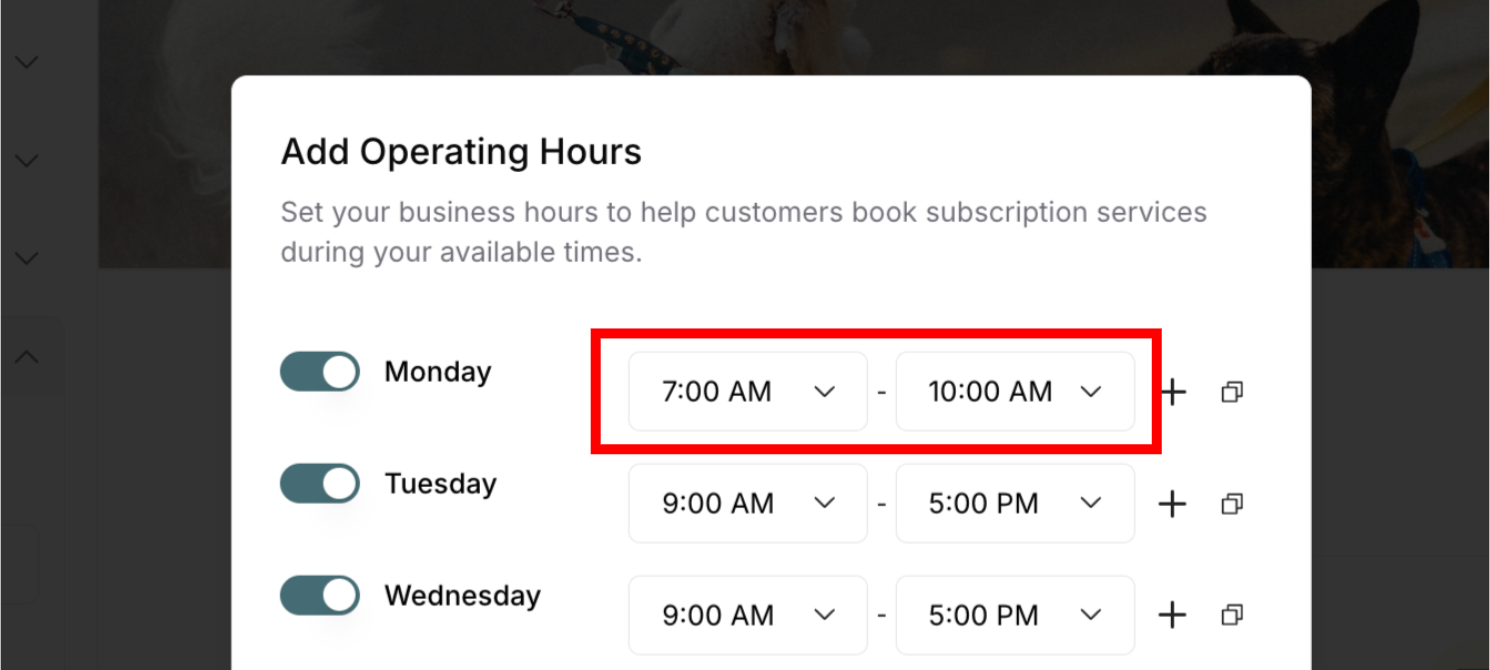
Set first time slot:
Example: 7:00 AM - 10:00 AM
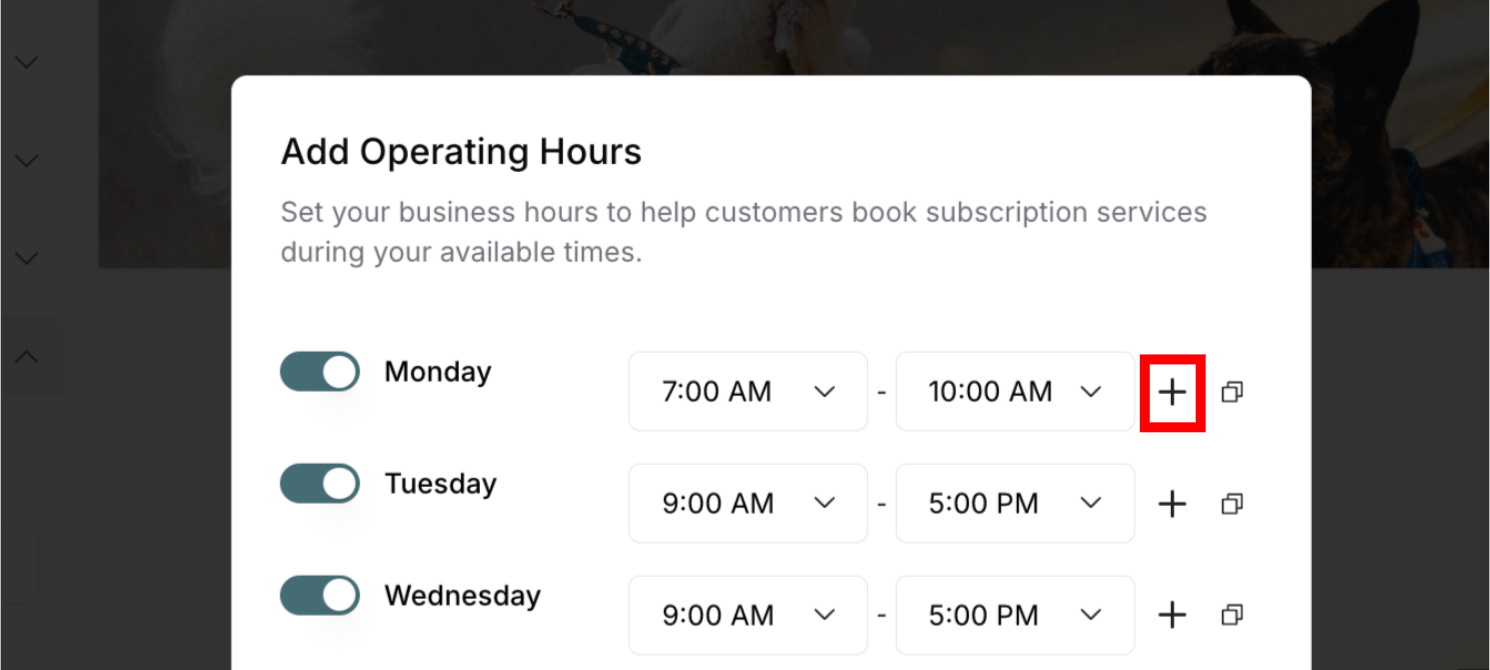
Click plus (+) icon:
Located right of time fields
New time slot row appears below
Set second time slot:
Example: 3:00 PM - 7:00 PM
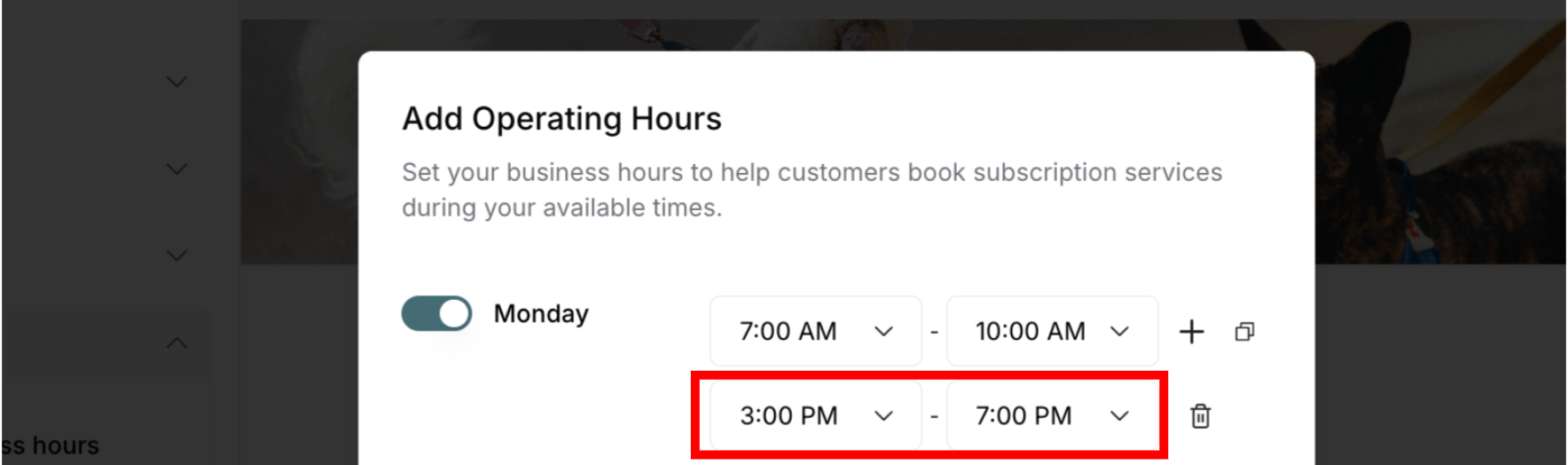
Add more slots if needed:
Click plus (+) again
No limit on time slots
Example use case:
Morning hours: 7:00 AM - 10:00 AM
Evening hours: 3:00 PM - 7:00 PM
Closed midday for lunch/break
Removing Time Slots
To remove a time slot:
Find the time slot to remove
Click trash icon on right
Time slot disappears immediately
Cannot remove the first time slot (must toggle day OFF instead)
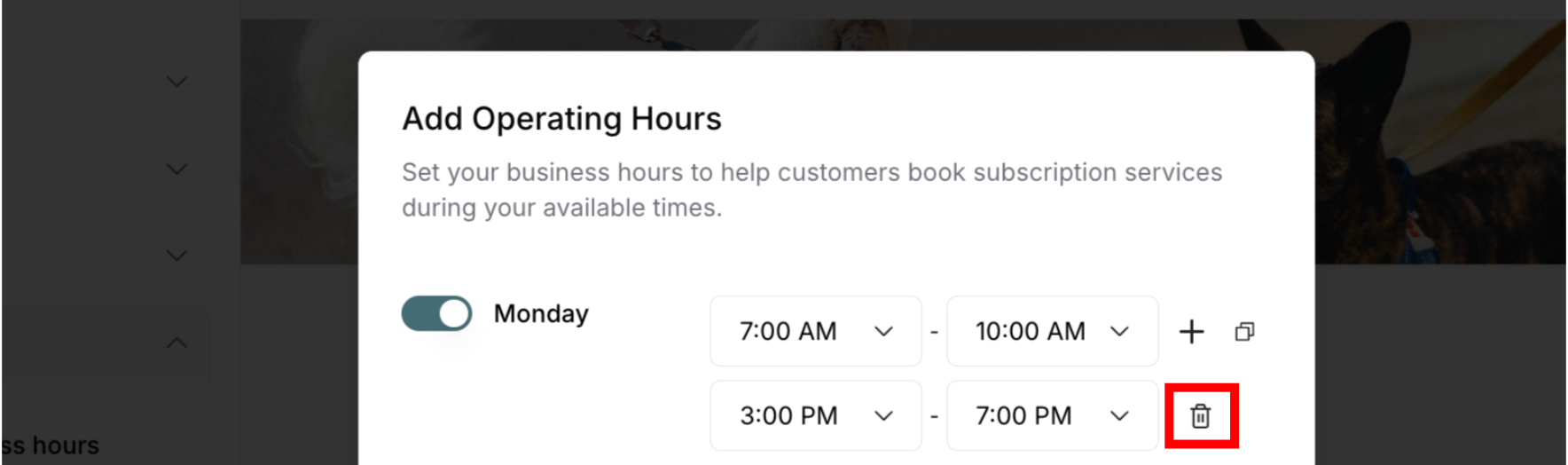
⚠️ IMPORTANT: You cannot delete the first time slot—only additional ones added with plus (+). To remove all hours for a day, toggle the day OFF.
Copying Hours Between Days
Save time by copying hours from one day to others:
How to Copy Hours
Step-by-step:
Set hours for one day:
Example: Configure Monday (7:00 AM - 10:00 PM)
Include all time slots if multiple
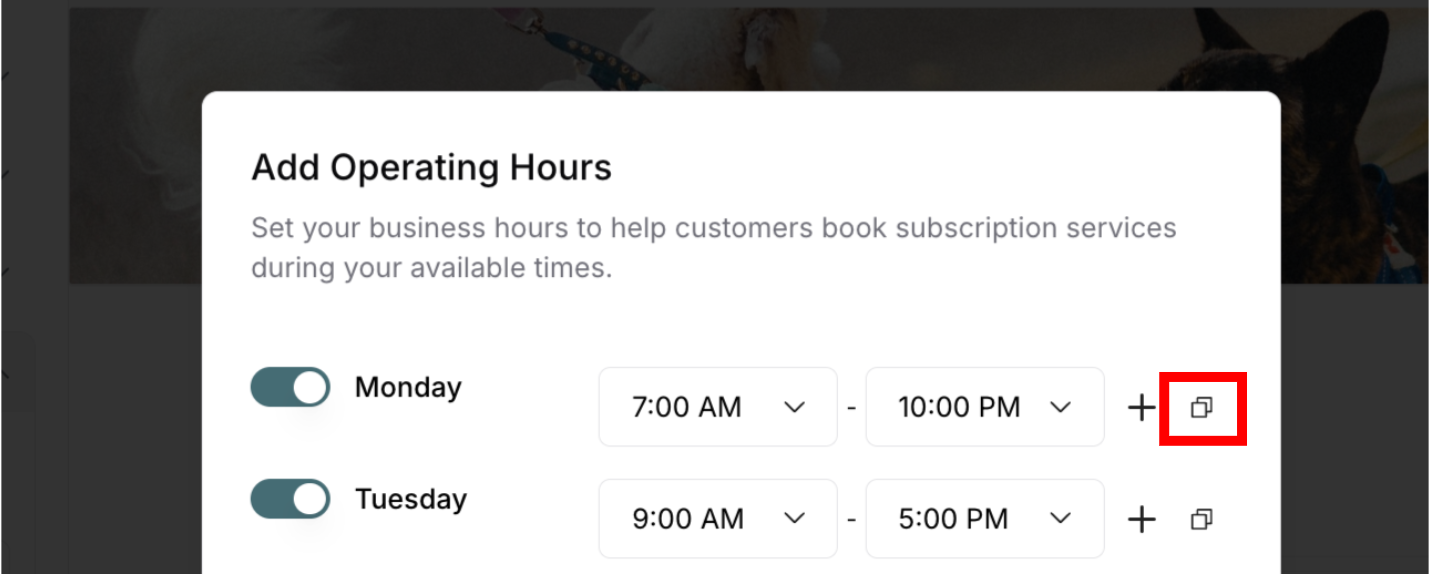
Click copy icon:
Located to right of time fields (after + button)
Modal appears: "Copy Times to"
Select destination days:
Checkbox for each day appears
"Select All" option at top
Check days you want to copy to
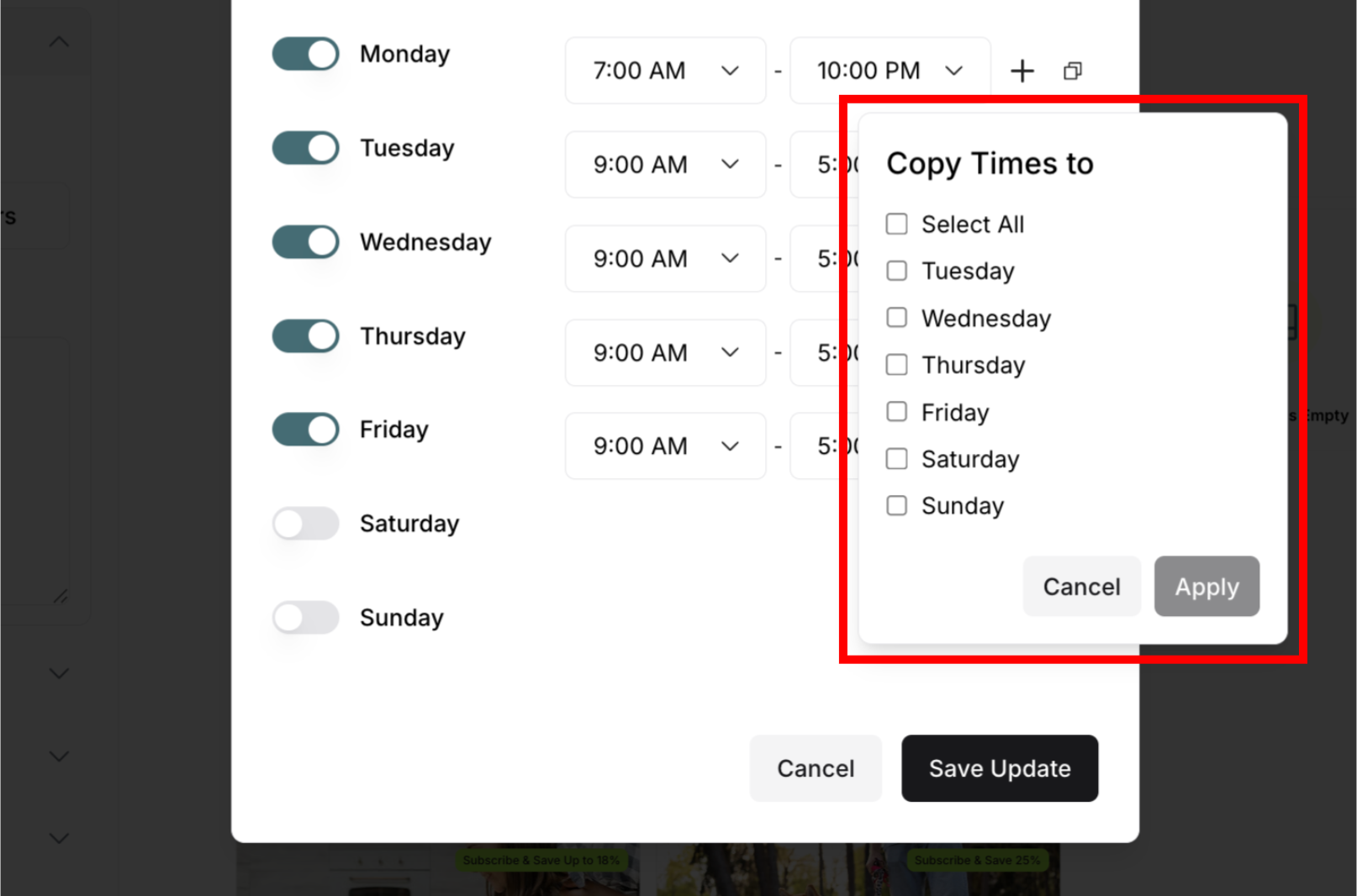
Click Apply:
Selected days update with copied hours
All time slots copy over
Or click Cancel to abort
Example scenario:
Monday-Wednesday: Same hours (9:00 AM - 5:00 PM)
Thursday-Friday: Different hours
Weekend: Closed
✍️ TIP: Use "Select All" if most days have same hours, then adjust exceptions individually.
Adding Special Notes
Use notes for temporary or special information:
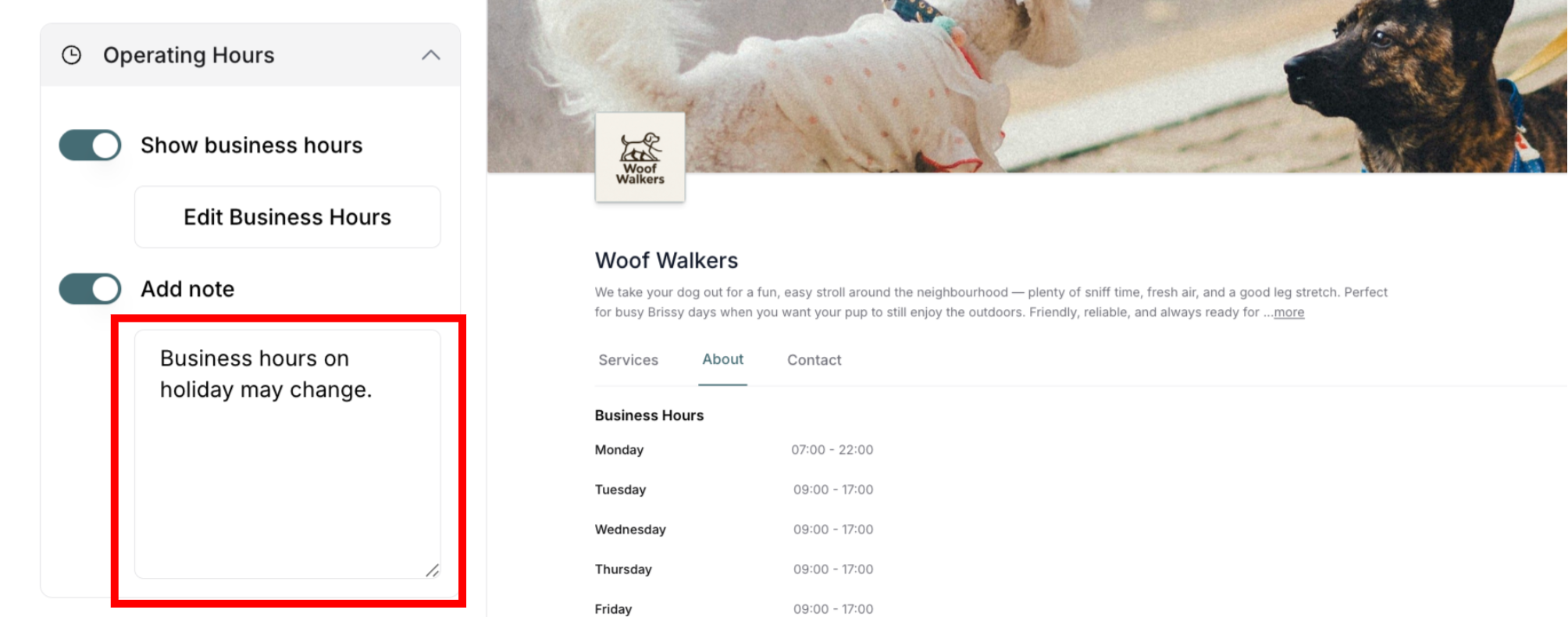
To add a note:
Find Add note toggle
Toggle ON (turns teal/blue)
Text field appears below
Type your note in field
Note displays below hours on About tab
Good note examples:
"Business hours on holiday may change."
"Closed December 25-26 for Christmas."
"Summer hours: Extended to 8 PM June-August."
"Closed first Monday of each month for maintenance."
Note guidelines:
✅ Keep it brief and clear
✅ Use for temporary changes
✅ Update regularly if time-sensitive
✅ Helpful for holiday schedules
Saving and Publishing Changes
Saving Your Hours
After editing:
Review all days and times
Verify hours are correct
Click Save Update
Modal closes
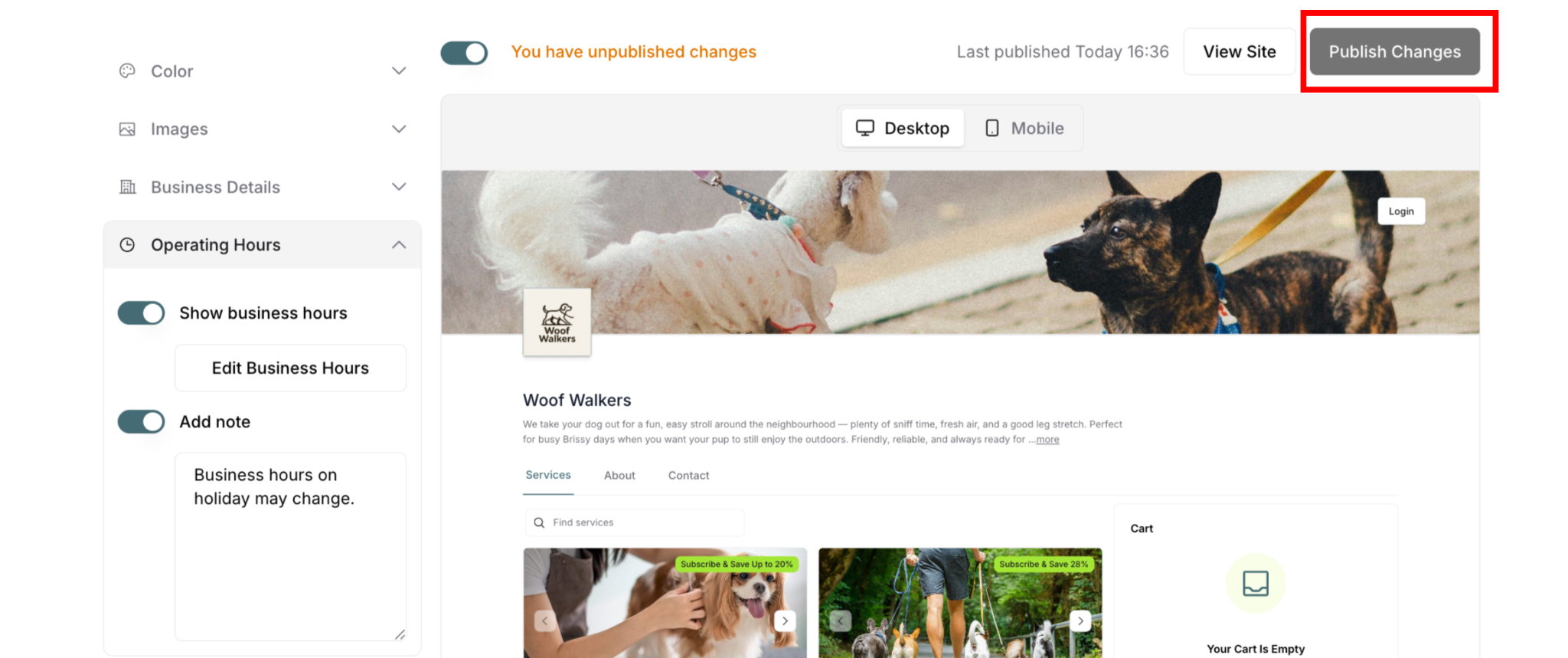
Changes saved but not published yet
⚠️ CRITICAL: Saving is not the same as publishing.
Publishing Changes
To make hours live:
Toggle Show business hours ON (if not already)
Click Publish Changes button (top-right)
Wait for confirmation
Changes go live
Customers see updated hours
If you don't publish:
Changes remain unpublished
Preview shows changes
Live site shows old hours
Customers don't see updates
To verify published changes:
Click View Site after publishing
Navigate to About tab
Check "Business Hours" section
Verify hours display correctly
How Hours Display on Your Site
About Tab Display
When Show business hours is ON:
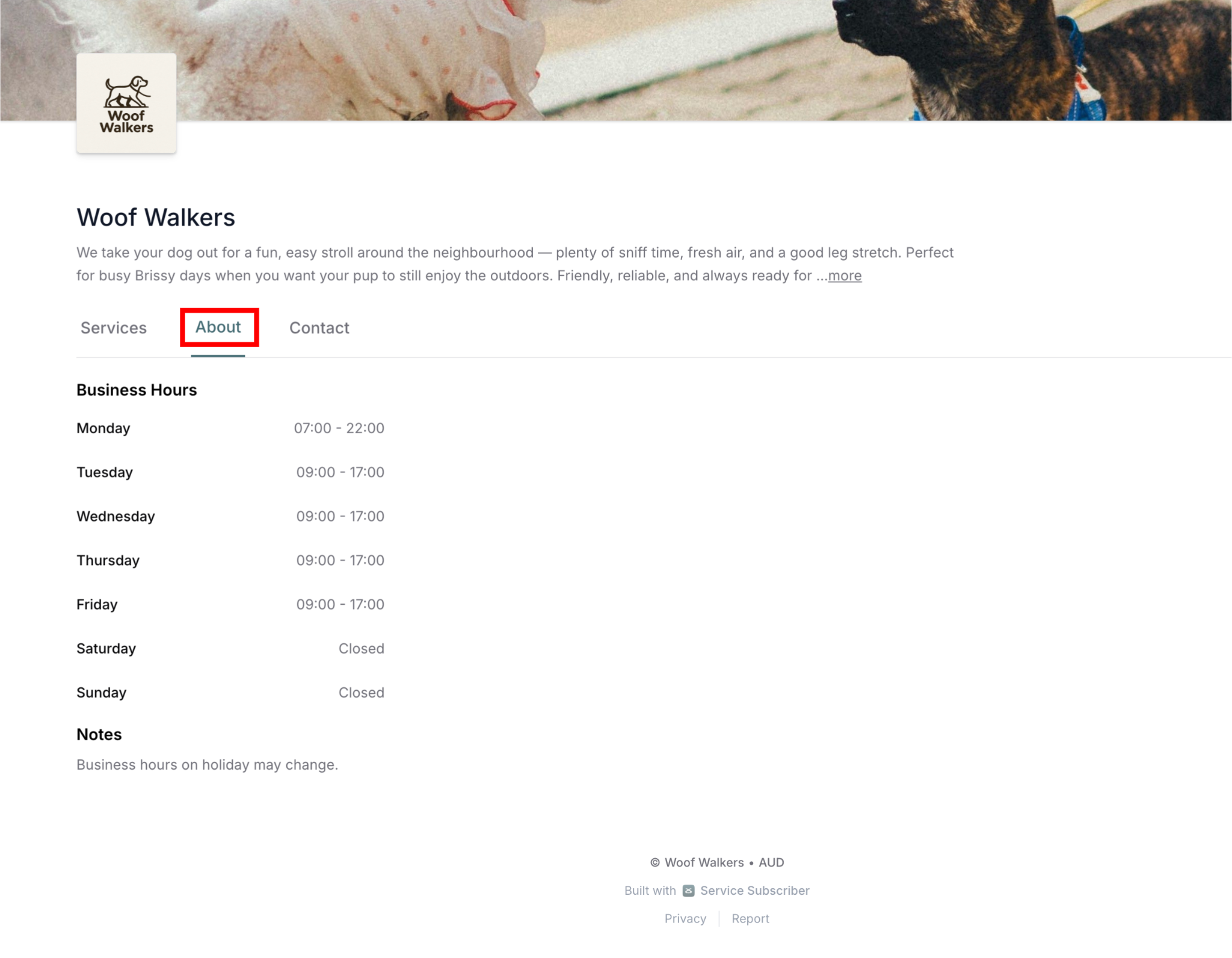
Customers see in About tab:
Heading: "Business Hours"
Each day listed:
Day name (e.g., Monday)
Hours (e.g., 09:00 - 17:00)
Or "Closed" if day OFF
Multiple time slots:
Each slot on separate line
Same day name
Notes section:
Heading: "Notes"
Your special notes text
When Toggle OFF
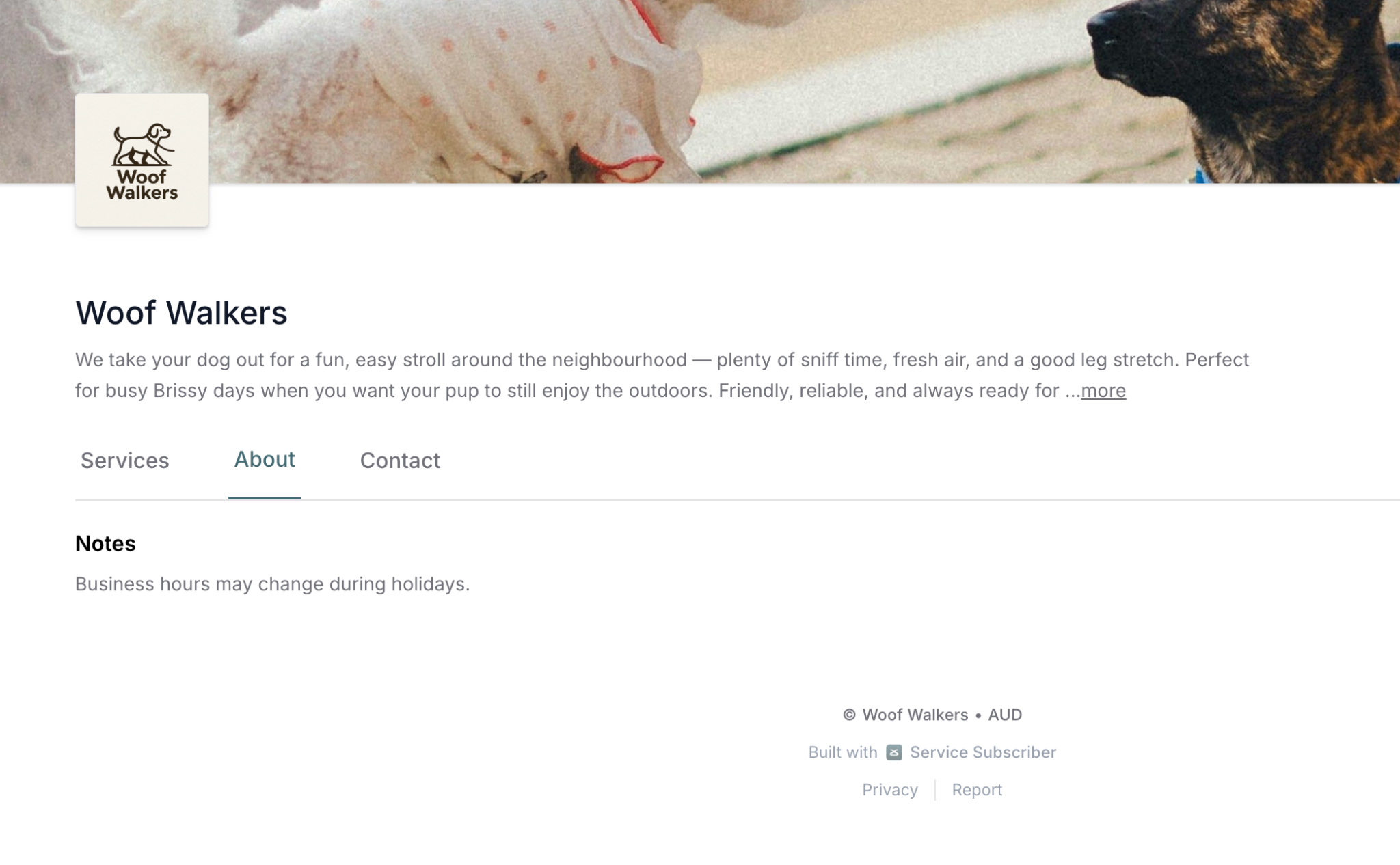
If Show business hours is OFF:
Hours section doesn't appear
About tab exists, if the Note is not hidden
Hours still saved (can toggle ON later)
Privacy maintained
Best Practices
For Time Slots:
✅ Use clear, standard times (9:00 AM vs 9:17 AM)
✅ Account for breaks if needed
✅ Be realistic about availability
✅ Update seasonally if hours change
✅ Match actual operating times
For Notes:
✅ Keep current and relevant
✅ Remove outdated holiday notes
✅ Use for temporary changes only
✅ Be specific with dates
✅ Update regularly
For Display:
✅ Toggle ON if hours are set
✅ Keep hours accurate
✅ Publish changes promptly
✅ Test on live site after changes
✅ Verify both desktop and mobile views
✍️ TIP: Set accurate business hours to manage customer expectations. Update your hours seasonally or during holidays, and use notes to communicate temporary changes clearly.
Was this article helpful?
That’s Great!
Thank you for your feedback
Sorry! We couldn't be helpful
Thank you for your feedback
Feedback sent
We appreciate your effort and will try to fix the article