Service terms and policies define the rules and expectations for your subscriptions. They protect your business, set clear customer expectations, and prevent misunderstandings about commitments, cancellations, and service delivery.
Understanding Subscription Terms
Subscription terms control the commitment level and duration of customer subscriptions.
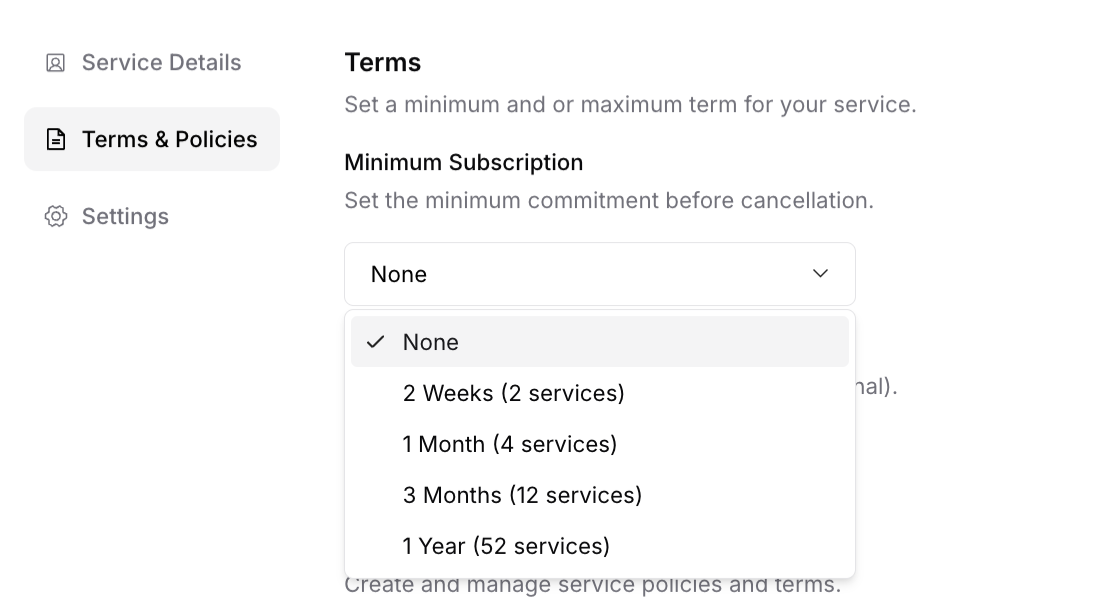
Minimum Subscription Term
What it is: The shortest period customers must stay subscribed
Common options:
No minimum (cancel anytime) - Most common
2 weeks minimum
1 month minimum
3 months minimum
1 year minimum
When to use minimums:
Significant setup or onboarding costs
Equipment investment required
Seasonal services need duration guarantee
Service only viable with commitment
Minimum subscription term dropdown showing no minimum through 1 year options
✍️ TIP: "No minimum" (cancel anytime) converts significantly better. Use minimums only when absolutely necessary for your business model.
Maximum Subscription Term
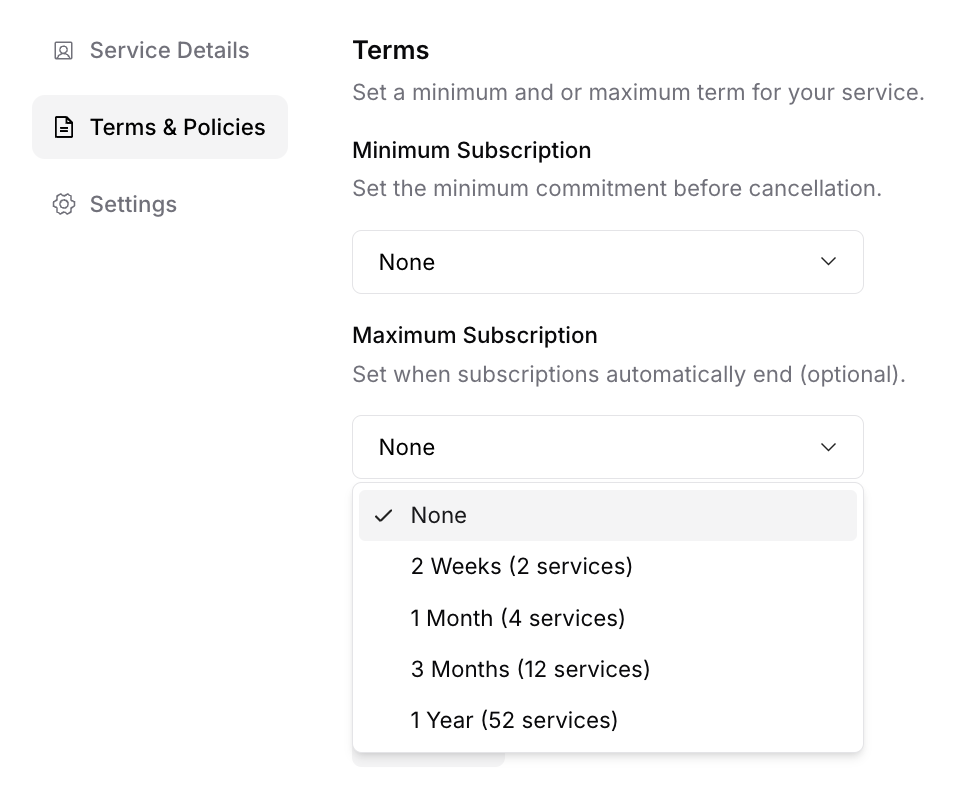
What it is: How long subscriptions run before requiring renewal
Common options:
No maximum (runs indefinitely) - Most common
2 weeks minimum
1 month minimum
3 months minimum
1 year minimum
When to use maximums:
Seasonal services (e.g., lawn care ends in winter)
Pricing adjustments needed annually
Contract renewals required
Want periodic customer reconnection
Auto-Renewal Setting
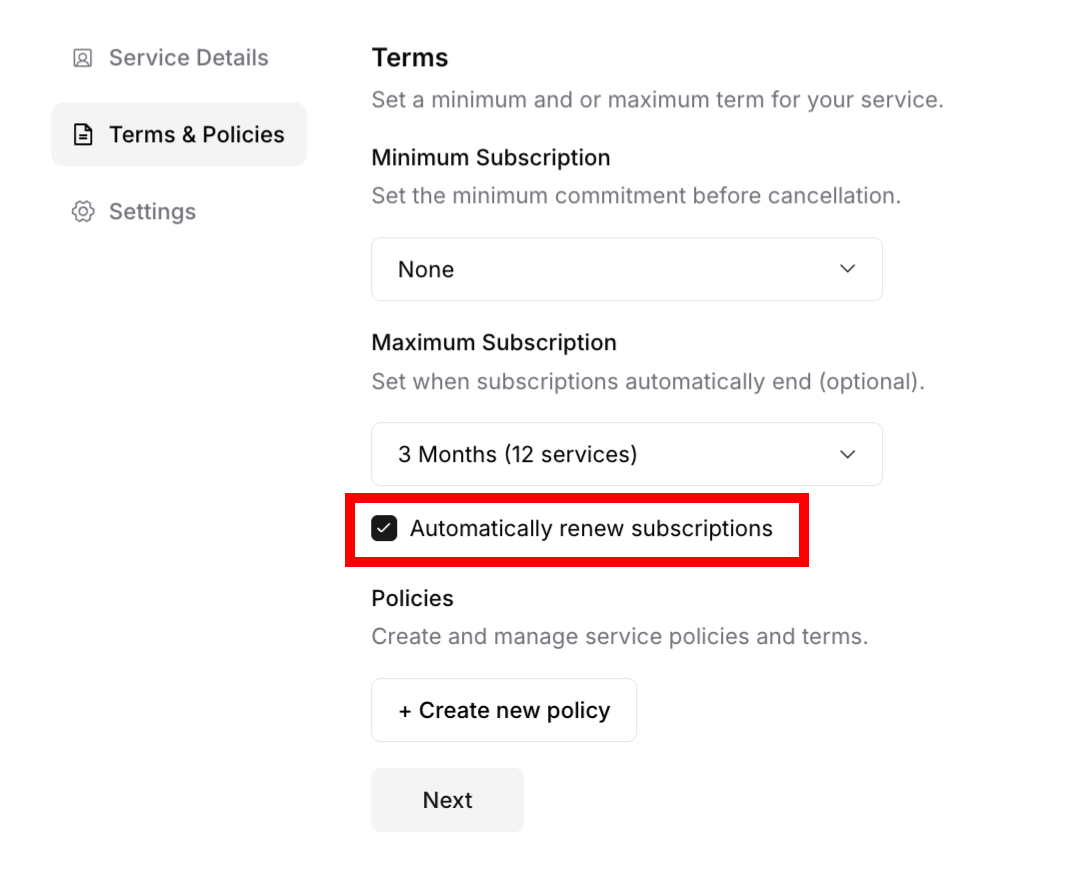
What it is: Whether subscriptions continue automatically after maximum term
If enabled:
Subscription renews automatically at end of term
Customer doesn't need to take action
Seamless continuation of service
Can still cancel before renewal
If disabled:
Subscription ends at maximum term
Customer must actively resubscribe
Good for truly seasonal offerings
More admin work to recapture customers
Auto-renewal checkbox setting in terms configuration
✅ BEST PRACTICE: Most successful subscription businesses use "no minimum, no maximum" with auto-renewal. This creates the smoothest experience and highest retention.
Creating Service Policies
Policies are the written rules customers agree to when subscribing.
Adding a Policy
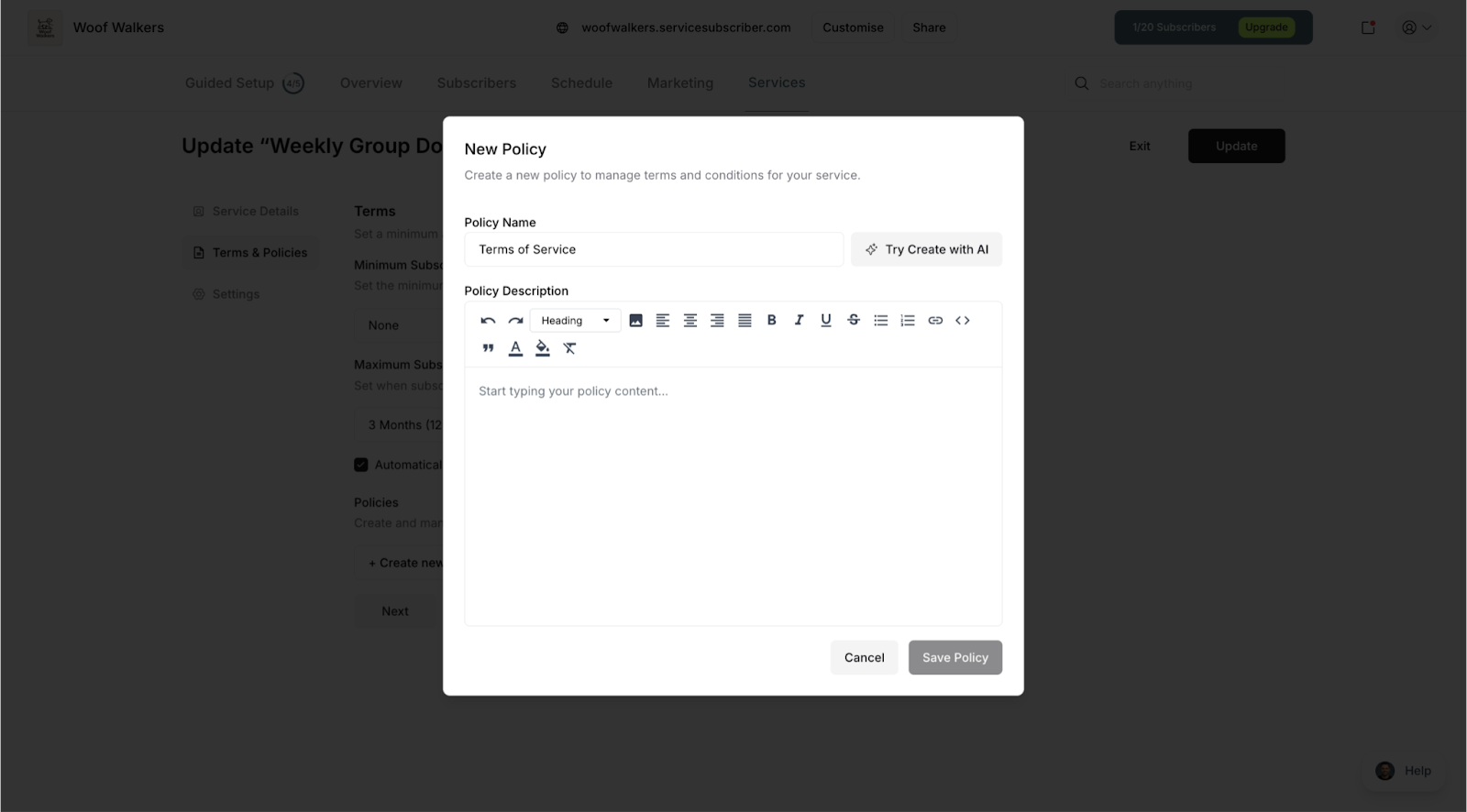
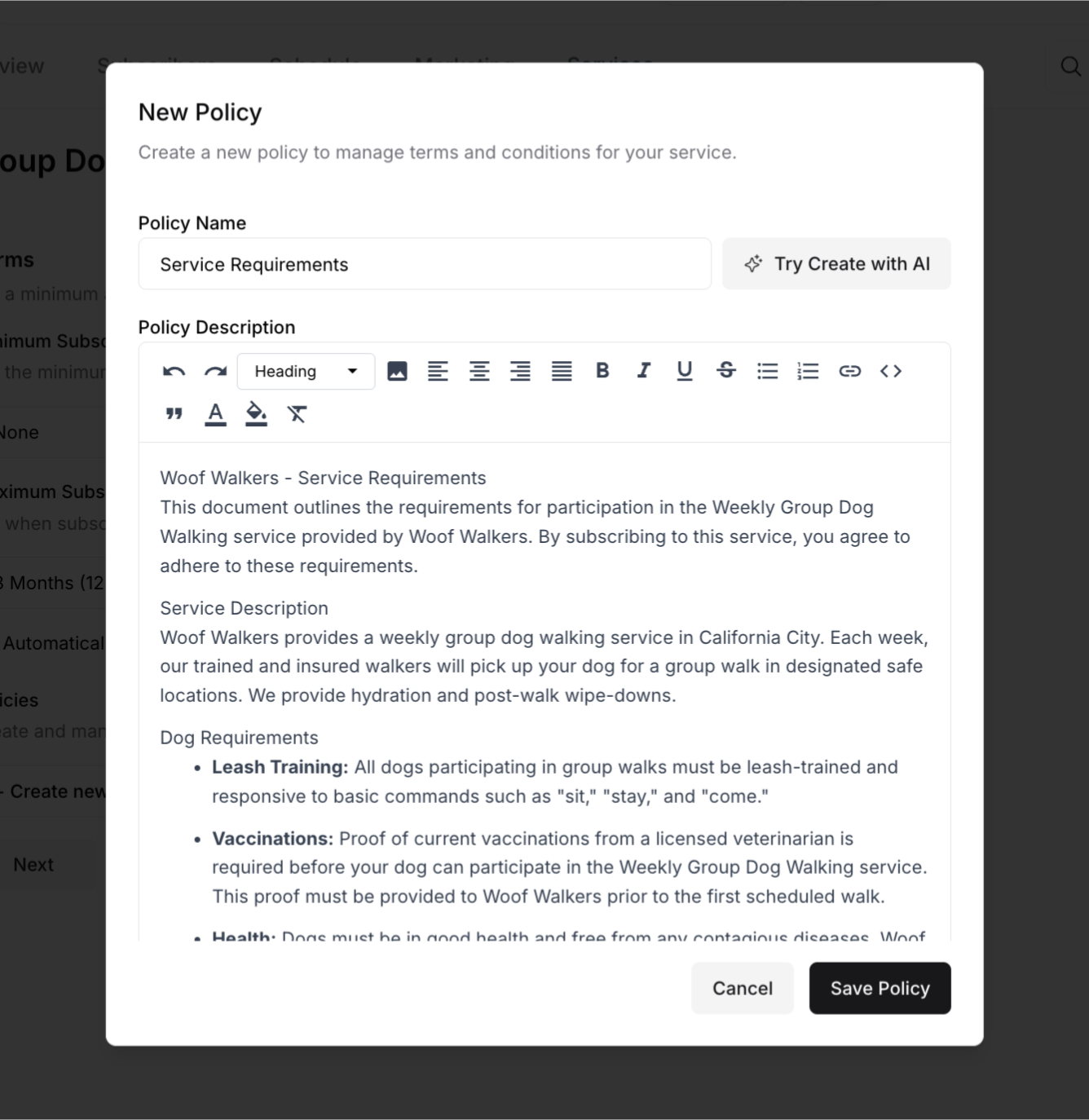
In the Terms & Policies tab, click Create New Policy
Enter a Policy Name (e.g., "Cancellation Policy")
Write your Policy Description in the text area
Click Save Policy
Policy editor showing title and content fields with save button
Common Policy Types
Cancellation Policy: Explains how customers can cancel and any requirements
Example: "Subscriptions can be cancelled anytime with 7 days notice. Services scheduled within the notice period will be completed and billed. Cancellations take effect at the end of the current billing period."
Refund Policy: Clarifies refund terms and conditions
Example: "We offer prorated refunds for cancelled subscriptions. Refunds processed within 5-7 business days to original payment method. Services already delivered are non-refundable."
Terms of Service: General terms governing the service relationship
Example: "Services provided as described. Customer responsible for providing property access. Weather-dependent services may be rescheduled. Professional liability insurance maintained."
Service Requirements: What customers must provide or ensure
Example: "Customer must provide water access and unlocked gates on service day. Pets must be secured. 24-hour notice required for rescheduling. Additional charges apply for services above two stories."
Liability Limitations: Protects your business from certain claims
Example: "We maintain professional liability insurance. Not responsible for damage to improperly maintained equipment or structures. Customers must report damage within 24 hours of service."
Managing Multiple Policies
You can create several policies for comprehensive coverage:
Recommended minimum:
Cancellation Policy
Service Requirements
Refund Policy (if applicable)
Additional optional policies:
Terms of Service
Liability Limitations
Rescheduling Policy
Payment Terms
Service Guarantee
Editing Policies
To update existing policies:
Navigate to Terms & Policies tab
Click on the policy to edit
Update the content
Click Save
Changes apply to service immediately
Deleting Policies
To remove a policy:
Find the policy in the list
Click Delete or the trash icon
Confirm deletion
Policy removed from service
⚠️ IMPORTANT: Policy changes affect new subscribers immediately. Existing subscribers subscribed under old terms, though updated policies may apply depending on local laws.
How Customers See Terms & Policies
During Subscription
When customers subscribe:
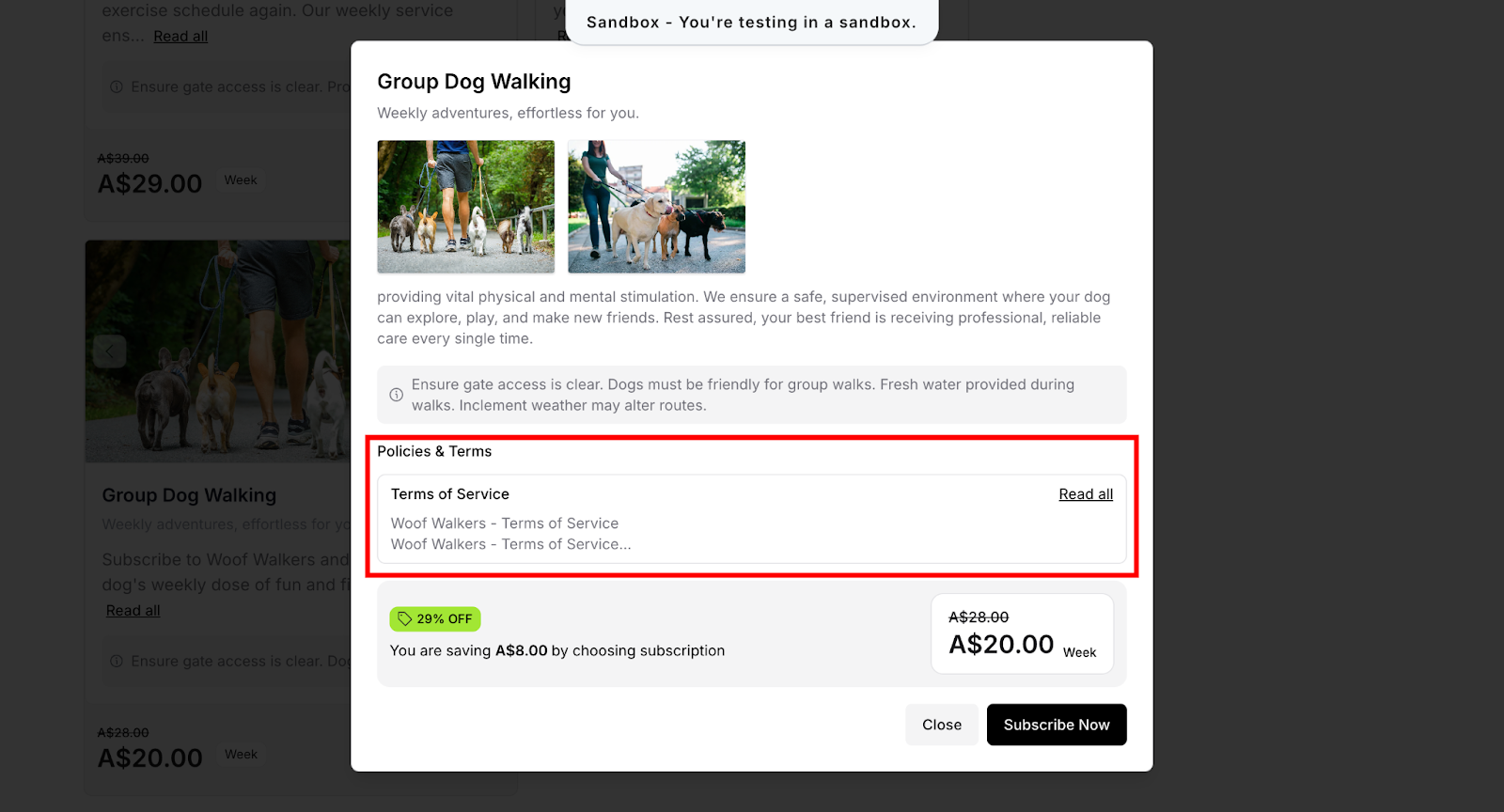
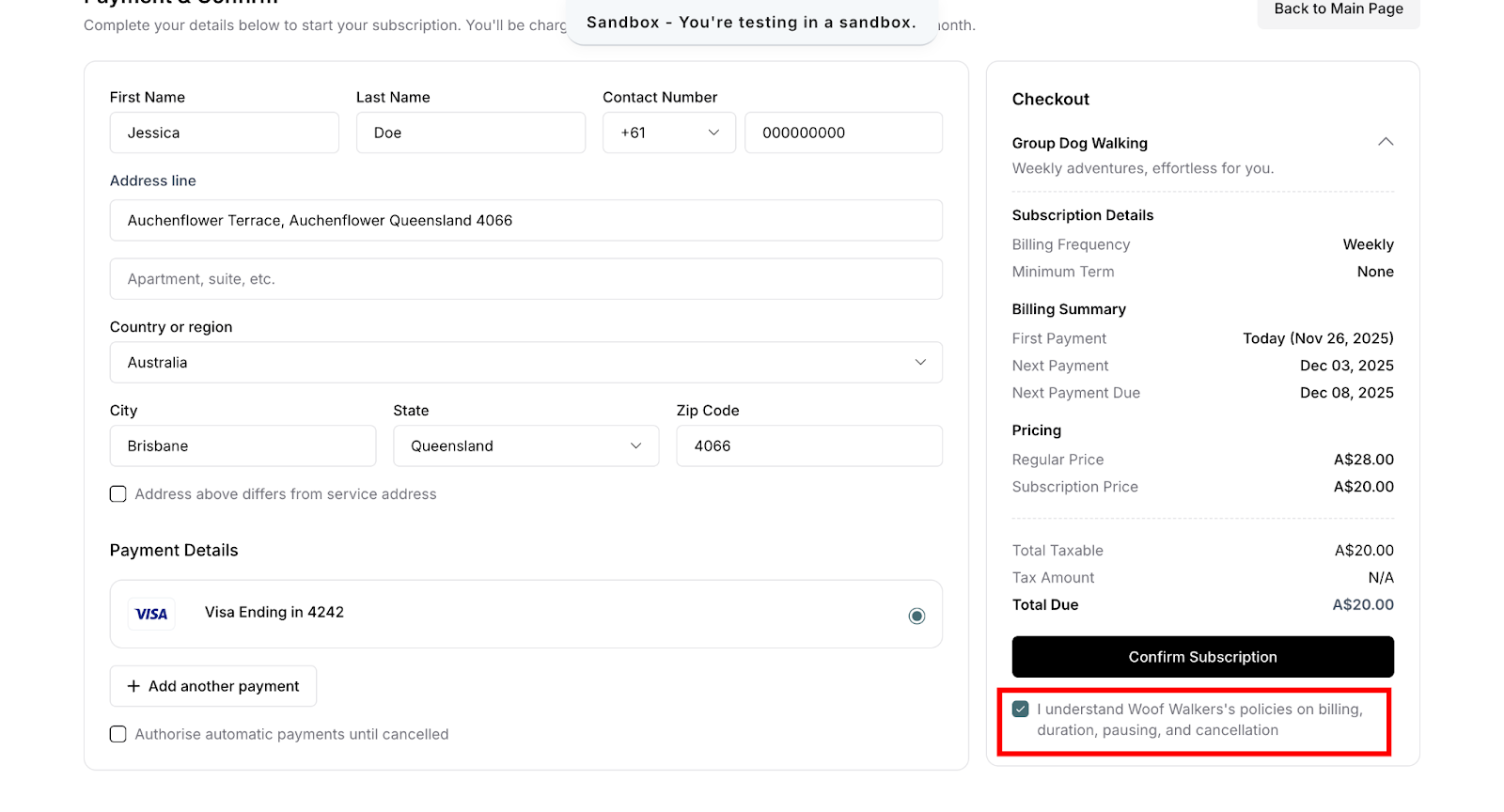
Service details display on checkout page
Terms and policies appear as links or expandable sections
Customers can read before subscribing and require to tick the checkbox
Terms become part of subscription agreement
Was this article helpful?
That’s Great!
Thank you for your feedback
Sorry! We couldn't be helpful
Thank you for your feedback
Feedback sent
We appreciate your effort and will try to fix the article