Subscriptions are designed to be stable, but sometimes customers need adjustments. This guide explains what can and cannot be changed, and how to handle common change requests.
Important: Most subscription terms (pricing, frequency, tier) are locked once customers subscribe. Changes typically require canceling and resubscribing to a different service.
Understanding Subscription Limitations
What Cannot Be Changed Once Customers Subscribe
⚠️ Critical limitations: Once a service has active customers (subscriptions OR one-off purchases), these are permanently locked:
Cannot change:
❌ Subscription pricing
❌ Billing frequency (weekly, monthly, etc.)
❌ Service tiers for existing subscribers
❌ Tax configuration
Why locked: Protects existing agreements, ensures pricing consistency, maintains contractual integrity, prevents tax calculation changes mid-contract.
When You Can Change Locked Items
Before the first customer:
✅ Service just created, no customers yet
✅ During initial setup before going live
✅ Can freely adjust pricing, frequency, tax settings
Once first customer subscribes or purchases:
❌ Locked permanently
❌ Must use workarounds if changes needed
❌ Cannot edit locked fields
✍️ TIP: Plan pricing, frequency, and tax configuration carefully before launching. These cannot be changed once customers subscribe. Contract terms remain flexible.
Common Change Scenarios
Scenario 1: Customer Wants Different Service Tier
Example: Customer has "Basic Dog Walking" but wants "Premium Dog Walking"
The situation:
Cannot switch customers directly between tiers
Each tier is a separate service
Requires canceling and resubscribing
Process:
Customer cancels current subscription:
Through their customer portal (if no minimum term)
Or you cancel for them (if within minimum term)
Customer subscribes to different tier:
They visit your live site and select Premium tier
Or you send them a subscription invitation to Premium tier
New subscription starts:
Separate subscription created
Billed at Premium tier price
Original subscription canceled
Scenario 2: Customer Wants Different Billing Frequency
Example: Customer has weekly subscription but wants monthly instead
The situation:
Cannot change frequency for existing subscription
Frequency is locked once first customer subscribes
Must cancel and resubscribe to different frequency
Process:
Create separate service with desired frequency (if doesn't exist yet):
Duplicate existing service
Change frequency to Monthly
Adjust price appropriately
Example: Weekly at $45/week → Monthly at $160/month (savings built in)
Customer cancels current subscription:
Ends weekly subscription
Through portal or you cancel
Customer subscribes to monthly service:
New subscription with monthly billing
Different schedule and pricing
Scenario 3: You Need to Change Pricing
Example: Costs increased, need to raise prices from $45 to $50/week
The situation:
Cannot change price for existing service with active customers
Pricing locked to protect existing subscribers
Must create new service for new pricing
Process:
Step 1: Create new service with updated pricing
Navigate to Services page
Duplicate existing service
Update price to new amount ($50/week)
Keep all other settings identical
Use same service name or add version indicator
Publish new service
Step 2: Hide old service
Find original service ($45/week)
Mark as hidden or unpublish
Existing customers continue unaffected
New customers can't see old pricing
Step 3: Communicate with customers
To existing customers (optional but recommended):
Subject: You're Locked In - Price Increase Notice
Hi [Name],
We're updating our pricing from $45/week to $50/week for new customers
starting [date].
Good news: Your rate stays at $45/week. As a valued customer, you're
locked in at your original price.
Thank you for being with us!
To new customers:
They see only new $50/week service
No knowledge of previous pricing
Subscribe at current rate
Scenario 4: You Need to Change Tax Settings
Example: You need to add tax to a service that didn't have it
The situation:
Tax configuration locked once customers subscribe
Cannot add, remove, or change tax settings for existing service
Must create new service with correct tax settings
Process:
If you need to change tax settings:
Create new service with correct tax configuration:
Duplicate existing service
Set proper tax settings before anyone subscribes
Verify tax calculation works correctly
Publish service
Handle existing service:
Cannot change tax for existing customers
They continue with original tax settings
Hide old service if appropriate
Communicate clearly:
Inform customers about tax requirements
Explain any pricing differences
Some customers may have tax, others may not
Scenario 5: Customer Wants One-off Purchase of Subscription Service
Example: Service only offers subscription, but customer wants one-time service
You can enable this:
Navigate to Services page
Find the service
Click to edit service settings
Scroll to Purchase Options section
Check "Allow one-off purchases at regular price"
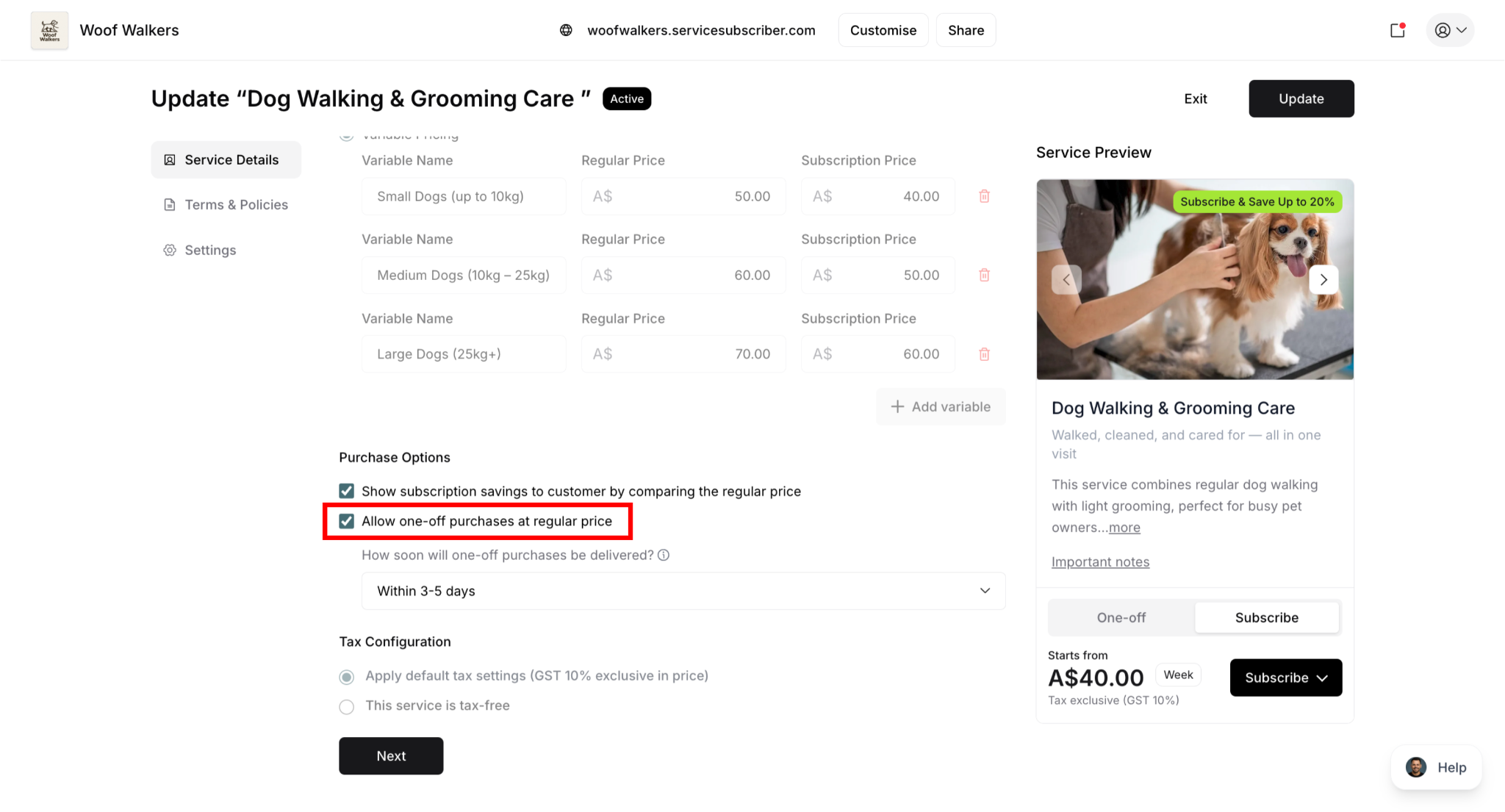
Choose delivery timeframe (e.g., "Within 3-5 days")
Click Update to save changes
What happens:
Service now offers both subscription AND one-off purchase
Customers choose which option at checkout
One-off customers pay "Regular Price" (typically higher than subscription)
Shows subscription savings when both options available
✍️ TIP: Enable one-off purchases if customers frequently request "just one time" service. Converts inquiries into revenue and creates conversion opportunities.
Scenario 6: Customer Wants to Update Contract Terms
Example: You want to change minimum term from 3 months to 6 months
You can change this:
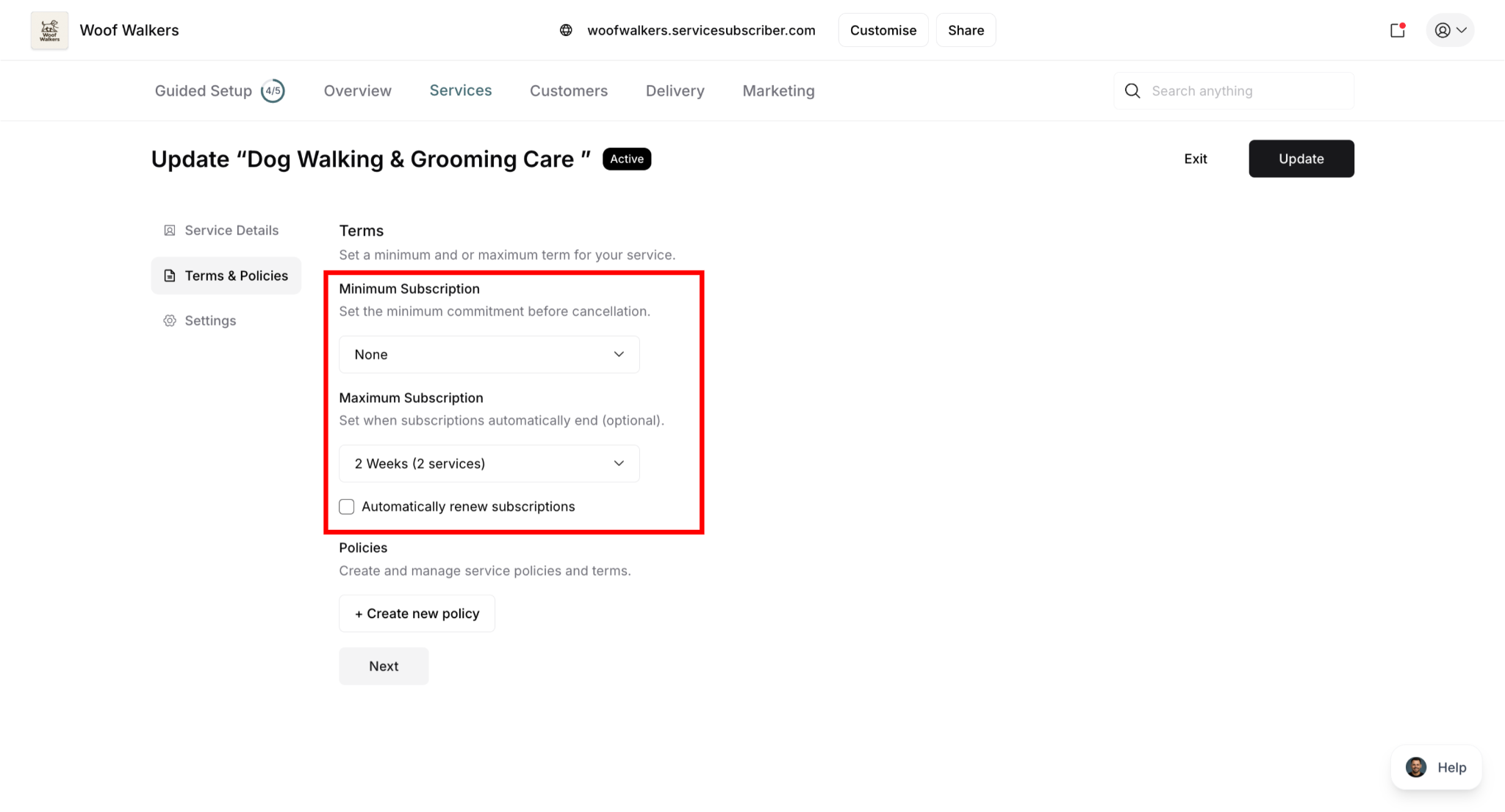
Contract terms (minimum/maximum) can be changed even with active customers.
To update contract terms:
Navigate to Services page
Find the service
Click to edit service settings,
Go to Terms & Policies
Update minimum or maximum term
Click Update to save changes
What happens:
New subscribers get new terms
Existing subscribers continue under original terms they signed up with
Each customer locked to terms at their signup date
Multiple Subscriptions Per Customer
Customers can have multiple active subscriptions simultaneously.
How Multiple Subscriptions Work
Each subscription:
Bills independently
Has own frequency and schedule
Can be managed separately (pause, cancel, resume)
Appears under same customer account
Managing Multiple Subscriptions
In customer detail view:
Navigate to customer's Subscriptions tab
See all subscriptions listed
Each row shows different subscription
Expand any to see details and take actions
Manage each independently
Customer Experience with Multiple Subscriptions
Customers can:
Subscribe to multiple services from your live site
Manage each subscription independently in their portal
See all subscriptions in one account
Pause, resume, or cancel each separately
Different billing dates and amounts
✍️ TIP: Multiple subscriptions = higher customer lifetime value. Encourage customers to add complementary services.
Was this article helpful?
That’s Great!
Thank you for your feedback
Sorry! We couldn't be helpful
Thank you for your feedback
Feedback sent
We appreciate your effort and will try to fix the article