Your hours display on your public subscription page, helping customers understand your availability before they subscribe. They also set boundaries for when customers can expect responses.
When to Set Operating Hours
During Initial Setup
You'll set your operating hours as part of the business details configuration. The form guides you through each day of the week.
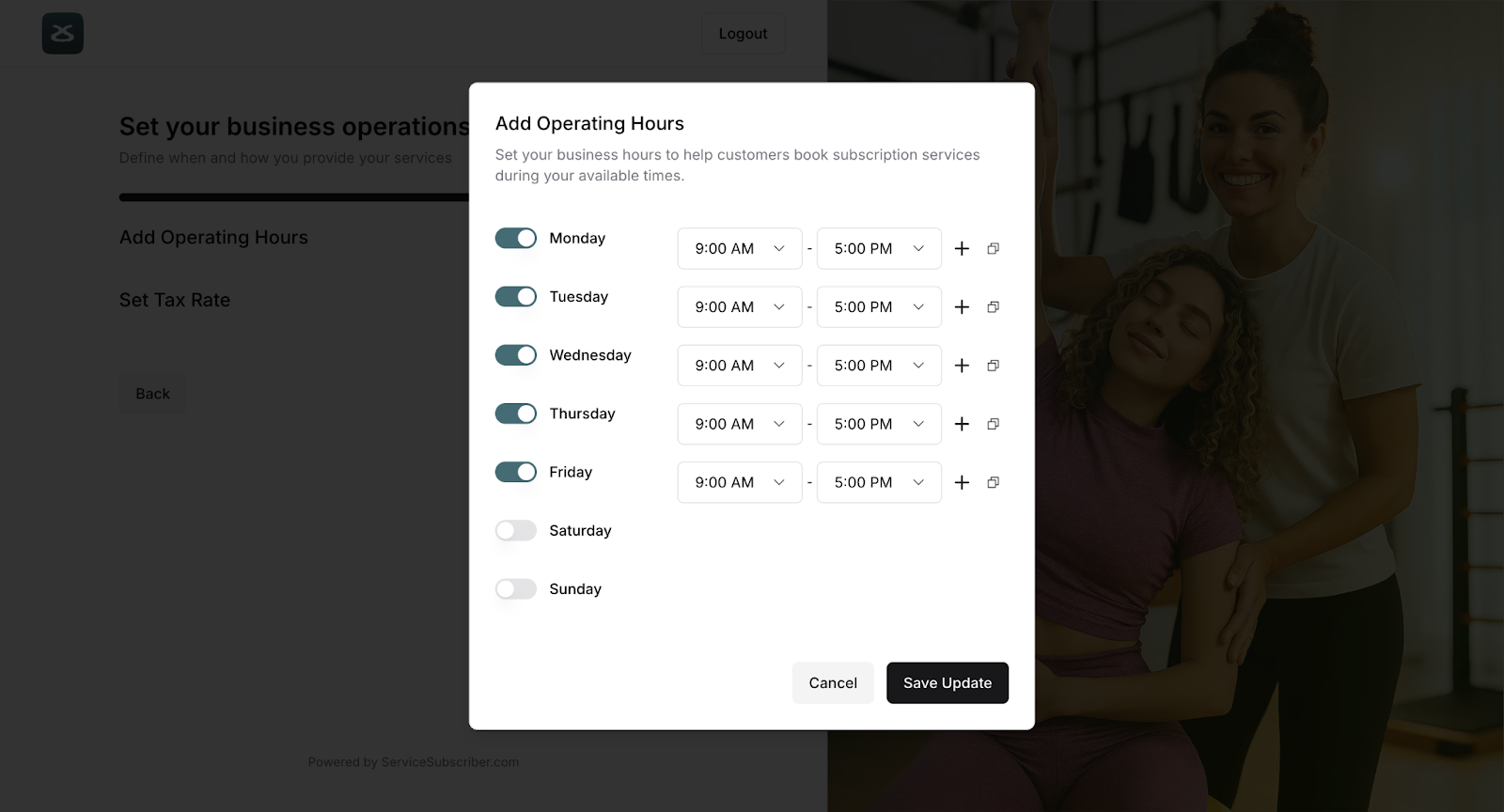
Operating hours configuration screen during initial business setup
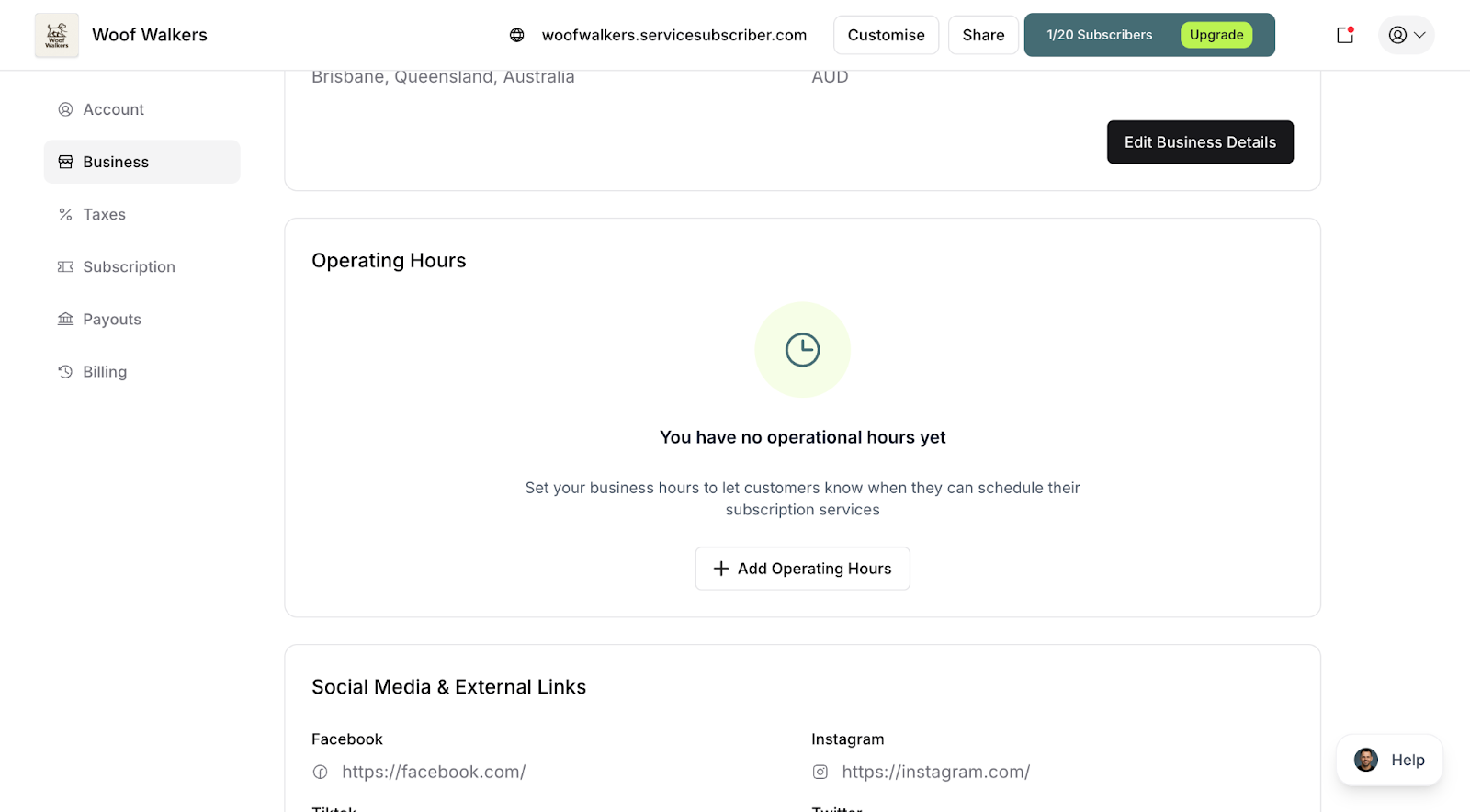
After Setup
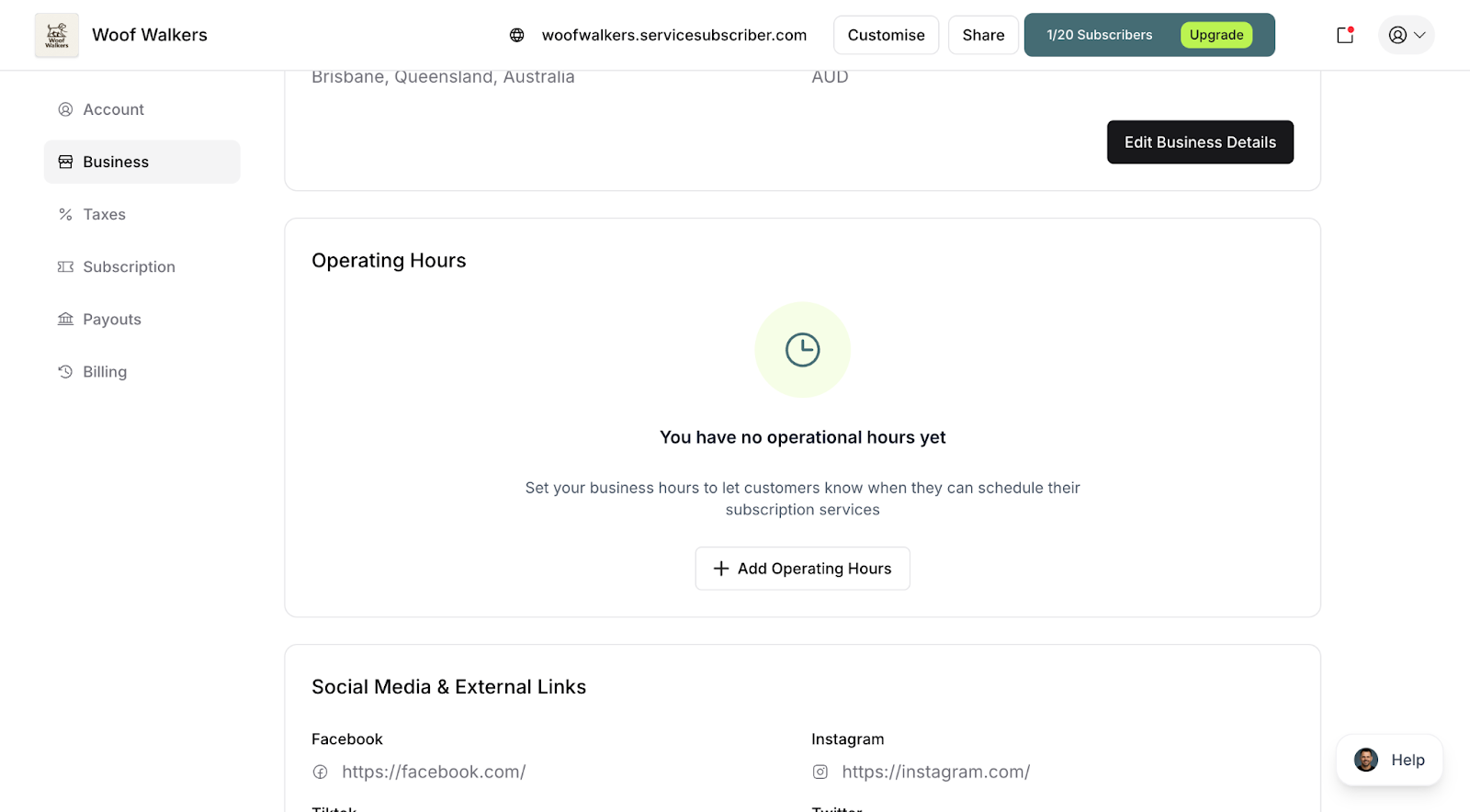
Navigate to Account > Business
Scroll to the Operating Hours section
Click Edit to make changes
Business settings page showing the Operating Hours section
Configuring Your Schedule
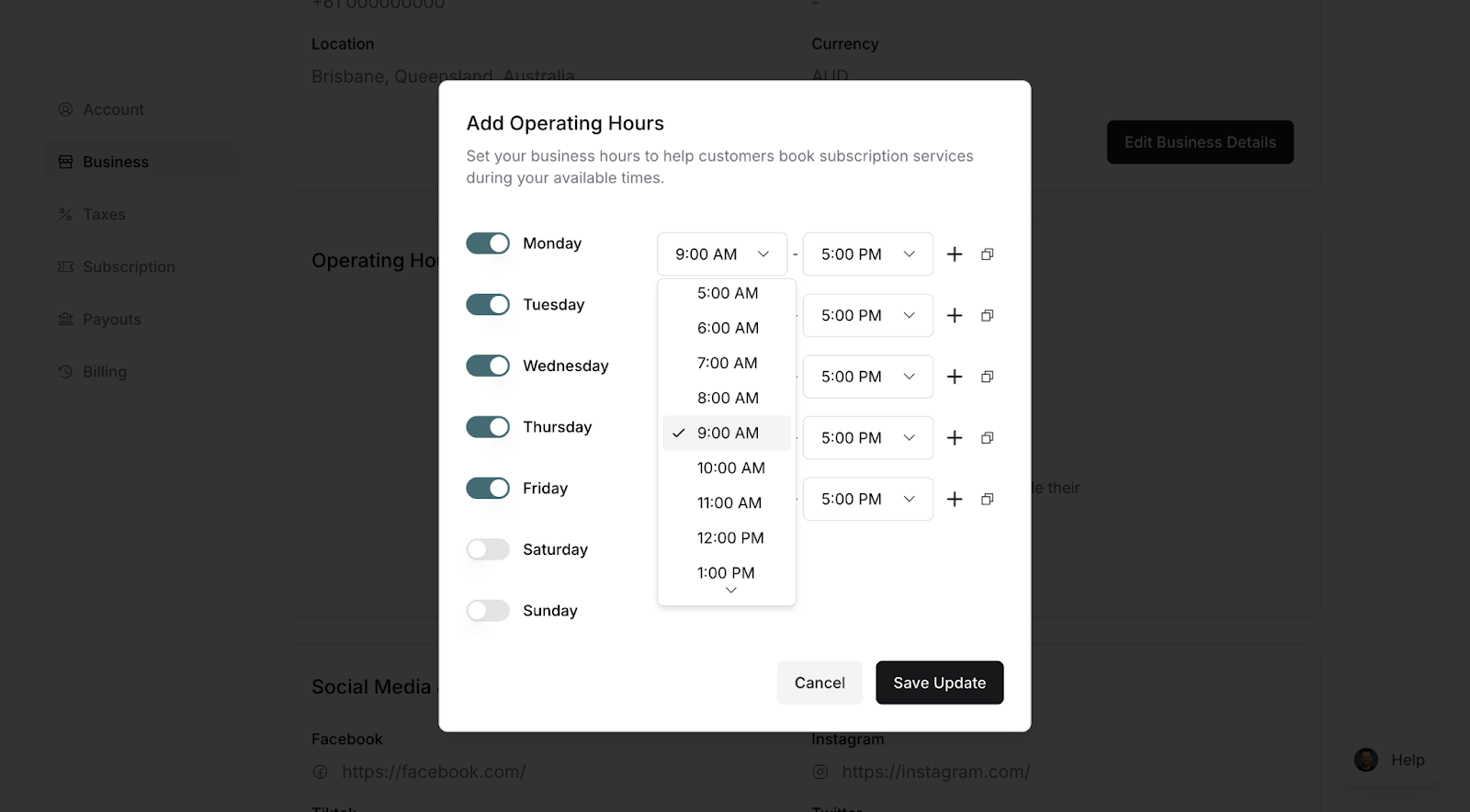
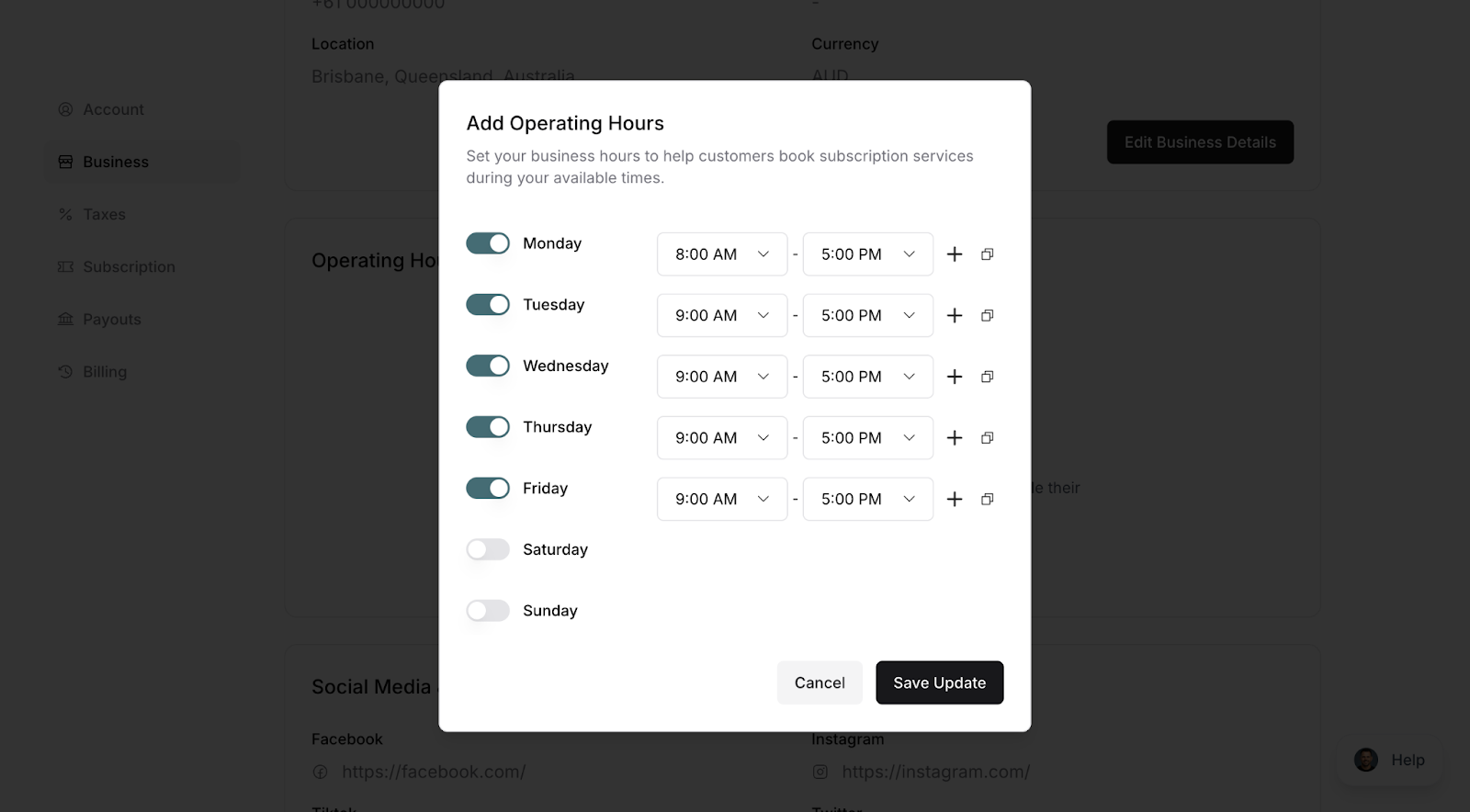
Set Times for Each Day
Click the Opening Time dropdown for each day
Select your opening time
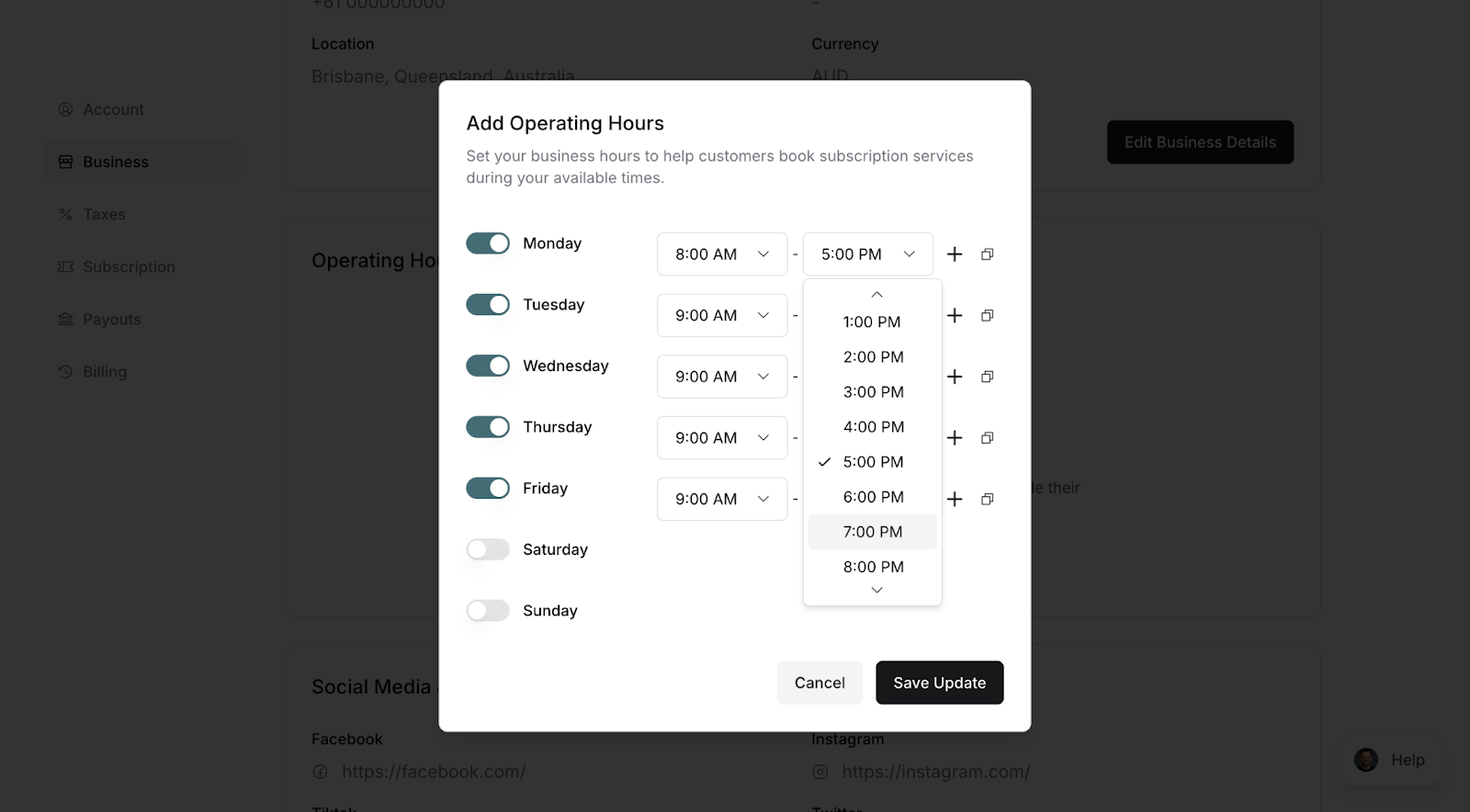
Click the Closing Time dropdown
Select your closing time
✍️ TIP: Set hours when customers can reach you, not just when you're performing services. If you're in the field until 3 PM but answer emails until 6 PM, show 6 PM as your closing time.
Mark Closed Days
For days you don't work:
Toggle the switch to "Off" or "Closed", OR
Select Closed from the dropdown menu
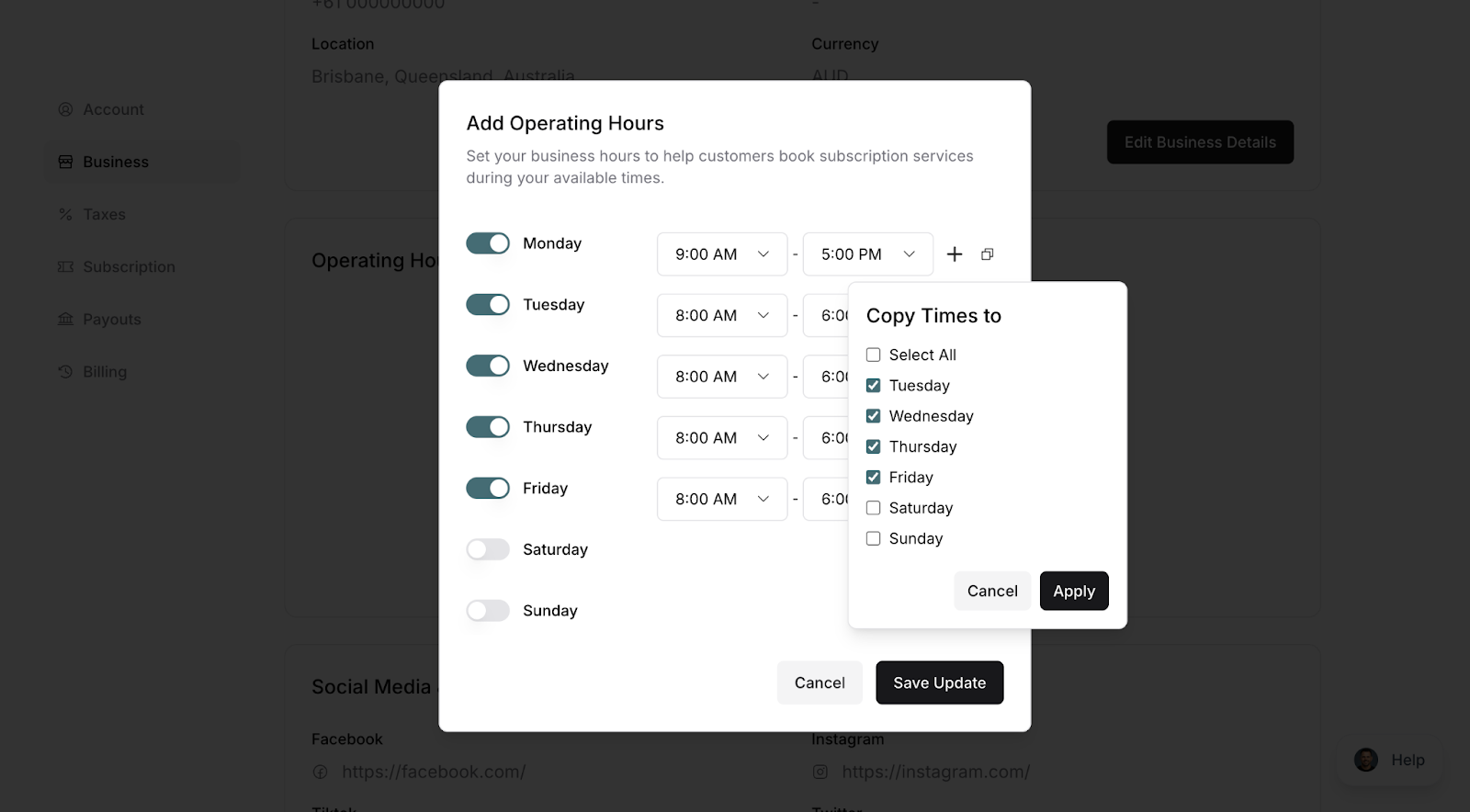
Copy Hours to Multiple Days
If you have consistent weekday hours:
Set hours for one day (e.g., Monday: 9 AM - 5 PM)
Click Copy to Multiple Days
Select which days should have the same hours
Click Apply
Review your schedule and click Save or Save Update.
Set Times for Each Day
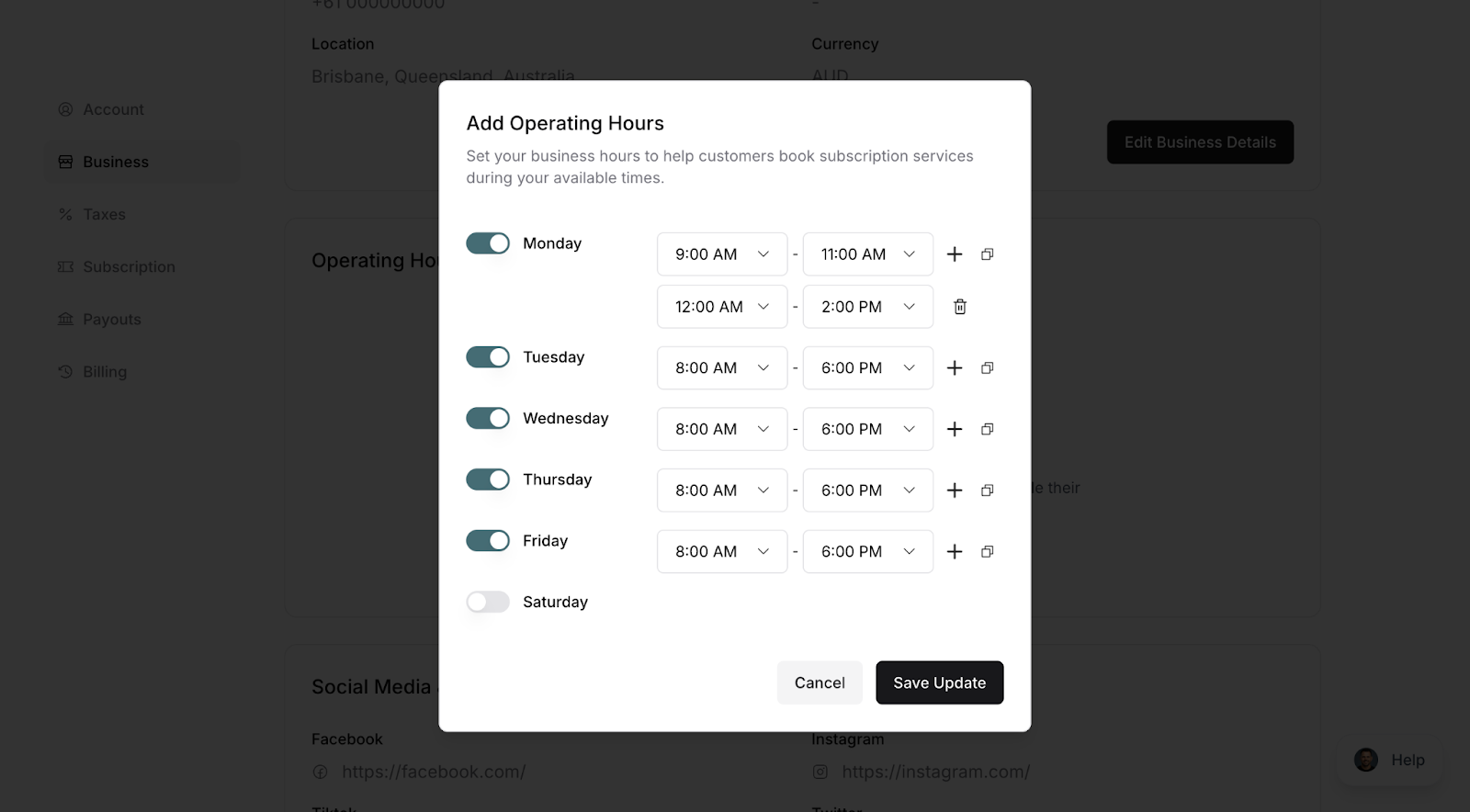
ServiceSubscriber lets you add multiple operating time periods for each day—perfect for businesses with lunch breaks, split shifts, or variable availability throughout the day.
Go to Account > Business
Find Operating Hours section
Click Edit or Add Operating Hours
Ensure the day toggle is ON
Set opening time (e.g., 9:00 AM) and set closing time (e.g., 11:00 AM)
Click the + (plus) icon next to the time fields and a new row appears
Set second opening time (e.g., 12:00 PM) and set second closing time (e.g., 2:00 PM)
Updating Your Hours
Your schedule can change anytime—just go to Account > Business > Operating Hours and update as needed.
When to update:
Seasonal schedule changes (summer vs. winter hours)
Business growth (adding weekend availability)
Holiday closures (temporary adjustments)
Extended hours during busy periods
✍️ TIP: For one-off holidays or vacation closures, also communicate directly with active subscribers since your standard hours don't show temporary closures.
Adding Notes About Your Hours
Some businesses need to clarify their availability beyond basic hours. Look for the Additional Notes field to add details like:
"Emergency services available 24/7"
"By appointment only on Saturdays"
"Closed for lunch 12-1 PM"
Keep notes brief and scannable.
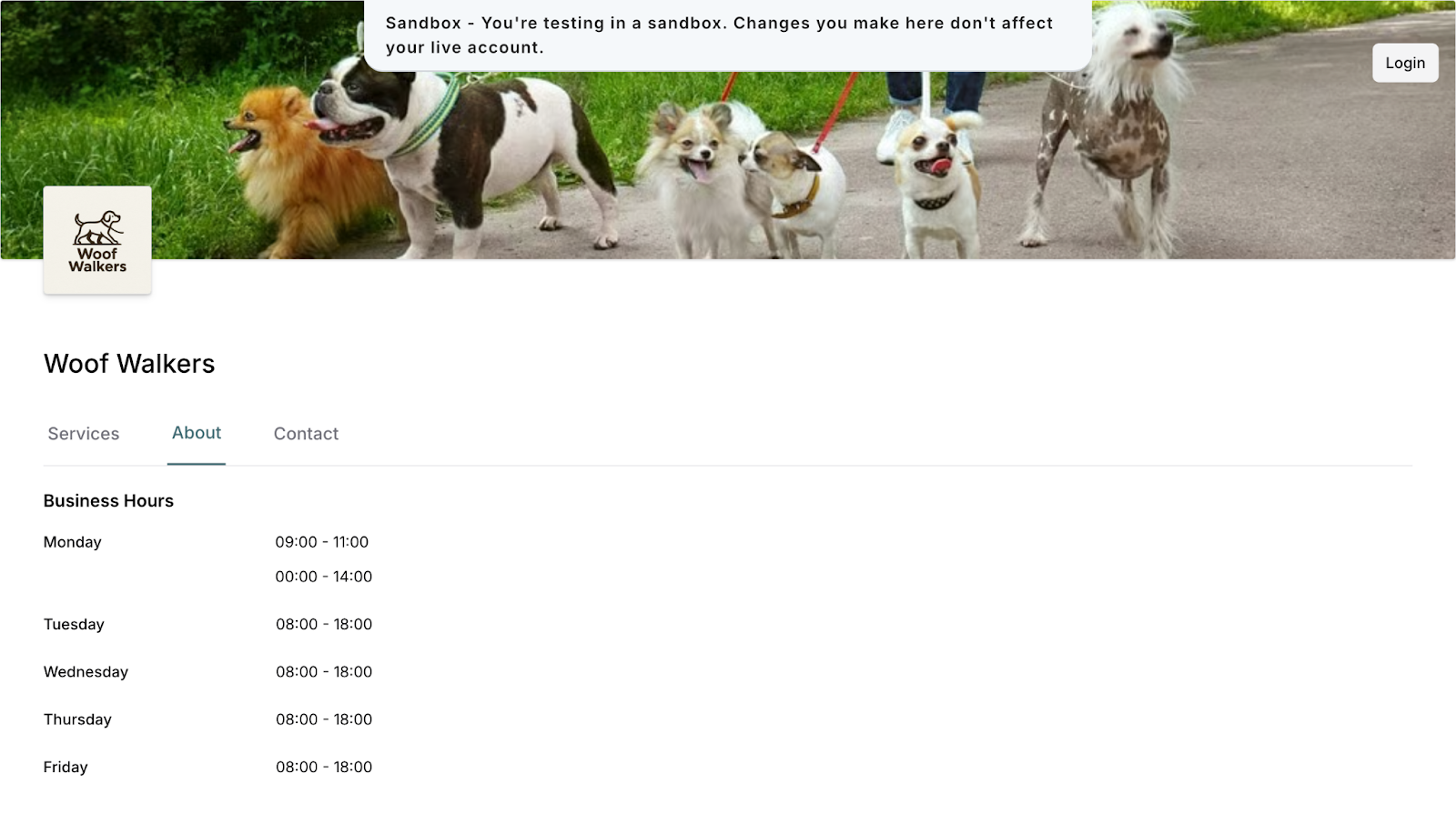
Where Your Hours Display
On Your Public Site: Under the Contact tab of your subscription page
In Your Dashboard: Account > Business settings
Was this article helpful?
That’s Great!
Thank you for your feedback
Sorry! We couldn't be helpful
Thank you for your feedback
Feedback sent
We appreciate your effort and will try to fix the article