Your custom domain is your unique web address where customers find your subscription services. It's how you'll share your business online and what customers will remember when they want to subscribe.
Understanding Your Domain
Your ServiceSubscriber domain follows this format:
yourname.servicesubscriber.com
The part before ".servicesubscriber.com" is your custom subdomain—you get to choose it!
Examples:
cleanviewwindows.servicesubscriber.com
greencarelawns.servicesubscriber.com
sparkledetailing.servicesubscriber.com
Domain input field displaying how custom subdomain creates full URL
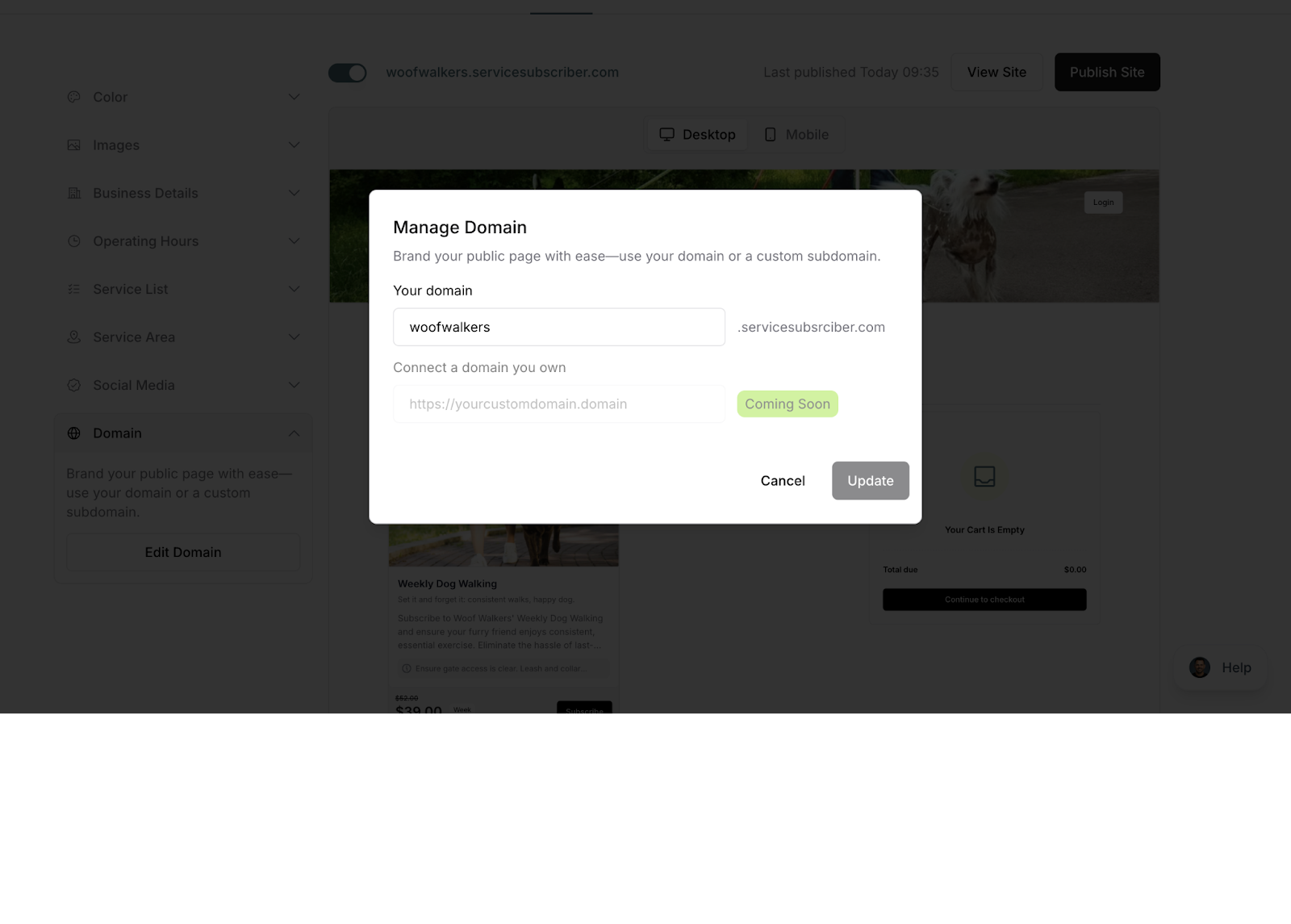
✍️ TIP: Choose something memorable and related to your business name. Customers are more likely to remember and revisit a clear, descriptive domain.
When You Set Your Domain
You'll choose your domain during two main times:
During Initial Setup: As the final step of your business details configuration
Later Changes: From your site settings (though changing it isn't recommended)
Choosing a Good Domain Name
Keep It Simple
Good examples:
Your business name: johnsplumbing
Service + name: maryslawncare
Business name: acmewindowcleaning
✅ BEST PRACTICE: If you need to explain how to spell it, it's probably too complex. Choose something intuitive.
Reflect Your Business
Include elements that tell customers what you do:
Service type: precisiondetailing, elitecleaning
Location + service: austinlawncare, sydneypoolguy
Your name + service: daveswindows, sarahspetcare
Setting Your Domain
During Initial Setup
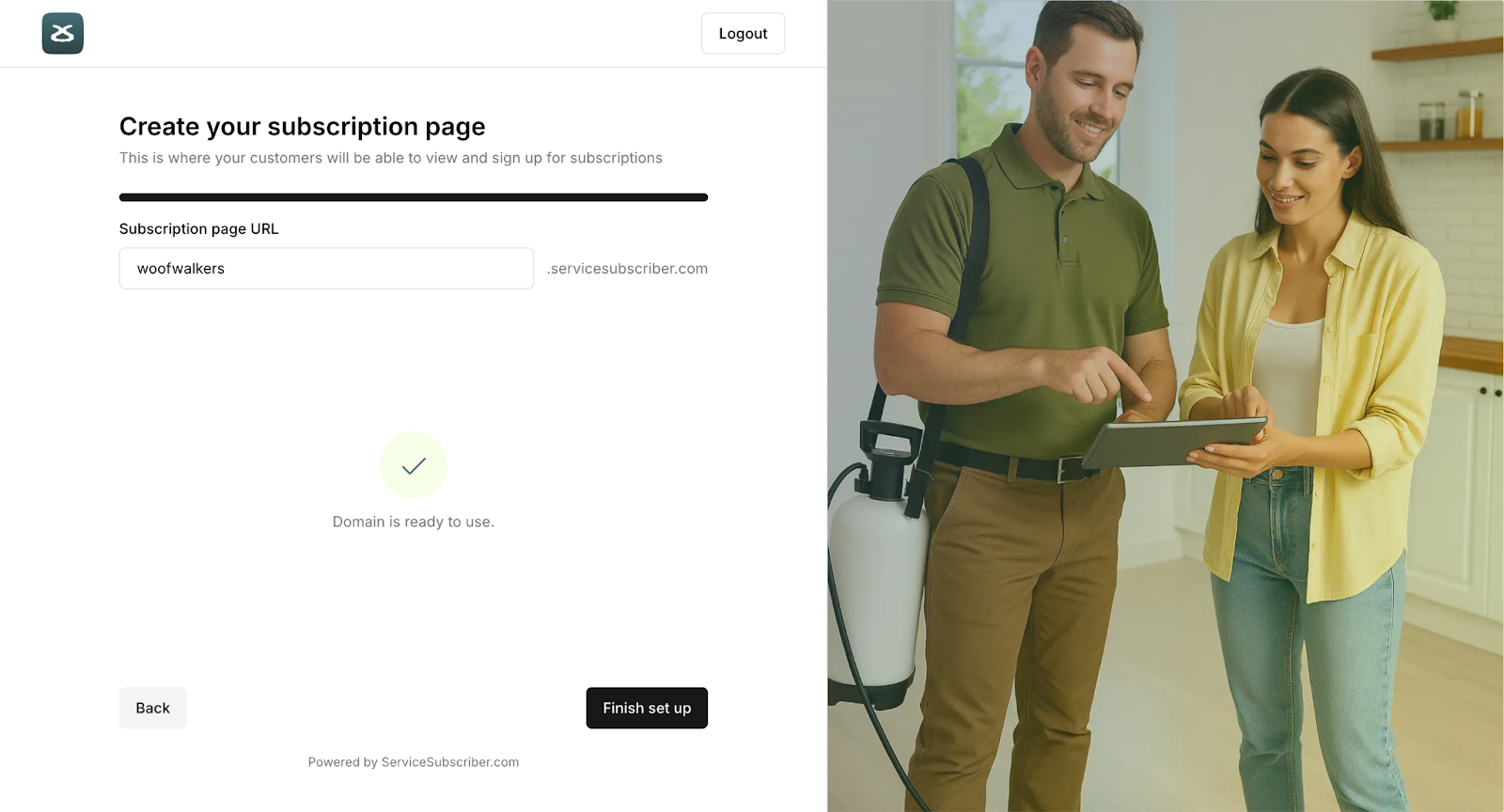
Continue through business details until you reach "Choose Domain"
Enter your desired subdomain name in the field
The system automatically checks availability
If available, a green checkmark or "Available" message appears
If taken, you'll see "Unavailable" and need to try another name
Click Continue once you've secured an available domain
After Setup
Navigate to Settings > My Site
Scroll to the Domain section
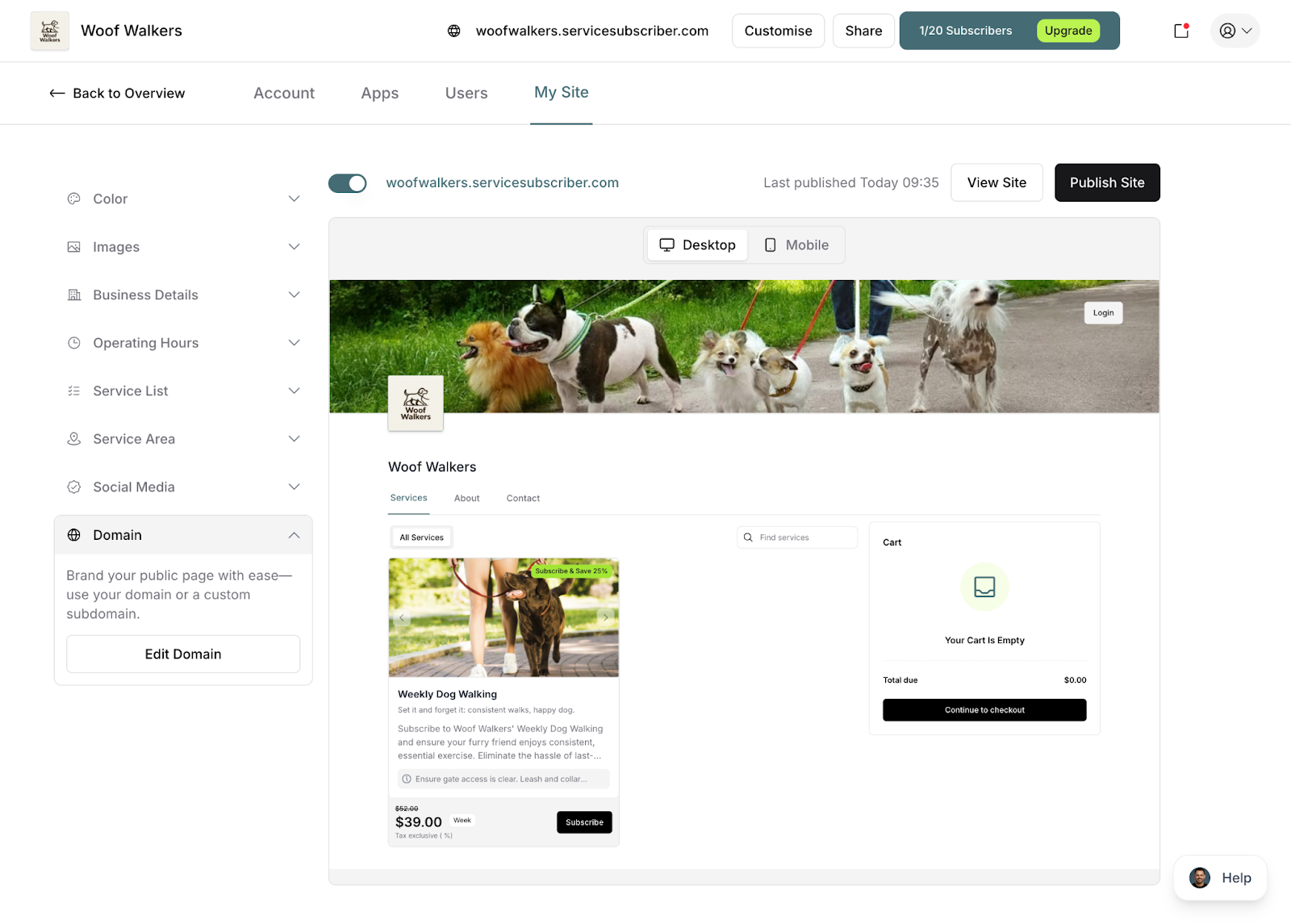
Click Edit Domain
Enter your new desired domain
Check availability
Save if available
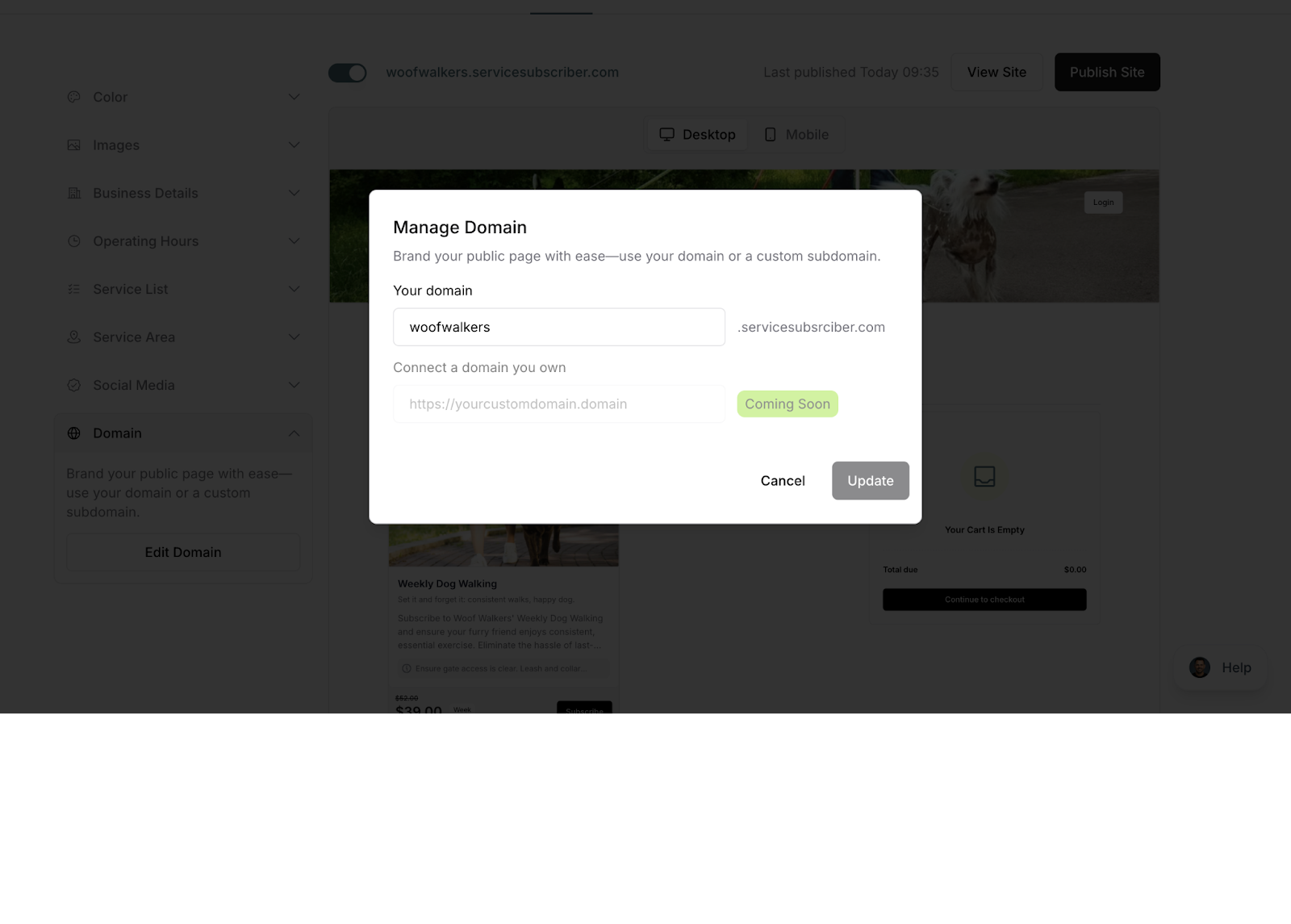
⚠️ IMPORTANT: Changing your domain after you've shared it with customers means all your old links stop working. Only change it if absolutely necessary.
If Your Preferred Name Is Taken
Don't worry—there are plenty of variations to try:
Add your location:
janescleaning → janescleaning-sydney
greencare → greencare-austin
Add your service type:
johnsservices → johnswindowservices
acme → acmedetailing
Use your full business name:
sparkle → sparklecleaningservices
elite → eliteprofessionalcare
Add descriptive words:
cleanteam → cleanteampro
carcare → carcareservices
Try variations:
blueocean → blueoceanservices
perfectlawn → perfectlawncare
✍️ TIP: Keep a list of 3-5 options before you start. If your first choice is taken, you'll have backups ready to try.
Where Your Domain Appears
Once set, your domain appears in several places:
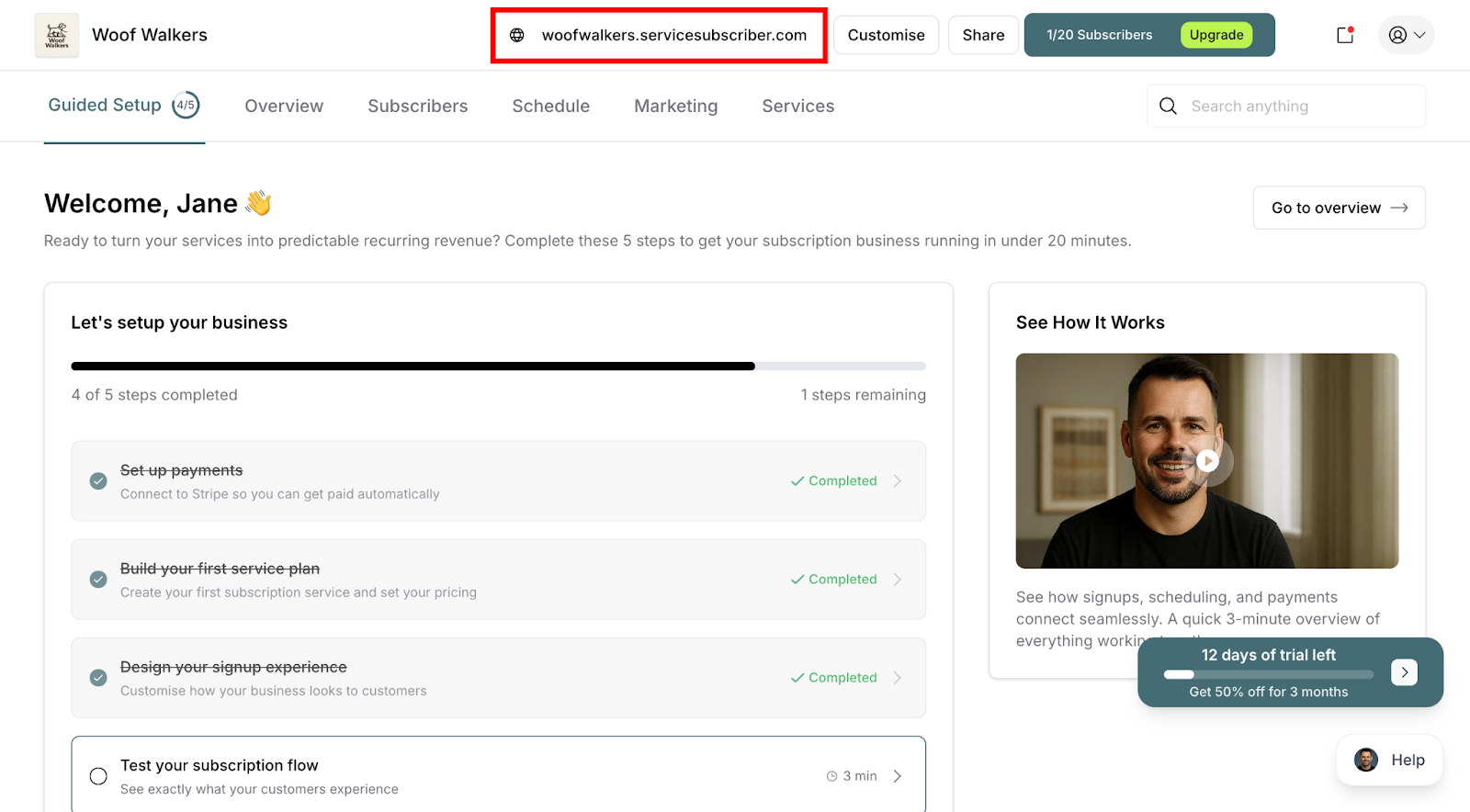
Top Navigation Bar: Shows your live site URL
Share Button: Quick access to copy and share your link
Marketing Materials: The URL you give to customers
QR Codes: Your QR code links to this domain
Email Signatures: Your professional web address
Sharing Your Domain
Once your domain is set and your site is published:
Click the Share button in your top navigation
Copy your full URL
Share it anywhere:
Social media posts and bios
Email signatures
Business cards
Printed marketing materials
Text messages to potential customers
✍️ TIP: Your domain is your digital storefront. Make it prominent on all your marketing materials!
What Happens Next
Once your domain is set:
Your subscription page goes live at that URL
Customers can visit and subscribe
You can share the link immediately
The domain remains yours as long as your account is active
Your domain is permanent unless you choose to change it, so pick something you're happy with long-term!
Was this article helpful?
That’s Great!
Thank you for your feedback
Sorry! We couldn't be helpful
Thank you for your feedback
Feedback sent
We appreciate your effort and will try to fix the article