Your service area tells customers where you operate and deliver services. Displaying service area builds trust, manages expectations, and helps customers quickly determine if you serve their location.
This guide explains how to configure and display your service area.
Why Service Area Matters
Clear service area information helps customers:
Know if you serve their location
Avoid inquiries outside your area
Make informed subscription decisions
Understand your coverage
Contact you with confidence
✍️ TIP: Displaying service area can reduce irrelevant inquiries by 40-50%. Customers self-qualify before subscribing.
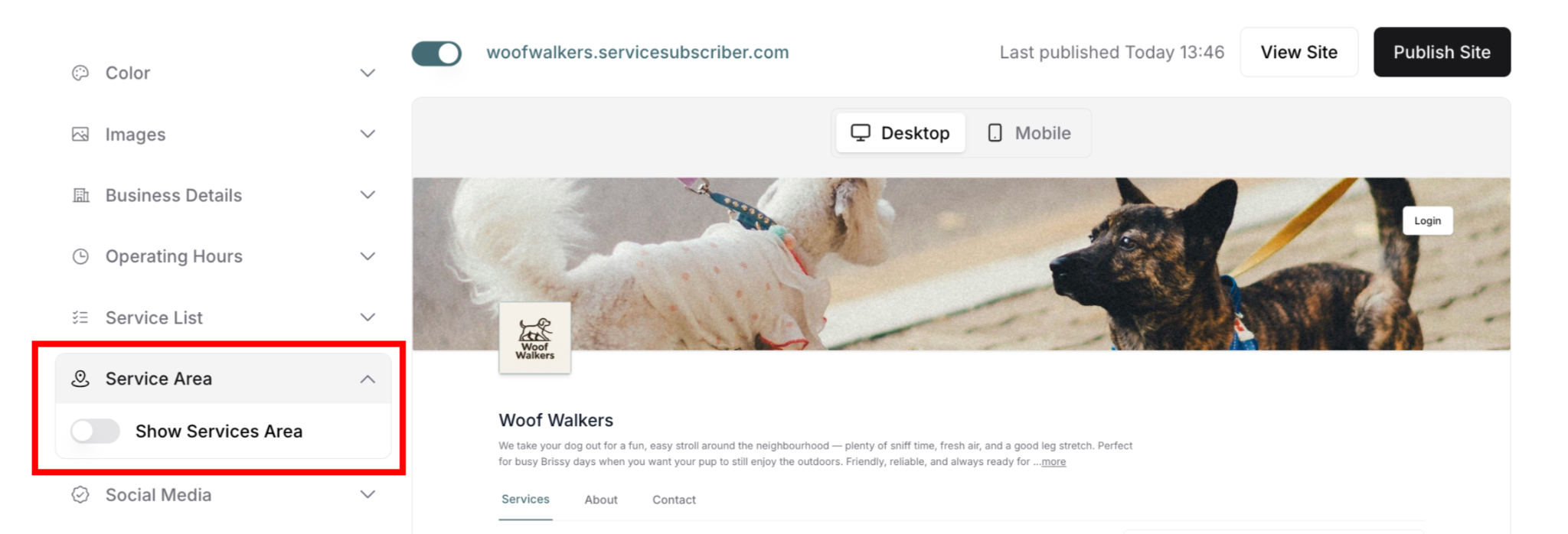
Accessing Service Area Settings
From My Site Settings:
Navigate to My Site (profile icon → My Site)
Find Service Area in left panel
Click to expand section
See toggle and configuration options
Service Area Display Options
One toggle controls service area visibility:
Show Services Area Toggle
Toggle ON: Service area displays in Contact tab with configuration options
Toggle OFF: Service area hidden from customers, no configuration options visible
When to toggle ON:
✅ Want customers to see coverage area
✅ Have defined service boundaries
✅ Help customers check eligibility
✅ Reduce out-of-area inquiries
When to toggle OFF:
❌ Serve unlimited area
❌ Don't want to display coverage
❌ Area not yet defined
❌ Prefer customers to inquire directly
Service Area Configuration Options
When toggle is ON, three display methods appear:
Option 1: Radius Based
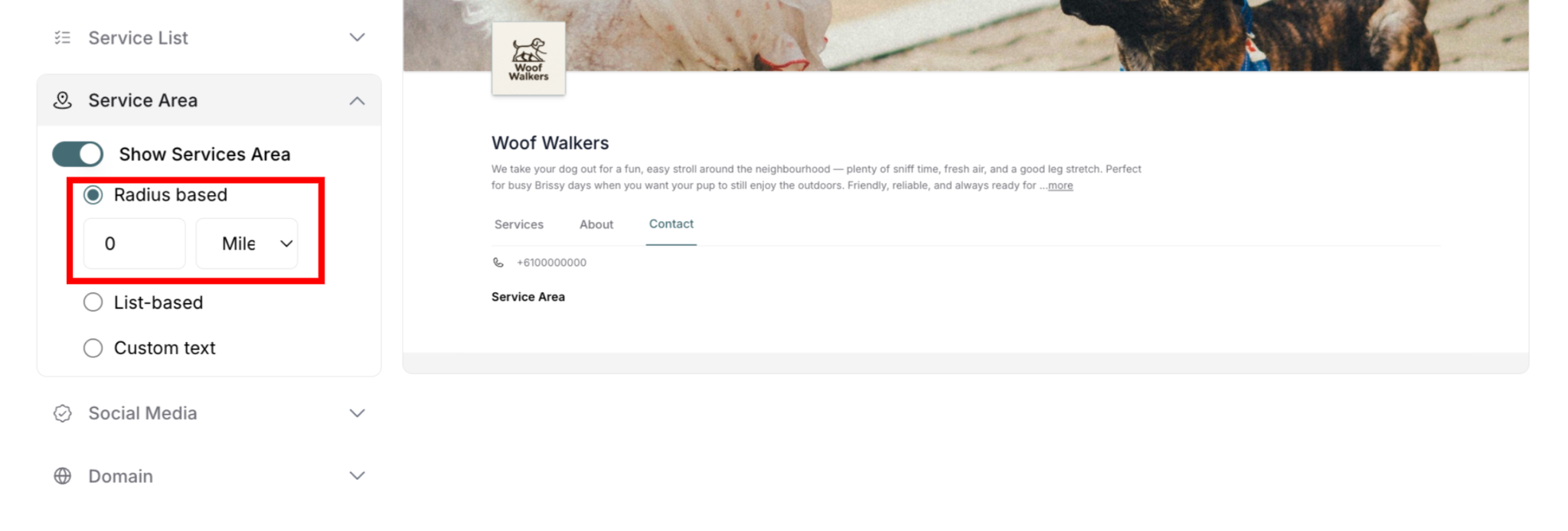
Define service area by distance from a central point:
Set radius distance
Choose measurement unit (Km or Miles)
Simple circular coverage area
Good for local businesses
Option 2: List-Based
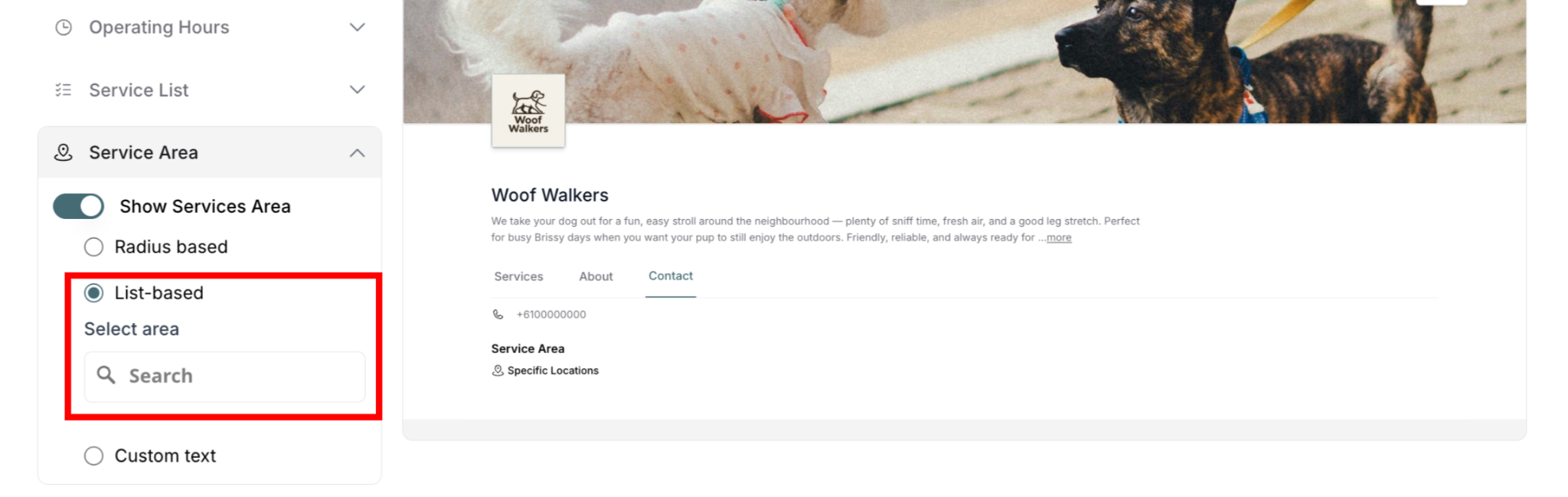
Specify exact locations you serve:
Search and add specific areas
Multiple locations supported
Precise coverage definition
Good for multi-location coverage
Option 3: Custom Text
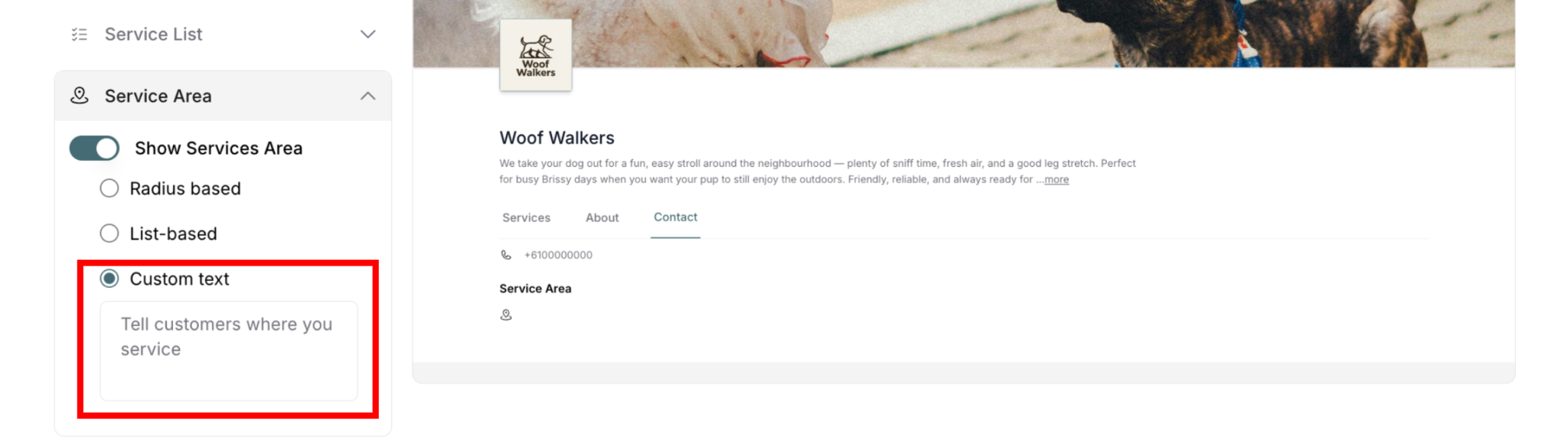
Write your own service area description:
Free-form text input
Full control over wording
Flexible for any situation
Good for complex areas
Setting Up Radius-Based Service Area
Define coverage by distance radius:
How to Configure Radius
Step-by-step:
Toggle Show Services Area ON
Additional options appear below
Select "Radius based" radio button
Input field appears
Unit dropdown appears (Km/Miles)
Enter radius distance:
Type number in field (e.g., 10)
Numbers only (no text)
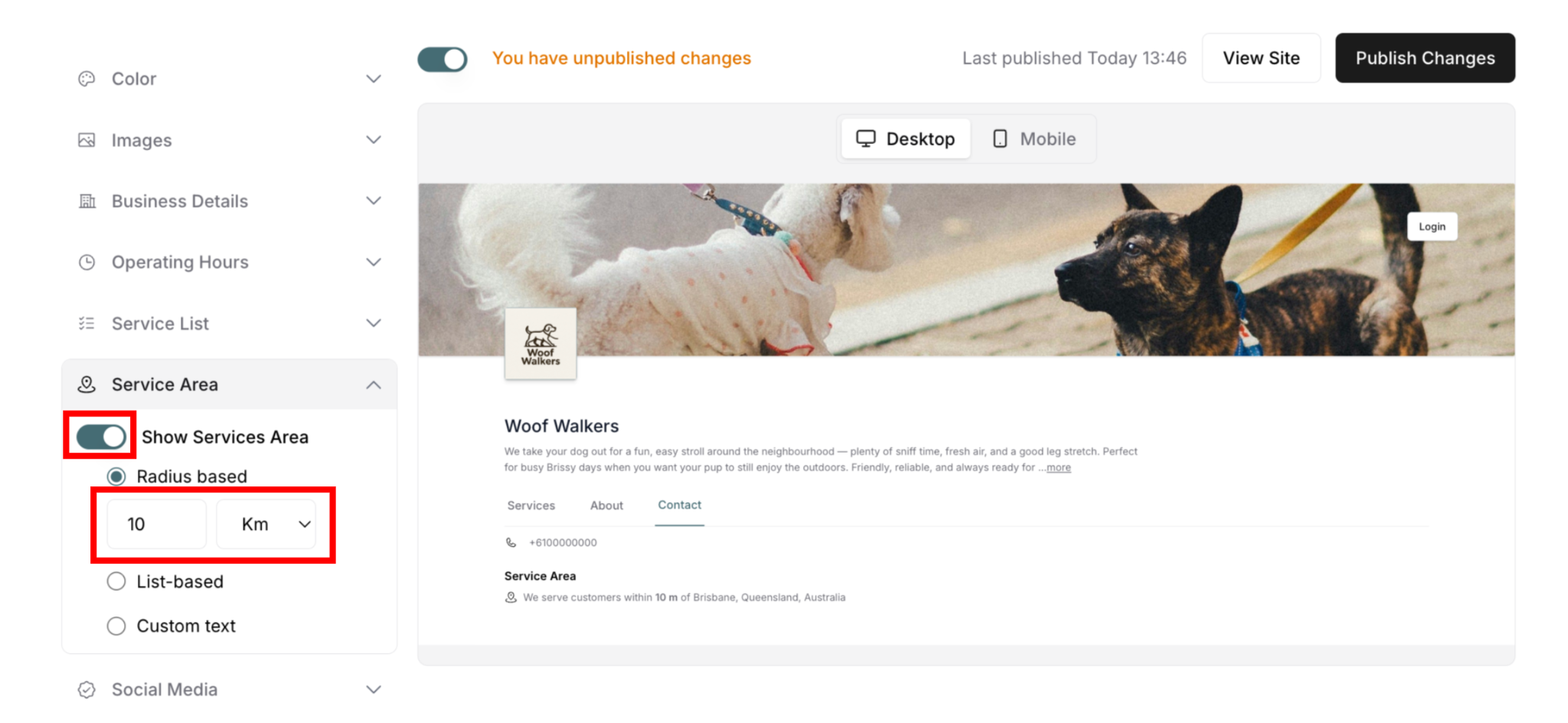
Choose measurement unit:
Click dropdown next to number field
Select Km for kilometers
Select Miles for miles
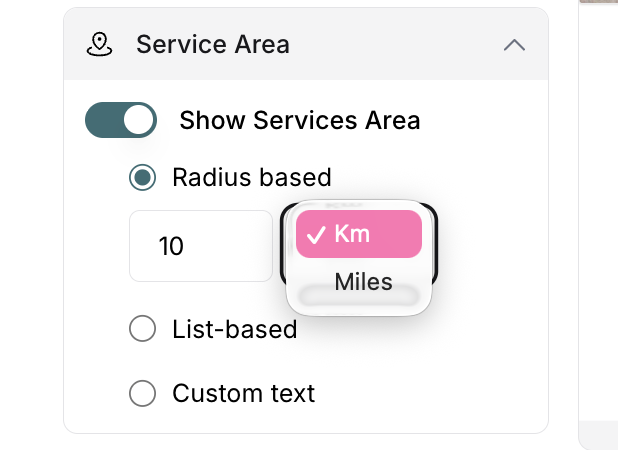
Verify in preview:
Check right panel preview
Confirm distance displays correctly
Check business location is correct
Publish changes:
Click Publish Changes button
Changes go live
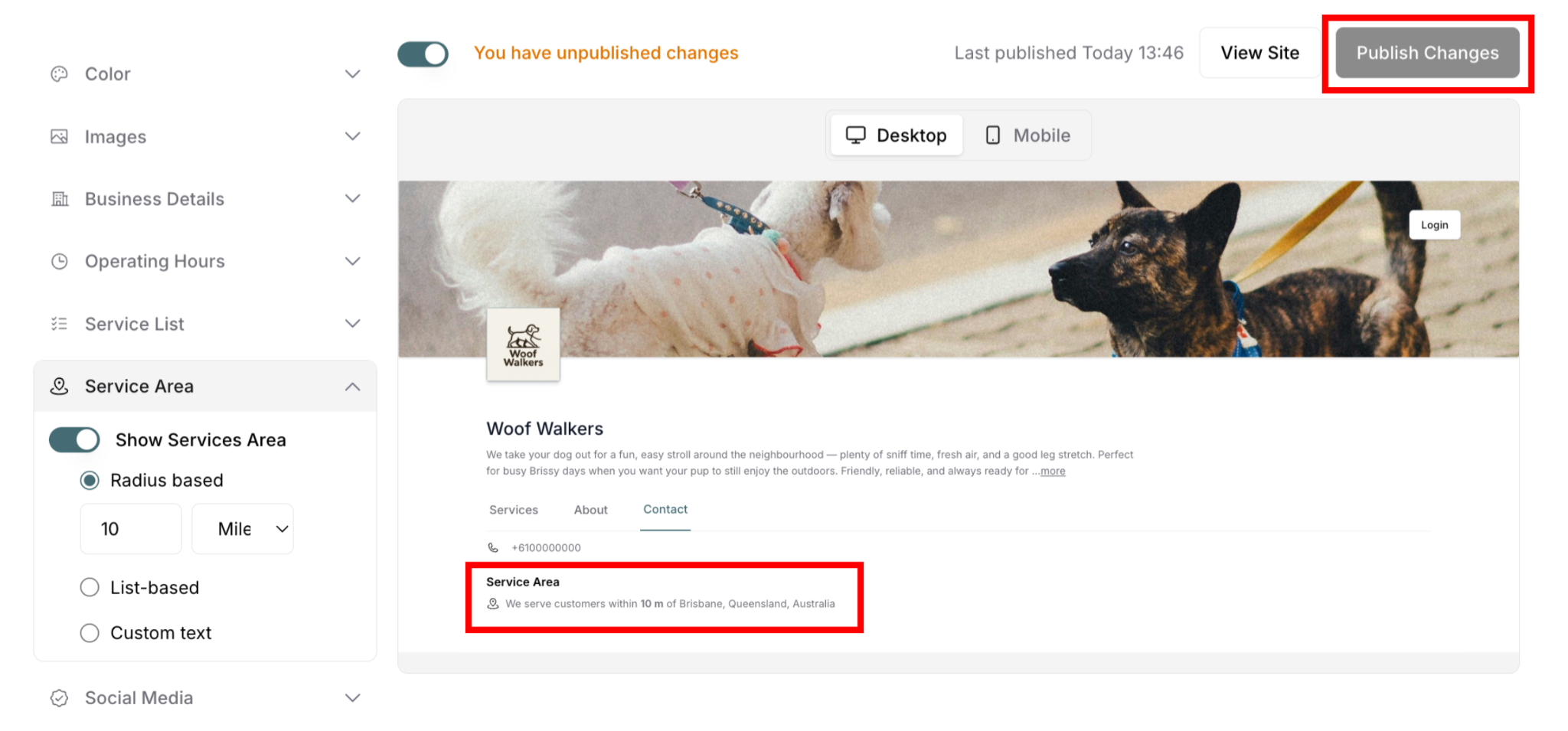
Example configurations:
Local business: 10 km radius
Regional service: 50 miles radius
Metropolitan area: 25 km radius
Display format:
Shows as: "We serve customers within [number] [unit] of [business location]"
Example: "We serve customers within 10 km of Brisbane, Queensland, Australia"
⚠️ IMPORTANT: The business location shown is based on your business address settings. The radius extends from your business location. To change the business location, update your business address in Account settings.
✍️ TIP: Choose radius that matches your actual service capacity. Don't overextend coverage beyond what you can deliver.
Setting Up List-Based Service Area
Specify exact locations you serve:
How to Add Locations
Step-by-step:
Toggle Show Services Area ON
Select "List-based" radio button
Search field appears: "Select area"
Placeholder text: "Search"
Powered by Mapbox search
Click in search field:
Cursor appears
Ready to type
Type location name:
Example: "Ipswich" or "Gold Coast"
Autocomplete suggestions appear
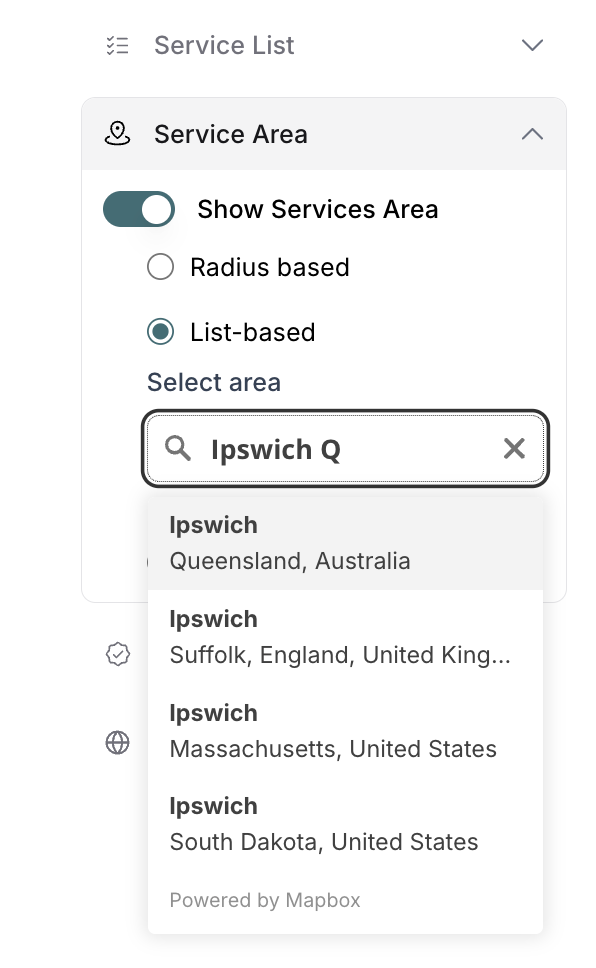
Select location from dropdown:
Full location names shown
Format: "City, State, Country"
Click desired location
Location adds to list:
Appears below search field
Shows full location name
Trash icon appears on right
Add more locations:
Click search field again
Type new location
Select from suggestions
Repeat as needed
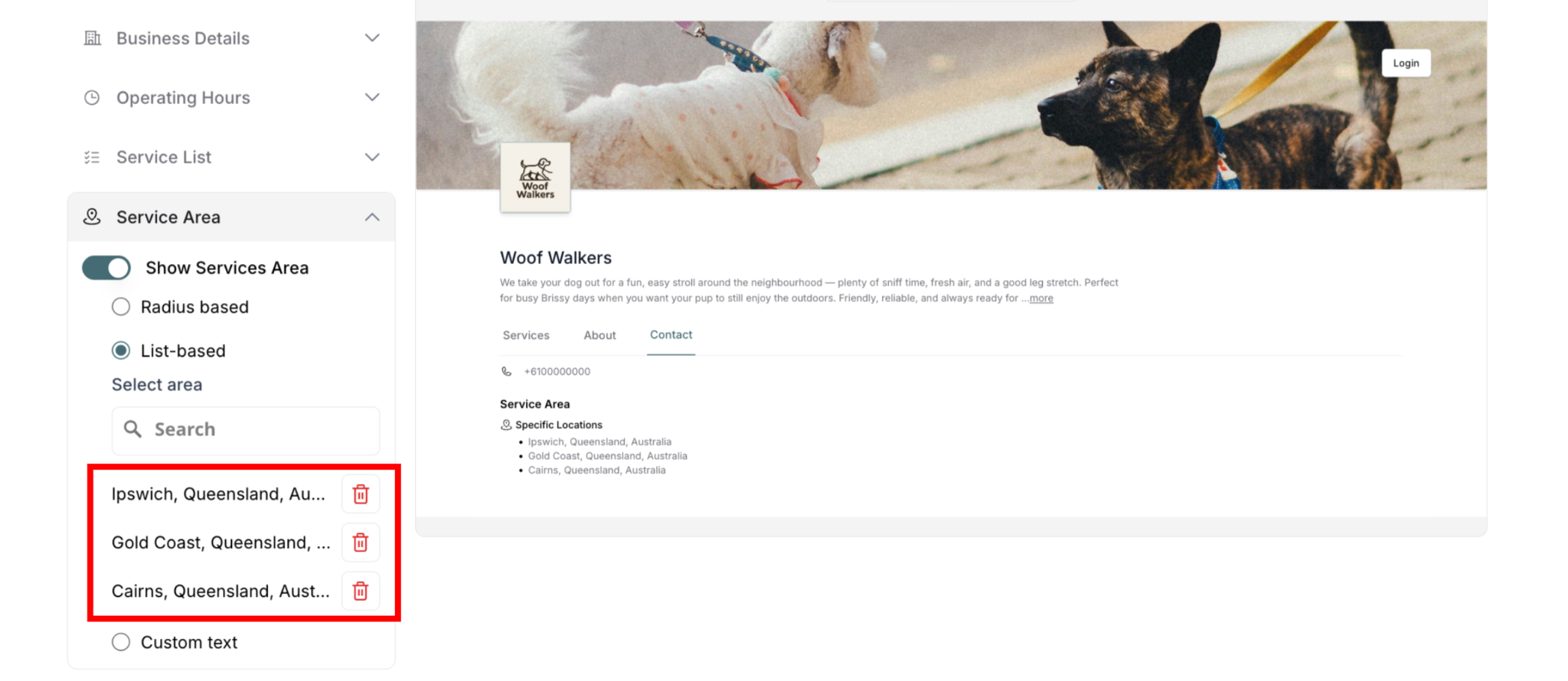
Example locations:
Ipswich, Queensland, Australia
Gold Coast, Queensland, Australia
Cairns, Queensland, Australia
Removing Locations
To delete a location:
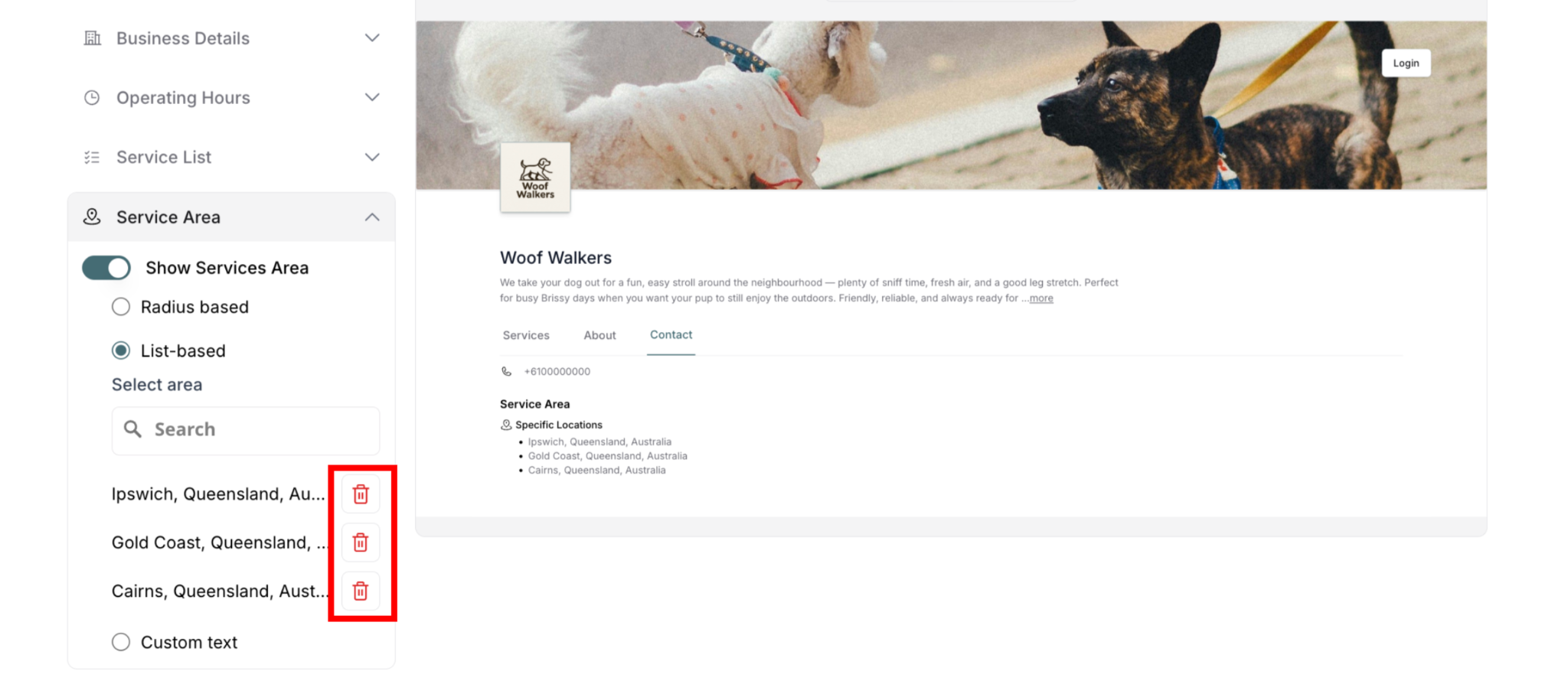
Find location in list
Click trash icon on right
Location removes immediately
No confirmation needed
To remove all locations:
Delete each one individually
Or switch to different option (clears list)
Setting Up Custom Text Service Area
Write your own service area description:
How to Configure Custom Text
Step-by-step:
Toggle Show Services Area ON
Select "Custom text" radio button
Text field appears
Placeholder: "Tell customers where you service"
Click in text field:
Cursor appears
Ready to type
Type service area description:
Write in your own words
Be clear and specific
Keep it concise
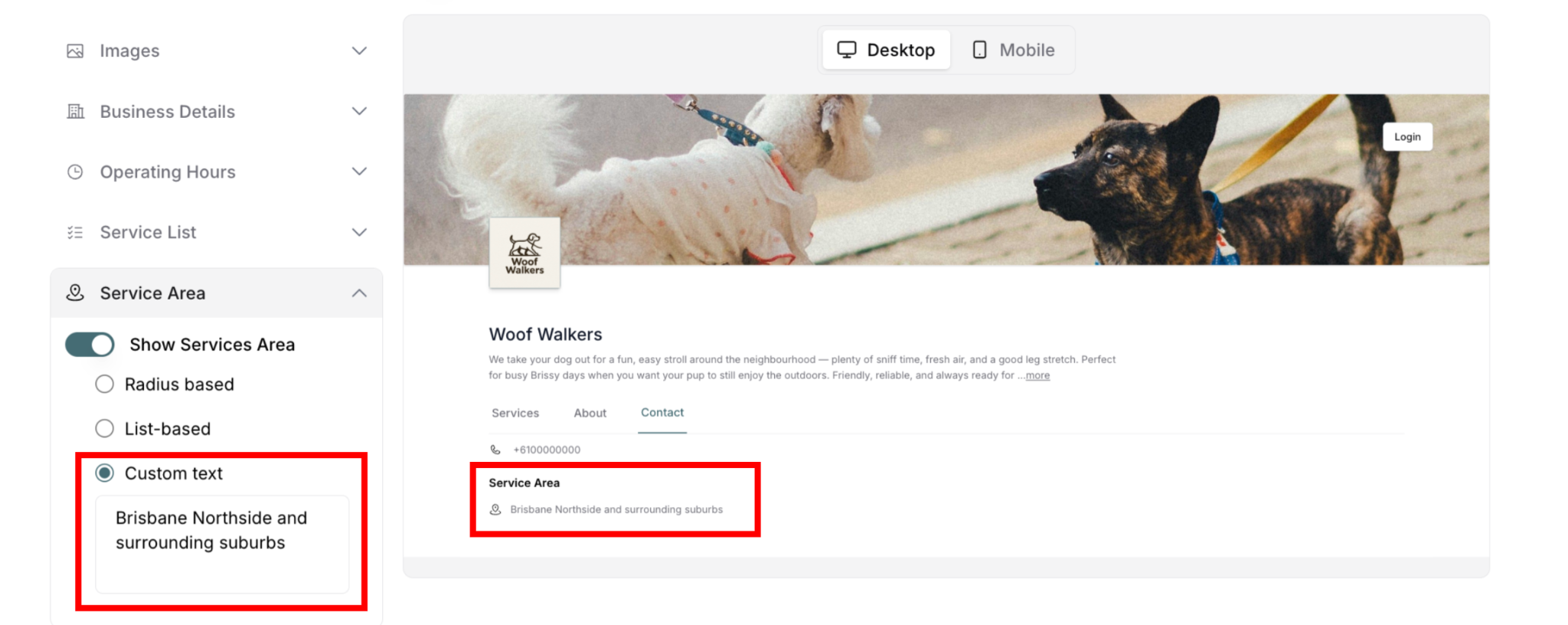
Verify in preview:
Check right panel
Confirm text displays correctly
Publish changes:
Click Publish Changes button
Custom text goes live
Custom Text Examples
Good examples:
"Serving all of metropolitan Sydney"
"Brisbane Northside and surrounding suburbs"
"Gold Coast region from Coomera to Coolangatta"
What to include:
✅ Specific areas or regions
✅ Clear boundaries or landmarks
✅ Major suburbs or districts
✅ Easy-to-understand descriptions
What to avoid:
❌ Vague terms ("everywhere," "most places")
❌ Overly technical boundaries
❌ Too much detail
✍️ TIP: Custom text displays exactly as you type it. Keep it simple and clear—customers see your exact wording.
How Service Area Displays on Your Site
Contact Tab Display
When Show Services Area is ON:
Customers see in Contact tab:
Email address (if enabled)
Phone number (if enabled)
Service Area section:
Heading: "Service Area"
Icon: Location pin
Your service area information
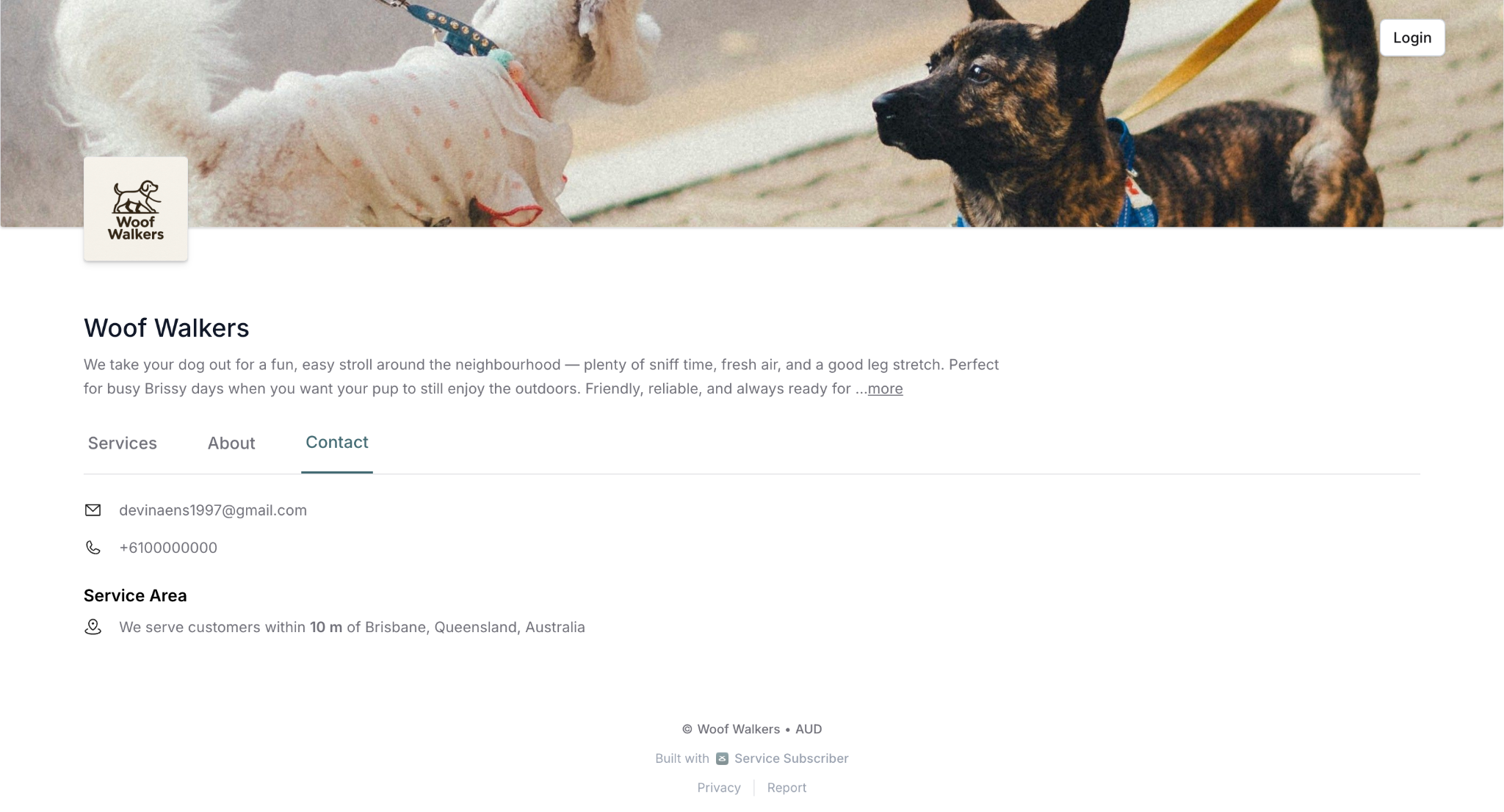
⚠️ IMPORTANT: The business location shown is based on your business address settings (configured separately in Account settings). The radius extends from your business location.
List-based:
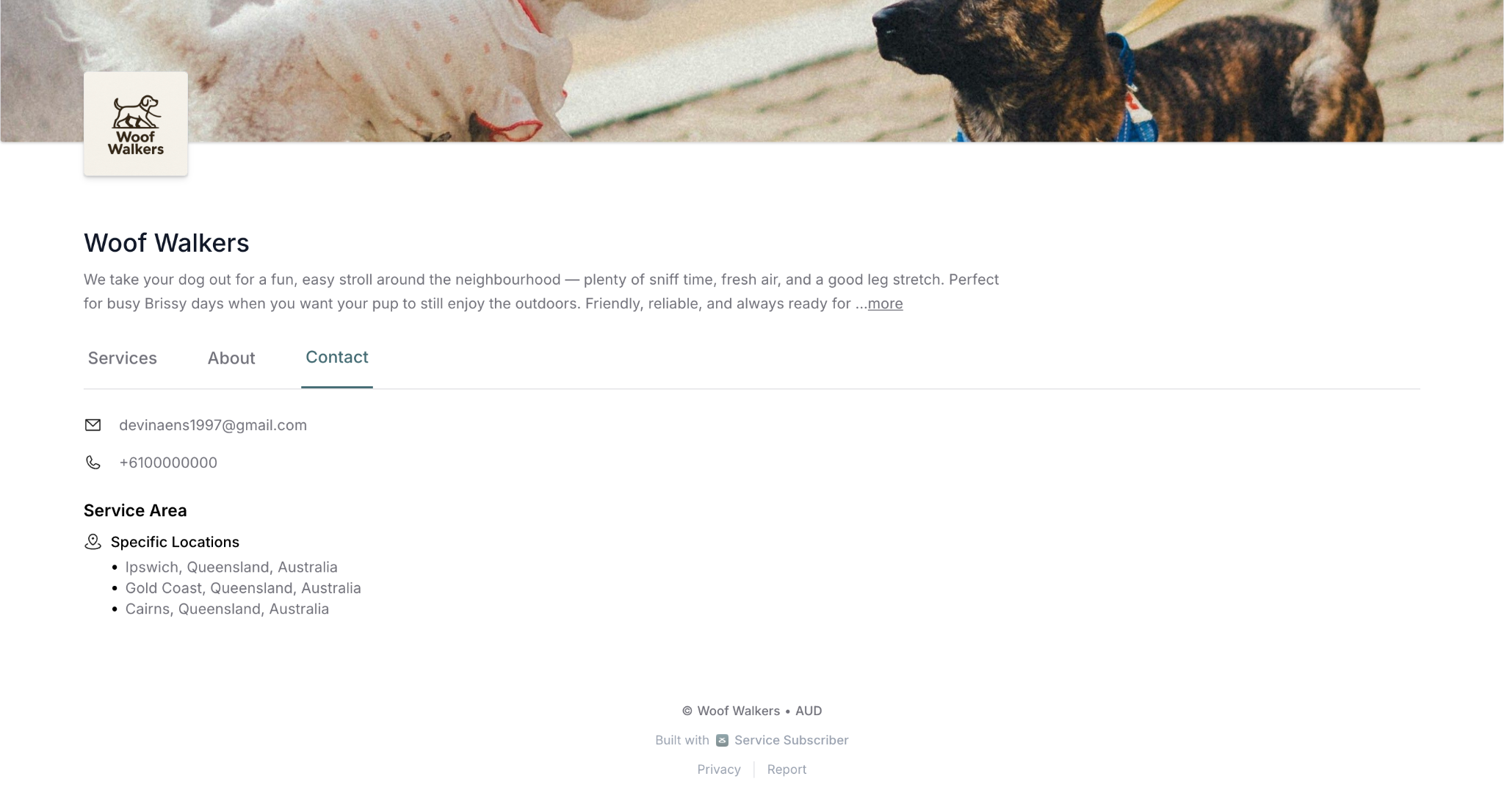
Shows "Specific Locations" heading with each location as a bullet point.
Custom text:
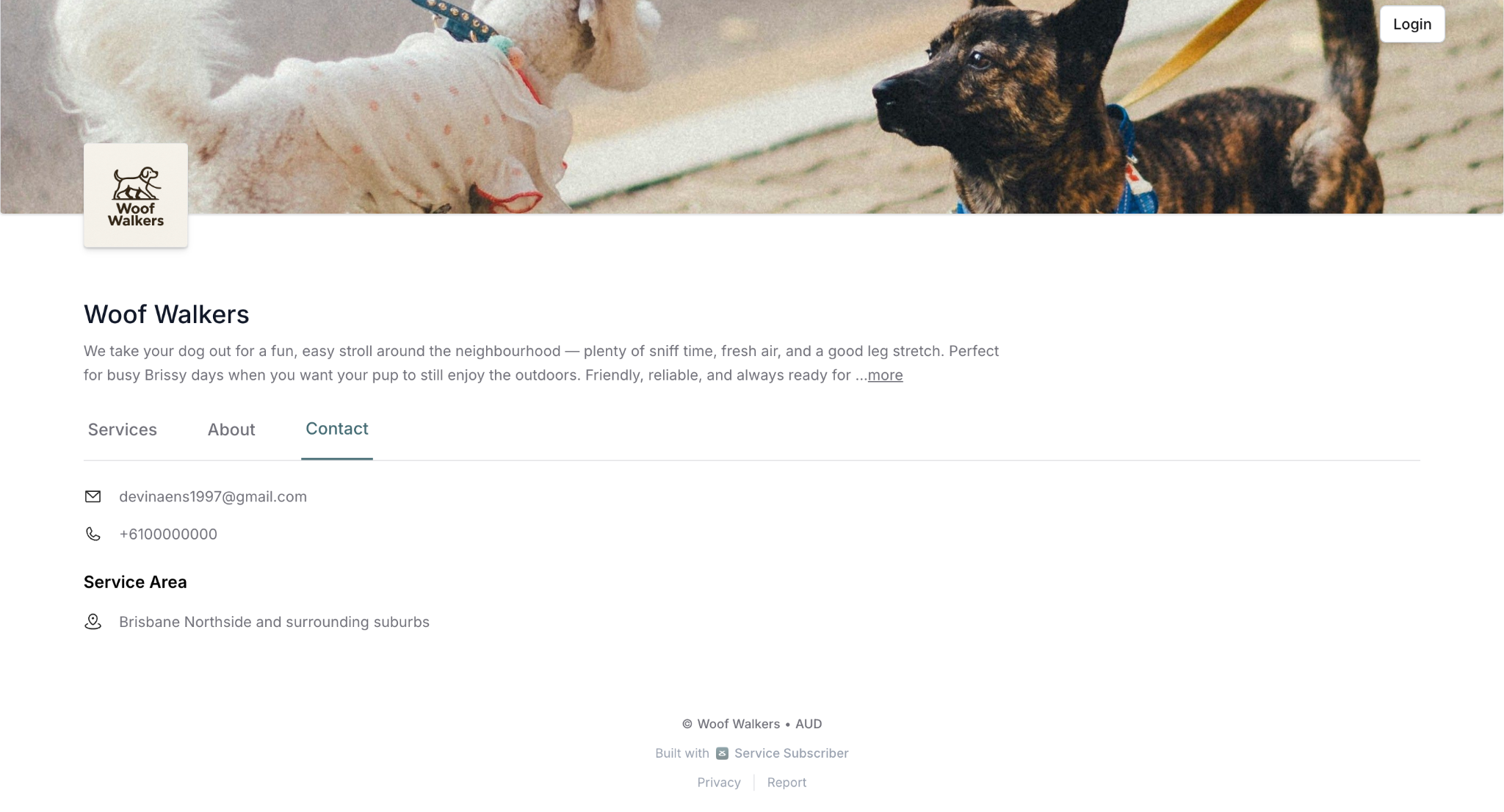
Example: "Brisbane Northside and surrounding suburbs"
Displays exactly what you typed—no additional formatting or text added.
When Toggle OFF
If Show Services Area is OFF:
Service Area section doesn't appear
Contact tab shows only email/phone (if enabled)
Configuration still saved (can toggle ON later)
Saving and Publishing Changes
Saving Your Configuration
After configuring:
Complete your service area setup
Verify display in right preview
Changes save automatically
Not published yet
⚠️ CRITICAL: Changes must be published to go live.
Publishing Changes
To make service area live:
Verify Show Services Area toggle is ON
Click Publish Changes button (top-right)
Wait for confirmation
Changes go live
Customers see service area
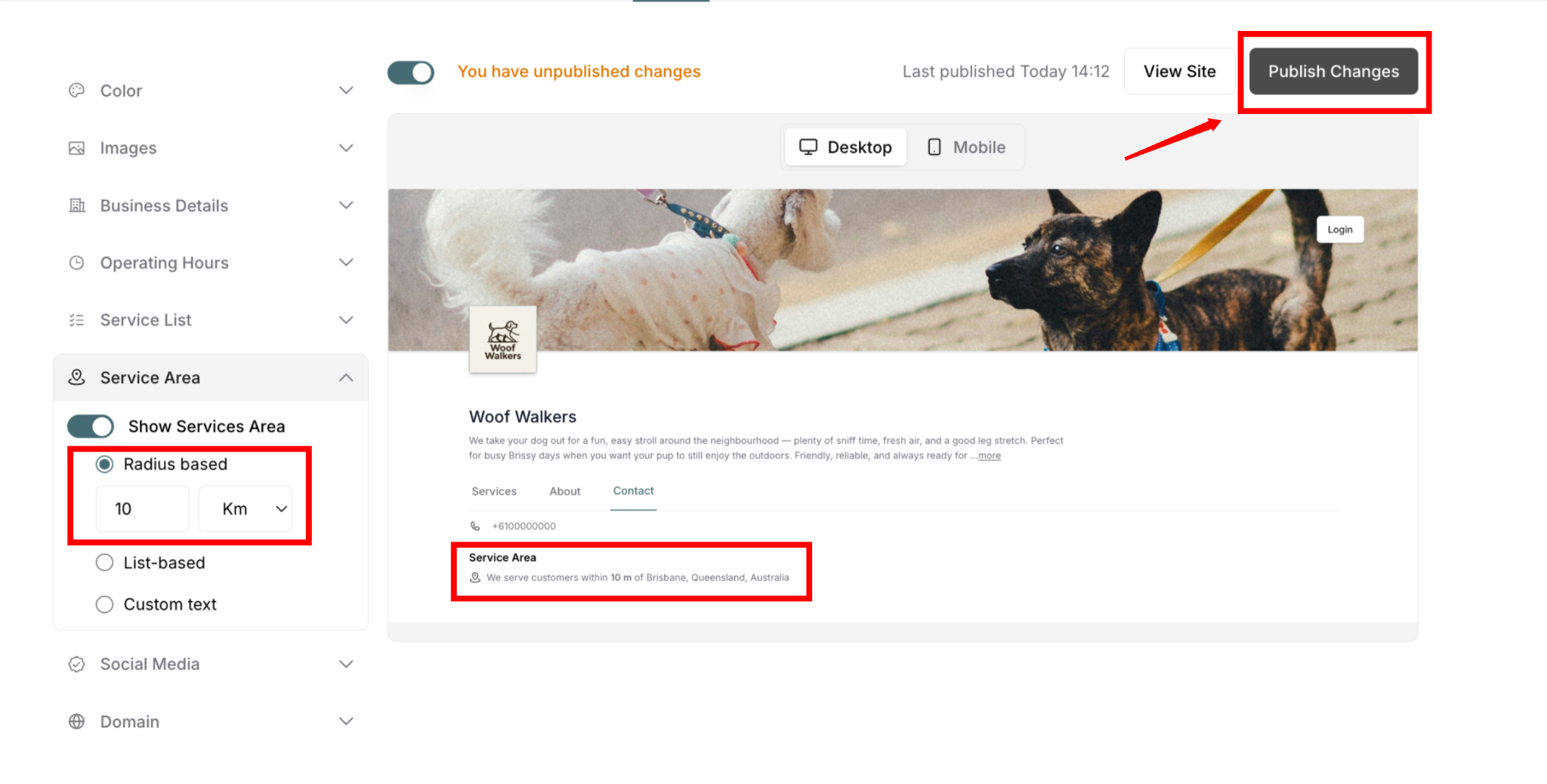
If you don't publish:
Changes remain unpublished
Preview shows changes
Live site shows old service area (or nothing)
Customers don't see updates
To verify published changes:
Click View Site after publishing
Navigate to Contact tab
Check "Service Area" section
Verify information displays correctly
Choosing the Right Option
Select based on your service model:
Use Radius-Based When:
✅ Serve circular area around your business location
✅ Simple local coverage
✅ Service from single base
✅ Easy to explain to customers
✅ Don't want to list specific areas
Best for: Local businesses, single-location services, straightforward coverage
Use List-Based When:
✅ Serve specific cities or regions
✅ Multi-location coverage
✅ Non-circular service area
✅ Want precise location names
✅ Customers need exact confirmation
Best for: Regional services, specific municipalities, multiple service zones
Use Custom Text When:
✅ Complex service area
✅ Special conditions apply
✅ Need flexible wording
✅ Radius/list don't fit
✅ Want complete control
Best for: Unique coverage patterns, conditional service areas, simple descriptions
✍️ TIP: Choose the service area display method that matches your business model. Radius-based is clearest for local businesses and automatically includes your business location, list-based works well for multi-location coverage with specific cities shown as bullet points, and custom text gives you complete control over the exact wording customers see. Keep it accurate and update as your coverage changes.
Was this article helpful?
That’s Great!
Thank you for your feedback
Sorry! We couldn't be helpful
Thank you for your feedback
Feedback sent
We appreciate your effort and will try to fix the article