What Are Subscription Controls?
Subscription Controls are settings that determine how much autonomy subscription customers have to manage their subscriptions through their portal.
Important: These controls only apply to subscription purchases. One-off purchase customers cannot pause or cancel on their end—only you can manually cancel one-off purchases through your dashboard (refund required).
Two main controls:
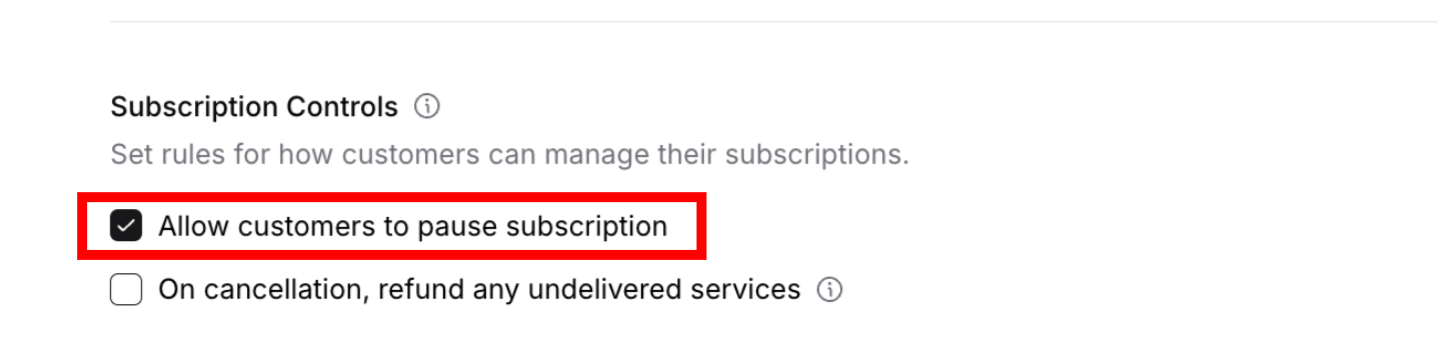
Allow customers to pause subscription – Let subscription customers temporarily suspend service and billing themselves, can be done anytime even during minimum term
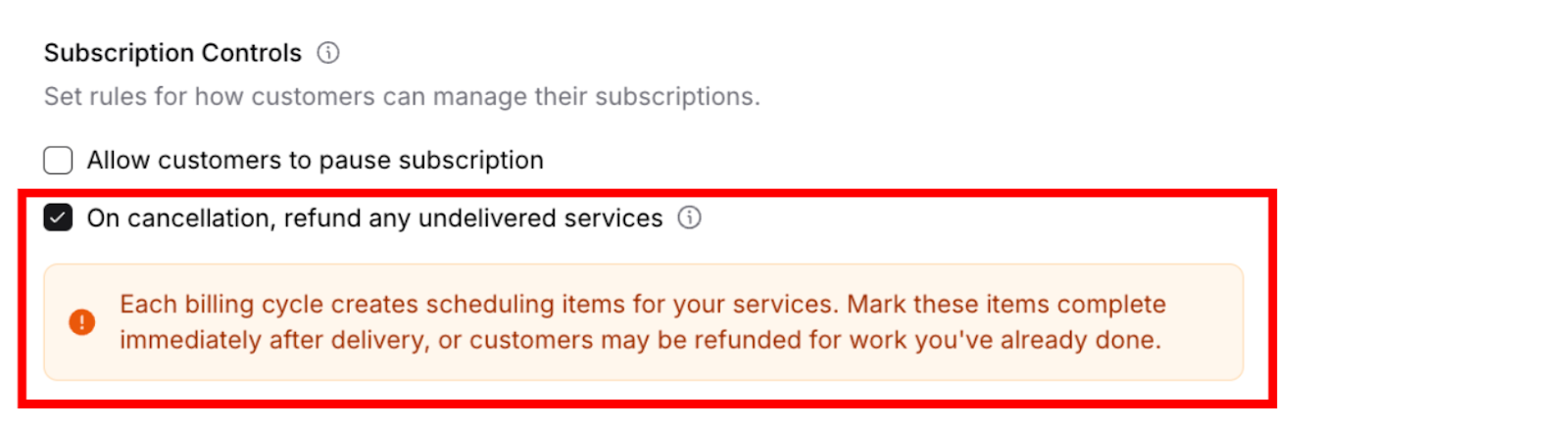
On cancellation, refund any undelivered services – Automatically refund subscription customers for services they paid for but haven't received yet when they cancel (customers can only cancel after meeting minimum term)
✍️ TIP: More customer flexibility generally increases satisfaction and retention for subscription customers, but consider your business requirements and operational capacity before enabling self-service options.
Why these are subscription-only: One-off purchases are single transactions with one delivery. They cannot be paused (already one-time) and customers cannot self-cancel them. If you need to cancel a one-off purchase, you must do so manually through the dashboard and issue a refund.
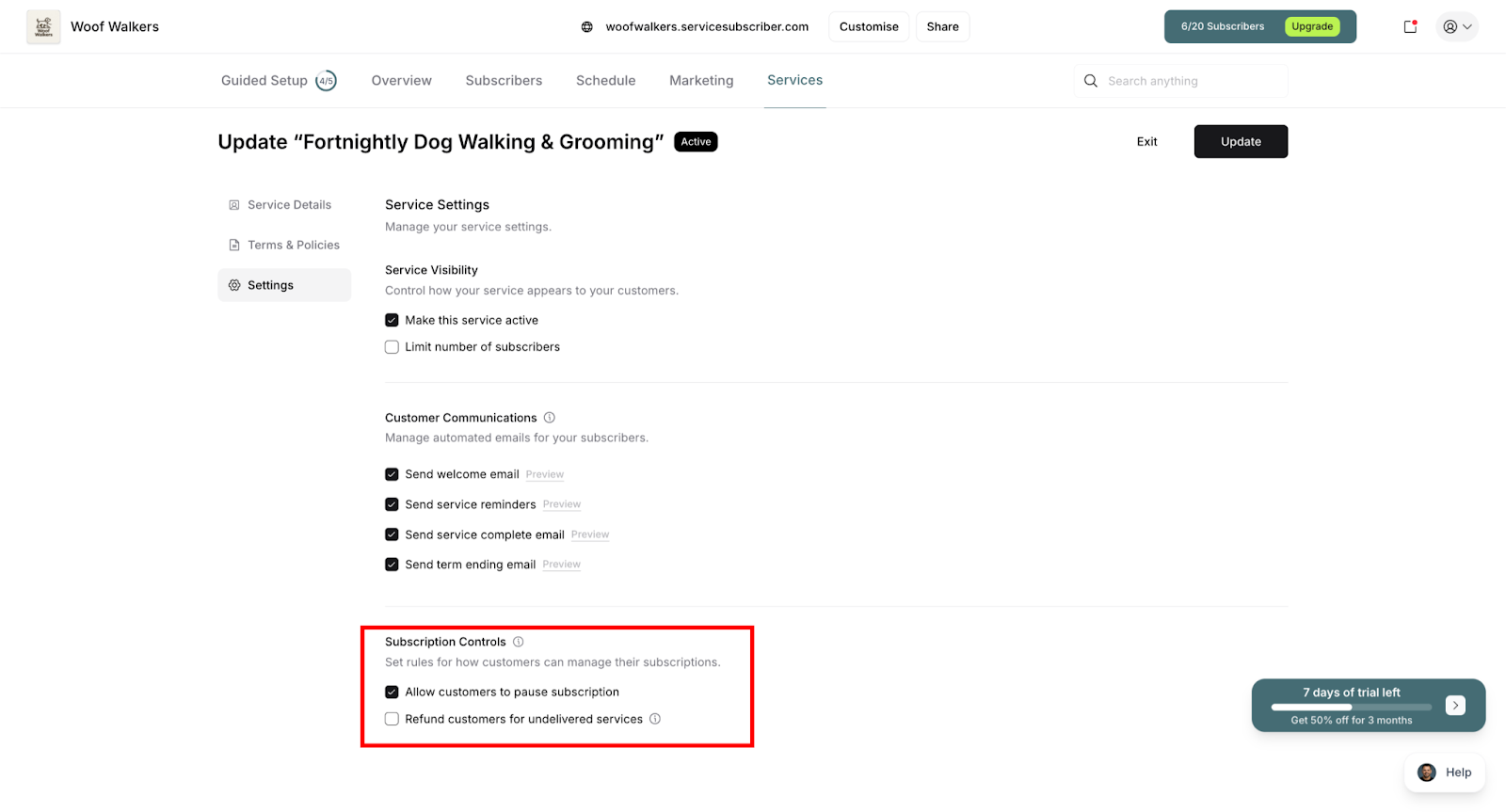
Accessing Subscription Controls
During Service Creation
Create or edit a service
Navigate to the Settings tab
Scroll to Subscription Controls section
Toggle each option on or off
Remember: These settings only affect subscription customers
For Existing Services
Go to Services page
Click the three-dot menu (⋯) next to the service
Select Service Details from the dropdown
Navigate to the Settings tab
Update Subscription Controls settings
Click Save to apply changes
Allow Customers to Pause Subscription
Important: This setting only applies to subscription purchases. One-off purchases cannot be paused as they are single, one-time transactions with one delivery.
When enabled, subscription customers can temporarily suspend their subscription through their portal. Pausing stops future billing, stops scheduled services, keeps the subscription in your system, and allows customers to resume anytime without re-signing up.
Resuming: Customers reactivate when ready, billing resumes automatically, services schedule again, and no re-signup or new subscription is required.
Key detail: Customers can pause their subscription at any time, even during the minimum term period. Minimum term requirements only apply to cancellation, not pausing.
When to Enable Pausing
Building Flexibility and Trust
Good for: Seasonal services where customers relocate temporarily (winter homes), services affected by travel or extended vacations, flexible customer-first business approaches, and high-trust business models.
Example scenarios: Pool service when customers are away for winter months, lawn care during extended vacations, house cleaning during temporary relocations, or personal training during injury recovery periods.
Why this works: Pausing prevents permanent subscription cancellations. Customers who pause typically return, while customers who cancel often don't come back.
When to Disable Pausing
Maintaining Consistency
Consider disabling if: Service requires consistent commitment from customers, pausing creates operational or scheduling challenges, business model depends on steady predictable revenue, or you have high setup and restart costs.
Example scenarios: Contract-based commercial services with firm commitments, services with minimum term requirements that you want strictly enforced, membership-based offerings requiring active participation, or high fixed-cost operations needing reliable revenue.
✅ BEST PRACTICE: Enable pausing by default (recommended setting). The vast majority of customers who pause will resume service, whereas customers who cancel are much less likely to return. Pausing is a retention tool.
Remember: This flexibility is only for subscription customers. One-off purchase customers complete a single transaction and don't need pause options since there's no recurring commitment.
How Customers Pause
Portal Self-Service Process
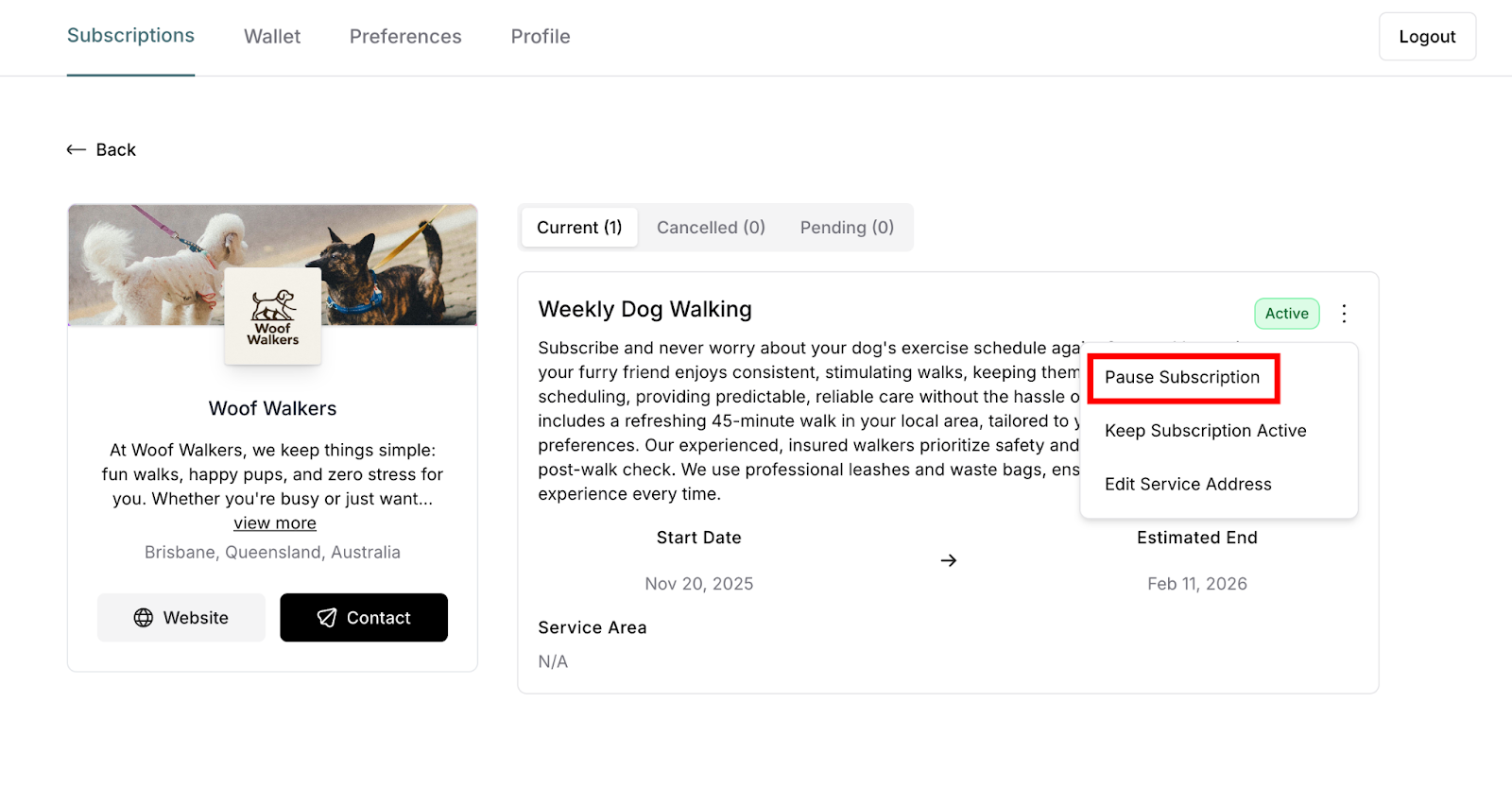
When pause is enabled, customers follow these steps:
Log into their customer portal account
Navigate to their subscription details
Click the three-dot menu (•••) next to the subscription
Select Pause Subscription
Confirm the pause action
What happens immediately: No more charges process until subscription is resumed, no more services are scheduled, subscription status changes to "Paused" in your system, and customer receives confirmation email about the pause.
On Cancellation, Refund Any Undelivered Services
When enabled, this feature automatically refunds customers for services they've paid for but haven't received yet when they cancel their subscription.
How it works:
When a customer cancels their subscription, the system checks for services that have been paid for but not yet marked complete. The system automatically processes refunds for these undelivered services, ensuring customers only pay for services they actually received.
Important interaction with minimum terms:
Customers can only cancel after meeting the minimum term requirement. The automatic refund applies to the cancellation itself—it doesn't override minimum term rules.
Before minimum term met: Customer cannot cancel (cancel button grayed out), no refunds issued
After minimum term met: Customer can cancel, automatic refunds process for any undelivered services
Example: Monthly service at $100/month with 2-month minimum term
Customer subscribes January 1
Paid for January and February ($200 total)
Attempts to cancel January 15 (before minimum): Cannot cancel
Cancels March 5 (after minimum): Can cancel
If auto-refund enabled: Refunded for any undelivered March service
If auto-refund disabled: No automatic refund, you decide manually
⚠️ IMPORTANT: The minimum term protects your commitment period. Customers must complete the minimum term before they can cancel, regardless of whether automatic refunds are enabled.
Manual Refunds
Whether or not automatic refunds are enabled, you can always issue refunds manually:
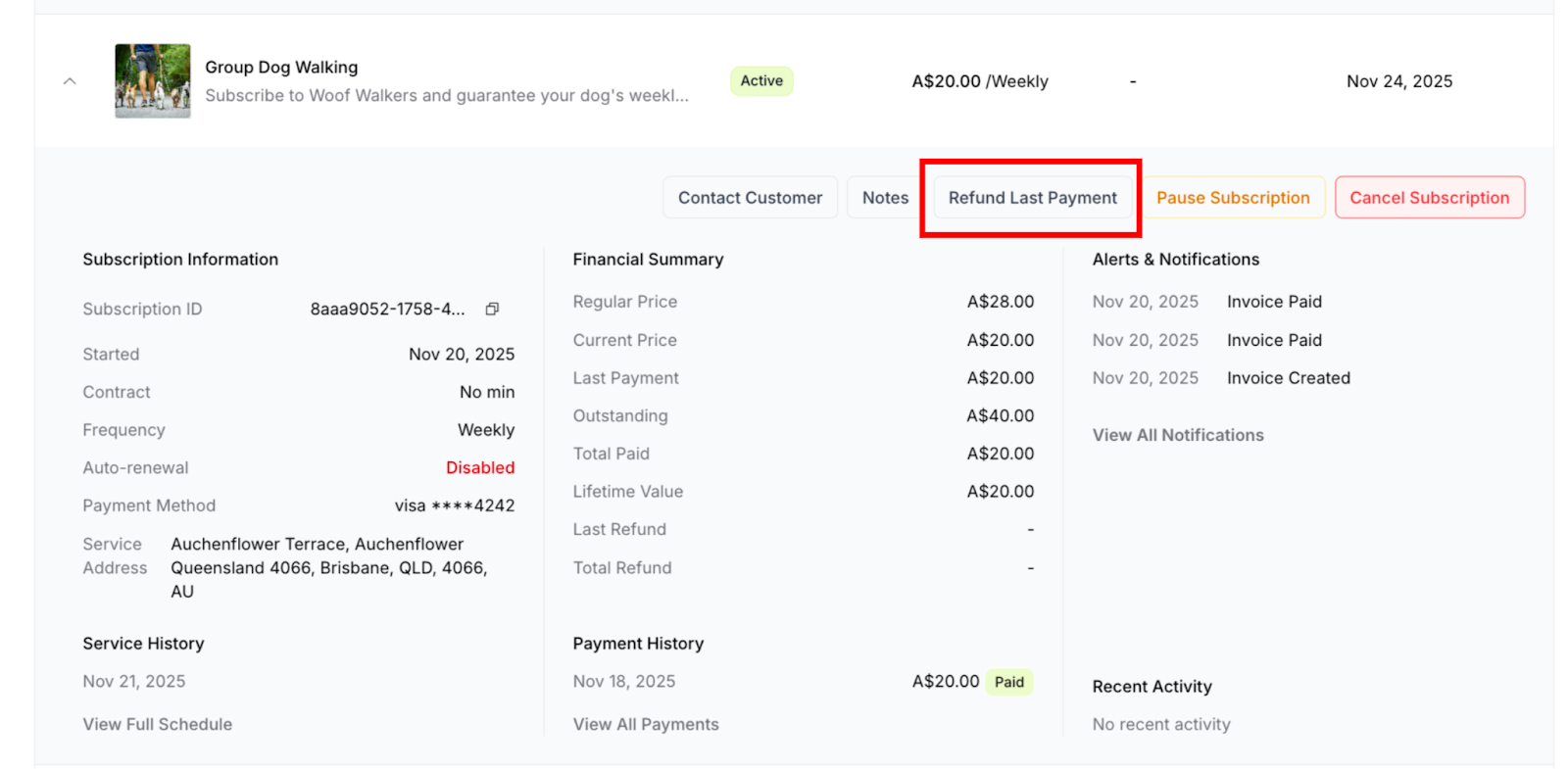
To manually refund a payment:
Navigate to Subscribers page
Click on the subscriber's name
Click Refund Last Payment button
Confirm the refund amount and reason
When manual refunds are needed:
Customer requests refund for a completed service (quality issues, dissatisfaction)
Automatic refunds are disabled and you want to refund upon cancellation
Special circumstances warrant a refund outside normal policy
Service was marked complete but shouldn't have been
Requirements for manual refunds:
Payment must have been successfully processed
Refund must be issued relatively soon after payment (Stripe time limits apply)
Cannot refund the same payment multiple times
How Cancellation Refunds Work
When this setting is enabled and a customer cancels their subscription (after meeting minimum term):
The cancellation and refund process:
Customer cancels subscription (only possible after minimum term is met)
System identifies services that were paid for but not yet delivered
Automatically calculates refund amount for undelivered services
Processes refund to customer's original payment method
Customer receives refund confirmation email
Timeline: Refund initiates immediately upon cancellation, appears in the customer's account within 5-7 business days, with actual timing depending on their bank's processing speed.
What's refunded:
Payment for services that were billed but not yet delivered at the time of cancellation. Since payment processes on the service due date and the next service is created immediately after payment success, the refund applies to any current billing period where service hasn't been completed yet.
What's not refunded:
Stripe payment processing fees (you lose these on refunds)
Services already marked complete before cancellation
Any payments during the minimum term (customers can't cancel during this period)
✍️ TIP: This setting protects customers from paying for services they won't receive after canceling, while still allowing you to retain payment for completed work if you mark services done promptly.
Was this article helpful?
That’s Great!
Thank you for your feedback
Sorry! We couldn't be helpful
Thank you for your feedback
Feedback sent
We appreciate your effort and will try to fix the article