The checkout experience is the final step where customers complete their subscription purchase. A smooth, clear checkout process reduces abandonment and converts browsers into paying subscribers. Understanding what customers experience helps optimize for higher conversion rates.
This guide explains the checkout flow from the customer's perspective.
What Is Checkout?
Checkout is where customers finalize their subscription decision by providing necessary information and payment details. After browsing services and selecting what they want, checkout is where they commit by entering addresses, payment information, reviewing their order, and confirming the purchase.
Why Checkout Matters
This is the critical moment where interest converts to revenue. Any confusion, friction, or concern at this stage can cause customers to abandon their purchase. A clear, secure, trustworthy checkout experience maximizes completion rates.
✍️ TIP: Most cart abandonment happens at checkout. Every unnecessary step or unclear element costs conversions.
Starting Checkout
From Service Selection
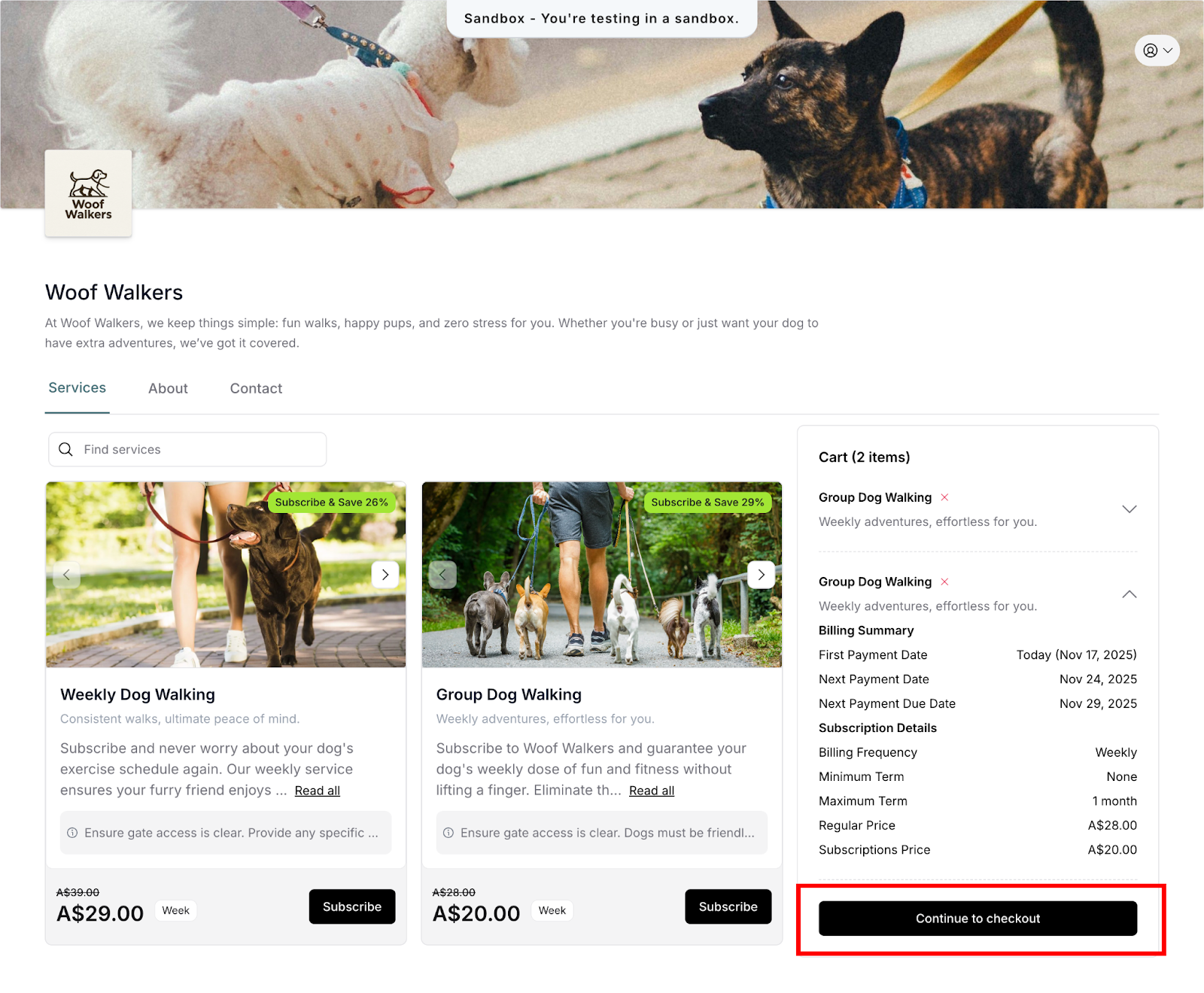
Customers begin checkout after selecting a service and authenticating their account (via OTP or Google sign-in). For self-signup purchases (The Customer Sign-up Process), customers click "Continue to checkout" from the cart. For invitation acceptance (Accepting Subscription Invitations), customers click "Confirm Details" from the invitation page.
What triggers checkout:
Service selected and added to cart
Account authenticated (logged in)
Customer ready to proceed with purchase
"Continue to checkout" or "Confirm Details" clicked
Cart vs Direct Checkout
Cart approach (self-signup):
Customers can add multiple services
Review all items before proceeding
Modify cart before checkout
Click "Continue to checkout" when ready
Direct approach (invitations):
Single pre-selected service
Review invitation details
Click "Confirm Details" to proceed
Goes straight to checkout
Both approaches lead to the same checkout page where customers complete their purchase.
Checkout Page Overview
What Customers See
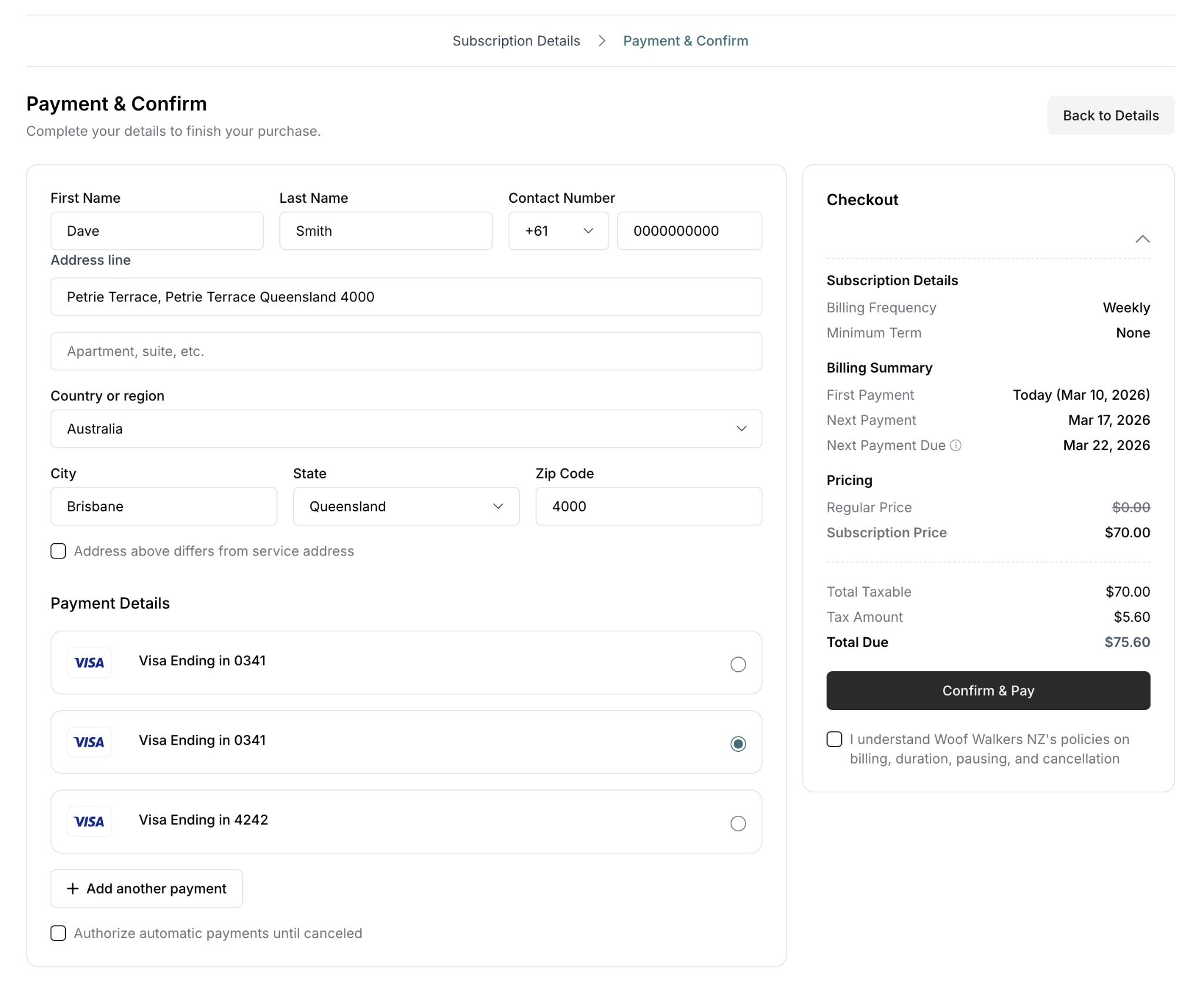
The checkout page is divided into two main sections:
Left side: Information forms
Customer details (name, contact)
Address information
Payment details
Policy agreement
Right side: Order summary
Service details
Subscription information
Billing summary
Pricing breakdown
Total due
Checkout Steps
Standard checkout progression:
Customer information (name, contact number)
Billing address
Service address (if different)
Payment information
Policy agreement
Final confirmation
Customer Information
Required Details
Name and contact:
First name
Last name
Contact number with country code
For existing customers:
Information auto-filled from account
Can edit if details changed
Previous information used as defaults
For new customers:
Must enter all information
Information saved to account
Used for future purchases
Address Information
Billing Address
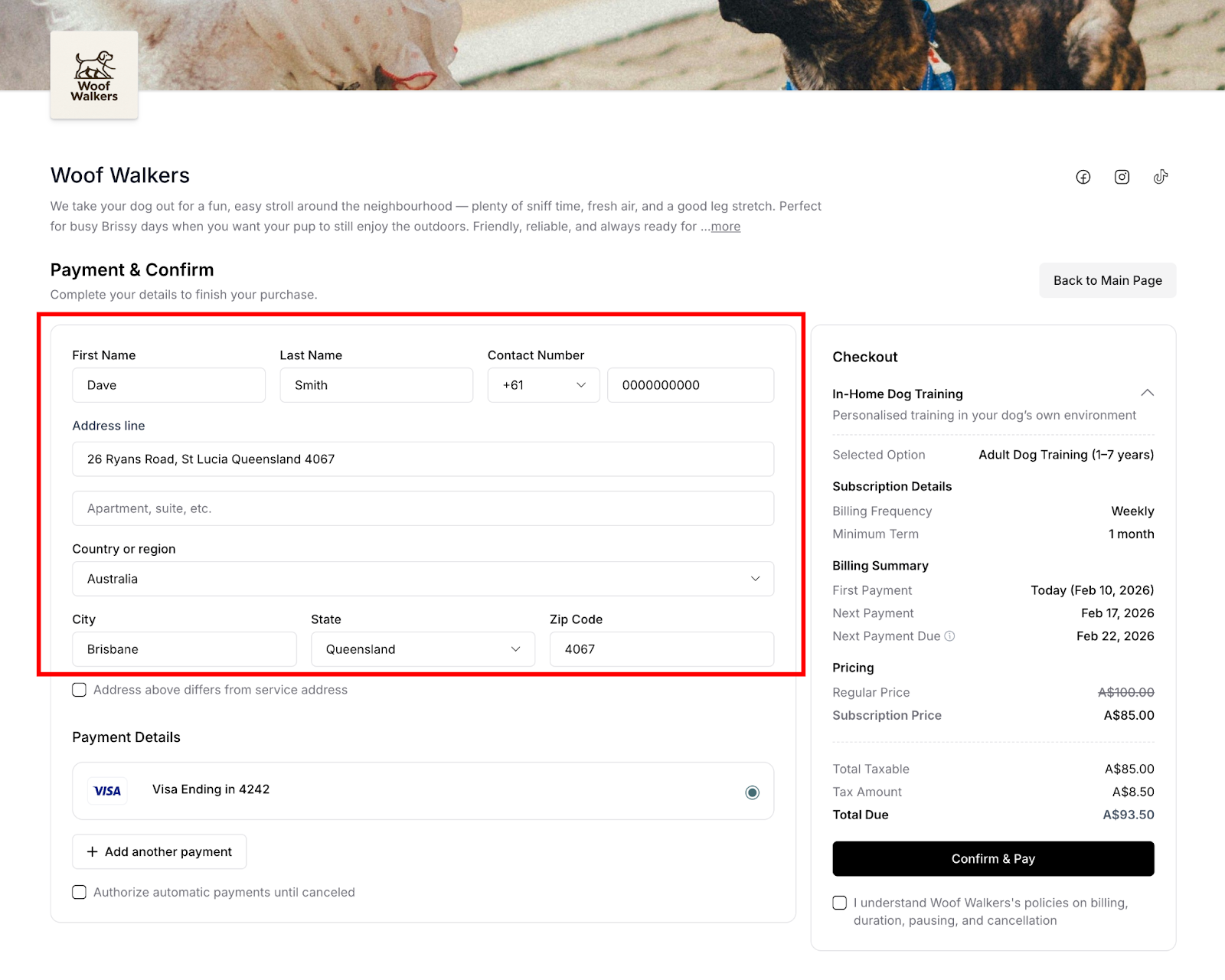
Customers provide the address where their payment card is registered. This must match the card company's records exactly for payment processing to succeed.
Required fields:
Address line (street address)
Apartment, suite, etc. (optional)
Country or region
City
State
Zip code
Google address autocomplete:
Start typing street address
Select from dropdown suggestions
City, state, zip auto-fill
Reduces entry errors
Faster completion
⚠️ IMPORTANT: Billing address must match the address on file with the card issuer exactly. Mismatched addresses can cause payment declines even with valid cards.
Service Address
After billing address, customers indicate where the service will be performed. This tells the business exactly where to show up for service delivery.
Service address option:
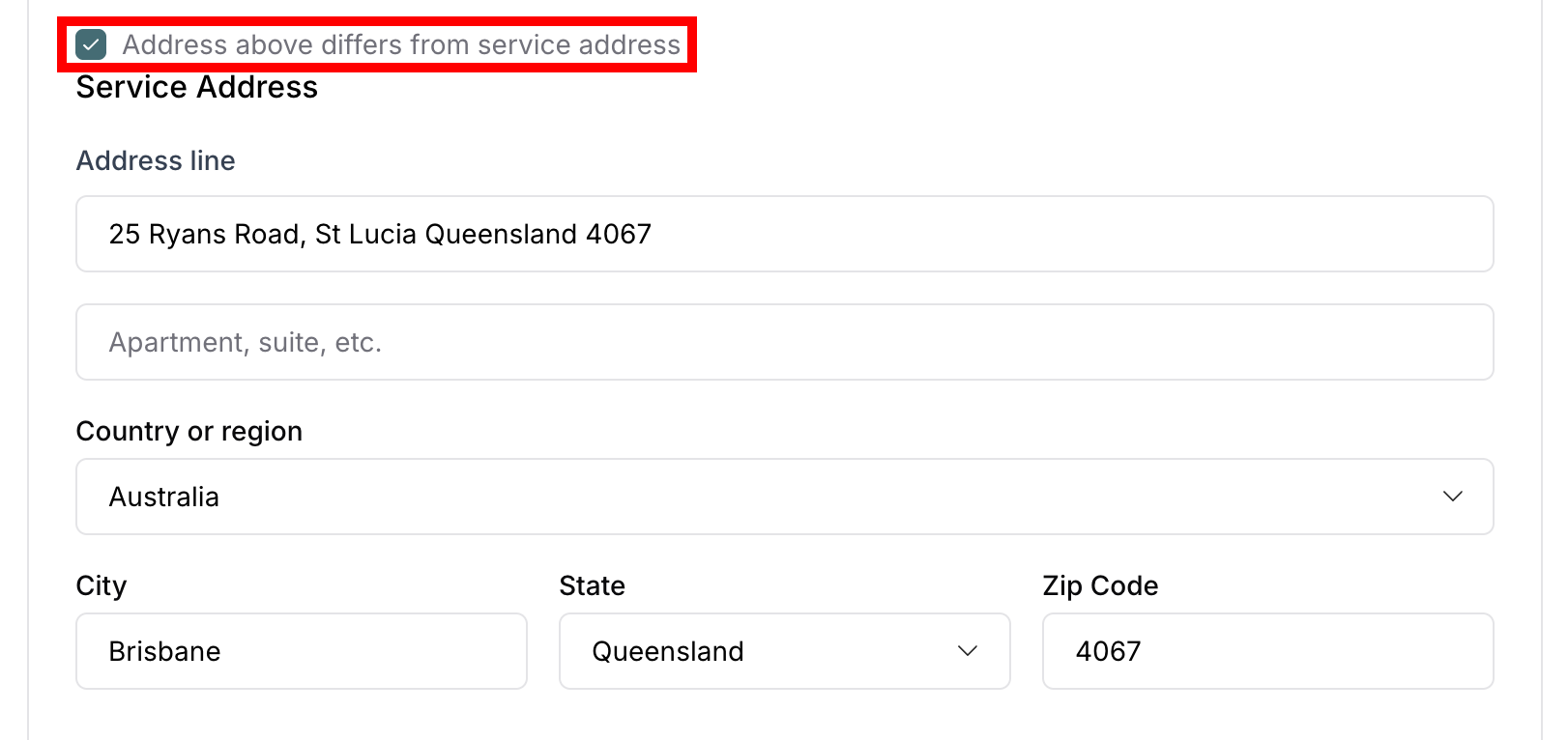
Checkbox: "Address above differs from service address"
Checked: Service address section expands
Unchecked: Uses billing address for service
When to use separate service address:
Service at different location than billing
Gift subscription for someone else
Business address vs service location
Vacation property vs primary residence
Service address fields (if different):
Address line with Google autocomplete
Apartment, suite, etc. (optional)
Country or region
City
State
Zip code
✍️ TIP: Service address accuracy is critical. This determines where the business performs the service, so customers should verify all details are correct.
Payment Information
Payment Method
Customers provide payment card information to enable recurring billing.
Required payment details:
Card number (15-16 digits)
Expiration date (month and year)
CVC/CVV security code (3-4 digits)
Cardholder name (as appears on card)
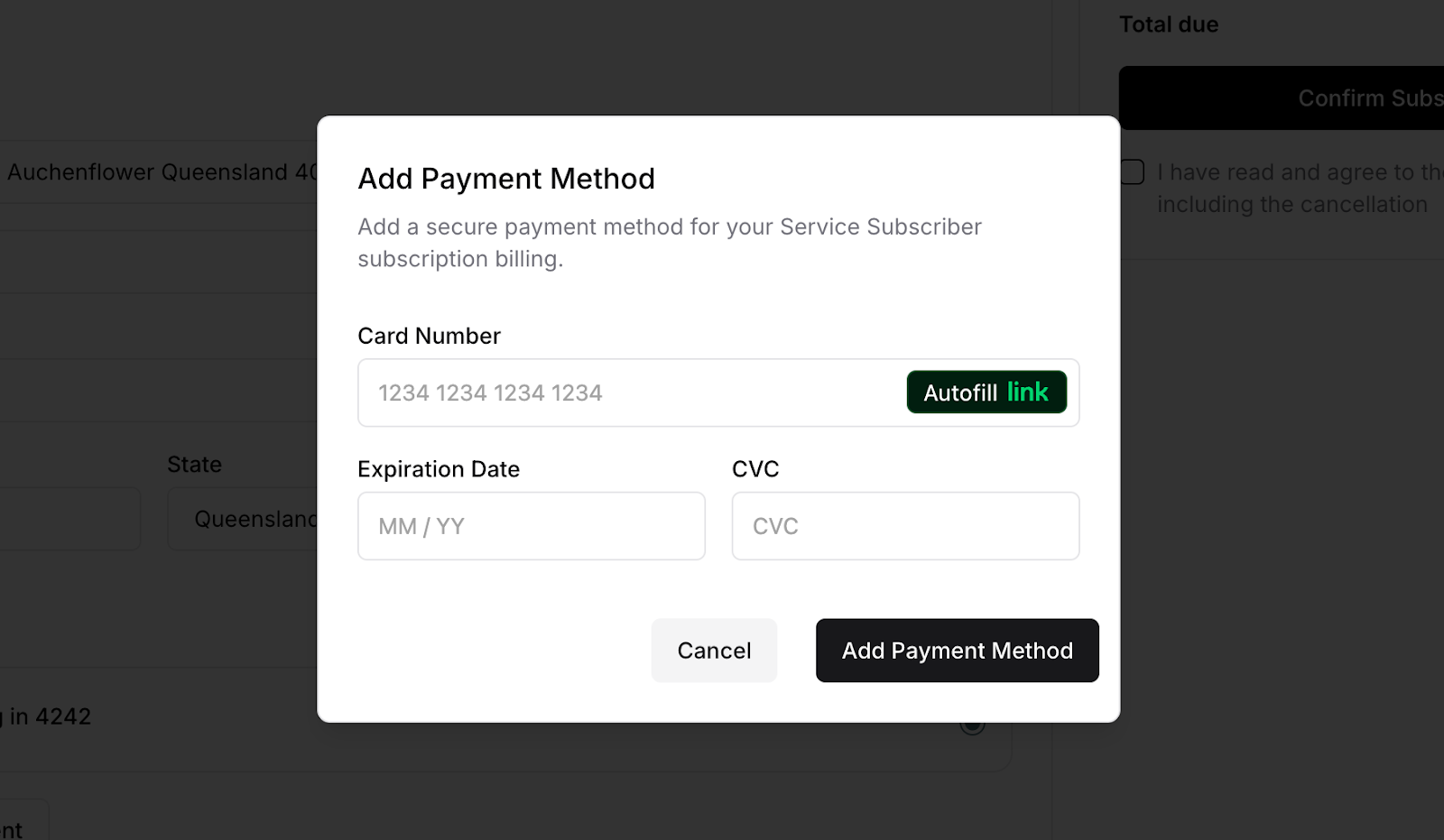
For new customers:
Must add payment method
Card saved for future payments
Securely processed and stored
For existing customers:
Saved payment methods displayed
Shows card type and last 4 digits
Can select saved card
Can add new payment method
Accepted payment types:
Major credit cards (Visa, Mastercard, Amex, Discover)
Debit cards with card numbers
Some businesses may accept digital wallets
Payment Security
Secure processing:
Card information encrypted
Processed through Stripe payment processor
Never stored on business servers
Complies with payment card industry standards
Automatic Payments Authorization
For subscriptions:
Checkbox: "Authorize automatic payments until canceled"
Must be checked to complete subscription
Enables recurring billing
Customer can cancel anytime through portal
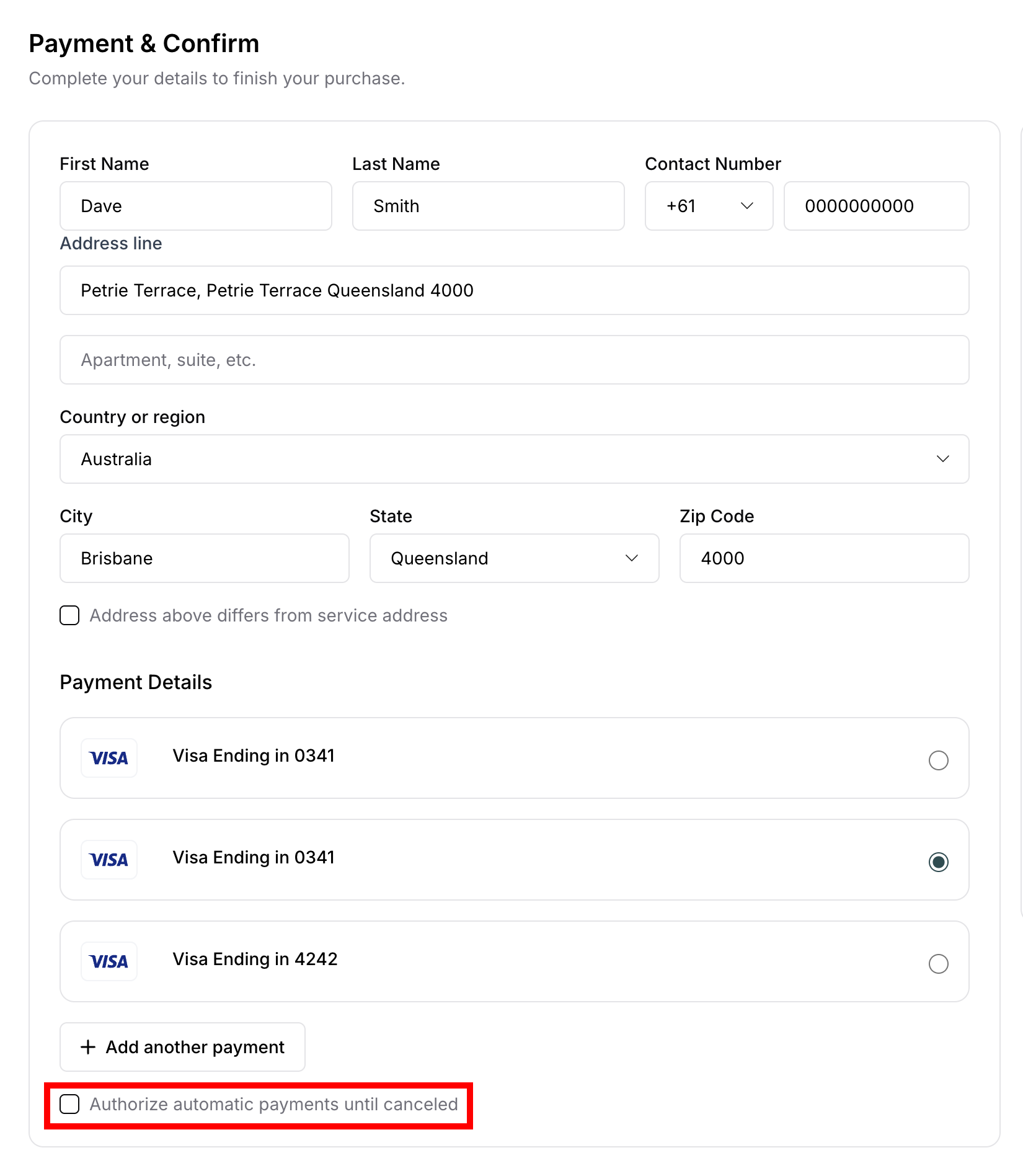
⚠️ IMPORTANT: This checkbox authorizes future recurring payments. One-off purchases do not require this authorization.
First Payment Processing
Immediate Charge
The first subscription payment charges immediately when checkout is completed, not at some future date. As soon as customers click "Confirm & Pay," their card is charged and subscription activates.
Amount charged:
One billing cycle at subscription price
For $100/month subscription → first charge is $100
For $25/week subscription → first charge is $25
Payment covers the first service period
What first payment includes:
Activates subscription
Schedules first service
Starts billing cycle
Enables customer portal access
⚠️ IMPORTANT: Customers should understand payment is immediate. Unexpected charges cause disputes and dissatisfaction.
Order Review
Final Confirmation
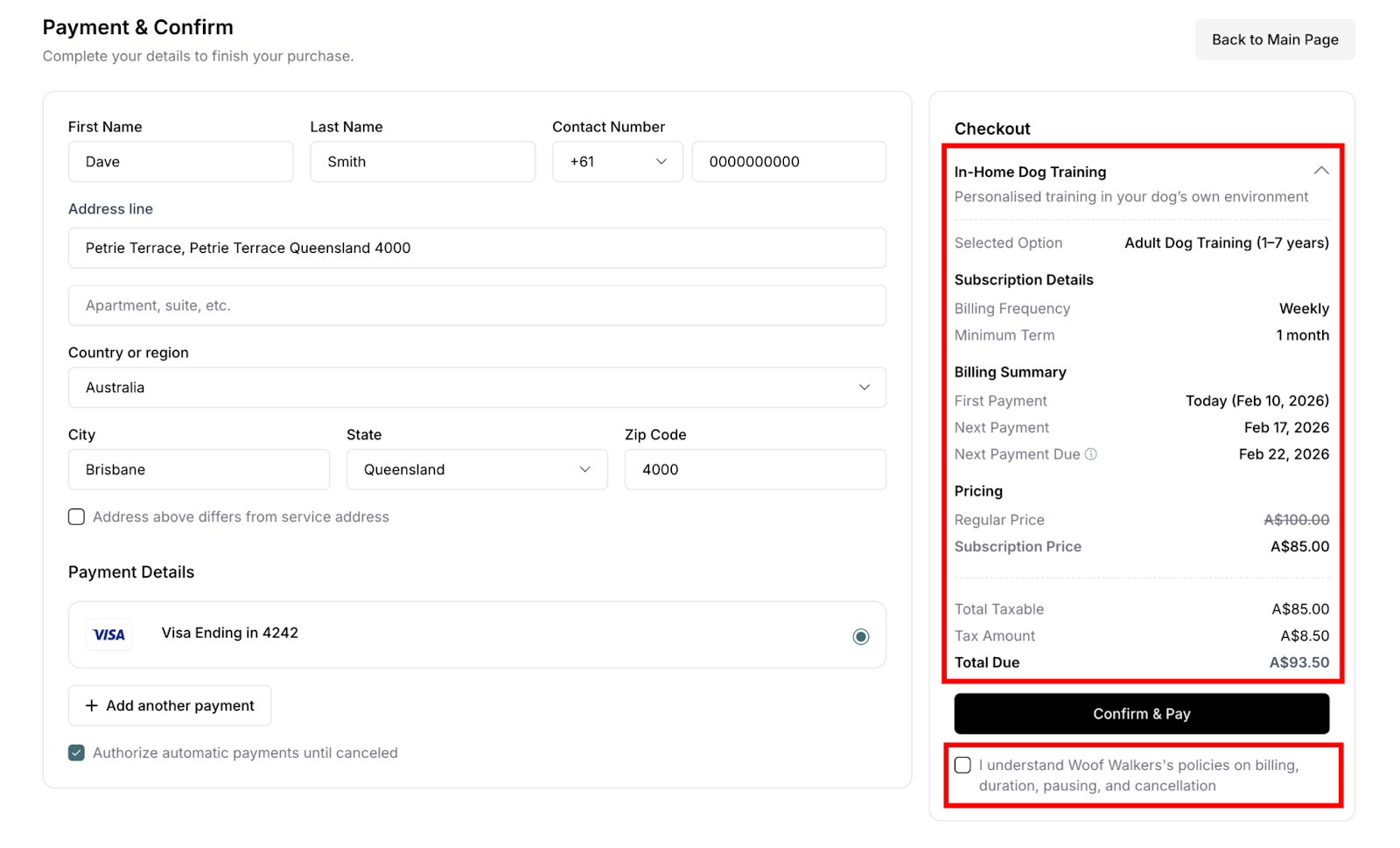
Before completing purchase, customers review a comprehensive summary on the right side panel. This is their last opportunity to verify details before committing.
Order summary displays:
Service information:
Service name
Brief description
Selected tier (if applicable)
Subscription details:
Billing frequency (Weekly, Monthly, etc.)
Minimum term
Maximum term (if applicable)
Pause and cancel policies
Billing summary:
First payment date and amount
Next payment date
Next payment due date
Pricing:
Regular price (if discounted)
Subscription price
Tax amount
Total due
What Customers Should Verify
Before confirming:
✅ Service selected matches needs
✅ Pricing is correct
✅ Billing frequency is understood
✅ First payment amount is expected
✅ Billing address accurate
✅ Service address correct
✅ Payment method is intended card
✅ Minimum term is acceptable
✍️ TIP: Encourage customers to review everything carefully. Catching errors now is easier than fixing them after purchase.
Terms and Conditions
Policy Agreement
Before final confirmation, customers must acknowledge they've read and agree to the subscription terms.
Policy agreement checkbox:
"I understand [Business]'s policies on billing, duration, pausing, and cancellation"
Must be checked to enable "Confirm & Pay" button
Indicates acceptance of terms
Terms typically include:
Automatic recurring billing details
Service delivery expectations
Cancellation rights and procedures
Refund policies (if applicable)
Liability and warranty information
✅ BEST PRACTICE: At minimum, customers should read cancellation and refund policies before agreeing. Know rights and responsibilities.
Completing the Purchase
Final Confirmation
When everything is reviewed and correct, customers click the "Confirm & Pay" button.
What happens immediately:
Payment processes in real-time (2-3 seconds)
Subscription account created
Subscription status set to Active
First service scheduled automatically
Confirmation modal appears
Success Confirmation
After successful payment processing, customers see a confirmation modal with:
Success message
Subscription details
Order summary
Next steps information
Confirmation emails sent:
Subscription confirmation with complete details
Payment receipt for first charge
Service scheduled notification
Customer portal access information
✍️ TIP: Customers should wait for confirmation before closing browser. Closing too early may interrupt payment processing.
After Checkout
Customer Portal Access
After successful checkout, customers gain immediate access to the customer portal.
Portal access:
Use email address from checkout
Login link in confirmation email
OTP authentication for security
Manage subscriptions and account
✍️ TIP: The checkout experience is identical whether customers sign up directly or accept an invitation. A smooth, clear checkout process is critical for converting interested browsers into paying subscribers. Every element should build trust and reduce friction.
Was this article helpful?
That’s Great!
Thank you for your feedback
Sorry! We couldn't be helpful
Thank you for your feedback
Feedback sent
We appreciate your effort and will try to fix the article