Social media links help customers connect with your business on their preferred platforms. Displaying social media icons builds trust, increases engagement, and provides additional ways for customers to follow and contact you.
This guide explains how to add and manage social media links on your site.
Why Social Media Links Matter
Visible social media links help customers:
Connect with you on familiar platforms
Follow your business updates
See social proof and reviews
Contact you through preferred channels
Build trust through your online presence
✍️ TIP: Displaying social media links can increase customer engagement by 20-30%. Customers want to see your social presence before subscribing.
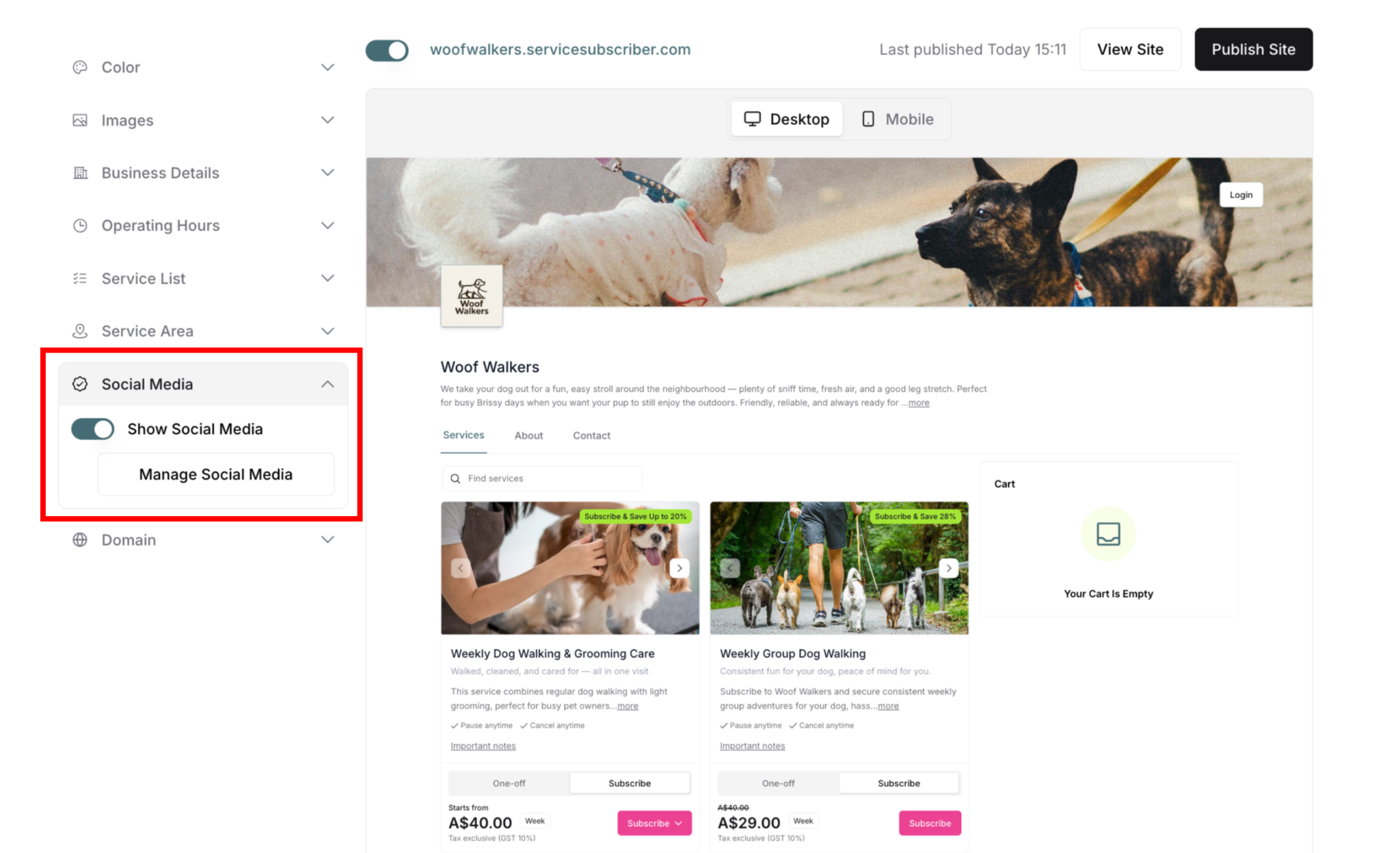
Social Media Display Options
One toggle controls social media visibility:
Show Social Media Toggle
Toggle ON: Social media icons display on site, management options appear
Toggle OFF: Social media icons hidden, minimal options visible
When to toggle ON:
✅ Have active social media accounts
✅ Want customers to follow you
✅ Build social proof
✅ Provide additional contact methods
When to toggle OFF:
❌ No social media accounts
❌ Don't want to display social links
❌ Privacy concerns
❌ Not yet set up accounts
Managing Social Media Links
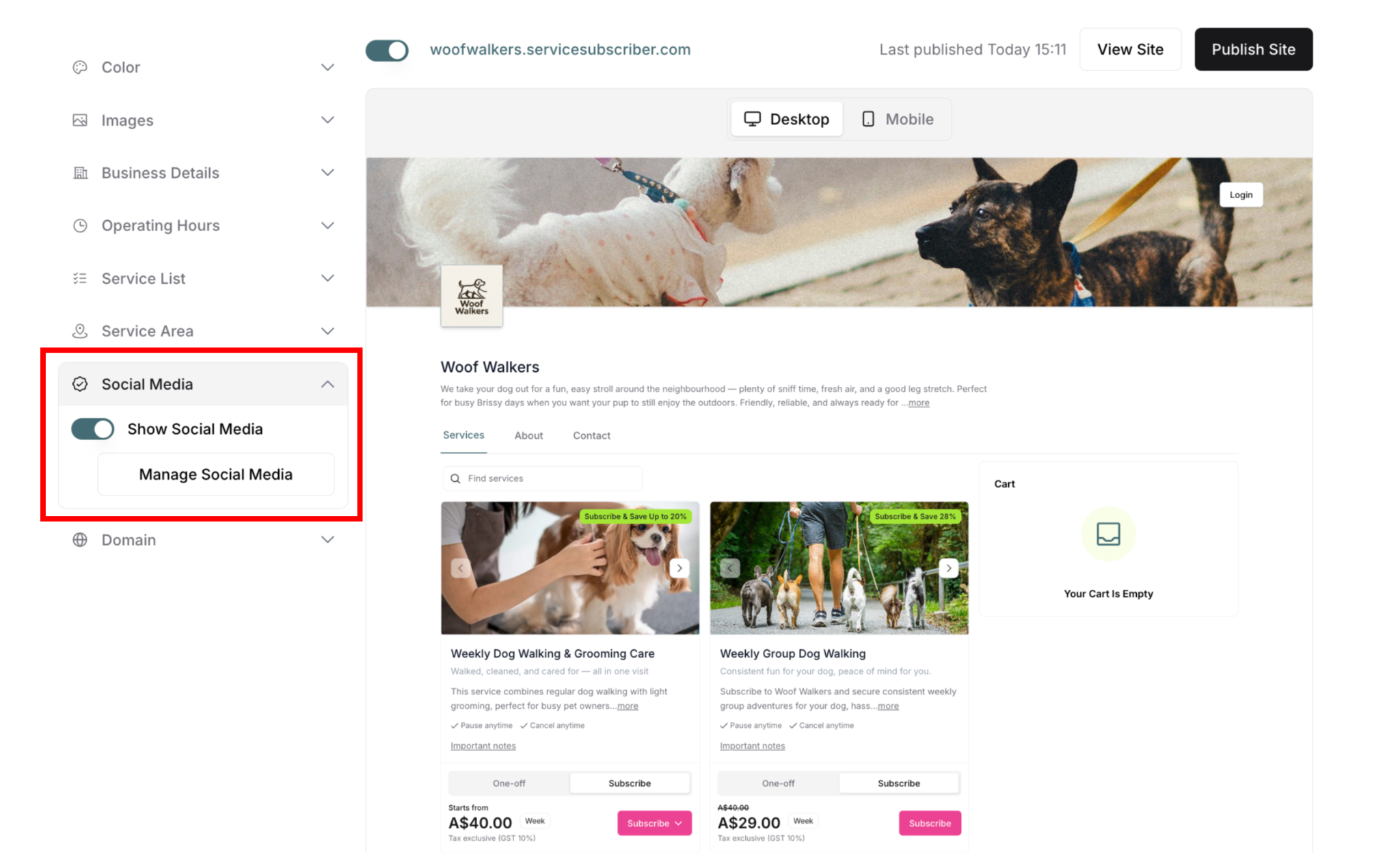
When toggle is ON, management options appear:
Manage Social Media Button
Opens modal to configure social media links:
Add usernames for default platforms
Add custom social links
Remove links
Edit existing links
Setting Up Default Social Media Platforms
Pre-configured platforms with ready-to-use URL structures:
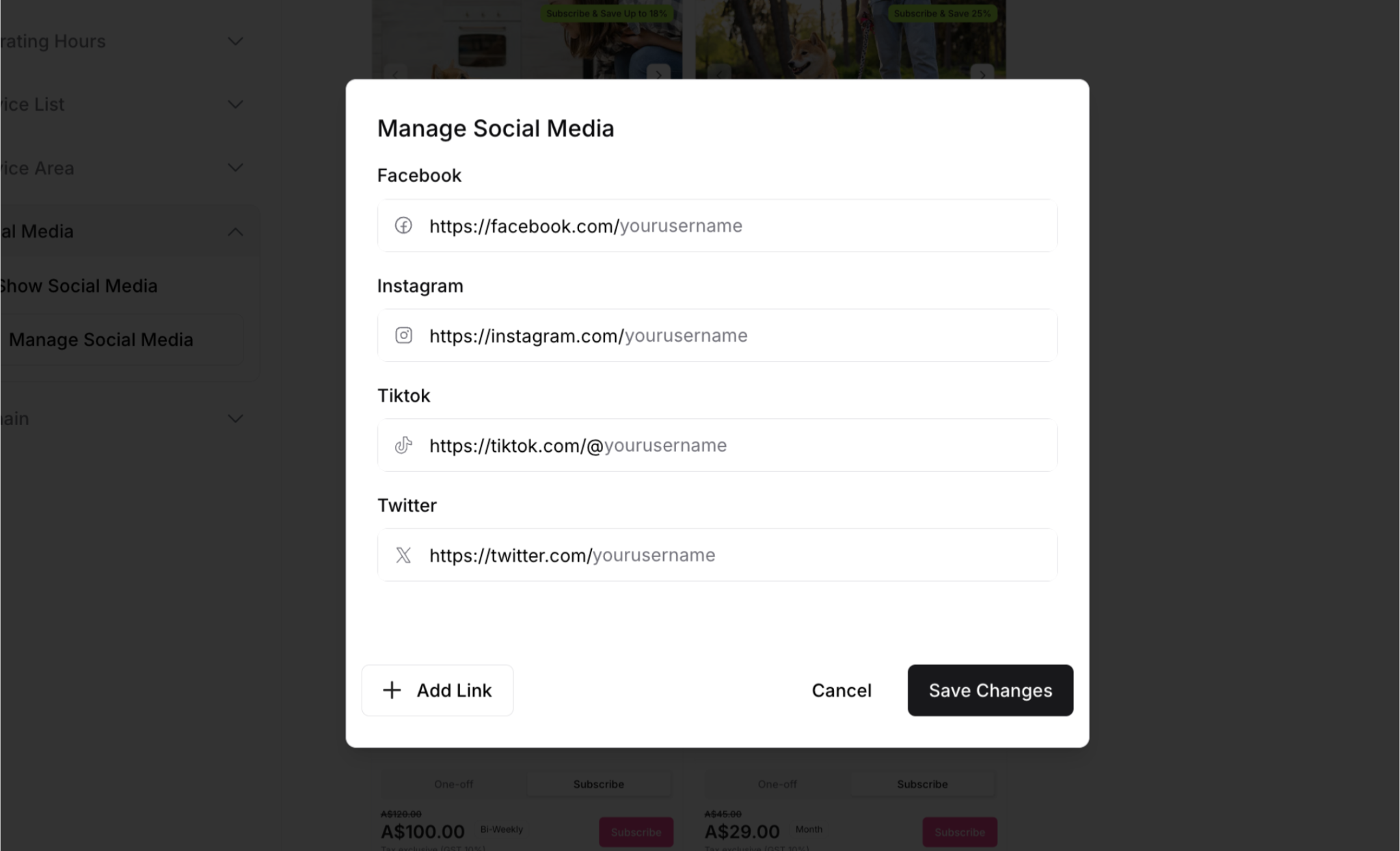
Available Default Platforms
Facebook:
Pre-filled: https://facebook.com/
You add: yourusername
Full URL: https://facebook.com/yourusername
Instagram:
Pre-filled: https://instagram.com/
You add: yourusername
Full URL: https://instagram.com/yourusername
TikTok:
Pre-filled: https://tiktok.com/@
You add: yourusername
Full URL: https://tiktok.com/@yourusername
Twitter:
Pre-filled: https://twitter.com/
You add: yourusername
Full URL: https://twitter.com/yourusername
How to Add Default Platform Links
Step-by-step:
Toggle Show Social Media ON
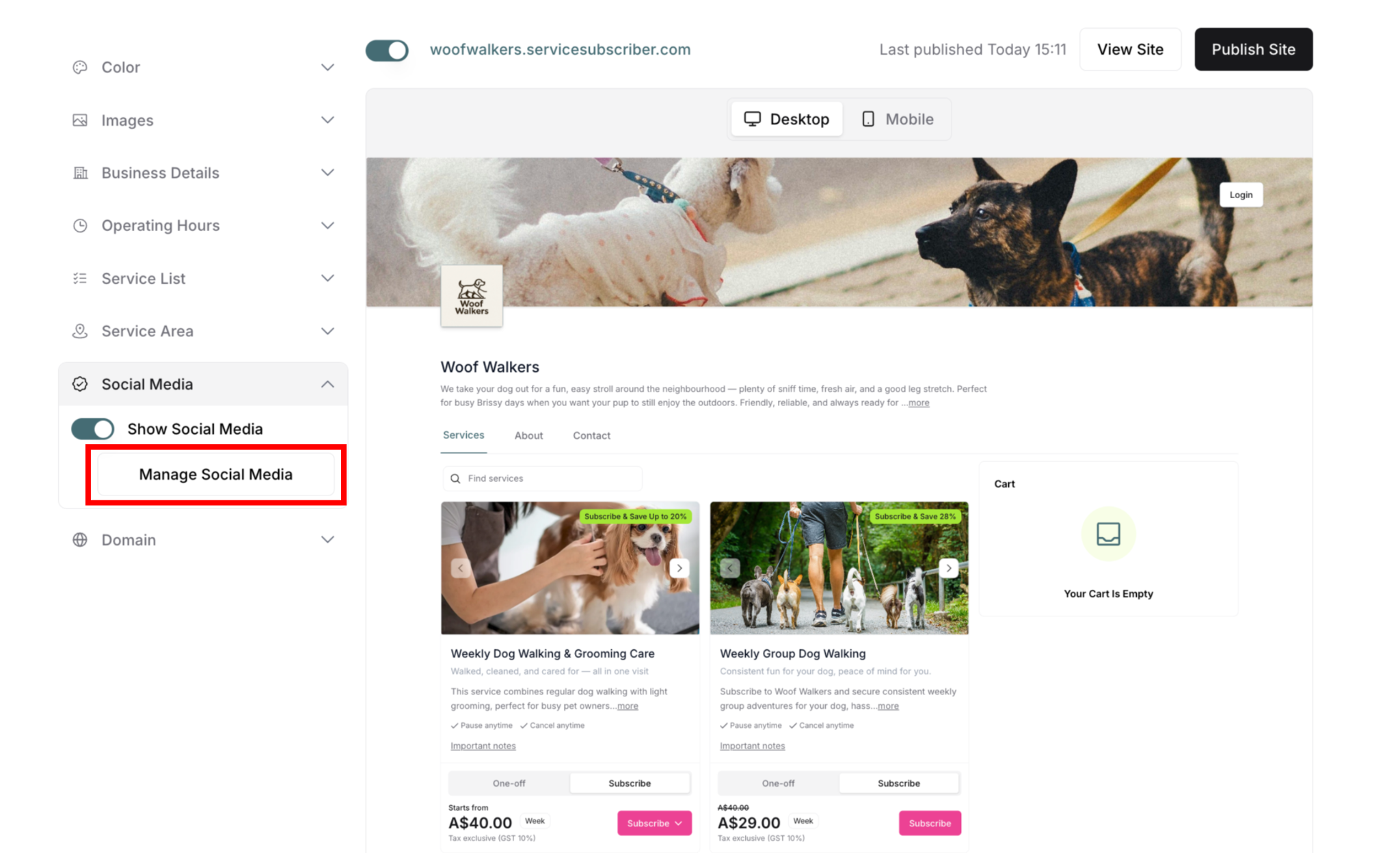
Manage Social Media button appears
Click Manage Social Media button
Modal opens: "Manage Social Media"
Default platforms shown with input fields
Add your username:
Click in Facebook field
Type your username only (not full URL)
Example: Type "woofwalkers" not "https://facebook.com/woofwalkers"
Repeat for other platforms:
Add Instagram username
Add TikTok username
Add Twitter username
Leave blank any platforms you don't use
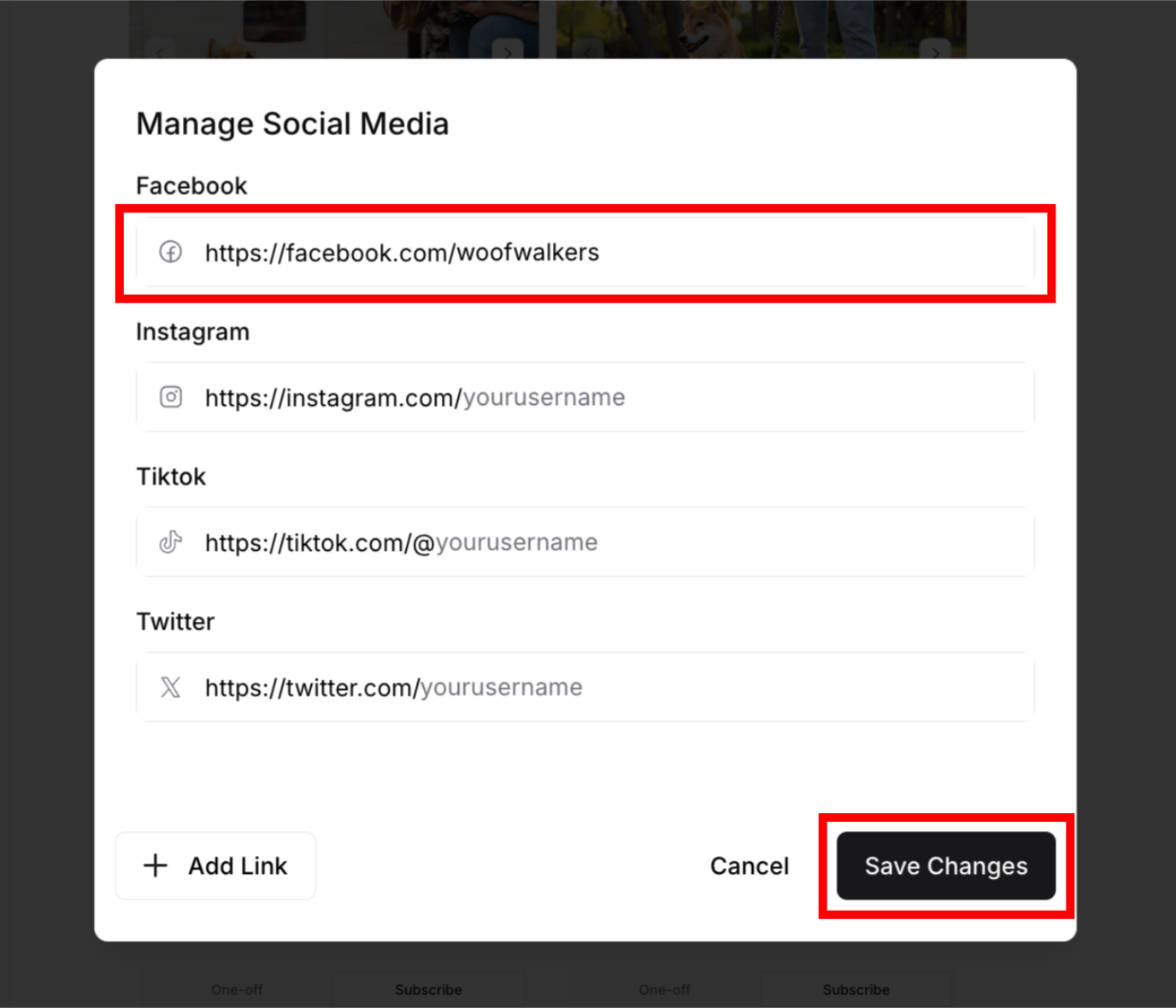
Click Save Changes
Modal closes
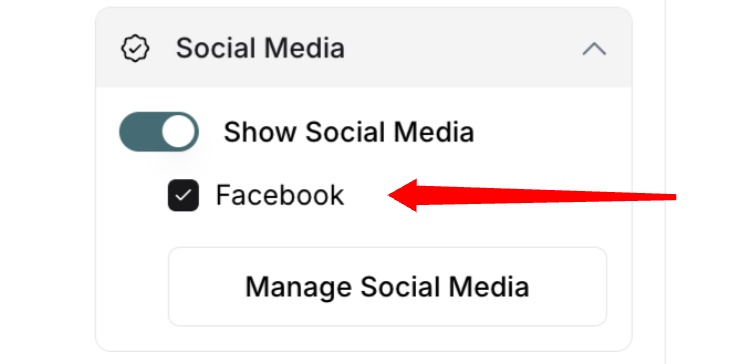
Platforms with usernames appear as checkboxes below toggle
Verify checkboxes:
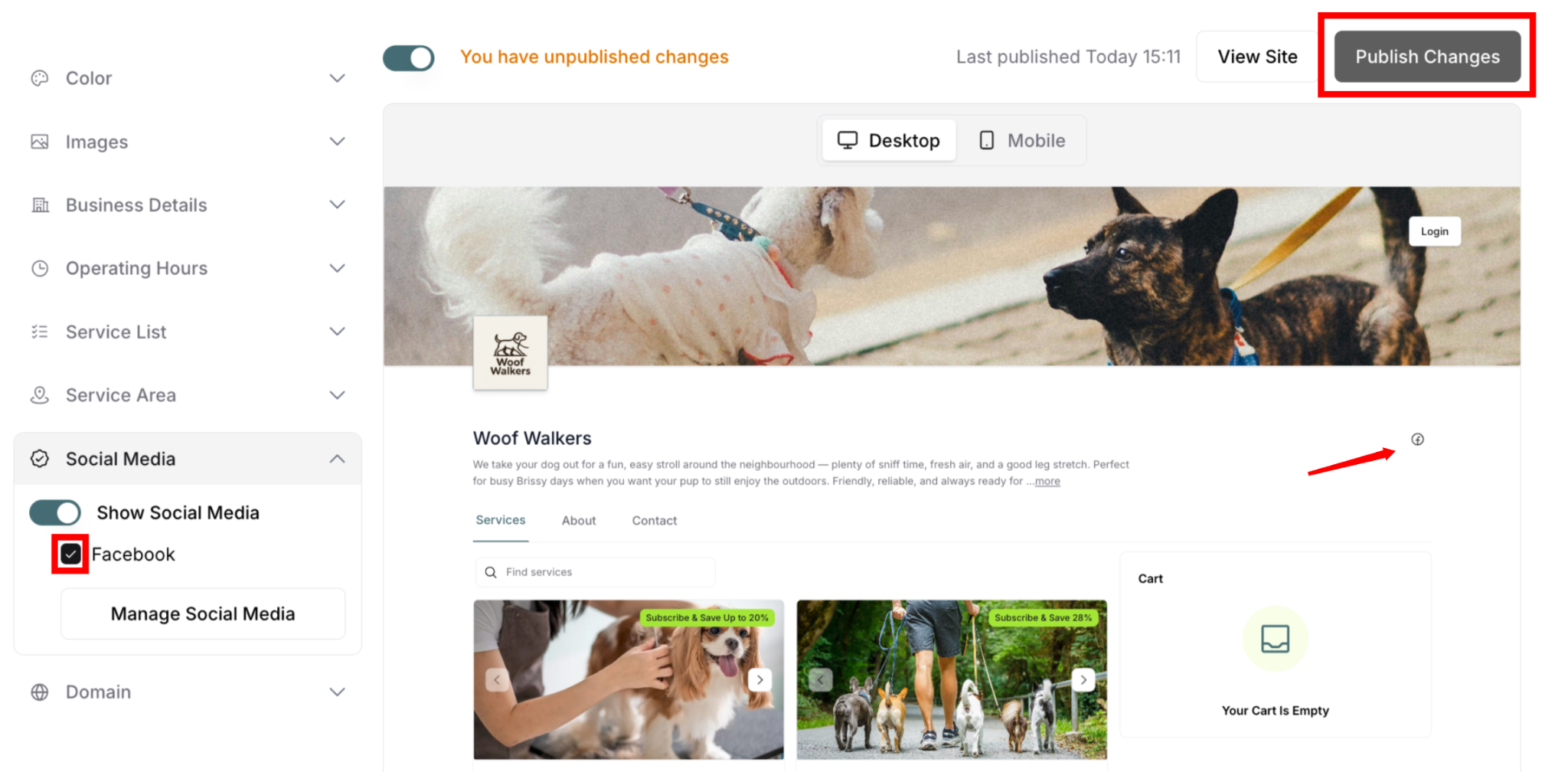
Platforms with usernames automatically checked
Icons appear in preview
Publish changes:
Click Publish Changes button
Social media icons go live
⚠️ IMPORTANT: Only add username, not full URL. The URL structure is already built in for default platforms.
Adding Custom Social Media Links
Add platforms not in the default list:
How to Add Custom Links
Step-by-step:
Open Manage Social Media modal
Scroll to bottom of modal
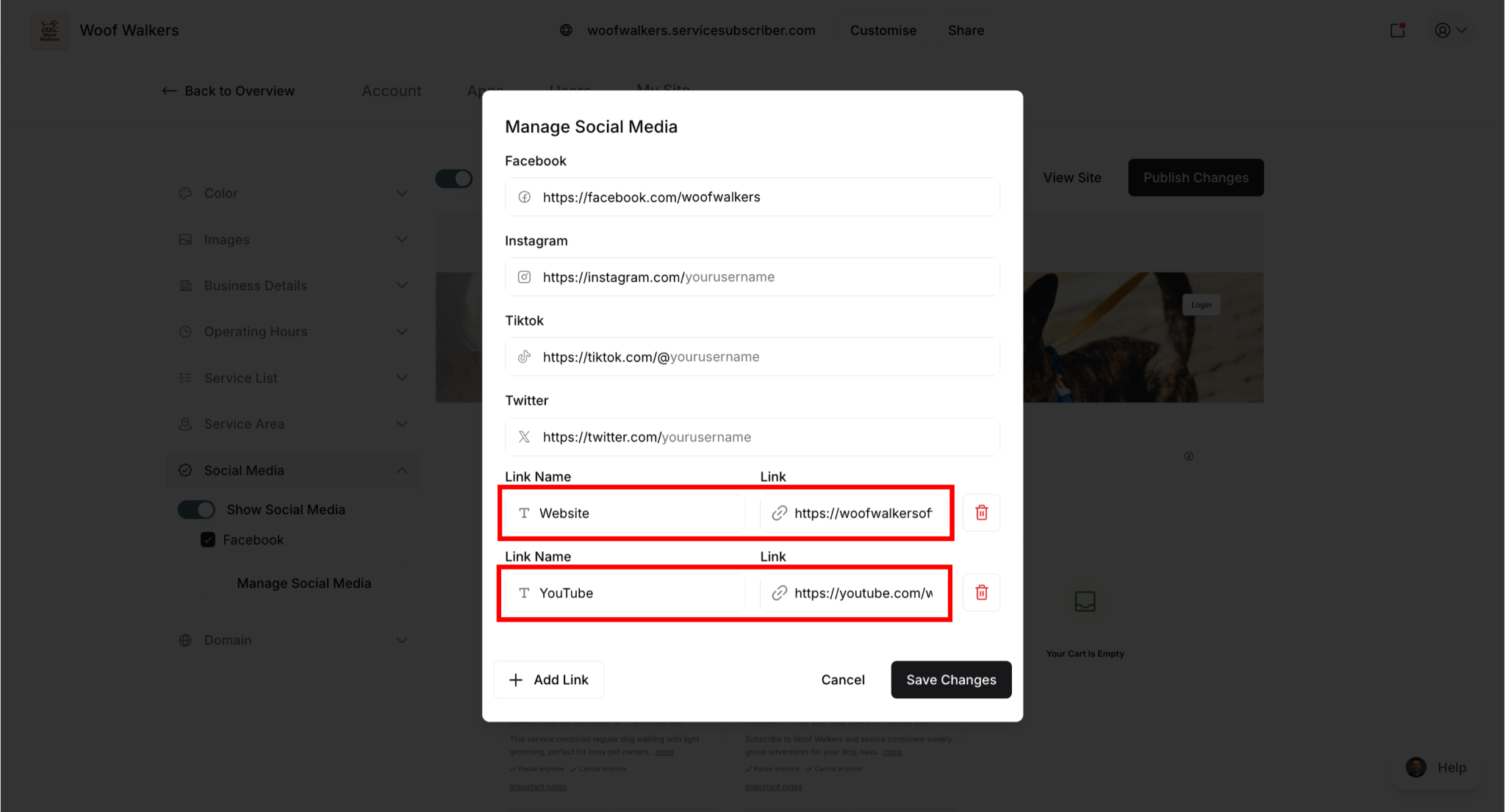
Find + Add Link button
Click to add custom link
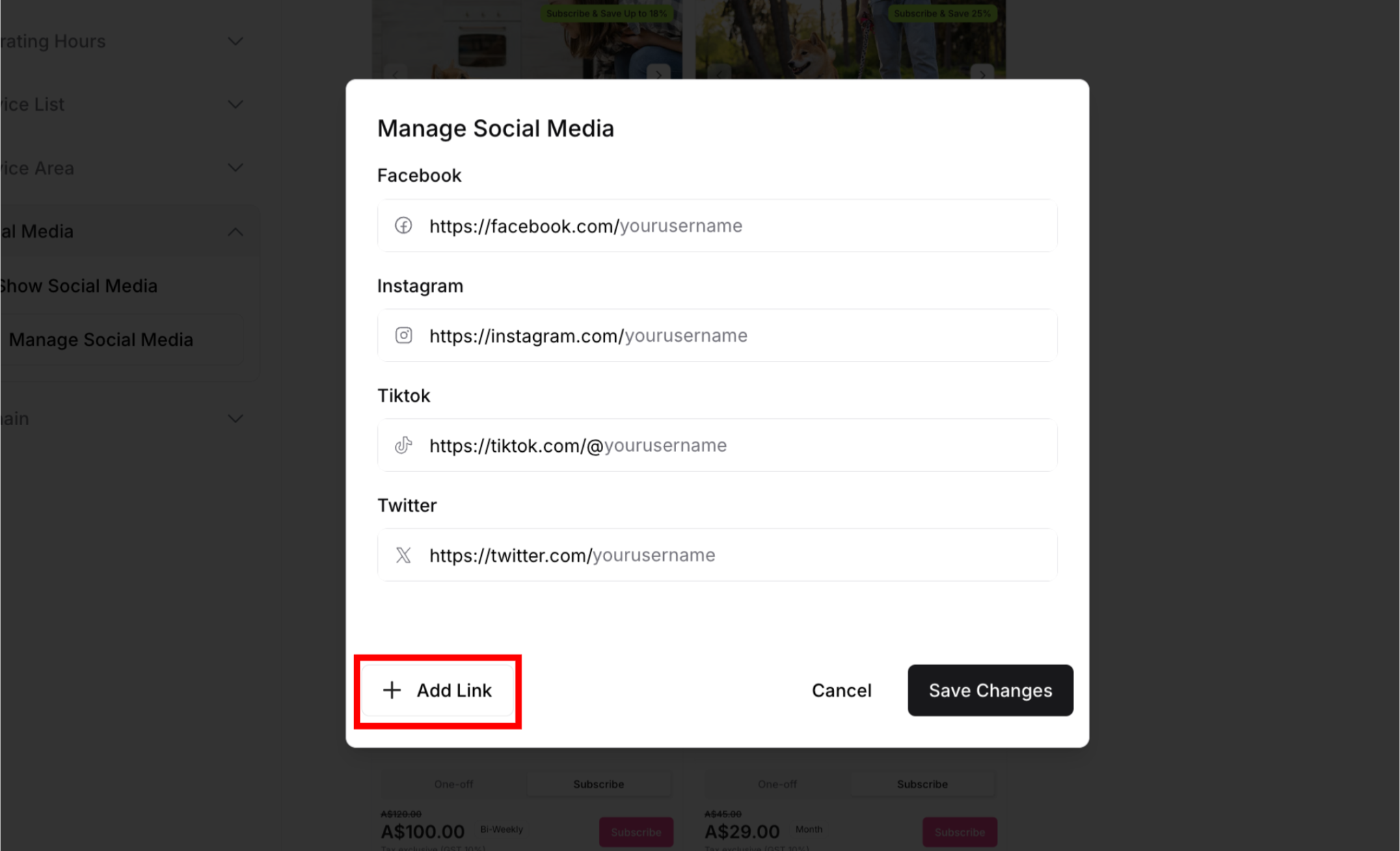
Enter Link Name:
Field: "Give your link a name"
Type platform name (e.g., "Website", "LinkedIn", "YouTube")
This is the label customers see
Enter Full Link:
Field: "Type your full link here"
Enter complete URL including https://
Example: https://www.yourwebsite.com
Example: https://linkedin.com/company/yourcompany
Add more custom links if needed:
Click + Add Link again
Repeat for each additional platform
No limit on custom links
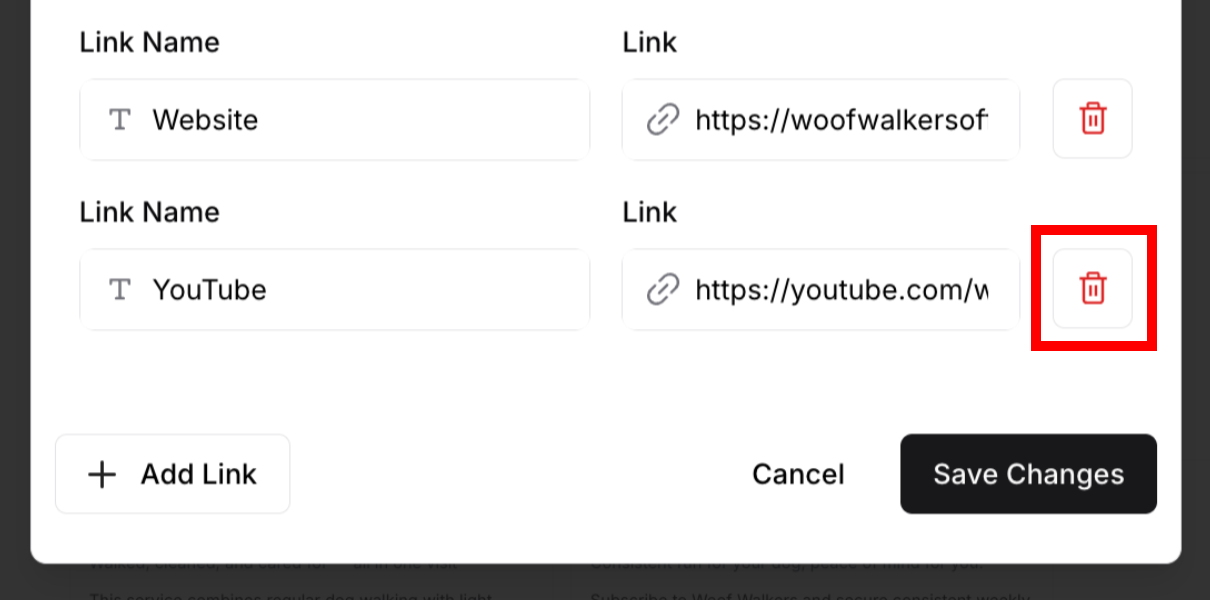
Remove custom links (if needed):
Click trash icon on right of link
Link removes immediately
No confirmation needed
Click Save Changes
Modal closes
Custom links appear as checkboxes in panel
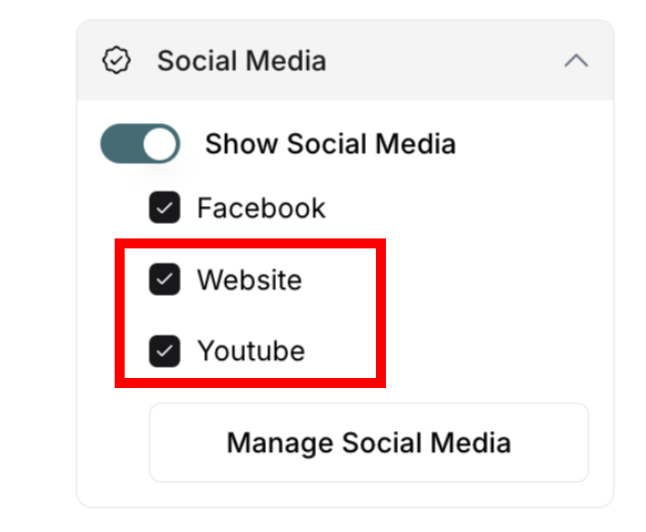
Custom link examples:
Website: https://www.yourbusiness.com
LinkedIn: https://linkedin.com/in/yourprofile
YouTube: https://youtube.com/@yourchannel
WhatsApp: https://wa.me/1234567890
? TIP: Custom links require full URL including https://. Default platforms only need username.
Showing and Hiding Individual Platforms
Control which platforms display on your site:
How Platform Checkboxes Work
After adding links in modal:
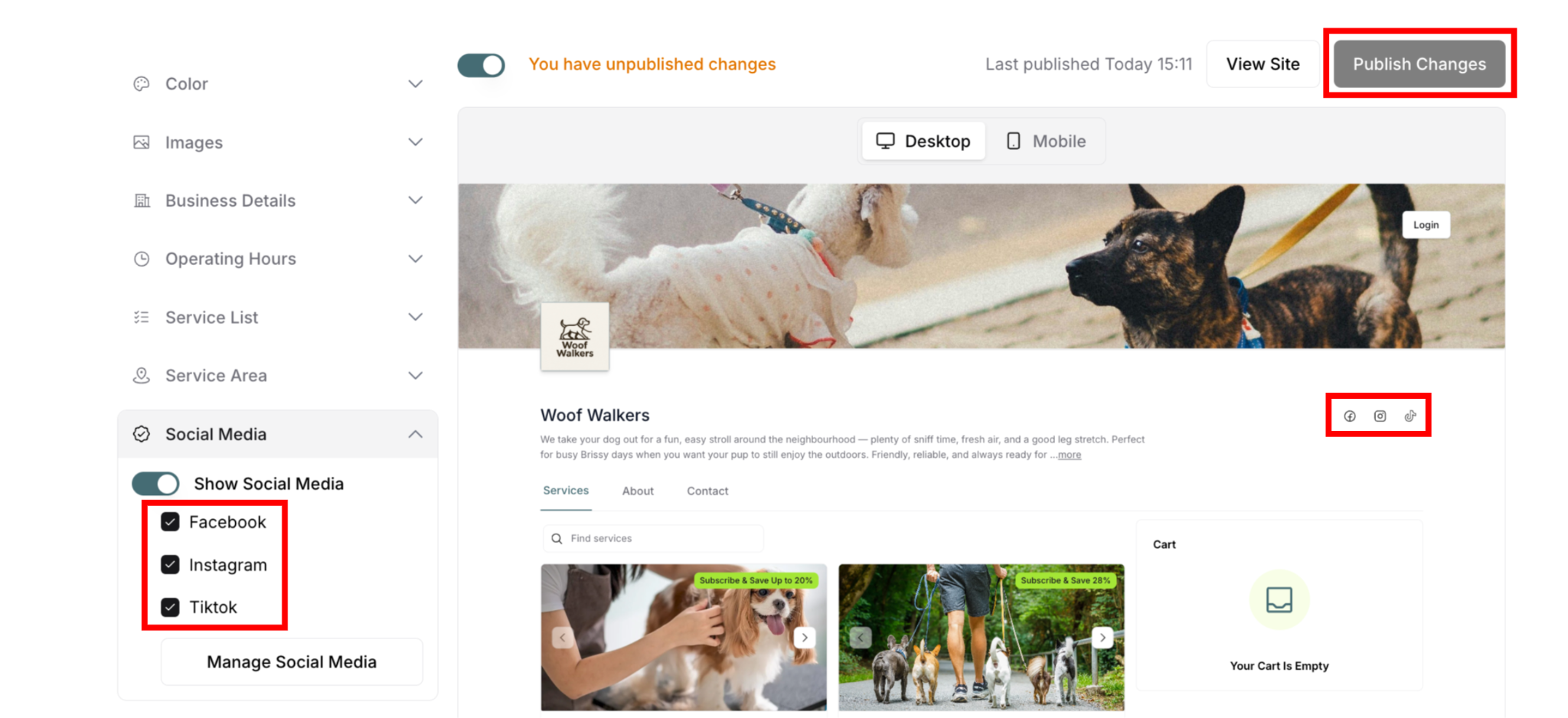
Checkboxes appear in Social Media panel:
One checkbox per platform
Shows platform name (Facebook, Instagram, etc.)
Shows custom link names you created
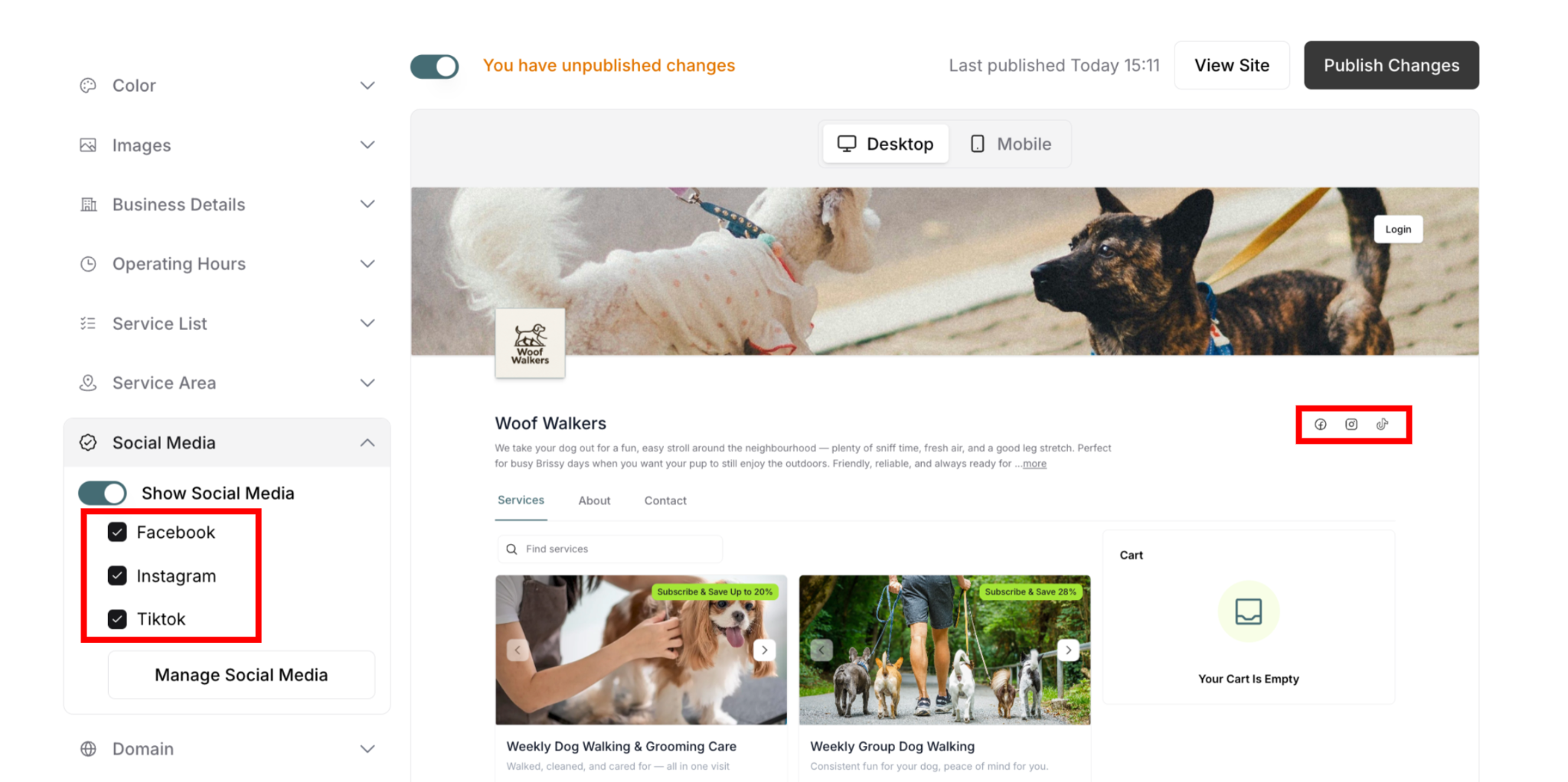
Checkbox states:
Checked (ticked):
Platform icon displays on site
Appears in top-right of preview
Visible to customers
Clickable link active
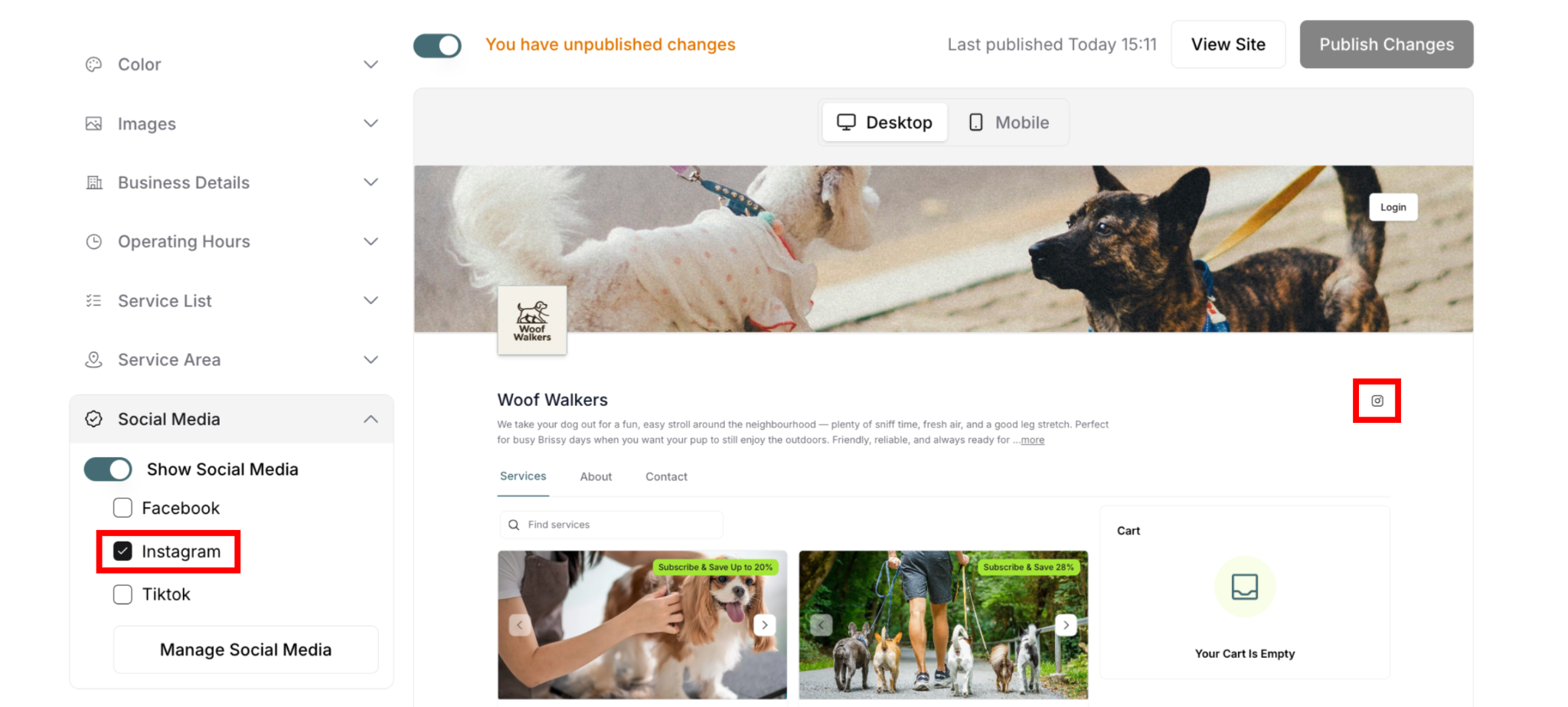
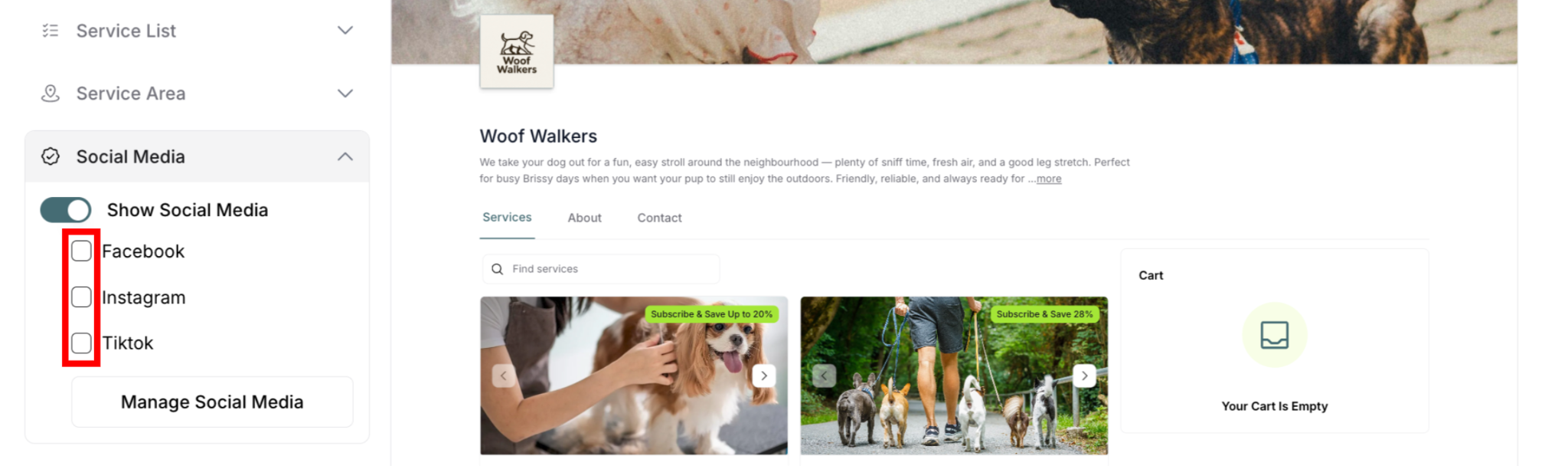
Unchecked (unticked):
Platform icon hidden from site
Not visible to customers
Link still saved (can check later)
How to Show a Platform
To display a social media icon:
Find platform checkbox in Social Media panel
Click checkbox to check it
Icon appears in preview (top-right corner)
Publish Changes to make live
Auto-checked platforms:
Default platforms with usernames automatically check
Custom links start unchecked
Must manually check to show
How to Hide a Platform
To hide a social media icon:
Find platform checkbox in Social Media panel
Click checkbox to uncheck it
Icon disappears from preview
Publish Changes to update live site
When to hide:
✅ Platform not ready to promote
✅ Temporarily inactive account
✅ Testing which platforms to show
✅ Inactive or abandoned platform
How Social Media Icons Display
Preview Display
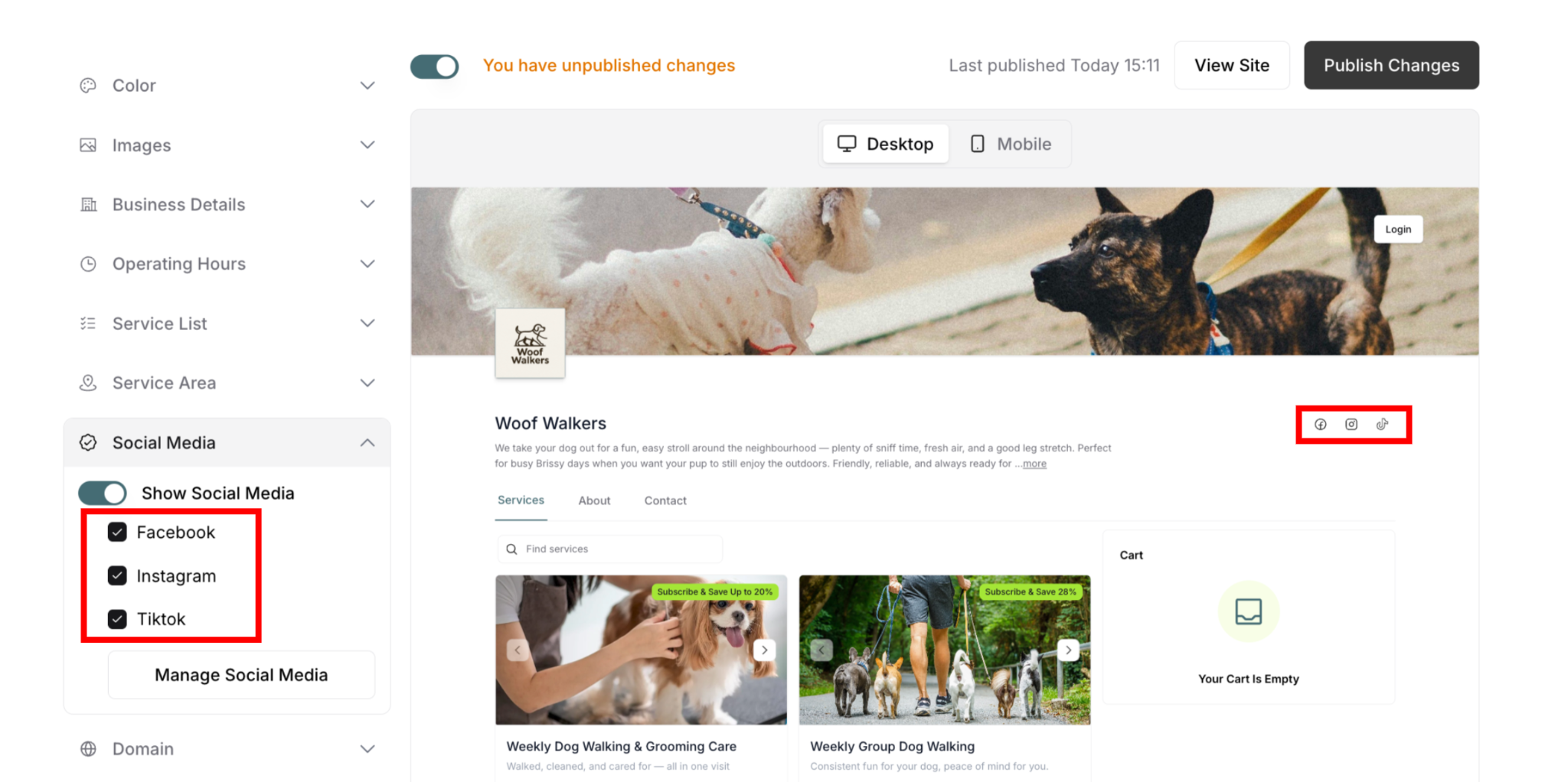
When platforms are checked:
Icons appear in top-right corner of preview:
Small circular or square icons
Platform brand colors
Arranged horizontally
Clickable in preview
Testing in preview:
Click any icon
Opens social media URL in new tab
Verify link works correctly
Check username is correct
Live Site Display
After publishing:
Icons appear in same location:
Top-right corner of page
Visible on all pages
Clickable links
Open in new tabs
Icon display order:
Facebook (if checked)
Instagram (if checked)
TikTok (if checked)
Twitter (if checked)
Custom links (if checked)
✍️ TIP: Always test icons in preview before publishing. Click each icon to verify it opens the correct profile.
Editing Social Media Links
Editing Default Platform Usernames
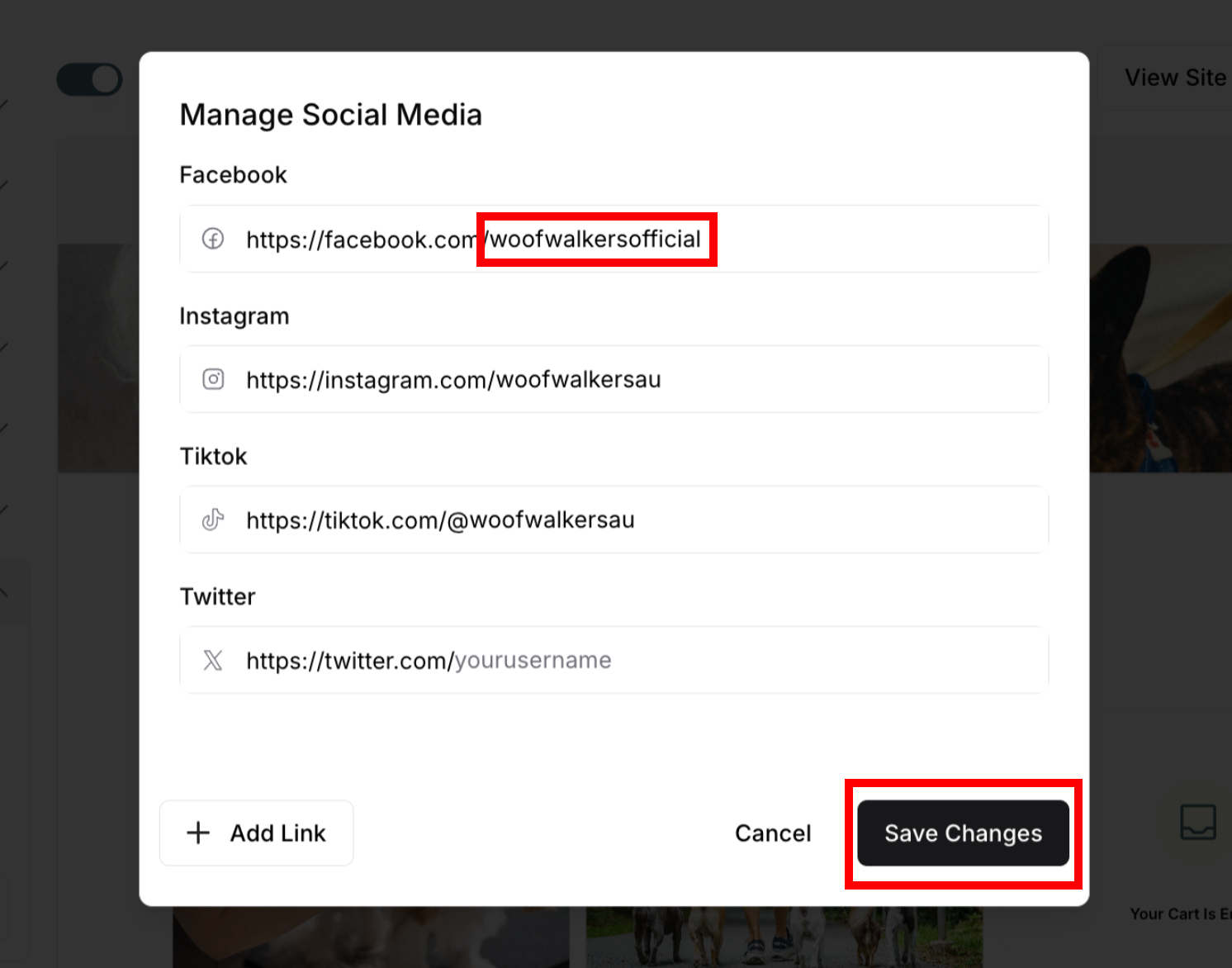
To change a username:
Click Manage Social Media button
Find platform in modal
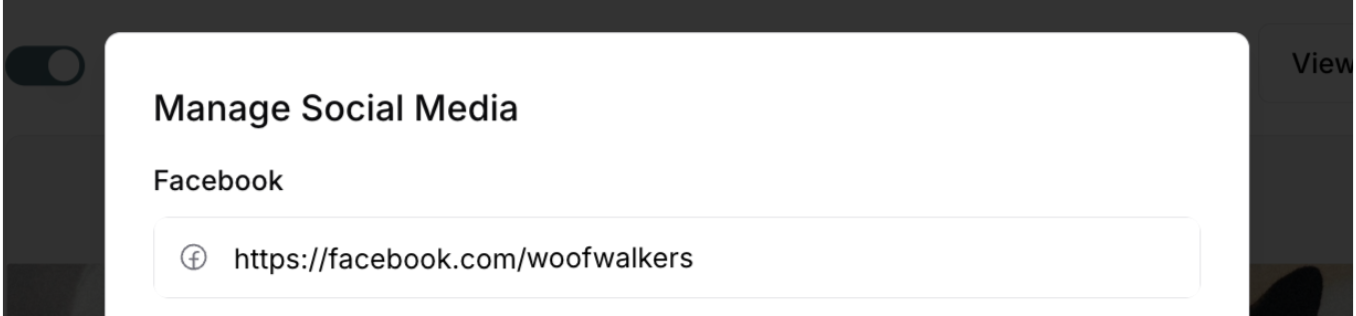
Clear current username
Type new username
Click Save Changes
Platform remains checked
Publish Changes
Editing Custom Links
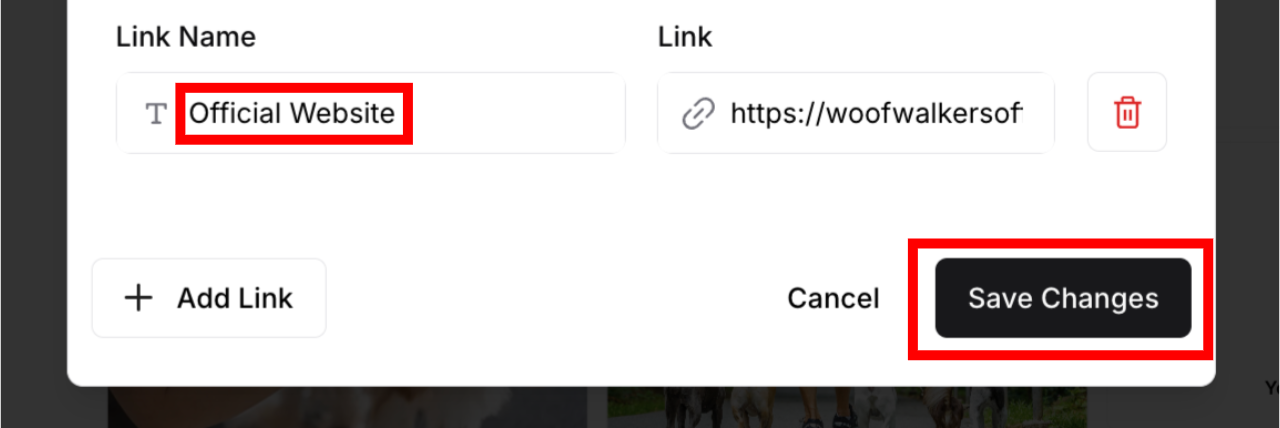
To change custom link:
Click Manage Social Media button
Find custom link in modal

Edit Link Name:
Click in "Give your link a name" field
Update name as needed
Edit URL:
Click in "Type your full link here" field
Update URL as needed
Click Save Changes
Publish Changes
Removing Links
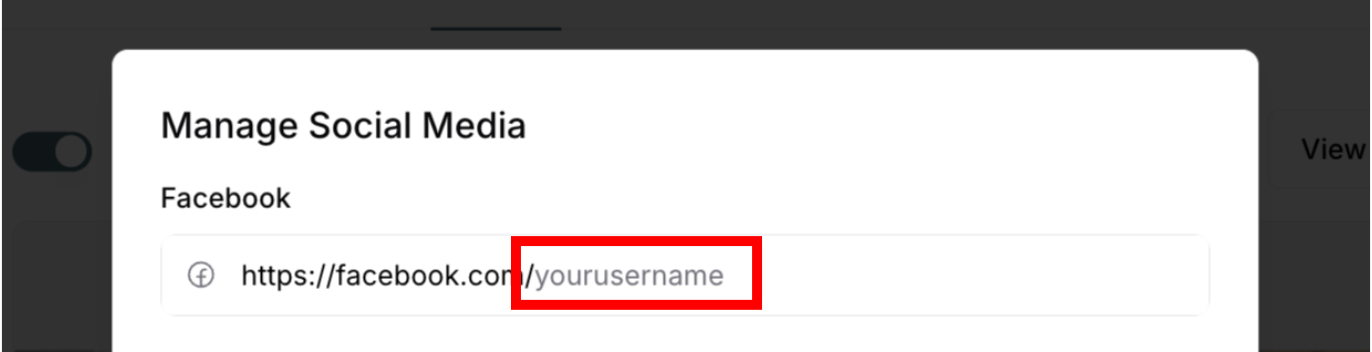
To remove default platform:
Open Manage Social Media modal
Clear username field completely
Save Changes
Checkbox disappears from panel
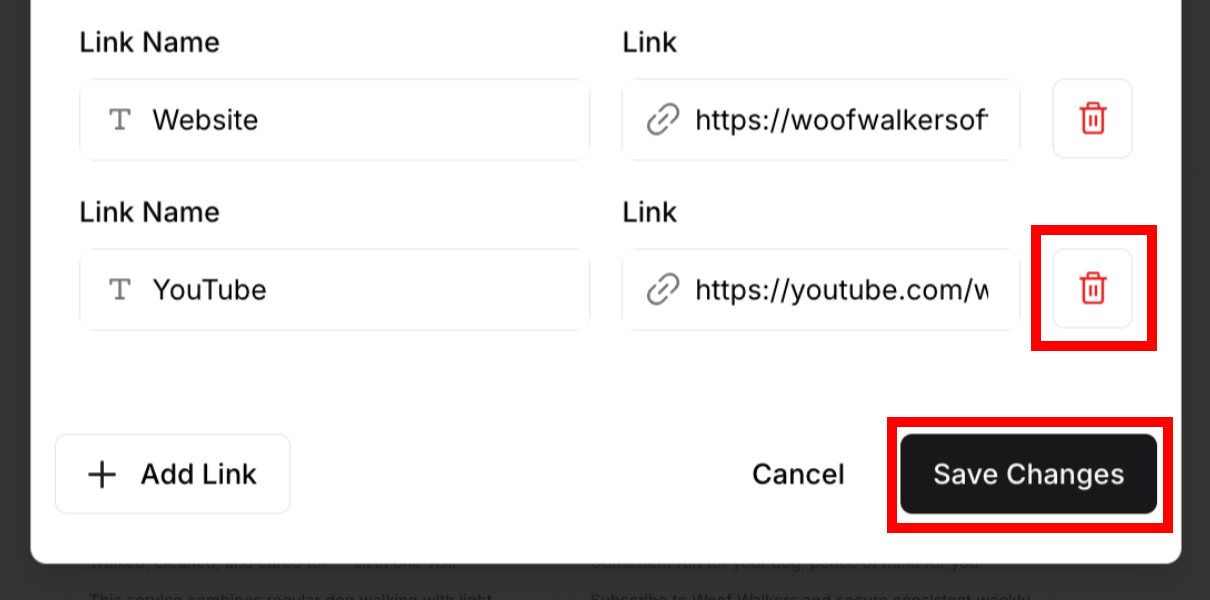
To remove custom link:
Open Manage Social Media modal
Click trash icon next to custom link
Link removes immediately
Save Changes
Checkbox disappears from panel
Saving and Publishing Changes
Saving Your Links
After managing social media:
Configure all platforms in modal
Click Save Changes in modal
Modal closes
Checkboxes appear in panel
Changes saved but not published yet
⚠️ CRITICAL: Saving in modal is not the same as publishing to live site.
Publishing Changes
To make social media icons live:
Verify Show Social Media toggle is ON
Check desired platform checkboxes
Verify icons appear in preview
Click Publish Changes button (top-right)
Wait for confirmation
Changes go live
Icons visible to customers
If you don't publish:
Changes remain unpublished
Preview shows icons
Live site shows old icons (or nothing)
Customers don't see updates
To verify published changes:
Click View Site after publishing
Check top-right corner for icons
Click each icon to test
Verify links work correctly
✍️ TIP: Only display social media platforms where you're genuinely active and responsive. Having 2-3 well-maintained platforms is better than 6+ inactive ones. Test all links in the preview before publishing to ensure customers can connect with you successfully.
Was this article helpful?
That’s Great!
Thank you for your feedback
Sorry! We couldn't be helpful
Thank you for your feedback
Feedback sent
We appreciate your effort and will try to fix the article